To use Google Docs, sign in to docs.google.com with a Google Account, click Blank to start a document, and type; every change saves to Google Drive automatically.
This guide covers signing in, creating and importing documents, formatting text and pages, sharing, comments, suggestions, version history, voice typing, printing and downloading.
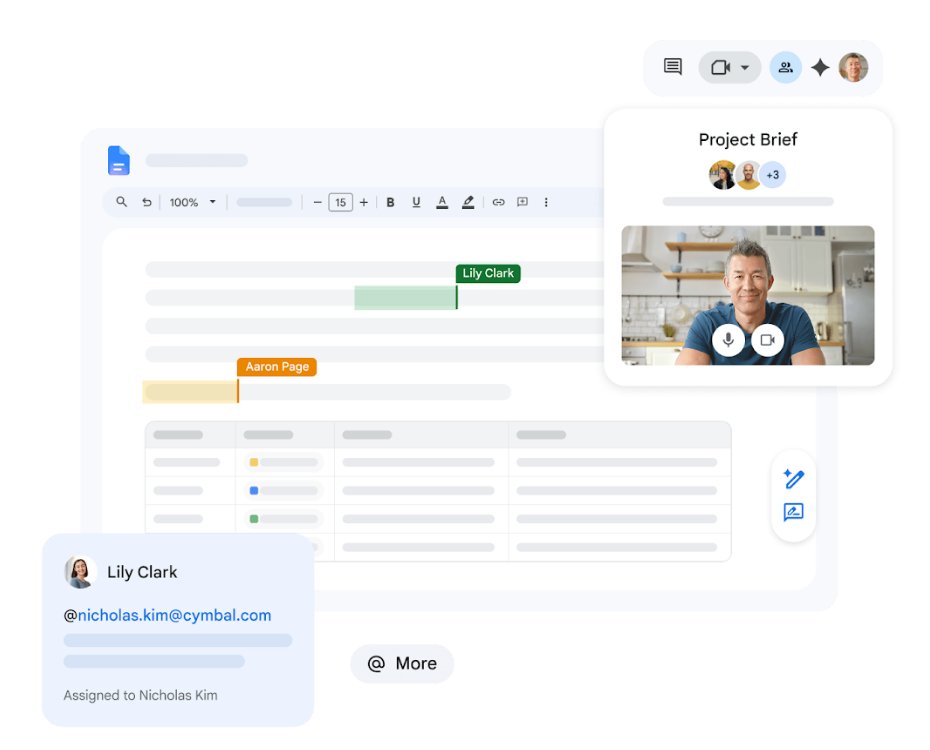
How to create a new document in Google Docs
Google Docs is an online word processor that runs in a web browser on a computer, with apps for Android, iPhone and iPad. There is nothing to install on a PC.
- Open docs.google.com in your browser and sign in.
- Under Start a new document at the top left, click Blank.
- Click Untitled document at the top of the page and type a name for the file.
- Click in the page and start typing.
- Use Undo and Redo in the toolbar to step back or forward through changes.
Typing docs.google.com/create in the address bar opens a new blank document in one step. The file appears in Google Drive and on the Docs home screen straight away.
The Google Docs login
Docs uses your Google Account, so the same email and password you use for Gmail, YouTube or an Android phone signs you in. A work or school account also works, though your organization may limit some features.
- Go to docs.google.com in Chrome, Edge, Safari or another current browser.
- Enter the email address of your Google Account and click Next.
- Enter your password and complete any 2-Step Verification prompt.
- Wait for the Docs home screen, which lists your recent documents and templates.
- On a phone or tablet, install the Google Docs app from Google Play or the App Store and sign in with the same account.
Documents you create on one device show up on the others, because the file lives in your Google Drive rather than on the device.
How to open a Word document in Google Docs
Docs can import Microsoft Word files and convert them. Conversion creates a Google Docs copy, and the original Word file stays in Drive unchanged.
- Open Google Drive and click New.
- Click File upload and choose the Word file on your computer.
- In the Upload complete window, click Show file location.
- Right-click the file and select Open with, then Google Docs.
- Edit the converted copy as you would any Google Doc.
Formatting text in Google Docs
Text formatting lives in the toolbar above the page. Select the text first, then pick the option; some buttons appear only when an image or table is selected.
| What you want | Toolbar control |
|---|---|
| Change the style, font or font size | The Normal text, font name and size boxes |
| Make text bold, italic or underlined, or change its colour | The B, I and U buttons and the text colour button |
| Highlight text | The highlight colour button |
| Align text left, centre, right or justified | The alignment button |
| Change line spacing or add a checklist, bullets or numbers | The line spacing and list buttons |
| Indent a paragraph | The increase and decrease indent buttons |
| Copy formatting from one passage to another | The Paint format brush |
| Strip all formatting from a selection | The Clear formatting button |
| Fix typos | The Spelling and grammar check button |
To turn a line into a heading, click it and pick Heading 1, Heading 2 or Title from the Normal text box. Headings matter later, because the table of contents is built from them.
For first-line and hanging indents beyond the toolbar buttons, the ruler gives finer control when you indent paragraphs in Google Docs.
Formatting documents in Google Docs
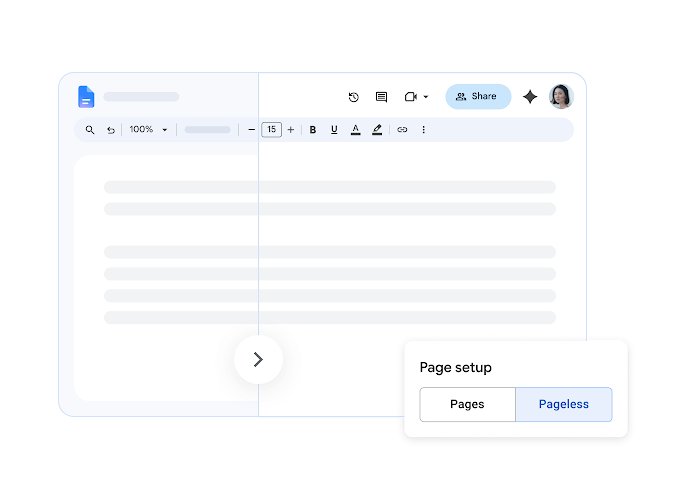
Page-level settings sit under File > Page setup. A document is either in Pages format, with page breaks, or Pageless, which scrolls continuously and lets wide tables and images fill the screen.
| Setting | Where to find it | Works in pageless? |
|---|---|---|
| Pages or pageless | File > Page setup, then Pages or Pageless; or Format > Switch to Pageless format | Yes |
| Orientation, paper size, margins, page colour | File > Page setup > Pages, then OK | No (background colour only) |
| Header or footer | Insert > Page elements > Header or Footer | No |
| Page numbers or page count | Insert > Page elements > Page number | No |
| Footnote | Insert > Page elements > Footnote | Yes, collected at the end |
| Table of contents | Insert > Table of contents | Yes |
Click Set as default in Page setup to apply the same paper size and margins in Google Docs to every new document you create.
Switching a document to pageless hides its headers, footers and watermarks. Switch back to pages and they appear again.
How to add a table of contents in Google Docs
The table of contents is generated from text that has a heading style applied, and each entry links to its heading.
- Apply Title, Heading 1 or Heading 2 styles to your section headings from the Normal text box.
- Click where the table of contents should go, usually below the title.
- Open the Insert menu and select Table of contents.
- Choose a layout from the options shown.
- After you add or rename headings, click the table of contents and refresh it so the entries match.
In a pageless document you can also collapse a heading: hover over it and click Collapse heading to the left of it.
How to share a Google Doc
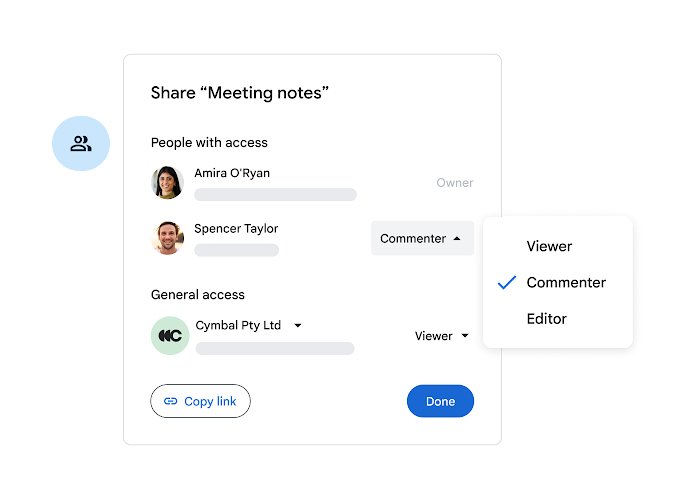
Sharing gives other people one of three roles. Viewer can only read, Commenter can add comments and suggestions, and Editor can change the file and, by default, share it.
- Open the document and click Share at the top right.
- Enter the email address of a person or a Google Group.
- Choose Viewer, Commenter or Editor.
- Leave Notify people ticked to send an email, or clear it to share quietly.
- Click Send.
- To share by link instead, open General access, choose Anyone with the link, pick the role, click Copy link and then Done.
Restricted keeps the file to people you added by name. A single file can be shared with up to 600 email addresses, and up to 100 open tabs or devices can edit it at the same time.
How to use suggesting mode in Google Docs
Suggesting mode works like tracked changes in Word: your edits show as proposals, and the owner decides whether to keep them.
- Open the document and click Editing at the top right.
- Select Suggesting from the drop-down.
- Edit the text. Additions appear in a new colour and deletions are crossed out.
- Click a suggestion and type a comment to explain it, then click Reply.
- The owner gets an email and can accept or reject each suggestion.
If Suggesting is missing, you only have view access. Click Request edit access, or ask the owner to share the file with you as a Commenter or Editor.
How to add comments in Google Docs
Comments are notes in the margin that do not change the text. Anyone with comment or edit access can add, reply to and resolve them.
- Select the text you want to comment on.
- Click the comment button in the toolbar.
- Type your comment and post it.
- To answer someone else's comment, click it and reply.
- When the discussion is finished, resolve the comment to close it.
With a comment selected, press R to reply, J and K to move to the next or previous comment, E to resolve and U to leave the comment.
Other useful Google Docs features
| Feature | What it does | Where to start |
|---|---|---|
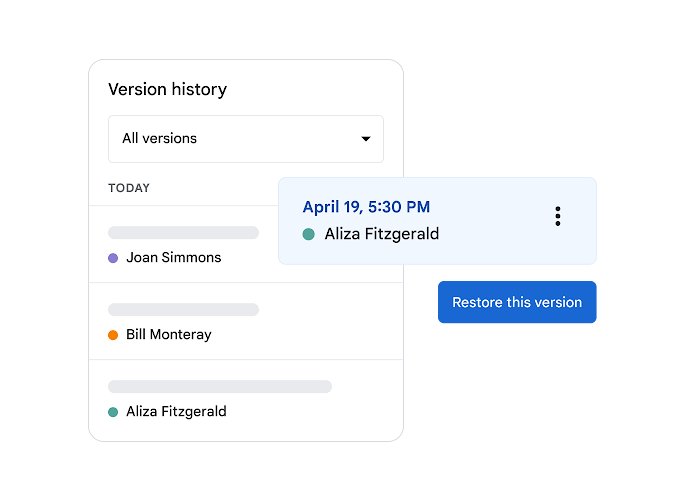
| Version history | Shows earlier versions, who changed what, and lets editors restore, copy or name a version | Hover over Last edit at the top right; editing access is required to browse versions |
| Voice typing | Turns speech into text in Chrome, Edge and Safari | Tools > Voice typing, then click the microphone |
| Templates | Ready-made layouts for letters, resumes, reports and proposals | The template gallery on the Docs home screen |
| Insert items | Adds images, tables, drawings, links and bookmarks | The Insert menu |
| Prints from the browser with your chosen settings | File > Print | |
| Offline editing | Lets you create and edit documents without an internet connection | Turn on offline access in Docs settings on the computer |
Offline access needs a one-time setup in a supported browser; the steps for using Google Docs offline cover Chrome and Edge.
The same Google Account also opens Google Sheets for spreadsheets, which follows the same sharing and comment model.
How to download a Google Doc as Word or PDF
Downloading makes a copy on your computer; the original stays in Google Drive and keeps saving changes.
- Open the document in Google Docs on your computer.
- Open the File menu and point to Download.
- Choose Microsoft Word (.docx) to edit it in Word, or PDF Document (.pdf) to send a fixed copy.
- Find the file in your browser's downloads folder.
Owners can stop viewers and commenters from downloading, printing or copying a file from Share > Settings.
Google Docs for beginners FAQ
Is Google Docs free?
Yes. Google Docs is free with a personal Google Account and runs in a web browser, with apps for Android, iPhone and iPad. Business and school accounts get it through Google Workspace, where an administrator may limit some features.
Do I need a Gmail account to use Google Docs?
You need a Google Account, and a Gmail address is one. A work or school Google Workspace account also signs in to Docs. Without signing in you can only open files that someone shared with Anyone with the link.
Does Google Docs save automatically?
Yes. Docs saves every change to Google Drive as you type, so there is no Save button. Earlier states of the document stay available in version history to anyone with edit access.
Can I use Google Docs offline?
Yes, after a one-time setup. Turn on offline access in a supported browser while you are online, and you can then create and edit documents without a connection. Changes sync when you reconnect.
Can Google Docs open Microsoft Word files?
Yes. Upload the Word file to Google Drive, right-click it and choose Open with, then Google Docs. That creates a converted Google Docs copy and leaves the original file untouched.
How do I see who edited a Google Doc?
Hover over Last edit at the top right of the document to see who changed it last and when. Version history shows earlier versions and who made each change, but you need edit access to browse it.
What is the difference between pages and pageless in Google Docs?
Pages format has page breaks, headers, footers, page numbers and margins. Pageless scrolls continuously, fits images and wide tables to the screen, and drops page-only elements. Switch between them under File, Page setup.
Can more than one person edit a Google Doc at the same time?
Yes. Share the file with people as Editors and everyone can type in it at once. Google allows up to 100 open tabs or devices to edit one file at the same time.