To set margins on Google Docs, click File > Page setup, select Pages, type the top, bottom, left and right values under Margins, then click OK.
This guide also covers dragging margins on the ruler, setting 1 inch margins, changing margins for one section, header and footer margins, print margins, Google Sheets margins and what the mobile apps can do.
Step by step tutorial on how to set margins on Google Docs
Page setup works in Google Docs in any desktop browser, on Windows, Mac or ChromeOS. It sets exact values for the whole document in one dialog.
- Open the document in Google Docs on your computer.
- In the toolbar, click File > Page setup.
- At the top of the dialog, select Pages.
- Under Margins, type new values for the top, bottom, left and right edges.
- Click OK to apply the margins to the document.
The page edges move as soon as the dialog closes, and the text reflows to the new width. Press Ctrl + Z right away if the layout breaks and you want the old margins back.
Page setup or ruler: ways to change margins in Google Docs
| Your situation | Use this | Why |
|---|---|---|
| You need an exact size, such as 1 inch on every side | File > Page setup | You type the number, so every edge is the same |
| You want to nudge the text width while looking at the page | Drag the ruler at the top of the document | Visual and fast, no dialog |
| Only part of the document needs different margins | Insert > Break > Section break, then Page setup for that section | Margins can differ per section, not per individual page |
| Every new document should start with your margins | Page setup > Set as default | New documents you create pick up the same settings |
| The header or footer sits too far from the edge | Format > Headers & footers > More options | Header and footer margins are set separately from page margins |
| The margins are for a spreadsheet printout | File > Print in Google Sheets | Sheets sets margins in its print settings, not in Page setup |
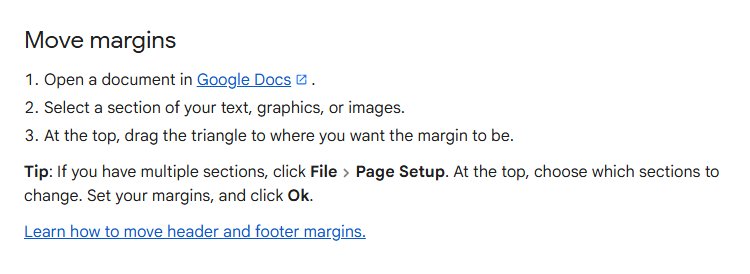
How to change Google Docs margins manually
The ruler runs along the top of the document and shows automatically when you open a file. If you cannot see it, click View > Show ruler to bring it back.
- Open the document in Google Docs.
- Select the text, graphics or images the margin change should apply to.
- On the ruler at the top, point to the small triangle at the left or right edge.
- Drag the triangle to where you want the margin to be.
- Release the mouse button and check how the text reflows.
Dragging is handy for quick visual changes, but it is hard to land on an exact value. Use Page setup when a teacher, publisher or form asks for a specific size.
The same ruler also controls paragraph indents, so if you only want one paragraph pushed in, indent the paragraph instead of moving the page margin.
How to change Google Docs margins using Page Setup
Page setup also controls orientation, paper size and page color, so check those while the dialog is open. It only works in pages format; a pageless document has no margins to set.
- If the document is pageless, click Format > Switch to Pages format first.
- Click File > Page setup.
- Select Pages at the top of the dialog.
- If the document has section breaks, use the setting at the top to choose the whole document or the current section.
- Enter the four values under Margins and adjust Orientation or Paper size if needed.
- Click Set as default if every new document should use these settings.
- Click OK.
How to set 1 inch margins on Google Docs
School papers and many style guides ask for 1 inch margins on every side. Page setup is the reliable way to get an exact inch.
- Open the document and click File > Page setup.
- Select Pages at the top of the dialog.
- Type 1 in the top, bottom, left and right margin boxes.
- Click Set as default if your next papers need the same margins.
- Click OK.
If the boxes show centimeters rather than inches, enter 2.54, which equals one inch.
How to change margins for a single page in Google Docs
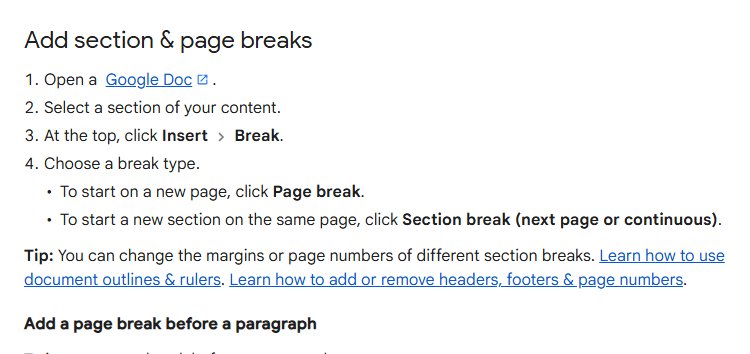
Google Docs sets margins per section, not per page. To give one page its own margins, wrap that page in section breaks, then change only that section.
- Click at the start of the page that needs different margins.
- Click Insert > Break > Section break (next page).
- Click at the end of that page's content and insert another Section break (next page).
- Click inside the page you isolated.
- Click File > Page setup and set the option at the top to this section only.
- Enter the new margins and click OK.
Section breaks are hidden by default. Click View > Show section breaks to see where each section starts and ends.
Use Section break (continuous) instead when the change should start partway down a page, such as a wider block quote.
How to change header and footer margins in Google Docs
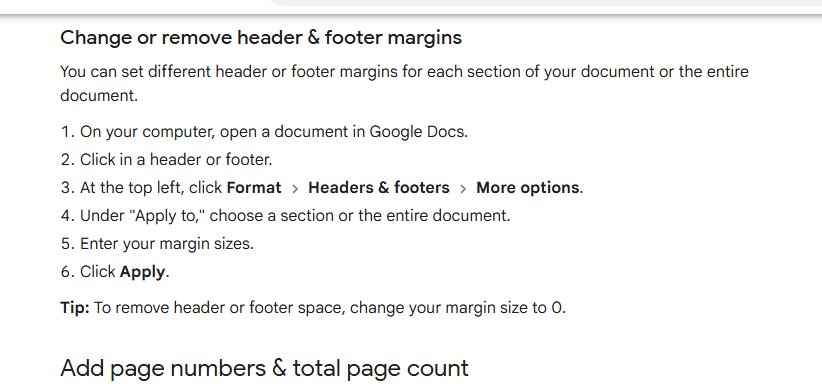
Header and footer margins control how far the header and footer sit from the top and bottom edges. They are separate from the page margins you set in Page setup.
- Open the document in Google Docs on your computer.
- Click inside the header or footer.
- At the top left, click Format > Headers & footers > More options.
- Under Apply to, choose a section or the entire document.
- Enter the header and footer margin sizes.
- Click Apply.
Set the value to 0 to remove the space a header or footer takes up. Headers and footers are hidden in pageless format, so switch to pages first.
Customizing the print margins in Google Docs
A Google Doc prints with the margins set in Page setup, so fix them there before you print rather than in the printer dialog.
- Click File > Page setup, set the margins you want on paper, then click OK.
- Check the page edges in the document; what you see is what prints.
- Click File > Print.
- In Chrome, choose your print settings in the window that opens and click Print.
- In Firefox or Safari, Google Docs downloads a PDF; open it and print from your PDF viewer with File > Print.
Printing to PDF this way is also how you send a fixed layout to someone who does not use Google Docs.
How to set margins on Google Sheets
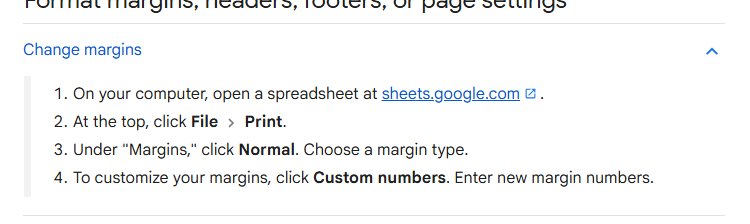
Google Sheets has no Page setup margins. Its margins live in the print settings and only affect printouts and PDFs.
- Open the spreadsheet at sheets.google.com on your computer.
- At the top, click File > Print.
- Under Margins, click Normal and choose a margin type.
- To set your own values, click Custom numbers and enter new margin numbers.
- Click Next, then Print in Chrome.
The same print panel sets Orientation and Paper size, and Set custom page breaks lets you drag where each printed page ends.
Can you set margins on a Google Doc on iPhone or Android?
| Where you edit | Page settings Google documents | Margins |
|---|---|---|
| Browser on Windows, Mac or ChromeOS | Orientation, paper size, margins, page color | Yes, File > Page setup or the ruler |
| Google Docs app for Android | Page size, page color, orientation, print preview | Not listed in Google's Android instructions |
| Google Docs app for iPhone and iPad | Page size, page color, orientation, print preview | Not listed in Google's iPhone and iPad instructions |
Set margins on a computer, and the phone app keeps them when you open the same file. If you edit without a connection, Google Docs offline on a computer still lets you open Page setup.
Why can't I change margins in Google Docs pageless format?
| Format | Margins | What you can change |
|---|---|---|
| Pages | Yes, in File > Page setup or on the ruler | Orientation, paper size, margins, page color, headers, footers, page numbers |
| Pageless | No; Page setup margins are unavailable | Background color and text width under View > Text width (narrow, medium or wide) |
Switch with Format > Switch to Pages format, or pick Pages in File > Page setup. Pageless text width is a personal view setting and does not change what collaborators see.
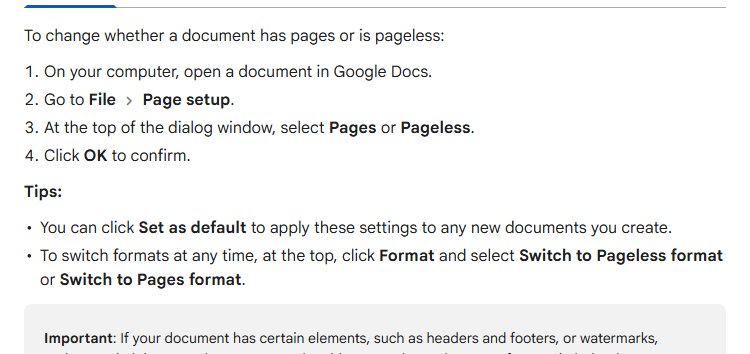
Creating documents in Google Docs
Saving your margins as the default means every new document starts with them, so you set them once instead of on every file.
- Open any document in Google Docs and click File > Page setup.
- Select Pages and set the margins, orientation and paper size you use most.
- Click Set as default, then OK.
- Open the Docs home screen at docs.google.com and, under Start a new document, click Blank.
- Open File > Page setup in the new document and check that your margins are already filled in.
If you prefer an app window on the desktop, you can install Google Docs on Windows or Mac; the same Page setup dialog applies.
Tips on how to set margins on Google Docs
| Tip | Why it helps |
|---|---|
| Type values in Page setup when a size is required | Ruler drags rarely land on an exact measurement |
| Switch the document to pages format first | Pageless documents have no margins, headers or page numbers |
| Use section breaks for pages that need different margins | Margins apply per section, not per page |
| Turn on View > Show section breaks | You can see which section a margin change will hit |
| Click Set as default after setting your usual margins | New documents start with the same layout |
| Set header and footer margins separately | Page margins do not move the header or footer |
| Check the layout on screen before printing | Docs prints with the Page setup margins |
Google Docs margins FAQ
How do I set margins in Google Docs?
Click File > Page setup, select Pages, enter the top, bottom, left and right values under Margins and click OK. You can also drag the triangle on the ruler at the top of the document for a quick visual change.
How do I set 1 inch margins on a Google document?
Open File > Page setup, select Pages and type 1 in each of the four margin boxes, then click OK. Click Set as default before OK if all your new documents should use 1 inch margins.
How do I reset margins to the default setting?
Open File > Page setup and type the values you want as your standard, then click Set as default and OK. Google's help does not publish a factory margin value, so enter the size your school or office requires.
Can I set different margins for different pages within the same document?
Yes, by section. Insert a section break before and after the content with Insert > Break, click inside that section, open File > Page setup, choose that section and enter new margins. The rest of the document keeps its margins.
Is there a way to set margins using the ruler?
Yes. Select the content, then drag the triangle on the ruler at the top of the document to where the margin should be. If the ruler is missing, click View > Show ruler to display it.
Can I set margins for a Google Doc on mobile?
Google's Android, iPhone and iPad instructions cover page size, color and orientation, not margins. Set the margins in a browser on a computer; the phone app keeps them when you open the file.
What's the smallest margin size I can set?
Google does not state a minimum page margin in its help pages. Header and footer margins can be set to 0 to remove their space. Very small page margins may be clipped by printers that cannot print to the edge.
Why is Page setup not showing margins?
The document is in pageless format, which has no margins. Click Format > Switch to Pages format, or select Pages at the top of File > Page setup, and the margin boxes appear.
How do I adjust margins in Google Docs for printing?
Set them in File > Page setup before you print, because Google Docs prints with those margins. Then click File > Print and choose your printer settings in Chrome, or print the downloaded PDF in Firefox or Safari.
How do I set margins in Google Sheets?
Click File > Print in the spreadsheet, then under Margins click Normal and choose a margin type, or click Custom numbers and enter your own values. Sheets margins only affect printouts and PDFs.
Best way to set margins on a Google Doc
Use File > Page setup whenever a size is specified, and keep the ruler for quick visual tweaks. Page setup takes exact values, can target one section and can save your margins as the default for new documents, while ruler drags are approximate. Switch the file to pages format first, because pageless documents have no margins at all.