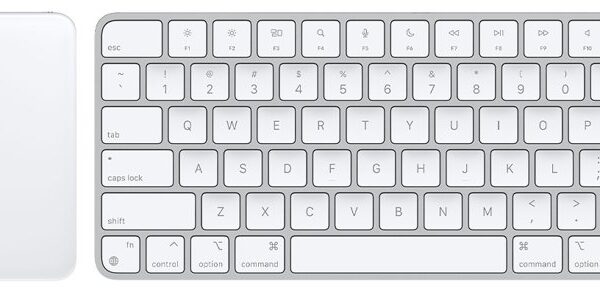
Hold Alt and type 0161 on the numeric keypad to type the upside down exclamation point (¡) on Windows.
This guide covers every route on Windows, Mac, Chromebook, iPhone, iPad and Android, the Spanish keyboard layouts, the Word and HTML codes, and fixes for when the character will not appear.
How to type the upside down exclamation point with Alt + 0161
The Alt code works in any Windows program that accepts typed text, as long as the keyboard has a numeric keypad.
- Click where the ¡ should go.
- Turn on Num Lock if your keyboard needs it to type numbers on the keypad.
- Press and hold Alt.
- Type
0161on the numeric keypad, not the number row. - Release Alt, and ¡ appears at the cursor.
The same method gives the upside down question mark: hold Alt and type 0191 for ¿.
Quick reference: all the ways to type ¡ at a glance
| Your device or app | Do this | Why |
|---|---|---|
| Windows with a numeric keypad | Hold Alt, type 0161 on the keypad |
One key combination in any app |
| Windows laptop without a keypad | Press Windows logo key + ., then open Symbols | Alt codes need the numeric keypad |
| Microsoft Word or classic Outlook | Press Alt + Ctrl + Shift + ! | Office's built-in shortcut, no keypad needed |
| Word, by Unicode code | Type 00A1, then press Alt + X |
Word converts the code in place |
| Mac | Press Control + Command + Space bar and search for the character | Character Viewer inserts at the cursor |
| Chromebook or Google Docs | Use Insert > Symbols > Special characters in Docs, or add a Spanish keyboard | ChromeOS has no Alt codes |
| iPhone or iPad | Tap 123, then touch and hold ! | The extra characters sit behind the related symbol |
| Android with Gboard | Open the symbols keyboard and touch and hold ! | Gboard reveals more options on touch and hold |
| Writing HTML | ¡ or ¡ |
The browser renders ¡ from the entity |
| Anywhere else | Copy ¡ from this page and paste it | Works in every app that shows text |
How to type the upside down exclamation point on Windows (US & International keyboards)
The Windows emoji panel is the route for laptops with no numeric keypad. It has a Symbols category alongside emoji and kaomoji, and it works on any keyboard layout.
- Click where you want the character.
- Press Windows logo key + . (period) to open the emoji panel.
- Select the Symbols category.
- Browse the punctuation characters until you reach ¡.
- Select ¡ to insert it at the cursor.
Characters you pick once appear in the panel's recently used list, so the second time takes two clicks.
Other symbols follow the same pattern, including the degree sign on a keyboard and the does not equal sign.
Type ¡ in Microsoft Word and Outlook with Alt + Ctrl + Shift + !
Word and classic Outlook have their own shortcut for ¡, and it does not need a numeric keypad.
| App | Do this | Result |
|---|---|---|
| Word for Microsoft 365, Word 2024, Word 2021 | Press Alt + Ctrl + Shift + ! | Inserts ¡ |
| Word, Unicode route | Type 00A1, then press Alt + X |
The code turns into ¡ |
| Word, dialog route | Go to Insert > Symbol > More Symbols, select ¡, then Insert | Shows the character code for next time |
| Classic Outlook | Press Alt + Ctrl + Shift + ! | Inserts ¡ in the message |
| New Outlook for Windows | Hold Alt and type 0161 on the keypad |
Inserts ¡ in the message |
| PowerPoint | Copy ¡ from Character Map and paste it | PowerPoint cannot convert Unicode codes |
| Google Docs and Slides | Go to Insert > Symbols > Special characters and enter 00A1 |
Click ¡ to add it |
The same pattern gives ¿ in Word: Alt + Ctrl + Shift + ?.
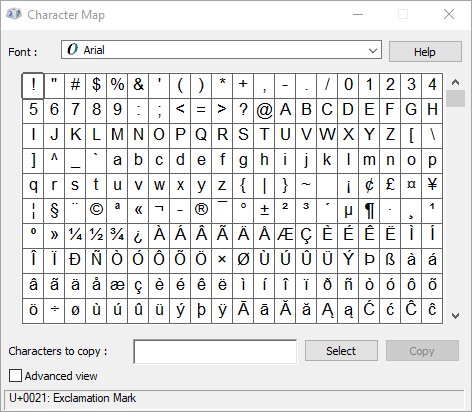
Copy ¡ from Character Map in Windows
Character Map is the fallback for programs that ignore Alt codes and Unicode codes.
- Press the Windows key, type
Character Map, then press Enter. - Select the Advanced view check box.
- Set Character set to Unicode.
- Type
00A1in the Go to Unicode box. - Click the highlighted ¡, click Select, then click Copy.
- Press Ctrl + V where you want the character.
How to type the upside down exclamation point on Mac (macOS keyboard shortcuts)
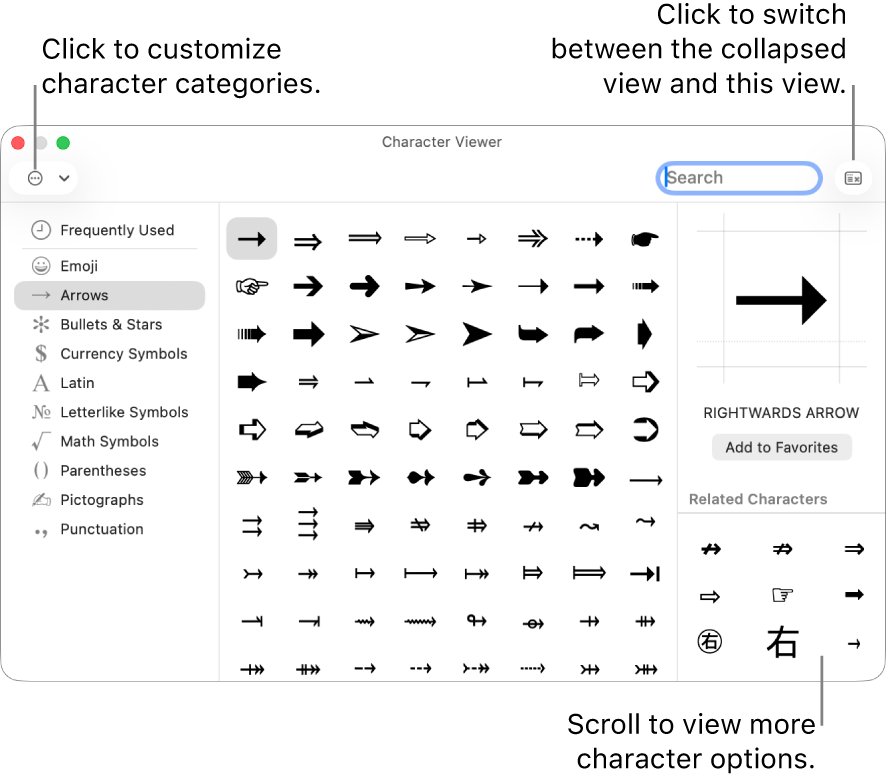
macOS keeps every symbol in the Character Viewer, which opens over the app you are typing in.
- Click where you want the character.
- Press Control + Command + Space bar, or choose Edit > Emoji & Symbols.
- Type
inverted exclamationin the search field. - Click ¡ to insert it into your text.
- To keep it handy, expand the viewer, select ¡ and click Add to Favorites.
Fn + E or Globe + E opens the same viewer on newer Macs, the same shortcut you use to type emojis on a Mac.
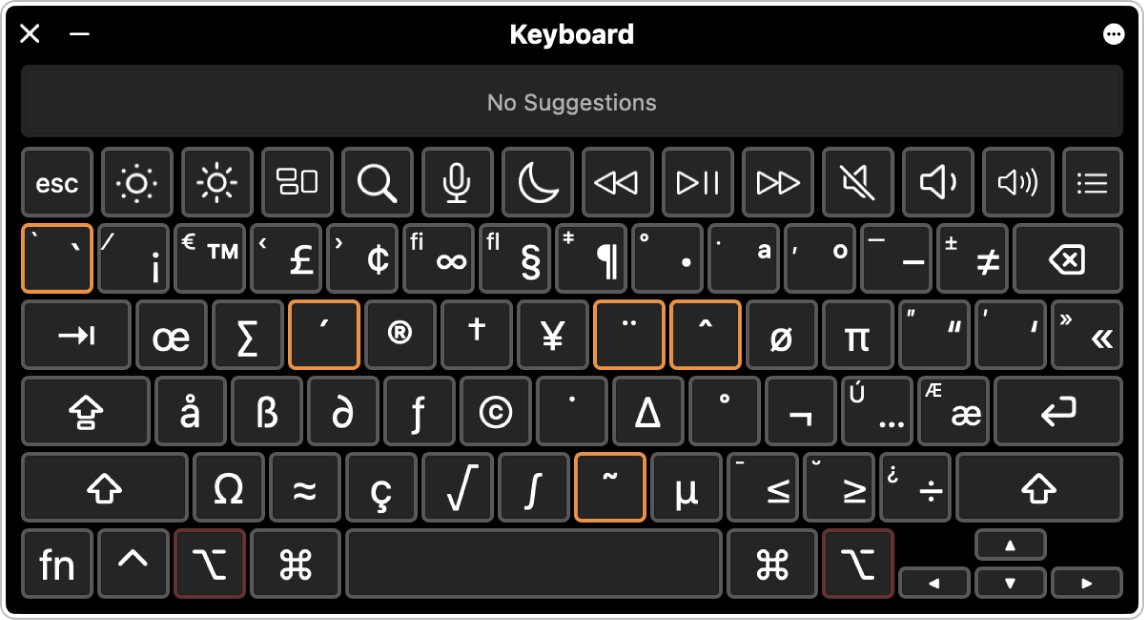
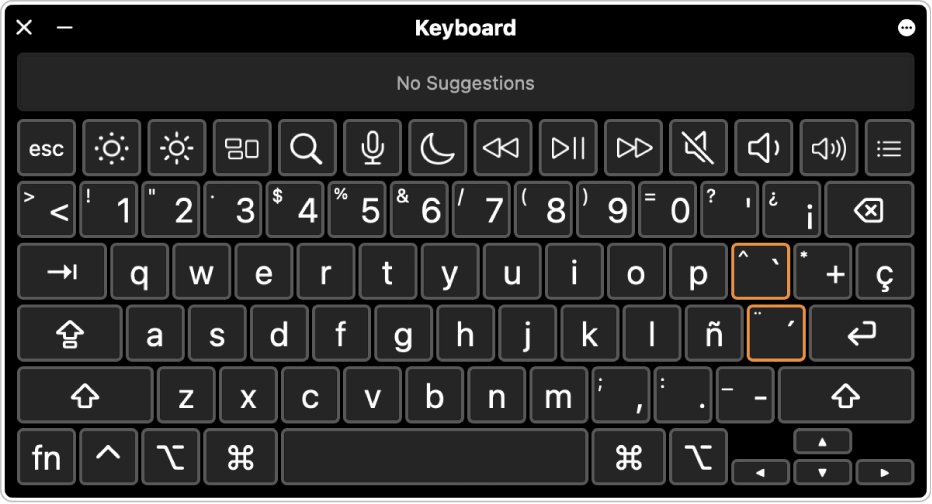
To find the key that types ¡ on your layout, choose Show Keyboard Viewer from the Input menu, then hold Option. The Keyboard Viewer shows the character each key produces while Option is held, so you can learn the shortcut for your own layout.
How to type ¡ on Chromebooks and ChromeOS devices
ChromeOS has no Alt codes, so the reliable routes are a Spanish keyboard layout or the special characters tool in Google Docs.
- Select the time at the bottom right, then open Settings.
- Go to Device > Keyboard > Change input settings.
- Under Input methods, add a Spanish keyboard.
- Press Ctrl + Shift + Space until the Spanish keyboard is selected.
- Type ¡ with its key on the top row, then press Ctrl + Space to switch back.
In Google Docs or Slides, Insert > Symbols > Special characters finds ¡ when you enter 00A1 or search by name.
Search + Shift + Space opens the ChromeOS emoji picker, which is the place to look for symbols in other apps.
How to type the upside down exclamation point on iPhone and iPad (iOS & iPadOS)
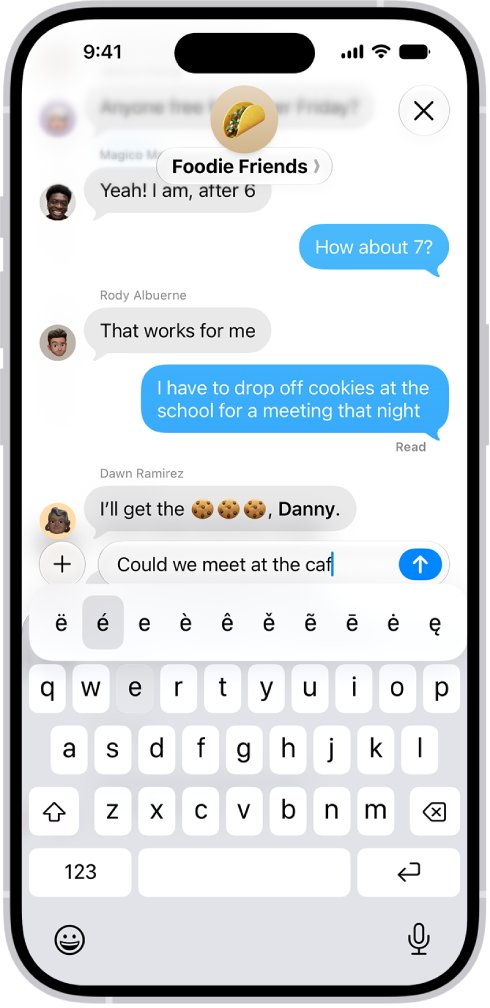
Apple's keyboard hides special characters behind the letter, number or symbol they relate to, so ¡ lives behind the exclamation mark.
- Tap a text field so the onscreen keyboard opens.
- Tap 123 to switch to numbers and punctuation.
- Touch and hold !.
- Slide your finger to ¡ and release.
The same gesture on ? gives ¿. For daily Spanish writing, add a Spanish keyboard in Settings > General > Keyboard > Keyboards > Add New Keyboard.
How to type ¡ on Android phones and tablets
Gboard, the default keyboard on most Android phones, shows extra characters when you touch and hold a key.
- Tap a text field to open the keyboard.
- Switch to the numbers and symbols keyboard.
- Touch and hold ! until the extra characters appear.
- Slide to ¡ and lift your finger.
Samsung Keyboard and other third-party keyboards place symbols differently, so touch and hold the exclamation mark first and then check the symbols pages.
Typing ¡ with international, Spanish, and Latin American keyboard layouts
Keyboards made for Spanish-speaking countries carry ¡ and ¿ on a key of their own, on the right of the top row. Adding the layout in software gives you the same key.
| Platform | Add the layout | Switch to it |
|---|---|---|
| Windows 11 | Settings > Time & language > Language & region, select … next to your language, Language options > Add a keyboard | Windows logo key + Spacebar |
| Windows 10 | Settings > Time & language > Language, select the language > Options > Add a keyboard | Windows logo key + Spacebar |
| Mac | Apple menu > System Settings > Keyboard > Text Input > Edit, click +, choose Spanish, then Add | Control + Option + Space bar, or the Input menu |
| Chromebook | Settings > Device > Keyboard > Change input settings > Input methods | Ctrl + Shift + Space |
| iPhone and iPad | Settings > General > Keyboard > Keyboards > Add New Keyboard | Touch and hold the globe key |
To add a Spanish keyboard on Windows, Spanish must be in Preferred languages first; use Add a language if it is missing. On Windows 11 you can then switch keyboard languages from the input indicator on the taskbar.
Not sure where ¡ sits on a new layout? On Windows, open the On-Screen Keyboard while the layout is active; on a Mac, use the Keyboard Viewer. Both redraw the keys for the active layout.
How to check you typed ¡ and not the letter i
¡ looks close to a lowercase i or a pipe in some fonts, and spell checkers will not flag the swap.
- Select the character and press Ctrl + C.
- Open Character Map and select Advanced view.
- Type
00A1in Go to Unicode to highlight the real ¡. - Compare its shape with your pasted character: ¡ has a dot on top and descends below the baseline.
In Word, place the cursor right after the character and press Alt + X. A real ¡ turns into 00A1; press Alt + X again to change it back.
Tips for language learners: when and how to use ¡ correctly in Spanish writing
Spanish opens an exclamation with ¡ and closes it with !, so the reader knows the tone from the first word.
| Rule | Example | Note |
|---|---|---|
| Open and close every exclamation | ¡Qué bonito! | The Real Academia Española has recommended the opening mark since 1754 |
| Place ¡ where the exclamation starts | Si vienes, ¡qué alegría! | Not at the start of the whole sentence |
| Mix marks for a surprised question | ¡Y tú quién te crees? | Accepted when a question is also an exclamation |
| Nest both pairs for emphasis | ¿¡Y tú quién te crees!? | One type outside, the other inside |
| Capitalise after ¡ only at a sentence start | Si vienes, ¡qué alegría! | Lowercase mid-sentence |
| Upside down question mark | ¿Cuántos años tienes? | Same rule, typed with Alt + 0191 |
Many Spanish speakers drop ¡ in quick text messages, but formal writing, school work and published text keep it.
Troubleshooting: what to do if you can’t find or type the upside down exclamation point
Alt + 0161 does nothing
The digits went in on the number row, Num Lock is off, or the laptop has no numeric keypad.
- Press Num Lock and check its indicator light.
- Retype
0161on the numeric keypad while holding Alt. - With no keypad, press Windows logo key + . and pick ¡ from Symbols.
- For an onscreen keypad, go to Start > Settings > Accessibility > Keyboard, turn on On-Screen Keyboard, then select Options > Turn on numeric keypad.
Alt + Ctrl + Shift + ! types nothing outside Word
That shortcut belongs to Word and classic Outlook, not to Windows.
- Use Alt +
0161on the numeric keypad instead. - Or open the emoji panel with Windows logo key + . and pick ¡.
Keys type the wrong symbols after adding a Spanish keyboard
Windows logo key + Spacebar switched the layout without you noticing.
- Look at the input indicator in the system tray.
- Select it and choose your usual layout.
- Remove layouts you do not use from Language options to stop accidental switches.
Alt + X turns the wrong text into a character
Word reads the hex characters just before the cursor, so it can swallow letters from your word.
- Press Ctrl + Z.
- Select only
00A1, then press Alt + X. - Or type
U+00A1and press Alt + X.
The Mac Character Viewer will not open
The shortcut works only where a text cursor is active.
- Click inside a text field so the cursor blinks.
- Choose Edit > Emoji & Symbols from the menu bar.
- Turn on Show Input menu in menu bar in System Settings > Keyboard > Text Input > Edit, then use the Input menu.
No ¡ appears when holding ! on a phone
Some third-party keyboards put ¡ on a different symbols page.
- Open the second symbols page and look for ¡.
- Add a Spanish keyboard, which puts ¡ on its symbols layer.
- Copy ¡ from a web page and paste it as a fallback.
Upside down exclamation point FAQ
How do I type the upside down exclamation mark on a PC?
Hold Alt and type 0161 on the numeric keypad with Num Lock on. On a laptop with no keypad, press Windows logo key + period, open Symbols and pick ¡. In Word, Alt + Ctrl + Shift + ! also inserts it.
How do I type the upside down question mark?
Hold Alt and type 0191 on the numeric keypad to get ¿ on Windows. In Word, press Alt + Ctrl + Shift + ?. On iPhone and Android, touch and hold the question mark on the symbols keyboard and slide to ¿.
How do I type the upside down question mark on Windows without a numeric keypad?
Press Windows logo key + period to open the emoji panel, select Symbols and pick ¿. Character Map works too: open it, select Advanced view, type 00BF in Go to Unicode, then copy the character.
How do I type upside down on a keyboard?
The upside down punctuation marks ¡ and ¿ are separate characters, typed with Alt + 0161 and Alt + 0191 on Windows. Keyboards do not flip other letters; upside down text uses lookalike characters from other alphabets.
How do I type upside down text or words?
No keyboard shortcut flips whole words. Upside down text is built from lookalike Unicode characters, such as ¡ for i. Each character must be inserted individually from Character Map or the Character Viewer, and some fonts will not display all of them.
What is the Alt code for the upside down exclamation point?
The Alt code is Alt + 0161, typed on the numeric keypad. The Unicode code point is U+00A1, which Word converts when you type 00A1 and press Alt + X. In HTML, use ¡ or ¡.
How do I type the upside down exclamation point on a Mac?
Press Control + Command + Space bar to open the Character Viewer, search for inverted exclamation and click ¡. To learn your layout's key for it, open the Keyboard Viewer from the Input menu and hold Option.
How do I type the upside down exclamation point in Microsoft Teams?
Teams on Windows accepts Alt + 0161 on the numeric keypad and the Windows emoji panel. The Word shortcut Alt + Ctrl + Shift + ! does not apply there, because it belongs to Word and classic Outlook.
Why does Spanish use the upside down exclamation point?
It tells the reader an exclamation is starting, because Spanish statements and exclamations can use the same words. The Real Academia Española recommended the opening marks in 1754, and standard Spanish still pairs ¡ with a closing !.
Bottom line: the best way to type ¡
Use Alt + 0161 on a Windows keyboard with a keypad, the Character Viewer on a Mac, and touch and hold ! on a phone. Those three cover nearly every device without extra setup; add a Spanish keyboard layout only if you type ¡ and ¿ every day.