To type the crying laughing emoji 😂 on a Windows keyboard, press Windows key + . (period), type joy or tears to search, and select it; on a Mac press Fn/Globe + E.
This guide covers every device, including iPhone, iPad and Android, plus the Unicode code U+1F602, text shortcuts that insert it automatically, and fixes when it shows as a square.
Methods to Type the Crying Laughing Emoji on Different Devices
| Device | Fastest way | Then |
|---|---|---|
| On Windows (desktop) | Press Windows key + . (period) in any text field | Type tears or joy and pick 😂 |
| On Mac (desktop) | Press Fn/Globe + E, or choose Edit > Emoji & Symbols | Search laughing or tears and click 😂 |
| On iPhone and iPad (mobile) | Tap the emoji or globe key on the keyboard | Find 😂 in Smileys, or tap the suggestion above the keyboard |
| On Android Devices (Gboard) | Tap the Emoji key on Gboard | Tap 😂, then ABC to return to letters |
| Any device | Copy 😂 from this page | Paste it with Ctrl + V or Command + V |
Understanding the Crying Laughing Emoji
| Property | Value |
|---|---|
| Emoji | 😂 |
| Official Unicode name | Face with Tears of Joy |
| Unicode code point | U+1F602 |
| Name in Microsoft Teams reactions | Crying with laughter |
| Look-alike to avoid | 🤣 Rolling on the floor laughing, which is tilted sideways |
| Cat version | 😹 Cat with tears of joy |
Common Uses and Contexts
| Context | What 😂 signals |
|---|---|
| Reply to a joke or meme | You found it genuinely funny, laughing hard enough to cry |
| Self-deprecating message | You are laughing at your own mistake |
| Group chat reaction | A quick laugh without typing a reply |
| Work chat | Friendly humor; keep it to informal threads |
| Sad or serious news | Avoid it; it reads as mocking |
Method 1: Using the Windows Emoji Panel
This is how to type the crying laughing emoji on Windows computers in any app, including Outlook, Word, browsers and chat apps.
- Click in a text field so the cursor is blinking.
- Press Windows key + . (period) to open the emoji panel.
- Keep typing to search, for example tears or joy.
- Select 😂 with the mouse to insert it.
The same panel has a Symbols section for characters such as the degree symbol.
Method 2: Using Emoji Shortcuts in Specific Applications
- In Microsoft Word on Windows, type
1F602and press Alt + X to convert the code into 😂. - If the code follows another character, select just the code before pressing Alt + X.
- In Outlook on Windows, press Windows key + . (period) in the message body and pick 😂.
- In Microsoft Teams, look for Crying with laughter in the emoji and reactions picker.
- In Mail or Messages on a Mac, click the emoji button in the toolbar to add it directly.
Method 3: Copy and Paste
The copy and paste method works on any device and in any app that accepts text.
- Select this emoji: 😂
- Press Ctrl + C on Windows, Command + C on a Mac, or touch and hold and tap Copy on a phone.
- Click or tap where you want it.
- Press Ctrl + V or Command + V, or touch and hold and tap Paste.
Using Emoji Keyboard Shortcut
Typing the crying laughing emoji on Mac computers starts with this shortcut, which turns a typed word into an emoji.
- Type a word such as laughing in your document or message.
- Press Fn/Globe + E.
- Choose 😂 from the suggestions and press Return.
- If no suggestion appears, the Character Viewer opens instead; search there.
More Mac options, including Genmoji, are in the guide to using emojis on a Mac.
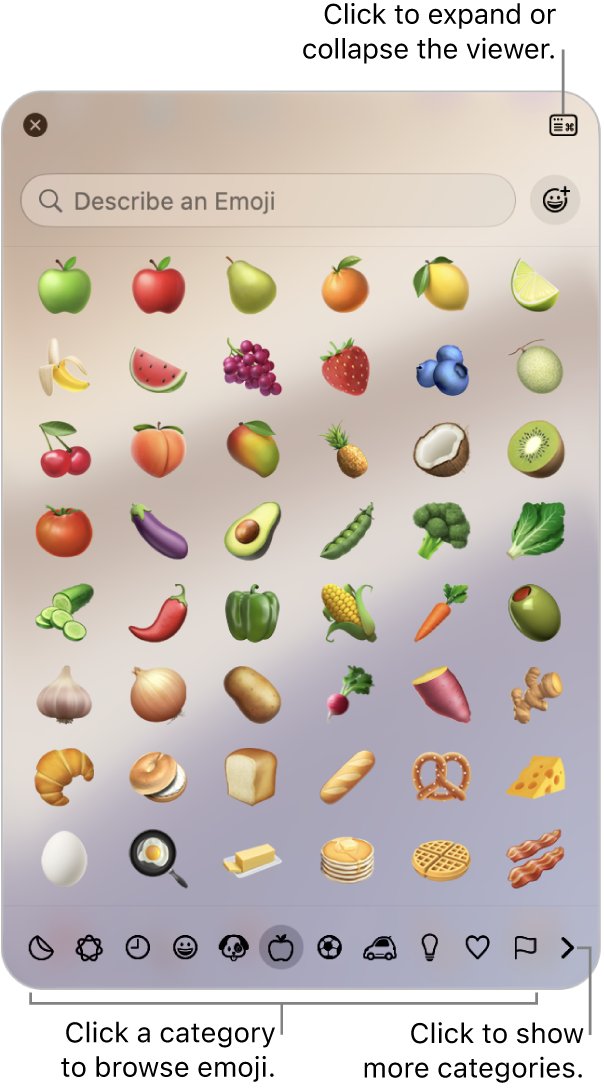
Using Character Viewer
- Press Fn/Globe + E, or choose Edit > Emoji & Symbols in the app's menu bar.
- Type tears or laughing in the search field.
- Click 😂 to insert it, or double-click it if the viewer is expanded.
- Select it and click Add to Favorites to keep it at the top of the viewer.
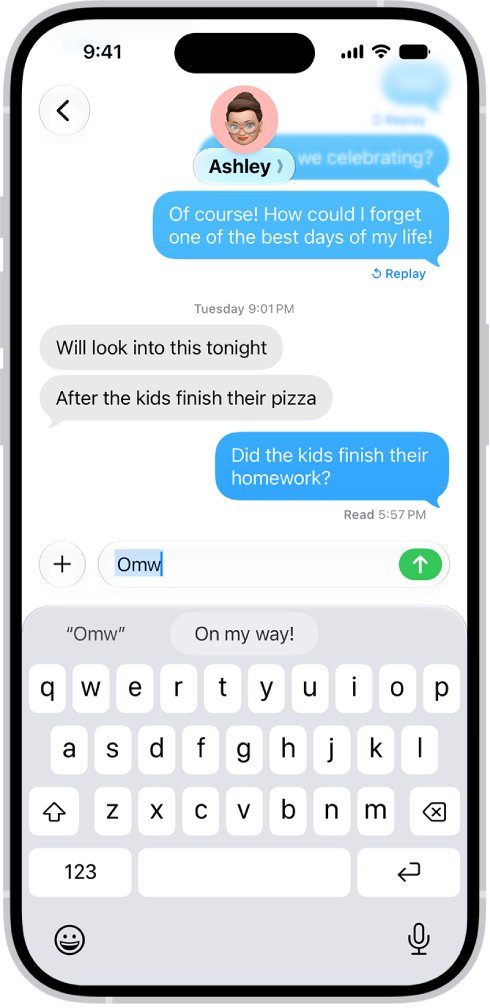
On iOS Devices (iPhone and iPad)
Typing the crying laughing emoji on smartphones uses the built-in emoji keyboard on both iOS and Android.
- Tap a text field to open the keyboard.
- Tap the emoji key or the globe key to switch to the emoji keyboard.
- Swipe to the smileys, or tap a category symbol below the keyboard to jump there.
- Tap 😂 to add it.
- Tap ABC to return to the letters.
Faster still: type a word such as laugh, and tap 😂 when it appears as a suggestion above the keyboard.
On Android Devices
- Tap a text field to open Gboard.
- Tap Emoji at the bottom of the keyboard.
- Tap 😂 in the emoji panel.
- Tap ABC to go back to typing letters.
Other Android keyboards follow the same pattern with their own emoji key.
Using Emoji Keywords
| Where | What to type | Result |
|---|---|---|
| Windows emoji panel | tears or joy after Windows + period | Filters the panel to matching emoji |
| Mac | laughing, then Fn/Globe + E | Replaces the word with a suggested emoji |
| Mac Character Viewer | laughing or tears in the search field | Shows 😂 among the results |
| iPhone and iPad keyboard | laugh or funny in any text field | Offers 😂 as a suggestion above the keyboard |
Keyboard Shortcuts and Unicode Codes for the Crying Laughing Emoji
| Where | Shortcut or code | Type |
|---|---|---|
| Windows (any app) | Windows key + . (period) | Using keyboard shortcuts |
| Mac (any app) | Fn/Globe + E | Using keyboard shortcuts |
| Microsoft Word on Windows | 1F602 then Alt + X | Using Unicode codes |
| Unicode standard | U+1F602 | Using Unicode codes |
| HTML | 😂 | Numeric character reference for web pages |
Customizing and Saving Emoji Shortcuts
- To create text expansion shortcuts on a Mac, choose Apple menu > System Settings > Keyboard, then click Text Replacements.
- Click +, type a shortcut such as lolz under Replace, paste 😂 under With, and click Add, then Done.
- On iPhone, touch and hold the emoji or globe key, tap Keyboard Settings > Text Replacement, then tap +.
- Paste 😂 in Phrase, type your shortcut in Shortcut and save it.
- To save it as a favorite on a Mac, select 😂 in the Character Viewer and click Add to Favorites.
Apple lets you keep text replacements up to date across your Apple devices, so one shortcut can work on iPhone, iPad and Mac. That consistency is the main benefit of customization.
Tips for Efficient Emoji Typing
| Tip | Why it saves time |
|---|---|
| Use the recently used emoji | The iPhone keyboard and the Mac Character Viewer show emoji you used recently at the top |
| Search instead of scrolling | Typing tears or joy finds 😂 in two keystrokes |
| Set a text replacement | One short code inserts 😂 everywhere on Apple devices |
| Tap keyboard suggestions on phones | Typing laugh offers 😂 without opening the emoji keyboard |
| Pick the right laugh | 😂 is upright crying laughter; 🤣 is the sideways rolling version |
Using Emojis on Social Media and Messaging Apps
| App type | How to add 😂 |
|---|---|
| Web apps in a browser on Windows | Windows key + . (period) in the post or message box |
| Web apps in a browser on Mac | Fn/Globe + E in the post or message box |
| Phone apps | The emoji key on the iPhone keyboard or Gboard |
| Mail and Messages on Mac | The emoji button in the app |
| Microsoft Teams | Crying with laughter in the emoji or reaction picker |
Troubleshooting Common Issues When Typing the Crying Laughing Emoji
1. Emoji Not Showing Up Correctly
The receiving app, device or font draws emoji differently or does not support it.
- Check that you inserted 😂 and not the look-alike 🤣.
- Update the app and the operating system on the device showing it wrong.
- Send it again after the update.
2. Emoji Keyboard Not Appearing
The cursor is not in a text field, or the emoji keyboard is not enabled on a phone.
- Click or tap inside a text box first; the Windows panel only opens during text entry.
- On iPhone, touch and hold the globe key and tap Keyboard Settings to check your keyboards.
- On Android, open Gboard in a text field and tap Emoji at the bottom of the keyboard.
3. Shortcut Not Working
The wrong key combination for the platform, or an app that does not support the shortcut.
- Use Windows key + . (period) on Windows and Fn/Globe + E on a Mac.
- On a Mac, choose Edit > Emoji & Symbols if the key shortcut does nothing.
- In Word, select only the code 1F602 before pressing Alt + X.
- For a text replacement on a Mac, choose Edit > Substitutions and make sure Text Replacement is ticked.
4. Emoji Appears as Squares or Unrecognized Symbols
The app or font cannot display the character.
- Open the text in a different, current app or browser.
- Update the operating system to get newer emoji fonts.
- In a document, switch the text to a standard system font.
Frequently asked questions
How do I type the crying laughing emoji?
On Windows, press Windows key + period and search tears or joy. On a Mac, press Fn/Globe + E. On iPhone or Android, tap the emoji key and choose 😂. You can also copy and paste it from any page.
How do I type the laughing crying emoji on a keyboard?
Press Windows key + period on a Windows keyboard to open the emoji panel, then select 😂. On a Mac keyboard, press Fn/Globe + E. In Word on Windows, typing 1F602 and pressing Alt + X also works.
How do I type the crying laughing emoji in Outlook?
In Outlook on Windows, click in the message body, press Windows key + period, search tears and select 😂. In Outlook for Mac, press Fn/Globe + E or choose Edit > Emoji & Symbols.
How do I make a laughing crying emoji?
Insert 😂 from your device's emoji picker rather than building it from characters. Windows key + period, Fn/Globe + E on a Mac, or the emoji key on a phone all insert the standard Face with Tears of Joy emoji.
What does the crying laughing emoji mean?
😂 means you are laughing so hard you are crying. Its official Unicode name is Face with Tears of Joy, and it is used to react to jokes, memes and funny stories.
What is the Unicode for the crying laughing emoji?
The crying laughing emoji is U+1F602, named Face with Tears of Joy. In Microsoft Word on Windows, type 1F602 and press Alt + X to insert it, and in HTML use 😂.
How do I type a cry laugh emoji on iPhone?
Tap the emoji or globe key on the iPhone keyboard, find 😂 among the smileys and tap it. You can also type laugh and tap the 😂 suggestion above the keyboard.
Additional Resources
- Windows keyboard tips and tricks — Microsoft's guide to the emoji panel
- Use emoji and symbols on Mac — Apple's Character Viewer guide
- Add emoji with the iPhone keyboard — Apple's iPhone emoji keyboard guide
- Use your keyboard (Gboard) — Google's Gboard emoji steps
For another hand-gesture emoji, see how to type the fingers crossed emoji.



![How to turn on/off ad blocker in Microsoft Edge? [step-by-step]](https://techdows.com/wp-content/uploads/2026/10/How-to-turn-onoff-ad-blocker-in-Microsoft-Edge-step-by-step-1-600x338.jpg)