Press Windows key + Ctrl + D to create a second desktop, name one desktop Work and the other Personal in Task View, and switch between them with Windows key + Ctrl + Left arrow or Right arrow.
This guide covers creating, renaming, switching and closing desktops on Windows 11 and Windows 10, moving apps between them, the settings that keep the taskbar and Alt+Tab separate, and fixes for the common problems.
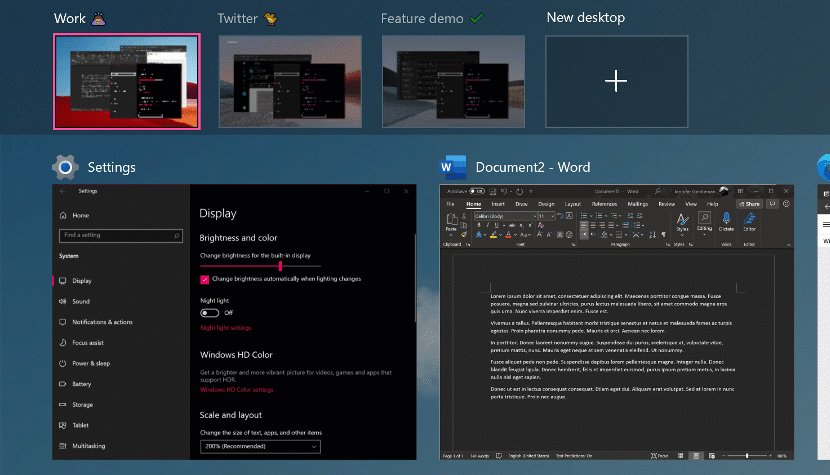
Create and use virtual desktops in Windows 10/11 for work/personal separation
Virtual desktops are built into Windows 11 and Windows 10, so there is nothing to install. Each desktop keeps its own set of open windows.
- Press Windows key + Tab to open Task view.
- Select New desktop. Windows adds a second desktop next to the first one.
- Select the name of the first desktop, type Work and press Enter.
- Select the name of the second desktop, type Personal and press Enter.
- Select the Work desktop and open your work apps there.
- Press Windows key + Ctrl + Right arrow to jump to Personal and open your personal apps.
- Press Windows key + Ctrl + Left arrow to return to Work.
Virtual desktop keyboard shortcuts in Windows 11 and Windows 10
These shortcuts are the same on both versions. Learn the first three and you rarely need the mouse.
| Shortcut | What it does |
|---|---|
| Windows key + Tab | Open Task view, which shows every desktop and the windows on the current one |
| Windows key + Ctrl + D | Create another desktop and switch to it |
| Windows key + Ctrl + Right arrow | Switch to the desktop on the right |
| Windows key + Ctrl + Left arrow | Switch to the desktop on the left |
| Windows key + Ctrl + F4 | Close the desktop you are using |
| Alt + Tab | Switch between open apps, on the current desktop or all desktops depending on your setting |
Virtual desktops in Windows 11 vs Windows 10
Both versions support multiple desktops on any edition, so the only prerequisites are a current Windows build and a few minutes in Task view. The differences are in naming and per-desktop backgrounds.
| Feature | Windows 11 | Windows 10 |
|---|---|---|
| Create, switch and close desktops | Yes | Yes |
| Rename desktops | Yes | Version 2004 (May 2020 Update) and later |
| Names kept after a restart | Yes | Yes, on versions that support renaming |
| Different background picture per desktop | Yes, through Choose background in Task view | Only if Choose background appears when you right-click a desktop in Task view |
| Hover the Task view button to see desktops | Yes | Select the button to open Task view instead |
| Taskbar and Alt+Tab per-desktop options | Settings > System > Multitasking > Desktops | Settings > System > Multitasking |
To find your Windows 10 version, press Windows key + R, type winver and press Enter. Update through Settings > Update & Security > Windows Update if you are below version 2004.
Step-by-step: Create your “Work” and “Personal” desktops
Task view is the control centre for desktops. Open it first, then add as many desktops as you need.
- Open Task View: select the Task view button on the taskbar, or press Windows key + Tab. On Windows 11 you can also hover over the button.
- Create a new virtual desktop: select New desktop at the top or bottom of the Task view screen.
- Repeat New desktop if you want a third space, for example for a side project.
- Select a desktop thumbnail to switch to it.
- Open the apps that belong to that desktop.
Windows key + Ctrl + D does the same as New desktop without opening Task view. It also switches you straight to the new, empty desktop.
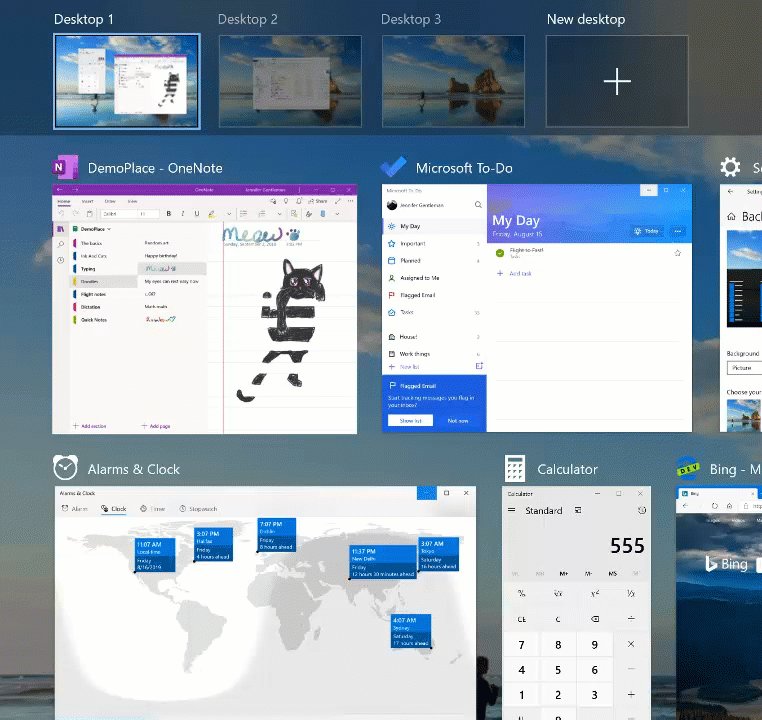
Rename desktops (Windows 11 + newer Windows 10 builds)
Windows names new desktops Desktop 1, Desktop 2 and so on. Renaming them Work and Personal makes the switcher readable at a glance.
- Press Windows key + Tab to open Task view.
- Select the name under the desktop thumbnail, such as Desktop 1. The name becomes an editable field.
- Type the new name, for example Work, and press Enter.
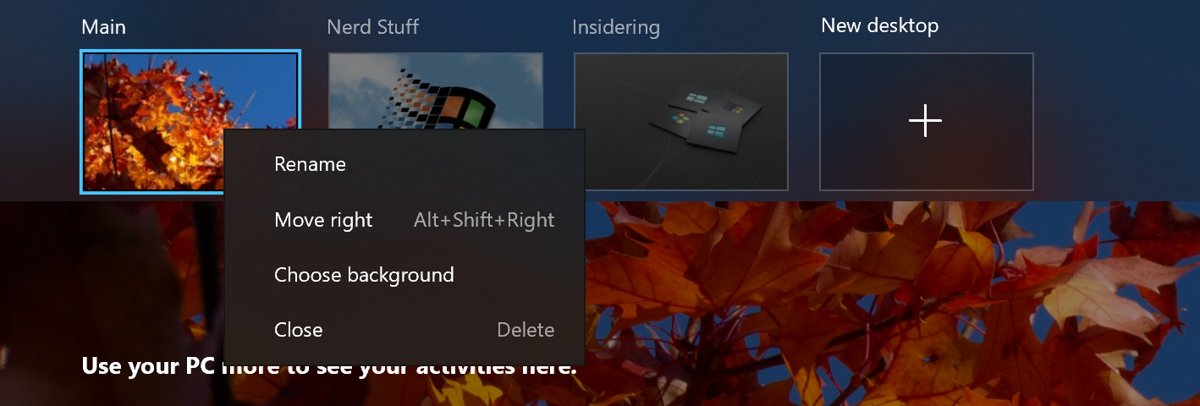
- To use the menu instead, right-click the desktop thumbnail and select Rename.
- Repeat for the other desktop and name it Personal.
On Windows 10, renaming needs version 2004 or later. The names stay in place after you restart the PC.
Switch between desktops quickly
| Your situation | Use this | Why |
|---|---|---|
| Hands on the keyboard | Windows key + Ctrl + Left arrow or Right arrow | Moves one desktop at a time with no menus |
| Mouse on Windows 11 | Hover over the Task view button and select the desktop | Shows every desktop without leaving the current one |
| More than two desktops | Windows key + Tab, then select the thumbnail | Jumps straight to any desktop |
| Keyboard only, many desktops | Windows key + Tab, press Tab to reach the desktops, use the arrow keys and press Enter | Works with a screen reader as well |
| Touchpad | Open Task view and tap the desktop thumbnail | Task view works the same with touch and touchpad |
Step-by-step: Move apps to the correct desktop (Work vs Personal)
Drag and drop is the fastest way to sort a desktop that already has both kinds of apps open.
- Switch to the desktop that holds the mixed windows.
- Press Windows key + Tab to open Task view.
- Drag a personal window, such as a personal browser window, onto the Personal desktop thumbnail.
- Release it. The window disappears from the current desktop and opens on Personal.
- Repeat for every window that belongs elsewhere, then select the desktop you want to work on.
Move an open window to another desktop
The right-click menu is easier than dragging when you have several desktops or a small screen.
- Open Task view with Windows key + Tab.
- Right-click the window thumbnail you want to move.
- Select Move to.
- Choose the destination desktop, for example Work.
- Switch to that desktop to confirm the window is there.
Open apps on the desktop you want
A new window opens on whichever desktop is active. Switching first saves moving the window later.
- Press Windows key + Ctrl + Left arrow or Right arrow until you reach the desktop you want, or select it in Task view.
- Open Start and launch the app, or select its pinned icon on the taskbar.
- Keep personal and work accounts in separate windows, such as a separate browser window per profile, so each window can live on its own desktop.
- Open the work window on Work and the personal window on Personal.
One window can live on only one desktop unless you pin it to all of them. Two windows of the same app can sit on different desktops. On Windows 11, you can also split the screen between two apps inside one desktop.
Step-by-step: Keep things tidy with “Show windows” options
Some apps belong everywhere, such as a music player or a chat app you check from both desktops. Pin them instead of moving them back and forth.
- Open Task view with Windows key + Tab.
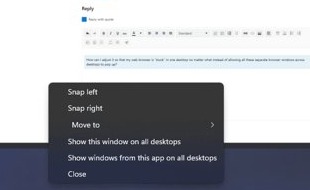
- Right-click the window you want available everywhere.
- Select Show this window on all desktops to pin that one window.
- Or select Show windows from this app on all desktops to pin every window of that app.
- To undo either option, right-click the window in Task view again and select the same option to clear it.
Use pinning sparingly. Every app shown on all desktops shows up in both your Work and Personal spaces, which weakens the separation. Pinning to all desktops is also different from keeping a window always on top of other windows, which only changes which window sits in front.
Configure desktop behavior (Windows 10 and Windows 11)
Two settings decide whether the taskbar and Alt+Tab mix windows from every desktop. Open them from Settings > System > Multitasking, and on Windows 11 expand Desktops.
| Setting | Option | Effect | Pick it when |
|---|---|---|---|
| On the taskbar, show all the open windows | Only on the desktop I'm using | The taskbar shows open windows from the current desktop only | You want strict work/personal separation |
| On the taskbar, show all the open windows | On all desktops | The taskbar shows open windows from every desktop | You want quick access to every open app |
| Show all open windows when I press Alt+Tab | Current desktop only | Alt+Tab cycles only through windows on the desktop you are using | You do not want personal apps in your work switcher |
| Show all open windows when I press Alt+Tab | All desktops | Alt+Tab lists windows from every desktop | You often switch apps across desktops |
Pressing Windows key + R and typing ms-settings:multitasking opens the same page directly.
Can I have different wallpapers per desktop?
Yes. A different picture on each desktop is the quickest visual cue that you are on Work or Personal.
- Press Windows key + Tab to open Task view.
- Right-click the desktop you want to change and select Choose background.
- In Personalize your background, select Picture from the drop-down menu.
- Choose the image for that desktop.
- Repeat for the other desktop with a different picture.
Per-desktop backgrounds work only with a picture. A slideshow or a different solid colour per desktop is not possible.
Step-by-step: Close or remove a desktop safely
Closing a desktop does not close its apps. Windows moves every open window to the next available desktop.
- Save open work on the desktop you plan to close.
- Press Windows key + Tab to open Task view.
- Hover over the desktop thumbnail you want to remove.
- Close a virtual desktop by selecting the close button (X) in the top corner of its thumbnail.
- Or switch to that desktop and press Windows key + Ctrl + F4.
- Check the remaining desktop in Task view. The windows from the closed desktop are now there.
Tips for better work/personal separation
Virtual desktops separate windows, not accounts. Both desktops share the same Windows user, files, notifications and sign-ins.
| Tip | How to set it up | What it prevents |
|---|---|---|
| Name every desktop | Rename them Work and Personal in Task view | Guessing which Desktop 1 or Desktop 2 you are on |
| Give each desktop its own picture | Right-click the desktop in Task view > Choose background | Opening a personal app on the wrong desktop |
| Limit the taskbar to the current desktop | On the taskbar, show all the open windows > Only on the desktop I'm using | Work windows showing on your personal taskbar |
| Limit Alt+Tab to the current desktop | Show all open windows when I press Alt+Tab > current desktop | Tabbing into a personal chat during a work call |
| Use a separate browser window for each profile | Open the work profile on Work and the personal profile on Personal | Personal tabs and work tabs in one window |
| Pin only true shared apps | Show windows from this app on all desktops for one or two apps at most | The same apps cluttering both desktops |
| Use a separate Windows account for full separation | Add a second user account if work data must stay apart | Shared files and sign-ins, which desktops cannot isolate |
Virtual desktops troubleshooting (common issues)
The taskbar shows work apps on the Personal desktop
The taskbar is set to show open windows on all desktops.
- Open Settings > System > Multitasking and expand Desktops on Windows 11.
- Set On the taskbar, show all the open windows to Only on the desktop I'm using.
One app appears on every desktop
Show this window on all desktops or Show windows from this app on all desktops is turned on for it.
- Open Task view with Windows key + Tab.
- Right-click the app's window and clear the option that is turned on.
- Use Move to to put the window on the desktop where it belongs.
There is no Rename option on Windows 10
The PC runs a Windows 10 version older than 2004.
- Press Windows key + R, type
winverand press Enter to see the version. - Install the latest feature update from Settings > Update & Security > Windows Update.
I don't see the Task View button
Task view button missing from the Windows 11 taskbar
The Task view taskbar item is turned off.
- Right-click an empty part of the taskbar and select Taskbar settings.
- Under Taskbar items, turn the Task view switch On.
- Press Windows key + Tab whenever you need Task view without the button.
Task View button missing from the Windows 10 taskbar
Show Task View button is unchecked in the taskbar menu.
- Right-click an empty part of the taskbar.
- Select Show Task View button so it has a check mark.
Alt+Tab shows personal apps while I'm on my Work desktop
Alt+Tab lists windows from every desktop
Show all open windows when I press Alt+Tab is set to all desktops.
- Open Settings > System > Multitasking.
- On Windows 11, expand Desktops.
- Change Show all open windows when I press Alt+Tab to the desktop you are using only.
- Press Alt + Tab on the Work desktop to check that only work windows appear.
One personal app still shows in Alt+Tab on Work
That app is pinned to all desktops.
- Open Task view, right-click the app and clear Show windows from this app on all desktops or Show this window on all desktops.
- Use Move to to send it to Personal.
My windows disappeared after closing a desktop
Apps vanished after closing a desktop
Closing a desktop moves its open windows to the next available desktop rather than closing them.
- Press Windows key + Tab and look through the remaining desktop thumbnails.
- Select the desktop that now holds the windows.
- Use Move to or drag the windows onto a new desktop if you want them separate again.
The windows are on another desktop but you cannot find which one
The taskbar and Alt+Tab are limited to the current desktop.
- Switch Show all open windows when I press Alt+Tab to all desktops for a moment.
- Press Alt + Tab, select the missing window, then set the option back.
If the window is not on any desktop, open Task Manager to check whether the app is still running.
Windows virtual desktops FAQ
What is the shortcut to create a new virtual desktop in Windows?
Press Windows key + Ctrl + D. Windows creates a new empty desktop and switches you to it straight away. The shortcut works the same way on Windows 11 and Windows 10, and you can repeat it to add more desktops.
How do I switch between virtual desktops in Windows 11?
Press Windows key + Ctrl + Left arrow or Right arrow to move one desktop at a time. With a mouse, hover over the Task view button on the taskbar and select the desktop you want, or press Windows key + Tab and select its thumbnail.
How do I close a virtual desktop?
Switch to the desktop and press Windows key + Ctrl + F4, or open Task view and select the close button on the desktop's thumbnail. Open windows are not closed; Windows moves them to the next available desktop.
Can I rename virtual desktops in Windows 10?
Yes, on Windows 10 version 2004 and later. Open Task view with Windows key + Tab, select the desktop name and type a new one, or right-click the thumbnail and select Rename. Run winver to check your version.
Do virtual desktop names stay after a restart?
Yes. Desktop names you set in Task view are kept when you restart the PC, so Work and Personal are still labelled after a reboot. Reopen your apps on each desktop as needed.
Can each virtual desktop have a different wallpaper?
Yes, with a picture. Open Task view, right-click the desktop, select Choose background, then pick Picture and an image. A slideshow or a different solid colour per desktop is not possible.
How do I keep one app on all virtual desktops?
Open Task view, right-click the app's window and select Show windows from this app on all desktops. To pin only that single window, select Show this window on all desktops instead. Select the option again to undo it.
Are virtual desktops the same as separate user accounts?
No. Virtual desktops separate open windows inside one Windows account, so files, notifications and app sign-ins are shared. For a strict split of work and personal data, add a separate Windows user account.
Why does Alt+Tab show windows from my other desktop?
The Alt+Tab setting includes all desktops. Open Settings > System > Multitasking, expand Desktops on Windows 11, and set Show all open windows when I press Alt+Tab to the desktop you are using only.