Apple Watch works as a wrist computer paired to an iPhone over Bluetooth: it reads your heart rate with light sensors, counts steps and distance with motion sensors and GPS, tracks sleep stages overnight, and relays calls, messages and notifications from the phone.
Each part is covered below, from the connection and cellular service to heart rate, steps, sleep and charging, along with fixes for the problems owners search for most.
How do Apple Watches work with iPhones
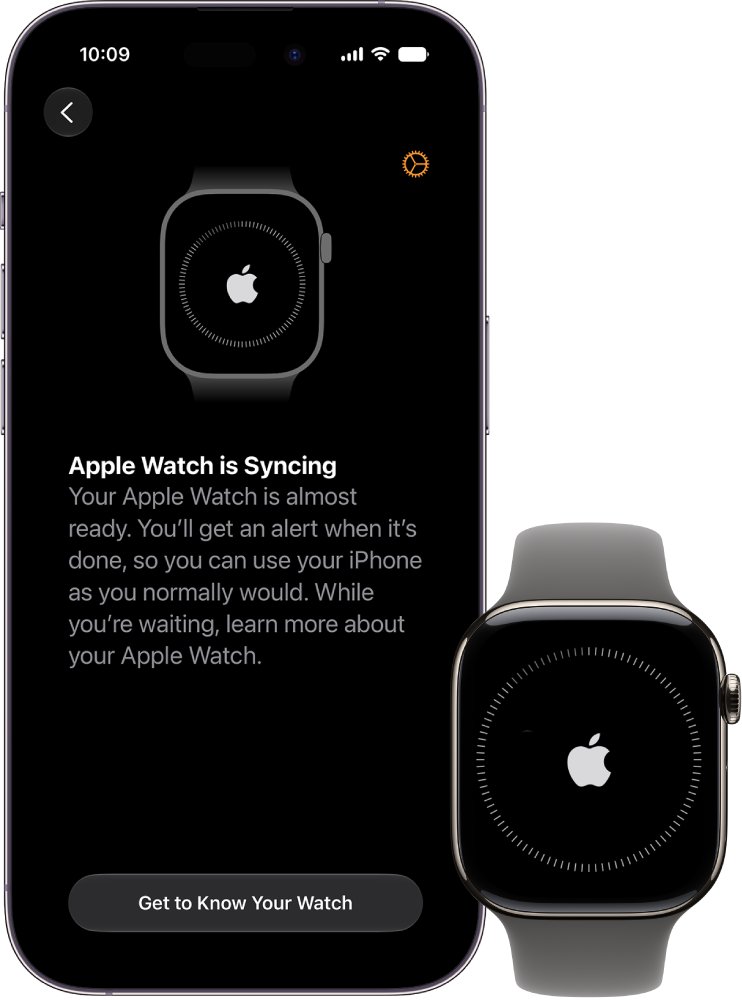
Apple Watch is set up from an iPhone and then works as a companion to it. The iPhone handles setup, settings and long-term health history, while the watch collects data on your wrist and shows alerts.
| What Apple Watch does | How it does it | Where you see the result |
|---|---|---|
| Shows calls, messages and notifications | Relays them from the paired iPhone over Bluetooth, or over Wi-Fi or cellular when the phone is away | On the watch face and in Notification Center |
| Measures heart rate | Optical heart sensor with green LED lights and photodiodes on the back of the case | Heart Rate app on the watch, Health app on iPhone |
| Counts steps, distance and calories | Accelerometer that learns your stride, plus built-in GPS outdoors | Activity app on the watch, Fitness app on iPhone |
| Tracks sleep | Wrist sensors while you wear it to bed, estimating REM, Core and Deep sleep | Sleep app on the watch, Health app > Browse > Sleep on iPhone |
| Works away from the phone | Wi-Fi on all models, mobile data on cellular models | Control Center status icons |
| Charges | Magnetic charger that snaps to the back of the watch | Charging symbol on the watch face |
Current models need an iPhone 11 or later running iOS 27 or later. Before any of this works, you pair your Apple Watch by holding the iPhone near it and following the setup screens.
How do Apple Watches connect to iPhone
Apple Watch uses Bluetooth to connect to its paired iPhone and borrows the phone for many wireless jobs. When the iPhone is off or out of range, the watch switches to a known Wi-Fi network, and a cellular model can switch to mobile data.
A watch with a cellular plan always picks the best link in this order: the iPhone when it is nearby, a Wi-Fi network the iPhone has joined before, then the cellular network.
| Connection | When Apple Watch uses it | What still works |
|---|---|---|
| Bluetooth to iPhone | Whenever the paired iPhone is close by | Everything, including calls, messages, notifications and app syncing |
| Wi-Fi | iPhone off or out of range, on an 802.11b/g/n 2.4 GHz or 5 GHz network the iPhone used before | App Store, messages, Wi-Fi calling, FaceTime audio, streaming, weather, stocks and Home controls |
| Cellular | Cellular models with an active plan, when neither iPhone nor known Wi-Fi is available | Calls, messages, streaming music and podcasts, notifications |
| No connection | Away from iPhone with no Wi-Fi or cellular | Downloaded music, voice memos, alarms and timers, Apple Pay, Wallet, workouts, heart rate and Find My |
Apple Watch cannot join captive networks that need a login page, such as many hotel, school and store networks. A disconnected status icon at the top of the watch face means the watch has lost its connection to the iPhone, usually because the phone is too far away or in Airplane Mode.
How do Apple Watches with cellular work
A cellular Apple Watch joins your iPhone's mobile plan with the same carrier, so it can make calls, reply to messages and stream audio without the phone. The service is not available in every area or with every carrier.
- Open the Apple Watch app on your iPhone.
- Tap My Watch, then tap Cellular.
- Follow the onscreen instructions to review your carrier's plan and activate service.
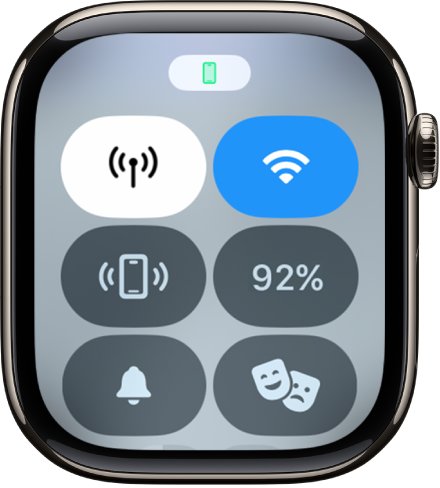
- On the watch, press the side button to open Control Center.
- Check the Cellular button. It is white while the iPhone is nearby and connected, and green with the network name, such as LTE or 5G, when the watch is using cellular.
- Tap the Cellular button to turn mobile data off when you want to save battery.
To see how much data the watch has used, open Settings on the watch, tap Cellular and scroll down to the current period.
How do Apple Watches track heart rate
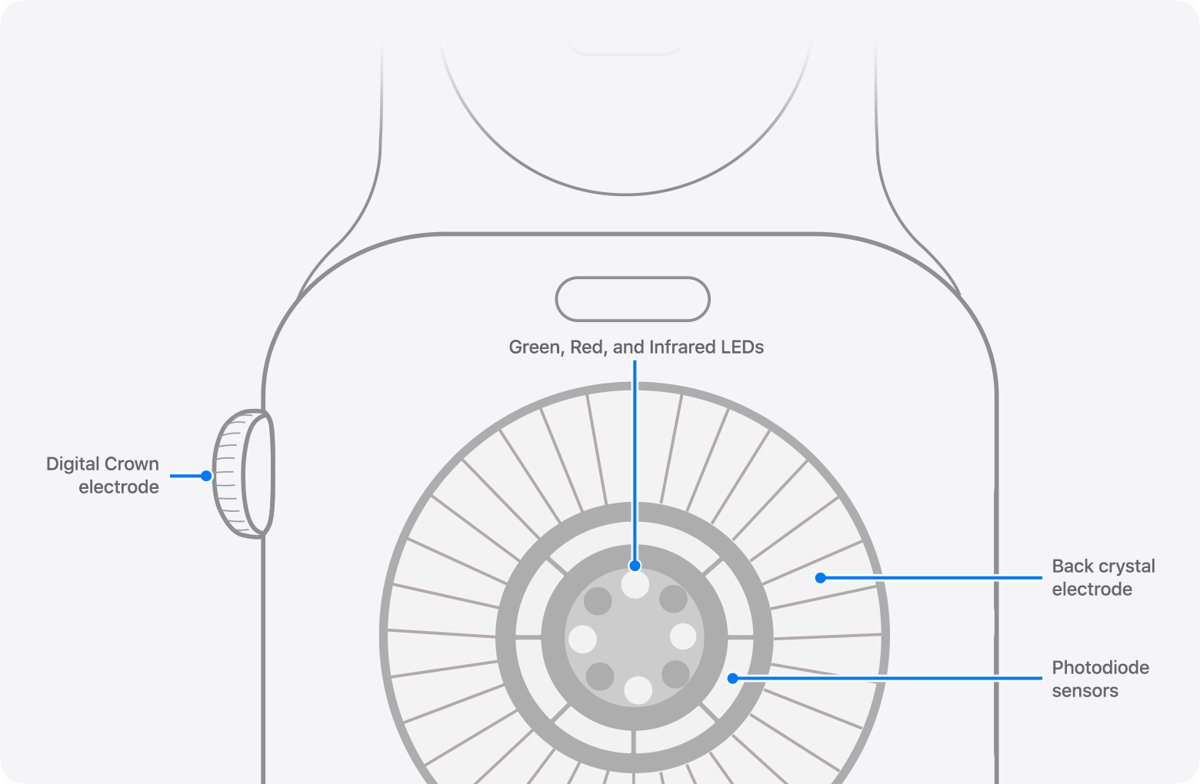
The optical heart sensor uses photoplethysmography. Blood is red because it reflects red light and absorbs green light, so the watch flashes green LEDs hundreds of times per second and its photodiodes measure how much light your wrist absorbs.
Each heartbeat pushes more blood through the wrist and absorbs more green light. Counting those peaks gives your beats per minute, across a supported range of 30 to 210 bpm.
| Sensor | How it measures | Models and uses |
|---|---|---|
| Optical sensor, green LEDs | Light absorbed by blood flow at each beat | All models; Heart Rate app, workouts and background readings. Series 12 and Ultra 4 read as often as every five seconds during the day |
| Optical sensor, infrared LEDs | Infrared light instead of green | Used depending on model and activity, and during your sleep schedule on Series 12 and Ultra 4 |
| Electrical heart sensor | Electrodes in the Digital Crown and back of the case form a circuit when you touch the crown | Series 4 and later and all Ultra models; faster heart rate readings and the ECG app, which Apple Watch SE does not support |
Wear the watch snug but comfortable, above the wrist bone, so the back stays in contact with your skin. Water and sweat on the wrist cause poor readings, so keep both the watch and wrist clean and dry.
How do Apple Watches track steps
Apple Watch counts steps with its accelerometer and learns your stride length at different speeds. Outdoors, built-in GPS adds accurate distance and pace, and Ultra, Series 8 and later and SE 2nd generation use their own GPS even with the iPhone nearby.
Calibrating the watch once improves step distance, pace and calorie figures, especially when GPS is weak or unavailable.
- On your iPhone, open Settings > Privacy & Security > Location Services and make sure Location Services is on.
- Scroll down, tap System Services and make sure Motion Calibration & Distance is on.
- Wearing the watch, go to a flat, open outdoor area with clear skies and good GPS reception.
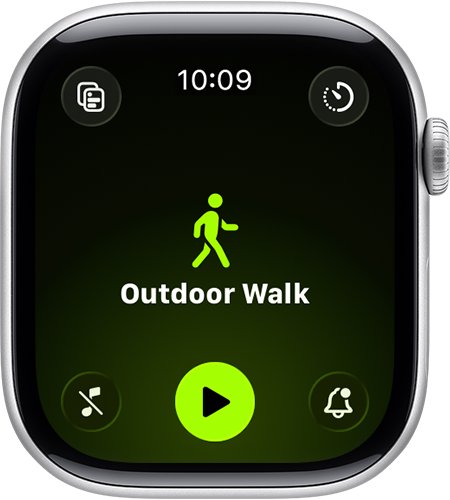
- Open the Workout app and tap Outdoor Walk or Outdoor Run.
- Walk or run at your normal pace for about 20 minutes. You can split this across several outdoor workouts.
- Open the Activity app afterwards and turn the Digital Crown to see total steps, distance and flights climbed.
To start calibration over, open the Apple Watch app on iPhone, tap My Watch > Privacy > Reset Fitness Calibration Data, then calibrate again.
How do Apple Watches track sleep
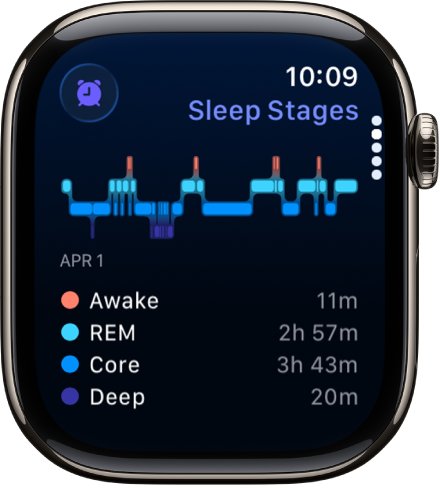
Wear the watch to bed and it estimates the time you spend in each sleep stage, REM, Core and Deep, plus when you woke. The Sleep app then shows your sleep score, stages and the average for the last 14 days.
- Open the Settings app on your Apple Watch.
- Tap Sleep.
- Turn on Sleep Tracking so the watch adds sleep data to the Health app on your iPhone.
- Turn on Charging Reminders so the watch asks you to charge before your wind down time.
- Wear the watch to bed with enough battery for the night.
- In the morning, open the Sleep app on the watch, or open Health on iPhone and tap Browse > Sleep.
The same night of wear also records your breathing rate. On iPhone, open Health > Browse > Respiratory > Respiratory Rate to see the range during sleep.
How do Apple Watches charge
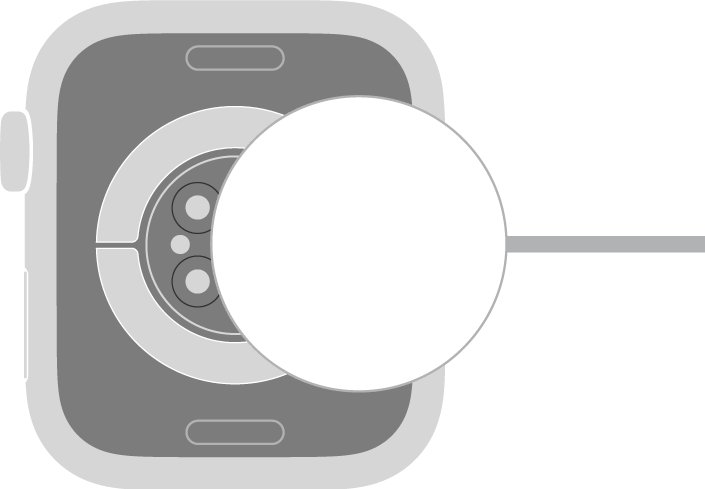
Apple Watch has a rechargeable lithium-ion battery that charges on a magnetic puck. The concave end of the charger snaps onto the back of the watch and lines it up for you.
- Place the charger on a flat surface in a well-ventilated area.
- Plug the charger into a power adapter, then plug the adapter into an outlet.
- Set the back of the watch on the charger until it snaps into place.
- Wait for the charging symbol to appear on the watch face and the chime to play.
- Press the side button and check the battery percentage at the top of Control Center.
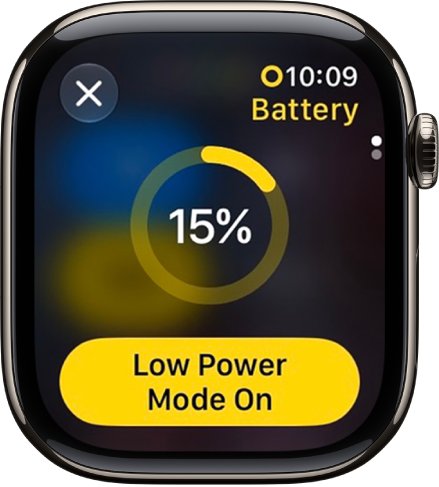
Fast charging works on Series 7 and later, SE 3 and all Ultra models with a compatible charger and an 18W or greater USB-C power adapter. A yellow charging symbol means Low Power Mode is on; it turns off at 80 percent. If no symbol appears at all, work through these Apple Watch charging fixes.
What Apple Watch do I have
The model number in the Apple Watch app tells you exactly which watch you own. The engraving on the back of the case adds the case size.
- Open the Apple Watch app on your iPhone.
- Tap the My Watch tab.
- Tap General, then tap About.
- Find the Model Number field. It first shows a part number that starts with M.
- Tap Model Number to switch to the five-digit number that starts with A.
- Match that A number to Apple's Identify your Apple Watch list at support.apple.com.
The newest models on that list are Apple Watch Series 12, Apple Watch Ultra 4 and Apple Watch SE 3.
Can an Apple Watch work with Android?
No. Apple Watch needs an iPhone for setup and pairing. Apple says you need to pair Apple Watch with your iPhone to use it, and Series 12, Ultra 4 and SE 3 require an iPhone 11 or later running iOS 27 or later. Setup runs through the Apple Watch app on iPhone.
Apple Watch battery draining fast, not pairing or cellular not working
Why Apple Watch battery drains so fast
Always On display, background app refresh and long stretches on cellular all use extra power.
- Open Settings > Battery on the watch and check the graph for when the charge dropped.
- Tap Battery Health and check Maximum Capacity. A low figure means the battery itself has worn.
- Open Settings > General > Background App Refresh and turn it off, or turn it off for single apps.
- Press the side button, tap the battery percentage and turn on Low Power Mode for the day.
- Turn off the Cellular button in Control Center when you do not need mobile data.
Why Apple Watch only charges to 80%
Optimized Battery Charging learns your routine and holds the charge at 80 percent until you need the watch.
- Open Settings on the watch and tap Battery > Battery Health.
- Check whether Optimized Battery Charging or Optimized Charge Limit is on.
- Leave it on to reduce battery aging, or turn it off for the night before a long day.
- If the charging symbol is yellow, Low Power Mode is on; it switches off at 80 percent by design.
Why Apple Watch won't charge
The charger is not seated, not powered, or the back of the watch is not touching it.
- Plug the charger into a working power adapter and outlet.
- Set the charger flat and place the back of the watch on its concave side.
- Wait for the charging symbol. If the screen stays black, try these black screen fixes for Apple Watch.
Why Apple Watch is not pairing
Bluetooth is off, the iPhone is out of date, or the watch is still paired with another iPhone.
- On iPhone, open Settings > General > Software Update and install any update.
- Open Control Center on the iPhone and make sure Bluetooth and Wi-Fi or Cellular are highlighted.
- If the watch shows a watch face instead of the pairing screen, it is still paired; erase and reset the watch first.
- Hold the iPhone near the watch, tap Continue, then tap Set Up for Myself.
- If the camera does not start pairing, tap Pair Apple Watch Manually and follow the screens.
Why Apple Watch cellular is not working
No plan is active, the carrier does not support the watch, or the watch is using the nearby iPhone instead.
- Open the Apple Watch app on iPhone, tap My Watch > Cellular and check that a plan is active.
- Confirm the watch plan is with the same carrier as your iPhone.
- Press the side button on the watch. A white Cellular button means the iPhone is nearby, which is normal.
- Leave the iPhone behind and check that the button turns green with bars at the top of Control Center.
Why Apple Watch can't tap the water eject
Water Lock is on, and the screen ignores taps until you unlock it with the Digital Crown.
- Press and hold the Digital Crown.
- Keep holding until the watch unlocks and plays sounds to push water out of the speaker.
- To turn Water Lock on again, press the side button and tap the Water Lock button in Control Center.
How Apple Watch works FAQ
How do Apple Watches track fitness?
The Activity app shows three rings. The red Move ring counts active calories, the green Exercise ring counts minutes of brisk activity, and the blue Stand ring counts hours in which you stood and moved for at least one minute.
How do Apple Watch bands connect?
Every Apple Watch band slides into a slot on the case. Hold down the band release button on the back of the watch, slide the old band out sideways, then slide the new one in. Never force a band; press the release button again if it sticks.
Where is Apple Watch Control Center?
Press the side button on the watch to open Control Center. It holds the battery percentage, Wi-Fi and Cellular buttons, Water Lock, Low Power Mode and the status icons for the iPhone connection.
Can an Apple Watch FaceTime?
Yes, for audio. Apple Watch can make FaceTime audio calls over Wi-Fi even when the iPhone is off, and a cellular model can place calls with no phone or Wi-Fi nearby.
What Apple Watch is compatible with iPhone 17 and iPhone 16?
Apple Watch Series 12, Apple Watch Ultra 4 and Apple Watch SE 3 work with any iPhone 11 or later running iOS 27 or later. iPhone 16 and iPhone 17 models meet that requirement once they are updated to iOS 27.
What Apple Watches are still supported?
Apple's watchOS 27 user guide lists Apple Watch SE 3, Apple Watch Series 9, Apple Watch Ultra 2 and later models for setup with watchOS 27.
What Apple Watch is the newest?
Apple Watch Series 12 and Apple Watch Ultra 4 are the newest models, with Apple Watch SE 3 the newest SE. Both Series 12 and Ultra 4 add continuous heart rate readings as often as every five seconds and Recovery heart rate variability.