To remove Search Protect, uninstall it from Settings > Apps, run a Microsoft Defender full scan, then reset the search engine and home page in every browser it changed.
This guide explains what Search Protect is, compares the removal options, walks through a complete self-help removal, and shows how to block it from coming back.
How to uninstall Search Protect from Windows
Search Protect usually installs a normal uninstall entry, so start with Windows Settings. Close every browser before you begin.
- Open Start > Settings > Apps > Installed apps on Windows 11, or Settings > Apps > Apps & features on Windows 10.
- Search the list for SearchProtect or Search Protect.
- Select the entry, choose Uninstall and confirm.
- Uninstall any other app in the list that you do not recognise or did not choose to install.
- Restart the PC before you open a browser again.
Uninstalling removes the program, but browser settings it changed often stay behind. Finish the scan and browser reset below.
What is Search Protect?
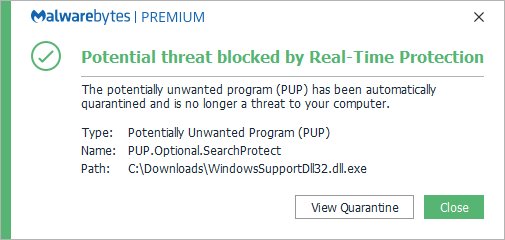
Search Protect is a potentially unwanted program (PUP) that hijacks your browser settings. Security vendor Malwarebytes detects it as PUP.Optional.SearchProtect.
| Question | Answer |
|---|---|
| Type | Potentially unwanted program and browser hijacker, not a classic virus |
| How it arrives | Bundled with free software installers, often without clear notice during setup; also through download sites, spam links and social media links |
| What it changes | The default search engine, home page, startup page and new tab page in your browsers |
| Where it was seen redirecting | Trovi search pages in Internet Explorer and Firefox, in Malwarebytes' sample removal log |
| How it stays loaded | Older versions registered loader DLLs (VC32Loader.dll, VC64Loader.dll) under the Windows AppInit_DLLs value and ran a service named CltMngSvc |
| Common install folders | C:\Program Files (x86)\SearchProtect and %LocalAppData%\SearchProtect |
| Related detection | Malwarebytes' sample log also lists a separate PUP.Optional.Conduit.A detection |
| Is Search Protect dangerous? | Not in the way ransomware is, but Microsoft notes that unwanted software of this kind can show unwanted ads, slow the PC and install other unexpected apps |
| What it collects | Every search you type in the address bar goes to the search page it set, so that provider receives your search queries until you reset the browser |
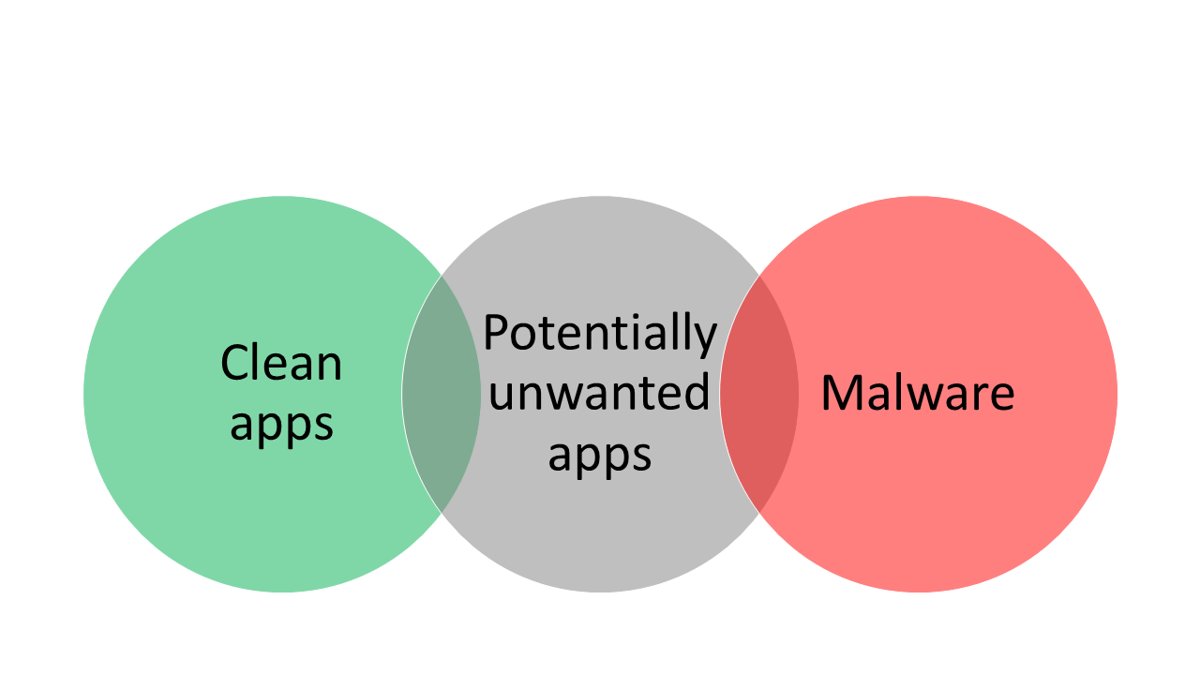
Microsoft describes this category of software as sitting between clean software and malware: it can show unwanted ads, slow the PC and install other unexpected apps.
Search Protect removal options
| Your situation | Use this | Why |
|---|---|---|
| Search Protect appears in Installed apps | Uninstall it from Settings | Removes the program and its uninstall entry |
| Uninstall worked but search or home page is still wrong | Reset Chrome and fix Edge search settings | Browser settings are stored per browser and per profile |
| Leftover files, services or scheduled tasks | Microsoft Defender full scan | Built into Windows and quarantines detected unwanted software |
| The program keeps coming back after a full scan | Microsoft Defender Antivirus (offline scan) | Scans from the Windows Recovery Environment before the PUP can load |
| You want a second opinion | Malwarebytes Threat Scan | Malwarebytes publishes a specific detection for Search Protect |
| You want to stop a repeat install | Turn on PUA blocking in Defender and Edge | Blocks bundled unwanted apps at download and install time |
Search Protect self-help removal guide
Work through these steps in order. Each one removes a different part of the infection, so skipping one can let the hijack return.
- Uninstall SearchProtect and any unknown apps from Settings > Apps, then restart.
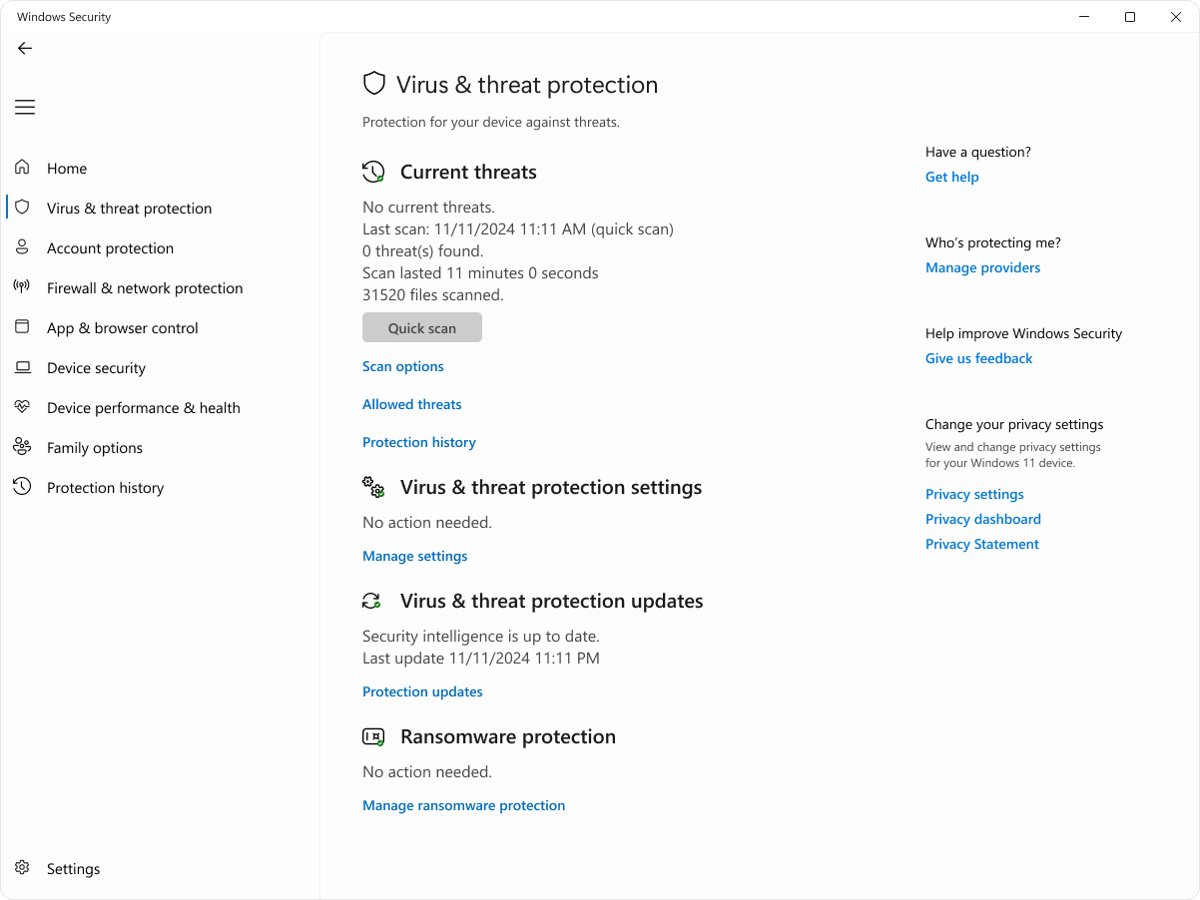
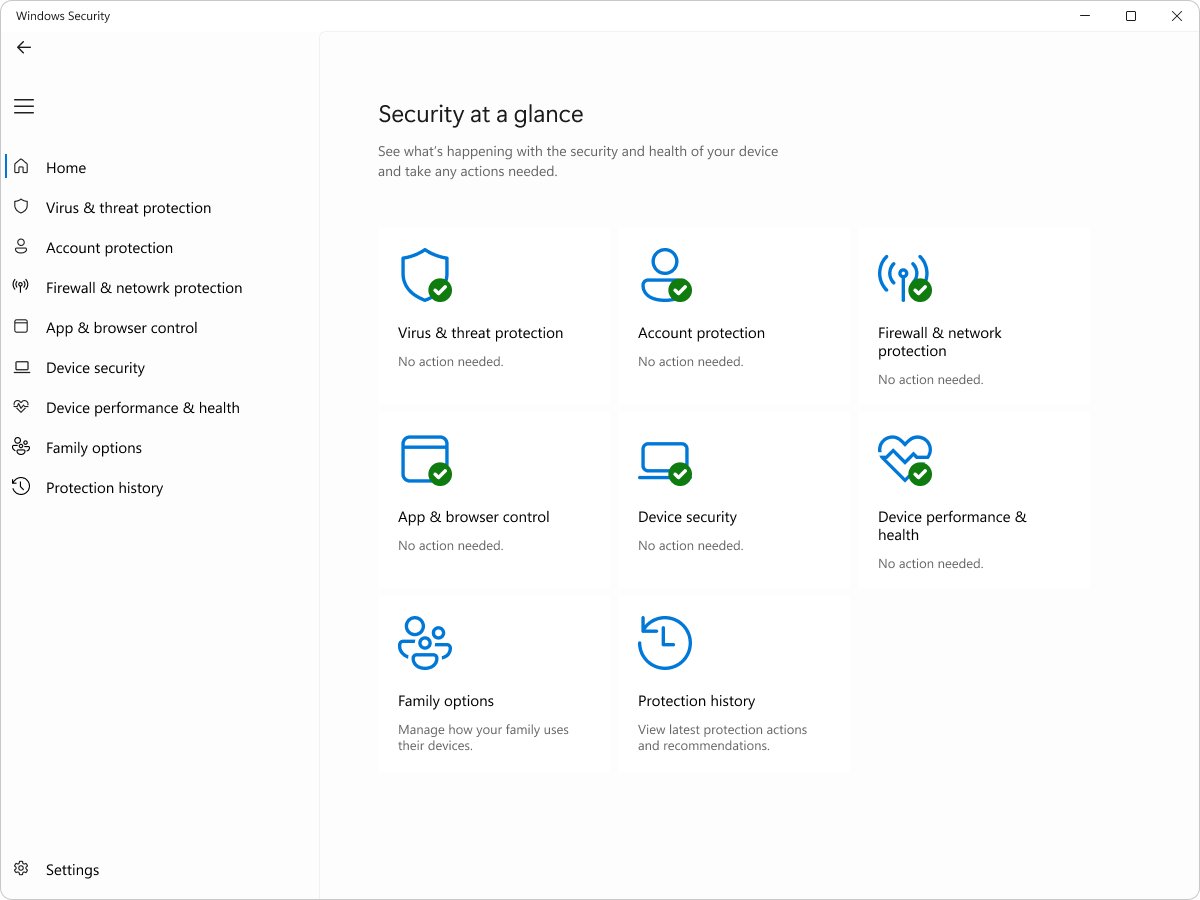
- Open Windows Security > Virus & threat protection and install any pending security intelligence update.
- Select Scan options, choose Full scan and select Scan now.
- Remove or quarantine everything the scan finds, then restart the PC.
- If Search Protect returns, go back to Scan options, choose Microsoft Defender Antivirus (offline scan), save your work and let the PC restart into the scan.
- Reset each browser's search engine, home page and extensions, as described in the next two sections.
- Check Protection history in Windows Security to confirm the threats were removed.
Remove Search Protect from Chrome
A Chrome reset returns the search engine, home page, startup tabs, new tab page and pinned tabs to defaults, disables extensions and clears cookies. Bookmarks and saved passwords are kept.
- Open Chrome and select More (three dots) > Settings.
- Select Reset settings.
- Choose the option to restore settings to their original defaults.
- Confirm with Reset settings.
- Open More > Extensions > Manage extensions and turn back on only the extensions you trust.
- Remove any extension you did not install yourself.
If Yahoo or another engine is still the default after the reset, replace Yahoo search with Google in Chrome from the search engine settings.
Remove Search Protect from Microsoft Edge
Fix the Edge address bar search engine first, then repair Edge if it still behaves oddly. A repair does not affect your browser data or settings.
- Open Edge and select Settings and more (three dots) > Settings.
- Select Privacy, search, and services > Search and connected services > Address bar and search.
- Open Search engine used in the address bar and pick the engine you want.
- Open the Extensions page from Settings and more and remove any extension you did not add.
- To repair Edge, close it, then open Start > Settings > Apps > Installed apps, select Microsoft Edge > Modify and choose Repair.
In Firefox, open its settings and set the default search engine and home page back to your choice, then remove any add-on you did not install.
Block Search Protect with Microsoft Defender PUA protection
Potentially unwanted app (PUA) protection makes Microsoft Defender Antivirus block bundled apps like Search Protect when you download or install them. Run this in PowerShell opened as administrator.
Set-MpPreference -PUAProtection EnabledTurns on PUA blocking in Microsoft Defender Antivirus. Detected items are blocked, moved to quarantine and reported with a PUA: prefix. Check the setting afterwards with Get-MpPreference | Format-Table PUAProtection.
You should see: The query returns 1, which means PUA protection is on and detected items are blocked. 2 means audit mode, which only logs detections, and 0 means off.
In Edge, also open Settings > Privacy, search, and services and turn on Block potentially unwanted apps under Security.
How to check Search Protect is fully removed
- Open Settings > Apps > Installed apps and confirm no SearchProtect entry remains.
- Open File Explorer and check that
C:\Program Files (x86)\SearchProtectno longer exists. - Open Windows Security > Virus & threat protection > Protection history and confirm detections show as removed or quarantined.
- Open each browser, run a search from the address bar and confirm it uses your chosen engine.
- Restart the PC and open the browser again; the home page and search engine should stay as you set them.
Search Protect keeps coming back: fixes
Search Protect will not uninstall
A running service or loader DLL holds its files open.
- Run a Full scan in Windows Security and remove what it finds.
- Restart and try Uninstall again from Settings > Apps.
- If it still fails, run Microsoft Defender Antivirus (offline scan), which works before Windows loads the program.
Search engine or home page changes back after a reset
Another unwanted app or extension is still installed and rewriting the settings.
- Check Installed apps again for unknown software installed on the same date.
- Remove every extension you did not add in each browser.
- Run the offline scan, then reset the browser a second time.
Search Protect extension appears in Chrome again
A program on the PC reinstalls the extension when Chrome starts.
- Uninstall the program that came with it from Settings > Apps > Installed apps.
- Reset Chrome from Settings > Reset settings.
- Turn on PUA protection so the bundle is blocked if it tries again.
Are you protected against Search Protect and other PUPs?
Keep Microsoft Defender Antivirus running and up to date, turn on PUA blocking, and install apps from trusted sources such as the Microsoft Store. Search Protect spreads through bundled installers, so it gets in when an unwanted extra is accepted during setup. Microsoft also recommends Smart App Control on Windows 11 and Edge's Microsoft Defender SmartScreen to help block PUA, plus current updates for Windows, your browser and your apps.
Search Protect removal FAQ
What is Search Protect?
Search Protect is a potentially unwanted program that hijacks browser settings such as the default search engine and home page. It usually arrives bundled with free software, and Malwarebytes detects it as PUP.Optional.SearchProtect.
What is Search Protect in Chrome?
In Chrome, Search Protect shows up as a changed search engine, home page or new tab page, and sometimes as an extension you did not install. Uninstall the program from Windows, then use Reset settings in Chrome to restore the defaults.
How do I uninstall Search Protect?
Open Settings > Apps > Installed apps on Windows 11, or Apps & features on Windows 10, select SearchProtect and choose Uninstall. Then run a Microsoft Defender full scan and reset your browsers, because the program leaves changed settings behind.
Is Search Protect a virus?
No, it is classed as a potentially unwanted program rather than a virus. It can still show unwanted ads, slow the PC and install other apps, so remove it the same way you would remove malware.
Is Search Protect by Conduit?
Malwarebytes' sample removal log for Search Protect lists a separate Conduit detection, PUP.Optional.Conduit.A, so the two often turn up on the same PC. Whatever its origin, the removal steps are the same: uninstall, scan and reset your browsers.
Will resetting Chrome delete my bookmarks?
No. A Chrome reset keeps bookmarks and saved passwords. It resets the search engine, home page, startup tabs, new tab page, pinned tabs, site settings and cookies, and it disables extensions until you turn them back on.
Can Microsoft Defender remove Search Protect?
Microsoft recommends a Defender full scan, followed by an offline scan if unwanted software persists. Turning on PUA protection with Set-MpPreference -PUAProtection Enabled makes Defender block bundled apps like this at download and install time.
How did Search Protect get on my computer?
Most often it came bundled inside the installer of another free program and was accepted during setup. It can also arrive through compromised downloads, spam email links and social media links.