To remove a hyperlink in Word and keep the text, right-click the link and select Remove Hyperlink; to remove every link in the document, press Ctrl + A and then Ctrl + Shift + F9.
The steps below cover Word for Windows and Mac, single links and bulk removal, tables and sections, the keyboard shortcuts, and how to stop Word from turning web addresses into links as you type.
Tutorial – how to remove hyperlink in Word
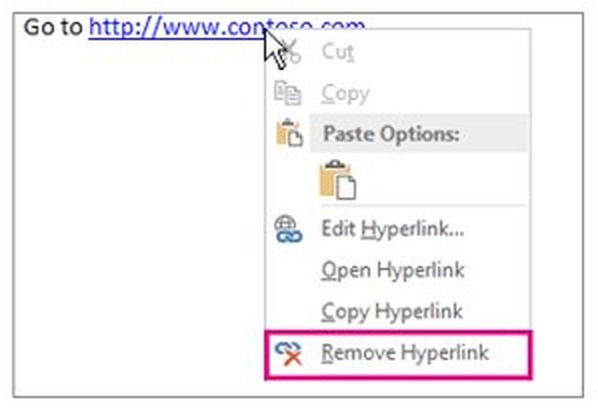
This is the quickest route for one link. The words stay in the document exactly where they were; only the link behind them goes.
- Open the document in Word for Windows.
- Right-click the linked text.
- Select Remove Hyperlink on the shortcut menu.
- Click somewhere else in the document and rest the pointer on the text: no web address ScreenTip appears, so the link is gone.
- Press Ctrl + S to save the document.
To get rid of the link and its text together, select the linked text and press Delete instead.
Ways to remove a hyperlink from a Word document
Each method below ends with plain text, but they differ in how much of the document they touch.
| Your situation | Use this | What happens |
|---|---|---|
| One or two links, text should stay | Right-click > Remove Hyperlink | The link goes, the words stay |
| The link and its words should both go | Select the link and press Delete | Text and link are removed together |
| Every link in the document | Ctrl + A, then Ctrl + Shift + F9 | All links become plain text, but other fields are converted too |
| Links in one table, paragraph or section only | Select that part, then Ctrl + Shift + F9 | Only fields inside the selection are unlinked |
| Word for Mac | Cmd + A, then Cmd + Shift + F9 | Same field unlinking as Windows |
| Text copied from a web page | Paste with Ctrl + Shift + V | Word pastes text only, so no links arrive |
| New links keep appearing as you type | Clear Internet and network paths with hyperlinks | Word stops creating links automatically |
How to remove hyperlink in Word in bulk
Word stores each hyperlink as a field. Ctrl + Shift + F9 unlinks a field, which turns it into ordinary text, so pressing it with the whole document selected removes every link at once.
- Click anywhere in the body of the document.
- Press Ctrl + A to select all text.
- Press Ctrl + Shift + F9.
- On a laptop where F9 also controls media or brightness, press Ctrl + Shift + Fn + F9 instead.
- Click once to clear the selection and check that the links are now plain text.
- Save the document with Ctrl + S.
If your keyboard has no F9 key at all, remove the links one by one with right-click > Remove Hyperlink.
Does Ctrl+Shift+F9 remove other fields in Word?
Yes. The shortcut unlinks every field in the selection, not just hyperlinks. A table of contents, cross-references, page numbers typed into the body, and date fields are all fields, and once unlinked they stop updating.
Use Ctrl + A and Ctrl + Shift + F9 only in documents with no table of contents, cross-references or other fields you need to keep live; otherwise select just the text that holds the links before pressing it. An unlinked table of contents becomes fixed text that no longer updates with Update Field, and the same is true of every other field caught in the selection.
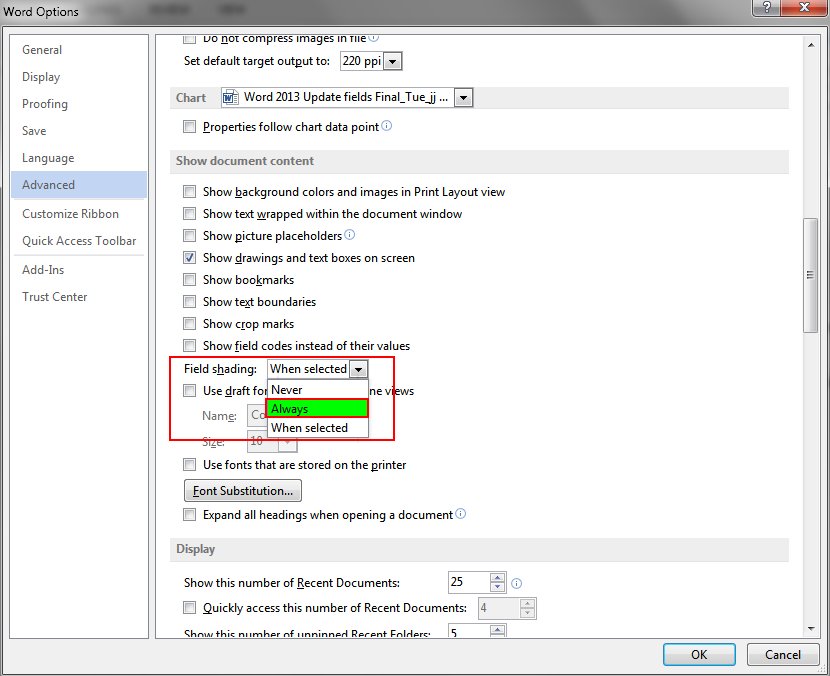
To see which parts of a document are fields before you unlink anything, go to File > Options > Advanced and, under Show document content, set Field shading to Always. Every field, links included, then shows a grey background.
How to remove hyperlink in Word table or one section
Selecting only part of the document limits the unlinking to that part. This is the safe way to strip links from a pasted table or a reference list while keeping the table of contents working.
- Select the rows, the whole table, or the paragraphs that hold the links.
- Press Ctrl + Shift + F9 (add Fn on keyboards that need it).
- Check that text outside the selection still shows its links.
- Press Ctrl + Z if the selection caught a field you wanted to keep.
Long documents split into parts are easier to handle this way; if the parts are separated by section breaks you later want gone, you can remove all section breaks in Word in a second pass.
Word remove hyperlink shortcut key for Windows and Mac
Word has no dedicated shortcut named Remove Hyperlink. The field shortcuts below do the same job from the keyboard.
| Action | Windows | Mac |
|---|---|---|
| Select all document content | Ctrl + A | Cmd + A |
| Unlink the current or selected field (removes the hyperlink) | Ctrl + Shift + F9 | Cmd + Shift + F9 |
| Show field codes instead of results | Alt + F9 (all) or Shift + F9 (selected) | Shift + F9 (selected) |
| Undo the previous action | Ctrl + Z | Cmd + Z |
| Paste text only, without links | Ctrl + Shift + V | Cmd + Shift + V |
| Insert a hyperlink again | Ctrl + K | Insert > Link |
How to remove hyperlink in Word on Mac
Word for Mac uses the same field model as Windows, with Cmd in place of Ctrl.
- To remove one link, click inside the linked text so the insertion point sits in it.
- Press Cmd + Shift + F9 to unlink that field; on a MacBook keyboard press Fn as well.
- To remove every link, press Cmd + A to select all document content.
- Press Cmd + Shift + F9 again.
- Press Cmd + S to save the document.
The same warning applies on a Mac: selecting everything also unlinks a table of contents and other fields.
How to stop Word from automatically creating hyperlinks
Word turns a web address or email address into a link as soon as you press Enter or the Spacebar after it. One AutoFormat setting stops that for every new document you type.
- In Word for Windows, select File > Options > Proofing.
- Select AutoCorrect Options.
- Open the AutoFormat As You Type tab.
- Clear the Internet and network paths with hyperlinks check box.
- Select OK, then OK again.
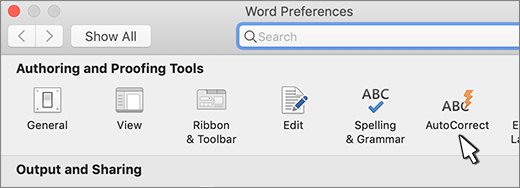
- In Word for Mac, open the Word menu, select Preferences > AutoCorrect > AutoFormat as You Type, and clear the same check box.
The setting only affects text you type from now on. Links already in the document stay until you remove them with the methods above.
Paste into Word without hyperlinks
Text copied from a browser or an email usually brings its links with it. Pasting as text only drops the links and the source formatting in one step.
- Copy the text from the web page, email or other document.
- Click in the Word document where the text should go.
- Press Ctrl + Shift + V on Windows or Cmd + Shift + V on a Mac.
- Check the pasted text: it takes on the formatting of the paragraph you pasted into and carries no links.
Word hyperlink remove underline
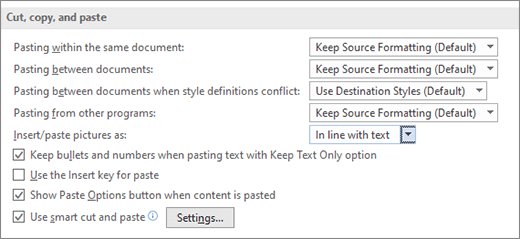
Sometimes the link should keep working but stop looking like a link, for example in a printed handout. Changing the font formatting keeps the address behind the text.
- Select the linked text.
- Press Ctrl + U to remove a single underline; press it twice for other underline styles.
- For more control, right-click the link and select Font, or press Ctrl + D.
- In the Underline style drop-down list, select the no-underline option.
- Select OK.
To strip the link-style formatting from text that is no longer a link, select it and press Ctrl + Spacebar, which removes manual character formatting.
Turn off Ctrl+Click to follow hyperlink in Word
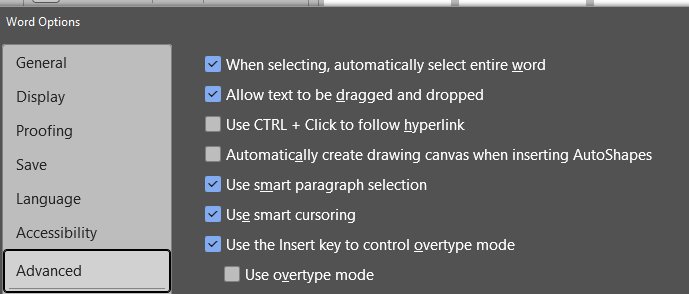
Some readers search for this when they actually want links to open with a plain click. This setting changes how existing links open; it does not remove them or stop new ones being created.
- Select File > Options > Advanced.
- Under Editing options, clear the Use CTRL + Click to follow hyperlink check box.
- Select OK.
- Click a link once to confirm it now opens without holding Ctrl.
How to undo hyperlink removal in Word
- Press Ctrl + Z (or Cmd + Z on a Mac) straight after removing the link to bring it back.
- Press it again to step back further if you removed several links one by one.
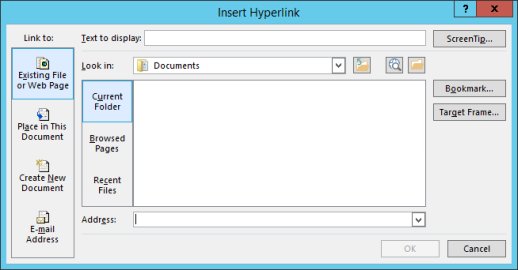
- If the document has been closed since, select the text and press Ctrl + K to insert the link again.
- Type or paste the web address in the Address box and select OK.
A link removed with Ctrl + Shift + F9 and then saved and closed cannot be restored from Word itself; the address has to be added again by hand.
How to find all hyperlinks in a Word document
Field codes show what is still a link and what has become plain text. Use this before a bulk removal to see what will change, and afterwards to prove nothing was missed.
- Press Alt + F9 to switch every field to its code.
- Look for codes that start with HYPERLINK in braces; each one is a link still in the document.
- Look for codes such as TOC or PAGE; these are other fields that a Ctrl + A unlink would also convert.
- Press Alt + F9 again to return to the normal view.
With Field shading set to Always under File > Options > Advanced, any text that still has a grey background is a field; plain text after a removal has none.
Remove hyperlink in Word not working
Ctrl + Shift + F9 does nothing
The F9 key is assigned to a media or brightness control, so Word never receives F9.
- Press Ctrl + A again so the text is selected.
- Press Ctrl + Shift + Fn + F9.
- If the keyboard has no F9 key, right-click each link and select Remove Hyperlink.
The table of contents or cross-references stopped updating
Ctrl + Shift + F9 was pressed with the whole document selected, so those fields were unlinked as well.
- Press Ctrl + Z immediately to restore the fields.
- Select only the text that holds the hyperlinks.
- Press Ctrl + Shift + F9 again for that selection only.
Text still looks blue and underlined after the link is removed
The link formatting stayed on the characters after the field was unlinked.
- Select the text.
- Press Ctrl + Spacebar to remove manual character formatting.
- If an underline remains, press Ctrl + U.
Web addresses keep turning back into links
AutoFormat As You Type re-creates a link each time you press Enter or Spacebar after an address.
- Select File > Options > Proofing > AutoCorrect Options.
- Open AutoFormat As You Type.
- Clear Internet and network paths with hyperlinks and select OK.
Tips for removing hyperlink in Word
| Tip | Why it helps |
|---|---|
| Turn on Field shading > Always before a bulk removal | You can see every field the shortcut will convert |
| Select only the part you need before Ctrl + Shift + F9 | Keeps the table of contents and cross-references live |
| Paste web text with Ctrl + Shift + V | Links never arrive, so there is nothing to remove later |
| Turn off Internet and network paths with hyperlinks | New addresses you type stay plain text |
| Save a copy before removing links from a long document | Gives you the original links back if you need them |
| Use Remove Link in Outlook | Outlook names the same right-click command differently |
The same habit of checking hidden marks before deleting anything helps with layout clean-ups too, such as when you remove page breaks in Word or remove a stubborn watermark.
Remove hyperlink in Word FAQ
What happens to the text when you remove a hyperlink?
The text stays exactly where it was. Remove Hyperlink deletes only the link behind the words, so the sentence reads the same and clicking it no longer opens anything. To delete the words as well, select them and press Delete.
How do I remove all hyperlinks in a Word document at once?
Press Ctrl + A to select all text, then press Ctrl + Shift + F9. Every hyperlink becomes plain text. The shortcut also unlinks other fields, such as a table of contents, so select only the linked text if the document has those.
What is the shortcut key to remove a hyperlink in Word?
Ctrl + Shift + F9 removes the hyperlink from the selected text in Word for Windows, and Cmd + Shift + F9 does the same on a Mac. On laptops whose F9 key controls media or brightness, hold Fn as well.
Can I remove hyperlinks only from a specific section or table?
Yes. Select just that section, paragraph or table, then press Ctrl + Shift + F9. Only the fields inside the selection are unlinked, so links and fields elsewhere in the document keep working.
Will removing hyperlinks affect my document's formatting?
The rest of the document is not changed. The unlinked text can keep its blue colour or underline, though; select it and press Ctrl + Spacebar to remove that character formatting, or Ctrl + U to remove the underline.
How can I prevent Word from automatically creating hyperlinks?
Go to File > Options > Proofing > AutoCorrect Options, open AutoFormat As You Type and clear Internet and network paths with hyperlinks. On a Mac the same box is under Word > Preferences > AutoCorrect.
Is there a way to undo hyperlink removal?
Press Ctrl + Z right after removing the link, or Cmd + Z on a Mac. If the document has already been saved and closed, select the text and press Ctrl + K to add the link again.
How do I remove a hyperlink in Word on Mac?
Click inside the linked text and press Cmd + Shift + F9. To remove every link, press Cmd + A first. On a MacBook keyboard, add Fn so the F9 key is sent to Word instead of a media control.
How do I remove a hyperlink in WordPad?
WordPad is no longer part of Windows: Microsoft removed it from all editions starting with Windows 11, version 24H2, and recommends Word for .rtf and .doc files. Open the file in Word and remove the link with right-click > Remove Hyperlink.