Open google.com/advanced_search, fill in the fields you need, and submit the form, or type operators such as "exact phrase", site:, -word and filetype: straight into the Google search box.
This guide covers the Advanced Search page, a reference table of operators Google still documents, the Tools filters for date and exact words, image and file type searches, and the operators that no longer work.
The fastest way to run an advanced search in Google
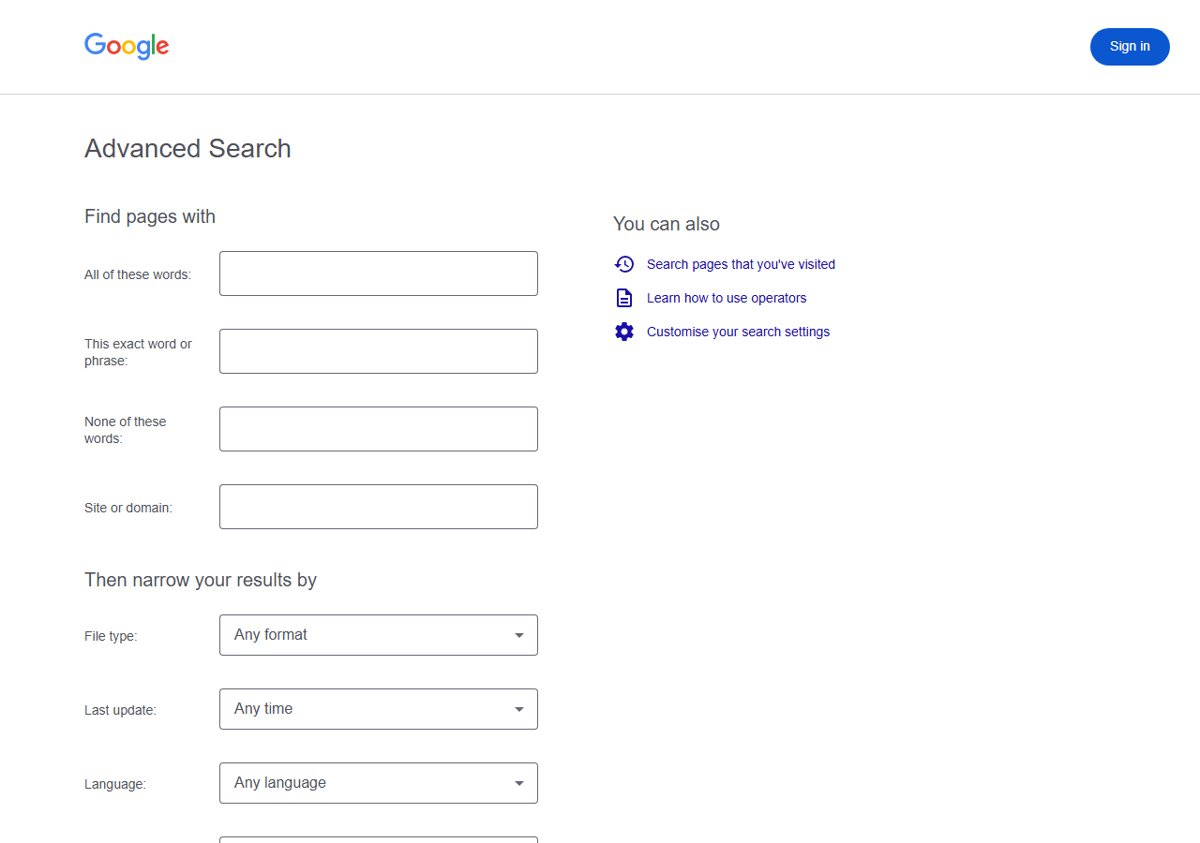
The Advanced Search page builds the query for you, so you do not need to remember any operator syntax. Its fields cover exact phrases, excluded words, one site, file type, date, language, region and usage rights.
- Go to google.com/advanced_search in any browser. You can also run a normal search, click Tools below the search box, and click Advanced Search.
- Under Find pages with, type your main words in All of these words.
- Put a fixed phrase in This exact word or phrase.
- Add words you want to leave out in None of these words.
- To stay on one website, enter its domain in Site or domain.
- Under Then narrow your results by, set File type, Last update, Language, Region or Usage rights as needed.
- Submit the form with the button at the bottom of the page.
- Refine the results page further with the Tools filters if you still see too many results.
On a phone in the Google app or Chrome, run a search and tap Search tools to reach the date and Verbatim filters.
Which operator or filter to use for what you want to find
Match your goal to a row and copy the example. Every operator and filter in this table appears in Google's own help or developer documentation.
| What you are trying to find | Operator or filter to use | Example |
|---|---|---|
| A phrase in exactly this word order | Quotation marks | "tallest building" |
| Results that skip an unwanted meaning | Minus sign before the word | jaguar speed -car |
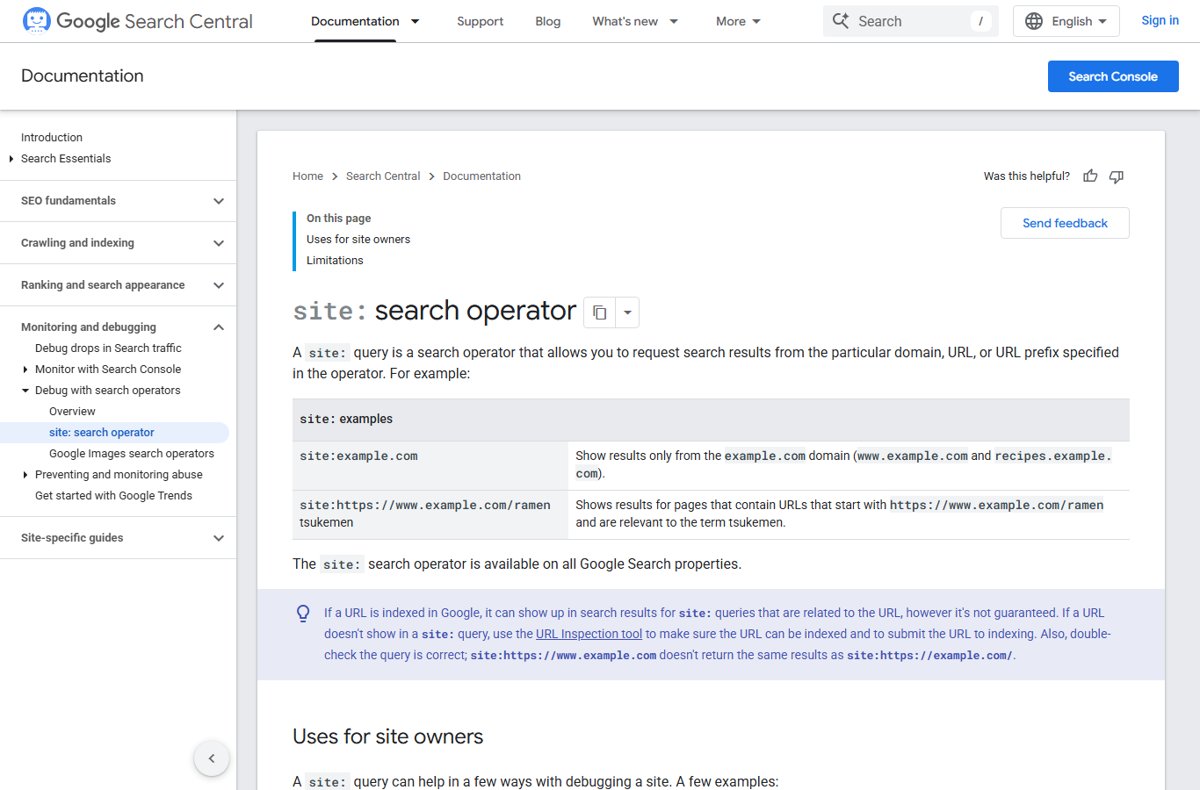
| Pages from one website or domain | site: |
site:youtube.com cat videos |
| Only one folder of a website | site: with a URL prefix |
site:https://www.example.com/ramen |
| A PDF, spreadsheet or slide deck | filetype: |
photoelectric effect paper filetype:pdf |
| Pages updated before or after a date | before: or after: |
astronomy discovery before:2025/11/01 |
| Pages from a narrow date window | after: and before: together |
avengers endgame after:2019-03-01 before:2019-03-05 |
| Exact words or phrases only, without related-word matches | Tools > Verbatim | Search, then pick Verbatim in the Tools bar |
| Recent results without typing a date | Tools > Publish date | Search, then pick a time range in the Tools bar |
| Images of an exact size | imagesize: in Google Images |
imagesize:1500x1000 |
| Images you may reuse | Usage rights filter in Google Images | Pick a license option such as free to use or share |
| Papers by one author | author: in Google Scholar |
author:"d knuth" |
Google search operators that work today, and the ones that do not
Understanding which operators still work matters more than memorizing a long list. Many older operator lists still recommend commands that Google has retired or no longer documents.
The Works today column reflects Google's own Search Help, Search Central and Google Scholar documentation. An operator Google no longer documents is marked as such, even if an old article still lists it.
| Operator | What it does | Example query | Works today (per Google's docs) |
|---|---|---|---|
"..." |
Matches an exact word or phrase | "tallest building" |
Yes, Google Search Help |
- |
Leaves out results containing a word | jaguar speed -car |
Yes, Google Search Help |
site: |
Limits results to a site, subdomain or URL prefix | site:youtube.com cat videos |
Yes, Google Search Help and Search Central |
filetype: |
Limits results to one file type or extension | filetype:rtf galway |
Yes, Google Search Help and Search Central |
before: |
Finds documents last updated before a date | avengers endgame before:2019 |
Yes, Google Search Help |
after: |
Finds documents last updated after a date | astronomy discoveries after:2026/03/10 |
Yes, Google Search Help |
OR |
Matches any of the listed words | miniature OR standard |
Not in Google's current help pages or on the Advanced Search form |
.. |
Matches numbers in a range; add a unit | rat terrier 10..25 lb |
Not in Google's current help pages or on the Advanced Search form |
imagesize: |
Returns images of a set width x height | imagesize:1500x1000 |
Yes, Google Images only (Search Central) |
src: |
Finds pages that embed a specific image URL | src:https://example.com/media/carrot.jpg |
Yes, Google Images only (Search Central) |
author: |
Finds papers by an author | author:"donald e knuth" |
Yes, Google Scholar only |
intitle:, inurl: |
Word in the page title or URL | No current Google equivalent | Not in Google's current help pages |
* wildcard |
Placeholder for an unknown word | No current Google example | Not in Google's current help pages |
related: |
Found sites similar to a URL | None | No. Removed from Search Central docs on July 18, 2023 as no longer supported |
cache: |
Showed Google's stored copy of a page | None | No. Removed from Search Central docs on September 24, 2024; it no longer works |
+, ~, link:, info: |
Legacy operators from older guides | None | Not in Google's current documentation; do not rely on them |
Google also notes that operators are bound by indexing and retrieval limits, so site: and the image operators do not always return every matching page.
Step-by-step: build an advanced query in the Google search box
Typing operators is faster than the form once you know a few. Build the query in layers, and check the results after each addition so you know which operator removed what.
- Type your main words in the Google search box, for example
photoelectric effect paper. - Wrap a fixed phrase in quotation marks, such as
"photoelectric effect" paper. - Type a minus sign directly in front of any word that pulls in the wrong topic, such as
-quiz. - Add
site:and a domain to stay on one website, such assite:nasa.gov. - Add
filetype:pdfto return only PDF documents. - Add
after:2020orbefore:2025/11/01to limit results by the date the page was last updated. - Press Enter and scan the results. Remove the last operator you added if the list comes back empty.
Tips for effective advanced searching: use the words a website would use, such as headache rather than my head hurts. Capital letters make no difference, and Google may match related words unless you use quotes or Verbatim. These are the basics of choosing search terms, the words Google matches against the text of each page.
Filter results by date or exact words with the Tools menu
The Tools bar holds Google's result filters and settings. The filters you see change with your search, the type of results and your browser, so some searches show more options than others.
- Run a search on google.com.
- Click Tools below the search box.
- Click Publish date and pick a time range to see only results published in that period.
- In the Tools bar, select Verbatim to search only for the exact words you typed.
- Use other features in the bar where they appear, such as Nearby, Dictionary or Personal for content shared with you in products like Gmail.
- Click Clear in the Tools bar to remove every filter.
On Android and iPhone, tap Search tools instead of Tools, and scroll right to tap Clear.
Search special content types: images, videos, news and scholarly articles
Each content type has its own tab or site, and its own filters. Start the search on google.com, then switch to the tab that matches what you need. In the US, Google job search adds a Jobs panel at the top of the results for job queries, with its own filters.
| Content type | Where to search | Filters and operators that apply |
|---|---|---|
| Images | Images tab, or google.com/advanced_image_search | Size, Color, Type, Time, Usage rights; imagesize: and src: |
| Images on the Advanced Image Search page | google.com/advanced_image_search | image size, aspect ratio, colors in image, type of image, file type (JPG, GIF, PNG, BMP, SVG, WEBP, ICO, RAW), usage rights |
| Documents such as PDF, Word or Excel | Main search box or file type on the Advanced Search page | filetype: with an extension such as pdf, docx, xlsx or pptx |
| Videos | Videos tab | Duration, Time, Quality, Closed captioned, Source |
| News | News tab | Tools filters for the News results, plus site: for one publication |
| Scholarly articles | scholar.google.com | Advanced search in the side drawer, author:, Since a year, or a custom date range |
To search with a picture instead of words, click Search by image on google.com, select Upload a file, and choose the image. You can also paste an image address into Paste image link and click Search.
Practical use cases: example queries for research, business and older pages
Real searches combine two or three operators. Copy a query, swap in your own words, and press Enter.
| Goal | Query to type | What it returns |
|---|---|---|
| Academic research papers | "climate model" filetype:pdf site:nasa.gov |
PDF files on nasa.gov that contain the exact phrase |
| Scholarly papers by one author since a year | author:"d knuth" in Google Scholar, then Since a year |
Only that author's recent papers, sorted by relevance |
| Business intelligence on a competitor | site:example.com "price list" |
Pages on that one domain that mention a price list |
| Market figures in spreadsheets | "market share" filetype:xlsx |
Excel files that contain the phrase |
| Historical data from a past period | "product recall" after:2019-03-01 before:2019-03-05 |
Pages last updated inside that date window |
| A product in a price band | laptop $400..$700 |
Pages listing prices inside the range |
| Reusable photos | Advanced Image Search with usage rights set to free to use or share | Images that carry license information |
How to check your advanced search worked
A search with a mistyped operator still returns results, so an answer on screen proves nothing. Check these signs instead.
- Look at the search box on the results page and confirm every operator is still there, with no space after the colon.
- Check the web address under each result. With
site:it should always be the domain you entered. - Check the file label or link ending on each result. With
filetype:pdfevery result should be a PDF. - Confirm the Tools bar shows the filter you picked, such as Verbatim or a date range, instead of the default.
- Search an excluded word inside a few results with Ctrl + F to confirm the minus sign removed it.
Limitations and tips: fix advanced searches that return wrong results
Find the symptom that matches your results and follow the fix under it.
The cache: or related: operator returns nothing useful
Google retired both. It removed related: from its documentation in July 2023 and cache: in September 2024 because they no longer work.
- Delete the retired operator from your query.
- To find a page from one site, use
site:with the domain or URL prefix instead. - To limit results to an older period, add
before:with a date.
Results include pages that do not contain your word
Google matches related words and common spellings, so jogging shoes can return pages that only say running.
- Put the word or phrase in quotation marks.
- Click Tools and choose Verbatim.
- Run the search again and confirm the word appears in the result snippets.
A site: search does not show every page on the site
Google states that site: does not necessarily return all indexed URLs, and a bare site: query has no meaningful ranking.
- Add search words after the domain, such as
site:example.com refund policy. - Narrow the domain to a URL prefix, such as
site:https://www.example.com/help. - If you own the site, use the URL Inspection tool in Search Console, which Google calls more reliable for checking a page.
The Tools filter you expected is missing
Google changes the available search tools based on your search, the type of results and your browser.
- Switch to the All tab, where Publish date and Verbatim appear for web results.
- Open google.com/advanced_search and use Last update or Site or domain instead.
- On a phone, tap Search tools and scroll right along the bar.
An operator is ignored or the results do not change
The operator differs from Google's documented form, such as a space after the colon, or it is one Google no longer documents, such as + or ~.
- Remove any space between the operator and its value, such as
site:nasa.gov. - Type
ORin capital letters between alternatives, as the Advanced Search page shows. - Replace undocumented operators with quotation marks or an Advanced Search field.
Frequently asked questions
How do you do an advanced search on Google?
Go to google.com/advanced_search, fill in fields such as this exact word or phrase, site or domain and file type, and submit the form. You can also type operators like quotation marks, site:, -word and filetype: directly into the search box.
What is an advanced search?
An advanced search narrows results with conditions beyond plain keywords, such as an exact phrase, one website, a file type or a date range. Its importance shows when a simple search returns thousands of loosely related pages and you need a specific document or source.
What are advanced search techniques?
The core techniques are exact phrase matching with quotes, excluding words with a minus sign, limiting to a site with site:, limiting to a file type with filetype:, and date limits with before: and after:. The Tools bar adds Verbatim and Publish date filters.
How do I use Google Advanced Search from the results page?
Run a search on google.com, click Tools below the search box, and click Advanced Search. Then add conditions such as Last update, Region or File type and submit the form.
What are some Google advanced search examples?
Try "tallest building" for an exact phrase, jaguar speed -car to drop a meaning, site:youtube.com cat videos for one site, and photoelectric effect paper filetype:pdf for PDFs. For a date window, use avengers endgame after:2019-03-01 before:2019-03-05.
Where are the advanced search settings in Google?
The full set lives at google.com/advanced_search, which also links to Customize your search settings. Result filters such as Publish date and Verbatim sit in the Tools bar below the search box, or under Search tools on a phone.
How can I improve my search results?
Use the words a website would use, add a location when you want local results, and put fixed phrases in quotes. Then narrow with site:, filetype: or a date operator, and switch on Verbatim when Google swaps your words for related ones.
Does Bing support advanced search operators too?
Yes. Microsoft Support documents Bing advanced search keywords including site: and filetype:, and states that the NOT and OR operators must be typed in capital letters. Check that page before reusing any other Google operator on Bing.







Advanced Bing Search Operators and Filters - Techdows
[…] you already use Google's equivalents, most of the habits carry over; the Google advanced search guide covers that engine's own form and […]
How to use Google job search - Techdows
[…] operators also work in the first search, so Google advanced search techniques such as exact phrases in quotes help when a title is […]