To fix Bluetooth connection problems on Windows 10, turn Bluetooth off and on, remove and re-pair the device, run the Bluetooth troubleshooter, and update or reinstall the Bluetooth driver in Device Manager.
The sections below cover a missing Bluetooth toggle, an adapter missing from Device Manager, paired devices that will not connect, failed file transfers, silent headphones, drops, and the Windows 11 versions of the same fixes.
Bluetooth not connecting on Windows 10
These steps clear most failed connections in a few minutes. Work through them in order and test the device after each one.
- Charge the Bluetooth device, turn it off, wait a few seconds, and turn it back on. Keep a rechargeable device plugged in while you pair it.
- Put the device in pairing mode and move it close to the PC. The pairing button differs by model, so check the maker's instructions.
- Select Start > Settings > Devices > Bluetooth & other devices, turn Bluetooth off, wait 10 seconds, and turn it back on.
- Select the device under Audio, Mouse, keyboard, & pen or Other devices, select Remove device, then select Yes.
- Select Add Bluetooth or other device, choose Bluetooth, and select your device from the list.
- If it still fails, select Start > Power > Restart and try pairing again.
If the toggle itself is missing, skip ahead to the Settings and Device Manager fixes below. A brand-new accessory follows the usual steps to pair Bluetooth devices in Windows instead.
Reasons why a Bluetooth device cannot pair with a Windows computer
Match what you see to a row, then jump to the fix it names. Microsoft lists an outdated or incompatible driver as one of the most common causes.
| What you see | Likely cause | Fix |
|---|---|---|
| No Bluetooth toggle in Settings or action center | No Bluetooth hardware, a laptop switch is off, or a driver or firmware error | Fix Bluetooth missing in Settings |
| No Bluetooth category in Device Manager | Adapter missing, disabled at hardware level, or without a driver | Fix Bluetooth missing in Device Manager |
| Bluetooth stopped working after an upgrade or update | The driver was written for an earlier version of Windows | Fix Bluetooth after upgrading to Windows 10 |
| Device shows as paired but will not connect | Stale pairing record, flat battery, or the device is out of range | Fix Bluetooth device connection when paired |
| Device does not appear when you add it | Device not in pairing mode, or PC not discoverable | Turn on Allow Bluetooth devices to find this PC |
| Sluggish or unresponsive mouse, keyboard or headset | Interference from an unshielded device in a USB 3.0 port | Move the device or the PC away from that port |
| Connected, but no sound | Wrong output device or the Hands-Free endpoint is in use | Fix Bluetooth audio devices connection |
| "Waiting for connection" or "Bluetooth file transfer not completed" | PC not set to receive, encryption mismatch, or no file transfer support | Fix Bluetooth when you can't transfer files |
| Connection drops every few minutes | Power saving turns the adapter off, or the Bluetooth service has stalled | Bluetooth keeps disconnecting on Windows 10 |
Fix Bluetooth missing in Settings
A missing or grayed-out Bluetooth toggle usually means the Bluetooth hardware hit an error, and Microsoft says those errors normally come from the PC maker's driver or firmware. Some PCs simply have no Bluetooth, so check the product specifications first.
- On a laptop with a physical Bluetooth switch, make sure the switch is on.
- Select the action center icon on the taskbar. If Bluetooth is not shown, select Expand, then select Bluetooth to turn it on.
- Select Start > Settings > Network & Internet > Airplane mode and make sure Airplane mode is off.
- Hold Shift, then select Start > Power > Shut down. Choose Shut down, not Restart, so the Bluetooth hardware fully powers off.
- Wait one minute, turn the PC back on, and open Start > Settings > Devices > Bluetooth & other devices to look for the toggle.
- If it is still missing, update the adapter driver in Device Manager as described in the next section.
- Check the PC maker's support site for newer BIOS, UEFI or firmware updates for your model.
Fix Bluetooth missing in Device Manager
Device Manager lists the adapter under Bluetooth, and its name often includes the word "radio". If that category is missing, Windows either cannot see the hardware or has no driver for it.
- Select the search box on the taskbar, type device manager, and select Device Manager from the results.
- Expand Bluetooth. If there is no such category, expand Other devices and look for an unknown or Bluetooth-named entry.
- Select Action > Scan for hardware changes so Windows looks for the adapter again.
- If the adapter appears under Other devices, right-click it, select Update driver, then Search automatically for updated driver software.
- If Windows finds nothing, download the Bluetooth driver for your exact model from the PC maker's website, then install the driver manually.
- If the PC has no built-in Bluetooth, plug a USB Bluetooth adapter into a USB port to add it.
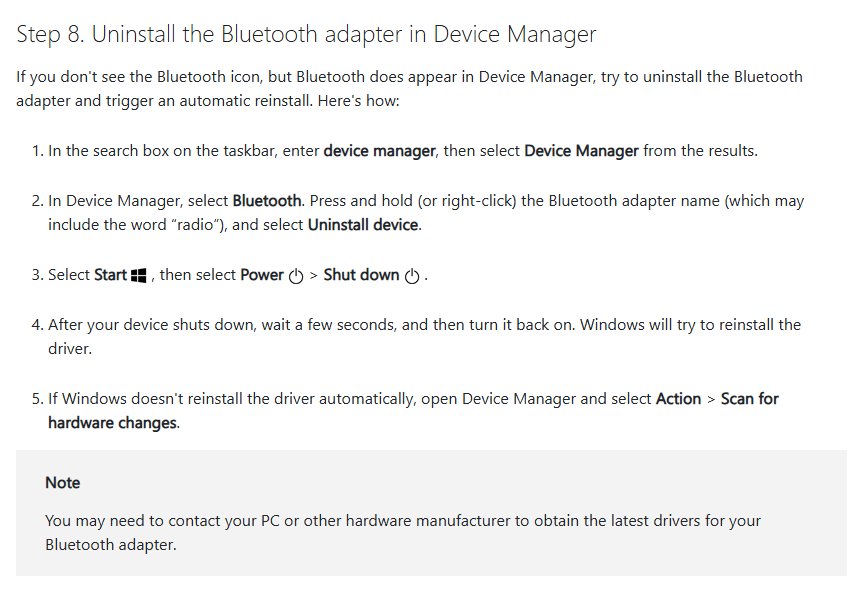
If the Bluetooth icon is gone but the adapter is listed in Device Manager, uninstall the adapter and let Windows reinstall it, as the next section explains.
Fix Bluetooth after upgrading to Windows 10
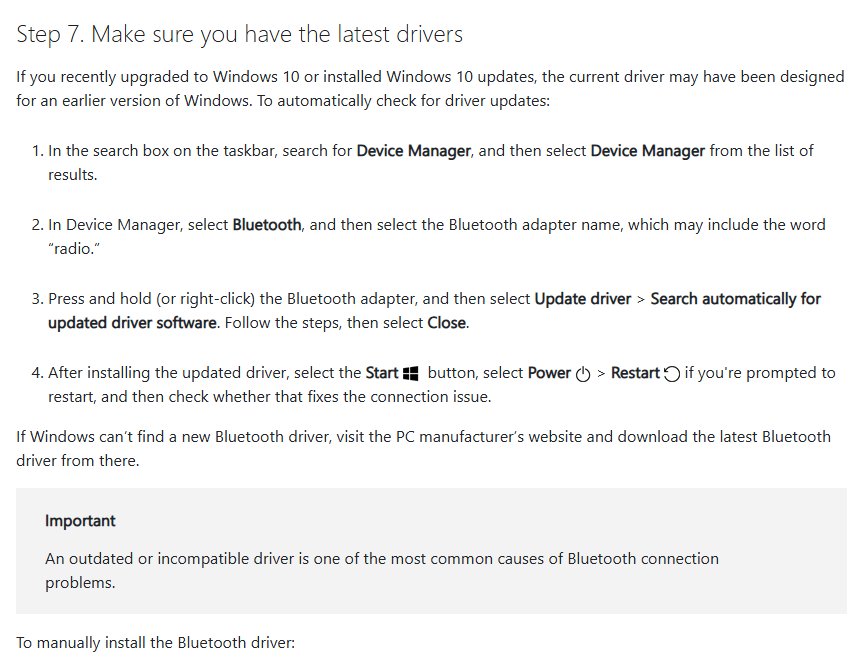
After an upgrade or a feature update, the installed Bluetooth driver may have been designed for an earlier version of Windows. Updating it, or reinstalling it, is the fix.
- Select Start > Settings > Update & Security > Windows Update, select Check for updates, and install what it offers.
- Open Device Manager, expand Bluetooth, right-click the adapter, and select Update driver > Search automatically for updated driver software. Select Close when it finishes.
- If Windows finds no driver, download one from the PC maker's site. Run it if it is an .exe file.
- If you received separate files, including an .inf and a .sys file, right-click the adapter and select Update driver > Browse my computer for driver software. Select Browse, pick the folder, select OK, then Next, then Close.
- If that fails, right-click the adapter, select Uninstall device, and confirm with Uninstall.
- Select Start > Power > Shut down, wait a few seconds, and turn the PC back on so Windows reinstalls the driver.
- If the adapter does not come back, open Device Manager and select Action > Scan for hardware changes.
Fix Bluetooth device connection when paired
A device that shows as paired but will not connect usually has a stale pairing record. Removing it and pairing from scratch rebuilds that record.
- Check that the device is charged, turned on, and within range of the PC.
- Select Start > Settings > Devices > Bluetooth & other devices.
- Select the device, select Remove device, then select Yes.
- Select More Bluetooth options, open the Options tab in the Bluetooth Settings dialog, and tick Allow Bluetooth devices to find this PC.
- Put the device in pairing mode, then select Add Bluetooth or other device > Bluetooth and select it from the list.
- If the device is slow or keeps failing, move it away from anything plugged into a USB 3.0 port, because unshielded USB devices can interfere with Bluetooth.
Fix Bluetooth when you can't transfer files
Windows 10 sends and receives files through the Bluetooth File Transfer wizard, which uses the Object Push Profile. The other device must be paired, in range, and support Bluetooth file transfer.
- Pair the phone or PC first, then select Start > Settings > Devices.
- Under Related settings, select Send or receive files via Bluetooth.
- To receive, select Receive files. When Waiting for a connection appears, start the send on the other device.
- On the Save the received file page, keep the default folder or select Browse, then select Finish.
- To send, select Send files, choose the receiving device, select Next, select Browse to pick the file, then select Next.
- Select Finish when the wizard reports that the file was transferred.
If Send or receive files via Bluetooth is not under Related settings, the PC may have no Bluetooth adapter or its driver is not installed. Error messages are covered in the file transfer section further down.
Fix Bluetooth audio devices connection
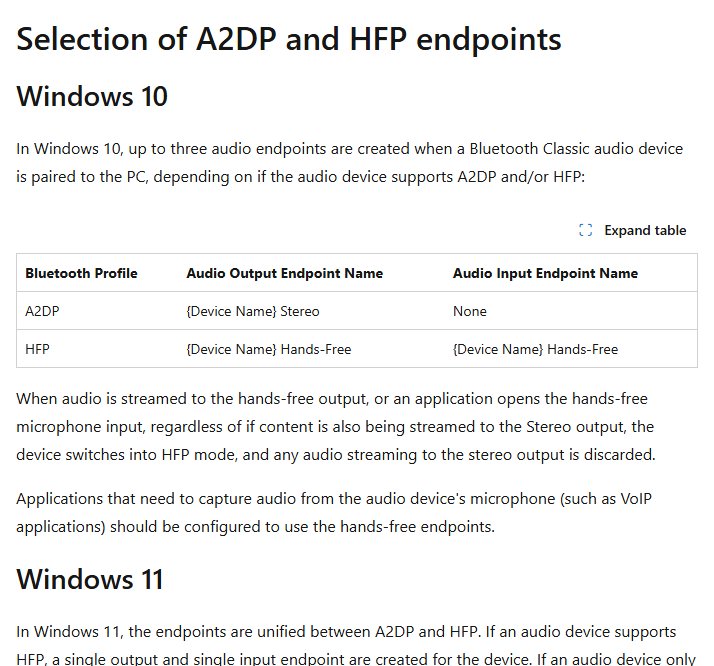
Headphones that connect but stay silent are a common Bluetooth audio issue in Windows 10, and they are usually set to the wrong output. On Windows 10, a headset can appear as two outputs: Stereo for music over A2DP and Hands-Free for calls over HFP.
- Select the sound icon on the taskbar and choose the Bluetooth headphones as the output.
- Or select Start > Settings > System > Sound and pick the headphones under Choose your output device. Pick the Stereo entry for music and video.
- Right-click the sound icon, select Sounds, open the Playback tab, select the headphones, and select Properties.
- On the Advanced tab, set Default Format to 2 channel, 16 bit, 48000 Hz (DVD Quality), then select Apply and OK.
- If there is still no sound, remove the headphones in Bluetooth & other devices and pair them again.
- Check the headphone maker's documentation to confirm the model supports A2DP, which Windows needs for higher-quality stereo audio.
When an app opens the headset microphone, Windows 10 switches the headset into Hands-Free mode and discards audio sent to the Stereo output. Close the call or voice app, or set it to use a different microphone, to get stereo sound back.
Bluetooth keeps disconnecting on Windows 10
Frequent drops usually come from power saving or a stalled Bluetooth service. Both settings are the same on Windows 10 and Windows 11.
- Turn off Battery saver if it is on, because it can interfere with Bluetooth connections.
- Open Device Manager, expand Bluetooth, right-click the adapter, and select Properties.
- On the Power Management tab, clear Allow the computer to turn off this device to save power, then select OK.
- Press Windows + R, type
services.msc, and select OK. - Scroll to Bluetooth Support Service, right-click it, and select Restart.
- Back in Device Manager, right-click the adapter and select Update driver to rule out an old driver.
Fix Bluetooth using Hardware and Devices troubleshooter
Windows 10 no longer lists a Hardware and Devices troubleshooter in Settings. The dedicated Bluetooth troubleshooter does that job, and Microsoft's current list of Get Help troubleshooters includes Bluetooth but not Hardware and Devices.
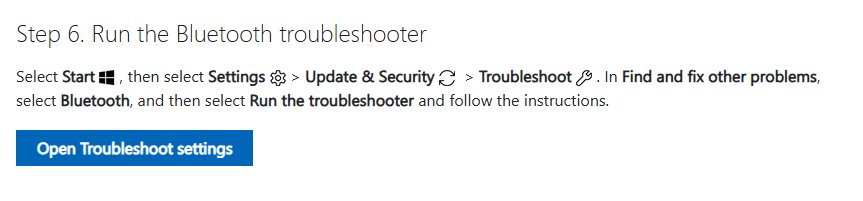
- Select Start > Settings > Update & Security > Troubleshoot.
- Under Find and fix other problems, select Bluetooth.
- Select Run the troubleshooter and follow the prompts.
- Or open the Get Help app, type Bluetooth troubleshooter in the search bar, and follow the steps it shows.
- Restart the PC if the troubleshooter applied a fix, then try the connection again.
Bluetooth file transfer not completed on Windows 10
Microsoft lists three messages for failed Bluetooth transfers. Find yours below.
"Waiting for connection" never moves on
The PC is not ready to receive, or the sending device is not discoverable or is out of range.
- Right-click the Bluetooth icon in the notification area and select Receive a File before you send.
- Make the sending device discoverable and bring it closer to the PC.
- Charge the sending device if its battery is low, then try again.
"Bluetooth file transfer not completed"
The other device does not support 128-bit encryption for file sharing, or the adapter driver has failed.
- Open Control Panel > Network and Sharing Center > Change advanced sharing settings.
- Expand All networks and, under File sharing connections, select Enable file sharing for devices that use 40- or 56-bit encryption.
- Select Save changes and retry the transfer.
- If it still fails, uninstall the adapter in Device Manager, restart, and let Windows reinstall it.
"File transfer is disabled by policy"
A restrictive file-sharing policy blocks Bluetooth transfers, often on a work or school PC.
- Ask the organisation that manages the PC whether Bluetooth file transfer is allowed.
- On a personal PC, check the encryption setting above and install pending updates from Update & Security > Windows Update.
Fix Bluetooth connection problems in Windows 11
The same fixes apply on Windows 11, but the menus moved. Windows 11 also adds a discovery setting that hides some device types by default.
- Open the Get Help app and run the Bluetooth troubleshooter.
- Select Start > Settings > Bluetooth & devices and make sure Bluetooth is on.
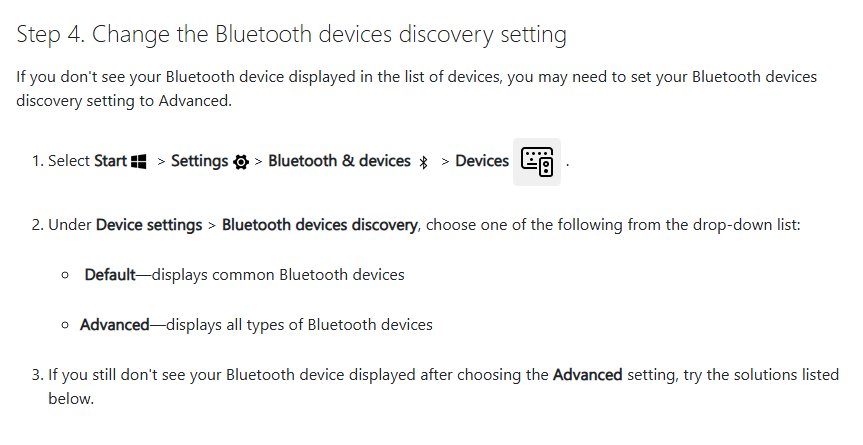
- If your device is not listed, select Devices and set Bluetooth devices discovery to Advanced.
- For a device that will not connect, select More options next to it, then Remove device > Yes, and add it again with Add device.
- Select Start > Settings > System > Troubleshoot > Other troubleshooters, then select Run next to Bluetooth.
- Update or reinstall the adapter in Device Manager exactly as on Windows 10.
After a re-pair, you can connect Bluetooth headphones on Windows 11 from the same Add device button. If headphones connect but stay silent, fix sound problems in Windows 11 before blaming the Bluetooth link.
Bluetooth is greyed out on Windows 11
A greyed-out Bluetooth toggle in Settings or quick settings points to a Bluetooth hardware error, and you cannot turn Bluetooth on or off until it clears. Microsoft recommends contacting the PC maker if these steps do not restore it.
- Hold Shift and select Start > Power > Shut down. Wait one minute, then turn the PC back on.
- Right-click Start, select Device Manager, expand Bluetooth, right-click the adapter, and select Update driver > Search automatically for drivers.
- Select Start > Settings > Windows Update > Advanced options > Optional updates, tick any firmware updates, and select Download & install.
- Press Windows + A to open quick settings and make sure Airplane mode is off.
- Run the Bluetooth troubleshooter in the Get Help app.
How to connect to Bluetooth Personal Area Network (BTPAN) in Windows 11
A Bluetooth Personal Area Network shares a phone's or another computer's internet connection with the PC over Bluetooth instead of Wi-Fi. Both devices must be paired, and the hotspot device must share its hotspot over Bluetooth.
- Pair the hotspot device with the PC, then turn on its hotspot and set it to share over Bluetooth.
- On Windows 11, select Start > Settings > Bluetooth & devices > Devices.
- Under Other devices, expand the hotspot device and select Join next to Personal Area Network (PAN).
- Make sure Access Point is selected, select Connect, then select OK when Connection successful appears.
- On Windows 10, right-click the Bluetooth icon in the notification area and select Join a Personal Area Network.
- In Devices and Printers, right-click the hotspot device and select Connect using > Access point.
To end the connection, select Disconnect PAN on Windows 11, or right-click the device in Devices and Printers and select Disconnect from the device network on Windows 10.
Bluetooth headphones show up as two devices in Windows 11
Two entries for one headset come from two Bluetooth audio profiles. Windows 10 creates a separate output for each, while Windows 11 merges them into one output and one input.
| Entry or behaviour | Profile | What it is for |
|---|---|---|
| "{Headset} Stereo" output on Windows 10 | A2DP | High-quality stereo playback for music and video; output only |
| "{Headset} Hands-Free" output and microphone on Windows 10 | HFP | Calls and voice chat; mono playback plus the microphone |
| One output and one input on Windows 11 | A2DP and HFP combined | Windows picks the profile automatically |
| Sound drops to call quality on Windows 11 | HFP | An app opened the microphone or started a communications stream |
| Stereo returns after a call | A2DP | Windows switches back once the microphone closes |
On Windows 10, choose the Stereo entry for music and the Hands-Free entry only in voice apps. Seeing separate entries on Windows 11 is not the documented behaviour, so update the Bluetooth driver and re-pair the headset.
How to tell if Bluetooth is working on Windows 10
- Open Start > Settings > Devices > Bluetooth & other devices and check that the Bluetooth toggle is present and on.
- Open Device Manager and expand Bluetooth. The adapter should be listed there rather than under Other devices.
- Check that your device is listed under Audio, Mouse, keyboard, & pen or Other devices in Bluetooth settings.
- For headphones, play audio with the Stereo output selected and check that both sides play.
- For phones, send a small file with Send or receive files via Bluetooth and confirm it arrives.
Windows 10 Bluetooth connection FAQ
Why won't my Bluetooth device connect to Windows 10?
The usual causes are a stale pairing, a flat battery, a device that is not in pairing mode, or an outdated driver. Remove the device, put it in pairing mode, pair it again, and update the Bluetooth driver in Device Manager if it still fails.
How do I reset Bluetooth on Windows 10?
Turn Bluetooth off in Settings, wait 10 seconds, and turn it back on. For a deeper reset, uninstall the Bluetooth adapter in Device Manager, shut the PC down, and turn it on again so Windows reinstalls the driver.
Why did Bluetooth disappear from Windows 10 Settings?
A missing toggle usually means a Bluetooth hardware error caused by the driver or firmware, a laptop wireless switch that is off, or a PC with no Bluetooth. Shut down with Shift held, update the driver, and check the PC maker's firmware updates.
How do I make my Windows 10 PC discoverable over Bluetooth?
Open Bluetooth & other devices, select More Bluetooth options, open the Options tab, and tick Allow Bluetooth devices to find this PC. Then select OK and pair the device again.
Why are my Bluetooth headphones connected but silent on Windows 10?
Windows is usually sending sound to another output, or to the Hands-Free entry. Choose the headphones' Stereo entry under Choose your output device in Sound settings, and set Default Format to 2 channel, 16 bit, 48000 Hz.
Can a USB device interfere with Bluetooth?
Yes. Microsoft notes that unshielded devices plugged into USB 3.0 ports can interfere with Bluetooth connections. Move the Bluetooth device away from that port, or plug the USB device into a different port.
Does Windows 10 still get Bluetooth driver updates?
Windows 10 support ended on October 14, 2025, so new fixes are not guaranteed. PC and adapter makers may still offer drivers on their own sites, and Microsoft recommends moving to Windows 11.
Why does Bluetooth keep disconnecting on Windows 10?
Power saving is the most common cause. Clear Allow the computer to turn off this device to save power on the adapter's Power Management tab, turn off Battery saver, and restart the Bluetooth Support Service.