To make a program run on startup in Windows 11, turn its switch on in Settings > Apps > Startup, or put a shortcut to it in the folder that opens when you run shell:startup.
This guide covers both routes, the Run registry key, a Task Scheduler logon task for apps that need administrator rights, and fixes when a startup program fails or opens a blank window.
Make a program run on startup in Windows 11/10
Apps that register a startup task with Windows appear on the Startup page in Settings, so check there first.
- Select Start > Settings > Apps > Startup.
- Find the program in the list.
- Set its toggle to On so it starts automatically when you sign in.
- Select the chevron next to the app if you want to change its advanced startup settings.
If the program is not on that list, it has no registered startup task, and the Startup folder method below is the way to add it.
Which startup method should you use in Windows 11?
| Your situation | Use this | Why |
|---|---|---|
| The app is already listed in Settings or Task Manager | Settings > Apps > Startup | One switch, and it is easy to undo |
| The app is not listed | A shortcut in the shell:startup folder |
Works for any program or Microsoft Store app |
| Every account on the PC should get the app | The shell:common startup folder or the HKLM Run key |
Applies to all users who sign in |
| You manage the setting with scripts | The HKCU Run registry key | A single value per program |
| The program needs administrator rights or a delay | A Task Scheduler logon task | Supports the highest run level and a start delay |
Method 2: Place a program shortcut in the Startup folder
Windows runs every shortcut in the Startup folder when you sign in. Use shell:startup for your own account, or shell:common startup to apply it to every user on the PC.
- Right-click Start and select Run.
- Type
shell:appsfolderand press Enter to open a window listing every installed app. Keep it open. - Right-click Start, select Run again, type
shell:startupand press Enter to open the Startup folder in a second window. - Drag the program from the apps window into the Startup folder window to create a shortcut there.
- Sign out and back in to confirm the program starts.
The shell:startup folder is %userprofile%\AppData\Roaming\Microsoft\Windows\Start Menu\Programs\Startup, and shell:common startup is %ProgramData%\Microsoft\Windows\Start Menu\Programs\Startup. The personal folder sits inside the hidden AppData folder in Windows 11, so the shell command is quicker than browsing to it.
To stop the program starting, delete its shortcut from the same folder.
Method 3: Use Task Manager to manage startup programs
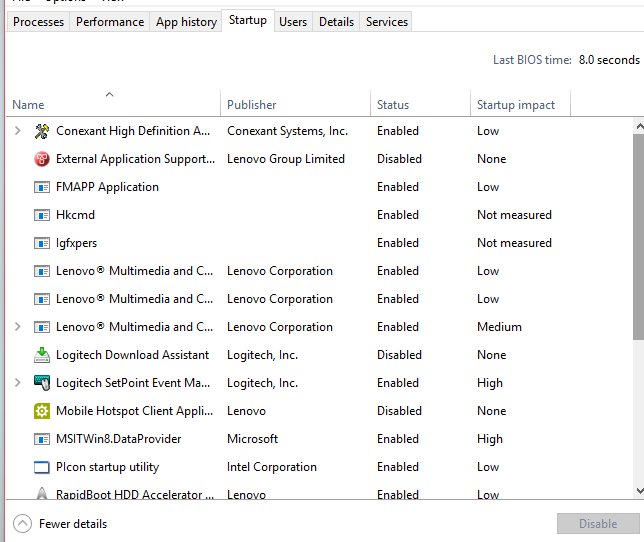
Once you open Task Manager, it shows the same list as Settings, plus the impact each app has on how fast you reach the desktop.
- Right-click Start and select Task Manager.
- Select the Startup apps tab.
- Select the program you want to start automatically.
- Select Enable to run it at sign-in, or Disable to stop it.
The Startup impact column reads Low, Medium or High. High impact means the app uses more than one second of CPU time or more than 3 MB of disk activity at startup. A full list of startup programs in Windows includes items that neither Settings nor Task Manager shows.
Method 4: Make a program run with Windows boot via Registry
Windows runs each value under the Run key every time you sign in. Back up the registry before you change it.
- Press Win + R, type
regeditand press Enter, then select Yes at the prompt. - Go to
HKEY_CURRENT_USER\Software\Microsoft\Windows\CurrentVersion\Runfor your account only. - Right-click an empty area in the right pane and select New > String Value.
- Name the value after the program, for example
MyApp. - Double-click the value and enter the full path to the program in quotes, such as
"C:\Program Files\MyApp\MyApp.exe", then select OK. - Sign out and back in to test it.
For every user on the PC, use HKEY_LOCAL_MACHINE\Software\Microsoft\Windows\CurrentVersion\Run instead. The command line in a Run value can be no longer than 260 characters, and Windows does not guarantee the order in which several Run entries start.
The RunOnce key next to it runs a program at the next sign-in only and then deletes the entry.
Method 5: Use Task Scheduler to make programs run at startup
A scheduled task can start a program at sign-in with administrator rights and an optional delay, which the Startup folder and Run key cannot do. Run the command from Command Prompt opened with Run as administrator.
Replace the task name and path with your own. Add /delay 0001:00 to wait one minute after sign-in, and change /sc onlogon to /sc onstart to run the program when Windows starts, before anyone signs in.
schtasks /create /tn "Start MyApp" /tr "C:\Program Files\MyApp\MyApp.exe" /sc onlogon /rl highest/tn names the task, /tr is the full path of the program to run, /sc onlogon runs it whenever a user signs in, and /rl highest runs it with the highest privileges available instead of the default limited level.
You should see: Command Prompt reports that the scheduled task was created, and the task appears by name in the Task Scheduler app.
Because the task runs with the highest privileges, the program starts elevated without a separate prompt each time, which is the cleanest way to run a program as administrator at every sign-in.
How to check a program runs at startup
- Restart the PC and sign in.
- Confirm the program window or its notification area icon appears without you opening it.
- Open Task Manager > Startup apps and check the program shows Enabled in the Status column.
- If you used the Startup folder, run
shell:startupand confirm the shortcut is still there. - Allow a short wait before deciding it failed, because Windows may delay Run key and Startup folder programs so they do not slow the desktop.
Windows 11 can also notify you when apps add themselves to startup, which helps you catch programs you did not add.
Blank white window opens every time I log into Windows 11
A blank window at sign-in comes from something that starts automatically. A clean boot shows whether a startup app or third-party service is the source.
Blank white window opens every time you sign in
A startup app or non-Microsoft service launches at sign-in and fails to draw its window.
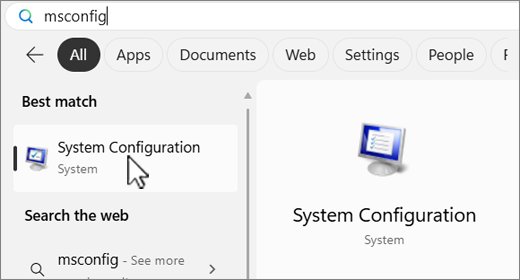
- Select Search, type
msconfig, and open System Configuration. - On the Services tab, select Hide all Microsoft services, then Disable all, then Apply.
- On the Startup tab, select Open Task Manager and disable each enabled item on the Startup apps tab, noting which ones you change.
- Close Task Manager, select OK in System Configuration, and restart.
- If the window is gone, re-enable half of the items at a time and restart until the window returns, which identifies the cause.
- Return to normal by selecting Normal Startup on the General tab and re-enabling the services and startup apps you disabled.
"We couldn't find this app" on the Startup page
The startup entry points to a program that was uninstalled, or to a removable or network drive that is not connected.
- Open Settings > Apps > Startup.
- Select the icon next to the app's toggle to see the file path or registry location of the broken entry.
- Reinstall the app or reconnect the drive it lives on.
- If the entry is in the registry and the app is gone, remove the value from the Run key named in that window.
Program is missing from the Startup apps list
The program has no startup task registered with Windows, so Settings cannot list it.
- Run
shell:startupfrom the Run dialog. - Drag the program in from the
shell:appsfolderwindow to create a shortcut. - Restart and confirm the program now opens at sign-in.
Program starts late or not at all after sign-in
Windows can delay Run key and Startup folder programs, and a program that needs administrator rights cannot start elevated from those locations.
- Wait a minute after the desktop appears before testing again.
- Check the program's path in its shortcut or Run value still points to an existing file.
- Create a Task Scheduler logon task with
/rl highestif the program needs administrator rights.
Run a program on startup in Windows 11 FAQ
How do I make a program run on startup in Windows 11?
Open Settings > Apps > Startup and set the program's toggle to On. If the program is not listed, run shell:startup and place a shortcut to it in that folder. Both methods start the program each time you sign in.
Where is the Startup folder in Windows 11?
Your personal Startup folder is %userprofile%\AppData\Roaming\Microsoft\Windows\Start Menu\Programs\Startup, which opens directly with shell:startup in the Run dialog. The all-users folder is under %ProgramData% and opens with shell:common startup.
How do I make a program run as admin at startup?
Create a Task Scheduler task with schtasks /create, the /sc onlogon trigger and /rl highest, from an elevated Command Prompt. The Startup folder and Run key start programs with standard rights, so they cannot launch an app elevated.
How do I make a program run on startup for all users?
Put its shortcut in the folder that opens with shell:common startup, or add a value under HKEY_LOCAL_MACHINE\Software\Microsoft\Windows\CurrentVersion\Run. Both locations need administrator rights to change and apply to every account that signs in.
How do I stop a program from running at startup?
Set its toggle to Off in Settings > Apps > Startup, or select it on the Startup apps tab in Task Manager and select Disable. For a program you added yourself, delete its shortcut from shell:startup or its value from the Run key.
Why doesn't my program run on startup?
The usual causes are a shortcut or Run value that points to a moved or uninstalled file, a startup entry switched off in Task Manager, or Windows delaying the launch. Programs that need administrator rights also fail from the Startup folder.
Do startup programs slow down Windows 11?
They can. Task Manager rates each startup app, and High impact means more than one second of CPU time or more than 3 MB of disk activity at startup. Disable high-impact apps you do not need right after sign-in.
Can I make a program run in the background at startup?
Yes, if the program supports it. Many apps offer their own start minimized or run in background option, and the chevron next to an app on the Settings Startup page shows any advanced startup settings the app provides.
Bottom line: the best way to run a program on startup in Windows 11
Use the Settings Startup page when the program is listed, and a shortcut in shell:startup when it is not. Both are reversible in seconds and need no registry edits. Keep the Run key for scripted setups and a Task Scheduler logon task for programs that must start with administrator rights or after a delay.

![How to open graphics settings Windows 11 [2026]](https://techdows.com/wp-content/uploads/2026/10/How-to-open-graphics-settings-Windows-11-2026-600x338.jpg)