Press Win + R, type optionalfeatures and press Enter to open Turn Windows features on or off in Windows 11 or Windows 10, then tick or clear a feature and select OK.
This guide covers that dialog, the separate Optional features page in Settings, PowerShell and DISM commands, which features to enable or leave alone, and fixes when an install fails.
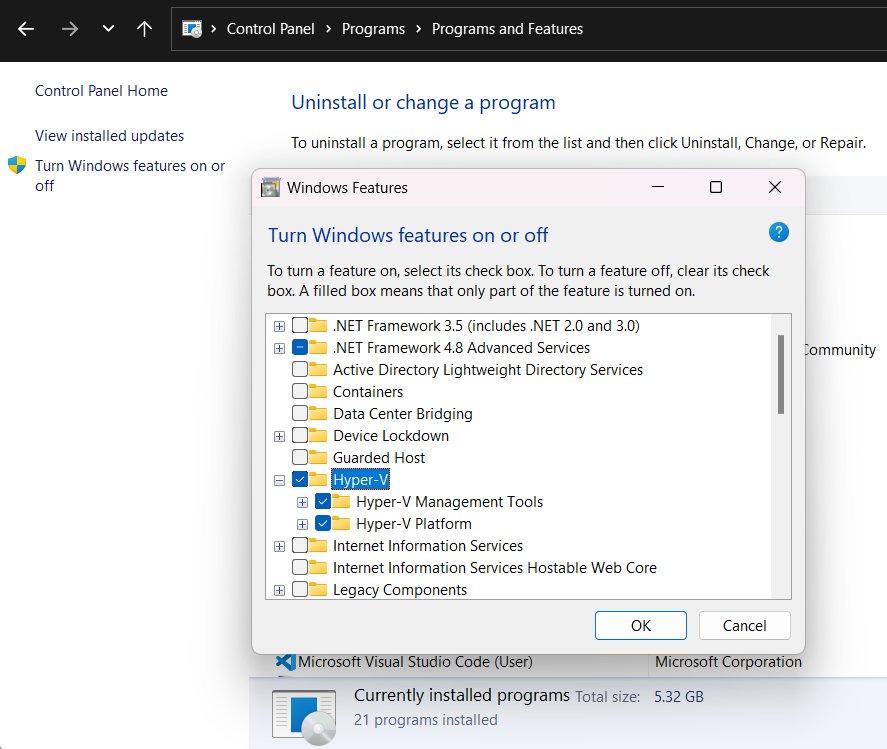
Manage Windows optional features in Windows 11/10
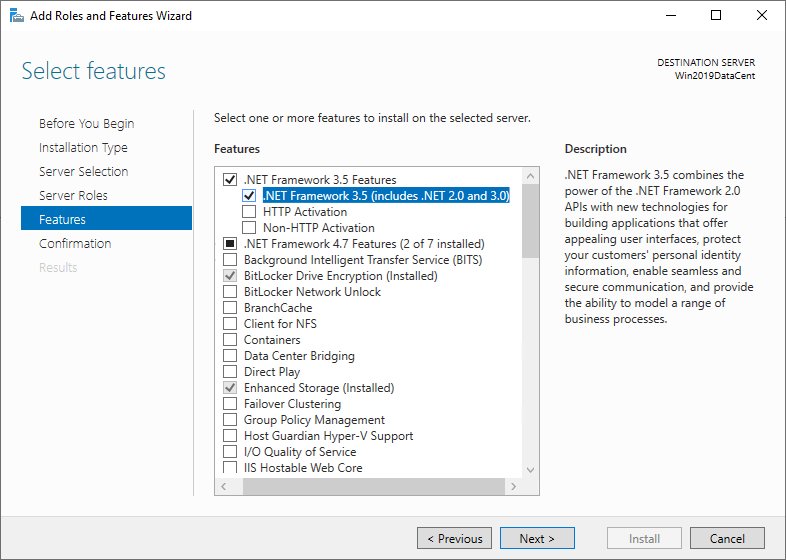
Windows keeps optional components in two places. The classic dialog holds built-in features such as Hyper-V, Windows Sandbox and .NET Framework 3.5.
- Press Win + R to open Run.
- Type
optionalfeaturesand press Enter. - Tick the box next to a feature to turn it on, or clear it to turn it off.
- Expand a folder with + when you need only some of its sub-features.
- Select OK and wait while Windows applies the change.
- Select Restart now if Windows asks for a restart.
Windows features vs optional features: What’s the difference?
| Item | Windows features dialog | Optional features in Settings |
|---|---|---|
| Where it opens | Control Panel > Programs > Turn Windows features on or off, or optionalfeatures.exe |
Windows 11: Settings > System > Optional features; Windows 10: Settings > Apps > Apps & features > Optional features |
| Typical contents | Hyper-V, Windows Sandbox, .NET Framework 3.5, Windows Subsystem for Linux | Features on Demand such as language features and the Media Feature Pack on N editions |
| Command-line tool | Enable-WindowsOptionalFeature or DISM /Enable-Feature |
Add-WindowsCapability or DISM /Add-Capability |
| Where files come from | Mostly already on disk | Usually downloaded from Windows Update |
Microsoft calls the Settings items Features on Demand (FODs). They install as packages, which is why some of them need an internet connection.
Open “Turn Windows features on or off” in Windows 11 or Windows 10
| Your situation | Route | Why |
|---|---|---|
| Keyboard handy | Win + R, type optionalfeatures.exe, press Enter |
Fastest, one step |
| You prefer search | Type Turn Windows features on or off in taskbar search | No command to remember |
| You are already in Control Panel | Control Panel > Programs > Turn Windows features on or off | Classic path on both versions |
| Uninstalling programs too | Win + R, appwiz.cpl, then Turn Windows features on or off in the left pane |
Same window as Programs and Features |
The dialog needs an administrator account. A standard user sees a prompt for admin credentials.
Manage optional features via Windows Settings
- Press Win + I to open Settings.
- On Windows 11, select System > Optional features. On Windows 10, select Apps > Apps & features > Optional features.
- Select View features next to Add an optional feature (Windows 10: Add a feature).
- Tick the feature you want, then select Next and Add (Windows 10: Install).
- To remove one, expand it in the installed list and select Remove.
- Restart the PC if the page asks, or if the feature does not appear yet.
Older Windows 11 builds list the page under Apps > Optional features instead of System.
Common Windows features you may want to enable
| Feature | What it gives you | Requirement |
|---|---|---|
| Hyper-V | Create and run virtual machines | Windows 10/11 Pro or Enterprise, 64-bit CPU with SLAT, 4 GB RAM; not available on Home |
| Windows Sandbox | A throwaway desktop for testing files and apps | Pro or Enterprise, virtualization enabled in BIOS, 4 GB RAM, 2 CPU cores |
| .NET Framework 3.5 (includes .NET 2.0 and 3.0) | Runs older apps built for .NET 2.0–3.5 | Downloads from Windows Update when turned on |
| Windows Subsystem for Linux | Run Linux tools on Windows | 64-bit Windows |
| Virtual Machine Platform | Virtualization support used by WSL 2 | Virtualization enabled in BIOS |
| Telnet Client | Test a TCP port from the command line | None |
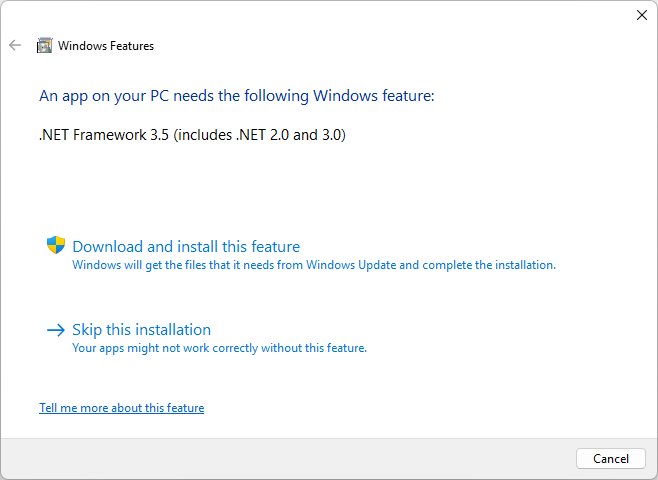
Useful optional features to know
| Optional feature (Settings) | Use |
|---|---|
| Media Feature Pack | Adds Windows Media Player and media codecs to Windows N editions |
| Language features (basic typing, handwriting, speech) | Extra input and speech support for a display language |
| Wireless Display | Lets the PC receive a screen projected from another device |
| OpenSSH Client and Server | Command-line SSH connections to and from the PC |
Windows does not prompt you to restart after adding the Media Feature Pack, but Microsoft says a manual restart is needed to finish it.
Manage Windows features with PowerShell
Right-click Start, select Terminal (Admin) or Windows PowerShell (Admin), then run these commands. They fail without PowerShell administrator rights.
Get-WindowsOptionalFeature -Online | Where-Object State -eq Enabled
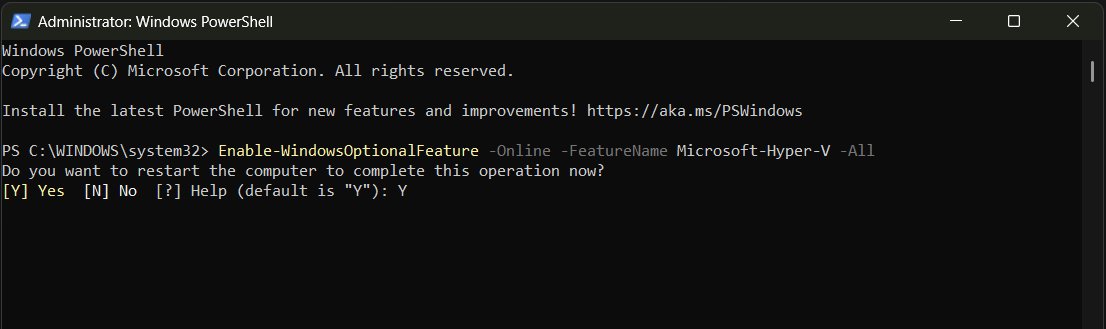
Enable-WindowsOptionalFeature -Online -FeatureName Microsoft-Hyper-V -All
Disable-WindowsOptionalFeature -Online -FeatureName Microsoft-Hyper-V
The first line lists enabled features with their exact names. -All turns on any parent features the one you chose depends on. Add -NoRestart to postpone the reboot.
You should see: PowerShell returns Online : True and RestartNeeded : True or False.
Feature names differ from the dialog's labels. Windows Sandbox, for example, is Containers-DisposableClientVM. Run Get-WindowsOptionalFeature -Online first to find the name.
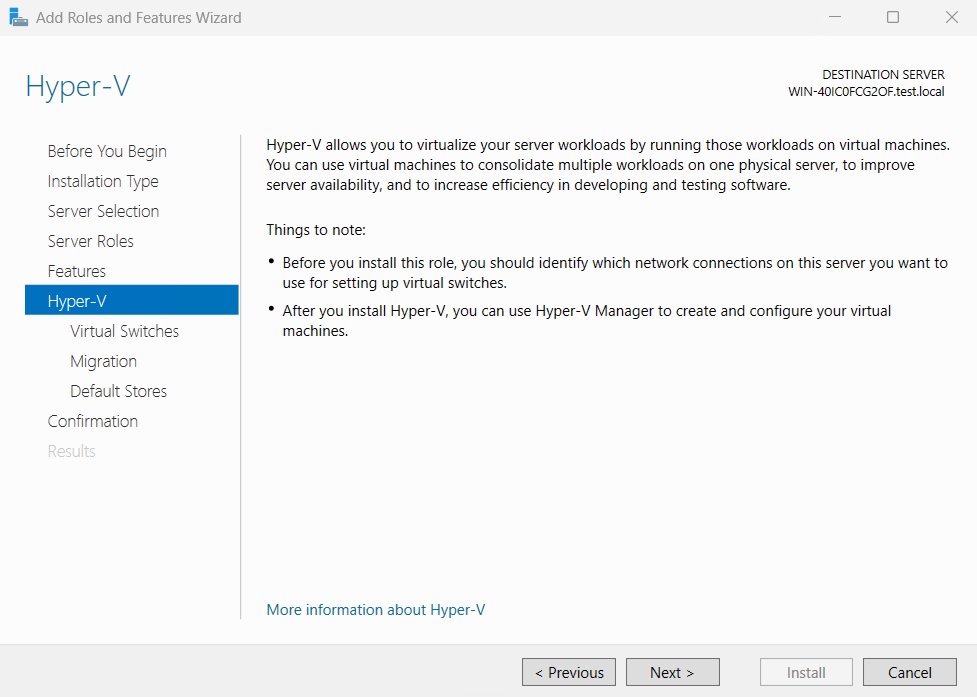
Turn Windows features on or off using Command Prompt
Open Command Prompt as administrator. DISM works on every edition that has the feature.
Dism /online /Get-Features
Dism /online /Enable-Feature /FeatureName:Microsoft-Hyper-V /All
Dism /online /Disable-Feature /FeatureName:Microsoft-Hyper-V
Dism /online /Get-FeatureInfo /FeatureName:Microsoft-Hyper-V
/Get-Features lists every feature and its state. /Enable-Feature and /Disable-Feature change it, and /Get-FeatureInfo shows the result for one feature.
You should see: DISM prints The operation completed successfully. A state of Enable Pending or Disable Pending means a restart finishes the change.
Enable optional Windows features using an external installation source
Use this when a feature's files are missing and Windows Update is blocked or offline. Mount a Windows ISO of the same version first; here it is drive Z:.
Dism /Online /Enable-Feature /FeatureName:NetFx3 /All /Source:Z:\sources\SxS /LimitAccess/Source points DISM at the files on the mounted media. /LimitAccess stops it contacting Windows Update. The PowerShell equivalent uses -Source and -LimitAccess.
You should see: DISM ends with The operation completed successfully.
Microsoft warns that a source from a different Windows version installs mismatched files or fails, so match the ISO to the installed build.
Which features are safe to turn off?
| Feature | Safe to turn off? | What breaks |
|---|---|---|
| Hyper-V | Yes, if you run no virtual machines | Hyper-V VMs, and tools that rely on the hypervisor |
| Windows Sandbox | Yes | Only Windows Sandbox itself |
| .NET Framework 3.5 | Yes, if no old app needs it | Apps built for .NET 2.0–3.5 stop starting |
| Virtual Machine Platform / WSL | Yes, if you do not use Linux distros or Android tools | WSL distributions |
| Microsoft Print to PDF | Yes, if you never print to PDF | The Microsoft Print to PDF printer |
| .NET Framework 4.x Advanced Services | No | Many current apps depend on it |
Will turning off features save disk space or improve performance?
Turning a feature off in the Windows features dialog frees almost no disk space on Windows 10 or 11. Microsoft states that from Windows 10 the feature payload stays on client editions to support Push-button reset, even with DISM's /Remove switch. Turning off a feature that runs a service, such as Hyper-V, can reduce background load, but an unused feature costs little.
How to find a missing optional feature
- Check your edition in Settings > System > About. Hyper-V and Windows Sandbox need Pro or Enterprise.
- Search the Settings Optional features list as well as the classic dialog, since each holds different items.
- Run
Get-WindowsOptionalFeature -Onlinein an admin PowerShell window to see every feature name, including hidden ones. - Run
Get-WindowsCapability -Onlineto list Features on Demand that Settings may not show. - Turn on virtualization in BIOS or UEFI if Windows Sandbox stays greyed out.
Confirm a Windows feature is turned on
- Reopen
optionalfeaturesand check the box is filled. - Or run
Dism /online /Get-FeatureInfo /FeatureName:<name>and look forState : Enabled. - Search the Start menu for the feature's app, such as Windows Sandbox or Hyper-V Manager.
Troubleshooting: Windows feature installation fails
Turn Windows features on or off not loading or blank
Component store problems or a pending update stop the list from loading.
- Restart the PC and install pending updates in Settings > Windows Update.
- Run
DISM /Online /Cleanup-Image /RestoreHealthin an admin Command Prompt. - Run
sfc /scannow, restart, and openoptionalfeaturesagain. - Use the PowerShell or DISM commands above if the dialog still stays empty.
Error 0x800f0906, 0x800f0907, 0x800f081f or 0x800F0922 installing .NET Framework 3.5
Windows cannot download the feature files, often because of a policy or no internet access.
- Connect to the internet and retry so Windows Update can supply the files.
- Mount matching Windows installation media and run the
/SourceDISM command above. - On a managed PC, ask IT to check the Specify settings for optional component installation and component repair policy.
Hyper-V missing from Turn Windows features on or off
Windows Home editions do not include Hyper-V.
- Confirm the edition in Settings > System > About.
- Upgrade to Pro, or use Windows Subsystem for Linux and Virtual Machine Platform instead.
Feature stays unticked after a restart
The change failed during the reboot and Windows rolled it back.
- Enable it with
Dism /online /Enable-Feature /FeatureName:<name> /Allto see the error text. - Run
DISM /Online /Cleanup-Image /RestoreHealth, then try again.
Best practices for managing Windows optional components
| Practice | Why |
|---|---|
| Turn on only what you use | Each feature adds services or attack surface for little gain |
| Create a restore point before big changes | Hyper-V and WSL changes touch boot settings |
Use -All or /All when enabling |
Parent features get enabled in the same pass |
| Match installation media to the build | Mismatched sources install the wrong files or fail |
| Restart when asked | Pending states only complete after a reboot |
Windows optional features for administrators
| Task | Tool or setting |
|---|---|
| List features in an offline image | Dism /Image:C:\test\offline /Get-Features |
| Enable a feature in a mounted image | Dism /Image:C:\test\offline /Enable-Feature /FeatureName:<name> /All |
| Add a Feature on Demand | DISM /Online /Add-Capability /CapabilityName:<name> |
| Remove a Feature on Demand | DISM /Online /Remove-Capability /CapabilityName:<name> |
| Set an alternate repair source | Group Policy: Computer Configuration > Administrative Templates > System > Specify settings for optional component installation and component repair |
| Preinstall FODs offline | The Languages and Optional Features ISO for Windows 11 |
Turn Windows features on or off FAQ
How do I turn Windows features on or off?
Press Win + R, type optionalfeatures and press Enter. Tick a feature to turn it on or clear it to turn it off, select OK, then restart if Windows asks. It works the same on Windows 11 and Windows 10.
Where is Turn Windows features on or off in Windows 11?
It sits in Control Panel > Programs > Turn Windows features on or off. You can also type the name into taskbar search or run optionalfeatures.exe. Settings has a separate Optional features page under System.
What is the run command for Turn Windows features on or off?
The run command is optionalfeatures or optionalfeatures.exe. Press Win + R, type it and press Enter. It opens the classic Windows Features dialog directly.
How do I turn on Hyper-V in Turn Windows features on or off?
Open optionalfeatures, tick Hyper-V and select OK, then restart. Hyper-V needs Windows 10 or 11 Pro or Enterprise, a 64-bit CPU with SLAT and 4 GB of RAM. Home editions do not list it.
Where is Windows Media Player in Windows features?
In the dialog, expand Media Features to find Windows Media Player. On Windows N editions it is missing until you add the Media Feature Pack from Optional features in Settings, then restart.
Why is Turn Windows features on or off not loading?
A damaged component store or pending update usually causes a blank list. Install updates, run DISM /Online /Cleanup-Image /RestoreHealth and sfc /scannow, then restart and reopen the dialog.
Do I need to download Windows features?
No separate download is needed. Hyper-V and most features are built into Windows. A few, such as .NET Framework 3.5 and Features on Demand, pull their files from Windows Update automatically when you turn them on.



![Copilot not working in Teams [Fix]](https://techdows.com/wp-content/uploads/2026/10/Copilot-not-working-in-Teams-Fix-1-600x338.jpg)