To encrypt an email in Outlook or Outlook.com, open a new message, select Options > Encrypt, choose Encrypt or Do Not Forward, and send it.
This guide covers encryption in new Outlook, classic Outlook and Outlook on the web, S/MIME for every message, what recipients in Gmail or Yahoo see, and fixes when the Encrypt option is missing.
How to encrypt an email in Microsoft Outlook
Microsoft Purview Message Encryption needs a qualifying Microsoft 365 subscription. On Outlook.com and new Outlook, a Microsoft 365 Personal or Family plan is enough.
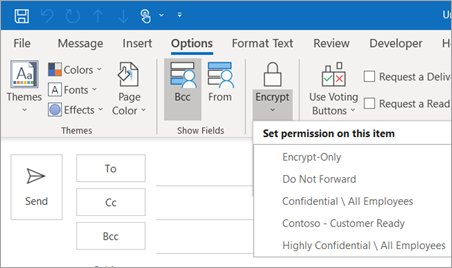
- Select New mail and write your message.
- Select the Options tab on the ribbon.
- Select Encrypt.
- Choose Encrypt to protect the message, or Do Not Forward to also block forwarding and copying.
- Select Send.
Outlook encryption options compared
| Option | What it does | Who can read it | Requires |
|---|---|---|---|
| Encrypt | Encrypts the message; it stays within Microsoft 365 | Anyone you send it to; non-Microsoft recipients sign in or use a one-time passcode | Microsoft 365 subscription |
| Do Not Forward | Encrypts and blocks forwarding and copying; Word, Excel and PowerPoint attachments stay encrypted after download | Only the listed recipients | Microsoft 365 subscription |
| S/MIME | Certificate-based encryption of the body and attachments | Recipients whose certificate you have installed | A digital ID (certificate) for you and each recipient |
| No permission set | Default; removes encryption and relies on opportunistic TLS | Anyone | Nothing |
Purview encryption and S/MIME cannot be combined on one message. Remove S/MIME before applying Encrypt or Do Not Forward.
How to encrypt emails in Outlook on Windows 11
Windows 11 ships with new Outlook, but classic Outlook from Microsoft 365 still installs on it. The Encrypt button sits in the same place in both.
- Open Outlook and select New mail.
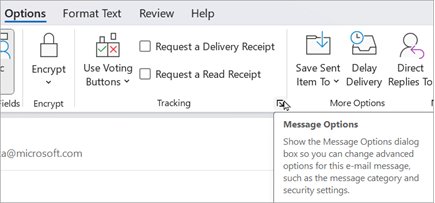
- In new Outlook, select Options > Encrypt. In classic Outlook, select Options > Encrypt on the message ribbon.
- Pick Encrypt or Do Not Forward.
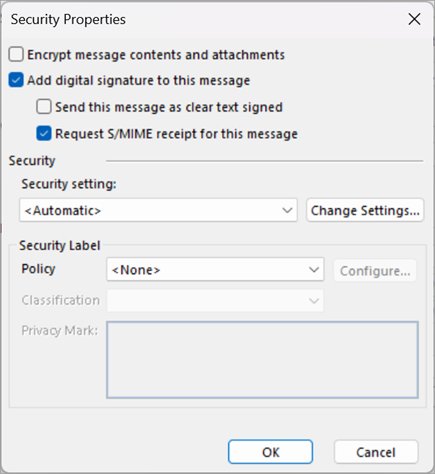
- To use S/MIME instead in new Outlook, select Options > More options, then check Encrypt this message (S/MIME) and select OK.
- Select Send. If Outlook cannot confirm every recipient can decrypt an S/MIME message, choose to send anyway, remove those recipients, or retry.
Microsoft notes that Purview encryption in new Outlook for work accounts requires an Office 365 Enterprise E3 license; without it, use S/MIME.
How to encrypt emails in Outlook on the web
Outlook.com and Outlook on the web use the same compose window. You can open Outlook on the web from any browser, including Microsoft Edge.
- Sign in to Outlook on the web or Outlook.com and select New mail.
- Select the Options tab, then select Encrypt.
- Choose Encrypt or Do Not Forward.
- For S/MIME, select More options > Message options and check Encrypt this message (S/MIME).
- Select Send.
How to password-protect emails in Outlook
Outlook has no setting that puts a password on a message. Encryption does that job: you never set a password, and recipients without a Microsoft, Google or Yahoo account get a temporary passcode by email.
- Write the message in Outlook or Outlook.com.
- Select Options > Encrypt > Do Not Forward so only the listed recipients can open it.
- Send the message.
- Tell the recipient to select Read the message and request a one-time passcode if they do not use a Microsoft, Google or Yahoo account.
How to encrypt all outgoing emails in Outlook
- In classic Outlook, select File > Options > Trust Center > Trust Center Settings.
- Open Email Security and, under Encrypted email, check Encrypt contents and attachments for outgoing messages.
- Select Settings to pick a certificate, then select OK.
- In new Outlook or Outlook on the web, select Settings > Mail > S/MIME.
- Check Encrypt contents and attachment for all messages I send and select OK (Outlook on the web needs the S/MIME control installed first).
How to remove encryption from an Outlook email
- Open the draft or reply.
- Select Options > Encrypt.
- Choose No permission set, the default.
- For S/MIME, uncheck Encrypt this message (S/MIME) in Message options.
How to read encrypted email outside Office clients
Recipients in Outlook.com, Outlook for Mac, the Outlook mobile app or Microsoft 365 read encrypted mail like any other message. Others get a message with a link.
- Open the message and select Read the message.
- Choose Sign in with Google, Sign in with Yahoo or a Microsoft account, or choose the one-time passcode option.
- If you chose a passcode, find it in your inbox, enter it on the page and select Continue.
- Read the message in the browser tab that opens. Passcodes expire after 15 minutes.
Outlook encrypt option not working
The Encrypt button is missing in Outlook.com
Outlook.com encryption needs a Microsoft 365 Personal or Family subscription.
- Confirm the signed-in account has an active Microsoft 365 Personal or Family plan.
- Sign out and back in, then open a new message and check Options.
Outlook says it cannot encrypt an S/MIME message
You do not have the recipient's public key.
- For a colleague in your organization, check the device is online so the key syncs from the address list.
- For an external recipient, ask them to send you a digitally signed email.
- Install the certificate from that signed message, then send the encrypted email again.
A Gmail recipient cannot open the message
Gmail cannot decrypt Microsoft Purview messages inside its own window.
- Ask the recipient to select Read your message, then Sign in with Google and Allow.
- Tell them the message opens in a new browser tab.
Outlook email encryption FAQ
Does Microsoft Outlook encrypt emails?
Outlook sends mail over opportunistic TLS by default, which protects it in transit when the other server supports it. End-to-end message encryption is applied when you choose Options > Encrypt or use S/MIME.
How do I encrypt email in Microsoft 365?
In a new message, select Options > Encrypt and choose Encrypt or Do Not Forward. This uses Microsoft Purview Message Encryption, which is included with qualifying Microsoft 365 business and Personal or Family plans.
How does Microsoft email encryption work?
The message is encrypted and kept within Microsoft 365. Recipients on Microsoft services read it normally, while others verify their identity with a Google, Yahoo or Microsoft sign-in or a one-time passcode before it opens in the browser.
How do I encrypt email in Microsoft Edge?
Edge itself does not encrypt email. Open Outlook on the web or Outlook.com in Edge, start a new message, then select Options > Encrypt and choose Encrypt or Do Not Forward.
How do I use Microsoft encrypted email as a recipient?
Open the message and select Read the message. Sign in with your Google, Yahoo or Microsoft account, or request a one-time passcode, enter it and select Continue. Passcodes expire after 15 minutes.
Why would an email be encrypted?
Senders encrypt email that holds sensitive details such as financial, medical or personal data. Encryption keeps the content readable only by the intended recipients, and Do Not Forward also stops them forwarding or copying it.
Can I encrypt email on Outlook.com for free?
No. Encrypt and Do Not Forward in Outlook.com require a Microsoft 365 Personal or Family subscription. Without one, mail is still sent with opportunistic TLS.