To enable hotspot on iPhone, open Settings, tap Personal Hotspot, and turn on Allow Others to Join.
This guide covers first-time setup, connecting over Wi-Fi, USB and Bluetooth, changing the hotspot name and password, and fixing a hotspot that will not connect or is greyed out.
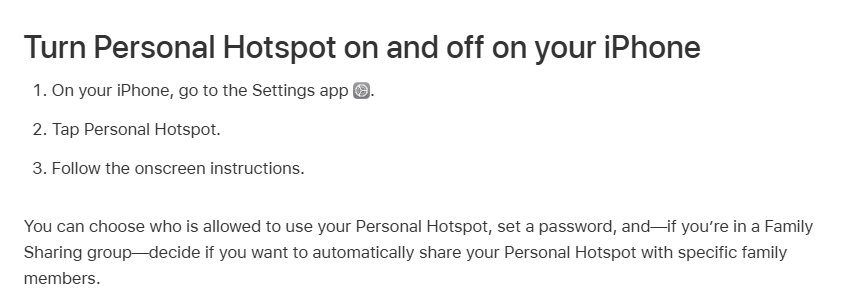
Step by step tutorial: Enabling hotspot on iPhone
Personal Hotspot shares your iPhone's cellular data connection as a temporary Wi-Fi network. The steps are the same on the iPhone 11 through iPhone 17, including Pro Max models.
- Open the Settings app.
- Tap Personal Hotspot. If it is not on the main screen, tap Cellular, then Personal Hotspot.
- Turn on Allow Others to Join.
- Note the Wi-Fi Password shown on this screen, or tap it to set a new one of at least eight characters.
- Stay on this screen until the other device has connected.
Personal Hotspot needs a carrier and plan that support it, and your carrier may charge extra. That applies to Verizon, AT&T, T-Mobile and every other carrier.
Set up Personal Hotspot on iPhone for the first time
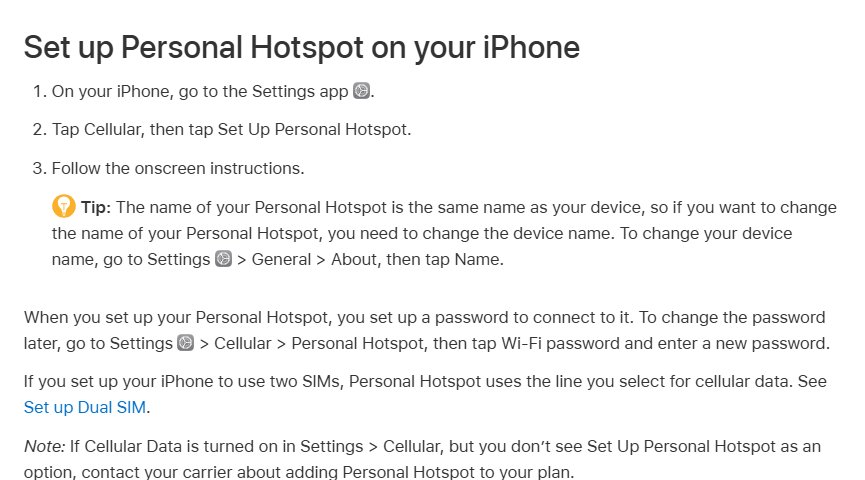
If Personal Hotspot does not appear in Settings yet, set it up from the cellular menu first.
- Open the Settings app.
- Tap Cellular, then make sure Cellular Data is turned on.
- Tap Set Up Personal Hotspot.
- Follow the onscreen instructions, including setting the hotspot password.
- If you use two SIMs, check which line is selected for cellular data, because Personal Hotspot uses that line.
If Cellular Data is on but Set Up Personal Hotspot is missing, contact your carrier about adding Personal Hotspot to your plan.
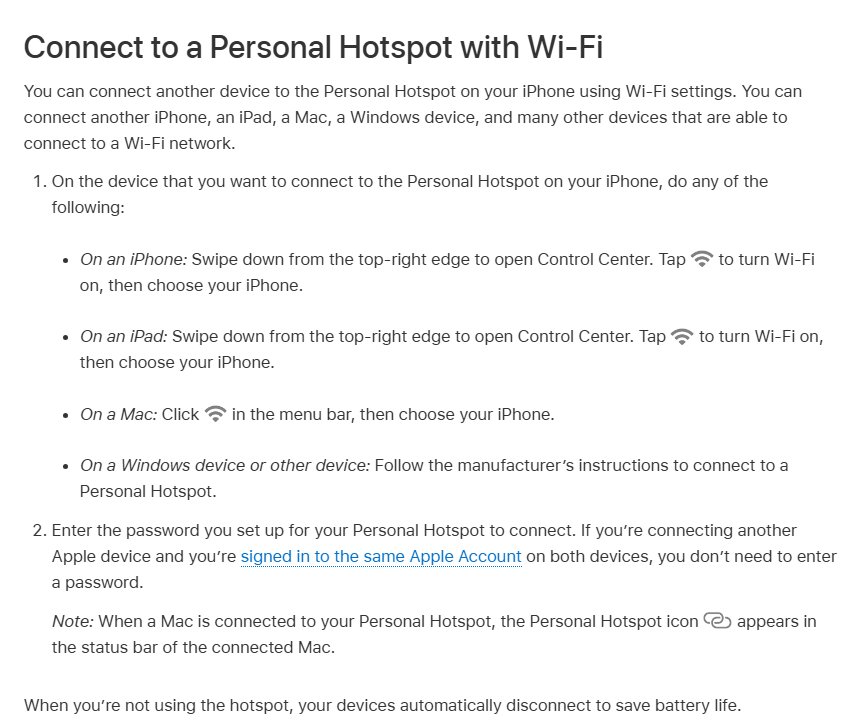
Connect a laptop or phone to your iPhone hotspot over Wi-Fi
- On your iPhone, open Settings > Personal Hotspot and keep the screen open with Allow Others to Join on.
- On a Windows laptop, select the network icon on the taskbar and choose your iPhone's name from the Wi-Fi list.
- On a Mac, click Wi-Fi in the menu bar, Control Center or System Settings, then choose your iPhone.
- On another iPhone or iPad, open Settings > Wi-Fi and tap your iPhone's name.
- Enter the hotspot password when prompted. Apple devices signed in to the same Apple Account do not need it.
Connected Apple devices show a Personal Hotspot icon in place of the Wi-Fi icon.
If a Windows 10 laptop shows no networks at all, fix Wi-Fi not showing up before you try the hotspot again.
Use iPhone hotspot over USB on Windows or Mac
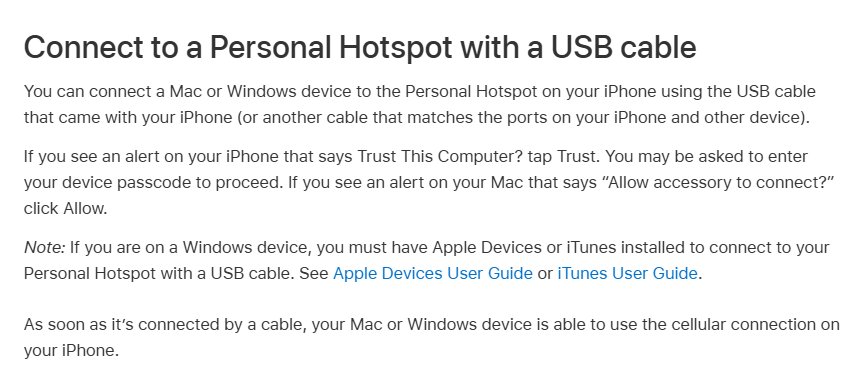
A USB connection keeps the iPhone charging while you share its data. On Windows, install the latest Apple Devices app or iTunes for Windows first.
- On the iPhone, open Settings > Personal Hotspot and turn on Allow Others to Join.
- Connect the iPhone to the computer with a USB cable.
- If the Mac asks to allow the accessory to connect, click Allow.
- If the iPhone shows Trust This Computer?, tap Trust and enter your passcode if asked.
- Wait for the computer to start using the iPhone's cellular connection.
Personal Hotspot stays active while the cable is connected. Turn it off when you finish, or the computer may use your cellular data every time you plug the iPhone in to charge.
Use iPhone hotspot over Bluetooth
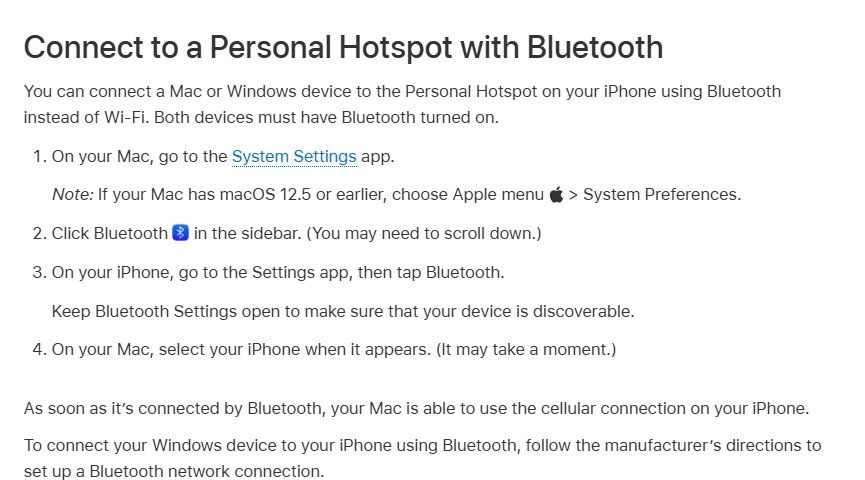
- On the iPhone, open Settings > Personal Hotspot and turn on Allow Others to Join.
- Go back to the main Settings screen and tap Bluetooth. Stay on this screen so the iPhone stays discoverable.
- On the computer, open its Bluetooth settings and choose your iPhone from the list of nearby devices.
- When a pairing code appears, check that it matches on both devices, then tap Pair on the iPhone.
If the iPhone never appears in the list, check whether your computer has Bluetooth turned on and available.
To disconnect, remove the iPhone in the computer's Bluetooth settings or turn off Allow Others to Join.
Change iPhone hotspot name and password
| What to change | Where | Note |
|---|---|---|
| Hotspot password | Settings > Personal Hotspot > Wi-Fi Password | At least eight ASCII characters: English letters, numbers 0 to 9 and some punctuation |
| Hotspot name | Settings > General > About > Name | The hotspot always uses the iPhone's device name |
| Who can join | Settings > Personal Hotspot | Family Sharing members can be set to join automatically |
| Compatibility | Settings > Personal Hotspot > Maximize Compatibility | iPhone 12 or later; can reduce speed and Wi-Fi security |
Check that a device is connected to your iPhone hotspot
- On the connected Mac, iPhone or iPad, look for the Personal Hotspot icon where the Wi-Fi icon normally sits.
- On a Windows laptop, confirm the Wi-Fi status shows your iPhone's name as connected.
- Open a website on the connected device to confirm the internet works.
- On the iPhone, open Settings > Cellular to watch how much cellular data the hotspot uses.
Tips for enabling hotspot on iPhone
| Tip | Why it helps |
|---|---|
| Keep both devices within 30 feet (10 meters) | Apple lists this range for connecting to a Personal Hotspot |
| Turn on Wi-Fi and Bluetooth on both devices | Instant Hotspot between Apple devices uses both |
| Sign in to the same Apple Account on your Apple devices | They connect faster and skip the password |
| Turn off Allow Others to Join when done | Stops unexpected data use, including over USB while charging |
| Watch data use in Settings > Cellular | Hotspot traffic counts against your cellular plan |
| Expect iCloud backups to pause on the connected device | Some features that need Wi-Fi, such as iCloud backups and iCloud Photos uploads, might not work over a hotspot |
| Check your VPN settings | A VPN that blocks local networking can interfere with Continuity features |
Your iPhone can only share its cellular connection. It cannot join a Wi-Fi network and pass that network on to another device.
iPhone hotspot not working or greyed out
Personal Hotspot is dimmed, greyed out or missing
Cellular Data is off, or the carrier has not enabled hotspot on your plan.
- Open Settings > Cellular and turn on Cellular Data.
- Check for Set Up Personal Hotspot under Cellular and follow the prompts.
- If the option still does not appear, contact your carrier, such as Verizon, to add Personal Hotspot to your plan.
Other devices cannot see or join the hotspot over Wi-Fi
The hotspot screen was closed, or the other device cannot use the hotspot's Wi-Fi settings.
- On the iPhone, open Settings > Personal Hotspot and confirm Allow Others to Join is on.
- On iPhone 12 or later, turn on Maximize Compatibility.
- Stay on the Personal Hotspot screen while the other device connects.
- On the other device, turn Wi-Fi off and back on, then choose the network with your iPhone's name.
Password error when joining the hotspot
The password typed does not match the one set on the iPhone.
- On the iPhone, open Settings > Personal Hotspot and read the Wi-Fi Password.
- Retype it on the other device, or set a new password and try again.
Hotspot still fails after the steps above
Outdated software or stale network settings on one of the devices.
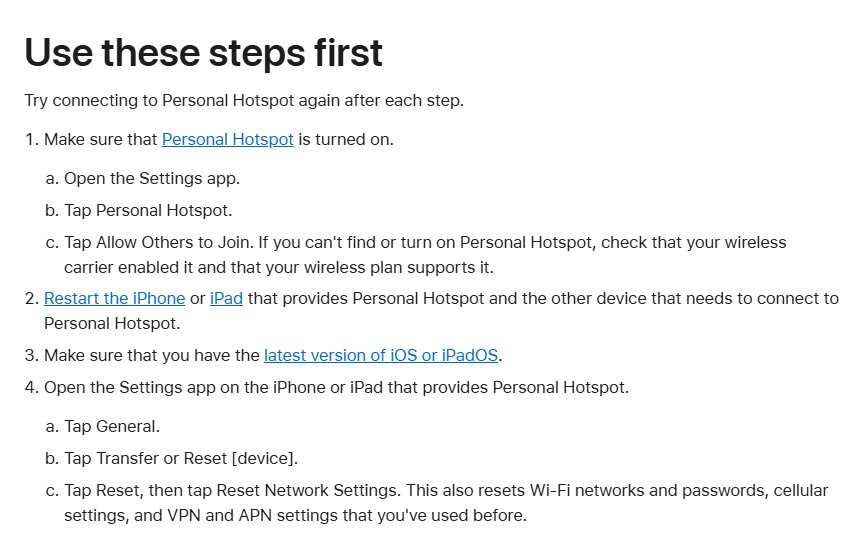
- Restart the iPhone and the device that needs to connect.
- Update both devices to the latest software.
- On the iPhone, open Settings > General > Transfer or Reset iPhone > Reset > Reset Network Settings. This also erases saved Wi-Fi networks and passwords, cellular, VPN and APN settings.
Frequently asked questions
How do I enable hotspot on iPhone 16 or iPhone 16 Pro Max?
Open Settings, tap Personal Hotspot, and turn on Allow Others to Join. The steps are the same on every iPhone 16 model and on the iPhone 11, 12, 13, 14, 15 and 17, because the setting belongs to iOS, not the hardware.
How do I enable hotspot on iPhone with Verizon?
Use the same Settings > Personal Hotspot steps. If the option is dimmed or missing with Cellular Data turned on, your Verizon plan may not include hotspot. Contact Verizon to add it, because the carrier must enable Personal Hotspot.
How much data will using my iPhone as a hotspot use?
It depends on what the connected devices do, and all of it counts against your cellular plan. Check the total in Settings > Cellular, and turn off Allow Others to Join when you finish so a laptop does not keep using data.
Can I change the name of my iPhone's hotspot?
Yes, by renaming the iPhone. The hotspot always uses the device name, so open Settings > General > About, tap Name, and enter a new one. Reconnect your other devices to the new network name.
How many devices can connect to my iPhone's hotspot?
Apple says the number of devices that can join at one time depends on your carrier and iPhone model. Contact your carrier for the limit on your plan.
Will my hotspot work if my iPhone is on Airplane Mode?
No. Personal Hotspot shares the iPhone's cellular data connection, and Airplane Mode turns cellular off. Your iPhone also cannot share a Wi-Fi network it has joined, so turn Airplane Mode off before you enable the hotspot.
Do I need a specific mobile plan to use my iPhone as a hotspot?
Yes. Personal Hotspot needs a carrier that supports it and a plan that includes it, and additional fees may apply. If Set Up Personal Hotspot does not appear under Settings > Cellular, ask your carrier to add it.
How do I use my iPhone hotspot on a Windows PC?
Turn on Allow Others to Join on the iPhone, then connect the Windows PC to Wi-Fi by picking the iPhone's name from the list and entering the password. For a USB connection, install the latest Apple Devices app or iTunes for Windows first.