Press Windows + PrtScr on any Dell running Windows 11 or Windows 10 to save a full-screen screenshot straight to Pictures > Screenshots.
This guide covers Dell laptops, desktops, tablets and Chromebooks, the Fn key combinations some keyboards need, and what to do when Print Screen does nothing.
How do you screenshot on Dell?
This works on Dell Inspiron, Latitude, XPS, Vostro and Alienware models, and on any Dell desktop keyboard with a Print Screen key.
- Open the screen you want to capture.
- Press Windows + PrtScr together. The screen dims briefly when the capture is taken.
- If nothing happens on a laptop, press Windows + Fn + PrtScr, because the key often shares a function key such as F10.
- Open File Explorer and go to Pictures > Screenshots to find the PNG file.
Which screenshot method should you use?
| Your situation | Use this | What you get |
|---|---|---|
| You want a saved file of the whole screen | Windows + PrtScr | A PNG in Pictures > Screenshots |
| You want to paste the whole screen into an email or document | PrtScr | The full screen copied to the clipboard |
| You only need the window in front | Alt + PrtScr | The active window copied to the clipboard |
| You need part of the screen | Windows + Shift + S | A rectangle, window, full-screen or freeform snip |
| You need a menu or tooltip that closes on click | Snipping Tool with a delay | A timed capture after 1 to 5 seconds |
| You are playing a game | Windows + Alt + PrtScr | A Game Bar capture in Videos > Captures |
| You hold a Dell Windows tablet or 2-in-1 in tablet mode | Windows button + Volume Down | A file in Pictures > Screenshots |
| You own a Dell Chromebook | Shift + Ctrl + Show windows | The Screen capture menu, files saved to Downloads |
How screenshots actually work on a Dell
Dell does not ship its own screenshot app. Every capture on a Dell Windows PC is handled by Windows, so the shortcuts match any other Windows computer once you find the key.
| Part | What it does on a Dell |
|---|---|
| PrtScr key | Labelled PrtScr, PrtSc, PrntScrn or similar; on laptops it usually sits on the function row |
| Fn key | Switches the function row between media keys and F-keys, so laptops often need Fn + F10 or Fn + Insert for Print Screen |
| Clipboard | Holds a PrtScr or Alt + PrtScr capture until you paste it into another app with Ctrl + V |
| Snipping Tool | The Windows app behind Windows + Shift + S; on Windows 11 PrtScr opens it by default |
| Pictures > Screenshots | The folder where Windows + PrtScr and Snipping Tool auto-save files |
Where is the Print Screen key on a Dell keyboard?
Before you begin, find the Print Screen key on your Dell keyboard. Its position decides which combination you press.
| Keyboard | Where Print Screen is | Combination to try |
|---|---|---|
| Dell desktop keyboard | Upper-right corner, above the navigation keys | PrtScr on its own |
| Dell desktop keyboard with no PrtScr key (for example KM3322W) | Shared with Insert | Fn + Insert |
| Most Dell laptops | On the function row, shared with F10 | Fn + F10 |
| Some Dell laptops | Shared with Insert | Fn + Insert |
| Laptops with a capacitive or illuminated function row | Hidden until the function layer is shown | Turn on the function layer, then press PrtScr |
How to screenshot on a Dell laptop or desktop
Use these keyboard shortcuts on any Dell laptop or desktop with Windows 11 or Windows 10. Add Fn if the PrtScr label is printed in a second colour on the key.
- Press PrtScr to copy the whole screen to the clipboard. On Windows 11 this opens Snipping Tool instead unless you change the setting.
- Press Windows + PrtScr to save the whole screen automatically as a file in Pictures > Screenshots.
- Press Alt + PrtScr to copy only the active window to the clipboard.
- Press Windows + Shift + S to open Snipping Tool's capture bar at the top of the screen.
- Pick Rectangle, Window, Full screen or Freeform, then drag to select the area you want.
- Open Paint, Word or an email and press Ctrl + V to paste any clipboard capture.
Windows 11 users can find more editing and recording options in the full Windows 11 screenshot shortcuts list.
Alternative ways to screenshot on a Dell
Use these routes when a key is missing, a game is running, or you are holding a tablet.
| Route | How to do it | Where the file goes |
|---|---|---|
| Snipping Tool app | Search Snipping Tool in Start, select New, then choose a mode | Pictures > Screenshots when auto-save is on |
| Xbox Game Bar | Press Windows + G, then select the camera icon, or press Windows + Alt + PrtScr | Videos > Captures |
| Screenshot without a keyboard | Hold the Windows button and press Volume Down on a Dell tablet or 2-in-1 | Pictures > Screenshots |
| No PrtScr key at all | Press Fn + Windows + Space Bar | Pictures > Screenshots |
| Third-party capture tool | Install one only from its developer's own site or the Microsoft Store | Set inside that app |
How to screenshot on a Dell Chromebook
Dell Chromebooks run ChromeOS, so the Windows shortcuts above do not apply.
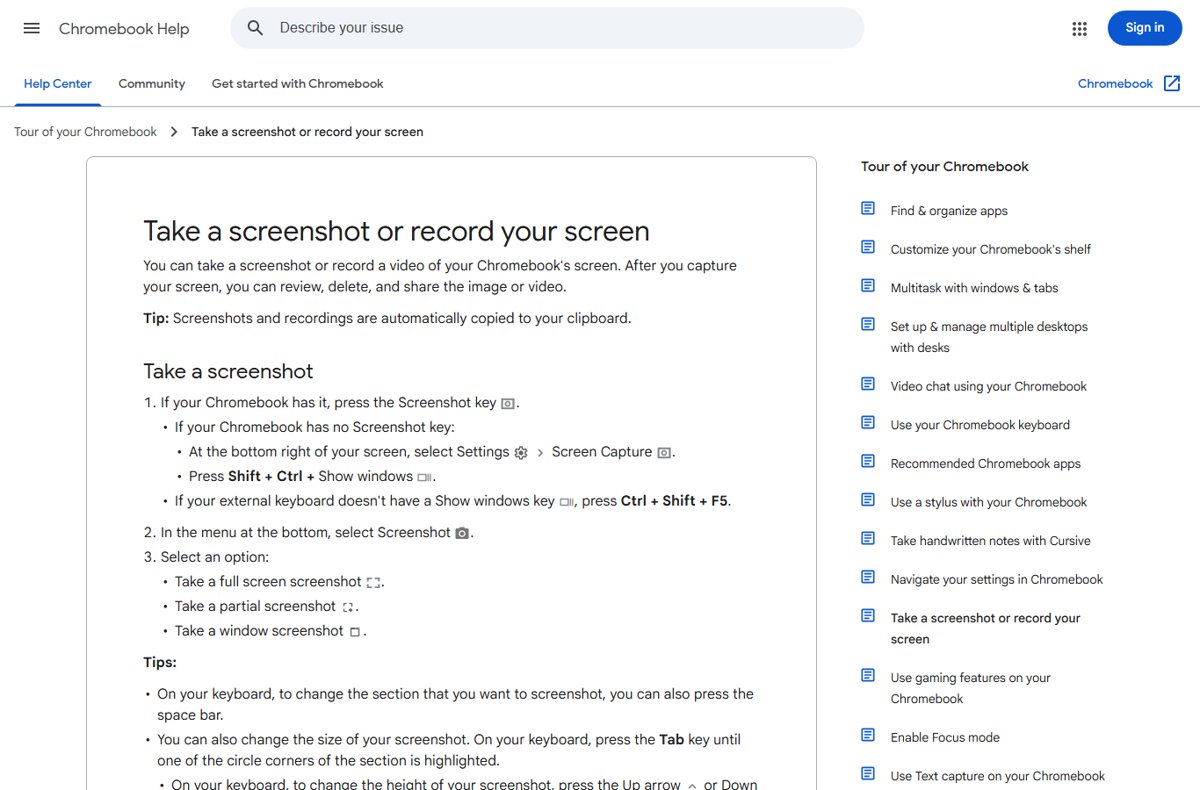
- Press the Screenshot key if the keyboard has one, or press Shift + Ctrl + Show windows.
- On an external keyboard without a Show windows key, press Ctrl + Shift + F5.
- Select Screenshot in the menu at the bottom of the screen.
- Choose full screen, partial or window capture, and press Space bar to switch between them.
- Open the Files app and check Downloads for the saved image.
Where do Dell screenshots get saved?
- Open File Explorer with Windows + E.
- Select Pictures in the left pane, then open Screenshots to see Windows + PrtScr and Snipping Tool files.
- Open Videos > Captures for anything taken with Xbox Game Bar.
- Press Windows + V to view clipboard captures if clipboard history is turned on.
- On a Dell Chromebook, open Files > Downloads.
If the folder seems empty, the Windows screenshot folder location may have moved to OneDrive or another drive.
Tips for better screenshots on Dell
| Tip | How |
|---|---|
| Capture menus that close when you click | In Snipping Tool, set a Delay of 1 to 5 seconds before you start the snip |
| Keep several captures ready to paste | Turn on clipboard history, then press Windows + V to pick one |
| Make PrtScr save a file instead of opening Snipping Tool | Go to Settings > Accessibility > Keyboard and turn off Use the Print Screen button to open screen snipping |
| Hide personal details before sharing | Use Snipping Tool Text actions and Quick redact to cover email addresses and phone numbers |
| Save in another format or folder | Select Save as in Snipping Tool and choose the name, type and location |
| Record the screen instead | Press Windows + Shift + R to record a video with Snipping Tool |
Print Screen not working on your Dell? Try this
Pressing PrtScr on a Dell laptop does nothing
The key shares a function key and the Fn layer is set to media keys. If the key is broken, the Windows on-screen keyboard has its own PrtScn key.
- Press Fn + F10 or Fn + Insert, whichever key carries the PrtScr label.
- Try Windows + Fn + PrtScr to save a file directly.
- On a capacitive or illuminated function row, turn on the function layer first.
PrtScr opens Snipping Tool instead of copying the screen
Windows 11 maps Print Screen to screen snipping by default.
- Open Settings > Accessibility > Keyboard.
- Turn off Use the Print Screen button to open screen snipping.
- Press PrtScr again and paste with Ctrl + V.
Why is my screenshot not working on Dell when I paste it?
PrtScr and Alt + PrtScr only copy to the clipboard and never create a file.
- Open Paint or another app that accepts images.
- Press Ctrl + V to paste the capture.
- Use Windows + PrtScr next time if you want a saved file.
The screenshot shows a black or blank window
Some apps, such as video players with copy protection, exclude their windows from capture.
- Capture a different window to confirm the shortcut itself works.
- Accept that the protected app cannot be captured with Windows tools.
Screenshots are missing from Pictures > Screenshots
The capture went to the clipboard, Game Bar's folder, or a moved Screenshots folder.
- Check Videos > Captures for Game Bar captures.
- Press Windows + V to look in clipboard history.
- Search Start for Snipping Tool, open See More > Settings, and check that auto-save is on.
How to screenshot on Dell: frequently asked questions
Can I screenshot on a Dell laptop?
Yes. Every Dell laptop running Windows can take screenshots with Windows + PrtScr, Alt + PrtScr or Windows + Shift + S. Many models need Fn + F10 or Fn + Insert because Print Screen shares a function key.
What is the Dell screenshot shortcut on the keyboard?
Windows + PrtScr is the main Dell screenshot shortcut, and it saves the full screen to Pictures > Screenshots. On laptops where PrtScr shares F10 or Insert, hold Fn with the combination.
How do I screenshot on a Dell desktop computer?
Press Windows + PrtScr on the Dell desktop keyboard, where Print Screen sits in the upper-right corner. Keyboards without a dedicated key, such as the KM3322W, use Fn + Insert instead.
How do I screenshot on a Dell Latitude or Inspiron 15?
Latitude and Inspiron 15 laptops use the same Windows shortcuts as other Dell models. Press Windows + PrtScr, adding Fn if PrtScr is printed on the F10 or Insert key.
How do I screenshot on a Dell monitor?
A Dell monitor does not take screenshots itself; the connected computer does. Press Windows + PrtScr on that computer's keyboard to capture everything shown on the monitor.
How do I screenshot on a Dell Chromebook?
Press the Screenshot key or Shift + Ctrl + Show windows, then select Screenshot and pick full, partial or window capture. Dell Chromebook screenshots save to the Downloads folder.
Can I take a screenshot on a Dell without the Print Screen key?
Yes. Press Windows + Shift + S to open Snipping Tool, press Fn + Windows + Space Bar, or use Windows button + Volume Down on a Dell tablet or 2-in-1.
How do I screenshot just one window on a Dell?
Click the window to make it active, then press Alt + PrtScr. Windows copies only that window to the clipboard, and you paste it with Ctrl + V.
Do these screenshot shortcuts work on Dell desktops too?
Yes. Dell desktops and laptops run the same Windows shortcuts. The only difference is the key position, since desktops usually have a dedicated PrtScr key and laptops share it.
Quick summary
Use Windows + PrtScr for a saved file and Windows + Shift + S for part of the screen on any Dell Windows PC, adding Fn on laptops. Both shortcuts are built into Windows, work on every Dell model, and the first one creates a file you can find in Pictures > Screenshots without pasting.



![Blue Screen of Death Causes and Solutions [Guide]](https://techdows.com/wp-content/uploads/2026/10/Blue-Screen-of-Death-Causes-and-Solutions-Guide-600x338.jpg)