To check SSD speed in Windows 11 or 10 without installing anything, open Command Prompt as administrator and run winsat disk -seq -read -drive c, which measures the sequential read speed of drive C.
This guide covers the built-in WinSAT tests, Microsoft's DiskSpd tool, Task Manager, the SSD maker's own benchmark apps, and how to judge whether your laptop or desktop SSD is performing as rated.
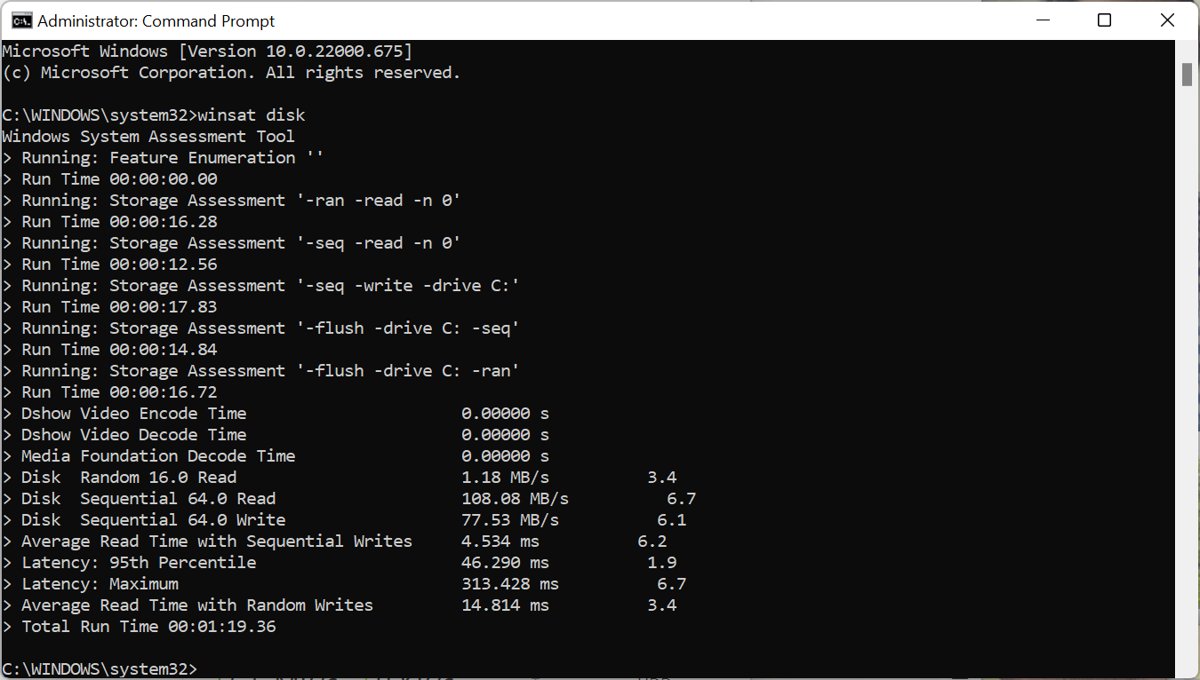
Check the SSD speed in Command Prompt or PowerShell
WinSAT, the Windows System Assessment Tool, ships with Windows and includes a disk assessment. Microsoft's reference states that it needs an elevated Command Prompt.
- Select Start, type cmd, right-click Command Prompt and select Run as administrator.
- Select Yes at the User Account Control prompt.
- Type
winsat disk -seq -read -drive cand press Enter to test sequential reads on drive C. - Wait for the assessment to finish; keep other apps closed so they do not compete for the drive.
- Read the speed figure on the final lines of the output.
- Run
winsat disk -seq -write -drive cto measure sequential writes the same way.
Replace c with another drive letter to test a second SSD; Disk Management in Windows shows which letter each drive uses. Do not add a colon: -drive c is valid, but -drive c: is not.
Why check SSD speed in Windows 11/10?
SSD speed is worth caring about because the drive decides how quickly Windows starts, apps open and large files copy. A speed test turns a vague sense that the PC feels slow into a number you can compare with the drive's rated figures.
| Reason | What the test tells you |
|---|---|
| You just installed or bought a new SSD | Whether it runs near the speeds on the maker's spec sheet in your system |
| Boot times or file copies feel slower than before | Whether the drive itself is the bottleneck or something else, such as low memory |
| You moved an NVMe drive to another slot or an enclosure | Whether the new slot, adapter or USB connection limits throughput |
| You are comparing two drives before choosing one for Windows | Which drive has faster sequential and random performance |
| You want a baseline for later | A reference figure to compare against if performance drops months from now |
If the test shows normal drive speeds but the PC is still sluggish, check how much RAM you have before blaming the SSD.
Ways to check the SSD/NVMe speed in Windows 10/11
| Your situation | Use this | Why |
|---|---|---|
| You want a quick figure with nothing to install | winsat disk in an elevated Command Prompt |
Built into Windows; tests sequential or random reads and writes on one drive |
| You want control over block size, queue depth and duration | Microsoft DiskSpd | Free Microsoft command-line tool that reports throughput, IOPS and latency |
| You want to see live activity while copying files | Task Manager Performance tab | Shows each disk's activity in real time, but runs no benchmark |
| You own a Samsung SSD | Samsung Magician Performance Benchmark | The maker's own tool, with adjustable test conditions |
| You want a graphical benchmark for any brand | A third-party benchmark such as CrystalDiskMark or AS SSD | Familiar layouts that make results easy to compare with published reviews |
Before you begin an SSD speed test in Windows
A benchmark is only useful if the conditions are the same each time. These preparations make your numbers trustworthy and comparable with the drive's spec sheet.
- Look up the rated sequential read and write speeds for your exact SSD model on the maker's website, so you have a target to compare against.
- Plug a laptop into power, then open Start > Settings > System > Power & battery and set Power mode to Best performance for the test.
- Close other apps, browser tabs and large downloads so nothing else competes for the drive.
- Make sure the drive has free space: a nearly full SSD can test slower than the same drive with room to spare.
- Have an administrator account ready, because
winsatand DiskSpd need an elevated Command Prompt. - Plan to run each test two or three times and keep the typical result rather than the best one.
A practical test plan, for example: run winsat disk -seq -read, -seq -write, -ran -read and -ran -write on the same drive, three times each, and write each result next to the rated speed.
Set Power mode back to your usual option when you finish, especially on battery.
Run winsat disk random read and write tests
Sequential tests show large-file speed. Random tests show how the SSD handles the small scattered reads that Windows and apps generate, which is closer to everyday responsiveness.
WinSAT's switches combine one access pattern (-seq or -ran) with one direction (-read or -write) and one target (-drive letter or -n disk number).
winsat disk -ran -read -drive c-ran assesses random I/O instead of sequential, -read measures reads, and -drive c targets drive C. Swap -read for -write to test random writes, or use -n 1 instead of -drive c to target physical disk number 1. winsat disk -flush -drive c runs the separate write-flush test.
You should see: The assessment completes without an access error and prints the measured result for that test on its final lines.
Microsoft notes that WinSAT may be altered or unavailable in releases after Windows 8.1, so if the command is missing on your build, use DiskSpd instead.
Test SSD speed with Microsoft DiskSpd
DiskSpd is Microsoft's I/O generating, command-line tool for micro-benchmarking storage. It is published in the microsoft/diskspd repository on GitHub, and its parameters are case sensitive.
Point it at a folder on the SSD you want to test, and let -c create the test file.
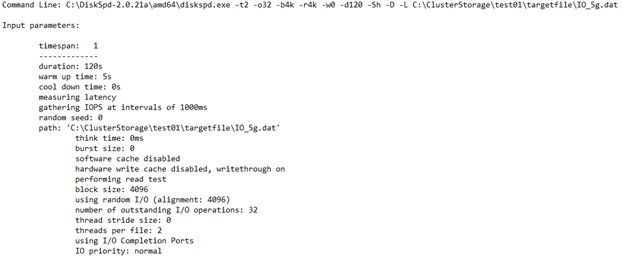
diskspd -t2 -o32 -b4k -r4k -w0 -d60 -Sh -D -L -c5G D:\test\IO.dat-t2 runs two threads, -o32 keeps 32 outstanding requests per thread (queue depth), -b4k -r4k uses 4K random I/O, -w0 means 100% reads, -d60 runs for 60 seconds, -Sh disables software and hardware write caching, -D and -L capture IOPS and latency statistics, and -c5G creates a 5 GB test file.
You should see: DiskSpd prints a results table with total I/O, throughput in MiB/s, IOPS and average latency for the test file.
Change -w0 to a higher percentage to include writes, and delete the IO.dat test file when you finish to recover the space.
Watch SSD read and write activity in Task Manager
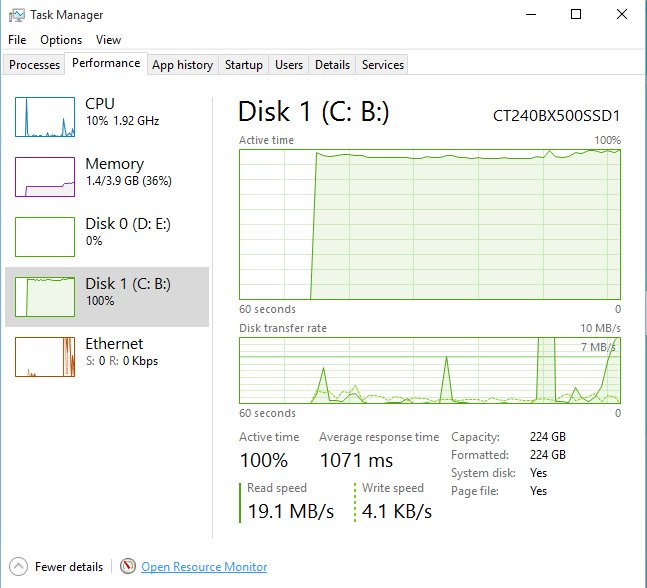
Task Manager does not benchmark the drive, but it shows how hard each disk works while you copy a large file or launch a heavy app.
- Press Ctrl + Shift + Esc to open Task Manager.
- Select the Performance tab.
- Select the disk that holds the SSD in the left column.
- Copy a large file to or from that drive and watch the activity graph and transfer figures.
- Check the Processes tab if the disk stays busy when you are not doing anything.
Using third-party tools to check SSD speed on Windows 11/10/8.1
SSD makers ship their own utilities, and these are the safest first choice because they come from the same company as the drive. Samsung Magician is the clearest example, with a Performance Benchmark that tests read and write speeds and lets you change test conditions such as volume and chunk size.
Samsung states that Magician fully supports Samsung-branded drives and that support for other brands' SSDs may be limited. Windows 8.1 and older need the older Magician 7.3.
- Download Samsung Magician from Samsung's own Magician page and install it.
- Open Magician and confirm your Samsung SSD appears in the drive list.
- If you just connected the drive, refresh the drive list in System Information first.
- Open Performance Benchmark and select the drive to test.
- Adjust the test volume or chunk size if you want, then start the benchmark.
- Compare the read and write results with the rated speeds for your model.
Vendor tools also allow deeper analysis than a speed figure: Magician adds a S.M.A.R.T check and a Diagnostic Scan for drive health. Other SSD makers publish similar utilities on their own support sites. Download them only from the drive maker's domain.
Additional third-party SSD speed benchmarking software
These independent benchmarks work with any brand of drive. Download each one only from its developer's own website, never from a download portal that wraps it in another installer.
| Tool | What it is used for | Good fit for |
|---|---|---|
| CrystalDiskMark | Free disk benchmark that runs sequential and random read and write tests | A quick graphical result that matches figures in most SSD reviews |
| AS SSD Benchmark | SSD-focused disk benchmark | Comparing results across SATA and NVMe SSDs |
| Anvil's Storage Utilities | Storage benchmark and drive utility | Users who want more test detail than a single score |
| PCMark 10 | UL's PC benchmark, which includes storage testing | Comparing everyday performance across PCs, not raw drive speed |
| Samsung Magician | Maker utility with Performance Benchmark, health and firmware tools | Owners of Samsung SSDs |
Cross-check a surprising result with a second benchmark, such as AS SSD or ATTO Disk Benchmark, before deciding the drive is at fault.
How to read SSD speed test results
Interpret results against your drive's own rating, not against a different drive or a different type of SSD.
- Find the rated sequential read and write speeds for your exact SSD model on the maker's spec sheet.
- Compare your sequential results with those ratings; they reflect the best case, so a result close to them is normal.
- Treat random 4K results separately, because they are always far lower than sequential figures on any SSD.
- Run the same test two or three times and use the typical result, since background tasks can skew one run.
- Test again with the drive less full if it is almost out of space, then compare.
A result far below the rating usually points to the connection rather than the drive, such as an NVMe SSD in a slower slot or a SATA SSD in a USB enclosure.
NVMe vs SATA SSD speed comparison: why results vary
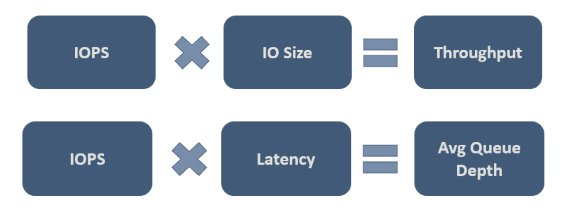
The interface sets the ceiling for any SSD speed test. A drive can never beat the link it sits on, so check whether your SSD is SATA or NVMe, and which PCIe generation the slot supports, before you judge a result.
| SSD type | Connection | What it means for your speed test |
|---|---|---|
| SATA SSD (2.5-inch or M.2 SATA) | SATA data connection | Slower than any PCIe NVMe drive; expect the lowest sequential figures of the four |
| PCIe 3.0 NVMe M.2 | PCIe 3.0, 8 GT/s per lane, x4 lanes on M.2 | The baseline NVMe tier; results well above SATA |
| PCIe 4.0 NVMe M.2 | PCIe 4.0, 16 GT/s per lane, double PCIe 3.0 | Higher rated read and write speeds than PCIe 3.0, if the slot is also PCIe 4.0 |
| PCIe 5.0 NVMe M.2 | PCIe 5.0, 32 GT/s per lane, double PCIe 4.0 | The highest rated speeds, reached only in a PCIe 5.0 slot |
Transfer rates in gigatransfers per second are theoretical maximums before encoding, so real results are always somewhat lower. Every PCIe generation is backward and forward compatible: a PCIe 4.0 SSD works in a PCIe 3.0 slot, but the slot's lower rate then caps what a benchmark can show.
SSD slower than expected: troubleshooting checklist
NVMe SSD results are far below the rated speed
The M.2 slot runs at an older PCIe generation or fewer lanes than the drive supports, so the slot caps the result.
- Check your motherboard or laptop manual for the PCIe generation of each M.2 slot.
- Move the SSD to the slot connected at the highest PCIe generation, if your PC has more than one.
- Run the same
winsator DiskSpd test again and compare.
SSD speed drops on a laptop running on battery
Power mode trades performance for battery life.
- Open Start > Settings > System > Power & battery.
- Set Power mode to Best performance for Plugged in, and connect the charger.
- If the option cannot be changed, open Control Panel > System and Security > Power Options and select Balanced, then try again.
Write speed has fallen over months of use
Windows trims SSDs on a schedule to keep performance up, and a drive that is nearly full or has missed optimization slows down.
- Search for defrag on the taskbar and open Defragment and Optimize Drives.
- Select the SSD and select Optimize to send a trim.
- Under Scheduled optimization, select Change Settings and confirm the drive is optimized weekly.
- Free up space on the drive, then run the benchmark again.
Samsung SSD tests slow or shows a warning
Outdated drive software or a drive health problem.
- Open Samsung Magician and check the drive status on the dashboard for update alerts.
- Run the S.M.A.R.T check or Diagnostic Scan to look for errors.
- Install any update Magician alerts you to after backing up your files.
Results swing widely between runs
A common mistake is testing while Windows Update, antivirus scans or file sync run in the background.
- Press Ctrl + Shift + Esc and check the Processes tab for disk activity.
- Wait for the background task to finish, so you avoid a skewed result.
- Run each test three times with identical settings and use the middle result.
SSD speed test FAQ
How do I check SSD speed in Windows 11?
Open Command Prompt as administrator, run winsat disk -seq -read -drive c for sequential reads and winsat disk -seq -write -drive c for writes. For more detail, use Microsoft DiskSpd or your SSD maker's benchmark utility, such as Samsung Magician.
Should I test the speed of a new SSD?
Yes. A quick test after installation confirms the drive runs near its rated speeds in your laptop or desktop. It also gives you a baseline to compare against later, and it exposes a slow slot, adapter or enclosure straight away.
How do I test SSD drive speed with CMD?
Open Command Prompt as administrator and run winsat disk -seq -read -drive c. Use -ran instead of -seq for random tests and -write instead of -read for writes. Microsoft's reference says WinSAT must run from an elevated command prompt.
Is there an online SSD speed test?
No. A website cannot benchmark the drive inside your PC, so SSD tests run as local tools such as winsat or DiskSpd. Online speed tests measure your connection instead, which is how you test your internet speed.
What is a free SSD speed test tool?
WinSAT is built into Windows and costs nothing. Microsoft DiskSpd is also free, and SSD makers such as Samsung offer free utilities with a benchmark. Independent free benchmarks include CrystalDiskMark and AS SSD.
Can I check SSD speed without installing software?
Yes. The winsat disk command is part of Windows and runs from an elevated Command Prompt. Task Manager's Performance tab also shows live disk activity, though it does not run a benchmark.
What is a good SSD read/write speed?
A good result is close to the rated sequential read and write speeds for your model. SATA SSDs are always slower than NVMe drives, and each newer PCIe generation doubles the link rate, so judge a drive against its own spec, not another type.
What is CrystalDiskMark?
CrystalDiskMark is a free disk benchmark for Windows that runs sequential and random read and write tests and shows the results in MB/s. Download it only from its developer's own website.
Why is my NVMe SSD slow in Windows 11?
The usual causes are an M.2 slot running at an older PCIe generation, a laptop in a power-saving mode, a nearly full drive, or background tasks during the test. Work through the troubleshooting checklist above, then test again.
Bottom line: the best way to check SSD speed in Windows 11/10
Start with the built-in winsat disk command for a quick figure, then use Microsoft DiskSpd or your SSD maker's benchmark when you need repeatable, detailed results. Both built-in options run without third-party software, and comparing the result with the rated speed and the slot's PCIe generation tells you whether the drive, the connection or the test conditions are holding it back.


![Find passwords stored on this computer [3 ways]](https://techdows.com/wp-content/uploads/2026/10/Find-passwords-stored-on-this-computer-3-ways.jpg)