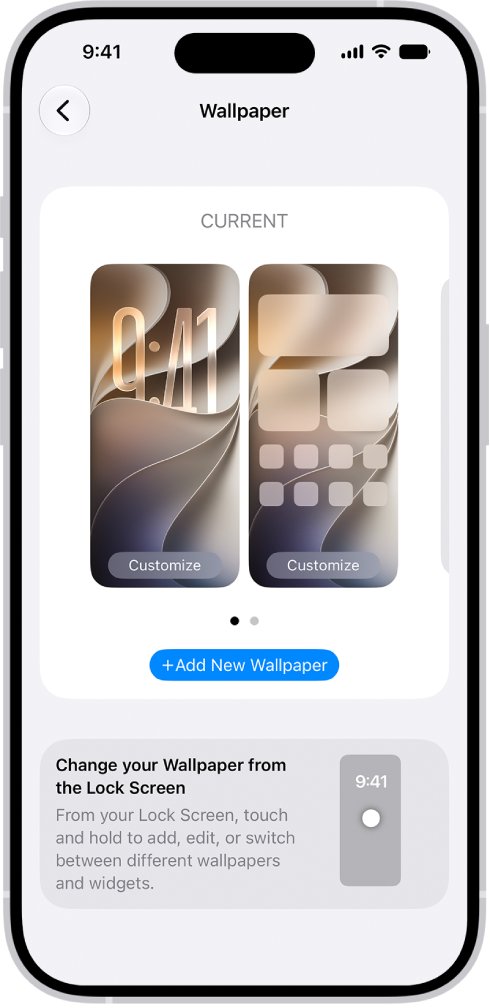
To change wallpaper on iPhone, open Settings, tap Wallpaper, tap Add New Wallpaper, pick a photo or style, tap Add, then tap Set as Wallpaper Pair.
The steps below cover the Lock Screen gallery shortcut, a separate Home Screen wallpaper, wallpapers that change on their own, 3D spatial scenes, deleting old wallpapers and fixes for the usual snags.
How to change wallpaper on iPhone
These steps work on any iPhone running iOS 16 or later, which includes every model from iPhone 11 and iPhone SE (2nd generation) to the iPhone 17 range.
- Open the Settings app.
- Tap Wallpaper.
- Tap Add New Wallpaper.
- Tap Photos or Photo Shuffle to use your own pictures, or pick a style such as Weather & Astronomy, Emoji or Color.
- Adjust the wallpaper if you want, then tap Add.
- Tap Set as Wallpaper Pair to use it on both the Lock Screen and the Home Screen.
Tap Customize Home Screen instead of Set as Wallpaper Pair when you want a different look behind your apps.
Wallpaper methods compared
| What you want | Use this | Where it starts |
|---|---|---|
| A new wallpaper on both screens | Add New Wallpaper, then Set as Wallpaper Pair | Settings > Wallpaper |
| Switch to a wallpaper you made earlier | Lock Screen wallpaper gallery | Touch and hold the Lock Screen |
| A different picture behind your apps | Customize Home Screen | Settings > Wallpaper, or after tapping Add |
| A new photo every hour, day, lock or tap | Photo Shuffle | Settings > Wallpaper > Add New Wallpaper |
| A wallpaper that changes with work, sleep or personal time | Link a Focus to the Lock Screen | Touch and hold the Lock Screen, then tap Focus |
| A 3D effect on the Lock Screen photo | Spatial Scene (iPhone 12 or later, iOS 26 or later) | Settings > Wallpaper > Add New Wallpaper > Photos |
Why is changing your iPhone wallpaper confusing?
Since iOS 16, a wallpaper is no longer a single picture. Each entry in the gallery is a Lock Screen design with its own Home Screen partner, widgets, clock style and optional Focus.
| What changed | What it means for you |
|---|---|
| Wallpapers come in pairs | One choice sets the Lock Screen and the Home Screen together unless you tap Customize Home Screen. |
| The gallery keeps every design | Old wallpapers stay in the Lock Screen gallery until you delete them, so you can swipe back to one. |
| Two places to start | Settings > Wallpaper and the Lock Screen gallery both edit the same set of wallpapers. |
| Lock Screen extras live with the wallpaper | Widgets, clock font, filters and controls belong to that Lock Screen, not to the phone as a whole. |
| iOS 15 and earlier work differently | Older versions use Settings > Wallpaper > Choose a New Wallpaper, then Set Lock Screen, Set Home Screen or Set Both. |
Step-by-step: Change your iPhone wallpaper
Use this longer route when you want to set one of your own photos and fine-tune it before saving.
- Unlock your iPhone and open Settings.
- Tap Wallpaper, then tap Add New Wallpaper.
- Tap Photos and choose a photo, or pick one of the featured sets such as Nature.
- Pinch open to zoom in, drag the image with two fingers to move it, then pinch closed to zoom out.
- Swipe left or right on the preview to try different color filters.
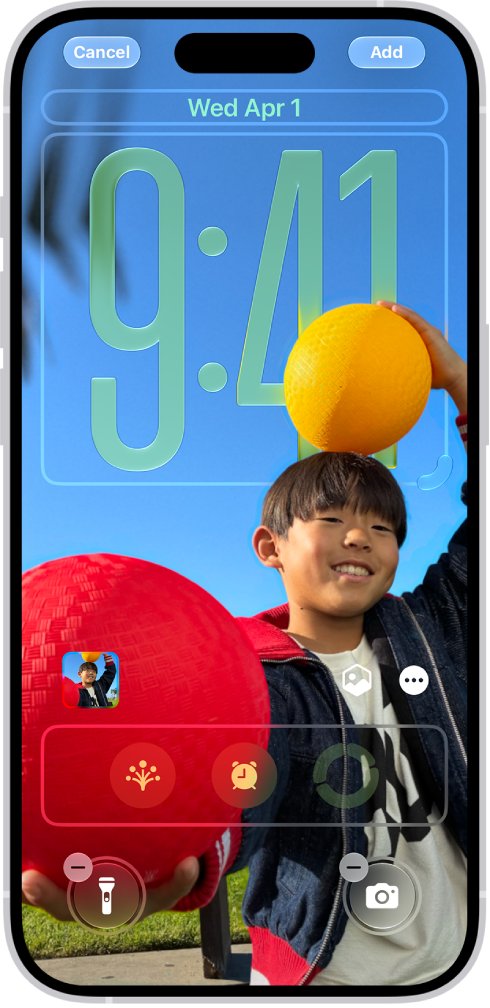
- Tap the clock to change its font, or tap Add Widgets to put widgets on the Lock Screen.
- Tap Add, then tap Set as Wallpaper Pair or Customize Home Screen.
- Lock your iPhone and wake it to see the new Lock Screen, then unlock it to see the Home Screen.
If a style you want, such as Weather or Astronomy, is missing from the gallery, scroll down and tap Get below it.
Alternative ways to change your wallpaper
| Route | How it works | Best for |
|---|---|---|
| Long-press the Lock Screen | Touch and hold the Lock Screen to open the wallpaper gallery, then swipe to a wallpaper or tap the Add button. | Switching between saved wallpapers in seconds |
| Photo Shuffle | Pick categories such as People, Nature or Cities, or an album, and set how often the photo changes. | A Lock Screen that keeps changing |
| Focus link | Tap Focus on a Lock Screen wallpaper and choose a Focus such as Work or Sleep. | A wallpaper that follows your schedule |
| Customize Home Screen | Choose a color, a custom photo or Blur for the Home Screen only. | Keeping app icons easy to read |
| Shortcuts automation (iOS 15 and earlier) | Create a personal automation with a schedule and add the Set Wallpaper action. | Timed changes on older iOS versions |
How to change lock screen wallpaper on iPhone
The Lock Screen gallery is the fastest way to swap between wallpapers you have already made, or to add a new one without opening Settings.
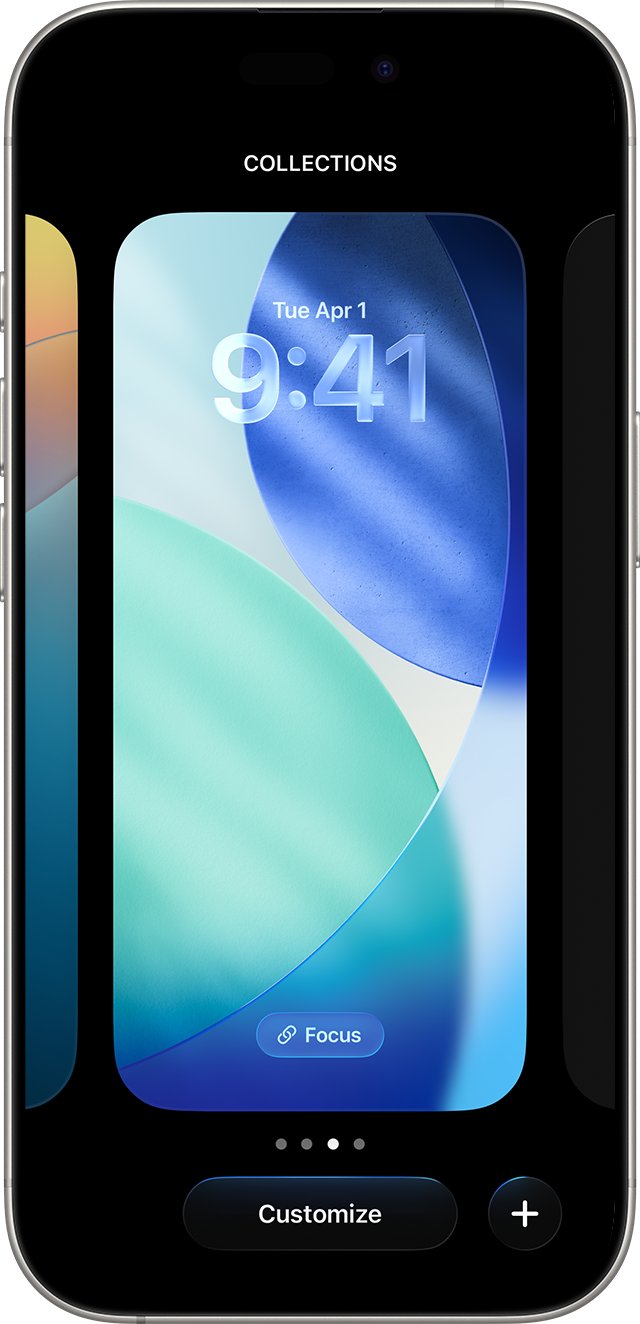
- Press the side button to show the Lock Screen.
- Touch and hold the Lock Screen until Customize appears at the bottom of the screen.
- Swipe left or right and tap the wallpaper you want to use.
- To make a new one, tap the Add button and pick a wallpaper option.
- To edit the current one, tap Customize below it and change the photo, clock or widgets.
- Tap Add or Done to save.
If the gallery does not open after Face ID, touch and hold the Lock Screen again and enter your passcode. For widgets, clock styles and controls in more depth, customize the iPhone Lock Screen with every option Apple offers.
How to change iPhone home screen wallpaper only
A Home Screen wallpaper can differ from the Lock Screen, and it sits under the widgets and app layout you pick when you customize the iPhone Home Screen. Blur is useful when a busy photo makes app names hard to read.
- Open Settings and tap Wallpaper.
- Tap Add New Wallpaper and choose the wallpaper for the Lock Screen.
- Tap Add, then tap Customize Home Screen.
- Tap a color to use a plain background, or tap the photo button to choose a custom photo.
- Tap Blur to soften the image behind your apps.
The Lock Screen keeps the wallpaper you chose in step 2, and the Home Screen shows the color, photo or blur you picked.
How to make iPhone change wallpaper automatically
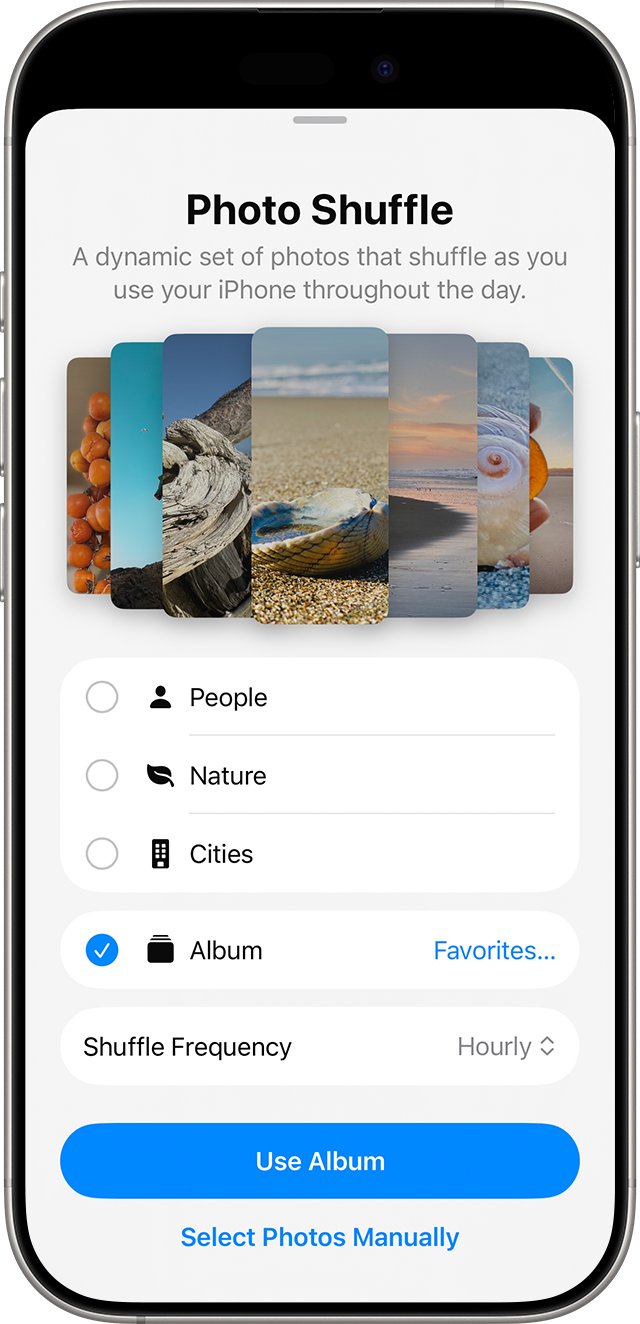
Photo Shuffle rotates a set of photos on the Lock Screen on a schedule you choose.
- Open Settings, tap Wallpaper, then tap Add New Wallpaper.
- Tap Photo Shuffle in the top row of options.
- Choose one or more categories such as People, Nature or Cities, or choose an existing album.
- Choose a shuffle frequency: On Tap, On Lock, Hourly or Daily.
- Tap Use Album or Use Featured Photos, depending on what you picked.
- Tap Add, then choose Set as Wallpaper Pair or Customize Home Screen.
To hand-pick the photos, tap Select Photos Manually on the Photo Shuffle screen, choose your images, tap the checkmark, then tap the ellipsis button to set the frequency.
Link a Focus to change iPhone wallpaper automatically
A Lock Screen linked to a Focus appears whenever that Focus turns on, whether it is Work, Sleep or Do Not Disturb on iPhone, so your wallpaper changes with it.
- Set up the Focus you want, such as Work or Sleep, in Settings > Focus.
- Press the side button to show the Lock Screen.
- Touch and hold the Lock Screen until Customize appears.
- Swipe to the wallpaper you want for that Focus.
- Tap Focus near the bottom of the wallpaper.
- Select a Focus, then close the Focus list.
Switching from a Focus-linked Lock Screen to another one also switches your Focus, which can surprise you if you only meant to change the picture.
How to set a 3D spatial scene wallpaper on iPhone
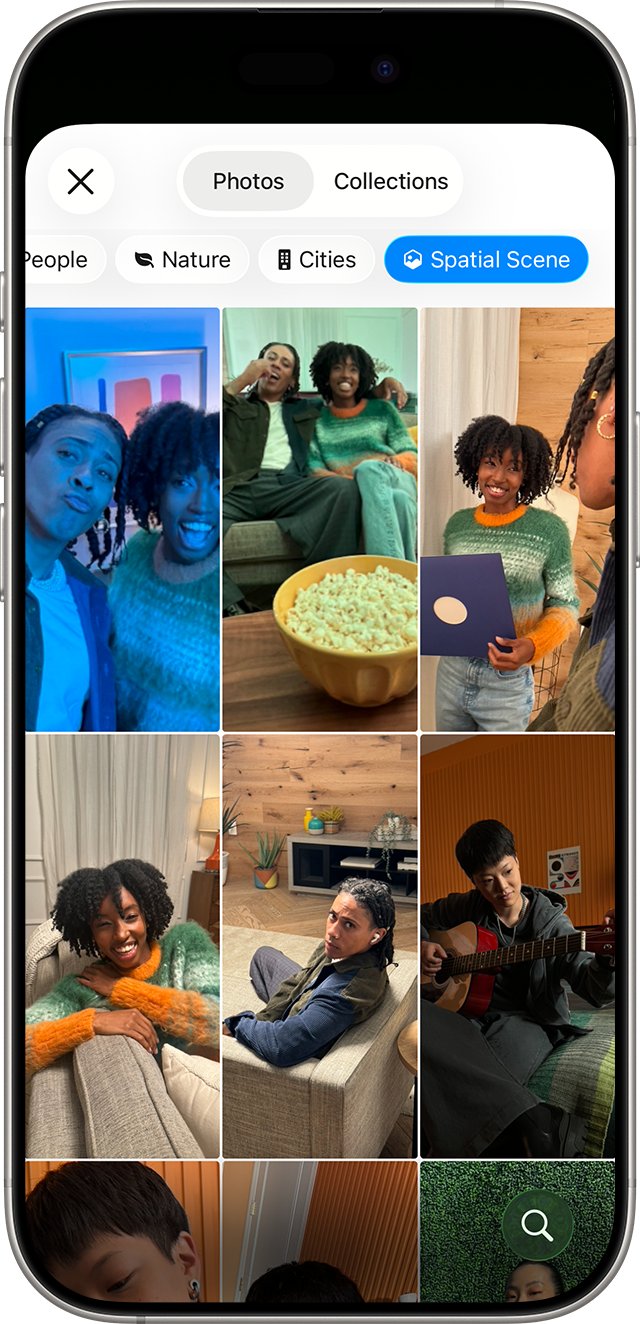
On iPhone 12 or later with iOS 26 or later, eligible photos can become 3D spatial wallpapers on the Lock Screen.
- Open Settings and tap Wallpaper.
- Tap Add New Wallpaper, then tap Photos.
- Scroll right in the top bar and tap the Spatial Scene tab.
- Select a photo and wait for the Generating Spatial Scene message to disappear.
- Tap Add, then tap Set as Wallpaper Pair or Customize Home Screen.
Only the Lock Screen shows the 3D effect. Photos with good lighting, a clear gap between subject and background, or a landscape orientation are the most likely to qualify.
How to change wallpaper on iPhone 16, iPhone 17, iPhone 13 and iPhone SE
The steps depend on the iOS version, not the model. Apple lists every iPhone below as compatible with iOS 27, so all of them use the same wallpaper gallery.
| iPhone models | iOS version | Path |
|---|---|---|
| iPhone 17, iPhone 17 Pro, iPhone 17 Pro Max, iPhone Air, iPhone 17e | iOS 16 or later | Settings > Wallpaper > Add New Wallpaper |
| iPhone 16, iPhone 16 Plus, iPhone 16 Pro, iPhone 16 Pro Max, iPhone 16e | iOS 16 or later | Settings > Wallpaper > Add New Wallpaper |
| iPhone 15, iPhone 14, iPhone 13 and iPhone 12 models | iOS 16 or later | Settings > Wallpaper > Add New Wallpaper |
| iPhone 11, iPhone 11 Pro, iPhone 11 Pro Max, iPhone SE (2nd generation and later) | iOS 16 or later | Settings > Wallpaper > Add New Wallpaper |
| Any iPhone still on iOS 15 or earlier | iOS 15 or earlier | Settings > Wallpaper > Choose a New Wallpaper > Set > Set Lock Screen, Set Home Screen or Set Both |
The Spatial Scene option needs iPhone 12 or later, so iPhone 11 models and iPhone SE do not show it.
Pro tips for a better wallpaper
| Tip | How to do it |
|---|---|
| Match the screen resolution | Use a photo at least as large as your display. iPhone 17 is 2622 by 1206 pixels and iPhone 16 is 2556 by 1179 pixels, per Apple's specs pages. |
| Keep the subject clear of the clock | Pinch and drag with two fingers so faces sit below the time and above the controls. |
| Use the depth effect | Tap the layering button, then choose Depth Effect on photos that support it so the subject overlaps the clock. |
| Try a filter | Swipe left or right in the editor to try color filters before you save. |
| Add motion with a Live Photo | Pick a Live Photo that can become slow motion, then tap the play button so it moves when the iPhone wakes. |
| Use light and dark looks | Some wallpapers have a light and dark appearance; tap the appearance button to switch. |
| Blur the Home Screen | Tap Blur in Customize Home Screen so app names stay readable over a busy photo. |
How to delete a wallpaper on iPhone
Deleting removes a design from the Lock Screen gallery. It does not delete the photo from your library.
- Press the side button to go to the Lock Screen.
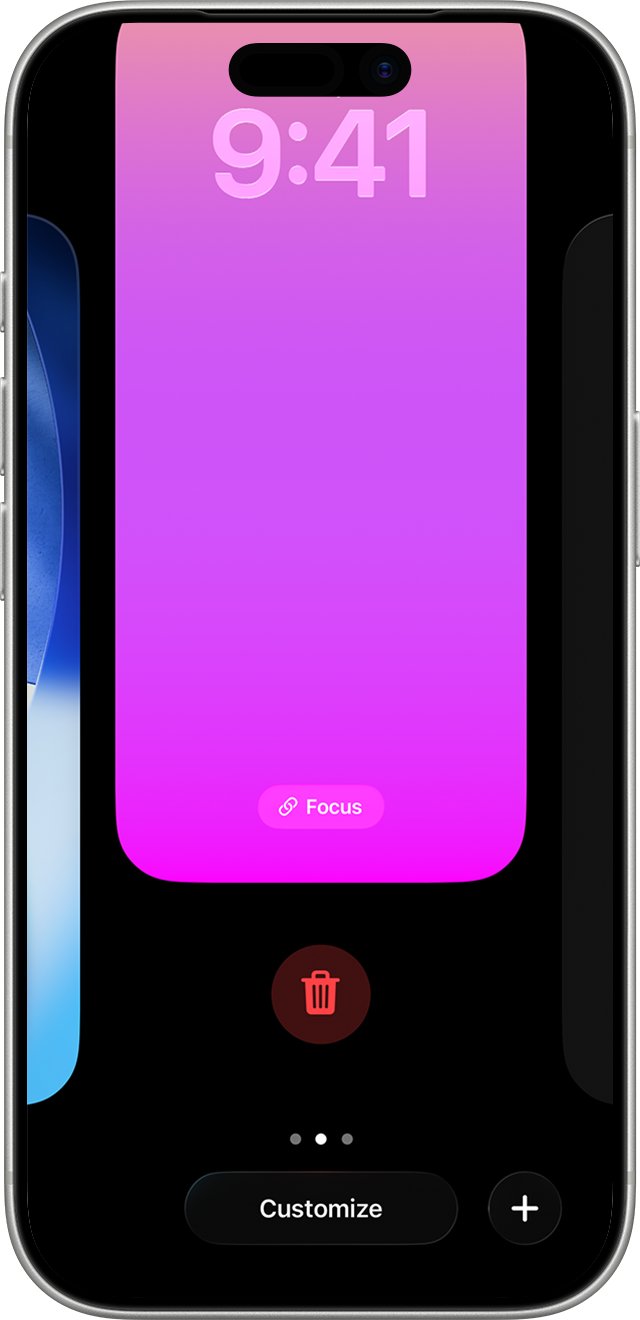
- Touch and hold the Lock Screen, then use Face ID, Touch ID or your passcode to open the wallpaper gallery.
- Swipe to the wallpaper you want to remove.
- Swipe up on that wallpaper and tap the trash icon.
- Tap Delete This Wallpaper.
In iOS 15 and earlier there is no gallery. Set a new wallpaper in Settings, and delete the old image in the Photos app if you no longer want it.
iPhone wallpaper still not working? Troubleshooting
Why does my wallpaper keep changing on my iPhone?
Photo Shuffle is rotating photos, or a Focus-linked Lock Screen turns on with that Focus.
- Touch and hold the Lock Screen to open the gallery.
- If the current wallpaper is a Photo Shuffle, tap Customize, tap the photo thumbnail and change the frequency, or swipe to a single-photo wallpaper.
- If a Focus label shows on the wallpaper, tap it and deselect the Focus.
- Check Settings > Focus for schedules, such as Sleep, that turn a Focus on by themselves.
Why did my iPhone wallpaper change after I switched Lock Screens?
Each Lock Screen carries its own Home Screen partner and can carry a Focus.
- Touch and hold the Lock Screen and swipe back to the wallpaper you want.
- Tap it to make it active again.
- Open Settings > Wallpaper and check that the Home Screen preview is the one you expect.
The wallpaper gallery will not open after Face ID
Face ID unlocked the phone but the gallery still needs your passcode.
- Touch and hold the Lock Screen again.
- Enter your passcode when asked.
- Swipe to the wallpaper you want or tap the Add button.
Weather or Astronomy wallpaper is missing
Some styles are not downloaded until you choose them.
- Open Settings > Wallpaper > Add New Wallpaper.
- Scroll down the gallery.
- Tap Get below the wallpaper you want, then tap Add.
No Spatial Scene or 3D effect option
The 3D effect needs iPhone 12 or later with iOS 26 or later, and only certain photos qualify.
- Check your model and iOS version in Settings > General > About.
- Open the Spatial Scene tab under Photos and pick a photo from that category.
- Try a photo with a clear subject, good lighting or a landscape orientation.
Perspective Zoom is missing on iOS 15
Perspective Zoom does not appear when Reduce Motion is on.
- Open Settings > Accessibility > Motion.
- Turn off Reduce Motion.
- Go to Settings > Wallpaper, tap the Lock Screen or Home Screen image, then tap Perspective Zoom.
Change iPhone wallpaper FAQ
Can I set different Lock and Home Screen wallpapers?
Yes. After you tap Add on a new wallpaper, tap Customize Home Screen instead of Set as Wallpaper Pair. You can then choose a color, a different photo or Blur for the Home Screen while the Lock Screen keeps its own picture.
Why does my wallpaper keep changing on my iPhone?
The usual cause is Photo Shuffle, which changes the photo on tap, on lock, hourly or daily. A Lock Screen linked to a Focus also swaps in whenever that Focus turns on, including scheduled ones such as Sleep.
How do I delete a saved wallpaper?
Touch and hold the Lock Screen, unlock to open the gallery, swipe up on the wallpaper, tap the trash icon and tap Delete This Wallpaper. The photo itself stays in your library. This applies to iOS 16 and later.
Does iOS support live or video wallpapers?
iOS supports Live Photos as a motion effect: choose a Live Photo that can become slow motion and tap the play button so it moves when the iPhone wakes. Apple's wallpaper options do not include setting a video file as wallpaper.
Can I use a downloaded image as my wallpaper?
Yes, once the image is saved to your photo library. If it went to the Files app instead, find the downloaded file on iPhone and save it to Photos first. Go to Settings > Wallpaper > Add New Wallpaper, tap Photos and pick the saved image, then adjust it and tap Add.
What size should an iPhone wallpaper be?
Use an image at least as large as your display resolution. Apple lists iPhone 17 at 2622 by 1206 pixels and iPhone 16 at 2556 by 1179 pixels. Check your model's technical specifications page on apple.com for its exact figure.
How to change wallpaper on iPhone 16?
Open Settings, tap Wallpaper, tap Add New Wallpaper, choose a photo or style, tap Add and tap Set as Wallpaper Pair. iPhone 16 models use the same steps as every other iPhone on iOS 16 or later.
How to change wallpaper on iPhone SE?
On iPhone SE (2nd generation and later), go to Settings > Wallpaper > Add New Wallpaper, pick a photo, tap Add and choose Set as Wallpaper Pair. The Spatial Scene 3D effect is not available because it needs iPhone 12 or later.
Can my iPhone change wallpaper automatically?
Yes. Use Photo Shuffle with an hourly or daily frequency, or link different Lock Screens to Focus modes so the wallpaper switches when each Focus turns on. On iOS 15 and earlier, a Shortcuts automation with the Set Wallpaper action does the job.