To cast an Oculus (Meta Quest) headset to a computer screen, open Quick controls in the headset, select Cast, choose Web, and log in at oculus.com/casting in a browser on the computer.
This guide covers the browser route, casting to the Meta Horizon Link app, phones and Chromecast TVs, the requirements, and fixes for casts that fail or lag.
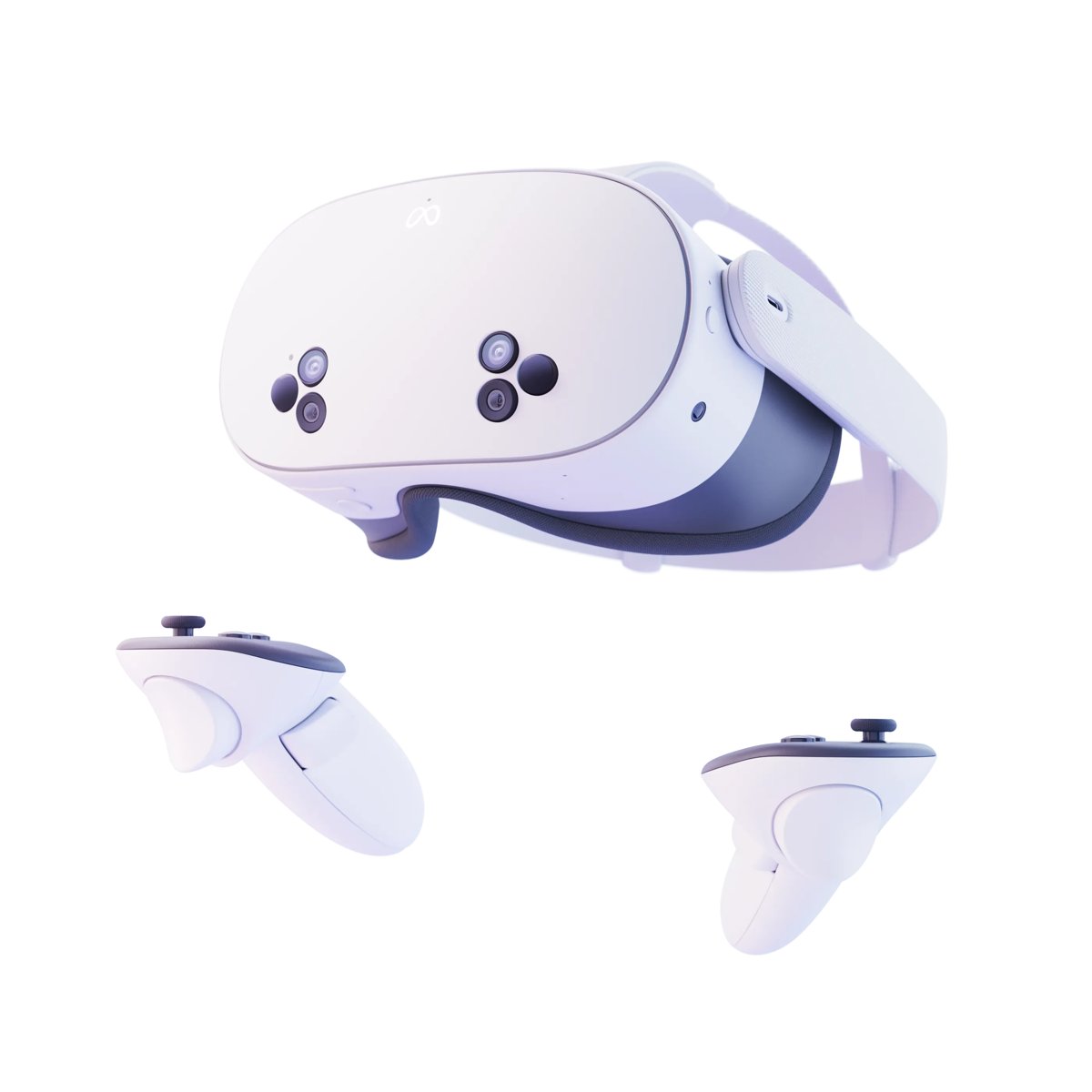
Step-by-Step Guide to Casting Oculus Quest to PC
The browser cast needs no software on the computer. Any computer with a web browser on the same Wi-Fi network as the headset can receive it.
- Connect the computer and the headset to the same Wi-Fi network, and to the same band if your router broadcasts two.
- On the computer, open a web browser, go to oculus.com/casting and select Log in with the same Meta account the headset uses.
- Put on the headset and press the Meta button (or Oculus button) on the right controller to open the Navigator.
- Select Quick controls, then select Cast.
- Select Web from the list of destinations.
- Select Next and follow the on-screen instructions in the headset.
- Watch the browser tab on the computer: it now shows what you see in the headset.
The address meta.com/casting now forwards to the same Meta Horizon casting page at horizon.meta.com/casting, which also asks you to log in to start casting.
Understanding Oculus Casting and Its Benefits
Casting shares what you see in the headset to another screen, so people in the room can follow along. Meta lets you cast from a primary account or a secondary account on the headset.
| Cast destination | What the viewer uses | Best for |
|---|---|---|
| Web (computer) | A browser logged in at oculus.com/casting | Showing VR on a desktop or laptop monitor with nothing to install |
| Meta Horizon Link app | The Link app on a Windows PC | PCs already set up for Meta Horizon Link |
| Mobile | The Meta Horizon mobile app on a phone | Letting someone watch on a phone |
| Nearby device | A Chromecast-enabled TV or device on the network | A large screen for a group |
| Live stream | OBS capturing the browser cast | Streaming the headset view to YouTube |
Alternative Methods for Oculus Casting
| Your situation | Use this | Why |
|---|---|---|
| Any Windows PC, Mac or laptop with a browser | Cast to Web and open oculus.com/casting | Nothing to install; only a login is needed |
| Windows PC that already runs the Meta Horizon Link app | Using Oculus App on PC (cast to the Link app) | The cast appears inside the app you already use |
| You want to play PC VR games in the headset | Employing Oculus Link for PC VR experience | Link runs PC apps on the headset; it is not a cast |
| You want to stream the headset view online | Third-party streaming software (OBS) plus the browser cast | Meta documents this route for YouTube live streams |
| You want the built-in screen mirroring on Windows or macOS | Use the browser cast instead | Meta's cast menu lists Mobile, Web and nearby devices; it documents no Miracast or AirPlay option |
| TV with Chromecast built in | Choose the TV from the nearby device list | Meta supports Chromecast-enabled devices, though not every TV model |
Prerequisites for Casting Oculus to Computer Screen
Meta lists four checks before any cast. Run through them first, because most failed casts trace back to one of these.
- Put the phone, computer and headset on the same Wi-Fi network.
- On a dual-band router, put every device on the same frequency.
- Log in to the same Meta account on the headset and on the device you cast to.
- Update the headset and the receiving device to their latest software.
Hardware Requirements
| Device | Requirement | Needed for |
|---|---|---|
| Headset | A Meta Quest headset running the latest Horizon OS | Every cast |
| Computer | Any computer that runs a current web browser | Browser cast |
| Windows PC for Link | Intel i5-4590 or AMD Ryzen 5 1500X or better, 8 GB+ RAM, a supported GPU, one USB port | Link app cast and PC VR |
| Recommended Link PC | Intel i7 or AMD Ryzen 7, Nvidia RTX 20 series or AMD Radeon RX 6000 series, 16 GB DDR4 RAM, USB-C port | Smoother PC VR over Link |
| Phone | iOS 15.1 or later, or Android 5.0 or later | Casting to the Meta Horizon mobile app |
| TV | Chromecast built in, or a Chromecast device, with Chromecast enabled | Casting to a TV |
Meta notes that the NVIDIA GeForce RTX 2050 is not supported for Link, and that the mobile app may not work on tablets.
Software Requirements
| Software | Where | Requirement |
|---|---|---|
| Horizon OS | Headset | Latest update installed |
| Web browser | Computer | Logged in at oculus.com/casting with the headset's Meta account |
| Meta Horizon Link app | Windows 10 or Windows 11 PC | Installed and up to date, with at least 4 GB free space; only for the Link app cast |
| Meta Horizon mobile app | Phone | Installed and logged in to the same account; only for phone casting |
| OBS | Computer | Only for live-streaming the cast to YouTube |
Network Configuration
Casting runs over your local Wi-Fi, so the network matters more than the computer.
| Network | Casting works? | What to do |
|---|---|---|
| Home Wi-Fi, one band | Yes | Keep all devices on the same network |
| Home Wi-Fi, 2.4 GHz and 5 GHz bands | Yes, on one band | Put every device on 5 GHz or 6 GHz for faster performance |
| Home guest network | Often blocked | Switch to the main network |
| Mesh network | Some block casting | Try a different network if devices cannot see each other |
| Corporate, hotel or airport Wi-Fi | Often blocked for security | Use a different network |
| Phone tethering hotspot | Some block casting | Use a regular Wi-Fi router instead |
Additional Tips
| Tip | Why it matters |
|---|---|
| Cast from a secondary account if needed | Meta supports casting from primary and secondary accounts on one headset |
| Avoid recording while you cast | Meta lists issues when casting and recording at the same time |
| Charge the headset before a long session | Casting can increase battery usage |
| Expect a small drop in app performance | Meta notes in-app performance may degrade during a cast |
| Take a screenshot of the cast on the PC | The browser tab is a normal window, so standard Windows 11 screenshot tools capture it |
Using Oculus App on PC
Meta's Windows app, Meta Horizon Link, can receive a wireless cast from the headset. The route has five steps: check compatibility, connect the headset to the PC, launch the app, enable casting and view it in the app.
- Ensure compatibility: check the PC against the Link requirements above and confirm it runs Windows 10 or Windows 11.
- Install the Meta Horizon Link app on the PC and log in with the same Meta account as the headset.
- Launch the Link app and keep the PC on and connected to the same network as the headset.
- Connect your headset to the PC through Link or Air Link, since Meta requires Link to be set up first (see the next section).
- In the headset, press the Meta button, select Quick controls, then select Cast.
- Choose your PC from the list of nearby devices, select Next and follow the on-screen instructions.
- Use the Link app window on the PC to view the cast.
Employing Oculus Link for PC VR Experience
Link is not casting. It runs PC VR apps in the headset, over a USB-C cable (Link) or over Wi-Fi (Air Link). Set it up when you want PC games, or when the Link app needs to pair with the headset.
- For a cable, plug a USB 3 cable into a USB 3.0 port on the PC and into the headset.
- Press the Meta button to open the Navigator and select Quick controls.
- Select Link, then select your PC; for a cable, select Launch.
- For Wi-Fi, turn on the toggle next to Use Air Link instead.
- Select your PC from the list of available PCs, then select Pair.
- Confirm that the pairing code on the PC matches the code in the headset, then click Confirm in the PC app.
- Put the headset back on and select Launch to start Air Link.
Meta recommends a 5 GHz Wi-Fi network for Air Link and a USB-C 3.2 cable supporting at least 5 Gb/s for Link.
Optional: Use Third-Party Streaming Software
Meta's own help documents OBS as the streaming companion. It captures the browser cast on the desktop and sends it to YouTube. The feature works only for public live streams, not private or unlisted ones.
- In the headset, press the Meta button to open the Navigator and select Camera.
- Select Live, then Cast to browser + YouTube chat, then Continue.
- Enter your YouTube channel handle, choose where the chat appears in the headset and select Continue.
- On the desktop, open a web browser and go to oculus.com/casting.
- Launch OBS and add the browser window as a video source so OBS captures the headset feed.
- Log in to OBS with your YouTube account and click Start streaming.
How to cast Oculus to a phone or a TV
The same Cast menu sends the view to a phone or a Chromecast-enabled TV.
- For a phone, install the Meta Horizon mobile app and log in with the headset's Meta account.
- For a TV, confirm it supports Chromecast and that Chromecast is enabled in the TV settings.
- Connect the phone or TV to the same Wi-Fi network and band as the headset.
- In the headset, press the Meta button, select Quick controls, then select Cast.
- Select Mobile for the phone, or select the TV from the list of nearby devices.
- Select Next and follow the on-screen instructions.
How to check the cast is working
- Look at the computer: the oculus.com/casting tab switches from the login prompt to the live headset view.
- Move your head in the headset and confirm the picture on the computer follows it.
- Open Quick controls or Quick settings in the headset and select Cast: a Stop casting option confirms a session is active.
How to stop casting
- Press the Meta button (or Oculus button) on the right controller to open the universal menu.
- Select the clock on the left side of the menu to open Quick settings.
- Select Cast, then select Stop casting.
Newer headset software names this menu Navigator and Quick controls; the Cast and Stop casting labels stay the same.
Troubleshooting Common Issues When Casting Oculus to Your Computer Screen
1. Connection problems: the headset cannot find the computer, phone or TV
The devices are on different networks or bands, or the network blocks device-to-device traffic.
- Confirm the headset and the receiving device use the same Wi-Fi network.
- On a dual-band router, move both devices to the same band.
- Leave guest, mesh, corporate, hotel or tethered networks and try a different network.
- Restart your Wi-Fi router if the devices still cannot see each other.
2. Casting not starting or failing in the browser
The browser is logged in to a different Meta account, or not logged in at all.
- Open oculus.com/casting and log in with the same account the headset uses.
- Start the cast again from Quick controls > Cast > Web.
- Restart the headset and the computer if the tab stays on the login screen.
- Check for software updates on the headset.
Casting to the phone does not start
The Meta Horizon mobile app is logged in to another account, or a device needs a restart.
- Log in to the Meta Horizon mobile app with the same account as the headset.
- Confirm the phone and headset share one Wi-Fi network.
- Restart the headset and the phone.
- Update the app and the headset, then restart the router if needed.
Casting to the TV fails or the TV is missing from the list
Chromecast is off, the TV model is not compatible, or the Chromecast clock is wrong.
- Enable Chromecast in the TV settings.
- Put the TV and headset on the same band, preferably 5 GHz or 6 GHz.
- Check that the date and time on the Chromecast device are accurate.
- Use the browser cast on a computer if the TV model still fails, since Meta does not guarantee every smart TV.
Casting to the Link app on the PC fails
Link is not set up, the PC is off, or the PC is on another network.
- Set up Meta Horizon Link on the PC and pair the headset once.
- Keep the PC on and connected to the same network as the headset.
- Start the cast again from Quick controls > Cast.
3. Poor video quality or lag
A congested 2.4 GHz band, or extra load from recording during the cast.
- Move the headset and computer to a 5 GHz or 6 GHz band.
- Stop any recording in the headset while you cast.
- Close heavy apps in the headset, because casting can reduce in-app performance.
- Restart the router and both devices.
4. Audio issues during the cast
Meta publishes no audio-specific casting fix, so treat it like any failed session.
- Stop casting from Quick settings > Cast > Stop casting.
- Restart the headset and the receiving device.
- Update the headset software, then start the cast again.
Optimizing Casting Quality and Performance
| Area | What to do | Note |
|---|---|---|
| 1. Ensure a strong network connection | Use the 5 GHz or 6 GHz band and keep both devices on it | Meta names this as the faster option |
| 2. Update software and firmware | Install the latest Horizon OS, Link app and mobile app updates | Meta lists updates in every casting fix |
| 3. Adjust streaming settings | For live streams, change output settings inside OBS | The browser cast has no quality setting in Meta's help |
| 4. Use hardware acceleration | Rely on a supported GPU for Link | Meta documents no separate acceleration switch for casting |
| 5. Close background applications | Stop recording and exit extra apps in the headset | Casting and recording together cause issues |
| 6. Optimize PC performance | Meet the recommended Link specs: i7 or Ryzen 7, RTX 20 or RX 6000, 16 GB RAM | Matters for Link, not the browser cast |
Safety and Best Practices for Casting Oculus to Your Computer Screen
| Practice | What to do |
|---|---|
| Ensure your space is clear | Keep people watching the cast out of your play area while you move |
| Use reliable network connections | Cast on a private home network, not hotel, airport or corporate Wi-Fi |
| Update software and firmware | Keep the headset and apps current before a session |
| Protect your hardware | Use a USB cable of at least 3 metres (10 feet) for Link so it does not pull on the port; charge the headset, since casting raises battery use |
| Practice safe usage | Cast only to screens you control, and log out of oculus.com/casting on shared computers; parents can watch a child's or teen's headset activity through casting |
Frequently Asked Questions
How do I cast Oculus to my computer?
Open Quick controls in the headset, select Cast, choose Web and select Next. On the computer, open a browser at oculus.com/casting and log in with the same Meta account. Both devices must share one Wi-Fi network.
How do I cast to a computer from an Oculus Quest 2?
Quest 2 uses the same route as other Meta Quest headsets. Select Quick controls > Cast > Web, then log in at oculus.com/casting on the computer. Keep the headset software updated and both devices on the same Wi-Fi band.
How do I cast Oculus Quest 3 to a PC?
Quest 3 casts to a PC browser the same way: Quick controls > Cast > Web in the headset, then oculus.com/casting on the PC. On a Windows PC with the Meta Horizon Link app, you can pick the PC from the nearby device list instead.
How do I cast Oculus to a laptop?
A laptop works like any computer. Connect it to the headset's Wi-Fi network, log in at oculus.com/casting in its browser, and start the cast from Quick controls > Cast > Web in the headset. No software install is needed.
How do I cast from Oculus to a TV?
Enable Chromecast on the TV and connect it to the headset's Wi-Fi band. In the headset, open Quick controls, select Cast, and choose the TV from the list of nearby devices. Meta does not guarantee compatibility with every smart TV.
How do I cast Oculus games to my computer with OBS?
Cast to the browser at oculus.com/casting, then add that browser window to OBS as a video source. Meta's own YouTube route starts from Camera > Live > Cast to browser + YouTube chat and works only for public streams.
Where is the cast button on Oculus?
Press the Meta button on the right controller, then select Quick controls and Cast. On older headset software, open the universal menu, select the clock to open Quick settings, and select Cast there.
Can I cast Oculus to a PC on Windows 10?
Yes. The browser cast works on any Windows 10 computer with a web browser. The Meta Horizon Link app also supports Windows 10 and Windows 11, if you prefer to view the cast inside that app.

How to Project Screen on Windows 11: Step-by-Step Guide to Screen Sharing - Techdows
[…] a headset or console to a PC works the other way round; casting an Oculus headset to a computer screen uses the headset's own casting […]