DuckDuckGo's search settings live at duckduckgo.com/settings, split across four tabs: General, Appearance, Privacy and AI Features.
This page explains what each group of settings does, how the DuckDuckGo browser and extension settings differ from them, and how to keep your choices after cookies are cleared.
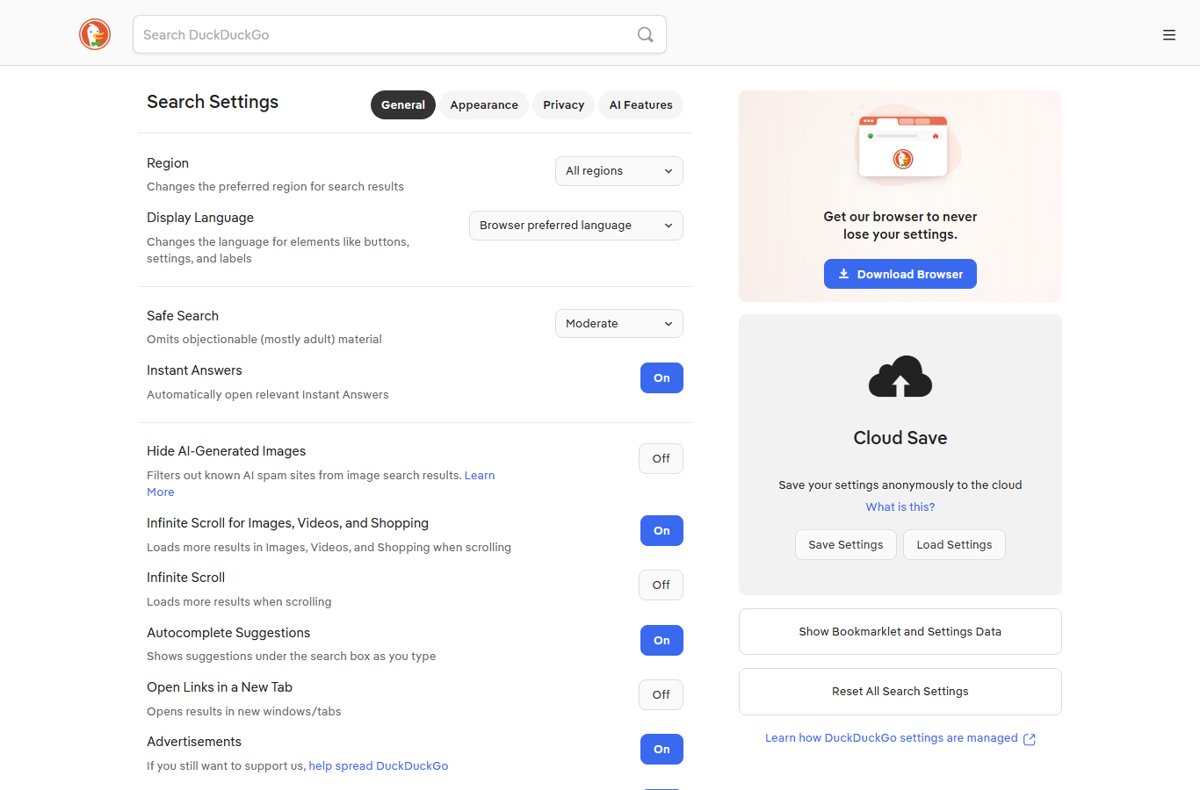
Accessing DuckDuckGo Settings
Search Settings belong to the DuckDuckGo website. They are separate from any setting inside your browser.
- Open duckduckgo.com/settings in any browser.
- Select the tab you need: General, Appearance, Privacy or AI Features.
- Change the options you want.
- Select Save and Exit at the bottom of the page.
The page reloads DuckDuckGo search with the new settings applied.
Desktop browser, mobile browser or extension: which settings screen you need
| What you want to change | Open this | Why |
|---|---|---|
| Search results, region, Safe Search, appearance | duckduckgo.com/settings in a desktop browser | These belong to the search site, not to any browser |
| Fire Button behaviour, Fireproof Sites, Sync & Backup | Settings inside the DuckDuckGo browser | Browser features are not listed on the search settings page |
| Mobile browser tabs and app data | Settings inside the DuckDuckGo app on Android or iOS | Fire Tabs and app permissions are device-level controls |
| Tracker blocking and Global Privacy Control in Chrome, Firefox, Edge or Opera | The DuckDuckGo Search & Tracker Protection browser extension | The extension carries those protections, on by default |
| Which engine your address bar uses | Your own browser's search engine setting | No DuckDuckGo page can change another browser's default for you |
Introduction to DuckDuckGo and Its Core Philosophy
The privacy design decides how settings are stored, which is why the settings page has no account and no sign-in.
| Principle | What it means for your settings |
|---|---|
| No account | Search Settings are kept in non-personal browser cookies, not in a profile tied to you |
| Anonymous backup | Cloud Save stores a settings file under a key derived from your passphrase, and the passphrase never leaves the browser |
| No personal identifiers | Cloud Save and Sync & Backup store no usernames and no personally identifiable information |
| Optional AI | Every AI feature can be turned off or tuned down from the AI Features tab |
| Ads are a toggle | Advertisements on the General tab turns result ads off |
Core DuckDuckGo Settings Explained
| Setting group | Where it lives | What it controls |
|---|---|---|
| Search privacy and security settings | Privacy tab | Redirect, HTTPS, whether the address bar sends GET or POST, and video playback |
| Personalization and filtering options | General tab | Region, Display Language, Safe Search, Blocked Sites and Hide AI-Generated Images |
| Search customization and appearance | Appearance tab | Theme, text size, page width, placement, link and text fonts, and colours |
| Connection settings and proxy options | Not on this page | Search Settings documents no proxy option; connection privacy comes from the HTTPS setting, and a full proxy needs the separate DuckDuckGo VPN |
| Search engine default settings | Your browser's own settings | Each browser decides its default engine; DuckDuckGo publishes per-browser steps for Edge, Chrome, Firefox, Safari, Opera, Brave and Vivaldi |
Set your region, Safe Search and suggestions on the General tab
- Open duckduckgo.com/settings and stay on the General tab.
- Set Region to the country whose results you want, or leave it on All regions.
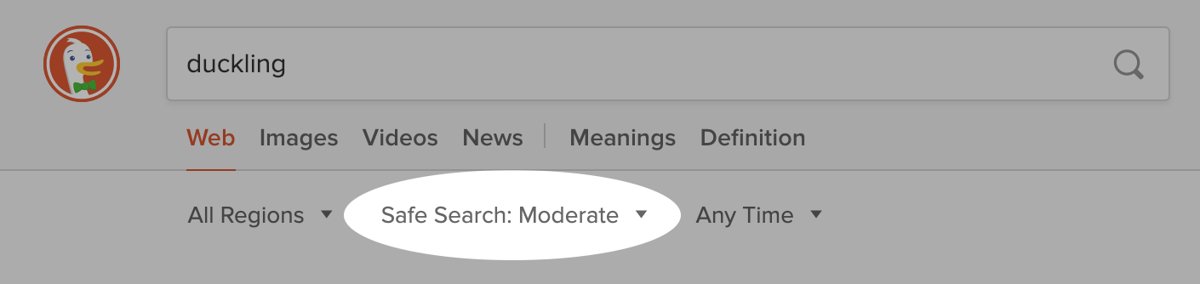
- Set Safe Search to Strict, Moderate or Off.
- Turn Autocomplete Suggestions off to stop suggestions appearing under the search box.
- Turn Instant Answers off if you do not want them opening automatically.
- Select Save and Exit.
Append !safeoff to a query to drop Safe Search for that one search. Searches run from safe.duckduckgo.com are always strict.
Block sites and hide AI-generated images in your results
- Run a search, then select the ••• icon next to a result from the site you want gone.
- Select Block this site from all results.
- Repeat for up to five domains; the list is managed under Blocked Sites in Search Settings.
- Select Show all results at the top of the results page to see blocked sites again temporarily.
- Select Hide blocked sites from results to put them back out of sight.
- On the General tab, turn on Hide AI-Generated Images to filter known AI spam sites out of image results.
To exclude a domain from a single search without blocking it, add -site:example.com to the query.
Turn off Duck.ai and Search Assist
- Open duckduckgo.com/settings and select the AI Features tab.
- Turn off Duck.ai.
- Set the Search Assist dropdown to Never.
- Select Save and Exit to reload search with both disabled.
- In the DuckDuckGo browser, also go to Settings > AI Features and turn off Duck.ai there.
Searching from noai.duckduckgo.com gives results with no Search Assist answers, no Duck.ai entry points and AI images filtered out.
Change the theme, fonts and layout on the Appearance tab
- Open duckduckgo.com/settings and select the Appearance tab.
- Choose a Theme: Default, Contrast, Retro, Dark or Terminal.
- Set Size to Small, Medium, Large, Larger or Largest.
- Set Width to Normal, Wide or Super wide, and Placement to Middle or Left.
- Pick a Link font and a Text font from the list, such as Georgia or Verdana.
- Select Save and Exit.
Header, URL, background, text and link colours accept a named colour or a hex code such as 395323.
Search Engine Default Settings: make DuckDuckGo the default in Microsoft Edge
DuckDuckGo publishes the same three-step route for Chrome, Firefox, Safari, Opera, Brave, Vivaldi, Samsung Internet and UC Browser.
- Open Microsoft Edge on your computer.
- Open the browser menu (three dots) and select Settings.
- Select Privacy, search, and services, then Address bar and search.
- Set the default search engine for the address bar and new tabs to DuckDuckGo.
On Edge for Android, open the menu, select Settings, then under General tap Select search engine. On Edge for iOS, open the menu (three lines), then Settings > General > Select search engine.
Advanced Settings and Features
Custom search URL parameters set any option without touching the settings page. Add them after the query, as in https://duckduckgo.com/?q=search&kp=-1&kl=us-en.
| Setting | Parameter | Values |
|---|---|---|
| Region | kl | us-en, uk-en, de-de, wt-wt for no region |
| Safe Search | kp | 1 strict, -1 moderate, -2 off |
| Autocomplete | kac | 1 on, -1 off |
| Theme | kae | d dark, c contrast, r retro, t terminal |
| Advertisements | k1 | 1 on, -1 off |
| Favicons | kf | 1 favicons only, -1 off |
| Open results in a new window | kn | 1 on, -1 off |
| Address bar method | kg | g for GET, p for POST |
| Instant Answers | kz | 1 on, -1 off |
A !bang is a search alias that runs your query on another site: !a bags lands on the Amazon results page. Over a thousand exist, and the region you set decides which national site a bang opens.
Select Show Bookmarklet and Settings Data to open the settings box holding your settings as one web address. Save that address as a bookmark or homepage and the settings travel with it.
Save your settings so cleared cookies do not wipe them
Deleting cookies resets Search Settings. Cloud Save stores only the settings you changed, under a passphrase.
- Open duckduckgo.com/settings and scroll to Cloud Save.
- Enter a passphrase, or take a suggestion of four or five random words at least 18 characters long.
- Select Save Settings.
- On another computer or browser, open the same page, enter that passphrase and select Load Settings.
The passphrase never leaves your browser, and DuckDuckGo cannot recover it. To change it, delete the stored data, then save again under the new passphrase.
In the DuckDuckGo browser, settings are backed up inside the browser and survive both cookie clearing and the Fire Button.
Mobile App Settings
The DuckDuckGo Private Browser is on Google Play for Android, and the browser also ships for iOS, Mac and Windows.
| Setting in the app | What it does |
|---|---|
| Fire Button | Deletes cookies, website caches, favicons, open tabs, back-button history, visited URLs and site permissions, for every tab or just the current one |
| Fire Tabs | Browses in an isolated session; closing those tabs deletes their data and leaves regular tabs untouched |
| Fireproof Sites | Keeps first-party cookies for chosen sites so the Fire Button does not sign you out |
| Clear tabs and data on restart | Burns browsing data automatically every time the app starts |
| Sync & Backup | Pairs devices with a QR code or a typed alphanumeric code, with no email address and no charge |
| AI Features | Turns Duck.ai off and turns on Hide AI Images inside the app |
| Location access | On Android, long-press the app icon, tap the app info icon, then Permissions > Location |
The Fire Button never deletes bookmarks, downloaded files or your DuckDuckGo Search settings.
Privacy Features Enabled via Settings
| Feature | How it is turned on | What it does |
|---|---|---|
| Global Privacy Control | On by default in the DuckDuckGo browser and the browser extension | Signals sites a preference against selling or sharing your data, under CCPA and GDPR |
| HTTPS | Privacy tab | Keeps result links on the encrypted version of a site |
| Address bar POST | Privacy tab | Sends your query in the request body instead of in the URL |
| Network-wide Safe Search | An administrator maps duckduckgo.com to safe.duckduckgo.com | Forces strict Safe Search for everyone and disables the client controls |
| Anonymous settings storage | Automatic | Settings ride in non-personal cookies with no identifier attached |
| Search without AI | Use noai.duckduckgo.com | Drops Search Assist answers, Duck.ai prompts and AI-generated images |
How to check your settings actually saved
- Select Save and Exit and watch the results page reload.
- Reopen duckduckgo.com/settings and confirm each option shows the value you set.
- Select Show Bookmarklet and Settings Data; only the settings you changed appear in the address it shows.
- Close the browser, reopen it and load the settings page again. Values still in place were stored in cookies successfully.
- If they reverted, enter your Cloud Save passphrase and select Load Settings.
Tips for Optimizing DuckDuckGo Settings
| Goal | Change this | Where |
|---|---|---|
| Keep settings after a cookie wipe | Cloud Save, or bookmark the settings address | Bottom of Search Settings |
| A quieter results page | Turn Advertisements, Page Break Lines and Homepage Privacy Tips off | General tab |
| Stop install and newsletter prompts | Turn off the reminder toggles under Install DuckDuckGo and Privacy Newsletters | General tab |
| Scan results from the keyboard | Leave Keyboard Shortcuts on, then use j, k, / and Enter |
General tab |
| Results written for another country | Set Region, which also redirects !bangs to that country's site | General tab |
| No AI anywhere | Turn off Duck.ai and set Search Assist to Never | AI Features tab |
| Start clean | Reset All Search Settings | Bottom of Search Settings |
Reset All Search Settings only touches DuckDuckGo. It is unrelated to resetting all settings in Windows 11, which is a system-wide operation.
Fix DuckDuckGo settings when they will not open or will not stick
"Why can't I find DuckDuckGo settings?"
The search settings are on the website, and readers usually look inside the browser's own settings instead.
- Type duckduckgo.com/settings into the address bar and press Enter.
- Use the General, Appearance, Privacy and AI Features tabs to find the option.
- For Fire Button, Fireproof Sites or Sync & Backup, open Settings inside the DuckDuckGo browser instead.
The settings page will not open or shows nothing
The page depends on JavaScript. Some browsers are served the HTML or Lite results versions, which lack JavaScript features.
- Allow JavaScript for duckduckgo.com in your browser or extension settings.
- Load duckduckgo.com/settings directly rather than from a bookmark to
html.duckduckgo.comorlite.duckduckgo.com. - If JavaScript must stay off, set options with URL parameters such as
?q=test&kp=-2&kl=us-eninstead.
Settings reset every time the browser closes
Something is clearing cookies for duckduckgo.com, so the cookies holding the settings go with them.
- Add an exception for duckduckgo.com in whatever clears your cookies.
- Or save the settings with a Cloud Save passphrase and reload them when needed.
- Or select Show Bookmarklet and Settings Data, then bookmark the address it shows and start searches from it.
- Install the DuckDuckGo browser if you want settings stored outside cookies entirely.
Searches go to DuckDuckGo and you want them removed
An unofficial extension is redirecting searches, or DuckDuckGo is set as the browser default.
- Open your browser's extensions page and remove any extension you did not install deliberately.
- Follow Google's own instructions for removing extensions from Chrome.
- Change the default engine back under Settings > Privacy, search, and services > Address bar and search in Edge, or the matching page in your browser.
- Report an extension you believe is malicious to [email protected].
Frequently Asked Questions (FAQs)
Why can't I find DuckDuckGo settings?
Search settings are not inside your browser's settings. Open duckduckgo.com/settings directly, then use the General, Appearance, Privacy and AI Features tabs. Fire Button and Sync options live in the DuckDuckGo browser's own Settings screen instead.
Where is the DuckDuckGo settings page?
At duckduckgo.com/settings. It opens in any browser, needs no account, and ends with a Save and Exit button that reloads search with your changes applied.
Is there a DuckDuckGo settings login?
No. There are no usernames and no sign-in. Cloud Save uses a passphrase that never leaves your browser, and DuckDuckGo stores no personally identifiable information alongside your saved settings.
How do I change DuckDuckGo settings for Edge?
Search options still come from duckduckgo.com/settings. To make Edge use DuckDuckGo, open the menu, select Settings, then Privacy, search, and services, then Address bar and search.
How do I remove my DuckDuckGo settings?
Select Reset All Search Settings at the bottom of the settings page. If you used Cloud Save, delete the stored data first, because resetting the browser copy leaves the cloud copy in place.
Why do my DuckDuckGo settings disappear when I clear the cache?
Settings are stored in non-personal cookies for duckduckgo.com, so clearing cookies removes them. Add an exception for the domain, use Cloud Save, or use the DuckDuckGo browser, which backs settings up internally.
Are DuckDuckGo browser settings the same as the website settings?
No. The website settings control search results and appearance. The browser settings control tracker blocking, the Fire Button, Fireproof Sites, Sync & Backup and app permissions. Each is changed in its own place.
What are the recommended DuckDuckGo browser settings?
Leave Global Privacy Control and tracker blocking at their defaults, since both are already on. Add Fireproof Sites for accounts you stay signed in to, and turn on Sync & Backup so bookmarks survive a lost device.
Can I change DuckDuckGo settings without cookies?
Yes. Append URL parameters to the search address, as in ?q=search&kp=-1&kl=us-en. Save that address as a bookmark or homepage and every search started from it carries those settings.
How do I stop DuckDuckGo popup reminders to install the browser?
On the General tab, turn off the reminder toggle under Install DuckDuckGo. The matching toggle under Privacy Newsletters stops the sign-up prompts, and Homepage Privacy Tips removes the homepage messages.
Does the DuckDuckGo toolbar have its own settings?
DuckDuckGo publishes a browser extension called DuckDuckGo Search & Tracker Protection, not a toolbar. Any other toolbar claiming the name is unofficial, and DuckDuckGo asks that suspected malicious extensions be reported.
How do I change DuckDuckGo cache settings?
There is no cache setting in Search Settings. In the DuckDuckGo browser, the Fire Button clears website caches, cookies, favicons, tabs and site permissions, and Fireproof Sites keeps chosen sites out of that sweep.
Bottom line
Set Region, Safe Search and the AI Features tab first, then save the result with a Cloud Save passphrase. Those three cover the settings that change results the most, and Cloud Save is the only way a browser that clears cookies keeps them.