Go to Settings > Notifications > Announce Notifications and turn it off to stop Siri from announcing notifications, because hiding alerts or previews is a separate setting.
The steps below also cover one app at a time, the iPhone speaker, CarPlay, Apple Watch and AirPods, plus how to turn off Siri itself if that is what you want.
How to stop Siri from announcing notifications on iPhone
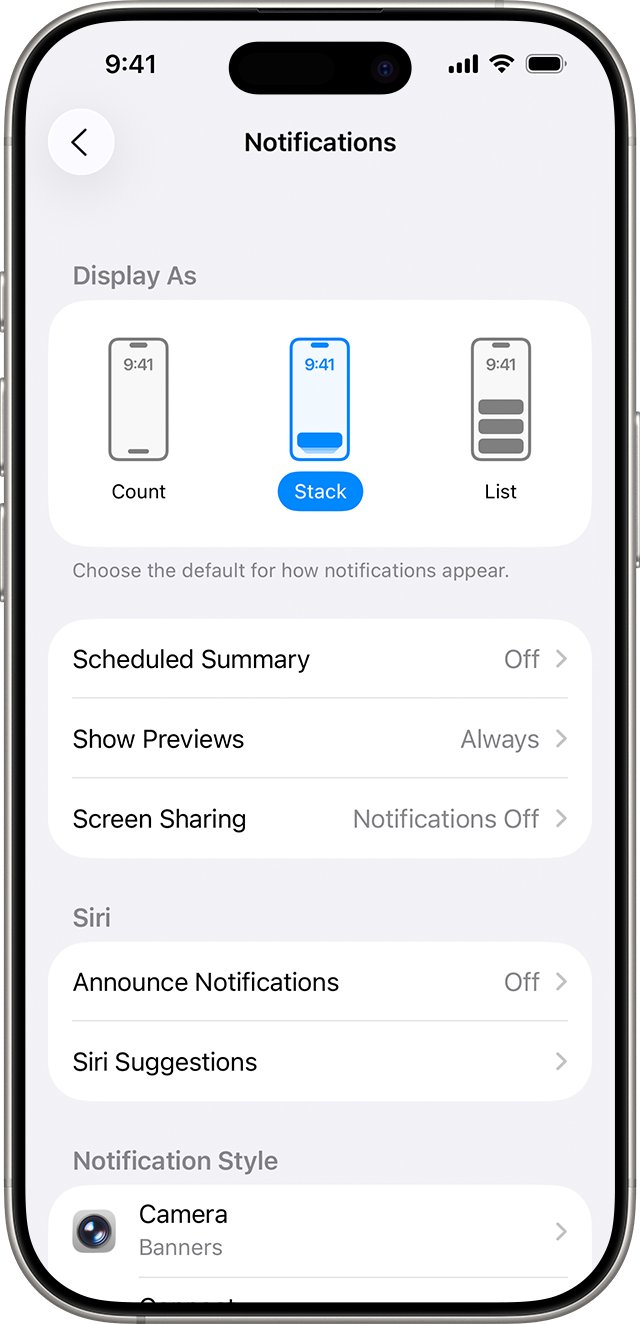
These steps turn off announcements for every app. The same path works on iPad.
- Open the Settings app.
- Tap Notifications.
- Tap Announce Notifications.
- Turn off Announce Notifications.
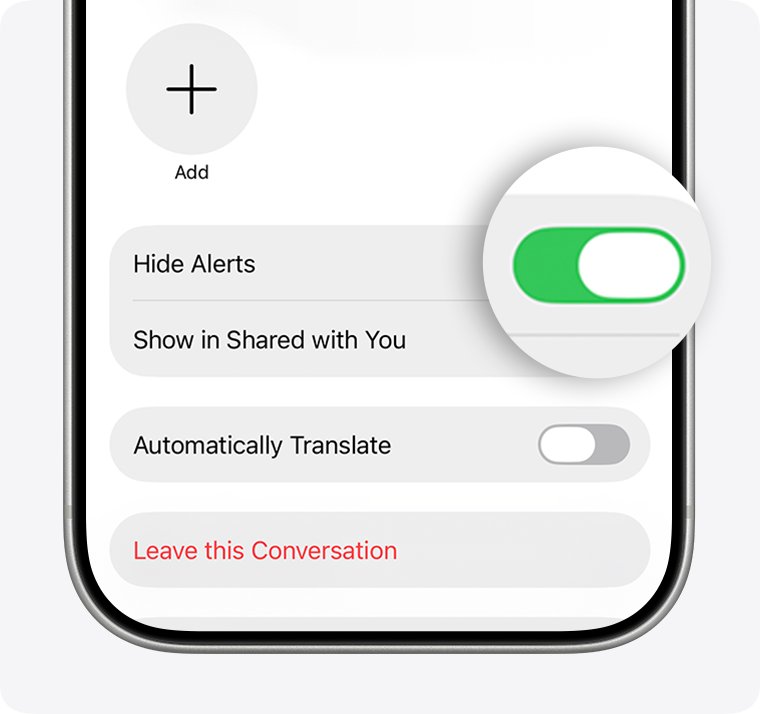
Why Siri announces notifications when Hide Alerts is on
Each setting below has its own job. Hide Alerts and Show Previews deal with how notifications reach your screen, and Siri reading them aloud sits under its own switch.
That is why Siri can keep speaking after you hide a conversation. Turn off the announcement setting directly rather than relying on a hide option.
| Setting | Where it is | What Apple says it does |
|---|---|---|
| Hide Alerts | Messages > a conversation > the contact icon | Stops notifications for that conversation while its messages keep arriving |
| Show Previews | Settings > Notifications | Sets when previews appear on the iPhone Lock Screen: Always, When Unlocked or Never |
| Allow Notifications | Settings > Notifications > an app | Turns off notifications for that app |
| Announce Notifications | Settings > Notifications > Announce Notifications | Lets Siri read incoming notifications aloud on compatible headphones |
| Announce Notifications on Speaker | Settings > Accessibility > Siri | Lets Siri read notifications aloud through the iPhone speaker |
How do I stop Siri from reading my texts
Use this when you want Siri to keep announcing other apps and stay quiet about Messages. Repeat it for any other app you want silenced.
- Open the Settings app and tap Notifications.
- Tap Announce Notifications.
- Below Announce Notifications From, tap Messages.
- Turn off Announce Notifications on that screen.
Choose which notifications Siri announces on iPhone
Go to Settings > Notifications > Announce Notifications > Messages, then pick the level that suits you. A lower level keeps urgent messages audible without Siri reading everything.
| Option | What Siri announces |
|---|---|
| Priority Notifications | Only the notifications marked as priority |
| Time Sensitive and Direct Messages | Notifications the app classifies as time sensitive or as a direct message |
| All Notifications | Everything from that app |
Turn off Announce Notifications on Speaker in iPhone Accessibility
If Siri speaks through the iPhone itself with no headphones connected, this accessibility setting is the one to change.
- Open the Settings app and tap Accessibility.
- Tap Siri.
- Turn off Announce Notifications on Speaker.
Stop Siri reading messages in CarPlay
- On your iPhone, go to Settings > Announce Messages.
- Turn off Announce Notifications.
- Or, in the car, tap Announce in CarPlay while Siri reads an incoming text message.
Stop Siri announcing notifications on Apple Watch
Apple Watch keeps its own setting for headphones paired with the watch. You need your headphones in or on your ears to reach these controls.
- On Apple Watch, open Settings and tap Siri.
- Tap Announce Notifications, then turn it off.
- To keep it on for some apps, scroll down and choose only the apps you want announced.
- For a temporary pause, press the side button to open Control Center, then tap the Announce Notifications button.
How to silence Siri on AirPods while it reads a notification
These controls stop the announcement in progress and leave the setting unchanged. Saying "Stop" or "Cancel" works on AirPods 2, and taking out one earbud or removing your headphones stops a run of announcements.
| Your headphones | Do this |
|---|---|
| AirPods 2 | Double-tap either AirPod |
| AirPods 3, AirPods 4, AirPods 5 or AirPods Pro 1 | Press the force sensor |
| AirPods 5 with Wireless Charging Case, AirPods Pro 2 or AirPods Pro 3 | Press the force sensor with volume swipe |
| AirPods Max | Press the Digital Crown |
| AirPods Max 2, AirPods Pro 2 and later, AirPods 4 and later, Powerbeats Pro 2 | Shake your head side to side, with Head Gestures turned on |
You can also add Announce Notifications to Control Center on iPhone or iPad and switch it from there without opening Settings.
How to hide alerts and notification previews on iPhone
Use these when you also want less on your screen. Senders see a note that you have notifications silenced after you hide alerts or turn off Messages notifications.
- To mute one conversation, open Messages, tap the conversation, tap the contact icon at the top, then turn on Hide Alerts.
- To hide previews, go to Settings > Notifications, tap Show Previews, then tap Never or When Unlocked.
- To change one app only, tap the app below Notification Style, tap Show Previews, then choose an option.
- To stop an app's notifications entirely, tap the app below Notification Style, then turn off Allow Notifications.
If notifications later vanish altogether, you may need to turn off Do Not Disturb, or fix iPhone notifications not popping up.
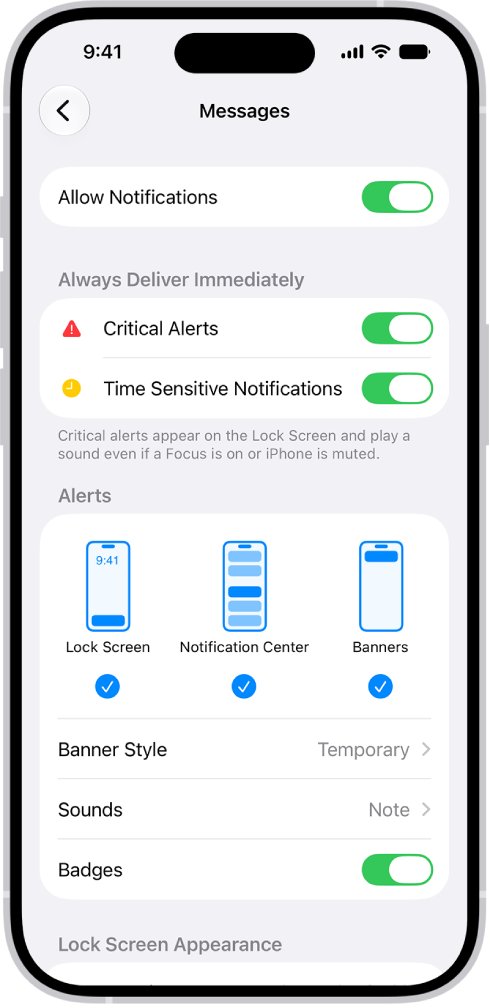
How to tell if Announce Notifications is off on iPhone
Siri only announces through headphones when your iPhone is locked, its screen is dark and you are wearing the headphones. Test under those same conditions, or a quiet result tells you nothing.
- Go to Settings > Notifications > Announce Notifications and confirm the switch is off.
- Put in your AirPods or Beats and lock the iPhone so the screen is dark.
- Ask someone to send you a text message.
- Listen. The message should arrive without Siri reading it aloud.
How to turn Announce Notifications back on
- Go to Settings > Notifications > Announce Notifications.
- Turn on Announce Notifications.
- Below Announce Notifications From, tap each app you want announced and turn it on.
- Tap Messages and choose how much Siri should read.
How do I stop Siri from listening
This stops the iPhone listening for the wake phrase. It does not change announcements, so you may want both.
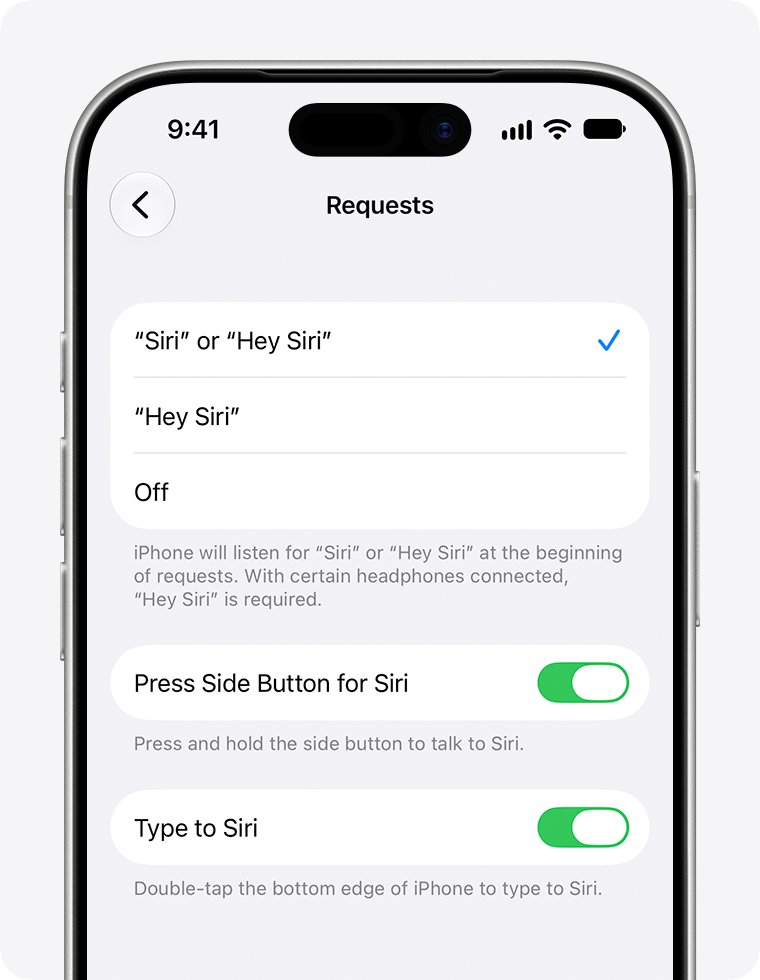
- Open the Settings app and tap Siri.
- Tap Requests.
- Tap the "Siri" or "Hey Siri" option, then tap Off.
- Turn off Press Side Button for Siri if you also want the side button to stop starting Siri.
On some iOS versions these settings sit under Apple Intelligence & Siri > Talk & Type to Siri. To stop the iPhone responding for a moment, place it face down.
How to turn off Siri completely on iPhone
Choose this only if you want no Siri at all. If announcements are the only problem, the switch in the first section is enough and Siri stays available.
- Open the Settings app.
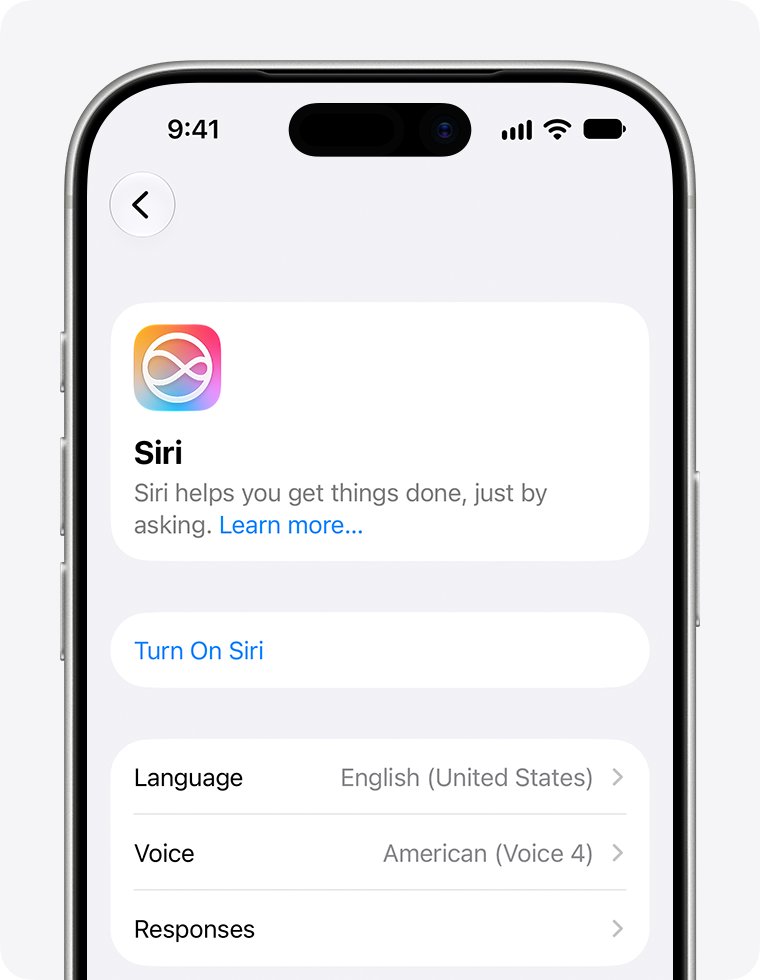
- Tap Siri. On some iOS versions, tap Apple Intelligence & Siri.
- Scroll to the bottom and tap Turn Off Siri.
- Tap Turn Off Siri again to confirm.
How to stop Siri suggestions on iPhone
Suggestions are on by default and appear in Search, on the Home Screen and Lock Screen, when you share something, and inside apps such as Mail and Messages.
- Open the Settings app, tap Siri, then tap Suggestions.
- Turn off Allow Notifications to stop suggestions appearing as notifications.
- Turn off Show in App Library, Show When Sharing and Show Listening Suggestions as needed.
- Tap an app in the list and turn off its settings to remove suggestions for that app only. For example, tap Messages, then turn off Show in App.
How to turn off Siri on Maps
Maps directions use Siri's voice and language, but the volume is a Maps control. You change it during navigation or set a default in Settings.
- In Maps, get directions and tap Go.
- Tap the Audio Control button on the map, then choose the audio option you want.
- To change the default, go to Settings > Apps > Maps > Spoken Directions, then choose an option below Voice Volume.
Siri still announcing notifications on iPhone
Siri still reads texts after Hide Alerts is on
Hide Alerts works on the conversation's notifications, and Siri's announcements for Messages have their own switch.
- Go to Settings > Notifications > Announce Notifications.
- Tap Messages below Announce Notifications From.
- Turn off Announce Notifications.
Siri speaks notifications with no headphones connected
Announce Notifications on Speaker is on in the accessibility settings.
- Go to Settings > Accessibility > Siri.
- Turn off Announce Notifications on Speaker.
Siri still reads messages in the car
CarPlay has its own announcement control.
- Go to Settings > Announce Messages on your iPhone.
- Turn off Announce Notifications, or tap Announce in CarPlay the next time Siri reads a text.
Siri does not announce notifications after turning it back on
Announcements need compatible headphones and a locked iPhone. Siri does not announce messages while you are using the device.
- Confirm your headphones are on the compatible list: AirPods 2 or later, AirPods Max, AirPods Pro, or a supported Beats model.
- Check that they are paired in Bluetooth settings.
- Confirm Announce Notifications is on, then lock the iPhone so the screen is dark.
Why has my Siri stopped working
Siri needs an internet connection and must be turned on. Some VPN profiles can also block it.
- Confirm the iPhone is online. When it is offline, Siri usually says it is having trouble with the connection.
- Open Settings, tap Siri, and tap Turn On Siri if it appears.
- Tap Requests, then turn "Siri" or "Hey Siri" off and back on.
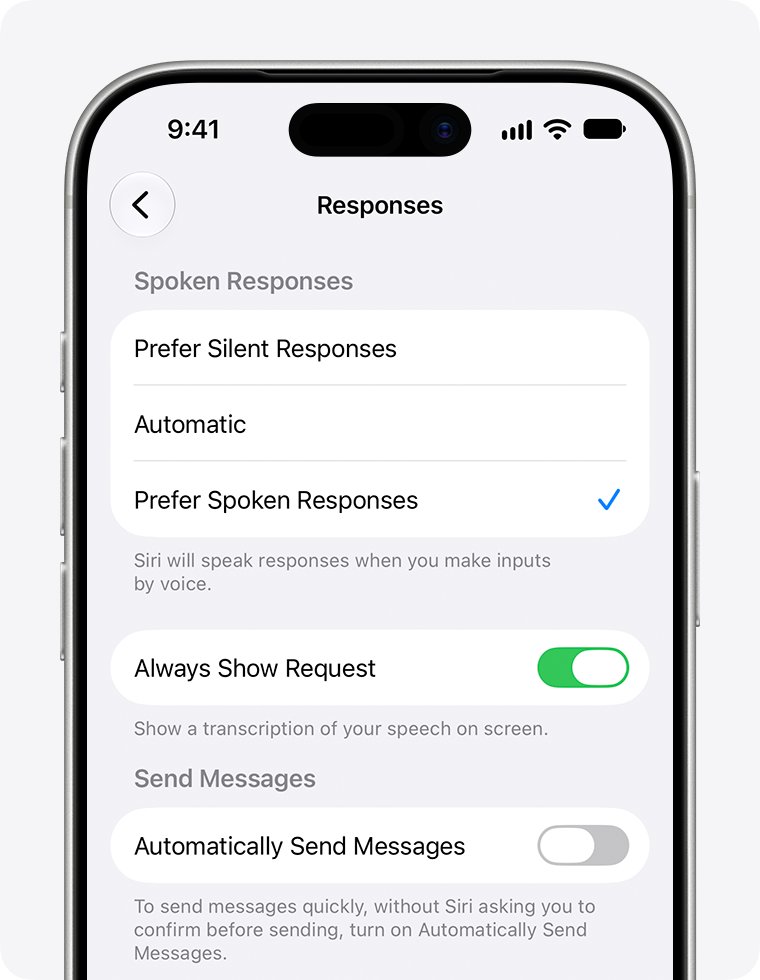
- If you cannot hear Siri, tap Responses and choose Prefer Spoken Responses.
- If Siri is missing from Settings after a restart, check your VPN settings.
Siri announcements FAQ
How do I stop Siri from reading my texts?
Go to Settings, tap Notifications, then Announce Notifications. Below Announce Notifications From, tap Messages and turn off Announce Notifications. Siri then stops reading texts through your headphones, while your other announced apps carry on as before.
How do I stop Siri from listening?
Open Settings, tap Siri, then Requests, tap the "Siri" or "Hey Siri" option and choose Off. The iPhone then stops listening for the phrase. Turn off Press Side Button for Siri as well if you do not want the button to start Siri.
How to disable Siri on iPhone?
Open Settings and tap Siri, or Apple Intelligence & Siri on some iOS versions. Scroll down, tap Turn Off Siri, then tap Turn Off Siri again. You can turn it back on from the same screen by tapping Turn On Siri and following the prompts.
Can Siri be turned off?
Yes. Apple provides a Turn Off Siri option at the bottom of the Siri screen in Settings. You can also leave Siri on and turn off smaller parts of it, such as listening for the wake phrase or announcing your notifications.
How to get rid of Siri suggestions?
Open Settings, tap Siri, then Suggestions. Turn off Allow Notifications, Show in App Library, Show When Sharing and Show Listening Suggestions as needed. To remove them from one app, tap that app in the list and turn off its options.
How to turn off Siri on Maps?
During navigation, tap the Audio Control button on the map and choose the audio option you want. To change the default, go to Settings, tap Apps, tap Maps, tap Spoken Directions, then choose an option below Voice Volume.
Why does Siri stop working?
Siri needs an internet connection and must be turned on in Settings. If it is on but does not respond, turn the "Siri" or "Hey Siri" option off and back on so it can relearn your voice, and check whether a VPN profile is blocking it.