To see what iPhone you have, open Settings, tap General, then tap About: the Model Name row shows the exact model, such as iPhone 16 Pro or iPhone SE (3rd generation).
This guide covers that route and three more, how to read the A-number model number, how to tell models apart when the iPhone will not turn on, and what to check once you know your model.
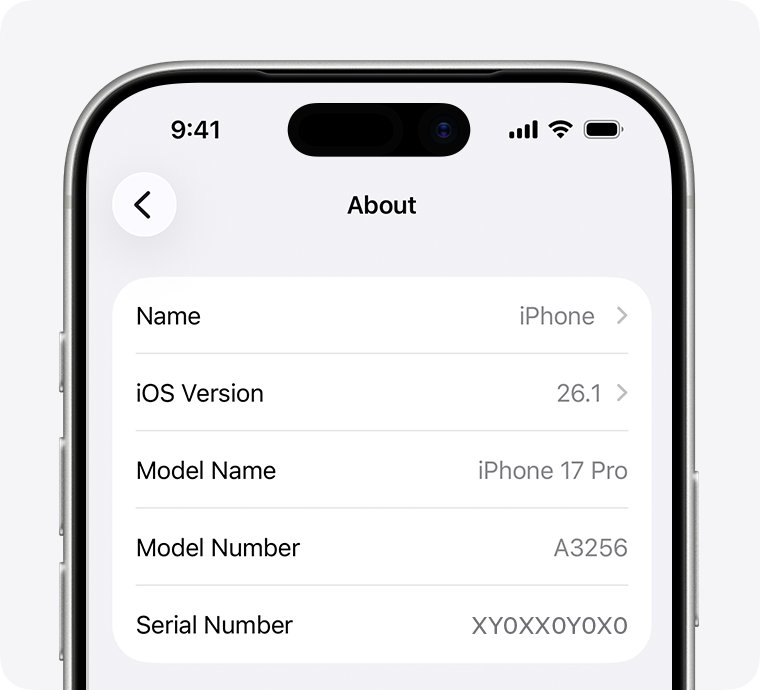
How to see what iPhone you have (step by step)
This is method 1 and the fastest. It works on any iPhone that turns on and runs a current version of iOS.
- Open the Settings app.
- Tap General.
- Tap About.
- Read the Model Name row. That is the name of your iPhone, for example iPhone 15 Pro Max.
- Read iOS Version on the same screen if you also need the software version.
The About screen also lists the Model Number, Serial Number, capacity and IMEI. Touch and hold an identifier until Copy appears to paste it into a support or trade-in form.
Which method should you use?
| Your situation | Use this method | What it tells you |
|---|---|---|
| The iPhone turns on and you can open Settings | Method 1: Settings > General > About | The model name in plain words |
| You need the exact variant or region, or there is no Model Name row | Method 2: the A-number model number | The model and the region it was sold for |
| The iPhone is connected to a Mac or Windows PC | Method 3: Finder, Apple Devices or iTunes | The model name, serial number and IMEI |
| The iPhone will not turn on or is locked | Method 4: the iPhone's design, SIM tray and box | The model family, then the exact model from a printed number |
Why is it so hard to tell iPhones apart?
Apple reuses the same shape across several years, and each model ships in several variants. The marketing name, the model number and the part number are three different labels for the same phone.
| Label | Example | Where you see it | What it identifies |
|---|---|---|---|
| Model Name | iPhone 16 Pro | Settings > General > About, Finder, Apple Devices | The product generation and size |
| Model number (A-number) | A3083 | Tap the part number in About, the SIM tray opening on supported models | The exact model and the region group it was built for |
| Part number | A code starting with M or N, ending in a region code | To the right of Model Number in About | The exact configuration: model, color and capacity |
| Serial number and IMEI | A string of letters and digits | About, the SIM tray or back on older models, the box | That one device, for support and coverage checks |
Shapes repeat too. iPhone SE (2nd generation), iPhone SE (3rd generation) and iPhone 8 all have a 4.7-inch display and a Home button with Touch ID, so the model number is the only reliable way to separate them.
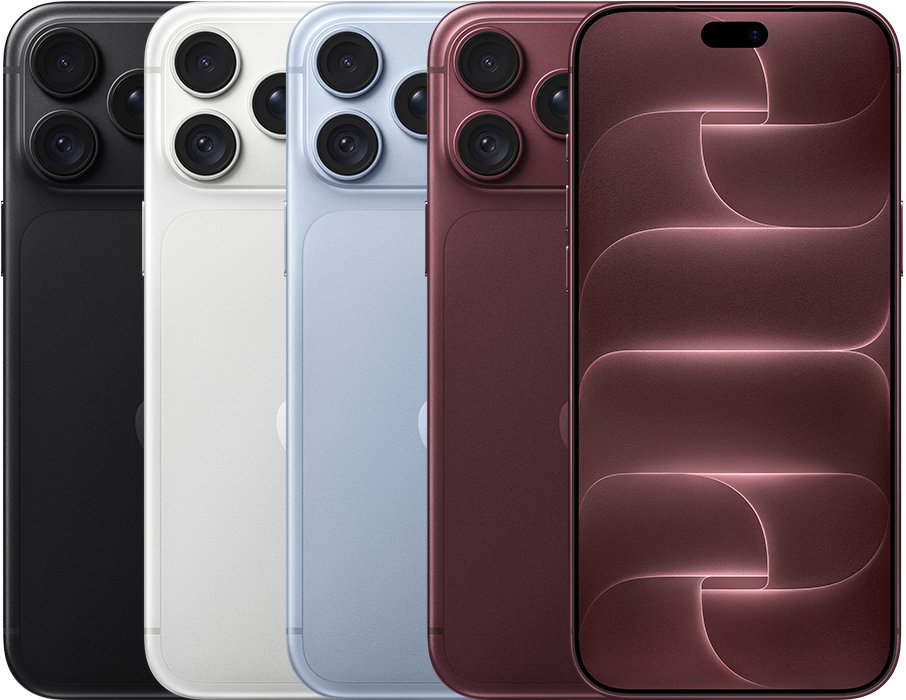
How to see what model iPhone I have from the model number
Method 2 uses the A-number. The Model Number row first shows the part number; one tap swaps it for the model number that starts with A.
- Open Settings > General > About.
- Tap the code to the right of Model Number once. It changes to a number that starts with A, such as A3083.
- Open Apple's Identify your iPhone model support article on support.apple.com.
- Find your A-number in the list. The model it sits under is your iPhone.
- Check the region in brackets next to the number to see which market the phone was built for.
The letters at the end of the part number are a region code; you can use them to check which region your iPhone is from.
iPhone model numbers list (US models, iPhone 12 to iPhone 18 Pro)
These are the model numbers Apple lists for iPhones sold in the United States and Puerto Rico. Phones sold elsewhere carry a different A-number for the same model, so check Apple's full list if yours is not here.
| Model Name | Year introduced | US model number |
|---|---|---|
| iPhone Duo | 2026 | A3447 |
| iPhone 18 Pro Max | 2026 | A3473 |
| iPhone 18 Pro | 2026 | A3472 |
| iPhone 17e | 2026 | A3575 |
| iPhone 17 Pro Max | 2025 | A3257 |
| iPhone 17 Pro | 2025 | A3256 |
| iPhone 17 | 2025 | A3258 |
| iPhone Air | 2025 | A3260 |
| iPhone 16e | 2025 | A3212 |
| iPhone 16 Pro Max | 2024 | A3084 |
| iPhone 16 Pro | 2024 | A3083 |
| iPhone 16 Plus | 2024 | A3082 |
| iPhone 16 | 2024 | A3081 |
| iPhone 15 Pro Max | 2023 | A2849 |
| iPhone 15 Pro | 2023 | A2848 |
| iPhone 15 Plus | 2023 | A2847 |
| iPhone 15 | 2023 | A2846 |
| iPhone 14 Pro Max | 2022 | A2651 |
| iPhone 14 Pro | 2022 | A2650 |
| iPhone 14 Plus | 2022 | A2632 |
| iPhone 14 | 2022 | A2649 |
| iPhone SE (3rd generation) | 2022 | A2595 |
| iPhone 13 Pro Max | 2021 | A2484 |
| iPhone 13 Pro | 2021 | A2483 |
| iPhone 13 | 2021 | A2482 |
| iPhone 13 mini | 2021 | A2481 |
| iPhone 12 Pro Max | 2020 | A2342 |
| iPhone 12 Pro | 2020 | A2341 |
| iPhone 12 | 2020 | A2172 |
| iPhone 12 mini | 2020 | A2176 |
How to see what iPhone you have on a Mac or PC
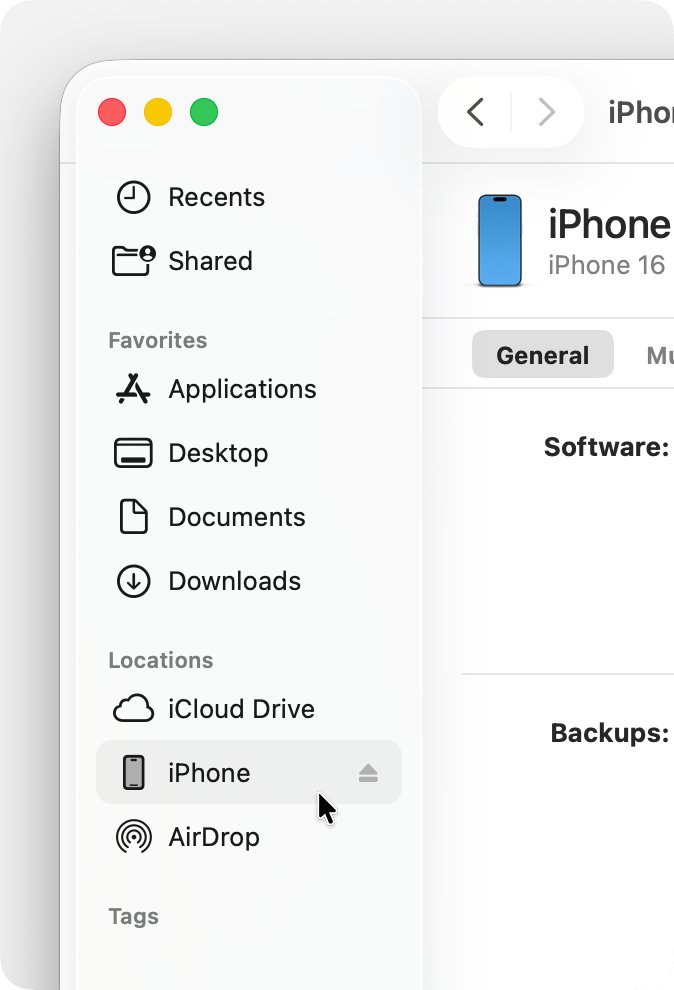
Method 3 reads the model from a computer. Use the Finder on a Mac with macOS Catalina 10.15 or later, iTunes on macOS Mojave or earlier, and the Apple Devices app or iTunes on a Windows PC.
- Connect the iPhone to the computer with a USB cable that supports data.
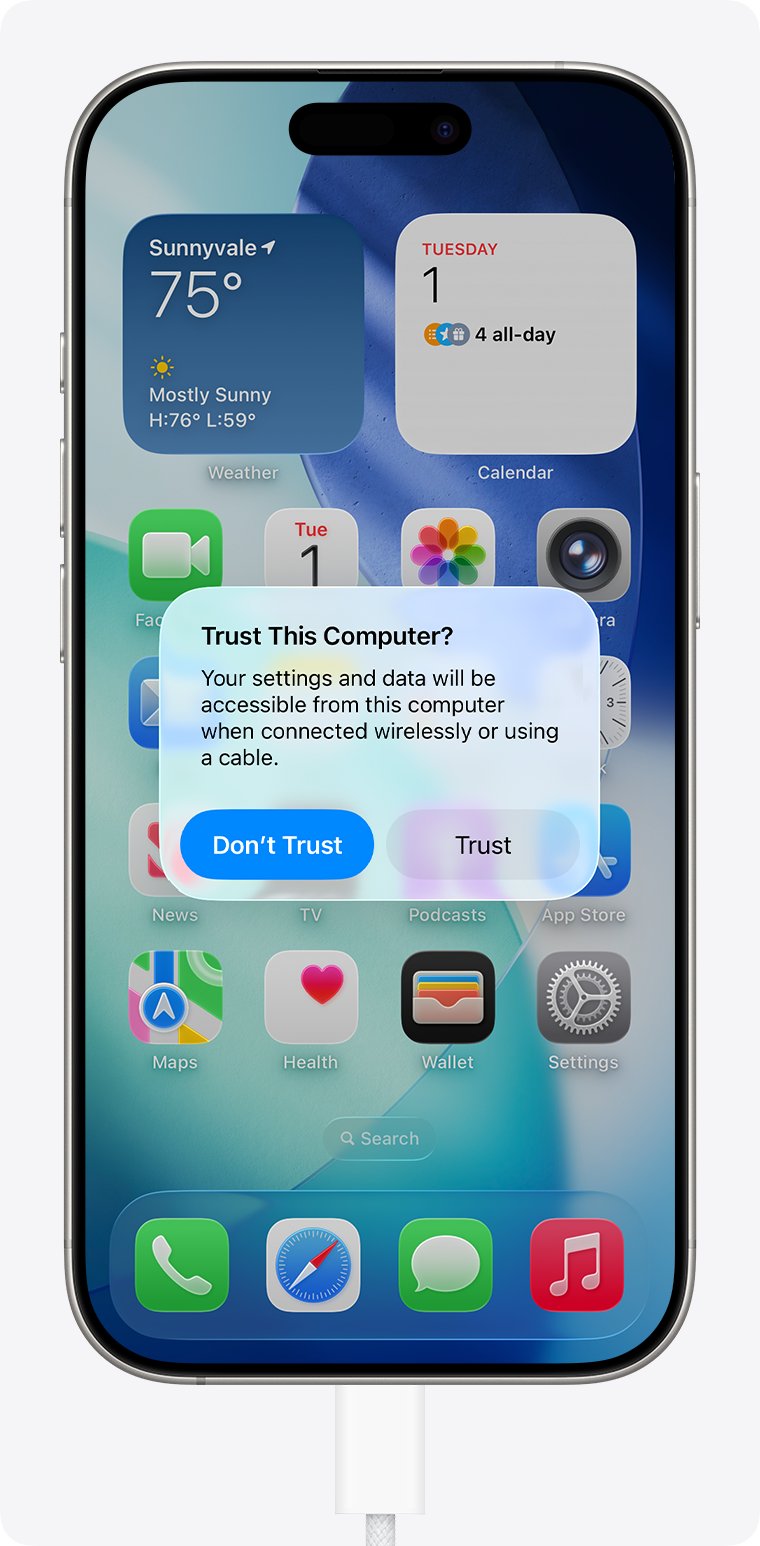
- Unlock the iPhone and tap Trust if the Trust This Computer? alert appears.
- Open the Finder on a Mac, or the Apple Devices app or iTunes on a PC.
- Select your iPhone. In the Finder, stay on the General tab.
- Read the model name shown under your device name.
- Click the model name to switch to the serial number, or click Phone Number to see the IMEI and other identifiers.
How can I tell what iPhone I have without turning it on?
Method 4 works on a phone that is dead, locked or someone else's. Narrow it down by its design first, then confirm with a printed number.
| What you see on the iPhone | Models it can be | How to confirm |
|---|---|---|
| A folding design with two displays and Touch ID in the side button | iPhone Duo | Model number on the box or in Settings |
| Camera Control button on the lower right side | iPhone 16, 16 Plus, 16 Pro, 16 Pro Max, iPhone 17, 17 Pro, 17 Pro Max, iPhone Air, iPhone 18 Pro, 18 Pro Max, iPhone Duo | Count the rear cameras: one on iPhone Air, three on Pro models |
| Action button on the upper left but no Camera Control | iPhone 15 Pro, 15 Pro Max, iPhone 16e, iPhone 17e | Three rear cameras on 15 Pro models, one on 16e and 17e |
| USB-C port on the bottom | iPhone 15 and every later model | Earlier models do not have USB-C |
| Dynamic Island at the top of the display, no USB-C | iPhone 14 Pro, 14 Pro Max | Three rear cameras |
| Home button with Touch ID | iPhone SE (1st, 2nd and 3rd generation), iPhone 8, 8 Plus, 7, 7 Plus, 6s, 6s Plus, 6, 6 Plus, 5s | Model number in the SIM tray opening on supported models, or on the box |
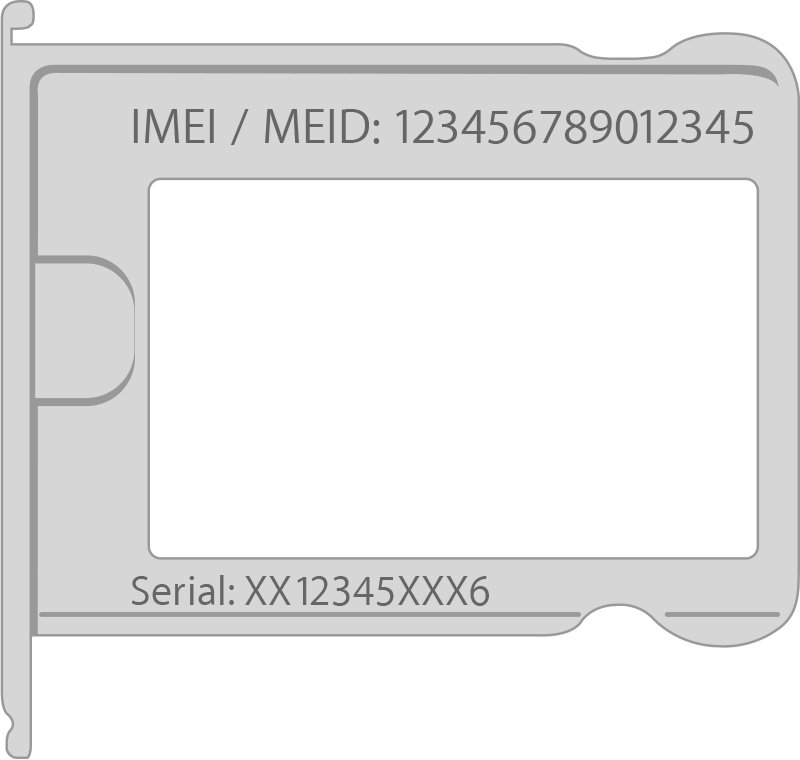
| No Home button, no Dynamic Island and no USB-C | iPhone X through iPhone 14 and 14 Plus | IMEI etched on the SIM tray on iPhone 13 and earlier, then look it up |
On supported models the model number also sits inside the SIM tray opening; eject the tray to read it. The original box carries the serial number and IMEI on its barcode label.
A new or erased iPhone shows its serial number before setup: turn it on, wait for Hello, and tap the Info button in the bottom-right corner.
Alternative ways to identify your iPhone
These routes work from another device or from paperwork, and they help when the iPhone is lost, broken or with someone else. They are extras, not separate methods.
| Where to look | How | What you get |
|---|---|---|
| Your Apple Account on the web | Sign in at account.apple.com, select Devices, then select the iPhone | The device's information, including serial number and IMEI |
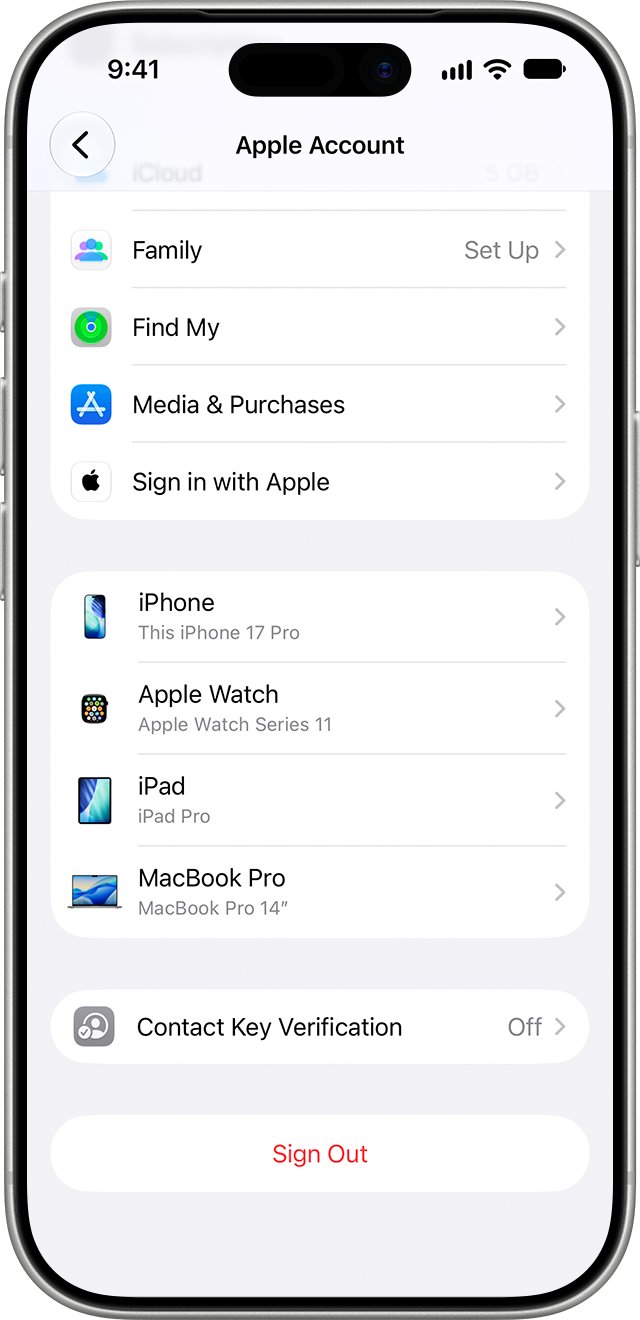
| Another iPhone or iPad on the same Apple Account | Settings > [your name], scroll to the device list, tap the iPhone | The same device information |
| A Mac on the same Apple Account | Apple menu > System Settings > [your name], then click the iPhone | The same device information |
| Original box or receipt | Read the barcode label on the box, or the product line on the receipt | Serial number, IMEI and the model it was sold as |
| Apple's coverage check | Enter the serial number at checkcoverage.apple.com | The device that serial belongs to and its coverage |
How to see what iOS my iPhone is using
The model decides which iOS versions you can install, so check the software version on the same screen.
- Open Settings > General > About.
- Read iOS Version.
- Go back to General and tap Software Update to see whether a newer version is available for your model.
What to do once you know your model
| Task | Why the model matters | Where to go |
|---|---|---|
| Check iOS 27 support | iOS 27 runs on iPhone 11 and later, plus iPhone SE (2nd and 3rd generation) | Apple's iPhone User Guide list of compatible models |
| Update the software | Software Update offers only the latest iOS your model supports | Settings > General > Software Update |
| Check warranty or AppleCare | Coverage is tied to the serial number of that model | checkcoverage.apple.com |
| Buy a case, screen protector or cable | Sizes and ports differ between models that look alike, and iPhone 15 and later use USB-C | Search accessories by the full Model Name |
| Move to a new iPhone | Knowing both models tells you which setup and transfer options apply | Quick Start or an iCloud backup on the new phone |
If you have an older model, update an iPhone 8 to its final supported release before you sell it, and move your data to a new iPhone when you upgrade.
Still not working?
The About screen does not show a Model Name row
Only the part number and model number are shown for your iPhone or iOS version.
- Tap the code next to Model Number to reveal the A-number.
- Find that A-number in Apple's Identify your iPhone model article.
- Update iOS from Settings > General > Software Update if an update is available.
The model number starts with M or N, not A
That is the part number, which Apple shows first.
- Tap the part number once.
- Read the number that starts with A.
- Look that number up in Apple's model list.
Why can't I see my iPhone on my PC or in iTunes?
The computer has not been trusted, the cable only charges, or the Apple Devices app, iTunes or iOS is out of date.
- Unlock the iPhone and tap Trust when the alert appears.
- Try another USB cable that supports data and charging, then another USB port.
- Install the latest version of the Apple Devices app, or update iTunes on the PC.
- Update the iPhone to the latest iOS version and connect again.
The iPhone will not turn on, so Settings is out of reach
Every on-screen method needs a working phone.
- Use the design table in Method 4 to narrow down the model family.
- Eject the SIM tray and read the model number or IMEI if your model has one printed there.
- Sign in at account.apple.com, select Devices, and open the iPhone's entry.
iPhone model frequently asked questions
How do I see what iPhone I have in Settings?
Open Settings, tap General, then tap About. The Model Name row shows your iPhone's name, such as iPhone 14 Pro. The same screen lists the model number, serial number, iOS version and storage capacity.
What is the difference between the model name and the model number?
The model name is the product name, such as iPhone 16. The model number is an A-number, such as A3081, that identifies the exact variant and the region it was built for. One model name has several model numbers around the world.
How can I tell what kind of iPhone I have without turning it on?
Look at its buttons, port and cameras: a Home button means an older or SE model, USB-C means iPhone 15 or later, and Camera Control means iPhone 16 or later. Then confirm with the model number in the SIM tray opening on supported models or on the box.
Does the model number tell me which iOS versions I can install?
Indirectly. The model number identifies your model name, and Apple's compatibility list is by model name. iOS 27 supports iPhone 11 and later plus iPhone SE (2nd and 3rd generation), so match your model against that list.
How do I see what iOS my iPhone is using?
Open Settings, tap General, then tap About and read the iOS Version row. To check for a newer release that your model supports, go back to General and tap Software Update.
How do I see iPhone info on a PC?
Connect the iPhone with a data cable, tap Trust on the phone, and open the Apple Devices app or iTunes. Select the iPhone to see its model name, then click the model name or Phone Number to show the serial number and IMEI.
Is it safe to share my iPhone serial number online?
Share it only with Apple, your carrier, or a buyer you trust, because the serial number and IMEI identify that single device. A public post is not needed to identify the model; the model name or A-number is enough.
Can I see what iPhone I have from my Apple Account?
Yes. Sign in at account.apple.com and select Devices, or open Settings and tap your name on another Apple device, then tap the iPhone in the device list to view its information, including the serial number.
Quick summary
Open Settings > General > About and read Model Name; if you need the exact variant, tap the Model Number to get the A-number and match it on Apple's list. Settings is the only place that names the model in plain words on every working iPhone, while the A-number settles look-alike models and regional versions that the design alone cannot separate.