“The system cannot find the path specified” means Windows was handed a folder path where at least one folder does not exist, so the fix is to correct the path or restore the missing location.
The error is Windows system error 3 (ERROR_PATH_NOT_FOUND), and it appears in Command Prompt, PowerShell, scripts, shortcuts, scheduled tasks and installers on Windows 11 and Windows 10. Each method below targets one of those sources.
1. Check the path for typos, missing folders, and bad quotes
Most cases come down to one wrong character in the path. Read the path in the error, or in the command you typed, one folder at a time.
- Copy the full path from the command, shortcut or error message into Notepad so you can read it slowly.
- Check each folder name for typos, doubled letters and a wrong drive letter, such as
D:instead ofE:. - Make sure every separator is a backslash
\and that no folder name ends with a stray space or full stop. - Count the quotation marks. A path needs exactly one opening and one closing straight double quote
", not curly quotes pasted from a web page or document. - Correct the path and run the command or open the item again.
Curly quotes are a common trap: they look like quotes to you, but Command Prompt reads them as part of the folder name, so the folder never matches.
Which fix matches where you see the error?
Find the place the error appears, then start with the method in that row.
| Where the error appears | Start with | Why |
|---|---|---|
| A command you typed in Command Prompt or PowerShell | Methods 1, 5 and 6 | A typo, the wrong current folder or an unquoted space causes most of these |
| Every time Command Prompt opens, before you type anything | Extra fixes: AutoRun | A startup command stored in the registry points to a missing file |
| Double-clicking a desktop or Start menu shortcut | Method 4 | The shortcut target or Start in folder moved |
Running a program by name, such as python or git |
Method 7 | The PATH variable lists a folder that no longer exists |
| Opening a file on a USB drive, network share or OneDrive | Method 8 | The drive letter changed, the share disconnected or the file is online-only |
| Launching or updating one app | Method 9 | The app's own files or folders are missing |
| At sign-in, on a schedule or from a service | Method 10 | A task, service or startup entry points to an old location |
| In several unrelated Windows tools | Method 11 | System files or the file system itself may be damaged |
2. Copy the correct path from File Explorer
Typing a long path by hand invites mistakes. Copy it from File Explorer instead, so the drive letter and every folder name are exact.
- Press Windows key + E to open File Explorer.
- Browse to the folder you need, opening each folder until you are inside the right one.
- Click an empty part of the address bar at the top of the window so the full path appears as text.
- Press Ctrl + C to copy the path.
- Paste it into your command, script or shortcut with Ctrl + V, and wrap it in double quotes if it contains a space.
To get the path of a file rather than a folder, right-click the file, select Properties, and copy the Location field from the General tab, then add a backslash and the file name.
3. Confirm the file or folder still exists
A path can be typed perfectly and still fail because the folder was renamed, moved or deleted. Test it directly instead of guessing.
- Press Windows key + R, paste the folder path and press Enter. If File Explorer opens the folder, it exists.
- If Windows reports it cannot find the location, open the parent folder instead and look for a renamed or moved copy.
- In PowerShell, run
Test-Path "C:\Your\Folder". It returns True when every folder in the path exists and False when any part is missing. - If the folder was deleted, check the Recycle Bin and restore it with Restore if it is there.
- If it was moved, update the command, shortcut or setting to the new location.
4. Fix broken shortcuts
A shortcut stores two paths: the program it runs and the folder it starts in. Either one going stale produces the error.
- Right-click the shortcut and select Properties.
- Open the Shortcut tab.
- Check the Target field. The path must point to a file that exists, in quotes if it contains a space.
- Check the Start in field. It must be an existing folder, or empty.
- Select Open File Location to test the target. If Windows cannot open it, the target has moved.
- Fix the paths and select OK, or delete the shortcut and create a new one from the program's current location.
5. Use the correct working directory in Command Prompt or PowerShell
A relative path such as scripts\build.bat is resolved from the current folder. If you are in the wrong folder, or on the wrong drive, the path does not exist from there.
- Type
cdwith no parameters in Command Prompt to display the current drive and folder. In PowerShell, runGet-Location. - To switch drive and folder in one step in Command Prompt, use
cd /d D:\Projects\App. Without/d,cdchanges the folder on drive D: but leaves you on the current drive. - In PowerShell, use
Set-Location "D:\Projects\App", which changes the drive as well. - Run
cd ..to move up one level when you are one folder too deep. - Use a full path that starts with a drive letter when a script may be launched from different folders.
The /d switch is the one most people miss. Typing cd D:\Projects from drive C: appears to do nothing, and the next relative command fails with this error.
6. Put paths with spaces inside quotation marks
Command Prompt splits a command at spaces. Microsoft's cmd reference states that any path containing spaces must be wrapped in double quotation marks.
| Command | Result | Why |
|---|---|---|
copy C:\My Files\report.txt D:\ |
Fails | Windows reads C:\My as the source and Files\report.txt as another argument |
copy "C:\My Files\report.txt" D:\ |
Works | The quotes keep the whole path together |
cd C:\Program Files |
Works with command extensions on | cd alone does not treat spaces as separators while extensions are enabled |
"C:\Program Files\App\app.exe" --help |
Works | Only the path is quoted; switches stay outside the quotes |
Quote each path separately when a command takes two paths. Characters such as &, ( and ) in a folder name also need the path in quotes.
7. Check environment variables, especially PATH
When you run a program by name, Windows searches the current folder and then each folder listed in the PATH environment variable. A PATH entry for an uninstalled program, or a broken variable such as a custom %JAVA_HOME%, can trigger the error.
- Press Windows key + R, type
SystemPropertiesAdvancedand press Enter. - Select Environment Variables on the Advanced tab.
- Under User variables, select Path and select Edit. Each folder appears on its own line.
- Select any entry that points to a folder you have deleted and select Delete.
- Repeat the check for Path under System variables, which needs administrator rights.
- Check other variables your tools use, such as one that ends in
_HOME, and correct any folder that no longer exists. - Select OK in every dialog, then close and reopen Command Prompt or PowerShell so it loads the new values.
To list PATH folders that are missing, run this in PowerShell: $env:Path -split ';' | Where-Object { $_ -and -not (Test-Path $_) }. Any line it prints is a dead entry.
Avoid rebuilding PATH with setx. Microsoft documents a 1,024-character limit: longer values are cut off, and the cut-off text replaces what the variable held before.
8. Reconnect missing drives, network locations, and cloud folders
A path on drive E: fails the moment that drive is unplugged, gets a new letter, or a network share drops. Cloud folders add one more case: files that exist only online.
- Plug in the USB drive or external disk the path uses, and check in File Explorer under This PC which letter it received.
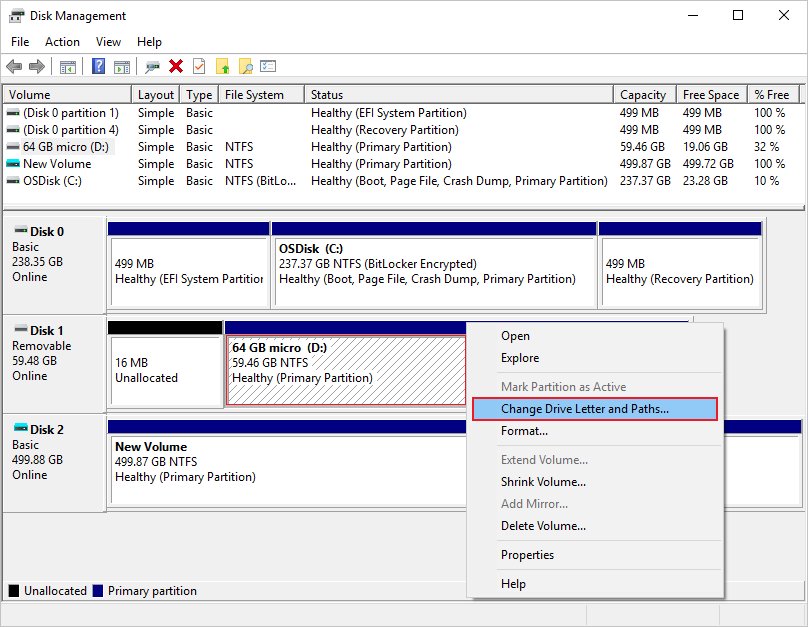
- If the letter changed, open Disk Management as administrator from the Start menu, right-click the volume, select Change Drive Letter and Paths, select Change, pick the old letter under Assign the following drive letter and select OK. Do not change the letter of the drive that holds Windows or installed apps.
- For a network path, open File Explorer, select This PC, then select More > Map network drive on Windows 11 or Computer > Map network drive on Windows 10.
- Pick the same letter in Drive, type the share path in Folder, tick Reconnect at sign-in and select Finish.
- For OneDrive, check the file's status icon. A blue cloud means online-only, and it cannot open without an internet connection.
- Right-click the OneDrive folder or file and select Always keep on this device if a program needs it offline.
9. Repair or reinstall the app that reports the error
If only one program shows the error, its own install folder is usually incomplete. Microsoft notes that not every app offers a repair option, so try repair first and reinstall second.
- Select Start > Settings > Apps > Installed apps.
- Select the More icon (three dots) next to the app and select Advanced options, if listed.
- Select Repair. If it is missing or does not help, select Reset, which clears the app's data.
- For desktop programs, open Control Panel > Programs > Programs and Features, right-click the program and select Repair, or Change if Repair is not offered.
- If repair fails, uninstall the app from Installed apps and install the current version from the developer's own site.
- Run the app again and check whether the error is gone.
A clean reinstall restores any folder the app expects, which is why it often clears missing-path errors that a repair leaves behind.
10. Fix Task Scheduler, services, scripts, and startup entries
Errors that appear at sign-in, on a timer or with no window of your own usually come from something launched automatically. Each of these stores a path you can inspect.
- Press Windows key + R, type
taskschd.mscand press Enter to open Task Scheduler. - Select Task Scheduler Library, double-click a task that runs when the error appears, and open the Actions tab.
- Select the action and select Edit. Check Program/script and Start in (optional) against folders that exist, quoting any path with spaces in Program/script.
- Press Windows key + R, type
services.mscand press Enter. Double-click a service that fails to start and read Path to executable on the General tab. A wrong path here means the program needs a repair or reinstall (Method 9). - Open Task Manager with Ctrl + Shift + Esc and select Startup apps (the Startup tab on Windows 10). Disable any entry whose program has been removed.
- Open any batch or script file you run regularly in Notepad and correct folder paths that moved, using full paths in quotes.
A script that fails at sign-in can also surface as a Windows Script Host error, which traces back to the same kind of stale path.
11. Run Windows system and disk repair tools
When Windows tools themselves report missing paths, check system files and the disk. Microsoft recommends running DISM before System File Checker so SFC has good files to copy from.
Right-click Command Prompt in Start search, select Run as administrator, then run these one at a time. sfc requires an administrator account.
DISM.exe /Online /Cleanup-image /Restorehealth
sfc /scannow
chkdsk C: /f
DISM repairs the Windows component store using Windows Update as its source. sfc /scannow scans all protected system files and replaces damaged ones from a cached copy. chkdsk /f fixes file system errors; because the Windows drive is in use, it offers to run at the next restart, so answer Y and restart.
You should see: SFC prints "Windows Resource Protection did not find any integrity violations" or "Windows Resource Protection found corrupt files and successfully repaired them". If it says it could not perform the requested operation, run it again in safe mode.
Use chkdsk /r instead of /f if you suspect bad sectors. It includes everything /f does and also looks for physical disk errors, so it takes much longer.
How to find the exact missing path
The error never names the folder that is missing. Find it by testing the path from the top down: the first piece that fails is the culprit.
- Start with the drive alone, such as
Test-Path "D:\"in PowerShell ordir D:\in Command Prompt. - Add one folder at a time, for example
Test-Path "D:\Projects", thenTest-Path "D:\Projects\App". - Stop at the first result of False, or the first
dirthat reports it cannot find the path. That folder is the one to fix. - For a program you run by name, run
where programnamein Command Prompt.wheresearches the current folder and every PATH folder, and shows nothing useful if the program is not in any of them. - For a script, add
echolines before each command that uses a path so the window shows the exact path being used.
How to check the path error is fixed
- Close and reopen Command Prompt or PowerShell so it loads any changed environment variables.
- Run
Test-Pathon the full path in PowerShell and confirm it returns True. - Repeat the exact command, shortcut or app launch that showed the error. It should run with no "cannot find the path" line.
- For scheduled tasks, right-click the task in Task Scheduler, select Run, and check that Last Run Result no longer shows a failure.
- Restart Windows once if the error appeared at sign-in, and confirm it does not return.
Extra fixes for common scenarios
These cases do not fit the methods above but produce the same message.
Command Prompt shows the error every time it opens
Command Prompt runs any command stored in an AutoRun registry value before anything else, and that command points to a missing file.
- Press Windows key + R, type
cmd /dand press Enter. The/dswitch skips AutoRun commands; if this window opens cleanly, AutoRun is the cause. - Press Windows key + R, type
regeditand press Enter. - Go to
HKEY_CURRENT_USER\Software\Microsoft\Command Processor, then toHKEY_LOCAL_MACHINE\Software\Microsoft\Command Processor. - Right-click the Command Processor key and select Export to save a backup first.
- If an AutoRun value points to a file that no longer exists, right-click it and select Delete.
- Open a new Command Prompt window to confirm the error is gone.
"Location is not available" when opening a drive or folder
The drive, share or cloud folder behind the path is offline, so File Explorer cannot reach it.
- Reconnect the USB drive or the network, then open the location again.
- Check the drive letter in This PC and in Disk Management, as in Method 8.
- Remove and re-create the mapped drive with Reconnect at sign-in ticked.
The path exists but is very long
Many Windows programs are limited to 260 characters (MAX_PATH) for a full path, including the drive letter.
- Move the folder higher in the drive, for example to
D:\Work, so the full path is shorter. - Shorten long folder names along the path.
- On Windows 10 version 1607 and later, an administrator can turn on Enable Win32 long paths under Computer Configuration > Administrative Templates > System > Filesystem in Group Policy. This only helps apps built to support long paths.
"The system cannot find the file specified" instead
That is error 2 (ERROR_FILE_NOT_FOUND): the folder exists, but the file name inside it is wrong or missing.
- Open the folder in File Explorer and confirm the exact file name.
- Select View > Show > File name extensions if needed, so you can see whether the file ends in
.txt.txtor similar. - Correct the file name in your command or shortcut.
Programs run by name fail after you edited PATH
The PATH value was cut short, often by setx and its 1,024-character limit, or a separator semicolon is missing.
- Open Environment Variables as in Method 7 and view Path as a list.
- Add back any folder that is missing, such as the program's install folder, with New.
- Open a new Command Prompt window and run
where programnameto confirm Windows now finds it.
When you should not just create the missing folder
Create the missing folder only when it is a place a script or app writes new output to, such as a logs or exports folder; never create an empty folder to replace a program's install, data or system folder. An empty folder makes the path exist, so the error disappears, but the program still finds none of the files it expects and fails later with a less obvious error. A missing install or system folder is a reason to repair or reinstall (Method 9) or run DISM and SFC (Method 11), and a missing drive or share needs reconnecting (Method 8), not a stand-in folder on the wrong disk.
“The system cannot find the path specified” FAQ
How do I fix the system cannot find the path specified?
Check the path for typos and stray curly quotes, confirm every folder in it still exists, and wrap any path containing spaces in double quotes. If the error comes from a shortcut, task, service or PATH entry, update the stored path to the folder's current location.
What is the difference between cannot find the path and cannot find the file specified?
“The system cannot find the path specified” is error 3 and means a folder in the path is missing. “The system cannot find the file specified” is error 2 and means the folders exist but the file name at the end does not match a real file.
Why does Command Prompt say the system cannot find the path specified when it opens?
An AutoRun value under the Command Processor registry key runs a command each time Command Prompt starts, and that command points to a missing file. Open cmd /d to confirm, then delete or correct the AutoRun value after exporting a backup of the key.
How do I fix location is not available?
“Location is not available” means File Explorer cannot reach the drive or folder behind a path. Reconnect the USB drive or network, check the drive letter in Disk Management, and re-map the network drive with Reconnect at sign-in ticked.
How do I fix Windows cannot find errors?
“Windows cannot find” errors appear when a shortcut, Run box entry or file association points to a program or file that moved. Open the shortcut's Properties, correct the Target and Start in fields, or repair the program from Settings > Apps > Installed apps.
Can sfc /scannow fix the system cannot find the path specified?
Only when the missing path belongs to Windows itself. SFC replaces damaged or missing protected system files, so it will not fix a typo, a moved user folder or an app's missing install folder. Run DISM first, then sfc /scannow, from an administrator Command Prompt.
How do I fix operating system not found?
“Operating system not found” is a startup error, not a path error, and it appears before Windows loads. Make sure the Windows drive is connected and first in the boot order, then run Startup Repair from Troubleshoot > Advanced options in the Windows Recovery Environment.
Should I create the missing folder to fix the error?
Only if it is an output folder that a script or app writes new files into. Creating an empty folder in place of a program or system folder hides the error, but the program still lacks its files and fails later.
Quick checklist
Work down this list in order and stop at the first item that fails, because that is where the broken path lives.
| Check | How | Method |
|---|---|---|
| Path typed correctly, straight quotes only | Paste into Notepad and read each folder | 1 |
| Path copied, not retyped | Copy from the File Explorer address bar | 2 |
| Every folder exists | Test-Path returns True |
3 |
| Shortcut Target and Start in are valid | Shortcut tab > Open File Location | 4 |
| Right drive and folder in the console | cd /d or Set-Location |
5 |
| Paths with spaces are quoted | Double quotes around each path | 6 |
| No dead PATH entries | Environment Variables > Path > Edit | 7 |
| Drive, share or OneDrive file available | This PC, Map network drive, Always keep on this device | 8 |
| App installed completely | Installed apps > Advanced options > Repair | 9 |
| Tasks, services and startup items current | Task Scheduler Actions tab, services.msc, Startup apps | 10 |
| Windows files and disk healthy | DISM, then sfc /scannow, then chkdsk /f | 11 |


![Dual boot Linux Mint and Windows 10 or 11 [beginner’s guide]](https://techdows.com/wp-content/uploads/2026/10/Linux-Mint-live-session-desktop-with-the-application-menu-open.jpg)