Fix ERR_ADDRESS_UNREACHABLE by restarting your router and device, then turning off any proxy or VPN you do not need and reloading the page.
The error means Chrome cannot reach the address it was given, so the fixes below work through your connection, device and browser in that order. Separate sections cover Windows 11, Mac, Android and local addresses such as a router login page.
How to fix ERR_ADDRESS_UNREACHABLE on Chrome
These steps clear the most common connection causes in a few minutes. Stop as soon as the page loads.
- Check the address for mistakes, then select Reload.
- Open the same address on another device or a different network to see whether the problem follows your device.
- Restart your router and your device.
- Turn off any proxy or VPN you do not need.
- Reload the page in Chrome.
ERR_ADDRESS_UNREACHABLE on one website or every website
Where the error appears tells you where to start. Match your case to a row.
| What you see | Likely area | Start here |
|---|---|---|
| Every site fails on every device | Router, modem or internet provider | Fix 1, then Fix 5 |
| Every site fails on one device | That device's network settings | Fix 2 and Fix 4 |
| One public site fails on all your devices | Your network's route to that site, or the site itself | Fix 5 |
| A router or device address such as 192.168.1.1 fails | Wrong network, VPN or Mac local network permission | The local IP address section |
| Only Chrome fails | Chrome data, extensions or permissions | Fix 3, Fix 6 and Fix 7 |
| The page fails only with security software running | A firewall or antivirus rule | Fix 8 |
What does ERR_ADDRESS_UNREACHABLE mean?
Your device could not find a working path to the address Chrome tried to open. Google's Chrome help names your router, a firewall or antivirus, Airplane mode and server downtime among the causes of connection errors, so start with the path and not the page.
Similar Chrome codes point at different problems, and each one has its own fix.
| Chrome error | What it points to | Where to start |
|---|---|---|
| ERR_ADDRESS_UNREACHABLE | No working path to the address | Router, proxy, VPN or the wrong network |
| ERR_CONNECTION_RESET | A connection that started and then dropped | Fix connection resets in Chrome and Edge |
| ERR_CONNECTION_TIMED_OUT | A server that took too long to answer | Fix timeouts on Windows |
| ERR_NETWORK_CHANGED | A network that switched while the page loaded | Fix network change errors in Chrome |
Fix 1: Restart router, hub and device
Microsoft's order matters here: power down the router first, then the modem, and bring the modem back first. With a combined modem and router or an all-in-one hub, restart only that one unit.
- Unplug the power cable from the router.
- Unplug the power cable from the modem, and remove any backup battery if the lights stay on.
- Wait at least 30 seconds.
- Plug the modem back in and wait for its lights to stop blinking.
- Plug the router back in and wait a few minutes for both to power on fully.
- Restart your computer or phone, then reload the page.
On Android, you can reset only the phone's connection: pull down from the top of the screen, press and hold the Internet tile, then tap the reset option. This drops any active call.
Fix 2: Disable proxy settings
A proxy sends your traffic through another server first, so a dead or wrong proxy can leave the address out of reach. On a work or school device, ask your administrator before changing these settings.
| Platform | Where to go | What to change |
|---|---|---|
| Windows 11 and Windows 10 | Settings > Network & internet > Proxy | Next to Use a proxy server, select Set up, turn it off and select Save. Do the same for Use setup script. |
| Windows automatic detection | Settings > Network & internet > Proxy > Automatic proxy setup | Turn off Automatically detect settings if a bad configuration is being picked up |
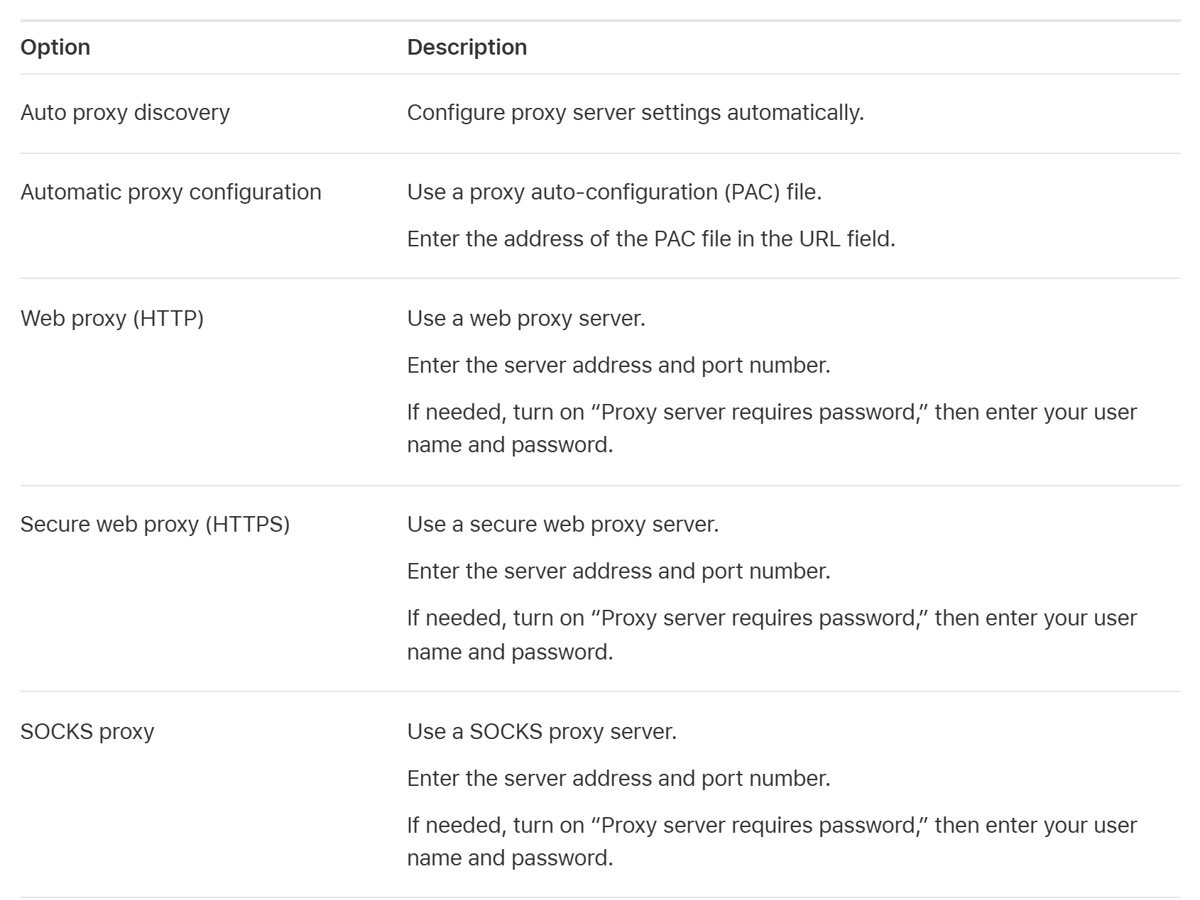
| Mac | Apple menu > System Settings > Network > your network service > Details > Proxies | Turn off Web proxy (HTTP), Secure web proxy (HTTPS), SOCKS proxy and Automatic proxy configuration if you did not set them |
Reload the page after each change. If you use a proxy on purpose, switch it back on once you have your answer.
Fix 3: Clear Chrome cache and browsing data
Google lists deleting cookies and cache among its fixes for Chrome connection errors. If you are signed in to Chrome, deleting this data also removes it from your Google Account and other devices.
- Open Chrome on your computer.
- Select More at the top right, then Delete browsing data.
- Choose a time range, such as All time.
- Select Cookies and other site data and cached images and files.
- Select Delete data, then reopen the page.
On Android, tap More > Delete browsing data, tap More options, select the data types and tap Delete data. On Windows, you can also refresh the Chrome cache for a single stubborn page.
Fix 4: Renew IP address and flush the DNS (Windows)
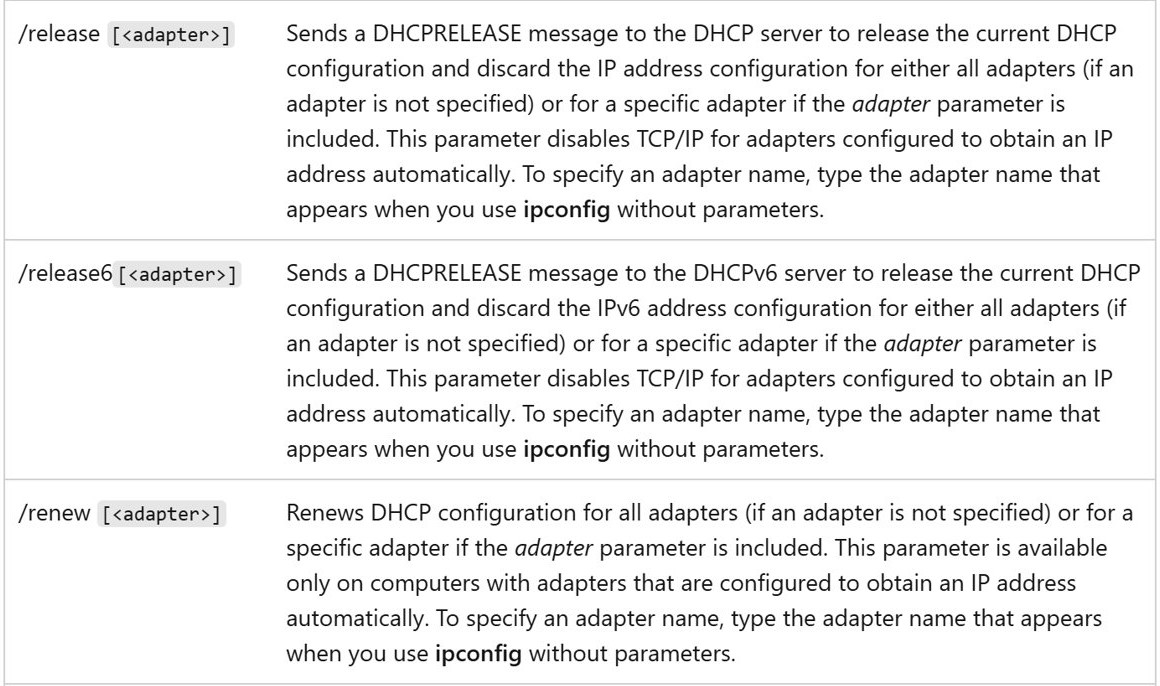
These commands ask your network for a fresh address and clear stored name lookups. ipconfig /release drops your connection until ipconfig /renew finishes, so run them in order on a device you are sitting at, not over a remote session.
- Select Start, type
cmd, right-click Command Prompt and select Run as administrator. - Type
ipconfig /releaseand press Enter. - Type
ipconfig /renewand press Enter. - Type
ipconfig /flushdnsand press Enter. - Close Command Prompt and reload the page.
ipconfig /renew works only on adapters set to get an address automatically. Run the last command alone when you only need to clear the Windows DNS cache.
Fix 5: Change to a different internet connection / ISP
This test separates your device from your network in one move. A hotspot uses your mobile data, so keep the test short on a limited plan.
- Turn off Wi-Fi on your phone so it uses mobile data, or connect your computer to a phone hotspot.
- Open the same address again.
- Treat a successful load as a sign that the first network or your internet provider is the problem.
- Restart the router again and contact your provider if the same address still fails only on that connection.
- Treat a failure on both connections as a sign that the site is down, or that your device settings are at fault.
Fix 6: Use a different browser
A second browser shows whether the problem belongs to Chrome or to the network underneath it. Both will fail if the path to the address is broken.
- Copy the address from Chrome.
- Open Microsoft Edge or Firefox on Windows, Safari on Mac, or another browser on Android.
- Paste the address and press Enter.
- Go back to Fix 3 and Fix 7 if the page loads there, since the fault is inside Chrome.
- Go back to Fix 1 and Fix 2 if it fails there too, since the fault is in the connection.
On a Mac, a local address that opens in Safari but not in Chrome has a specific explanation: Apple says Safari traffic does not need local network access, while other apps can. The local IP address section has the setting.
Fix 7: Visit the website on incognito tab
An Incognito window starts without your regular session's cookies. If the page loads there, cookies or extensions in your normal profile are the likely cause.
- Press Ctrl + Shift + N on Windows or Command + Shift + N on Mac.
- On Android, tap More and select Open in a new Incognito window. Some tablets label it New Incognito window.
- Enter the address and load the page.
- Turn off your extensions and re-enable them one at a time if the page loads, to find the one responsible.
- Clear cookies with Fix 3 if no extension is responsible.
Fix 8: Check your antivirus or firewall software
Google tells you to make sure firewall or antivirus software is not blocking your connection. Keep your protection on and check its rules, because a rule that blocks Chrome is a setting you can correct on its own.
| Software | Where to check | What to do |
|---|---|---|
| Windows Security | Firewall & network protection > Allow an app through firewall > Change settings | Select the checkbox next to Google Chrome, which needs administrator confirmation |
| Mac firewall | Apple menu > System Settings > Network > Firewall > Options | Use Add (+) to list Chrome, then choose to allow its connections |
| Third-party antivirus | The suite's firewall or web protection log | Add a rule for Chrome or the address if it appears as blocked, following the vendor's help |
Microsoft's advice applies to every list like this: never allow an app you do not recognize through the firewall.
ERR_ADDRESS_UNREACHABLE on router or local IP address
A local address only works from the same network, so this version of the error often has nothing to do with your internet connection. A router page at 192.168.1.1 or a printer, NAS or camera on your LAN falls into this group.
- Connect the device to the same Wi-Fi or Ethernet network as the router or device you want to open.
- Disconnect from any VPN.
- On Windows, run
ipconfigand read Default gateway to get your router's real address. - Enter that exact address in Chrome.
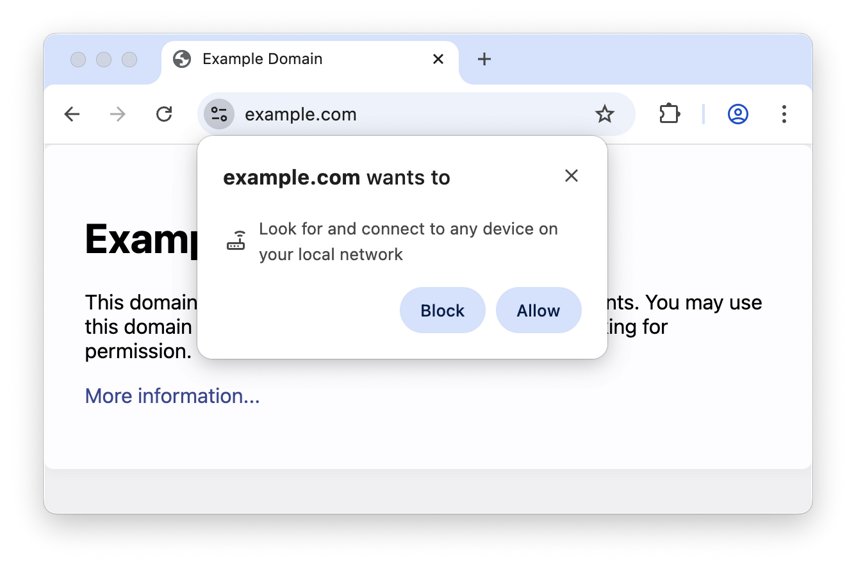
- On macOS 15 or later, open System Settings > Privacy & Security > Local Network and turn on Google Chrome.
- Reload the page, and allow the request if a site you trust makes Chrome ask to Look for and connect to any device on your local network.
Apple's Local Network list adds an app only after it has tried to reach the local network, so load the address once in Chrome before you check it.
ERR_ADDRESS_UNREACHABLE on Windows 11
Run these after Fix 1 and Fix 2 if only your Windows 11 PC shows the error. Microsoft's own order starts with the automated troubleshooter and ends with Network reset.
- Open the Get Help app and run the Network and Internet troubleshooter.
- Go to Settings > Network & internet > Airplane mode and make sure it is off.
- Select the network icon on the taskbar and check that your network shows Connected.
- Forget the Wi-Fi network and reconnect to it, with the password ready.
- As a last resort, go to Settings > Network & internet > Advanced network settings > Network reset.
- Select Reset now > Yes and wait for the PC to restart.
Network reset removes your installed network adapters and their settings. You may need to reinstall VPN client software or Hyper-V virtual switches afterward, and known networks can return as public.
ERR_ADDRESS_UNREACHABLE on Mac
Apple keeps every relevant setting under Network in System Settings. Work through them after you have restarted the router.
- Choose Apple menu > System Settings, then select Network in the sidebar.
- Select your network connection, then select Details.
- Select TCP/IP and set Configure IPv4 to Using DHCP, unless your provider gave you a manual address.
- Select Proxies and turn off any proxy you did not set up.
- Use the VPN status menu in the menu bar to disconnect from any VPN.
- Quit Chrome, reopen it and load the address.
ERR_ADDRESS_UNREACHABLE on Android
Menu names here come from Google's Android help, and some phone makers change them. Use the search bar in Settings if a label differs on your phone.
- Open Settings > Network & internet > Internet and tap your network to confirm you are connected.
- Press and hold the network, tap Forget, then tap it again to rejoin with the password.
- Go to Settings > Network & internet > VPN, tap the settings icon beside any VPN and switch it off.
- Go to Settings > Network & internet > Private DNS, choose Automatic or Off and tap Save.
- Reopen Chrome and load the address.
How to test if an IP address is reachable with ping and tracert
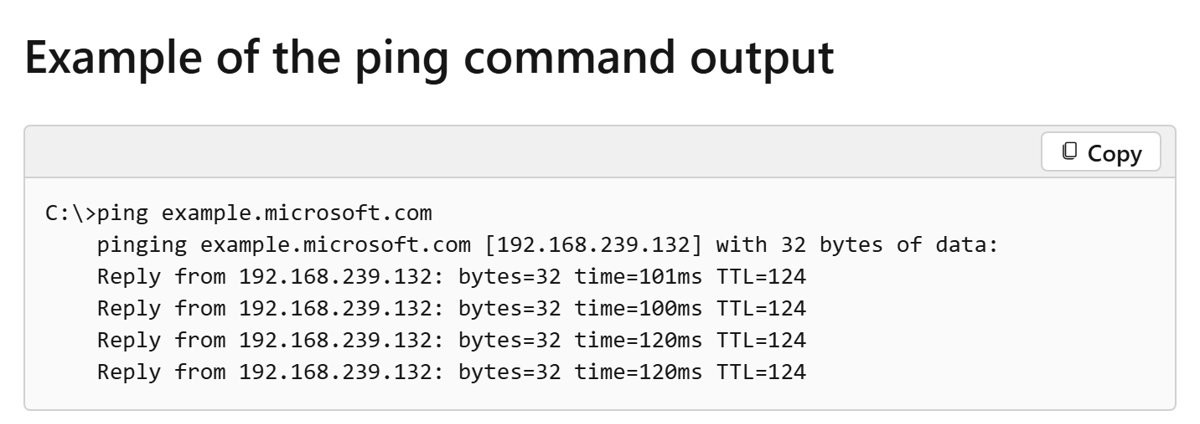
Microsoft describes ping as the main command for troubleshooting connectivity and reachability. These checks on Windows show which leg of the path is failing.
- Open Command Prompt, type
ipconfigand note the Default gateway address. - Type
pingfollowed by that address and press Enter. - Read four replies with 0% loss as proof that your PC reaches the router, which moves the suspect to the modem or provider.
- Try an Ethernet cable if there is no reply, to find out whether the Wi-Fi side of the router is at fault.
- Type
tracertfollowed by the failing site's name to see the path hop by hop.
A row of asterisks in tracert does not always mean a break, because some routers do not return the messages it relies on.
ERR_ADDRESS_UNREACHABLE still showing in Chrome
Router answers ping but websites still fail
Microsoft says four replies with 0% loss means your PC reaches the router, so the problem may be the modem or internet provider.
- Restart the modem again as in Fix 1.
- Contact your internet provider with the result of the
pingtest.
Only one website fails on every network
Google lists server downtime as a cause of Chrome connection errors, and no setting on your device changes that.
- Open the address on mobile data to confirm it fails away from your own network.
- Wait and try again later, or contact the website's owner.
Error appears only with a VPN connected
The VPN controls the route your traffic takes, and it can leave an address out of reach.
- Disconnect the VPN and reload the page.
- Reconnect to a different server, or ask the VPN provider about that address if the page loads without it.
Chrome is the only browser with the error
Google's list for Chrome-only trouble covers an out-of-date browser, extensions and profile settings.
- Update Chrome and restart it.
- Reset Chrome settings, then uninstall and reinstall Chrome if the error remains.
ERR_ADDRESS_UNREACHABLE FAQ
What causes ERR_ADDRESS_UNREACHABLE?
Chrome could not connect to the address it was given. The usual causes are a router that needs a restart, a proxy or VPN, being on the wrong network for a local address, a firewall rule, or a site that is down.
Does ERR_ADDRESS_UNREACHABLE mean the website is down?
Not always. Open the address on another device using mobile data to find out. If it loads there, your network or device is the problem. If it fails everywhere, the site itself may be down, and you can only wait or contact its owner.
Why can't I open my router page in Chrome?
Your device is probably on a different network, connected to a VPN, or using the wrong address. On Windows, run ipconfig and enter the Default gateway address. On macOS 15 or later, also check that Chrome is allowed under Local Network.
Why does the address work in Safari but not Chrome on Mac?
Apple says traffic from Safari does not require local network access, while other apps can need it. Open System Settings > Privacy & Security > Local Network and turn on Google Chrome, then reload the page in Chrome.
Will clearing the Chrome cache fix ERR_ADDRESS_UNREACHABLE?
It can when stored data is the cause, and Google lists it among its fixes. It will not help a network fault. Try an Incognito window first, because a page that loads there tells you cookies or extensions are involved.
What does network reset do in Windows 11?
Network reset removes your installed network adapters and their settings, then restarts the PC. Microsoft says you may need to reinstall VPN client software or Hyper-V virtual switches afterward. Use it only after the other steps here have failed.
Can antivirus cause ERR_ADDRESS_UNREACHABLE?
Yes. Google names firewall and antivirus software among the causes of Chrome connection errors. Keep the software on, look for Chrome or the address in its log or firewall list, and allow only what you recognize.
How do I fix ERR_ADDRESS_UNREACHABLE on an Android phone?
Reset the connection from the Internet tile, or forget and rejoin the Wi-Fi network. Then switch off any VPN and set Private DNS to Automatic or Off under Network & internet. Finally, reopen Chrome and load the address.