Select the Removable Storage Devices folder on your desktop, press Delete, then press F5 to refresh the desktop; if the folder comes back, restart Windows Explorer from Task Manager.
This guide covers where the folder is stored, how to scan it, how to repair Windows if it keeps returning, and how to turn removable storage off or on in Windows 11 and Windows 10.
How to remove Removable Storage Devices folder from desktop
Treat the folder like any other desktop item and check what is inside before you delete it. The steps below work on Windows 11 and Windows 10.
- Double-click the Removable Storage Devices folder and check whether it holds any files.
- Close the window without deleting anything if it shows the files from a connected USB drive, then eject the drive first.
- Move anything you want to keep from the folder to another location.
- Select the folder on the desktop and press Delete.
- Click an empty area of the desktop and press F5 to refresh it.
Delete moves the folder to the Recycle Bin, so you can restore it if you need it back. Shift + Delete skips the Recycle Bin and removes it permanently.
Why is there a Removable Storage Device folder on my desktop?
Microsoft does not document a Windows feature that adds a folder with this name to the desktop. Desktop files and folders live in a few known locations, so where this one is stored tells you what to do next.
| What you find | What it means | What to do |
|---|---|---|
The folder is in %USERPROFILE%\Desktop |
It is an ordinary folder on your own account's desktop | Delete it from that location |
The folder is in %PUBLIC%\Desktop |
It sits in the Public Desktop folder, which is shared across accounts | Delete it from an administrator account |
| The folder is in the Desktop folder inside OneDrive | OneDrive is backing up your desktop | Delete it there, then check the folder's Location tab |
| It is in none of these and clears after a refresh | The desktop was showing an out-of-date view | Restart Windows Explorer |
| It returns after you delete it | Something on the PC is recreating it, or system files need repair | Scan it, run a clean boot, then run DISM and SFC |
Where is the Removable Storage Devices folder stored?
Open each desktop location directly to see which one holds the folder. This also tells you whether the folder is real or just a stale item on the screen.
- Press Windows logo key + R to open the Run dialog box.
- Type
%USERPROFILE%\Desktopand press Enter, then look for the folder. - Open Run again, type
%PUBLIC%\Desktopand press Enter, then look again. - Open File Explorer, expand your OneDrive folders and open Desktop.
- Delete the Removable Storage Devices folder wherever you find it, after checking its contents.
If the folder is not listed, turn on hidden items and check again. In Windows 11, select View > Show > Hidden items. In Windows 10, select View > Options > Change folder and search options, then on the View tab select Show hidden files, folders, and drives.
On Windows 10, folders listed under This PC are a separate case, such as the 3D Objects folder, which has its own removal steps.
Restart Windows Explorer to clear the Removable Storage Devices folder
Windows Explorer draws the desktop, so restarting it redraws every icon. Save any open work first, because the taskbar and desktop disappear for a moment.
- Press Ctrl + Shift + Esc to open Task Manager.
- On the Processes tab, find Windows Explorer.
- Right-click Windows Explorer and select Restart.
- If it is not listed, select File > Run new task, type
explorer.exeand press Enter.
You can also restart Explorer.exe from CMD or PowerShell if you prefer a command.
Scan the Removable Storage Devices folder with Microsoft Defender
A folder you did not create is worth a scan before you open anything inside it. Windows Security can check just that one folder.
- Right-click the Removable Storage Devices folder.
- Select Show more options on Windows 11.
- Select Scan with Microsoft Defender.
- Check the Scan options page for the result when the scan finishes.
Run DISM and SFC if the Removable Storage Devices folder keeps coming back
Microsoft's File Explorer troubleshooting points to System File Checker for missing or corrupted system files. Install pending Windows updates and restart before you begin.
- Search for command prompt and select Run as administrator.
- Type
DISM.exe /Online /Cleanup-image /Restorehealthand press Enter. - Wait for The operation completed successfully.
- Type
sfc /scannowand press Enter. - Wait for Verification 100% complete, then type
exitand press Enter.
Hide the Removable Storage Devices folder from the desktop
This is a stopgap, because it hides every desktop icon and not just this folder. It helps if you need a clean screen while you sort out the cause.
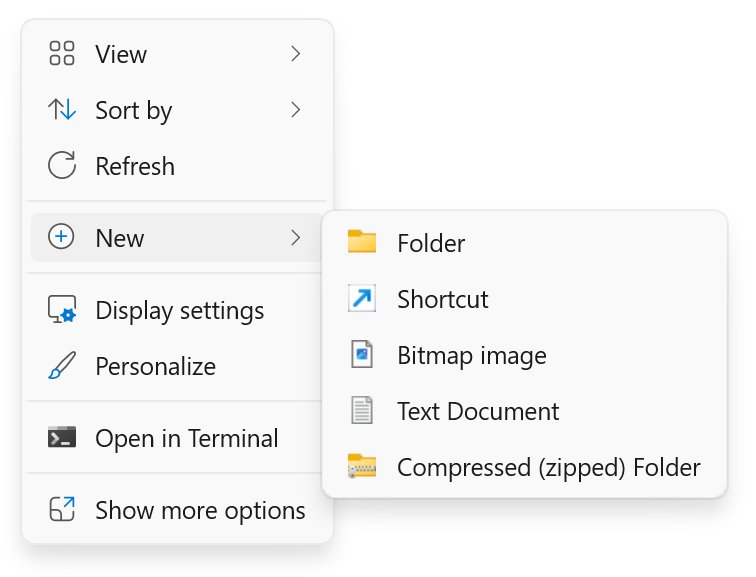
- Right-click an empty area of the desktop.
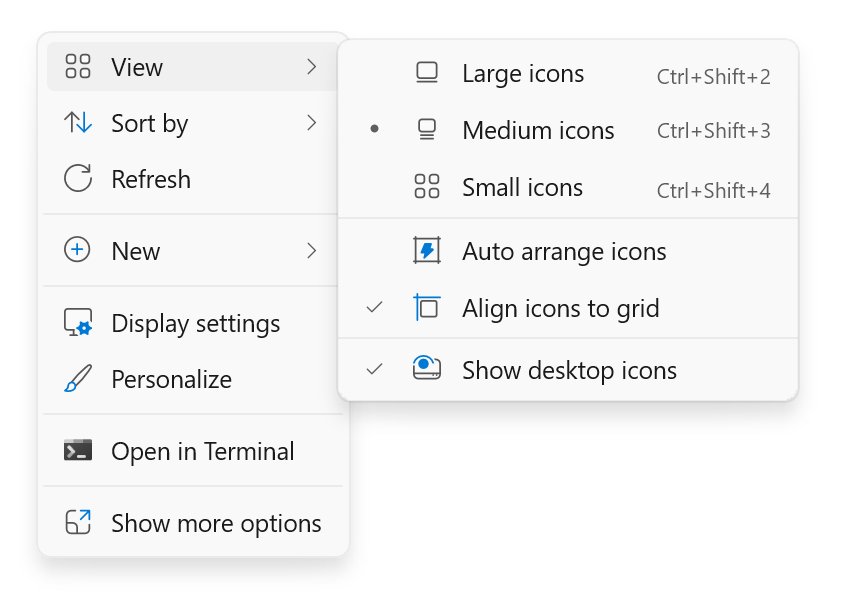
- Select View.
- Clear the Show desktop icons check mark.
Check the same option again to bring everything back. If icons stay missing, you can restore missing desktop icons on Windows 11.
How to tell if the Removable Storage Devices folder is gone
- Press F5 on the desktop and confirm the folder does not reappear.
- Open
%USERPROFILE%\Desktopand%PUBLIC%\Desktopand confirm neither lists it. - Restart the PC.
- Confirm the desktop is still clear after you sign in again.
A folder that returns only after a restart points to something that runs at startup, so go to the clean boot steps below.
What are removable storage devices
A removable storage device is storage you can plug in, use and take away without opening the PC. Microsoft's own policy settings split them into the classes below.
| Removable storage devices examples | Group Policy class |
|---|---|
| USB flash drive, external hard drive, SD card | Removable Disks |
| CD and DVD discs | CD and DVD |
| Floppy disks | Floppy Drives |
| Backup tapes | Tape Drives |
| Phones and media players connected as portable devices | WPD Devices |
The main advantage of removable storage devices is portability. Microsoft's own file transfer guide uses a USB drive, SD card or external hard drive to move files to a new PC.
How to open removable storage device
A connected drive appears in File Explorer, not as a folder on the desktop. You can find the removable storage device under This PC.
- Plug the device into the PC.
- Select File Explorer on the taskbar, or press Windows logo key + E.
- Select This PC in the left pane.
- Double-click the icon for the external drive.
To choose what happens when a drive is plugged in, select Start > Settings > Bluetooth & devices > AutoPlay. If nothing appears on Windows 11, work through the fixes for a USB drive Windows 11 does not detect.
How to safely remove external storage device
Eject a drive before you unplug it so that Windows can finish writing to it. This avoids data loss on USB flash drives and external hard drives.
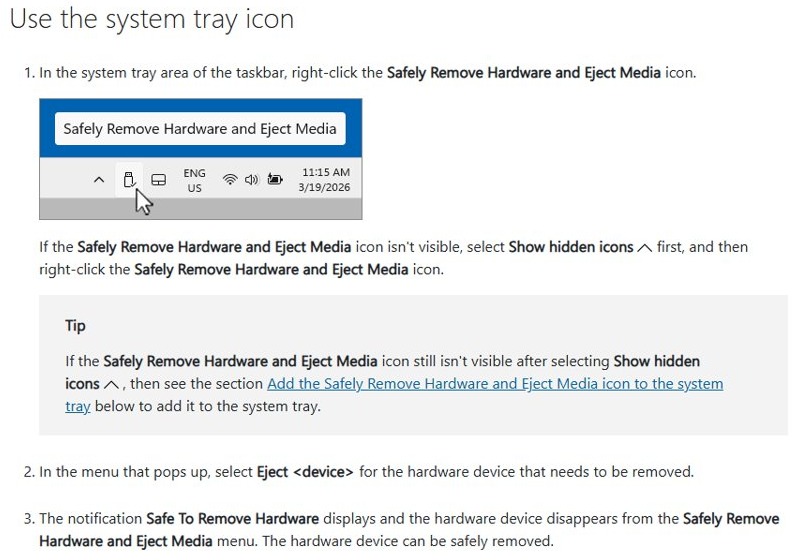
- Select the Show hidden icons arrow in the system tray if you can't see the Safely Remove Hardware and Eject Media icon.
- Right-click Safely Remove Hardware and Eject Media.
- Select Eject followed by your device name.
- Wait for the Safe To Remove Hardware notification, then unplug the device.
How do I turn off removable storage?
Group Policy can block removable storage across the whole PC. It controls device access, which is a different job from deleting a desktop folder, and Windows Home editions do not include it.
- Select Start, type
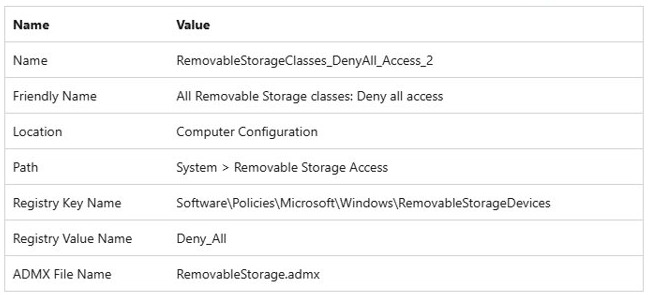
gpedit.mscand press Enter. - Go to Computer Configuration > Administrative Templates > System > Removable Storage Access.
- Double-click All Removable Storage classes: Deny all access.
- Select Enabled, then select OK.
- Run
gpupdate /forcefrom an administrator Command Prompt, then restart the PC.
This setting also blocks CD and DVD drives. To limit the block to USB and similar drives, use Removable Disks: Deny read access or Removable Disks: Deny write access in the same list instead.
How to enable removable storage devices
Access to removable storage devices comes back when you remove the policy that blocks it. On a work or school PC, your administrator may set this policy, so ask them first.
- Select Start, type
gpedit.mscand press Enter. - Go to Computer Configuration > Administrative Templates > System > Removable Storage Access.
- Double-click All Removable Storage classes: Deny all access.
- Select Not Configured, then select OK.
- Run
gpupdate /forcefrom an administrator Command Prompt, then restart the PC.
How to clear a storage device
Formatting wipes a drive completely, so copy off anything you want to keep first. Microsoft warns that formatting a volume destroys any data on the partition.
- Right-click the Start button and select Disk Management.
- Find the volume on the removable drive and check its drive letter carefully.
- Right-click the volume and select Format.
- Keep the default settings in the Format dialog and confirm twice.
Removable Storage Devices folder keeps coming back on desktop
The folder returns after you delete it
An app or service that starts with Windows may be recreating it. A clean boot starts Windows with Microsoft services only, which shows whether a third-party item is responsible.
- Sign in as an administrator, search for
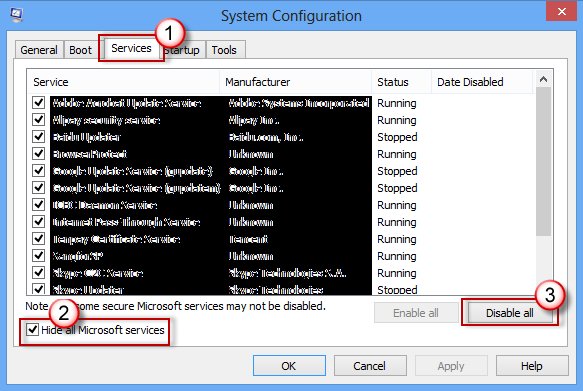
msconfigand open System Configuration. - On the Services tab, select Hide all Microsoft services, then Disable all and Apply.
- On the Startup tab, select Open Task Manager.
- On the Startup apps tab, select each enabled item and select Disable, noting which ones you turned off.
- Close Task Manager, select OK in System Configuration and restart.
- Delete the folder and restart again. If it stays gone, turn your apps back on a few at a time to find the one responsible.
- To exit, open System Configuration, select Normal Startup on the General tab, clear Hide all Microsoft services, select Enable all and Apply, re-enable your startup items and restart.
Windows won't let you delete the folder
The Public Desktop folder is shared across accounts, so a standard account may not be able to change it.
- Sign in with an administrator account.
- Press Windows logo key + R, type
%PUBLIC%\Desktopand press Enter. - Select the folder and press Delete.
- Approve the prompt if Windows asks for administrator permission.
Your desktop shows unfamiliar folders after setting up OneDrive
OneDrive can back up your Desktop folder. If the backup location is corrupted, your desktop might be showing the wrong location.
- Open File Explorer and expand your OneDrive folders.
- Right-click the Desktop folder and select Properties.
- Select the Location tab, then select Move.
- Go to the folder that contains the desktop items you want, choose Select Folder, then select Apply.
- Select Yes when asked whether to move files from the old location to the new one.
Removable Storage Devices folder FAQ
Why do I have a removable storage devices folder on my desktop?
Microsoft does not document a Windows feature that creates it, so check where it is stored. It may be a real folder in your Desktop, Public Desktop or OneDrive Desktop location, or an out-of-date view that clears when Windows Explorer restarts.
How do I turn off removable storage?
On Windows Pro and higher, open gpedit.msc and go to Computer Configuration > Administrative Templates > System > Removable Storage Access. Enable All Removable Storage classes: Deny all access, run gpupdate /force and restart. This also blocks CD and DVD drives.
How do I enable removable storage devices?
Open gpedit.msc and go to the Removable Storage Access policy folder. Set All Removable Storage classes: Deny all access to Not Configured, run gpupdate /force and restart. On a managed work or school PC, ask your administrator to change it.
What is a removable storage device?
It is storage you can connect and disconnect without opening the PC. Common removable storage devices include USB flash drives, external hard drives, SD cards, and CD or DVD discs, plus phones and media players connected as portable devices.
How do I open a removable storage device?
Plug it in, press Windows logo key + E to open File Explorer, select This PC in the left pane, then double-click the drive's icon. The drive appears there, not as a folder on your desktop.
How do I find removable storage on my PC?
Open File Explorer and select This PC in the left pane to see connected drives. If the drive is missing, check that it is fully plugged in, then open Disk Management from the Start button's right-click menu to look for it.
How do I safely remove an external storage device?
Right-click the Safely Remove Hardware and Eject Media icon in the system tray, then select Eject and your device name. Unplug the device after the Safe To Remove Hardware notification appears, so that you avoid data loss.
How do I remove storage on a computer?
Eject an external drive with Safely Remove Hardware and then unplug it. To erase what is on a drive instead, format the volume in Disk Management, and copy off anything you want to keep first, because formatting destroys the data.