A fake Microsoft scam is any call, pop-up, email or text that uses the Microsoft name to get your money, your passwords or remote access to your PC, and Microsoft never starts that contact itself.
This guide covers how each scam type works, the signs that give it away, how to report a Microsoft scam and what to do if you already called, paid or let someone in.
Avoid scams that use the Microsoft name fraudulently
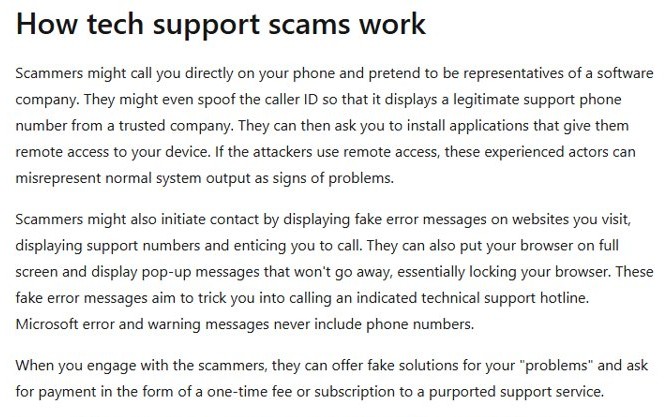
Microsoft does not make unsolicited calls or send unsolicited emails to offer support or ask for personal or financial details. Genuine Microsoft error and warning messages never include a phone number to call.
- Hang up on any call from someone who says they are from Microsoft when you did not contact Microsoft first.
- Never call a phone number shown in a pop-up, error message or browser warning.
- Never let a caller install software that lets them control your PC.
- Refuse any request to pay with gift cards or cryptocurrency. Microsoft never asks for payment that way.
- Do not click links or open attachments in unexpected emails or texts that use the Microsoft name.
- Type the Microsoft address yourself or use a saved bookmark when you want to check your account or orders.
- Report the contact at microsoft.com/reportascam.
What is a fake Microsoft Support number scam?
A fake support number scam tries to get you on the phone with someone posing as a Microsoft agent. The scammer claims your PC has a problem, then asks for remote access, personal details or a payment for a fix.
| Scam type | How it reaches you | What the scammer wants |
|---|---|---|
| Tech support phone call | An unsolicited call claiming to be from Microsoft | Remote access to your PC and a payment for a fake repair |
| Fake warning pop-up | A full-screen page, looping audio or a fake blue screen with a phone number | A call to the number shown, then remote access and payment |
| Fake order or invoice | An email or text confirming a purchase you never made, with a cancel option | Your card details, your login, or a malicious file opened |
| Phishing email | A message that looks like it comes from Microsoft with a link to a sign-in page | Your Microsoft account email and password |
| Fake document share | A message asking you to sign in to open a document | Your email address and password |
Recognizing a Microsoft scam
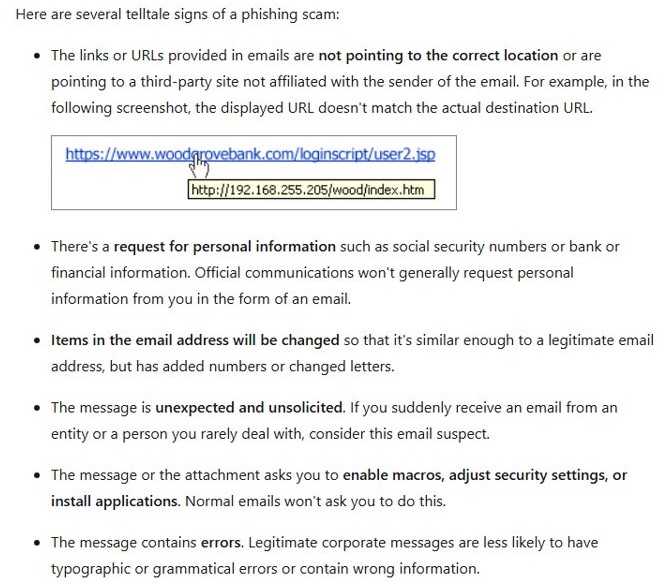
Most Microsoft scams share three traits: a trusted name, an urgent request and a link, attachment or phone number. Match what you see against this table before you act.
| What you see | What it means |
|---|---|
| A phone number in a Windows or browser warning | Fake. Real Microsoft error messages never include a phone number |
| Pop-ups that will not close, disabled Task Manager or looping audio | A scam page built to scare you into calling |
| A sender address on a free email service or a lookalike domain with a zero in place of an o | A spoofed sender, not Microsoft |
| A greeting that does not use your name | A mass message sent to many people at once |
| A charge "today" and a short deadline to cancel | False urgency meant to stop you checking first |
| A link whose real destination differs from the text shown | A phishing link. Point at it to see the real address |
| A request to enable macros or adjust security settings in an attachment | Malware delivery. Normal emails never ask this |
| A "?" in place of the sender photo in Outlook | Outlook could not verify the sender. Treat the message with care |
What is a smishing and vishing scam?
Smishing is phishing sent by text message, and vishing is phishing done over a voice call. Both use the same tricks as email phishing: a trusted name, urgency and a request to act at once.
| Term | Channel | Typical Microsoft-themed example | Safe response |
|---|---|---|---|
| Smishing | SMS or chat text message | A text saying a Microsoft charge will go through today unless you tap a link to cancel | Do not tap the link. Check your orders by signing in to your Microsoft account yourself |
| Vishing | Phone call or voicemail | A caller saying your PC is infected and Microsoft needs remote access to fix it | Hang up. Microsoft does not call about a device problem unless you contacted it first |
Basic precautions to take before clicking on web links
A few seconds of checking stops most phishing links. Do these checks every time a message asks you to click, sign in or pay.
- Check the sender's full email address, not just the display name.
- Point at the link without clicking and read the real destination address.
- Close the message if the destination does not belong to the company it claims to be from.
- Open the company's site yourself through a bookmark or by typing its address.
- Confirm any unexpected attachment with the sender through another channel, such as a phone call to a number you already have.
- Never enable content in an Office file you were not expecting.
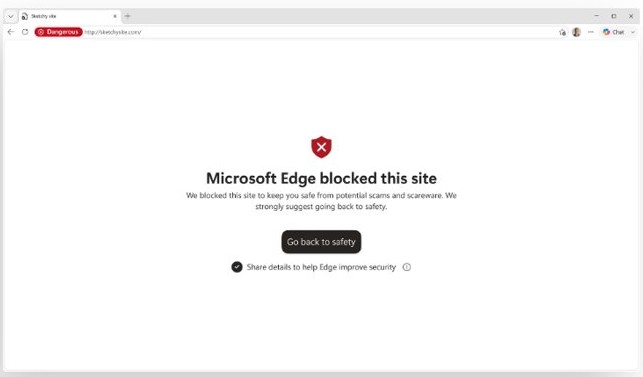
- Keep Microsoft Defender SmartScreen on in Microsoft Edge so known phishing sites are blocked, and leave the Edge pop-up blocker turned on.
Turn on scareware blocker in Microsoft Edge
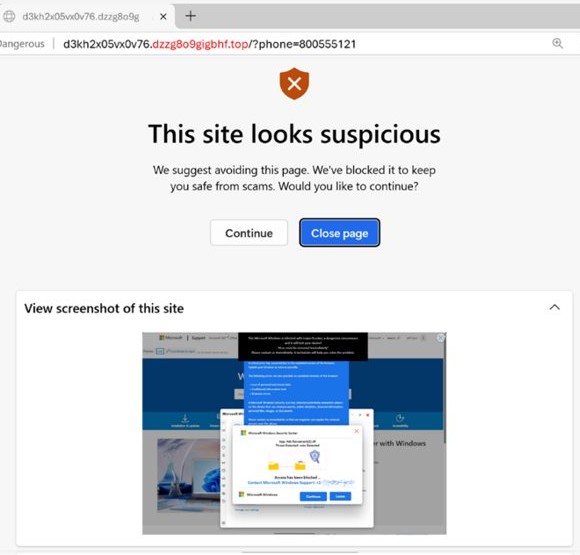
Scareware blocker detects full-screen tech support scam pages in Edge. It exits full-screen mode, stops the audio and shows a warning with a thumbnail of the page.
- Open Microsoft Edge and select Settings and more (the three dots).
- Select Settings.
- Select Privacy, search, and services, then select Security.
- Turn on the Scareware blocker toggle.
- When a warning appears later, select Close page to leave the scam page.
Scareware blocker is on by default on PCs with more than 2 GB of RAM and at least 5 processor cores. On PCs with less than 1 GB of RAM or fewer than 2 cores, the toggle does not appear.
Report a Microsoft scam
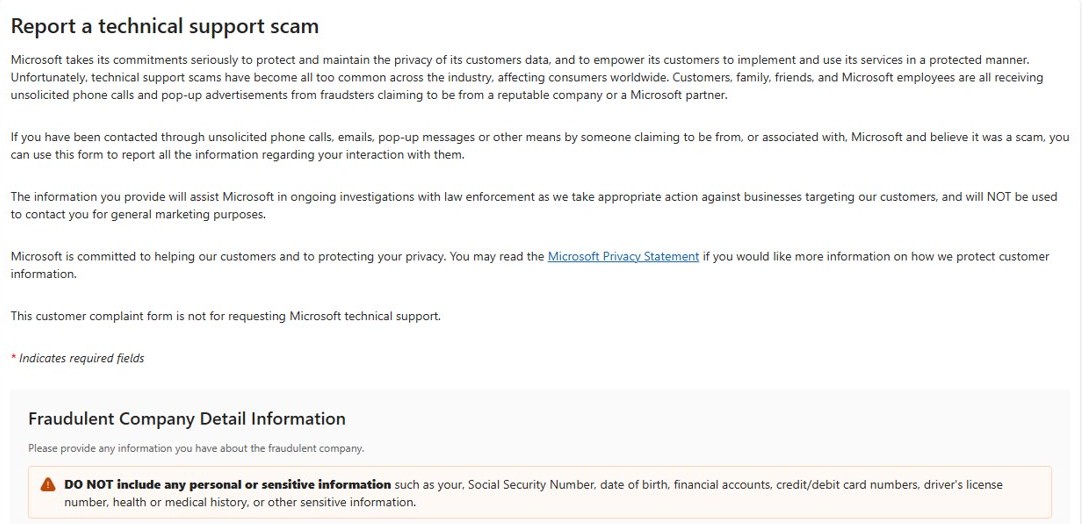
Report every scam attempt, even if you did not respond. Pick the route that matches how the scam reached you.
| How the scam reached you | Where to report it | Why |
|---|---|---|
| A phone call or a fake support number | The form at microsoft.com/reportascam | Microsoft collects tech support scam reports there |
| A scam website open in Microsoft Edge | Settings and more > Help and feedback > Report unsafe site | Feeds the SmartScreen block list |
| A phishing email in Outlook.com | Select the message, then Report > Report phishing | Flags the sender to Microsoft |
| A phishing email in classic Outlook | Open the message and select Report message > Phishing on the ribbon | Same report from the desktop app |
| A phishing email in Outlook for Android or iPhone | Tap the three dots, then Report Junk > Phishing | Same report from the mobile app |
| You lost money | Your card provider or bank, then local law enforcement | They can dispute or stop the charge |
Reporting a sender in Outlook.com does not block it. Add the sender to your blocked senders list to stop future messages.
How to check if a Microsoft email or order is real
A real order or account alert shows up in your account, whatever the message says. Check there instead of in the message.
- Close the email or text without clicking anything in it.
- Open your browser and type the Microsoft account address yourself, or use a saved bookmark.
- Sign in and open your order history.
- Compare the order in the message with your real orders. If it is not listed, the message is fake.
- Delete the message or report it as phishing.
How to get rid of a Microsoft scam after you responded
Act quickly if you already called, paid or let a scammer connect to your PC. Find what happened below and follow those steps.
A fake Microsoft warning pop-up will not close
A scam web page has gone full screen and is playing audio to keep you on it.
- Press Alt + F4 to close the browser if the mouse does not respond.
- Restart the PC if the browser will not close.
- Do not call the number on the page.
- Turn on Scareware blocker in Edge so the page is caught next time.
You let a scammer connect to your PC
The scammer had you install a remote access app and may have left other software behind.
- Uninstall every app the scammer asked you to install.
- Run a full scan in Windows Security.
- Install all available updates in Windows Update.
- Consider resetting the PC with the recovery options in Windows if the scammer had full control.
- Change your passwords from a device the scammer never touched.
You paid a fake Microsoft support agent
The payment went to the scammer, not to Microsoft.
- Call your credit card provider or bank and dispute the charge.
- Ask them to cancel and replace the card you used.
- Report the scam at microsoft.com/reportascam.
- Report the loss to local law enforcement.
You typed your password into a fake Microsoft sign-in page
The page sent your email address and password to the scammer.
- Change your Microsoft account password at once, then add sign-in approval with Microsoft Authenticator.
- Change the password on any other account that used the same password.
- Contact your IT admin if it was a work or school account.
- Report any fraudulent activity to your bank and credit card company.
That verification method isn't working right now [Fix]
This message appears when Microsoft cannot send a code to the phone number or email on your account, often after many attempts. Scams play a part here: never share a code you did not request, and never read one out to a caller.
The verification code never arrives by email
The message landed in junk or was filtered.
- Check your junk folder for a message from Microsoft account.
- Add @accountprotection.microsoft.com as a trusted sender.
- Select I don't have a code to send a new one.
The verification code never arrives by text
Your phone blocks texts from unknown numbers, or the number on file is wrong.
- Turn off unknown-sender text filtering on your phone.
- Sign in to your Microsoft account security page and select Update info to confirm the number.
- Switch between Wi-Fi and mobile data, then request a new code.
Microsoft says to try another verification method
Too many requests triggered a temporary block on that method.
- Stop requesting codes, because repeat attempts extend the block.
- Use a different method on the account, such as an alternate email address.
- Wait 24 hours and try again. Some blocks take up to a week to clear.
- Submit the Microsoft account recovery form if you have lost access to every method and do not know your password.
Fake Microsoft scam FAQ
Is a fake Microsoft email a scam?
Yes. An email that copies Microsoft branding to get your password, card details or a phone call is a phishing scam. Check the full sender address, do not click its links and report it in Outlook with Report > Report phishing.
How do I report scams to Microsoft?
Report tech support scams at microsoft.com/reportascam. Report phishing emails with the Report button in Outlook, and report scam websites in Edge from Settings and more > Help and feedback > Report unsafe site.
How do I get rid of a Microsoft scam on my PC?
Close a scam pop-up with Alt + F4 or restart the PC. If a scammer connected to your PC, uninstall the apps they installed, run a full Windows Security scan, install updates and change your passwords from another device.
What is the Microsoft scam?
It is a group of scams that use the Microsoft name: fake support calls, fake warning pop-ups with phone numbers, fake order emails and phishing sign-in pages. Each one aims to get remote access, money or your account password.
Is there a Microsoft scam email going around?
Fake order confirmations and fake sign-in requests that use the Microsoft name circulate all the time. Treat any unexpected Microsoft email with a link, attachment or deadline as suspect and check your account directly instead.
Is there a Microsoft scam on PC pop-ups?
Yes. Fake warning pages that fill the screen, play audio or imitate a blue screen with a phone number are tech support scams. Real Windows errors never show a number to call.
Is Microsoft scamming us when it calls about my computer?
No. Microsoft does not call about a device problem unless you contacted it first. A caller who says Microsoft detected a problem on your PC is a scammer, so hang up.
Is the Microsoft Store a scam?
No. The Microsoft Store is Microsoft's official app and game store. Scammers do send fake Microsoft Store order emails, so check your real order history by signing in yourself rather than through a link.
Does Microsoft ask for payment with gift cards?
No. Microsoft never asks for payment in gift cards or cryptocurrency. Any request to pay for support or a refund that way is a scam.