To enable Office macros, select Enable Content on the yellow Security Warning bar, or, if a red Security Risk banner appears, right-click the file, open Properties and tick Unblock to remove Mark of the Web.
This guide explains both warnings, Trust Center macro settings, Trusted Locations, trusted publishers, OneDrive and SharePoint files, and what to do when an administrator has blocked macros.
Enable macros in an Office file from the red Security Risk banner
Use this route only for a file you expected and whose sender you trust. You do not need macros just to read or edit a document.
- Close the file in Word, Excel or PowerPoint.
- Open File Explorer and go to the folder where the file is saved.
- Right-click the file and choose Properties.
- On the General tab, select the Unblock checkbox at the bottom.
- Select OK, then open the file again.
- If the yellow bar now appears, select Enable Content.
Microsoft turned macro enablement into a provenance test
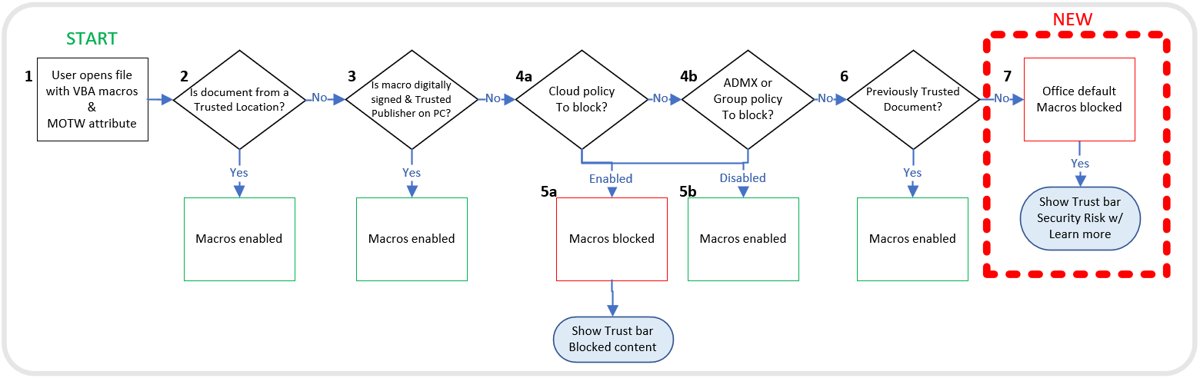
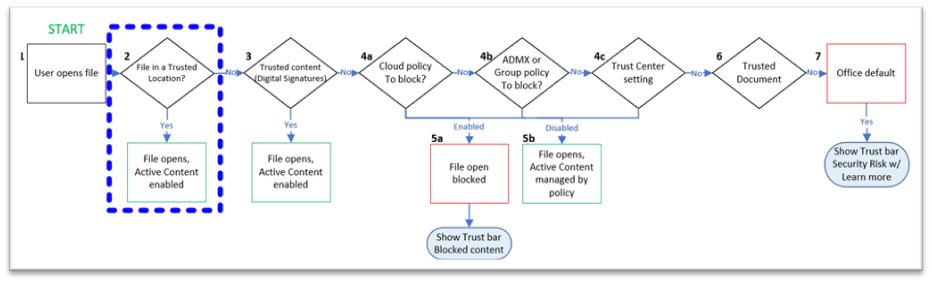
Office now decides whether macros run by checking where a file came from before it checks your preferences. Microsoft documents this order for Access, Excel, PowerPoint, Project, Publisher, Visio and Word on Windows.
| Check, in order | What happens if it passes |
|---|---|
| File sits in a Trusted Location | Opens with macros enabled |
| Macros are signed and the publisher certificate is trusted | Opens with macros enabled |
| Policy blocks or enables macros | Policy decides; Not Configured moves to the next check |
| File was trusted with Enable Content before the change | Macros run because it is a Trusted Document |
| File carries Mark of the Web from the internet | Macros are blocked and the Security Risk banner appears |
The change reached Current Channel in Version 2206 from July 2022 and Semi-Annual Enterprise Channel in Version 2208 in January 2023, so check your Office version and updates if the banner behaves differently.
Yellow vs red macro warning in Office
| What you see | What it means | What to do |
|---|---|---|
| Yellow SECURITY WARNING bar with Enable Content | Macros are disabled by your Trust Center setting | Select Enable Content if you trust the file |
| Red SECURITY RISK banner: Microsoft has blocked macros because the source of the file is untrusted | The file has Mark of the Web from the internet | Remove Mark of the Web with Unblock |
| Red banner: Your administrator has restricted the use of macros in your organization | An IT policy blocks macros | Save the file to OneDrive or another approved location, or ask IT |
The yellow bar is the old world, and it still exists
The yellow bar appears for files without Mark of the Web when Trust Center is set to Disable all macros with notification, the default.
- Open the file and look for the yellow SECURITY WARNING bar under the ribbon.
- Select Enable Content.
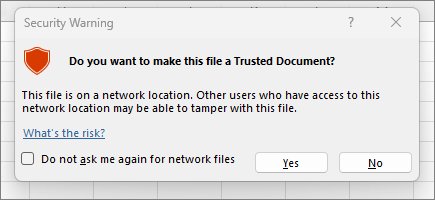
- In the Security Warning dialog, select Yes to make the document trusted.
- Run the macro from View > Macros or the button the file provides.
A Trusted Document keeps running macros on later opens. To revoke it, clear all trusted documents in Trust Center.
The red banner is Windows speaking through Office
Windows adds Mark of the Web to files that arrive from the Internet or Restricted sites zones, such as browser downloads and email attachments. It applies only on NTFS drives, not FAT32.
| ZoneId value | Zone | Macros blocked by default? |
|---|---|---|
| 0 | My Computer | No |
| 1 | Local intranet | No |
| 2 | Trusted sites | No |
| 3 | Internet | Yes |
| 4 | Restricted sites | Yes |
The Security Risk banner has no Enable Content button. Removing the mark is the only per-file fix.
Remove Mark of the Web with PowerShell Unblock-File
The Unblock-File cmdlet removes the ZoneId value, which does the same thing as the Unblock checkbox. Replace the path with your own file; you can copy the full file path from File Explorer.
Unblock-File -Path "C:\Users\<you>\Downloads\report.xlsm"Deletes the Zone.Identifier stream that marks the file as coming from the internet.
You should see: The command returns no output, and the file opens with the yellow bar or runs macros instead of showing the red banner.
OneDrive and SharePoint are safer when they stay in the Microsoft path
A browser download from OneDrive or SharePoint can pick up Mark of the Web, while files opened in the desktop app or synced by the OneDrive client do not.
- Open the file on the OneDrive website or the SharePoint or Teams site.
- Select Open in Desktop App instead of Download.
- If you already downloaded a copy, unblock that local copy or delete it and reopen from the site.
- For an email attachment, save it to OneDrive before opening it.
Files in Desktop, Documents, Pictures, Screenshots and Camera Roll that sync to OneDrive carry no Mark of the Web.
Trust Center is per-app, which is sensible and annoying
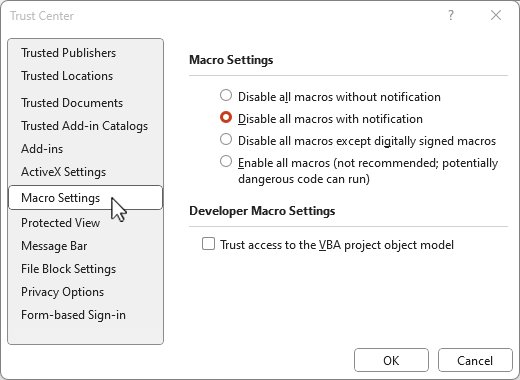
Open File > Options > Trust Center > Trust Center Settings > Macro Settings. A change applies only to the app you are using, so set Word and Excel separately.
| Option | Effect | Use it when |
|---|---|---|
| Disable all macros without notification | Macros and alerts are off | You never use macros |
| Disable all macros with notification | Macros off, yellow bar offered | Default; decide file by file |
| Disable all macros except digitally signed macros | Only trusted-publisher macros run | Your macros come signed |
| Enable all macros (not recommended) | Every macro runs without asking | Avoid on any everyday PC |
None of these settings overrides the Mark of the Web block on internet files.
Excel gets a shortcut, not a loophole
Excel labels its options Disable VBA macros with notification and so on, because they cover VBA only. It also has an Enable Excel 4.0 macros when VBA macros are enabled checkbox for XLM macros.
- Show the Developer tab on the ribbon if it is hidden.
- Select Developer > Macro Security to jump straight to Macro Settings.
- Choose the VBA option you want.
- Leave Enable Excel 4.0 macros when VBA macros are enabled cleared unless an old workbook needs XLM macros.
- Select OK.
Trusted Locations are powerful because they skip the argument
Files in a Trusted Location skip Mark of the Web, Protected View and File Block checks, and every macro in them runs. Use a dedicated subfolder, never a whole drive or Documents.
- In Word or Excel, select File > Options.
- Select Trust Center > Trust Center Settings > Trusted Locations.
- Select Add new location.
- Select Browse, pick the folder, and select OK.
- Select OK to close Trust Center, then save trusted macro files into that folder.
Signed publishers are better than trusted files, until they are not
A trusted publisher lets every macro signed with the same certificate run, now and later. Publisher trust is a Windows-wide setting, not an Office-only one.
- Unblock the signed file first with Properties > Unblock.
- Open it with Disable all macros except digitally signed macros or the default setting active.
- When Office shows the signer, confirm the certificate belongs to the company you expect.
- Choose to trust the publisher so later signed macros run.
Signing does not help Excel add-in files (.xla, .xlam) that carry Mark of the Web; unblock them or use a Trusted Location.
Mac users have a simpler menu and the same judgment problem
| Platform | Internet macro block applies? |
|---|---|
| Office on Windows | Yes |
| Office for Mac | No |
| Office on Android and iOS | No |
| Office on the web | No |
On a Mac the yellow-bar style prompt is still the decision point, so the same rule holds: enable only files you expected from a known sender.
Administrators can make the button disappear
With Microsoft 365 Apps for enterprise, IT teams that deploy Microsoft 365 Apps with Intune can enable Block macros from running in Office files from the Internet or set VBA Macro Notification Settings per app. Policies are not available for Microsoft 365 Apps for business.
If the banner says your administrator restricted macros, do not hunt for a workaround; save the file to OneDrive or an approved location, or ask IT to sign the macro or add a trusted site. Policy sits above Trust Center, so local settings cannot override it on a managed PC.
The real problem is that Office documents became apps
A macro-enabled file can run code, which is why phishing emails ask you to enable content to cancel an order or read a legal document.
| Warning sign | Why it matters |
|---|---|
| Attachment you were not expecting | Phishing often spoofs people you trust |
| A stranger urges you to enable content | Legitimate companies do not need macros for that |
| The document shows its own 'enable content' pop-up | A common lure inside malicious files |
The sensible macro strategy is narrow trust
| Situation | Narrowest fix |
|---|---|
| One file you trust | Unblock that file |
| Recurring reports from one app | One dedicated Trusted Location folder |
| Internal file server or intranet site | Add it under Internet Options > Trusted sites |
| Vendor macros | Trust the signing publisher |
| Template (.dotm, .xltm, .potm) | Unblock it or keep it in a Trusted Location |
Office macros still blocked after unblocking
No Unblock checkbox in Properties
The file opens from a network share that Windows treats as the Internet zone.
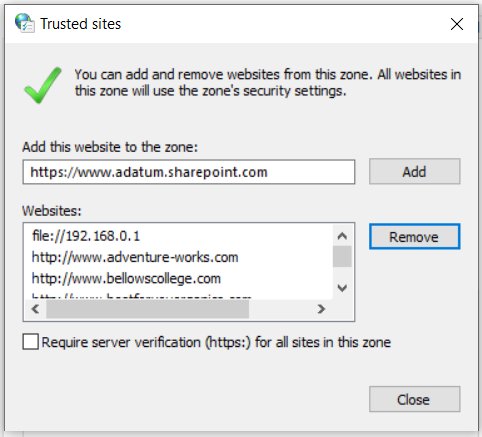
- Press Windows, type Internet Options and open it.
- On the Security tab select Trusted Sites, then Sites.
- Type the server or site address and select Add.
- For http:// addresses or shares, clear Require server verification (https:) for all sites in this zone.
- Select Close, then OK, and reopen the file.
Share opened by IP address blocks macros
An IP path is not in Local intranet or Trusted sites.
- Add the IP address or FQDN to Trusted Sites as above.
- Or open the share through a name already in the Local intranet zone.
Excel or PowerPoint add-in loads disabled
The .xlam or .ppam file still has Mark of the Web.
- Close the app.
- Unblock the add-in file in Properties.
- Reopen the app and load the add-in again.
Check whether a file still has Mark of the Web
- Open Command Prompt in the file's folder.
- Type
notepad report.xlsm:Zone.Identifier, using your file name, and press Enter. - Read the ZoneId line under [ZoneTransfer]: 3 means Internet and macros stay blocked.
- If Notepad reports the stream is missing, the mark is gone and macros follow Trust Center settings.
Office macro security warning FAQ
Why is there no Enable Content button on the red banner?
The red Security Risk banner means the file has Mark of the Web from the internet, and Office blocks its macros by default. Remove the mark with Properties > Unblock or Unblock-File, then reopen the file to get the normal prompt.
Does Enable all macros in Trust Center unblock internet files?
No. Trust Center macro settings are checked after the Mark of the Web block, so internet files stay blocked. Unblock the file, use a Trusted Location or trust the signing publisher instead.
Do macro settings apply to every Office app?
No. A Trust Center macro setting changes only the app you set it in. Set Word, Excel, PowerPoint and Access separately if you need the same behaviour in each.
Are macros blocked in Office for Mac?
The default block on macros from the internet does not apply to Office for Mac, Office on Android or iOS, or Office on the web. It affects Office on Windows only.
How do I stop trusting a document I enabled?
Clear all trusted documents in the app's Trust Center. Office keeps a file trusted after you select Enable Content and Yes, so clearing the list is the only way to revoke that trust.
Is it safe to add a Trusted Location?
It is safe only for a folder you control. Every macro in a Trusted Location runs without a warning, so use a dedicated subfolder and never a whole drive or the Documents folder.
The practical rulebook is shorter than the menus make it look
Leave Trust Center on Disable all macros with notification, unblock only files you expected, and use one Trusted Location or a trusted publisher for macros you run every week. That keeps the internet block working for everything else while removing the friction for the few files you actually need.