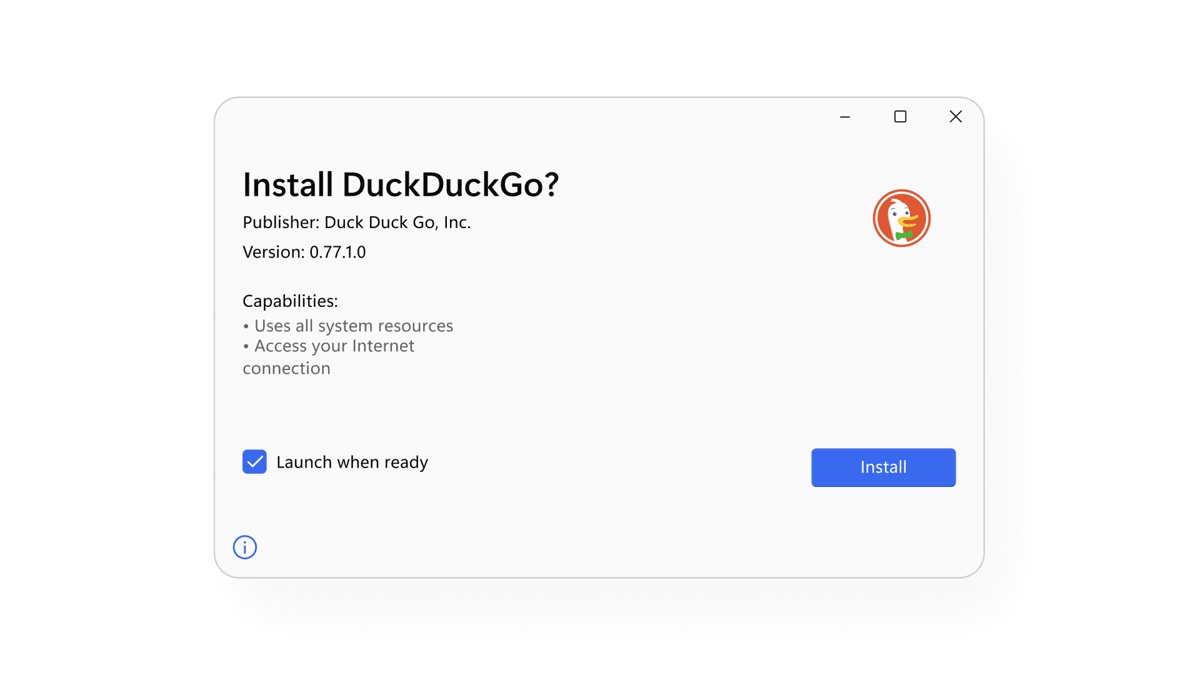
To install DuckDuckGo browser on Windows 11, download it from duckduckgo.com/windows or the Microsoft Store, open the installer, select Install, and then open the browser.
This guide covers the system requirements, first-time setup, making it the default browser, the Fire Button, Email Protection, Duck Player, Sync & Backup, passwords, install errors and uninstalling.
How to install DuckDuckGo browser on Windows 11
The browser is free, and no account or sign-in is needed to install or use it.
- Open your current browser and go to duckduckgo.com/windows.
- Wait for the download to start, or select Try downloading again if it does not.
- Open the installer from your Downloads folder.
- Select Install.
- Open the browser when installation finishes, or launch DuckDuckGo from the Start menu later.
- Right-click the DuckDuckGo icon on the taskbar and select Pin to taskbar to keep it there.
If you would rather keep a desktop shortcut too, you can add the DuckDuckGo icon to the desktop after installing.
What is DuckDuckGo browser for Windows?
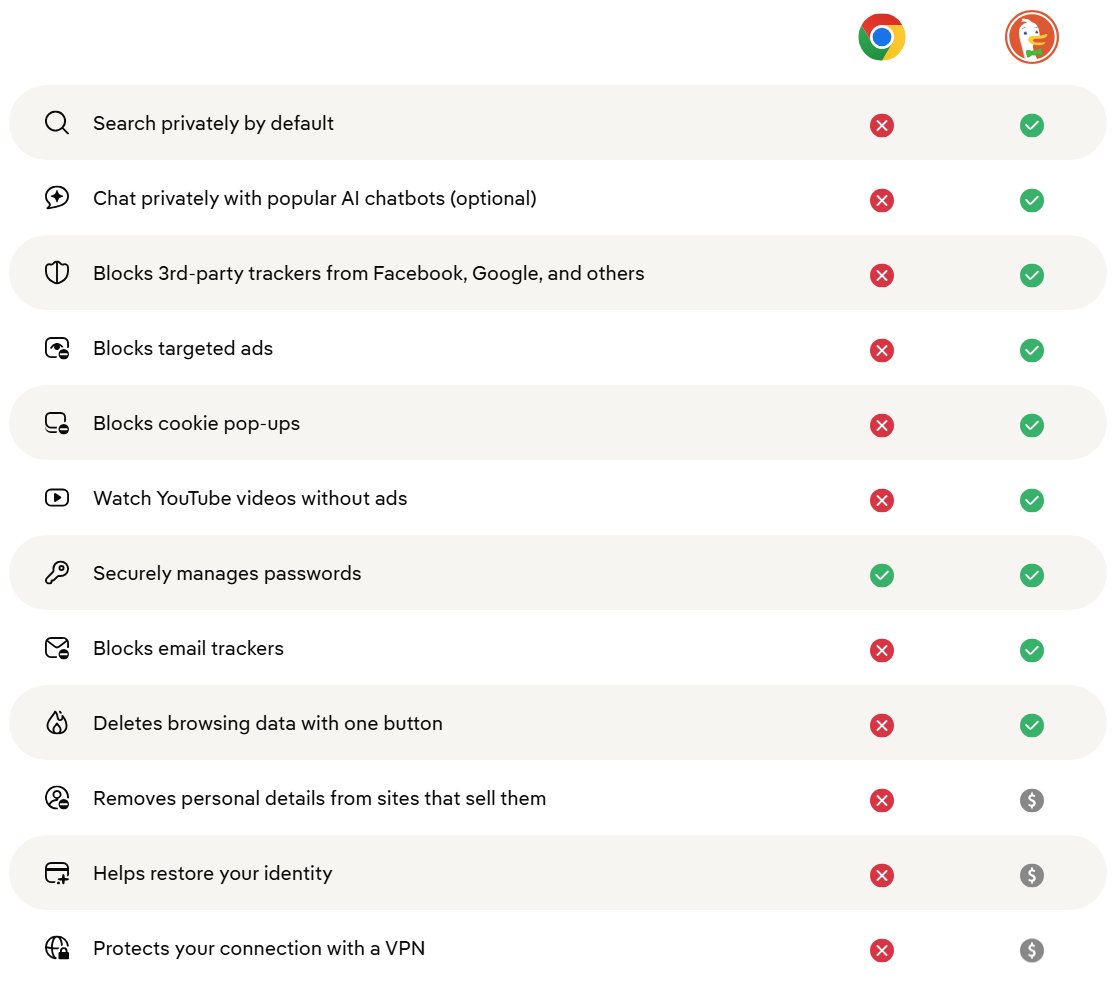
| Feature | What it does on Windows 11 |
|---|---|
| Private search by default | Searches go to DuckDuckGo Search, which does not track your search history. |
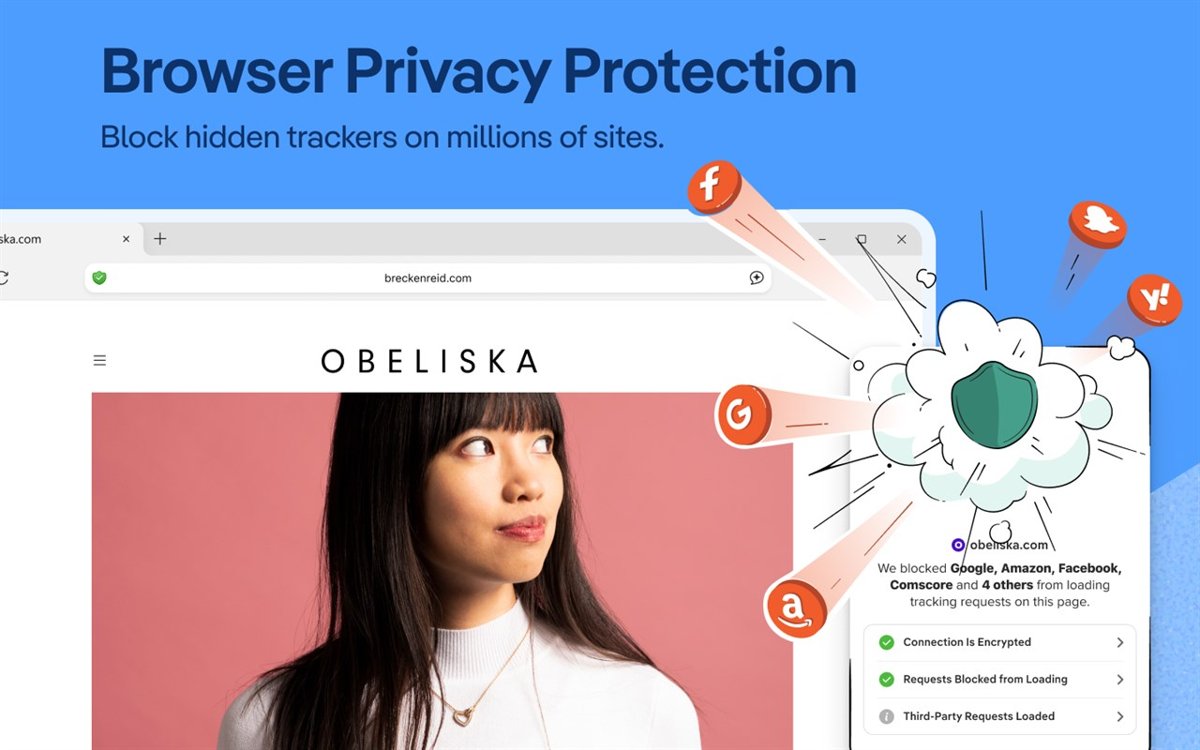
| Tracker blocking | Blocks third-party trackers from companies such as Google and Facebook as pages load. |
| Cookie pop-up protection | Sets cookie preferences for privacy and closes the pop-up on sites in its list. |
| Fire Button and Fire Windows | Deletes tabs, history and site data in one click, or opens an isolated window that burns its data on close. |
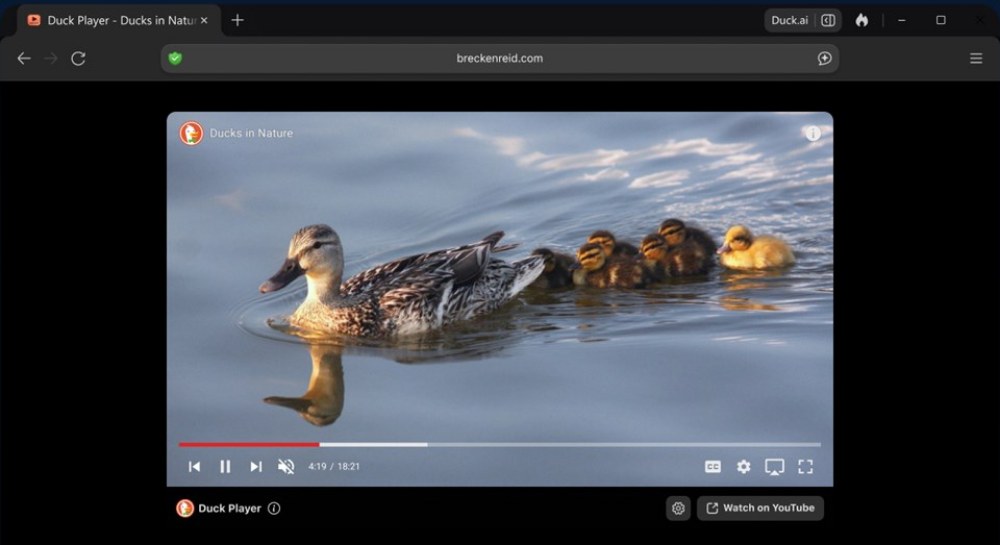
| Duck Player | Plays YouTube videos without personalized ads and without affecting your recommendations. |
| Email Protection | A free forwarding service that strips email trackers and creates private Duck Addresses. |
| Password manager and Sync & Backup | Saves, fills and generates passwords, and syncs them end-to-end encrypted without an account. |
| Duck.ai | Optional private AI chat that can be turned off at any time. |
The browser is also available for Mac, iPhone, iPad and Android, and Sync & Backup links them.
Before you install: system requirements and what to know
| Requirement | Detail |
|---|---|
| Windows version | Windows 10 (May 2020) or later, so every Windows 11 release qualifies. |
| Architecture | x64. Versions after 0.170.0 no longer support x86, and an x86 install stops receiving updates. |
| Install source | duckduckgo.com/windows or the Microsoft Store. |
| Account | Not required for browsing, the password manager or Sync & Backup. |
| Cost | Free. The VPN and other subscription features are paid extras. |
| Local data | Bookmarks and passwords live on the PC and are deleted on uninstall unless Sync & Backup is on. |
Update Windows before you install. An outdated build is the usual cause of the "not compatible with the device" error.
How to download DuckDuckGo browser on Windows 11
DuckDuckGo offers two official sources. The website download and the Microsoft Store listing install the same browser.
- Website: open duckduckgo.com/windows in Edge or another browser and let the download start.
- Microsoft Store: open Microsoft Store from the Start menu.
- Search for DuckDuckGo and select the listing published by DuckDuckGo.
- Select Get or Install and wait for the download to finish.
- Select Open to launch the browser.
Download the browser only from duckduckgo.com or the Microsoft Store. The DuckDuckGo browser download page lists the current version and file details.
First-time setup: what to choose
| Choice | Pick this if | Where to change it later |
|---|---|---|
| Import passwords | You keep passwords in Chrome, Edge or another password manager | ☰ menu > Settings > Passwords & Autofill > Import Passwords… |
| Make it the default browser | You want links from mail and other apps to open in DuckDuckGo | Windows Settings > Apps > Default apps |
| Turn on Sync & Backup | You use DuckDuckGo on a phone or a second PC | ☰ menu > Settings > Sync & Backup |
| Duck Player | You watch YouTube and do not want views shaping recommendations | ☰ menu > Settings > Ad Blocking |
| Sign in | Never required; the browser has no account system | Not applicable |
How to make DuckDuckGo browser the default on Windows 11
- Close DuckDuckGo if a prompt is open.
- Open Start > Settings > Apps > Default apps.
- Under Set defaults for applications, select DuckDuckGo.
- Next to the line that makes DuckDuckGo your default browser, select Set default.
- Open a link from Mail or another app to confirm it opens in DuckDuckGo.
If you open Windows 11 Settings from the browser's own prompt, you land on the same Default apps page, where you can change the default browser again later.
How to use DuckDuckGo browser
- Type a search or a web address into the address bar and press Enter; searches go to DuckDuckGo Search.
- Open the ☰ menu to reach Settings, Passwords & Autofill, New Fire Window and Delete Browsing Data.
- Right-click a link and select Open in New Fire Window to visit it in an isolated session.
- Select the green shield in the address bar to see the protections applied to the current site.
- Use the Fire Button whenever you want to clear what the session left behind.
Understanding the privacy grade
DuckDuckGo's current Windows browser documentation describes per-site protections rather than a letter grade. The green shield in the address bar is where those protections show for each site.
| Protection | What it means | What it does not mean |
|---|---|---|
| Third-party tracker loading protection | Known trackers from other companies are blocked before they load. | Not every tracker on every site is caught. |
| Smarter Encryption | Links are upgraded to HTTPS where the site supports it. | It does not make an unsafe site trustworthy. |
| Cookie pop-up protection | Consent banners on listed sites are answered for privacy and closed. | Sites outside the list may still show banners. |
| Global Privacy Control | Sites receive a signal asking them not to sell or share your data. | Whether a site must honor it depends on local law. |
Use the Fire Button to clear browsing data
- Select the Fire Button in the DuckDuckGo toolbar.
- Choose to clear the current tab only, or everywhere in the browser.
- Choose whether to keep history or cookies you do not want to lose.
- Confirm to burn the data.
- To keep a site signed in, fireproof it and manage the list under Fireproof Sites in Settings.
The Fire Button deletes cookies, site caches, open tabs, history and site permissions. It never deletes bookmarks, downloaded files, or first-party cookies of fireproofed sites.
Use DuckDuckGo Email Protection on Windows 11
Email Protection forwards mail to your existing Gmail, Outlook or other inbox after removing hidden trackers. It is free.
- Open duckduckgo.com/email in the DuckDuckGo browser.
- Follow the sign-up prompts to create your personal Duck Address and name the inbox it forwards to.
- On another desktop browser, sign in at duckduckgo.com/email/login to turn on autofill there.
- Pick your Duck Address or generate a new private one when a sign-up form asks for an email.
Use Duck Player for YouTube videos
- Select the ☰ menu.
- Select Settings.
- Select Ad Blocking.
- Choose to always open YouTube videos in Duck Player, never use it, or make it optional.
- Open a YouTube video to watch it in Duck Player's theater view.
YouTube can still log views in Duck Player, so it is not fully anonymous, but those views do not shape your recommendations or ad profile.
Sync bookmarks and passwords
- Install DuckDuckGo on both devices and open it on each.
- Go to Settings > Sync & Backup on the Windows PC.
- Select Sync With Another Device.
- Scan the QR code with the phone, or select View Code and enter it on the other device with Enter Code.
- With only one device, select Sync and Back Up This Device instead.
- Save the Recovery Code somewhere safe, such as a password manager.
Sync & Backup needs no email address, costs nothing, and is end-to-end encrypted, so DuckDuckGo cannot read the synced data.
Manage passwords in DuckDuckGo browser
- Select the ☰ menu > Passwords & Autofill.
- Authenticate with Windows Hello or your PIN if asked.
- Select a saved login to view, edit or delete it.
- To bring in passwords from another browser, go to Settings > Passwords & Autofill > Import Passwords… and follow the steps.
- For a third-party password manager, export a .CSV file from it first, then import that file.
The same page stores credit cards and identities such as names and addresses for autofill, all saved on the PC.
Adjust privacy and browser settings
| Setting | Where | What it changes |
|---|---|---|
| Fireproof Sites | Settings | Keeps sign-in cookies for chosen sites when you use the Fire Button. |
| Clear tabs and data on restart | Settings | Burns browsing data automatically each time the browser restarts. |
| Ad Blocking and Duck Player | Settings > Ad Blocking | Controls how YouTube videos open. |
| Sync & Backup and Restore on App Reinstall | Settings > Sync & Backup | Turns syncing on or off and controls restoring data after a reinstall. |
| Passwords & Autofill | Settings > Passwords & Autofill | Saved logins, cards, identities and password import. |
| VPN | Settings > VPN | Sets up the VPN once a paid DuckDuckGo subscription is active. |
Troubleshooting common problems
"This package is not compatible with the device"
Windows is older than the Windows 10 May 2020 update or is not fully updated.
- Open Settings > Windows Update and install every update.
- Restart the PC.
- Run the DuckDuckGo installer again.
"Error parsing application package"
The standard installer could not be read on this PC.
- Open DuckDuckGo's Windows help page and download the MSIXbundle installation file it links.
- Open the DuckDuckGo MSIXbundle from Downloads.
- Select Install.
"x86 Support is Ending" message
The PC runs 32-bit (x86) Windows, which stops receiving browser updates after version 0.170.0.
- Keep using the browser if you must, knowing it will not update.
- Install the x64 edition of Windows 10 or upgrade to Windows 11 to keep getting updates.
Bookmarks or passwords gone after reinstalling
They are stored locally and deleted with the app unless Sync & Backup was on.
- Accept the offer to restore synced data after reinstalling, if Sync & Backup was enabled.
- Or go to Settings > Sync & Backup > Recover Synced Data and scan or type your Recovery Code.
Signed out of sites after using the Fire Button
The Fire Button deleted those sites' cookies.
- Sign in to the site again.
- Fireproof the site so its first-party cookies survive the next burn.
DuckDuckGo browser crashes or will not open
The app files or its settings are damaged.
- Open Start > Settings > Apps > Installed apps.
- Select the More icon next to DuckDuckGo, then Advanced options if it is offered.
- Select Repair, and if that does not help, Reset.
How to uninstall DuckDuckGo browser
Turn on Sync & Backup or save your passwords elsewhere first, because uninstalling deletes local bookmarks and passwords.
- Open Start > Settings > Apps > Installed apps.
- Find DuckDuckGo in the list.
- Select the More icon next to it, then select Uninstall.
- Confirm with Uninstall.
- Or open Start > All apps, right-click DuckDuckGo, and select Uninstall.
Synced data stays on DuckDuckGo's servers, encrypted, for 18 months after the last device used it, then it is deleted.
DuckDuckGo browser for Windows FAQ
Is DuckDuckGo browser a VPN?
No. Tracker blocking is a browser protection, not a VPN connection. DuckDuckGo sells a separate VPN as part of its paid subscription, set up from Settings > VPN in the browser.
Can DuckDuckGo browser replace Chrome or Edge?
Yes, for everyday browsing. It searches, saves bookmarks and passwords, imports passwords from other browsers, and can be set as the Windows 11 default browser. Its tracker and cookie pop-up blocking are on without any setup.
Is DuckDuckGo browser free on Windows 11?
Yes. The browser, Email Protection, Duck Player, the password manager and Sync & Backup are free. Only subscription features such as the VPN cost money.
Does DuckDuckGo browser work on Windows 10?
Yes. DuckDuckGo for Windows needs Windows 10 (May 2020) or later. On 32-bit (x86) Windows 10, versions after 0.170.0 stop updating, so use the x64 edition.
Do I need an account to use DuckDuckGo browser?
No. Browsing, the password manager and Sync & Backup work without an account or email address. Email Protection asks for a forwarding address only because it forwards mail to your inbox.
Does the Fire Button delete bookmarks?
No. The Fire Button removes cookies, caches, history, open tabs and site permissions, but it keeps bookmarks, downloaded files, and first-party cookies for fireproofed sites.
Where does DuckDuckGo store my passwords on Windows?
Passwords are encrypted and stored locally on the PC, and you open them from the ☰ menu > Passwords & Autofill. They sync to other devices only if you turn on Sync & Backup.