To dual boot Linux Mint and Windows 11 or Windows 10, install Windows first, shrink its partition to free space, then install Linux Mint from a USB drive into that space and choose either system from the boot menu at startup.
This guide covers the requirements, preparing Windows, the Linux Mint 22.3 installer, choosing an OS at boot, removing one system later, and fixes for the boot problems beginners hit most.
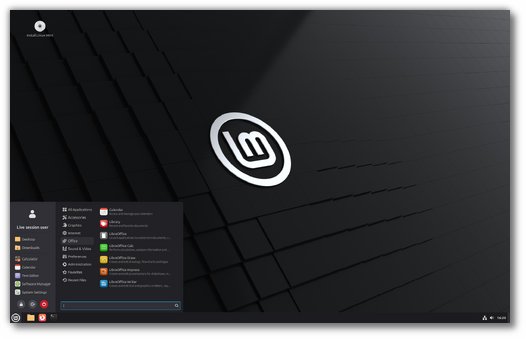
How to dual boot Linux Mint and Windows 11 or Windows 10
These eight steps are the whole job on a PC that already runs Windows. Each one is expanded in the sections below.
- Back up your files and save your BitLocker recovery key if the Windows drive is encrypted.
- Right-click Start, select Disk Management, right-click the C: volume and select Shrink Volume to free at least 20 GB.
- Download the Linux Mint 22.3 ISO from linuxmint.com and check its SHA256 checksum.
- Write the ISO to a USB flash drive with Etcher, the tool Linux Mint's guide names for Windows.
- Restart from the USB drive, highlight Start Linux Mint in its boot menu and press Enter.
- Double-click Install Linux Mint on the live desktop.
- At the installation type step, select the option to install Linux Mint alongside Windows, then finish the installer.
- Select Restart Now, remove the USB drive when asked, and pick Linux Mint or Windows from the boot menu.
Understanding dual boot
Dual boot means two operating systems sit on separate partitions of the same PC, and you choose one each time it starts. Only one runs at a time, so each gets the full processor and memory.
Five pieces make a Linux Mint and Windows dual boot work.
| Part | What it does | Where it lives |
|---|---|---|
| UEFI firmware | Starts the PC and runs the first boot entry in its boot order | Motherboard chip, opened from UEFI Firmware Settings |
| EFI system partition | Holds the boot loaders for both Windows and Linux Mint | A small FAT32 partition Windows creates during setup |
| Windows Boot Manager | Loads Windows from its NTFS partition | EFI system partition |
| GRUB | Linux Mint's boot menu, which lists Linux Mint and the Windows installation it found | EFI system partition; Linux Mint's firmware boot entry is named ubuntu |
| os-prober | Finds Windows so GRUB can add it to the menu; Linux Mint keeps it on by default | Inside Linux Mint |
Which Linux Mint installation type to choose for dual boot
When the Linux Mint installer finds another operating system, it offers to install Linux Mint alongside it, next to Erase disk and install Linux Mint and Something else. Only two of these keep Windows.
| Your situation | Installation type | Result |
|---|---|---|
| First dual boot, one disk, Windows already installed | The option to install Linux Mint alongside Windows | The installer makes room beside Windows, installs Linux Mint there and sets up a boot menu for both |
| You want exact partition sizes or a second disk for Linux Mint | Something else | You create the partitions yourself: one ext4 partition mounted on / (100 GB or more) and a swap partition the size of your RAM |
| You no longer want Windows at all | Erase disk and install Linux Mint | Deletes Windows and every file on the disk; not a dual boot |
| Two drives, Windows on one | Something else, targeting the empty drive | Each system keeps its own disk |
Prerequisites for dual booting Linux Mint and Windows
Linux Mint lists its own minimum and recommended hardware, and Windows 11 has stricter rules of its own. Plan the disk space for both systems before you shrink anything.
| Requirement | Minimum | Notes |
|---|---|---|
| Linux Mint RAM | 2 GB | 4 GB recommended for comfortable use |
| Linux Mint disk space | 20 GB | 100 GB recommended; the system alone takes roughly 15 GB and grows with software |
| Linux Mint display | 1024 × 768 | On smaller screens, hold Alt and drag windows that do not fit |
| Windows 11 storage | 64 GB | Leave Windows room for updates after you shrink it |
| Windows 11 firmware and security | UEFI, Secure Boot capable, TPM 2.0 | Same rules apply when you reinstall Windows 11 |
| USB flash drive | Larger than the 2.9 GB Linux Mint 22.3 Cinnamon ISO | Writing the ISO erases the drive |
| Windows installation media (only for a fresh Windows install) | Blank USB drive of 8 GB or more | Made with Microsoft's Media Creation Tool |
| BitLocker recovery key | 48-digit key, saved somewhere off the PC | Firmware and boot changes can trigger a recovery prompt |
| Backup | Copy of every file you cannot lose | Partition changes are where mistakes cost data |
Windows 10 support ended on October 14, 2025, so Microsoft no longer ships security fixes for it. A Windows 10 PC dual boots the same way, but Windows 11 is the safer Windows half.
Installing Windows
Install Windows first when the PC is empty or you are rebuilding it. Linux Mint's guide explains why: Windows does not detect other operating systems, and installing it overwrites the boot sequence so the PC boots straight into Windows.
Skip this section if Windows 11 or Windows 10 already runs on the PC.
- On a working PC, open Microsoft's Download Windows 11 page and, under Create Windows 11 Installation Media, select Download Now.
- Run MediaCreationTool.exe and write Windows 11 to a blank USB drive of at least 8 GB.
- Start the target PC from the USB drive using the manufacturer's boot menu or boot order setting.
- Choose your language and keyboard, then select Install Windows 11.
- Enter a product key, or select I don't have a product key if the PC already has a digital license.
- Accept the license terms, select the unallocated space on Disk 0, and select Next.
- Finish the setup screens and sign in with your Microsoft account so the digital license applies.
- Open Windows, install pending updates, and confirm Wi-Fi, sound and display all work before adding Linux Mint.
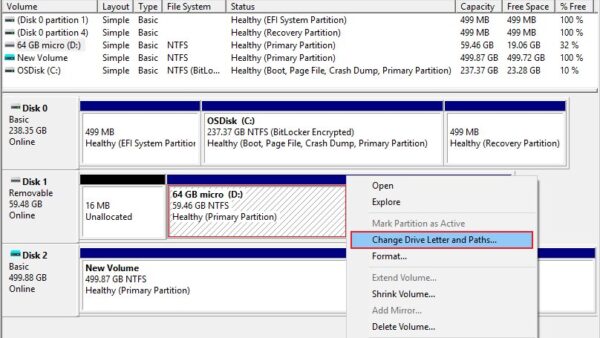
Shrink the Windows partition for Linux Mint in Disk Management
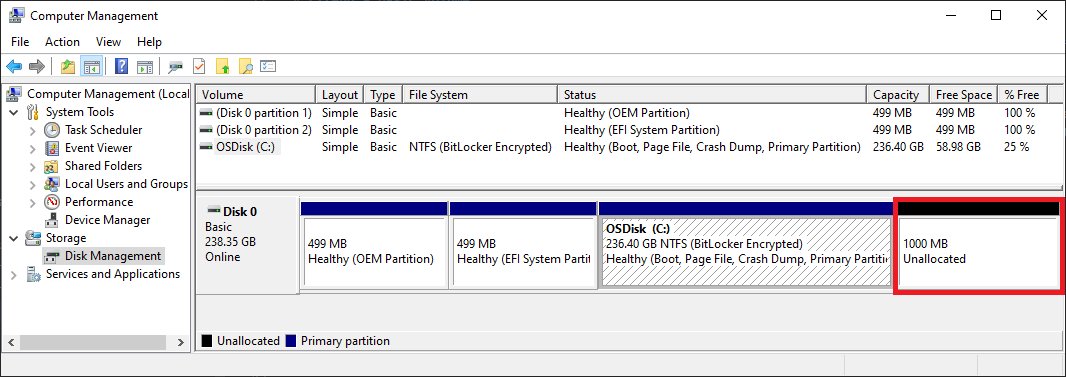
Linux Mint needs unallocated space on the disk, which you free up once you open Disk Management. Shrinking C: moves ordinary files out of the way, so you do not need to reformat Windows.
- Right-click Start and select Disk Management.
- Right-click the C: volume and select Shrink Volume.
- Enter the amount of space to shrink in megabytes, for example 102400 for 100 GB, and select Shrink.
- Confirm a black bar labelled Unallocated now appears next to C:.
- Leave the unallocated space empty; do not create a new volume in it.
- Open Control Panel > System and Security, select Choose what the power buttons do, then Change settings that are currently unavailable, and clear fast startup in Shutdown settings.
- Shut Windows down fully before you boot the USB drive (see the command below).
Shrink stops at unmovable files such as the page file or shadow copy storage. If it offers less space than you need, see the troubleshooting section.
The Linux Mint installer can also resize Windows itself when you pick the alongside option. Shrinking in Disk Management first lets Windows move its own files and shows you exactly how much space Linux Mint gets.
Shrink C: with DiskPart and shut Windows down fully
DiskPart does the same shrink from an administrator Command Prompt. The final command turns the PC off without fast startup, so Linux Mint sees a cleanly closed Windows partition.
diskpart
list volume
select volume C
shrink desired=102400
exit
shutdown /s /t 0
list volume shows every volume, select volume C gives C: focus, and shrink desired=102400 frees 100 GB (the value is in megabytes). shutdown /s /t 0 performs a full shutdown, because Shutdown.exe skips hybrid shutdown by default.
You should see: DiskPart reports that it successfully shrunk the volume, and Disk Management then shows the freed space as Unallocated.
Create a Linux Mint bootable USB on Windows
Linux Mint 22.3 "Zena" is the current release, with Cinnamon, Xfce and MATE editions. Cinnamon is the most popular one and the best first choice.
- Open the Linux Mint download page and choose the Cinnamon Edition.
- Download the ISO from a mirror near you, then right-click the sha256sum.txt and sha256sum.txt.gpg links and save the files themselves; do not copy their text.
- Open PowerShell and run
Get-FileHashon the ISO, for exampleGet-FileHash $HOME\Downloads\linuxmint-22.3-cinnamon-64bit.iso. - Compare the SHA256 value with the matching line in sha256sum.txt; if they differ, download the ISO again.
- Insert the USB drive and open the free balenaEtcher app, the tool Linux Mint's guide names for Windows.
- Click Select image and choose the Linux Mint ISO.
- Click Select drive and choose your USB stick.
- Click Flash! and wait for Etcher to finish, then eject the drive.
The Linux Mint download for PC page lists the editions and file sizes side by side. If 22.3 does not boot on your hardware, Linux Mint also publishes an HWE ISO.
Installing Linux Mint
The installer runs from the live session, so you can test Wi-Fi, sound and the touchpad before changing the disk. The live session is slower than an installed system, and changes made in it are not kept. Its username is mint; if asked for a password, press Enter.
- Insert the USB drive and restart the PC. Press the boot device key shown on the startup screen (often Esc, F2, F8, F10, F11, F12 or Delete) and choose the USB drive, or open Settings > System > Recovery and select Restart now next to Advanced startup.
- Highlight Start Linux Mint in the USB boot menu and press Enter.
- Double-click Install Linux Mint on the desktop and select your language.
- Connect to the Internet, then tick the box to install the multimedia codecs.
- At the installation type step, select the option to install Linux Mint alongside Windows. Do not choose Erase disk and install Linux Mint.
- Select your time zone and your keyboard layout when the installer asks for them.
- Enter your name, computer name, username and password, using lowercase letters with no punctuation for the username. Tick Encrypt my home folder if you want to protect your files.
- When the installation finishes, click Restart Now and remove the USB drive when asked.
Linux Mint's guide advises beginners to use home folder encryption rather than the full-disk encryption option, which has issues with some NVIDIA drivers.
Booting into your dual-boot system
After the restart, the PC either shows a boot menu or starts the new Linux Mint directly. If it skips the menu, turn it on as shown in the next section.
- Start the PC and wait for the GRUB boot menu, which lists Linux Mint and the Windows installation it found.
- Use the arrow keys to highlight the Windows entry and press Enter.
- Confirm Windows reaches the sign-in screen without a BitLocker recovery prompt.
- In Windows, open Disk Management and check the freed space now holds a Linux partition instead of Unallocated.
- Restart, let GRUB start Linux Mint, and sign in with the account you created.
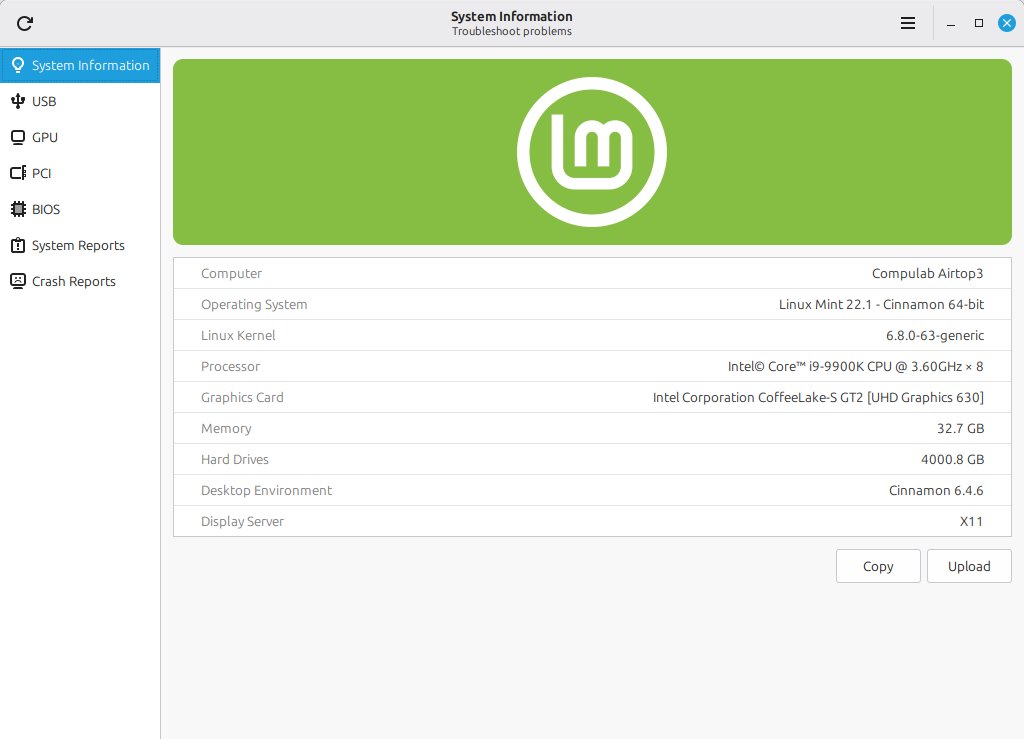
- Open System Information in Linux Mint 22.3 and check its BIOS page for the boot mode and Secure Boot state.
Change the GRUB boot menu and timeout in Linux Mint
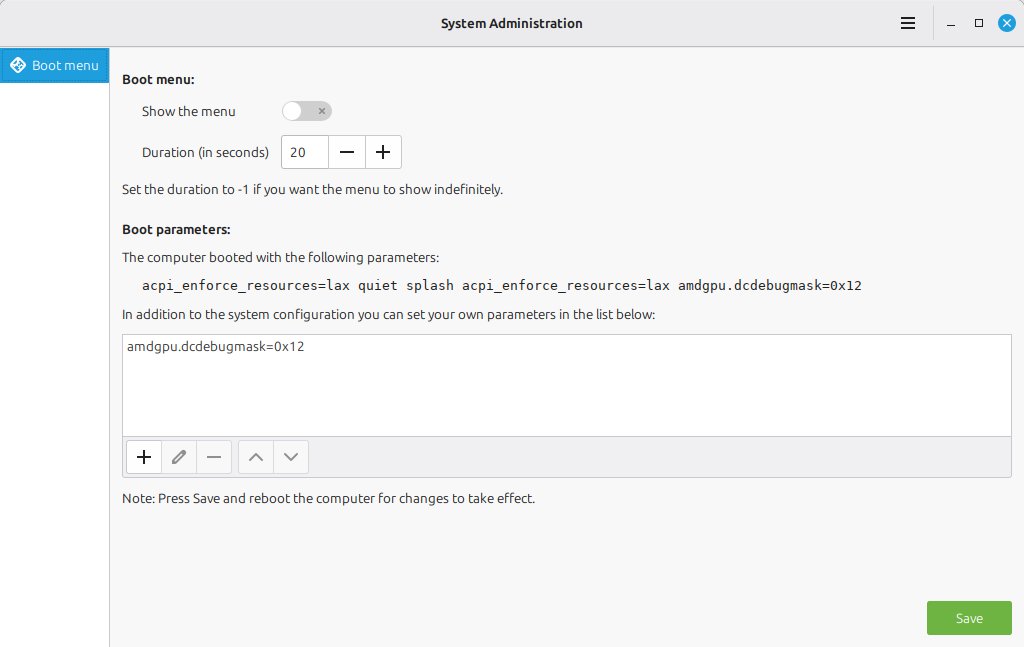
Linux Mint 22.3 adds a System Administration tool with a Boot menu page. It runs with administrator rights and edits the GRUB menu without a terminal.
- Open the Linux Mint menu and start System Administration.
- Enter your password when asked.
- Select the Boot menu page.
- Turn on showing the boot menu if the PC skips straight into Linux Mint.
- Set how long the menu stays visible before it boots the default entry.
- Add boot parameters in the second section only when a hardware or driver fix needs one.
To make Windows start first without GRUB, move Windows Boot Manager to the top of the boot order in UEFI Firmware Settings.
Exploring Linux Mint
A few built-in tools cover the first hour after installation. All of them ship with Linux Mint 22.3.
| Tool | What to do with it first |
|---|---|
| Update Manager | Install pending updates; its tray icon warns when a restart is recommended |
| Driver Manager | Install the proprietary NVIDIA driver, which Linux Mint does not install by default |
| Timeshift | Create a system snapshot before you start changing settings |
| System Information | Check USB, GPU, PCI and BIOS details when hardware misbehaves |
| Disks | Repair an NTFS volume that refuses to mount |
| Warpinator | Send files and text to another PC on the same network |
| Nemo file manager | Open your Windows partition to reach documents stored there |
Troubleshooting common Linux Mint dual boot issues
GRUB not showing Windows option
Windows was not detected, or the PC is booting the menu with a timeout of zero.
- Open System Administration > Boot menu in Linux Mint and turn on showing the boot menu.
- Restart and check whether a Windows entry now appears.
- If it does not, open your firmware's boot menu and start Windows Boot Manager directly.
- Confirm Windows was fully shut down, not hibernated, then reboot into Linux Mint and check again.
PC boots straight into Windows after installing Linux Mint
Windows Boot Manager sits above the Linux Mint entry in the firmware boot order. Linux Mint's EFI boot entry is named ubuntu, not Linux Mint.
- Open Settings > System > Recovery and select Restart now next to Advanced startup.
- Select Troubleshoot > Advanced options > UEFI Firmware Settings, then Restart.
- Move the ubuntu boot entry above Windows Boot Manager in the boot order, then save the firmware settings and restart.
- If the firmware has no boot order setting, boot the Linux Mint USB, open a terminal and run
sudo efibootmgrto list the boot entries and their numbers. - Run
sudo efibootmgr --bootorder XXXX,YYYY, with the ubuntu entry's number first and the Windows Boot Manager number second, then restart.
Linux Mint USB freezes or shows a black screen at boot
Some graphics cards and motherboards do not work well with the open-source drivers Linux Mint uses by default.
- Restart and select the compatibility mode entry in the USB boot menu.
- If that fails, highlight Start Linux Mint, press e, replace
quiet splashwithnomodeset, and press F10 to boot. - Install Linux Mint from that session.
- After installation, open Menu > Administration > Driver Manager, tick the driver you need, such as the NVIDIA driver, click Apply Changes and restart.
- If 22.3 still fails, try the HWE ISO or Linux Mint 22.1, which ships the LTS 6.8 kernel.
Windows asks for a BitLocker recovery key after installing Linux Mint
BitLocker treats firmware and boot changes as a possible attack.
- Note the first 8 digits of the recovery key ID on the screen.
- On another device, open aka.ms/myrecoverykey and sign in with the Microsoft account used on the PC.
- Find the key with the matching ID and type the 48 digits.
- For work or school PCs, use aka.ms/aadrecoverykey or ask IT for the key.
Linux Mint cannot open the Windows partition
Windows left the NTFS volume in use through fast startup or hibernation, or marked it dirty.
- Boot Windows and shut it down with
shutdown /s /t 0. - Boot Linux Mint and try the partition again.
- If the log shows 'volume is dirty', open Disks, select the NTFS partition, open the cog menu, and choose Repair Filesystem….
Shrink Volume offers far less space than the free space on C:
The page file or shadow copy storage sits near the end of the volume and cannot be moved.
- Open Event Viewer and look for event ID 259 in the Application log to name the blocking file.
- Move the paging file to another disk temporarily through Control Panel, or delete stored shadow copies.
- Shrink the volume again.
- Move the paging file back to C: afterwards.
What to do if you want to remove Linux Mint or Windows
Removing Linux Mint takes two jobs: make Windows Boot Manager the first boot entry, then give the space back to C:. Removing Windows instead means reinstalling Linux Mint with Erase disk and install Linux Mint after backing up.
- Open UEFI Firmware Settings from Advanced startup and move Windows Boot Manager to the top of the boot order.
- Boot Windows and copy any files you need from the Linux Mint partition first.
- Open Command Prompt as administrator and run
diskpart, thenlist diskandselect disk 0. - Run
list partition, identify the Linux Mint partition by its size, andselect partitionwith its number. - Run
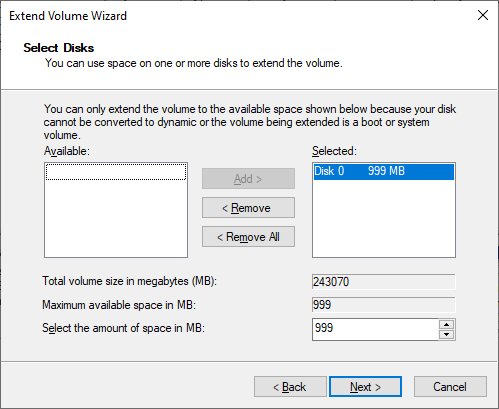
delete partition override, because DiskPart only deletes known data partitions without it. - Open Disk Management, right-click C:, select Extend Volume, and accept Maximum available.
Extend Volume only works when the unallocated space sits directly after C:. Never delete the EFI system partition, which Windows also needs to start.
Dual boot performance considerations
| Concern | What actually happens |
|---|---|
| Speed of each system | Only one OS runs at a time, so neither shares CPU or memory with the other |
| Disk space | Both systems split one disk; a 64 GB Windows 11 minimum plus a 20 GB Linux Mint minimum leaves little room for files |
| Switching | Changing system needs a full restart; fast startup and hibernation leave the Windows partition locked to Linux Mint |
| Encryption | BitLocker may ask for the recovery key after firmware or boot changes |
| Kernel compatibility | Linux Mint 22.3 ships kernel 6.14, which has problems with VirtualBox and old NVIDIA cards on the 470 driver |
| Support length | Linux Mint 22.3 receives security updates until 2029; Windows 10 lost free security updates on October 14, 2025 |
Linux Mint and Windows dual boot FAQ
How do I dual boot Linux Mint and Windows 11?
Shrink the C: volume in Disk Management, write the Linux Mint 22.3 ISO to a USB drive, boot from it, and choose the option to install Linux Mint alongside Windows. After the restart, the GRUB menu lets you pick Linux Mint or Windows 11 at every boot.
How do I dual boot Linux Mint and Windows 10?
The steps match Windows 11: free space with Shrink Volume, boot the Linux Mint USB, and install Linux Mint alongside Windows. Windows 10 support ended on October 14, 2025, so it no longer receives free security updates from Microsoft.
How do I install Linux Mint as a dual boot?
Boot the Linux Mint USB, double-click Install Linux Mint, and at Installation type select the alongside Windows option. Avoid Erase disk and install Linux Mint, which deletes Windows and every file on the disk.
Should I install Windows or Linux Mint first?
Install Windows first. Linux Mint detects other operating systems and builds a boot menu, while Windows does not; installing Windows second overwrites the boot sequence so the PC boots straight into Windows.
How much disk space does Linux Mint need for dual boot?
Linux Mint needs 20 GB at minimum and recommends 100 GB. Windows 11 needs at least 64 GB of its own, so shrink C: only as far as Windows can still hold updates and your files.
Does dual booting Linux Mint slow down Windows?
No. Only one operating system runs at a time, so Windows keeps the full processor and memory. The cost is disk space shared between the two systems and a restart each time you switch.
Will dual booting Linux Mint trigger BitLocker?
It can. BitLocker may ask for the 48-digit recovery key after firmware or boot changes. Save the key from your Microsoft account at aka.ms/myrecoverykey before installing Linux Mint.
Can I remove Linux Mint later and keep Windows?
Yes. Move Windows Boot Manager to the top of the firmware boot order, delete the Linux Mint partition with DiskPart, then extend C: into the freed space with Extend Volume in Disk Management.
Conclusion: should you dual boot Linux Mint and Windows?
Dual boot Linux Mint 22.3 alongside Windows 11 when you want to try Linux on real hardware without giving up Windows apps or games. The alongside option keeps Windows intact, GRUB lets you switch at every restart, and Linux Mint 22.3 is supported until 2029. Back up first and keep your BitLocker key at hand, because partition and boot changes are the only risky part.
Readers who want two Windows releases rather than Linux can dual boot Windows 11 26H2 and 25H2 on one PC instead.

![Microsoft refund : Store & Xbox A-Z refund guide [2026]](https://techdows.com/wp-content/uploads/2026/10/Xbox-Support-Request-a-refund-for-digital-games-page-with-Sign-In-button-600x338.jpg)