A Snapseed download takes under a minute on an iPhone, iPad or Android phone. Get Snapseed free from the App Store or Google Play, open it, and tap any photo in your library to start editing.
Snapseed is Google’s photo editor, with 30+ tools, film filters, one-tap masking, batch editing and RAW support. It carries no ads, subscriptions or watermarks.
Below are the official links, install steps for each phone, what to use on a Windows 11, Windows 10 or Mac computer, and fixes for the common install and export problems.
Which Snapseed download do you need?
Match your device to a row. Phones and tablets install Snapseed itself, and computers use Google’s browser editor.
| Your device | What to install | Size |
|---|---|---|
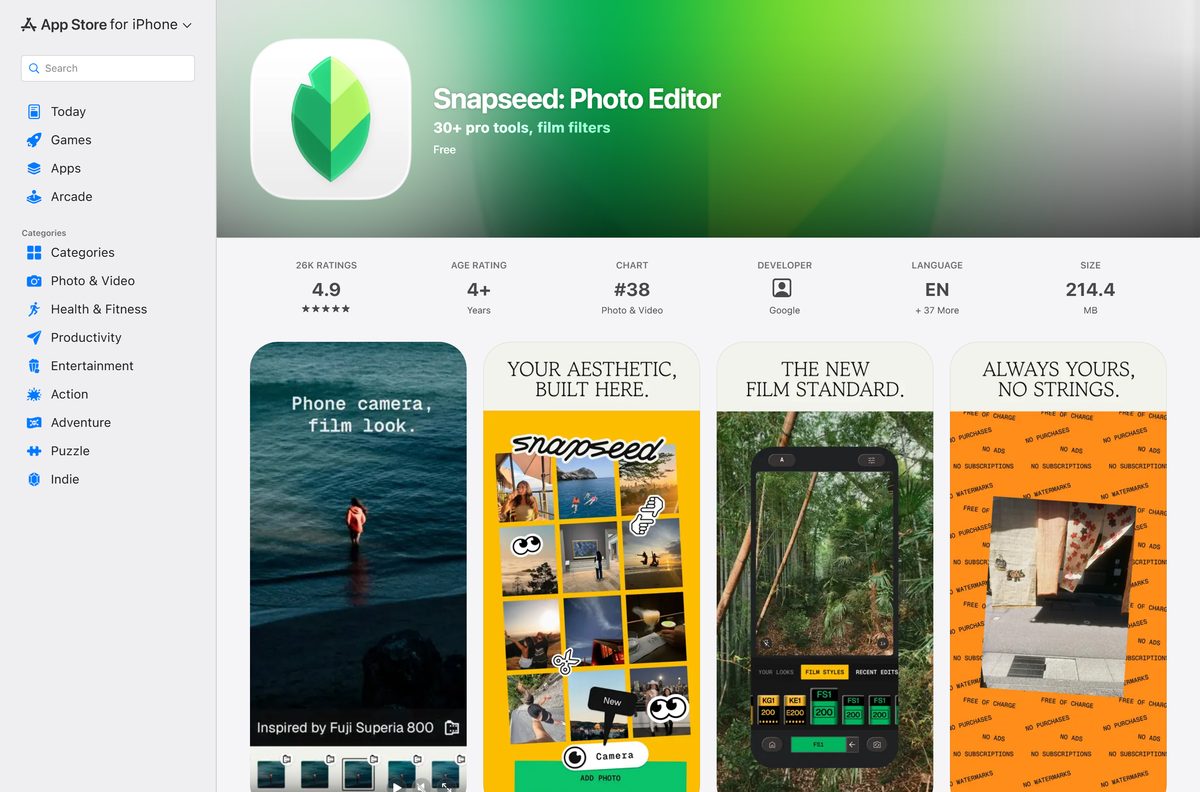
| iPhone or iPad on iOS 17.0 or later | Snapseed: Photo Editor on the App Store | 214.4 MB |
| Android phone or tablet | Snapseed on Google Play | Play states no size |
| Windows 11 or Windows 10 PC | Google Photos editor at photos.google.com | Nothing to download |
| Mac, Apple silicon or Intel | Google Photos editor at photos.google.com | Nothing to download |
Edits made on the phone travel to the computer as ordinary JPEG files once you export them.
Download Snapseed from the official stores
Google distributes Snapseed through two stores. Use these links and nothing else.
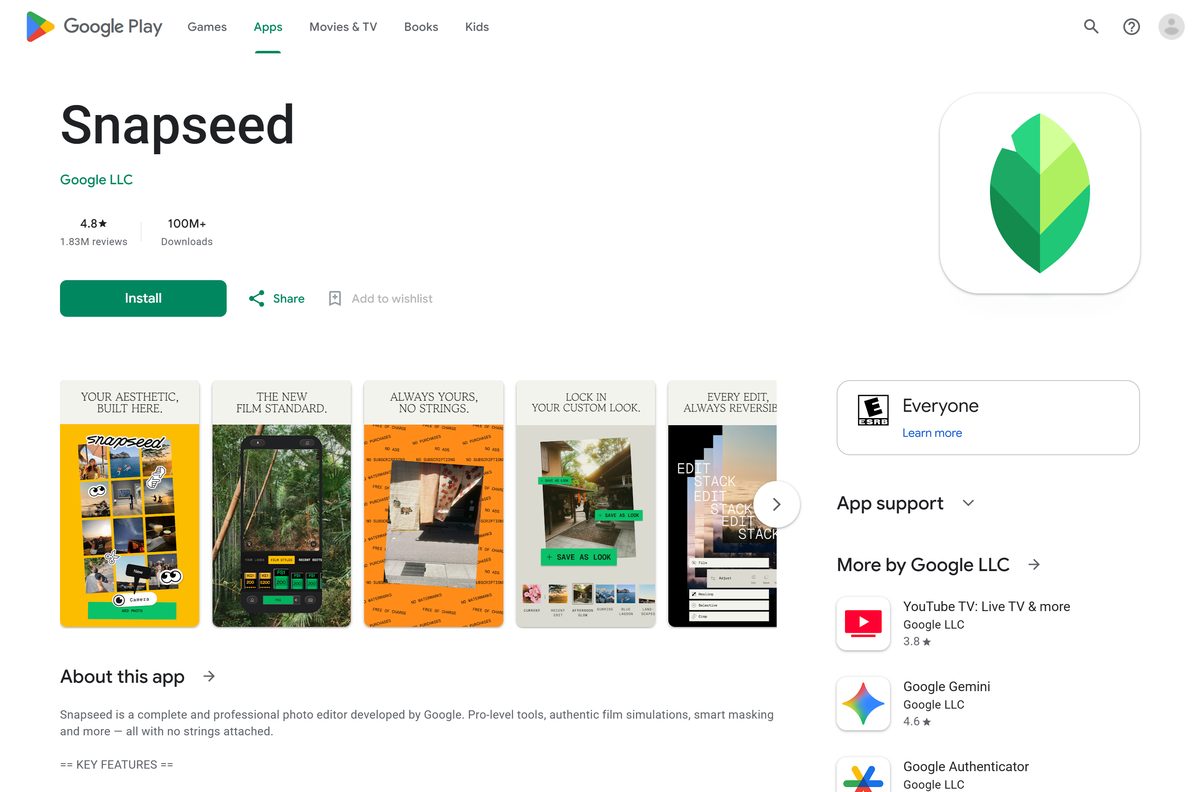
- Snapseed on Google Play — Google LLC, 100M+ downloads, updated 24 September 2026
- Snapseed: Photo Editor on the App Store — 214.4 MB · seller Google LLC, iPhone and iPad
- Snapseed Help Center — Google’s own guides to tools, RAW editing and export
Check that the developer reads Google LLC before you tap Install or Get.
Check the Snapseed requirements before you install
Snapseed runs on phones and tablets only. The table lists what each platform needs.
| Field | Value |
|---|---|
| App | Snapseed: Photo Editor |
| Developer | Google LLC |
| Latest version | 4.1.3 on iPhone and iPad (released 15 September 2026) |
| Price | Free, no in-app purchases, ads or watermarks |
| iPhone and iPad | iOS or iPadOS 17.0 or later, 214.4 MB |
| Android | Phones and tablets through Google Play |
| Windows | No Windows app |
| Mac | No Mac app |
| Offline installer | None |
| Official source | Google Play and the App Store |
| Last verified | 2026-09-25 |
How to install Snapseed on iPhone, iPad or Android
Both stores install Snapseed in the same few taps. Your photo library stays where it is.
- On iPhone or iPad, open the Snapseed listing on the App Store. On Android, open Snapseed on Google Play.
- Confirm the developer shows as Google on the App Store or Google LLC on Google Play.
- Tap Get on the App Store or Install on Google Play.
- Confirm with Face ID, Touch ID or your password if the App Store asks.
- Open Snapseed from the Home Screen or app drawer.
- Allow access to your photos when Snapseed asks, so it can open your library.
- Tap a photo to open it, then pick a tool or filter to start editing.
How to edit photos like Snapseed on Windows 11 and 10
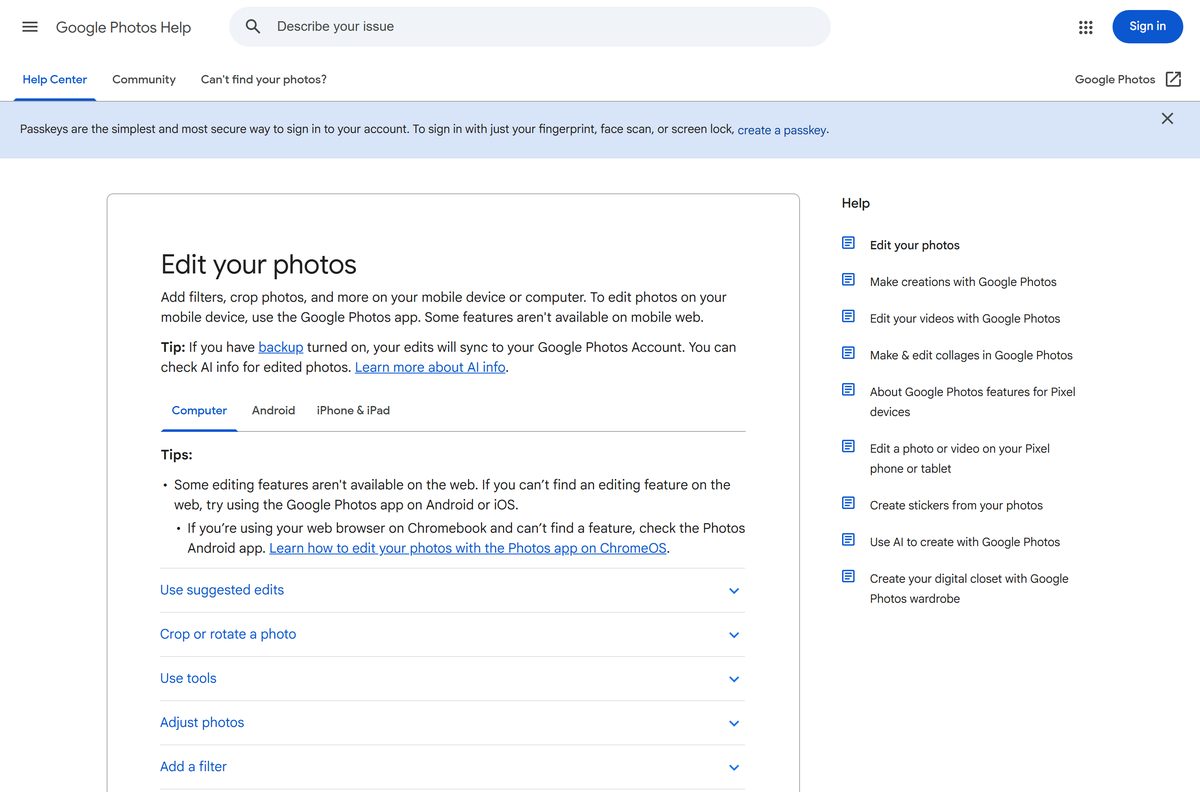
Google’s desktop photo editor lives in Google Photos on the web. Chrome can install it as a windowed app with its own Start menu entry.
- Open Chrome and go to photos.google.com, then sign in with your Google Account.
- Select More, the three-dot button at the top right.
- Select Cast, save, and share, then Install page as app, and follow the prompts.
- Open the new app and click a photo to open it.
- Click Edit, then choose a suggestion, Crop & rotate, Tools, Adjust or Filters.
- Move the dials for brightness, contrast, saturation, warmth or tint, then click Save.
Snapseed’s own tools, including Healing, Curves and RAW Develop, stay in the phone app.
Which Snapseed option works on your Mac?
The App Store listing names iPhone and iPad only, and the Mac App Store has no Snapseed entry. That holds for Apple silicon and Intel Macs alike.
| Your situation | What to do | Link |
|---|---|---|
| You own an iPhone or iPad | Edit in Snapseed there, tap Export, then sync the JPEG to the Mac | Snapseed on the App Store |
| You edit only on the Mac | Use the Google Photos editor in Safari or Chrome | photos.google.com |
| You shoot RAW on a camera | Open the RAW or DNG file in Snapseed on an iPhone or iPad | Snapseed RAW editing help |
Is Snapseed free?
Yes. Snapseed is completely free on iPhone, iPad and Android. Google’s store description promises 30+ pro tools and filters with no subscriptions, purchases, ads or watermarks. The App Store lists the price as Free, and Google Play installs it at no cost. No paid Pro edition exists.
Any site charging for a Snapseed installer or unlock key is selling something Google does not make.
Should you edit in Snapseed on your phone or in a PC editor?
Use Snapseed on your phone for serious edits, and the Google Photos editor on a PC for quick fixes. Google builds Snapseed for iPhone, iPad and Android only, with no Windows or macOS version and no Microsoft Store listing. The Android build no longer runs on Windows through Microsoft either: starting 5 March 2025, Windows Subsystem for Android and the Amazon Appstore aren’t available in the Microsoft Store. Skip emulator bundles and APK sites that promise Snapseed for PC, because Google does not publish or support them.
See Microsoft’s notice on the Amazon Appstore for the Android app change on Windows.
Check what Snapseed can open before you shoot RAW
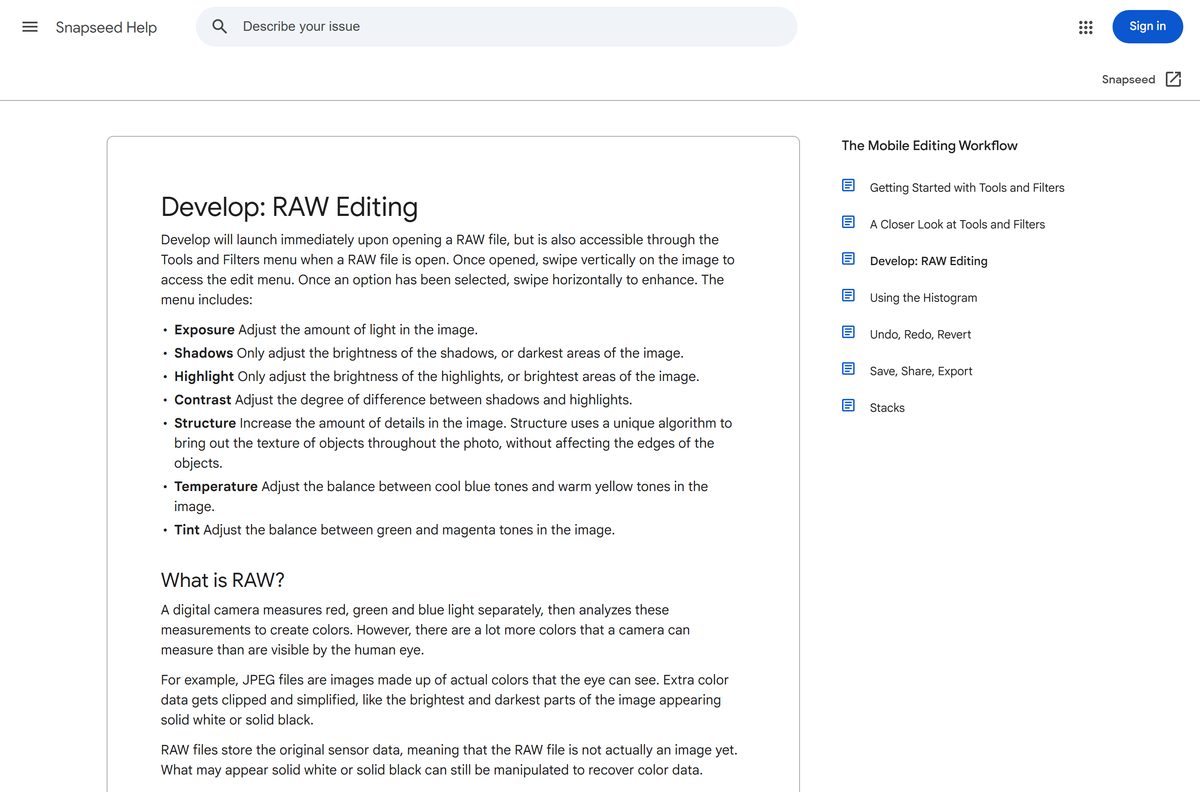
Snapseed edits JPG and RAW files. RAW support differs by platform.
| Platform | Files Snapseed opens | How RAW opens |
|---|---|---|
| Android | JPG, plus DNG RAW on any device that captures DNG and most other recent devices | Develop launches when the RAW file opens |
| iPhone and iPad | JPG, all DNG files, and RAW from Canon, Nikon, Sony, Fuji, Olympus and Panasonic cameras | Develop launches, or open it from Tools |
| Older iPads | iPad 2, iPad 3, iPad 4 and iPad mini show artifacts with some camera RAW files | Edit those RAW files on a newer device |
How to check a Snapseed download is genuine
- Install Snapseed only from Google Play or the App Store, never from a website download button.
- Check that the developer reads Google LLC on Google Play or Google on the App Store.
- Check the listing shows 100M+ downloads on Google Play or about 26K ratings on the App Store.
- Delete any file named Snapseed with an .exe, .msi, .dmg or modded .apk extension. Google publishes none of them.
- Run a scan with Windows Security if you already opened such a file on a PC.
How to check your Snapseed version and update it
- On iPhone or iPad, open the App Store, tap your profile picture, and scroll to see pending updates.
- Tap Update next to Snapseed: Photo Editor if it appears there.
- On Android, open Google Play, tap your profile icon, then Manage apps & device.
- Tap Updates available and select Update next to Snapseed.
Fix Snapseed not installing, updating or exporting
Google Play shows an old version of Snapseed
The device is compatible with the update, but Google Play still offers the older build.
- Open the device’s Settings > Apps > Google Play Store.
- Tap Clear data (or Storage > Clear data) and confirm OK.
- Restart the device, then update Snapseed from Google Play.
The App Store says Snapseed needs a newer iOS
Snapseed for iPhone and iPad needs iOS or iPadOS 17.0 or later.
- Open Settings > General > About and check the version.
- Install the latest update under Settings > General > Software Update.
- Use the Google Photos editor if the device cannot reach iOS 17.
Edited iPhone photos look unedited on the computer
Save and Save a copy keep a non-destructive edit stack that desktop programs cannot read.
- Open the photo in Snapseed and tap Export.
- Pick Export to save a flattened JPEG copy.
- Move that copy to the computer, or sync it through Google Drive or Dropbox.
The Microsoft Store has no Snapseed app
Google publishes no Snapseed package for Windows or the Microsoft Store.
- Ignore Store results from other publishers.
- Install photos.google.com as an app in Chrome with the Windows steps above.
- Keep Snapseed on your phone for tools the browser editor lacks.
How to uninstall Snapseed from a phone or tablet
- Export any edits you want to keep as JPEG copies first.
- On iPhone or iPad, touch and hold the Snapseed icon, then tap Remove App and Delete App.
- On Android, open Google Play, search for Snapseed, and tap Uninstall.
- On a PC, remove the Google Photos web app from Chrome with More > Uninstall Google Photos > Remove.
Uninstalling Snapseed leaves your photos in the phone’s library untouched.
Which free Snapseed alternative should you use on Windows or Mac?
These free editors run on a computer and come from their publishers’ own stores or sites.
| Editor | Runs on | Best for | Official link |
|---|---|---|---|
| Google Photos editor | Any browser, Windows and Mac | Quick adjustments, filters, crop | photos.google.com |
| Microsoft Photos | Windows 11 and 10 | Edits to photos stored on the PC | Microsoft Store |
| GIMP | Windows (Microsoft Store listing) | Layers, masks and detailed retouching | Microsoft Store |
Other creative apps for PC include Picsart and Serato DJ Pro.
Frequently asked questions
Is Snapseed free to download?
Yes. Snapseed is free on Google Play and the App Store. Both listings state there are no subscriptions, purchases, ads or watermarks, so every tool and filter is available after install.
What is the official Snapseed download page?
Use Snapseed on Google Play for Android and Snapseed: Photo Editor on the App Store for iPhone and iPad. Both list Google LLC as the developer. Help pages sit at support.google.com/snapseed.
Is there a Snapseed download for Windows 11 or Windows 10?
No. Google publishes no Snapseed .exe or .msi, and the Microsoft Store has no Snapseed app. On a PC, edit in the Google Photos editor at photos.google.com, or edit on the phone and move the exported JPEG across.
Can I install Snapseed on a Mac?
No. The App Store listing names iPhone and iPad only, and the Mac App Store has no Snapseed entry, including for Apple silicon Macs. Edit on an iPhone or iPad and sync the photos to the Mac.
How big is the Snapseed download?
The iPhone and iPad app is 214.4 MB on the App Store. Google Play shows no size for the Android app, and the store picks the right package for your phone automatically.
Can I run the Android version of Snapseed on Windows 11?
Not through Microsoft. Starting 5 March 2025, Windows Subsystem for Android and the Amazon Appstore aren’t available in the Microsoft Store. Skip unofficial APK sites and emulator bundles, which Google does not publish or support.
What iOS version does Snapseed need?
Snapseed for iPhone and iPad needs iOS or iPadOS 17.0 or later. Check your version under Settings > General > About, and update under Software Update.
Does Snapseed edit RAW photos?
Yes. On Android it opens DNG RAW files on devices that capture DNG and most other recent devices. On iPhone and iPad it opens RAW files from Canon, Nikon, Sony, Fuji, Olympus and Panasonic, plus all DNG files.
Why do my Snapseed edits not show up on my computer?
On iPhone and iPad, Save and Save a copy keep a non-destructive edit stack that other programs cannot read. Use Export to save a flattened JPEG copy, or sync the photos through Google Drive or Dropbox.
Is it safe to download Snapseed from other websites?
No. Google distributes Snapseed only through Google Play and the App Store. A site offering a Snapseed .exe, .dmg or modded APK is serving a file Google never published, so delete it.