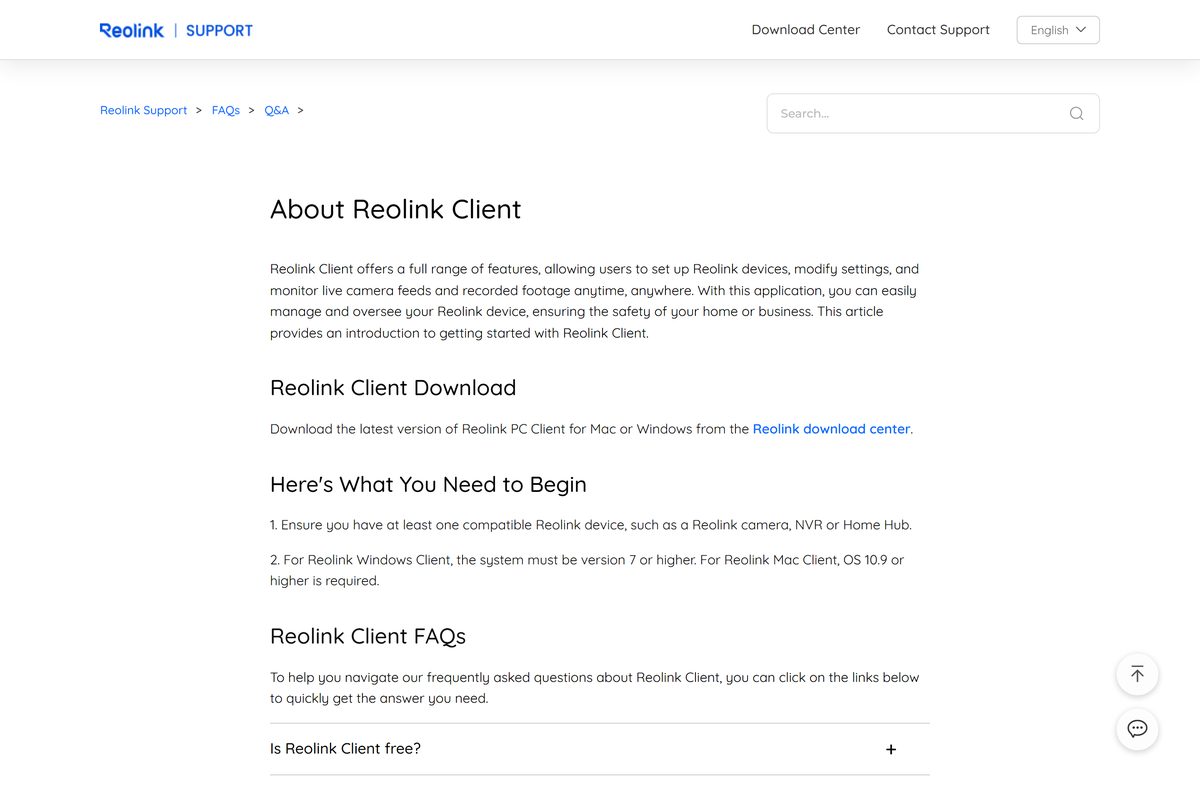
The Reolink Client download is free from the Reolink Download Center, with one build for Windows 11 and Windows 10 and another for Mac. It lets you watch live video, play back recordings and change settings on Reolink cameras, NVRs and Home Hubs from a desktop screen.
This guide covers the right build for your computer, install and camera setup steps, updates, older versions for legacy cameras, and fixes for install errors and blank live view.
Which Reolink Client download do you need?
Match your computer and camera to a row. The last column lists what each build needs.
| Your setup | What to download | Requirement |
|---|---|---|
| Windows 11 or Windows 10, 64-bit | Reolink Client (Windows) on the Download Center | Windows 7 or higher |
| Mac | Reolink Client (Mac) on the Download Center | OS X 10.9 or higher |
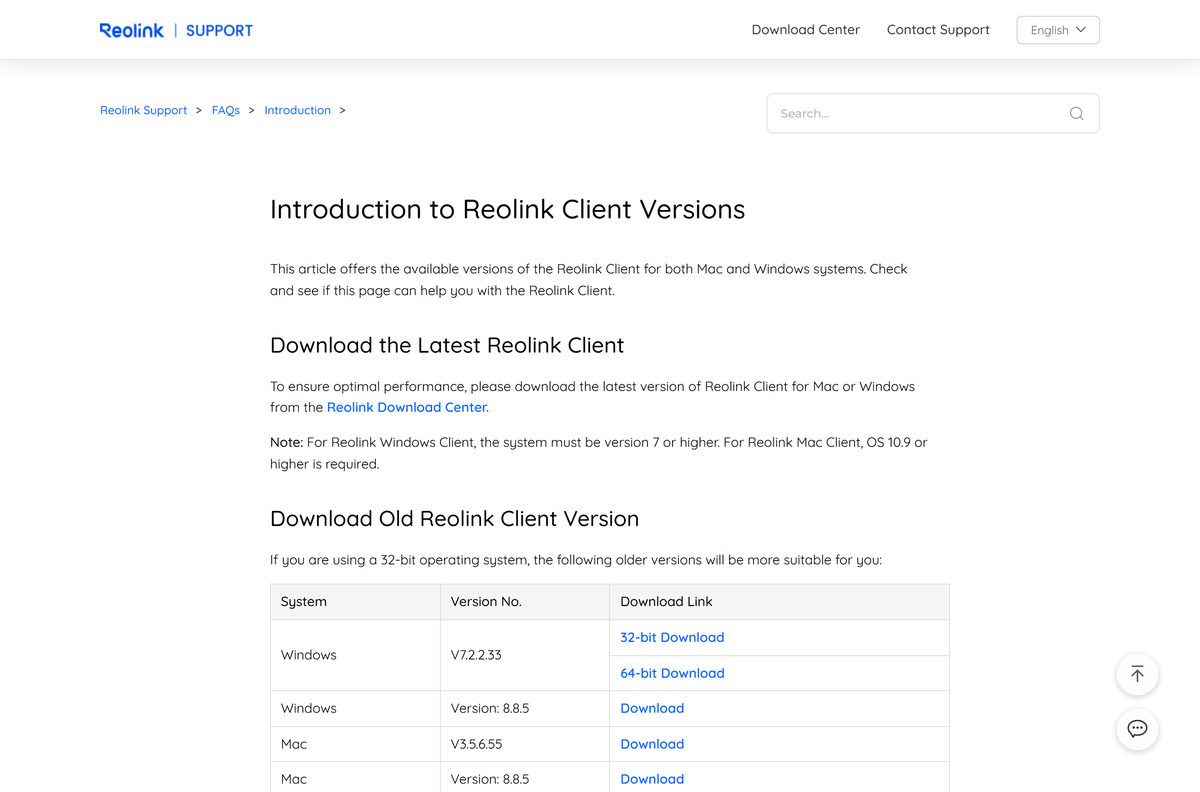
| 32-bit Windows PC | Reolink Client V7.2.2.33 32-bit (Client Versions page) | Older build for 32-bit systems |
| Discontinued camera with a UID starting XCP | Reolink Client 8.8.5 for Windows or Mac (Client Versions page) | Version 8.8.5 or earlier |
| Linux computer | Open the camera in a web browser | Device must support HTTP or HTTPS |
| iPhone, iPad or Android phone | Reolink App on the App Store | Free mobile app, separate from the Client |
Reolink Client works with all Reolink cameras, NVRs and Home Hubs. Only discontinued XCP models need the older 8.8.5 build.
Download Reolink Client for Windows 11 and Windows 10
Reolink publishes the current Client on its own Download Center. Open the App & Client section and pick your operating system.
- Reolink Download Center (App & Client) — current Reolink Client for Windows and Mac
- Introduction to Reolink Client Versions — older Windows 32-bit, Windows 8.8.5 and Mac 8.8.5 builds
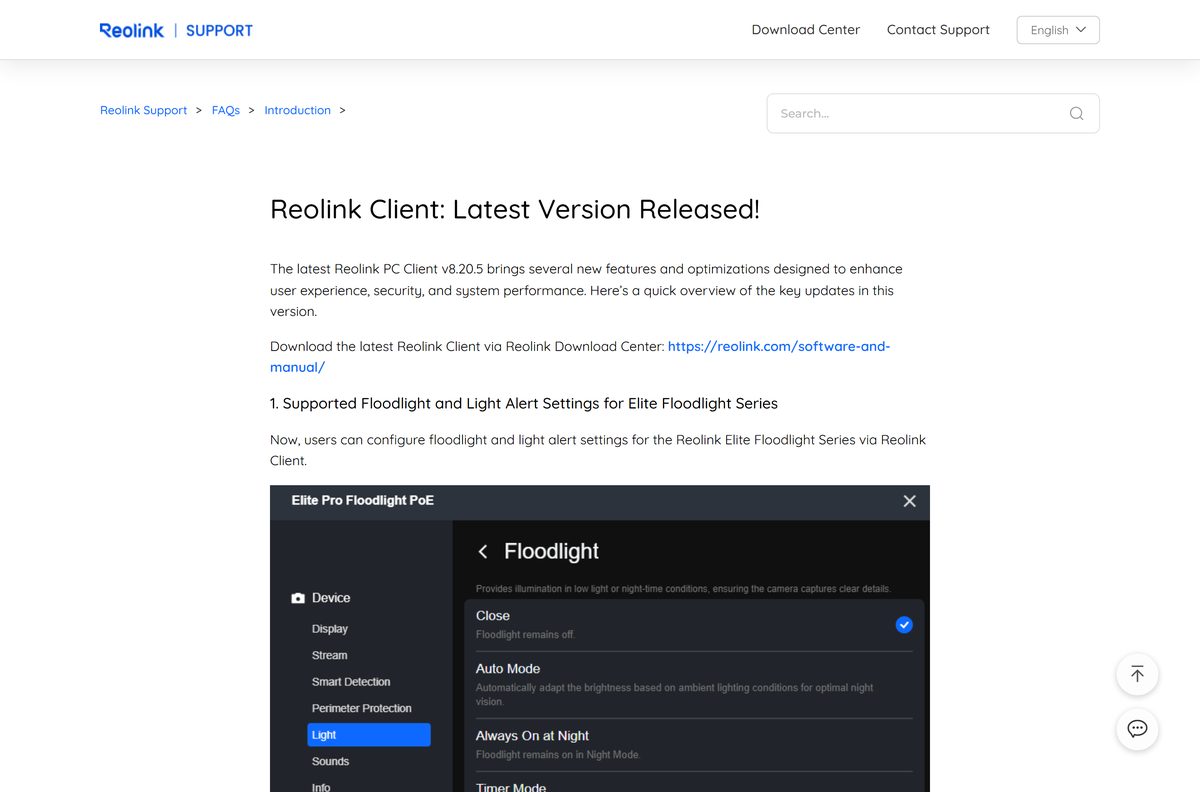
- Reolink Client latest-version notes — what changed in version 8.20.5
- Reolink App on the App Store — free iPhone and iPad companion app
- Reolink App on Google Play — free Android companion app
Download only from reolink.com or links on support.reolink.com. Portals that rehost the installer add nothing but risk.
How to install Reolink Client on Windows 11 and 10
Put the computer on the same network as your camera or NVR first. Local discovery only finds devices on the same router.
- Open the Reolink Download Center and select App & Client.
- Click the download button under Reolink Client (Windows) and save the installer.
- Open the installer from your Downloads folder and click Yes at the User Account Control prompt.
- Follow the setup wizard to the end, then launch Reolink Client.
- Click the + icon in the top-left corner to scan for devices on your local network.
- Click + next to your camera or NVR. Click Refresh if it does not appear.
- Enter the device password on the Device Login page. The default username is admin.
- Double-click the camera, or drag it into a window, to start live view.
If a camera does not show up, click +, choose IP/Domain and type its IP address. Add battery-powered cameras by UID, even on the same network. Reolink’s guide to adding devices covers all four methods.
Which Reolink Client download do you need for your Mac?
The Mac Client does the same job as the Windows one: live view, playback, recording downloads and device settings.
| Your Mac | What to install | Note |
|---|---|---|
| OS X 10.9 or later | Reolink Client (Mac) on the Download Center | Current release |
| Paired with a discontinued XCP camera | Reolink Client 8.8.5 for Mac | Keeps older models working |
| Older Mac setup that needs the legacy app | Reolink Client V3.5.6.55 for Mac | Legacy Mac build listed by Reolink |
| Mac running Linux or an OS older than 10.9 | Open the camera in a web browser | Device must support HTTP or HTTPS |
Open the downloaded .dmg file, install Reolink Client, then launch it and click + to add your devices.
Is Reolink Client free?
You pay for the cameras, not the software.
Yes. Reolink states that both the download and the use of Reolink Client are completely free. You do not need to register a Reolink account to use the Client. There is no limit on the number of devices in version 8.1.20 or later. Reolink Cloud is a separate service and is not available inside the Client. Any site charging for a Reolink Client download is not Reolink.
Should you install Reolink Client or the Reolink App?
Both connect to the same cameras, and you can use them side by side on the same devices.
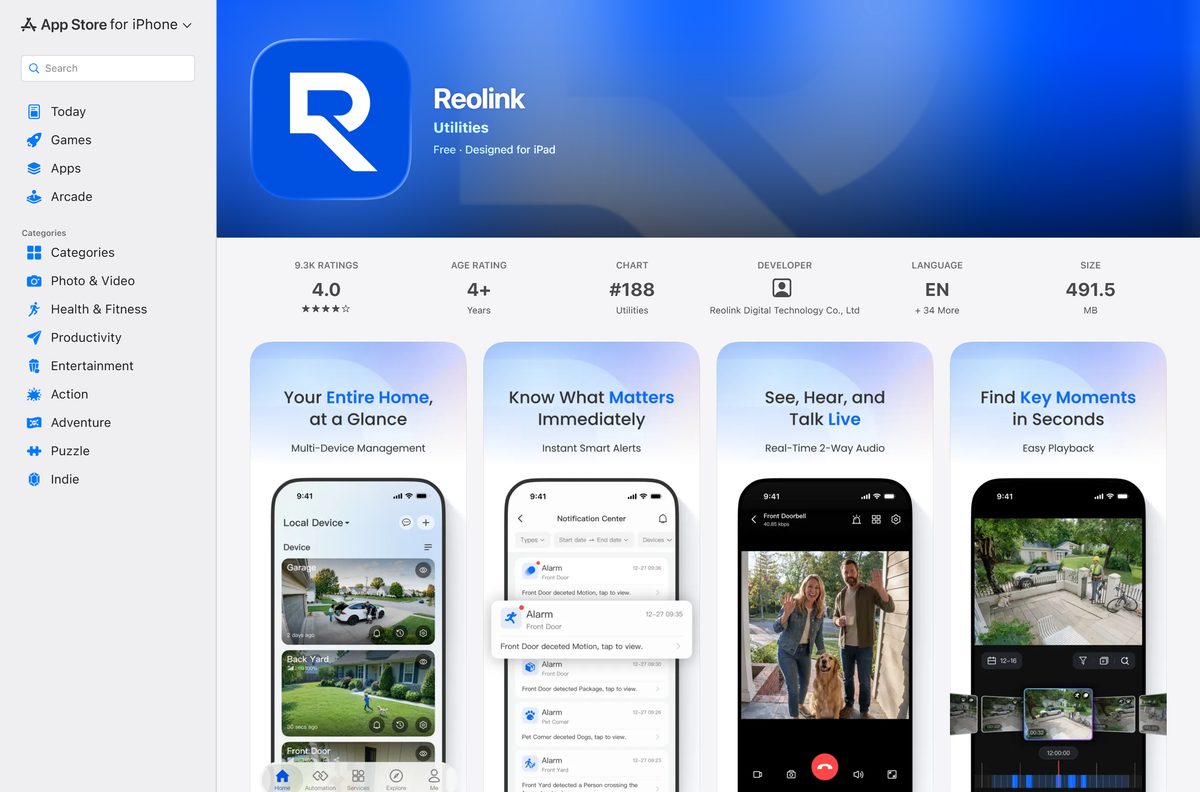
Install Reolink Client on your desktop for multi-camera viewing and setup. Add the Reolink App on your phone for alerts away from home. Reolink designs the Client for Windows and Mac, giving a full view of your devices on a larger screen. The App is built for phones and delivers alarm notifications anywhere. The App also reaches Reolink Cloud, which the Client does not.
How to check your Reolink Client version and update it
The current release announced by Reolink is 8.20.5. Compare it with the version on your computer.
- On Windows, click the settings icon in the top-right corner of Reolink Client.
- Click About Reolink in the bottom-left corner to see the installed version.
- On a Mac, click Reolink > About Reolink in the menu bar.
- To update automatically, open Client Settings > System Settings and turn on Automatic Client Update.
- To update by hand, download the latest build from the Download Center and install it over the old one.
Reolink’s version guide shows the same About screens.
Check the Reolink Client system requirements before you install
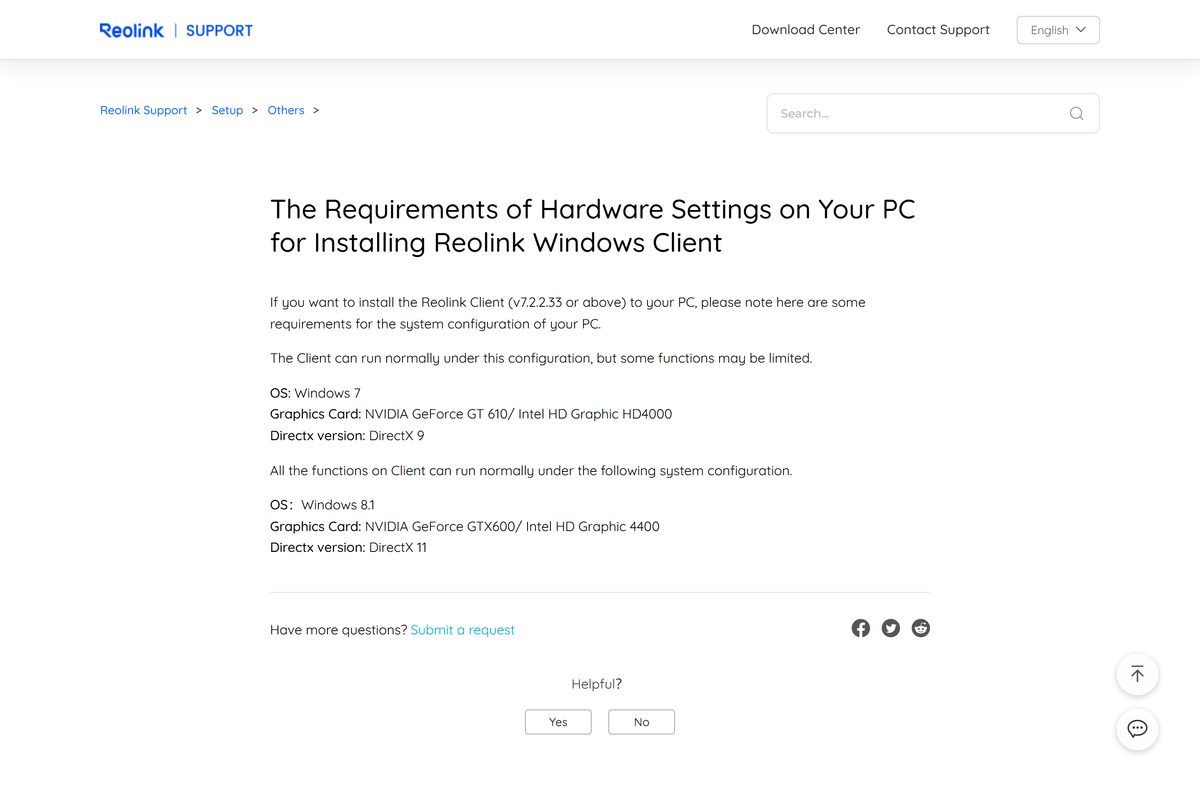
The Client runs on older PCs, but the graphics chip decides whether every feature works.
| Field | Value |
|---|---|
| Software | Reolink Client |
| Developer | Reolink |
| Latest version | 8.20.5 (latest release announced by Reolink) |
| Price | Free, no account needed |
| File size | Not stated by Reolink |
| Windows | Windows 7 or higher, including Windows 11 and Windows 10 |
| Mac | OS X 10.9 or higher |
| Linux | Not supported |
| Architecture | 64-bit Windows; 32-bit users get V7.2.2.33 |
| Minimum PC (some functions limited) | Windows 7, NVIDIA GeForce GT 610 or Intel HD 4000, DirectX 9 |
| Full functions | Windows 8.1 or later, NVIDIA GeForce GTX600 or Intel HD 4400, DirectX 11 |
| Languages | 17, including English, Spanish, German, French and Japanese |
| Official source | reolink.com/software-and-manual |
| Last verified | 25 September 2026 |
Check your graphics chip in Device Manager > Display adapters before you install.
Fix Reolink Client not installing or not showing video
Match the symptom to the fix.
‘A JavaScript error occurred in the main process’ during install
A runtime or system library the Client needs is missing on Windows or macOS.
- Note whether the error says Dynamic Linking Error: Win32 error 126, Failed to get pictures path or, on Mac, dlopen.
- Follow the matching fix in Reolink’s JavaScript error guide.
- Restart the computer and run the installer again.
An older Client version will not install
A newer Reolink Client is already on the computer.
- Uninstall the newer Reolink Client first.
- Install the older build from the Client Versions page.
Live view has sound but no picture in version 8.10 or later
Hardware decoding or DirectX problems on the PC.
- Update Reolink Client to the latest version.
- Drag the camera into the live view window by hand.
- Switch to the playback window and back to live view.
- Turn off hardware decoding in the Client settings.
- If the Client crashes before you reach settings, disconnect the network and reopen it. See Reolink’s live view guide.
Client says ‘connection failed’ away from home
Register mode, firewall or VPN settings differ from the working phone app.
- Confirm the camera works in the Reolink App on the same network.
- Use the same register mode (UID, IP or DDNS) as the App.
- Allow Reolink Client through the firewall and turn off any VPN. See the firewall steps.
- For UID connections, make sure UDP is enabled on your router. Reolink’s remote connection guide covers IP and DDNS.
‘New Version Available’ appears every time the Client starts
The automatic update check keeps prompting on start.
- Open Client Settings > System Settings and turn off Automatic Client Update.
- Uninstall the Client completely, then install the latest build from the Download Center.
- Unpin Reolink Client from the taskbar and start it again.
How to uninstall Reolink Client
Removing the Client leaves recordings on your cameras, NVR and SD cards untouched.
- On Windows 11, open Settings > Apps > Installed apps.
- Find Reolink Client, click the three-dot menu and select Uninstall.
- On Windows 10, open Settings > Apps > Apps & features, select Reolink Client and click Uninstall.
- On a Mac, quit Reolink Client, open Finder > Applications and drag it to the Trash.
- Keep any recordings you downloaded to your PC in a folder you back up, since uninstalling does not move them.
Which Reolink viewing option fits your setup?
Pick by the device in front of you.
| Option | Best for | What you need |
|---|---|---|
| Reolink Client | Multi-camera view, playback and settings on a PC or Mac | Windows 7 or later, or OS X 10.9 or later |
| Reolink App | Alerts and live view on a phone | iPhone, iPad or Android device |
| Web browser access | Linux PCs and quick checks | A camera or NVR with HTTP or HTTPS enabled |
| Reolink Cloud | Viewing cloud clips | The Reolink website or the Reolink App |
Battery-powered cameras, cameras sold in NVR kits, and the E1 series and Lumus cannot be added through a web browser, so use the Client or the App for those.
Frequently asked questions
Is the Reolink Client download free?
Yes. Reolink states that both the download and the use of Reolink Client are completely free. You do not need a Reolink account to sign in, and there is no subscription for live view, playback or recording downloads.
Where is the official Reolink Client download page?
The official source is the Reolink Download Center at reolink.com/software-and-manual/. Open the App & Client section and pick Reolink Client for Windows or Mac. Older builds are linked from Reolink’s Introduction to Reolink Client Versions support article.
Does Reolink Client work on Windows 11?
Yes. Reolink requires Windows 7 or higher for the Windows Client, so Windows 11 and Windows 10 are both supported. For every function to run, Reolink recommends a GeForce GTX600 or Intel HD 4400 class graphics chip with DirectX 11.
How big is the Reolink Client download?
Reolink’s support pages do not list an installer size for the Client. Your browser shows the file size when the download starts, and the Mac and Windows builds are separate files.
Is there a Reolink Client offline installer?
Yes. Reolink ships the Client as a complete Windows .exe and a Mac .dmg, so you can copy the file to another computer and install it there. Adding cameras later still needs a network connection to them.
Is there a Reolink Client for Mac?
Yes. Reolink offers a Mac version of Reolink Client on its Download Center, and it requires OS X 10.9 or later. Open Reolink > About Reolink in the menu bar to see which version you have installed.
Is Reolink Client 64-bit?
The current Windows Client targets 64-bit Windows. Reolink points 32-bit Windows users to the older V7.2.2.33 32-bit build on its Client Versions page. The Mac Client is a separate download for macOS 10.9 or later.
Is Reolink Client safe to download?
Yes, when you download it from reolink.com or links on support.reolink.com. Avoid third-party download portals that repackage the installer. Set a strong device password, since version 8.20.5 warns you when a password is weak.
What is the latest version of Reolink Client?
Reolink’s latest release announcement is for Reolink Client 8.20.5. It added AI Video Search, Perimeter Protection, Elite Floodlight settings, weak-password warnings and main-stream playback in Event History for the Home Hub series.
Why won’t Reolink Client install?
The most common failure is ‘A JavaScript error occurred in the main process’, caused by a missing runtime or system library. If you are installing an older build, uninstall the newer Client first, because an older version will not install over a newer one.
Does Reolink Client work on Linux?
No. Reolink Client is only available for Windows and Mac. On Linux, open your camera or NVR in a web browser if it supports HTTP or HTTPS access, or use the Reolink App on your phone.
Can I use Reolink Cloud in Reolink Client?
No. Reolink Cloud recordings are available only through the Reolink website and the Reolink App. Reolink Client plays back recordings stored on the camera’s microSD card, the NVR hard drive or a Home Hub.