The PostgreSQL download is free for Windows 11, Windows 10 and Mac, through the interactive installer that postgresql.org links to on EDB’s site. One file installs the database server, pgAdmin 4 and the command line tools, and the wizard has a local server running in about ten minutes.
This guide covers which file to pick, installing on Windows and Mac, the zip archive for installer-free setups, choosing a version, and fixes for PostgreSQL not installing or not starting.
Which PostgreSQL download do you need?
Every file below is the same free, open source PostgreSQL. EDB builds and hosts the installers, and postgresql.org points to them as the official Windows and Mac route.
| You want | Get this | Notes |
|---|---|---|
| A database server on Windows 11 or 10 | postgresql-18.6-4-windows-x64.exe | 393.8 MB; includes pgAdmin 4 and Stack Builder |
| A database server on a Mac | postgresql-18.6-4-osx.dmg | 353.1 MB; one file for Apple silicon and Intel |
| The previous major version on Windows | postgresql-17.11-4-windows-x64.exe | 391.9 MB; supported until November 2029 |
| The binaries without running a wizard | postgresql-18.6-4-windows-x64-binaries.zip | 365.1 MB; no service, no shortcuts |
| PostgreSQL on a Linux machine | Linux downloads on postgresql.org | Use your distribution’s packages |
Most people want the Windows or Mac installer for version 18. It sets up the server as a background service and adds pgAdmin 4 for browsing tables.
Download PostgreSQL from the official site
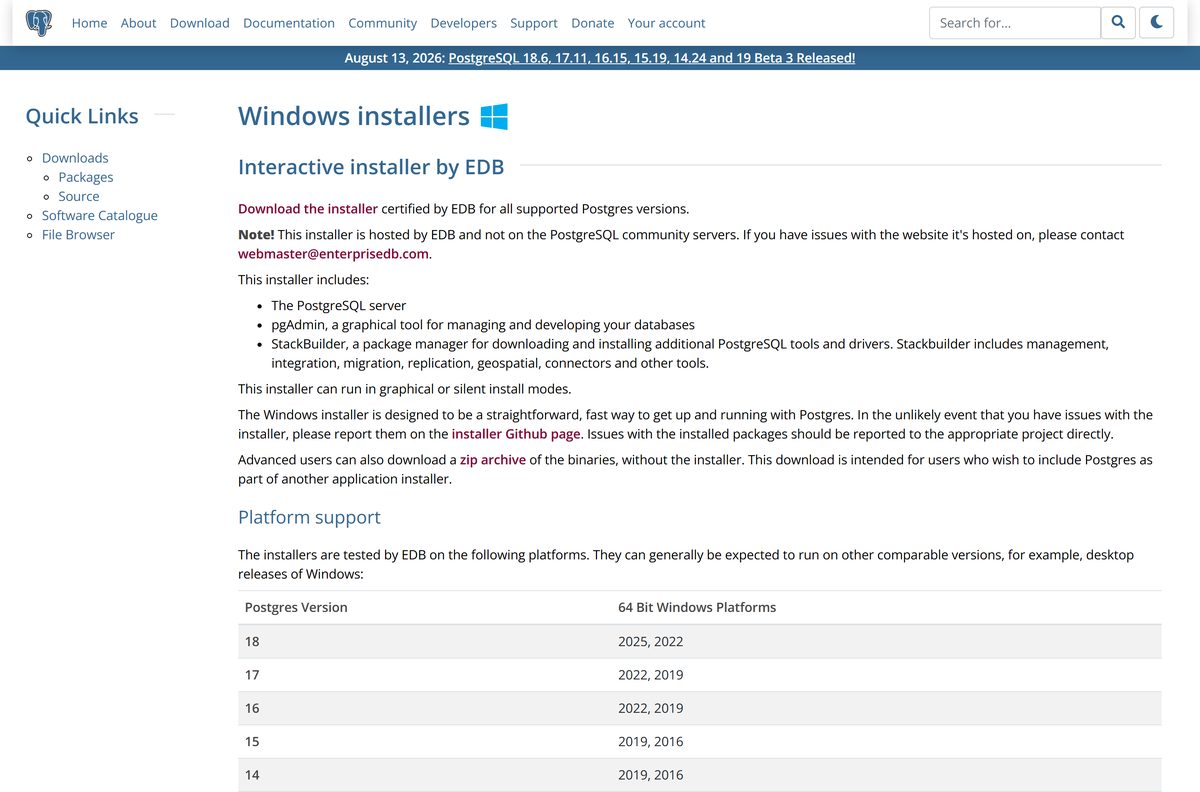
Start at postgresql.org, which sends Windows and Mac users to EDB’s installer page. Each version row there has a separate button for Windows x86-64 and Mac OS X.
- PostgreSQL for Windows on postgresql.org — official starting point
- PostgreSQL for macOS on postgresql.org — lists the installer, Postgres.app and Homebrew
- EDB interactive installer downloads — every supported version for Windows and Mac
- EDB zip archives of binaries — installer-free packages
The installer is a full offline package. Only Stack Builder, the optional add-on manager, needs an internet connection after setup.
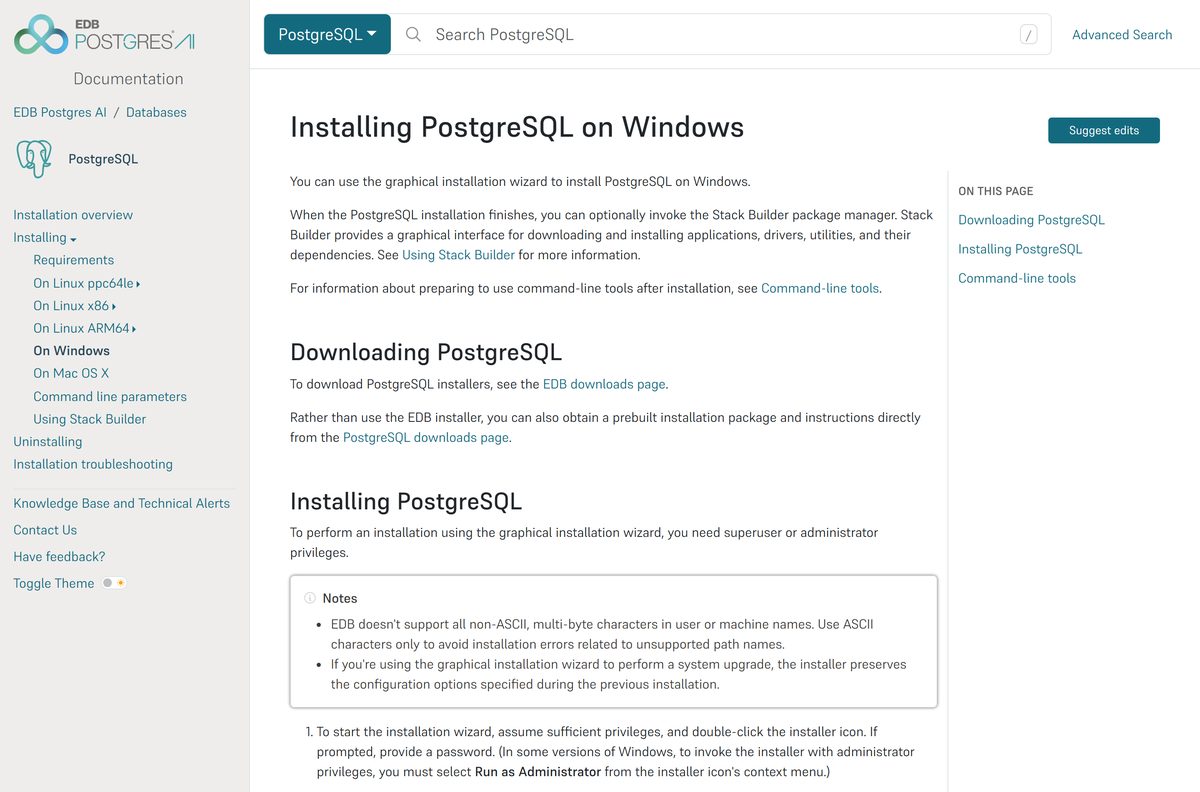
How to install PostgreSQL on Windows 11 and 10
You need an administrator account. Keep the superuser password somewhere safe, because pgAdmin and psql both ask for it.
- Open the EDB download page and click the Windows x86-64 button in the version 18 row.
- Double-click the downloaded file and select Yes at the User Account Control prompt.
- Click Next on the welcome screen and accept the default Installation Directory.
- On Select Components, keep PostgreSQL Server, pgAdmin 4, Stack Builder and Command Line Tools ticked.
- Accept the default Data Directory, or choose a drive with more free space.
- Type a Password for the postgres superuser, confirm it, and click Next.
- Keep Port 5432 unless another server already uses it.
- Leave the Locale at its default, review the Pre Installation Summary, and click Next to install.
- Untick the Stack Builder option on the last screen unless you need add-ons, then click Finish.
- Open pgAdmin 4 from the Start menu, expand Servers, and enter the superuser password to connect.
The programs land in C:\Program Files\PostgreSQL\18, with psql and the other tools in its bin folder. The server runs as a Windows service and starts with the PC.
Run PostgreSQL from the zip archive instead
The zip archive holds the same binaries without the installer. It suits developers who bundle PostgreSQL inside their own application setup.
- Download the Windows x86-64 zip from the EDB binaries page.
- Extract it to a folder such as C:\pgsql.
- Open Terminal in the bin folder inside the extracted files.
- Run .\initdb -D C:\pgsql\data -U postgres -W and set a superuser password.
- Start the server with .\pg_ctl -D C:\pgsql\data -l logfile start .
- Connect with .\psql -U postgres and enter the password.
Nothing runs at startup with this method. Stop the server with .\pg_ctl -D C:\pgsql\data stop before you shut the folder down or move it.
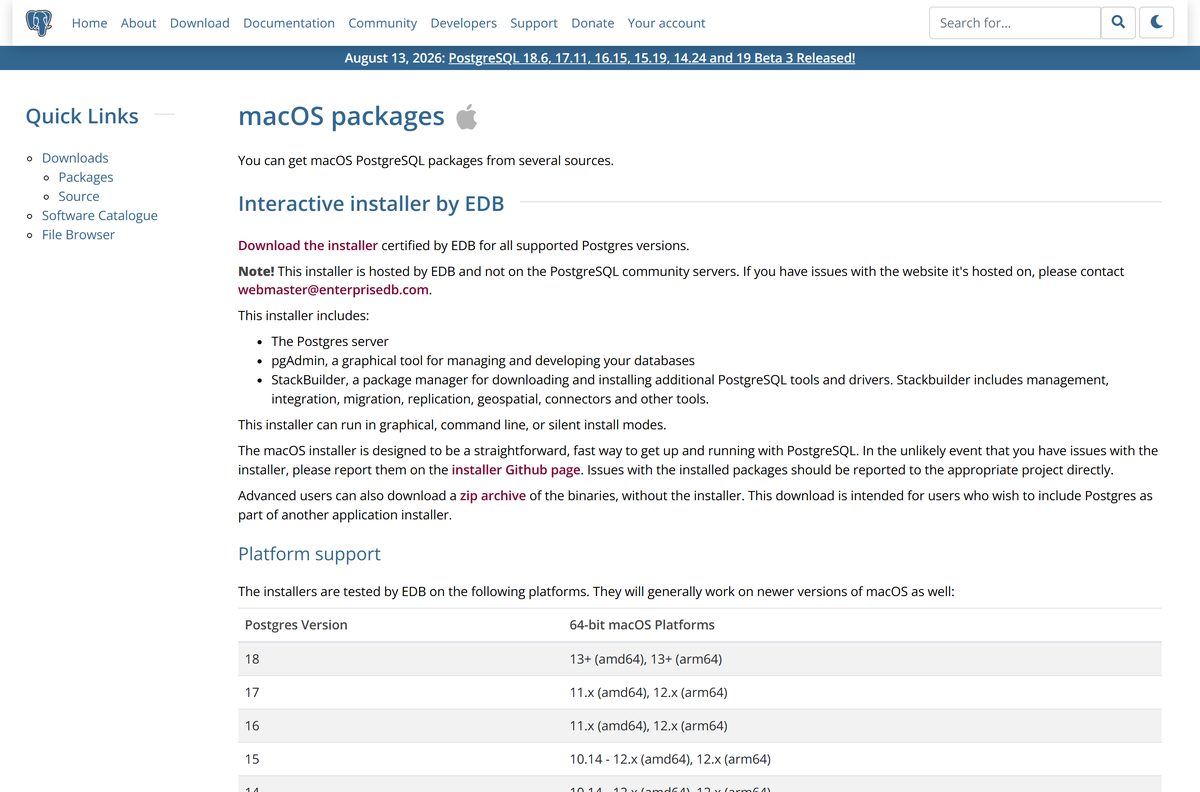
Which PostgreSQL download do you need for your Mac?
Open the Apple menu and select About This Mac to see your macOS version. Version 18 needs macOS 13 or later on both Apple silicon and Intel.
| Your Mac | Download | Notes |
|---|---|---|
| macOS 13 or later, any chip | postgresql-18.6-4-osx.dmg | 353.1 MB; includes pgAdmin 4 |
| macOS 12 on Apple silicon, or macOS 11 on Intel | postgresql-17.11-4-osx.dmg | 350.1 MB; version 17 |
| You prefer a menu bar app with no installer | Postgres.app, listed on postgresql.org | Open the app to start the server, quit it to stop |
| You already use Homebrew | Homebrew option on postgresql.org | Install the postgresql@NN formula for your version |
Open the DMG, run the installer inside, and follow the same screens as on Windows. The tools install to /Library/PostgreSQL/18/bin, so add that folder to your PATH in ~/.zshrc to run psql from any Terminal window.
Is PostgreSQL free?
Yes. PostgreSQL is free to download and use, including for commercial work and production servers. It ships under the PostgreSQL License, a liberal open source licence similar to BSD and MIT. There is no paid edition of the community server, and the EDB installer, pgAdmin 4 and Stack Builder cost nothing. A site charging for a PostgreSQL download is not the official source.
Should you install PostgreSQL 18, 17 or the 19 beta?
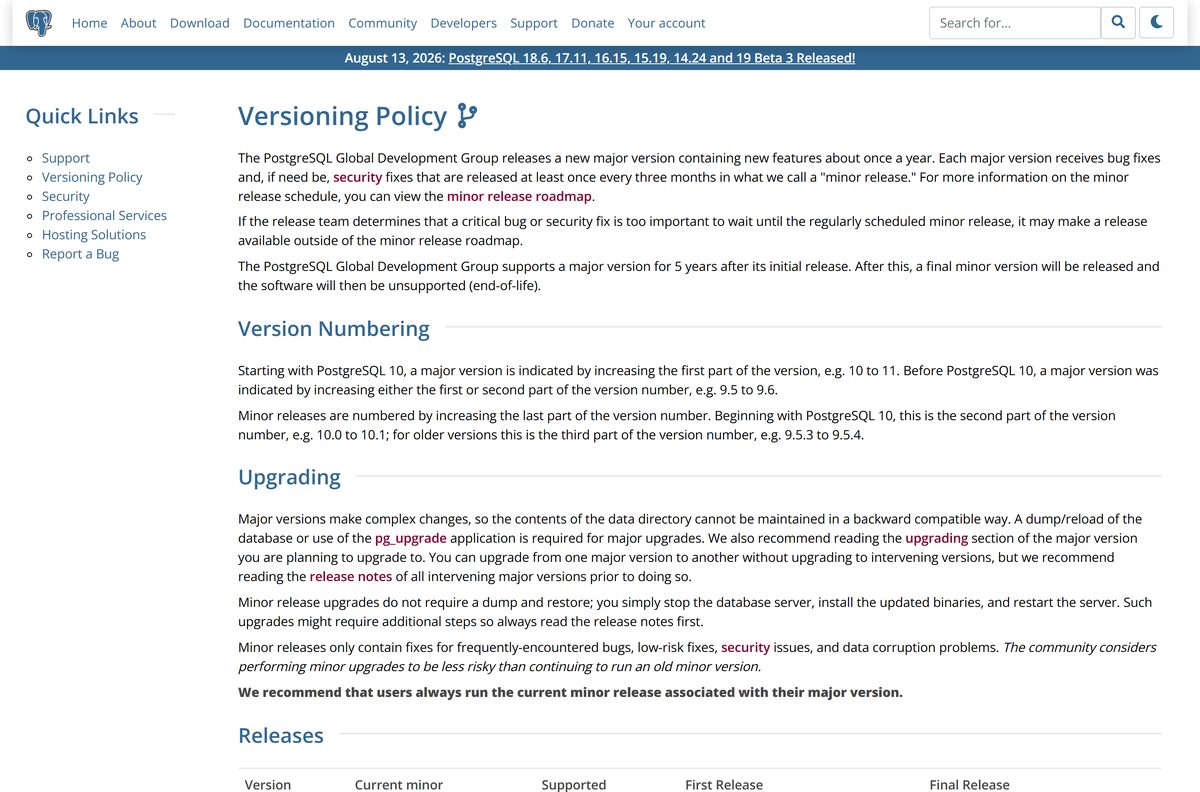
Install PostgreSQL 18 for any new project. Pick 17 only when an application or host requires it, and keep 19 Beta 3 for testing. Each major version gets five years of fixes, and 18 is supported until November 14, 2030. Version 17 runs until November 8, 2029, while 14 ends on November 12, 2026, so plan an upgrade if you run it. Minor updates such as 18.6 arrive at least every three months and only fix bugs and security issues. The PostgreSQL project recommends always running the newest minor release of your major version.
PostgreSQL 13 and older no longer receive fixes. EDB still lists their zip archives for legacy systems, but do not use them for anything new.
How to check your PostgreSQL version and update it
- Open pgAdmin 4 or the SQL Shell (psql) from the Start menu and connect to the server.
- Run SELECT version(); and note the number after PostgreSQL.
- Compare it with the current minor release on the versioning page.
- For a newer minor release of the same major version, download the matching installer from EDB and run it over the existing install.
- For a new major version, back up every database with pg_dumpall before installing the new version alongside the old one.
- Restore the dump into the new server, test your application, and then uninstall the old version.
A minor update keeps your data folder as it is. A major upgrade changes the storage format, which is why it needs a dump and restore or the pg_upgrade tool.
Check PostgreSQL system requirements before you install
The native Windows port needs Windows 10 or later. EDB’s own platform table lists the Windows Server editions it tests the installer on.
| Field | Value |
|---|---|
| Software | PostgreSQL |
| Developer | PostgreSQL Global Development Group; installer by EDB |
| Latest version | 18.6 (13 August 2026); 19 Beta 3 in testing |
| Licence | Free, open source (PostgreSQL License) |
| Supported OS | Windows 10 or later; macOS 13 or later for version 18; Linux |
| Installer test platforms | Windows Server 2025 and 2022 for version 18 |
| Architecture | Windows x86-64 only; macOS Intel (amd64) and Apple silicon (arm64) |
| File size | 393.8 MB (Windows installer), 353.1 MB (macOS DMG) |
| Bundled tools | pgAdmin 4, Stack Builder, command line tools |
| Default port | 5432 |
| Offline installer | Yes, the full EDB installer |
| Official source | postgresql.org, installer hosted on enterprisedb.com |
| Last verified | 2026-09-24 |
Check your Windows edition under Settings > System > About. The System type line must say 64-bit operating system, because EDB publishes only an x86-64 build.
Fix PostgreSQL not installing or not starting on Windows
The installer stops with a port error, or the service will not start
Another database server, often an older PostgreSQL, already listens on port 5432.
- Press Win + R, type services.msc , and look for another service whose name starts with postgresql.
- Stop or uninstall the older server if you no longer need it.
- Otherwise, run the installer again and set Port to a free number such as 5433.
- Add -p 5433 whenever you connect with psql.
psql is not recognized as a command
The PostgreSQL bin folder is not on your PATH.
- Open Settings, search for Edit the system environment variables, and click Environment Variables.
- Select Path under your user variables and click Edit.
- Click New and add C:\Program Files\PostgreSQL\18\bin.
- Close and reopen Terminal, then run psql -U postgres .
password authentication failed for user postgres
The password typed does not match the one set during setup.
- Check that Caps Lock is off and retype the superuser password from setup.
- Connect as postgres, not as your Windows user name.
- If the password is lost, uninstall, delete the data folder, and reinstall with a new password.
Setup fails partway through on Windows 11 or 10
Antivirus software or a non-administrator account blocks the installer from creating the service.
- Right-click the installer and choose Run as administrator.
- Pause third-party antivirus for the few minutes setup takes.
- Delete the half-installed C:\Program Files\PostgreSQL\18 folder and run setup again.
- Report persistent installer bugs on the EDB installers issue tracker.
How to uninstall PostgreSQL from Windows
Back up any database you want to keep first. Removing the program does not always delete your data.
- Run pg_dumpall -U postgres -f C:\backup\all.sql from the bin folder to save every database.
- Open Settings > Apps > Installed apps.
- Find PostgreSQL 18, click the three-dot menu, and select Uninstall.
- Follow the uninstaller prompts and select Yes at the User Account Control prompt.
- Delete C:\Program Files\PostgreSQL\18 and the data directory you chose during setup, if either is still there.
The last step erases the databases for good, so skip it if you plan to reinstall and reuse them.
Choose PostgreSQL or another way to run a database
Pick the row that matches how you work.
| Option | Best for | Where to get it |
|---|---|---|
| EDB installer | A full server with pgAdmin on Windows or Mac | EDB downloads |
| Postgres.app | A no-installer server on a Mac | postgresql.org macOS page |
| Homebrew formula | Mac developers who script their setup | postgresql.org macOS page |
| Linux packages | Servers and WSL | postgresql.org Linux page |
| MySQL Community Server | Apps that require MySQL | Download MySQL for PC, Windows 11/10 & Mac |
Stay with PostgreSQL unless an application insists on MySQL. It is free for every use and covers most projects on its own.
Frequently asked questions
Is PostgreSQL free to download?
Yes. PostgreSQL is free and open source under the PostgreSQL License, which is similar to the BSD and MIT licences. You can use it for commercial work at no cost, and the EDB installer with pgAdmin 4 is free as well.
What is the official PostgreSQL download page?
The official page is postgresql.org/download, which sends Windows and Mac users to the interactive installer hosted by EDB at enterprisedb.com. Linux users get packages for their distribution from the same postgresql.org page.
Does PostgreSQL work on Windows 11?
Yes. The native Windows port of PostgreSQL requires Windows 10 or later, so it runs on 64-bit Windows 11 and Windows 10. EDB publishes the installer as an x86-64 build only.
How big is the PostgreSQL download?
The PostgreSQL 18 installer for Windows is 393.8 MB, and the macOS disk image is 353.1 MB. The Windows zip archive of binaries without the installer is 365.1 MB.
Is there a PostgreSQL offline installer?
Yes. The EDB installer is a full package that installs the server, pgAdmin 4, Stack Builder and the command line tools without an internet connection. Only Stack Builder downloads its optional add-ons online.
Is there PostgreSQL for Mac?
Yes. EDB publishes a PostgreSQL disk image for macOS that works on Apple silicon and Intel Macs. Version 18 needs macOS 13 or later. Postgres.app and Homebrew are other routes listed on postgresql.org.
Is PostgreSQL 64-bit only?
The Windows installer and zip archive from EDB are x86-64 only, so you need a 64-bit edition of Windows. On macOS, version 18 supports both amd64 Intel Macs and arm64 Apple silicon Macs.
What is the latest PostgreSQL version?
PostgreSQL 18.6 is the newest stable release, published on 13 August 2026. The same update brought 17.11, 16.15, 15.19 and 14.24, plus PostgreSQL 19 Beta 3 for testing.
Does the PostgreSQL download include pgAdmin?
Yes. The EDB installer offers pgAdmin 4 as a component on the Select Components screen, alongside the server, Stack Builder and the command line tools. Leave it ticked to get a graphical database manager.
Is the PostgreSQL download safe?
Yes, when you start from postgresql.org and download from enterprisedb.com, the host postgresql.org links to. Avoid download portals that repackage the installer, because the official file costs nothing.
Why won’t PostgreSQL install or start?
The usual causes are another server already using port 5432, antivirus blocking the service, or setup run without administrator rights. Fix the cause, remove the half-installed folder, and run the installer again as administrator.