The Life360 download is free on iPhone and Android, and on a Windows 11, Windows 10 or Mac computer you work in a browser at life360.com.
Install the phone app from Google Play or the App Store, create your Circle, then use the website on a big screen to sign in, start a membership or reset a password.
This guide covers which download fits each device, the official links, the browser route on a PC and Mac, the membership tiers and fixes for common failures.
Which Life360 download do you need?
Match your device to the row below.
| Your device | What to get | Size |
|---|---|---|
| iPhone on iOS 17.4 or newer | Life360 on the App Store | 508 MB |
| Android phone on Android 10 or newer | Life360 on Google Play | Not stated |
| Windows 11 or Windows 10 PC | life360.com sign-in page | Nothing to download |
| Mac | life360.com sign-in page | Nothing to download |
| iPad, tablet, smartwatch or Windows phone | Listed as not supported | No build |
Download Life360 from the official sources
Two stores carry the app, and life360.com carries the account.
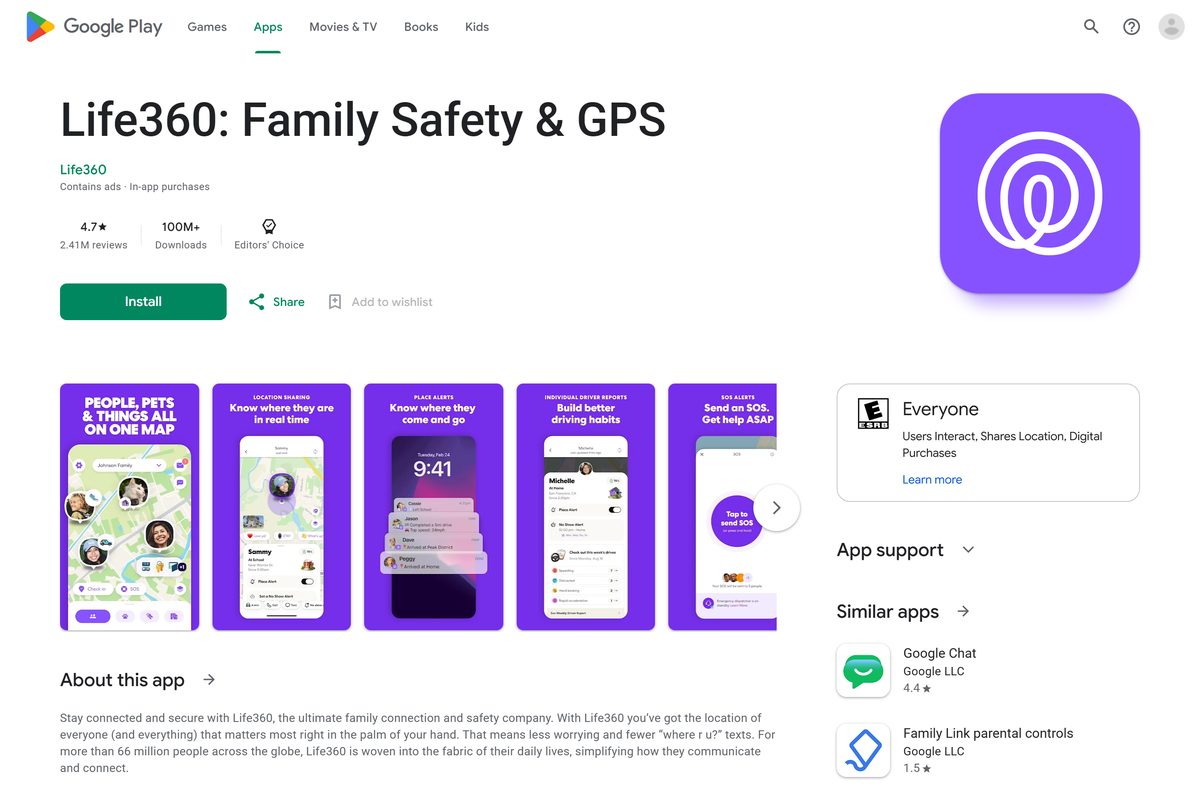
- Life360 on Google Play — developer Life360, package com.life360.android.safetymapd, updated 19 September 2026
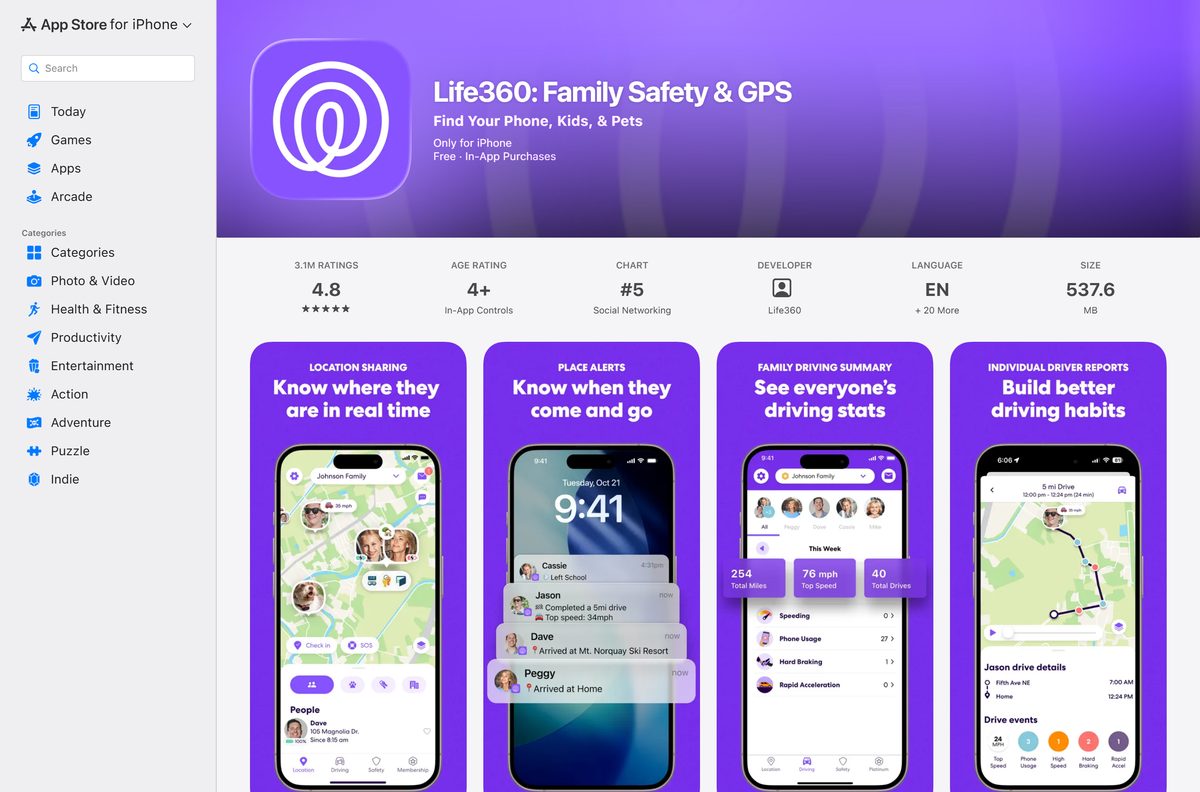
- Life360 on the App Store — 508 MB · version 26.35.0, seller Life360
- life360.com download page — shows a QR code to scan with a phone camera
- life360.com sign-in — the account and membership route on a PC or Mac
- Membership plans — Silver, Gold and Platinum, each with a 7-day free trial
Anything else offering a Life360 setup file for Windows or macOS is selling a file the company does not publish.
How to install Life360 on Windows 11 and 10
There is no installer, so the site itself becomes the desktop app.
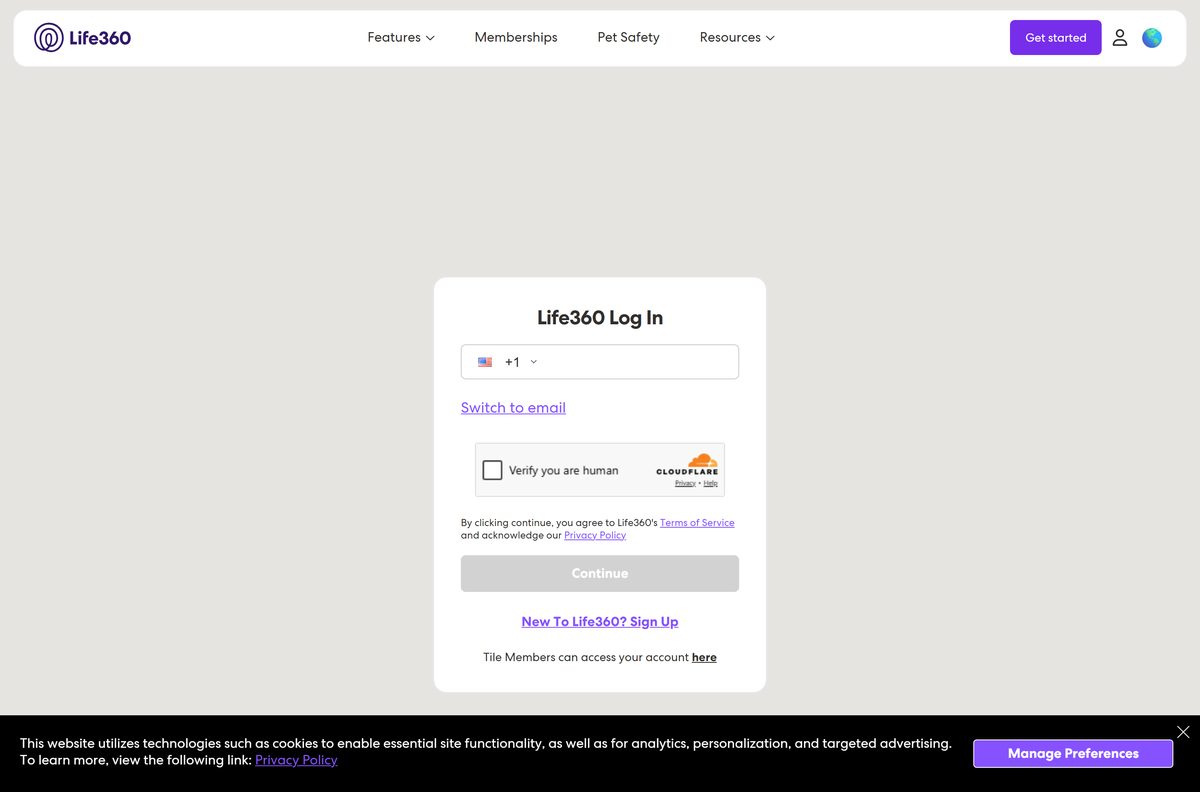
- Open Chrome and go to life360.com/login.
- Enter the phone number or email on your account and select Continue.
- Type the 6-digit code sent to you, or select Switch to email first.
- Select More, the three-dot button at the top right of Chrome.
- Select Cast, save, and share, then Install page as app.
- Keep the suggested name or type Life360, then select Install.
- Right-click the new window’s taskbar button and select Pin to taskbar.
- Open it from the Start menu and confirm the account page loads in its own window.
How to install Life360 on an iPhone or Android phone
This is the install that puts people on the map.
- Open Google Play or the App Store listing on the phone.
- Check the developer line reads Life360, then select Install or Get.
- Open the app and sign up with your phone number.
- Enter the 6-digit verification code sent by text.
- Set a password of at least 8 characters with a letter, a number and a special character.
- Allow location Always and turn on Precise Location, or the map cannot place you.
- Select the Circle Switcher, then Create a Circle and name it.
- Select Send Code and share the invite, which expires after 72 hours.
Each person you invite installs the app and creates an account. A Circle holds up to 99 members.
How to use Life360 on a computer without installing anything
Every browser task starts from the same sign-in page.
- Open life360.com/login in Edge, Chrome or Safari.
- Sign in with the phone number or email on the account.
- Select Manage Membership to see the plan the account pays for.
- Select Cancel Subscription there if the plan was bought on the website.
- Open life360.com/plans-pricing to start a trial on a card.
- Sign out when you finish on a shared computer.
A membership bought on the website has to be changed on the website. Edge pins the page through Settings and more, More tools, Apps, Install this site as an app.
Which Life360 download do you need for your Mac?
The App Store listing covers iPhone only, so the Mac answer depends on the task.
| What you want | What to use | Where it comes from |
|---|---|---|
| Start or cancel a membership | life360.com in Safari or Chrome | Life360 |
| Keep the page in its own window | Install page as app in Chrome for Mac | |
| See family on the map | The iPhone app | Apple App Store |
| Find a lost Apple device instead | Find My | Apple |
Life360 names desktop and laptop computers under Not Supported.
Is Life360 free?
Yes, the basic service is free to download and use. Both store listings install at no cost, and Life360 states that paid plans are optional upgrades bought inside the app. Silver, Gold and Platinum add history, alerts and roadside cover. The Android listing carries Contains ads and In-app purchases labels.
Memberships auto-renew until you cancel. Deleting the app does not cancel a plan.
What each Life360 membership adds
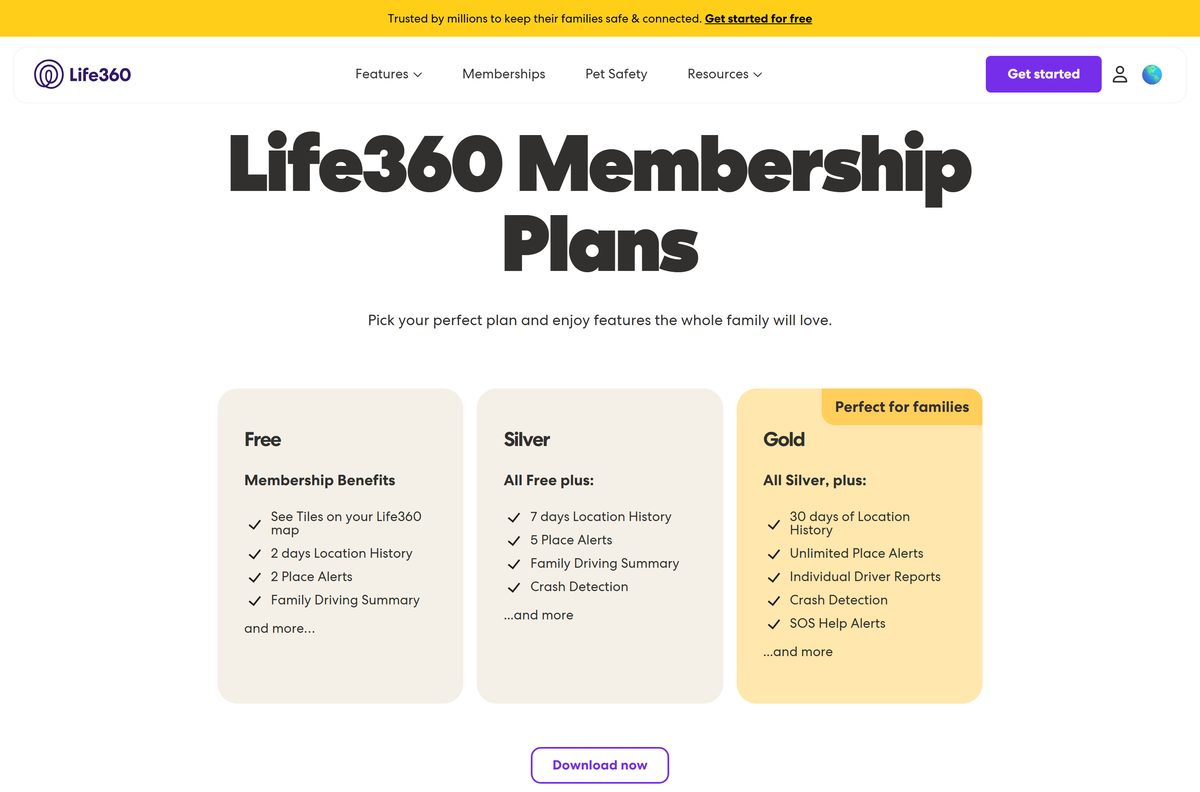
| Plan | Per month | What it adds |
|---|---|---|
| Free | $0 | Location sharing and the family map on a phone |
| Silver | $9.99 | 2 Places with unlimited alerts, 2 days of Location History, Crash Detection, Data Breach Alerts |
| Gold | $16.99 | 30 days of history, unlimited Place Alerts, driver reports, emergency dispatch, roadside assistance, $25,000 Stolen Fund Reimbursement |
| Platinum | $24.99 | $1 million Stolen Fund Reimbursement, 50 miles of towing, travel and medical support |
Silver, Gold and Platinum are sold in the United States, Canada, the United Kingdom, Australia and New Zealand. Other countries get Life360 Premium instead.
Which Life360 membership should you choose?
Start free, and upgrade to Gold only if you want dispatch and roadside cover. The free tier already puts your Circle on the map, which is why most families install it. Silver buys two days of history and two Places. Gold is the first tier where an agent can dispatch emergency services after a crash, and it adds towing, jump starts and lockout help. Platinum changes the insurance figures, not the safety features.
Upgrade in the app under the Membership tab, or on the website if the plan started there.
How to check your Life360 version and update it
- On an iPhone, open the App Store and tap your profile picture.
- Scroll to Available Updates and tap Update next to the app.
- Compare it against version 26.35.0 on the App Store listing.
- On Android, open Google Play and tap your profile picture.
- Tap Manage apps & device, then Updates available.
- Tap Update next to the app, or Update all.
- Reopen the app and tap Check In to push a fresh location.
Google Play publishes no version string for the Android build, so the date is the marker: 19 September 2026.
Check the Life360 system requirements
The phone sets the floor. On a computer, only the browser matters.
| Field | Value |
|---|---|
| Developer | Life360, Inc. |
| Latest version | 26.35.0 on iPhone, 15 September 2026 |
| Price | Free, with paid Silver, Gold and Platinum plans |
| iPhone | iOS 17.4 or newer; the listing itself states iOS 17.2 |
| Android | Android 10 or newer |
| iPhone app size | 508 MB |
| Android app size | Not stated on Google Play |
| Windows and Mac | Browser only at life360.com, no installer |
| Architecture | No desktop build; the site uses the browser’s own |
| Offline installer | None |
| Official source | life360.com, Google Play, App Store |
| Last verified | 2026-09-22 |
Drive Detection needs GPS, an accelerometer, a gravity sensor and a gyroscope.
How to check a Life360 download is genuine
Only two listings are real, and both name the same publisher.
- Open the Google Play listing and confirm the developer reads Life360.
- Check the address bar shows the package id com.life360.android.safetymapd.
- Open the App Store listing and confirm the seller reads Life360.
- Ignore any .exe, .dmg or .apk file offered elsewhere, because none is published.
- Treat life360.com/download as a QR page, not a file link.
- Delete anything you already took from a mirror, then install from the store.
Sideloading an APK also breaks store updates, so the phone stops reporting reliably.
Fix Life360 not installing, not signing in or not updating locations
Work down to the symptom you have.
The app will not install on your phone
The handset is below the supported operating system, or it is a device family the app never shipped for.
- Update the phone to iOS 17.4 or newer, or Android 10 or newer.
- Check the device is a phone, not an iPad, tablet or smartwatch.
- Confirm the phone has Google services, which Huawei and Honor handsets lack.
- Install again from the store listing, not from a link someone sent you.
The verification code never arrives
Codes go by text, and text delivery is limited to a few countries.
- Check the number can receive texts, because landlines and virtual numbers cannot.
- Confirm you are in the United States, Canada, the United Kingdom, New Zealand or Korea, where text codes are supported.
- Switch to WhatsApp delivery if it is offered in your country.
- Reset the password, sign in, and verify the email afterwards.
A network error appears after changing phones
One account cannot hold two signed-in devices, so a second sign-in knocks out the first.
- Reset the password on the account.
- Log out of the app.
- Power the phone off for a few seconds, then back on.
- Log in again.
- Tap Check In a few times to refresh the location.
Locations are stale or the map is stuck
A stale cache or a missing permission stops the app reporting.
- Set location to Always and turn on Precise Location for the app.
- Turn on notifications, Bluetooth and motion access.
- On Android, tap Log Out, then Settings, Apps, the app, Storage, Clear Cache and Clear Data.
- On iPhone, tap Log Out, close the app card, then restart the phone.
- Sign in again and wait up to 15 minutes for Tiles to reappear on the map.
How to uninstall Life360 and delete your account
Removing the app leaves the account and the billing in place.
- Tap Settings in the upper left of the app, then Account.
- Tap Cancel Membership first, or cancel in the store where you subscribed.
- Tap Settings, Circle Management, then Leave Circle.
- Assign another admin first if you are the only admin on that Circle.
- Tap Settings, Account, then Delete Account.
- Select Yes, I confirm the above, then Continue and Send email.
- Open the emailed link and complete the captcha, then remove the app from the phone.
Deletion clears history and driving events permanently. Each member deletes their own account from their own phone.
Which app should you use instead of Life360?
If the goal is one device rather than a family Circle, the built-in tools cover it.
| Instead of the app | Platform | What it does |
|---|---|---|
| Find My | iPhone, iPad, Mac | Locates Apple devices and AirTags, and shares a location with contacts |
| Find, secure or erase an Android device | Android | Rings, locks or wipes a lost Android phone from any browser |
| Google Location Sharing | Any browser, Android, iPhone | Shares a live location with chosen people and works on a computer |
None of the three does Crash Detection, driver reports or roadside assistance.
Frequently asked questions
Is Life360 free?
Yes. The basic service is free to download and use on iPhone and Android. Silver, Gold and Platinum memberships are optional upgrades bought in the app or on the website, and the Android listing notes ads and in-app purchases.
What is the official Life360 download page?
life360.com/download shows a QR code that opens the right store on your phone. The listings themselves are Google Play under the developer Life360 and the App Store under the seller Life360.
Can I use Life360 on Windows 11 or Windows 10?
Only through a browser. Sign in at life360.com to manage the account, start a plan or cancel one. Install that page as an app in Chrome or Edge for its own window, and keep the phone app for the map.
What is the Life360 download size?
The iPhone app is 508 MB on the App Store. Google Play publishes no size for the Android build, because the download varies by device. The browser route on a PC downloads nothing at all.
Is there a Life360 offline installer?
No. The app ships only through Google Play and the App Store, and it needs a live data connection to place Circle members on the map. No standalone setup file is published for any platform.
Is there a Life360 app for Mac?
No. The App Store listing covers iPhone and names no Mac, and the compatibility article lists desktop and laptop computers as not supported. Use life360.com in Safari or Chrome on macOS.
Is Life360 64-bit or ARM64 on a PC?
Neither, because no desktop build exists. The website inherits whatever architecture your browser uses. Chrome needs Windows 10 or later on Intel and Windows 11 or later on ARM.
Is it safe to download Life360 from other sites?
No. Only the two store listings are genuine, and any .exe, .dmg or .apk offered elsewhere is not published by the company. A sideloaded copy also stops receiving store updates.
What is the latest version of Life360?
The App Store lists version 26.35.0, released on 15 September 2026. Google Play shows no version string for the Android app and gives 19 September 2026 as the last update date.
Why won’t Life360 install on my phone?
The app needs iOS 17.4 or newer, or Android 10 or newer, on a phone. Tablets, iPads, smartwatches, Windows phones and handsets without Google services are listed as unsupported.