To defragment and optimize a drive in Windows 11 or 10, search for defrag, open Defragment and Optimize Drives, select the drive and click Optimize.
This guide covers every way to open the tool, what it does to hard drives and SSDs, the schedule, the defrag and Optimize-Volume commands, and fixes for when it fails.
Defragment and optimize drives in Windows 11/10
The steps are the same on Windows 11 and Windows 10. Windows picks the right operation for each drive type, so you do not need to choose between defragmenting and trimming.
Before you start, sign in with an administrator account, and keep at least 15 percent free space on any hard drive you want to defragment fully.
- Select the Search box on the taskbar and type
defrag. - Select Defragment and Optimize Drives in the results.
- Under Status, select the drive you want to work on; the Media type column shows whether it is a hard disk drive or a solid-state drive.
- For a hard drive, select Analyze and wait for the Current status column to update.
- Select Optimize and approve the administrator prompt if Windows asks.
- Leave the window open until Current status reads OK and Last run shows the current time.
- Select the next drive and repeat, or select Close.
Your PC stays usable during the run, but avoid shutting down until it finishes. Optimizing another drive afterwards is simply a matter of selecting it and choosing Optimize again.
A run can take anywhere from several minutes to several hours, depending on the size of the drive and how much optimization it needs.
What does Defragment and Optimize Drives do?
Defragment and Optimize Drives, previously called Disk Defragmenter, reorganizes hard drives so files sit together and are faster to read. On SSDs it sends TRIM instead, telling the drive which blocks it can clean up when idle.
| Drive type | What Optimize does by default |
|---|---|
| Hard disk drive (HDD), fixed VHD | Analyzes, then defragments |
| SSD with TRIM support | Retrim: re-sends TRIM requests |
| Tiered Storage Space | Storage tier optimization |
| Thinly provisioned storage, dynamic or differencing VHD | Analyze, slab consolidation and retrim |
| SSD without TRIM, removable FAT drive, unknown | No operation |
| Network drive, CD/DVD, non-NTFS/ReFS/FAT volume | Cannot be optimized |
What is disk fragmentation in mechanical hard drives?
As files are saved, changed and deleted, a mechanical hard drive stores parts of one file in separate places on the disk. The drive then has to read each file in pieces, which slows sequential reads and writes.
| Term | What it means for your PC |
|---|---|
| Fragmentation | One file is split into fragments stored in different regions of the hard drive |
| Defragmentation | Consolidates those fragments so each file is lined up and faster to read |
| Importance of defragmenting hard drives | Faster sequential reads and writes on HDDs; Microsoft advises optimizing past 10 percent fragmentation |
| Free space | Defrag uses at least 15 percent free space as a sorting area; with less, it only partly defragments |
| SSDs | Not defragmented by default; Windows sends TRIM so the drive can clean up free blocks |
Ways to open the defragment and optimize drives tool
| Your situation | Use this | Why |
|---|---|---|
| Quickest route on any PC | Search for defrag on the taskbar | Two clicks to the tool |
| Already in File Explorer | Drive Properties > Tools > Optimize | Opens with that drive in view |
| Windows 11 Settings user | Settings > System > Storage > Advanced storage settings > Drive optimization | Same tool, reached from Storage |
| Scripting or remote work | defrag in an admin Command Prompt | Switches for analysis, boot optimization and retrim |
| PowerShell automation | Optimize-Volume | Chooses the right operation per drive type |
Open Optimize Drives from drive Properties in File Explorer
This route is handy when you are already browsing the C drive or another volume in File Explorer.
- Open File Explorer and select This PC.
- Right-click the drive you want to optimize and select Properties.
- Open the Tools tab.
- Under Optimize and defragment drive, select Optimize.
- Select the drive under Status, then choose Analyze or Optimize.
Drive optimization in Windows 11 Settings
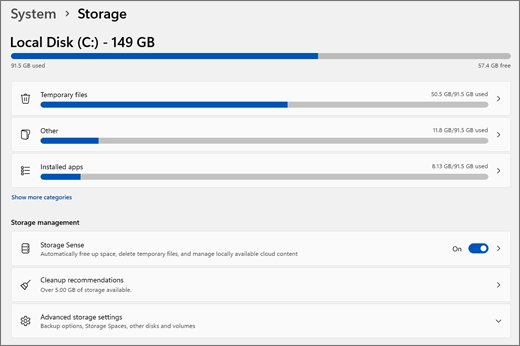
Windows 11 lists drive optimization under the storage settings, which hand off to the same Defragment and Optimize Drives window.
- Open Settings and select System.
- Select Storage.
- Expand Advanced storage settings.
- Select Drive optimization to open the optimize window.
Check the current status after optimization
The Current status column is the proof. After Analyze, it shows the fragmentation level; after Optimize, it should read OK.
- Select the drive in Defragment and Optimize Drives.
- Select Analyze if it is a hard drive.
- Read Current status: Microsoft advises optimizing a drive that is more than 10 percent fragmented.
- After optimizing, confirm Current status shows OK and Last run shows today's date.
- For an SSD, expect Last run to update only when retrim runs; it can be up to a month old after scheduled runs.
Signs your drive needs defragmentation
| What you see | What it means | What to do |
|---|---|---|
| Current status shows more than 10 percent fragmented after Analyze | The hard drive is fragmented enough to slow it | Select Optimize |
| Last run on a hard drive is weeks old | Scheduled runs are being missed or are turned off | Check Scheduled optimization and keep the PC on during maintenance |
| Defrag finishes but fragmentation stays high | Less than 15 percent free space on the volume | Free up space, then optimize again |
| Media type shows Solid state drive | Optimize runs retrim on this drive, not defragmentation | Leave it to the scheduled retrim |
Change the scheduled optimization in Windows 11/10
Windows optimizes drives once a week by default, during Automatic Maintenance. You can change the frequency, choose which drives are included, or turn the schedule off.
- Open Defragment and Optimize Drives.
- Under Scheduled optimization, select Change settings and approve the admin prompt.
- Keep Run on a schedule checked, or clear it to turn scheduling off.
- Set Frequency to Daily, Weekly or Monthly.
- Turn on the option to increase priority when three scheduled runs are missed, if your PC is often off at maintenance time.
- Select Choose next to Drives, tick the drives to include, and clear Automatically optimize new drives if you want to add drives manually.
- Select OK, then OK again.
SSDs follow their own monthly cadence for traditional optimization and retrim, and changing the frequency here does not alter that.
Defragment drives with the defrag command
Open Command Prompt as administrator; defrag needs local administrator rights. Press Ctrl + C to stop a run.
defrag C: /O /U /V/O performs the proper optimization for the drive's media type (defragment on a hard drive, retrim on an SSD), /U prints progress on screen and /V shows verbose fragmentation statistics. Use defrag C: /A to analyze only, defrag /C to process all volumes, defrag C: /L to retrim an SSD, and defrag C: /X to consolidate free space.
You should see: The analysis and defragmentation reports appear and the prompt returns; the Optimize Drives window then shows OK for that drive.
The defrag command and the Optimize Drives window cannot run on the same volume at once. Close the window before you run the command.
Optimize a drive with PowerShell Optimize-Volume
Run Windows PowerShell as administrator. Without a switch, Optimize-Volume applies the default operation for the drive type.
Optimize-Volume -DriveLetter C -VerboseRuns the default optimization for drive C and prints progress. Add -Analyze to report the state only, -Defrag to force defragmentation on a hard drive, or -ReTrim to re-send TRIM requests to an SSD.
You should see: Verbose output ends with a report of the volume's state and no error.
Defragment and optimize drives does not work or open
These are the most common issues with the Optimize Drives tool, grouped by what you see.
Defragment and Optimize Drives does not open
Damaged system files or a stopped Optimize drives service.
- Press Win + R, type
services.mscand press Enter. - Find Optimize drives (service name
defragsvc) and confirm Startup type is Manual, its default. - Open Command Prompt as administrator and run
sfc /scannow. - Restart and open the tool again.
A drive is missing from the list or shows as not available
The volume has errors, is marked dirty, or uses an unsupported type such as a network drive or optical disc.
- Open Command Prompt as administrator and run
fsutil dirty query C:with your drive letter. - If it reports the volume is dirty, run
chkdsk C: /fand restart if asked. - Reopen Defragment and Optimize Drives and look for the drive again.
Defragmenting only partly finishes
Defrag needs at least 15% free space as a sorting area.
- Free space with Settings > System > Storage > Cleanup recommendations.
- Move large files to another drive.
- Run Optimize again.
Scheduled optimization never runs
The task does not wake the PC and does not run on battery power.
- Leave a laptop plugged in and awake during its maintenance window.
- In Change settings, turn on the option to increase priority after three missed runs.
- Run Optimize manually once to confirm the drive works.
The defrag command fails with the window open
The command and the Optimize Drives app are mutually exclusive.
- Close Defragment and Optimize Drives.
- Run the
defragcommand again from an admin Command Prompt.
Should you defragment an SSD in Windows 11/10?
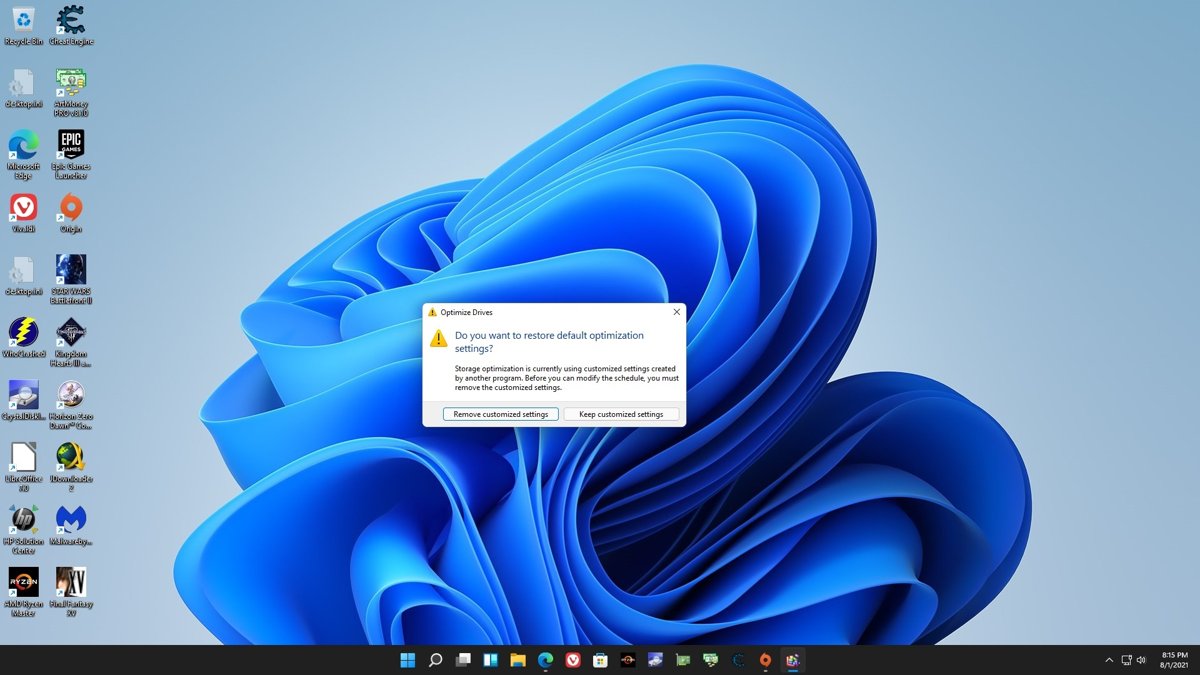
Let Windows handle SSDs and do not force traditional defragmentation on them; selecting Optimize on an SSD is safe because Windows runs retrim, not a full defrag. Microsoft's scheduled task already applies traditional optimization and retrim to SSDs once a month, and a manual defrag between runs simply makes the next scheduled run skip that step.
Defragment and optimize drives FAQ
What is Defragment and Optimize Drives?
It is the built-in Windows tool, formerly Disk Defragmenter, that optimizes storage drives. It defragments hard drives and sends TRIM to SSDs, and it runs automatically on a weekly schedule. There is nothing to download; it ships with Windows 11 and Windows 10.
What does Defragment and Optimize Drives do?
On a hard drive it rearranges file fragments so each file sits in one place and reads faster. On an SSD it runs retrim, telling the drive which blocks are free for cleanup. Other volume types get slab consolidation or tier optimization.
Does Windows 11 automatically defragment drives?
Yes. Windows 11 and Windows 10 optimize drives once a week by default during Automatic Maintenance. You can change the frequency to daily or monthly, or turn it off, under Scheduled optimization > Change settings.
How often should I optimize an HDD?
The default weekly schedule is enough for most hard drives. Run Analyze if the PC feels slow, and optimize manually when Current status shows more than 10 percent fragmentation, which is Microsoft's threshold.
How long does defragmentation take?
Anywhere from several minutes to several hours. It depends on the size of the drive and how fragmented it is, and you can keep using the PC while it runs.
How do I know whether my PC has an SSD or HDD?
Open Defragment and Optimize Drives and check the Media type column next to each drive. It shows Hard disk drive or Solid state drive, which also tells you whether Optimize will defragment or retrim it.
Does defragmenting delete files?
No. Defragmenting reorganizes where file pieces sit on a hard drive so they line up; it does not remove files. Keep at least 15 percent free space so defrag has room to sort fragments.
Can I use my computer while the drive is being optimized?
Yes. The defrag engine runs at low priority by default, so you can keep working, though a hard drive may feel slower during the run. Avoid shutting down until the Current status reads OK.
Why does my SSD still appear in Optimize Drives?
SSDs are listed because Windows still optimizes them, using retrim rather than defragmentation. Selecting Optimize on an SSD sends TRIM requests, which helps the drive manage free space.
Does drive optimization make Windows faster?
On a fragmented hard drive it can, because files read in one pass. On an SSD the gain is maintenance rather than speed, since TRIM keeps write performance steady. A drive already at OK gains nothing from another run.
Is there a free download for Defragment and Optimize Drives?
No download is needed. The tool is built into Windows 11 and Windows 10 and opens by searching for defrag on the taskbar. Avoid third-party download sites offering it.
Bottom line on defragmenting and optimizing drives
Leave scheduled optimization on and open the tool only to analyze a slow hard drive or to optimize after freeing a lot of space. Windows already applies the right operation to each drive type every week, so manual runs mainly help hard drives that report more than 10 percent fragmentation.
Closing tips: select Analyze before Optimize on a hard drive, keep at least 15 percent of the volume free so defrag can finish, and let Windows handle SSDs with its scheduled retrim.