Configure a VPN in Windows 11 under Settings > Network & internet > VPN > Add VPN, and change advanced sharing settings by searching Settings for Manage advanced sharing settings.
This guide covers the built-in VPN client, third-party VPN apps, network discovery, file and printer sharing, folder sharing, network profiles and fixes for common problems.
Configuring VPN and advanced sharing settings in Windows 11
Get the server address, VPN type and sign-in method from your company or VPN provider first. Sharing options also live in the classic Network and Sharing Center.
- Open Settings and select Network & internet > VPN > Add VPN.
- Set VPN provider to Windows (built-in), fill in Connection name and Server name or address, then select Save.
- Select Connect next to the new connection.
- In the Find a setting box in Settings, type manage advanced sharing settings and open the result.
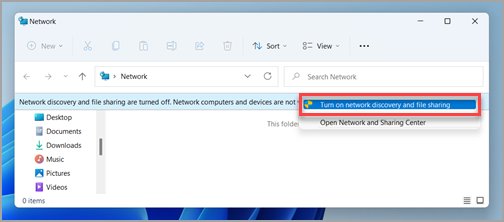
- Under Private networks, turn on Network discovery and File and printer sharing.
VPN and advanced sharing settings in Windows
| Setting | Where it is in Windows 11 | What it controls |
|---|---|---|
| VPN connections | Settings > Network & internet > VPN | Encrypted tunnels to a work network or VPN service |
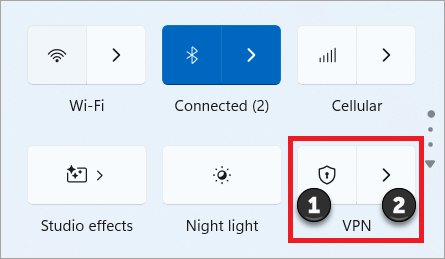
| VPN quick setting | Taskbar Network, Volume, Battery icon > VPN | Connecting and disconnecting a saved VPN |
| Network profile type | Settings > Network & internet > Wi-Fi or Ethernet | Whether the PC is Public (hidden) or Private (discoverable) |
| Advanced sharing settings | Settings search: Manage advanced sharing settings | Network discovery, file and printer sharing, password protected sharing |
V
P
N
s
e
t
t
i
n
g
s
a
r
e
n
o
t
a
v
a
i
l
a
b
l
e
i
n
W
i
n
d
o
w
s
1
1
S
E
.
Types of VPNs supported in Windows 11
| Protocol | Notes |
|---|---|
| IKEv2 | Internet Key Exchange version 2, an IPsec-based tunnel |
| L2TP/IPsec | Can use a pre-shared key or a certificate |
| SSTP | Secure Socket Tunneling Protocol; one of the protocols the Automatic option tries |
| PPTP | Oldest built-in protocol; least secure |
| Automatic | Tries each built-in protocol from most secure to least secure until one works |
| VPN app plug-ins | Third-party providers can add their own protocol through a Windows VPN plug-in app |
How to set up a VPN in Windows 11
- Open Settings > Network & internet > VPN.
- Select Add VPN.
- Choose Windows (built-in) as the VPN provider.
- Type a Connection name you will recognise and the Server name or address.
- Pick the VPN type your provider uses, or leave Automatic if unsure.
- Choose the Type of sign-in info, such as username and password, certificate, one-time password or smart card.
- Enter your username and password if required, then select Save.
- Select the Network, Volume, Battery icon on the taskbar, select VPN, and connect.
T
o
c
h
a
n
g
e
a
s
a
v
e
d
c
o
n
n
e
c
t
i
o
n
,
s
e
l
e
c
t
i
t
o
n
t
h
e
*
*
V
P
N
*
*
p
a
g
e
,
c
h
o
o
s
e
*
*
A
d
v
a
n
c
e
d
o
p
t
i
o
n
s
*
*
,
t
h
e
n
s
e
l
e
c
t
*
*
E
d
i
t
*
*
n
e
x
t
t
o
t
h
e
d
e
t
a
i
l
,
s
u
c
h
a
s
p
r
o
x
y
s
e
t
t
i
n
g
s
.
Using third-party VPN applications
Commercial VPN services and many corporate VPNs ship their own app. Windows lists apps such as Cisco AnyConnect, F5 Access, SonicWall Mobile Connect and Check Point Capsule as VPN plug-ins.
- Download the app only from the VPN provider's own website or the Microsoft Store, for example FortiClient's free VPN or Proton VPN.
- Install the app and sign in with your account.
- Pick a server or location in the app and connect.
- For a plug-in VPN, select its provider in Add VPN instead of Windows (built-in) and use the settings your vendor supplies.
- Check that the connection shows Connected in Settings > Network & internet > VPN.
How to access advanced sharing settings
- Select Start > Settings.
- Click the Find a setting search box.
- Type manage advanced sharing settings.
- Select Manage advanced sharing settings in the results.
I
n
F
i
l
e
E
x
p
l
o
r
e
r
,
o
p
e
n
i
n
g
*
*
N
e
t
w
o
r
k
*
*
s
h
o
w
s
a
b
a
n
n
e
r
w
h
e
n
n
e
t
w
o
r
k
d
i
s
c
o
v
e
r
y
i
s
o
f
f
;
s
e
l
e
c
t
i
t
a
n
d
c
h
o
o
s
e
*
*
T
u
r
n
o
n
n
e
t
w
o
r
k
d
i
s
c
o
v
e
r
y
a
n
d
f
i
l
e
s
h
a
r
i
n
g
*
*
.
Introduction to advanced sharing settings in Windows 11
| Option | Section | Effect when on |
|---|---|---|
| Network discovery | Private networks | This PC sees other devices and they see it |
| File and printer sharing | Private networks | Shared folders and printers are reachable from other PCs |
| Password protected sharing | All Networks | Only people with an account on this PC can open shares |
| Network profile Public | Wi-Fi or Ethernet settings | PC is hidden and file and printer sharing cannot be used |
| Network profile Private | Wi-Fi or Ethernet settings | PC can be discovered and used for sharing |
N
e
w
c
o
n
n
e
c
t
i
o
n
s
i
n
W
i
n
d
o
w
s
1
1
a
r
e
s
e
t
t
o
*
*
P
u
b
l
i
c
*
*
b
y
d
e
f
a
u
l
t
,
a
n
d
M
i
c
r
o
s
o
f
t
r
e
c
o
m
m
e
n
d
s
P
u
b
l
i
c
f
o
r
m
o
s
t
n
e
t
w
o
r
k
s
.
Managing advanced sharing settings in Windows 11
- Open Settings > Network & internet, select Wi-Fi or Ethernet, and select your network.
- Under Network profile type, choose Private network if you trust everyone on this network.
- Open Manage advanced sharing settings.
- Under Private networks, turn on Network discovery and File and printer sharing.
- Under All Networks, leave password protected sharing on unless every device on the network is yours.
How to share files and folders in Windows 11
- Right-click the folder in File Explorer and select Show more options.
- Select Give access to > Specific people.
- Choose a network user, or select Everyone.
- Set the permission level and confirm.
- To stop sharing, right-click the folder, select Show more options, then Give access to > Remove access.
F
o
r
m
o
r
e
o
p
t
i
o
n
s
w
h
e
n
y
o
u
[
s
h
a
r
e
f
i
l
e
s
a
n
d
f
o
l
d
e
r
s
o
v
e
r
a
n
e
t
w
o
r
k
]
(
h
t
t
p
s
:
/
/
t
e
c
h
d
o
w
s
.
c
o
m
/
h
o
w
–
t
o
–
s
h
a
r
e
–
f
i
l
e
s
–
a
n
d
–
f
o
l
d
e
r
s
–
o
v
e
r
–
a
–
n
e
t
w
o
r
k
–
i
n
–
w
i
n
d
o
w
s
–
1
1
1
0
.
h
t
m
l
)
,
u
s
e
t
h
e
s
t
e
p
s
a
b
o
v
e
o
n
e
a
c
h
P
C
.
T
o
s
h
a
r
e
f
i
l
e
s
o
v
e
r
t
h
e
i
n
t
e
r
n
e
t
i
n
s
t
e
a
d
o
f
a
l
o
c
a
l
n
e
t
w
o
r
k
,
M
i
c
r
o
s
o
f
t
r
e
c
o
m
m
e
n
d
s
O
n
e
D
r
i
v
e
.
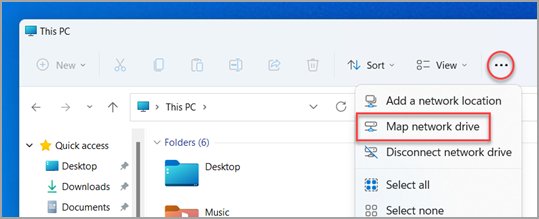
VPN and advanced sharing: working together
| Situation | What happens | What to do |
|---|---|---|
| VPN connected at home | Some VPNs route all traffic through the tunnel, hiding local devices | Disconnect the VPN while you copy files on the home network |
| Shares on the office network | A work VPN gives access to office file servers | Connect the VPN, then open the share path your IT team gives you |
| Public Wi-Fi with VPN | The VPN encrypts traffic, but local sharing still exposes the PC | Keep the profile on Public so sharing stays off |
Is my VPN connected in Windows 11?
- Open Settings > Network & internet > VPN and look for Connected under the connection name.
- Check the taskbar network icon for a blue shield, shown when a recognised VPN is connected.
- Open Network in File Explorer on another PC and confirm this PC appears.
- Open the shared folder from the other PC to confirm access.
Common VPN problems & fixes
VPN will not connect
A wrong server address, VPN type or sign-in type.
- Confirm the server address, VPN type and Type of sign-in info with your provider.
- Open the connection's Advanced options and select Edit to correct them.
- Re-enter your username and password when prompted.
VPN connects but internet stops working
Proxy or routing settings on the VPN profile are wrong.
- Open the connection's Advanced options.
- Check the proxy settings and select Edit to correct them.
- Ask your provider for the correct proxy and routing settings.
VPN keeps disconnecting
Several VPN profiles or apps compete for the connection.
- Select Manage VPN connections in quick settings and connect only the one you need.
- Quit any other VPN app running in the background.
- Reconnect and check that the status stays Connected.
Troubleshooting VPN and sharing issues in Windows 11
Shared computers are not appearing
The network is set to Public or discovery services are stopped.
- Set Network profile type to Private network.
- Turn on Network discovery in advanced sharing settings.
- Press Windows + R, type
services.msc, and set Function Discovery Provider Host, Function Discovery Resource Publication, SSDP Discovery and UPnP Device Host to Automatic, then start them.
Shared folders cannot be accessed
File sharing is off or the user lacks access.
- Turn on File and printer sharing under Private networks.
- Share the folder again with Give access to > Specific people and add the user.
- Sign in with an account that exists on the sharing PC if password protected sharing is on.
VPN and local network sharing conflict
The VPN tunnel takes over traffic meant for the local network.
- Disconnect the VPN from quick settings.
- Open the local share again.
- Ask your VPN provider whether the app has a local network access option.
Best practices for using VPN in Windows 11
| Practice | Why |
|---|---|
| Get settings from your provider or IT team | Wrong type or sign-in settings are the usual reason a VPN fails |
| Prefer IKEv2, SSTP or Automatic over PPTP | Automatic tries the most secure protocol first |
| Install VPN apps only from the vendor or Microsoft Store | Fake VPN apps are a common malware route |
| Name each connection clearly | The name is what you pick when connecting |
Best practices for advanced sharing in Windows 11
| Practice | Why |
|---|---|
| Share only on Private networks you trust | Private makes the PC discoverable to every device on the network |
| Share specific folders, not whole drives | Limits what another device can reach |
| Keep password protected sharing on | Turning it off lets anyone on the network open shares without a password |
| Use Remove access when finished | Stops sharing a folder you no longer need to share |
Tips for better network security in Windows 11
| Tip | Setting |
|---|---|
| Keep unknown networks on Public | Network profile type > Public network (Recommended) |
| Leave sharing off on public Wi-Fi | Public networks hide the PC and block file and printer sharing |
| Use a VPN on hotels, cafes and airports | Settings > Network & internet > VPN |
| Keep Microsoft Defender Firewall on | Windows Security > Firewall & network protection |
VPN and advanced sharing settings FAQs
Where are advanced sharing settings in Windows 11?
Open Settings, type manage advanced sharing settings in the Find a setting box, and select the result. The page holds Network discovery and File and printer sharing under Private networks, plus password protected sharing under All Networks.
Does Windows 11 have a built-in VPN?
Windows 11 has a built-in VPN client, not a VPN service. You add a connection under Settings > Network & internet > VPN using a server address from your company or VPN provider.
Should network discovery be on or off?
Turn it on only on a Private network you trust, such as your home network. On public networks, keep the profile Public so the PC stays hidden from other devices.
Why can't I see another computer on my network?
Usually the network is set to Public or network discovery is off. Set the profile to Private, turn on Network discovery, and check that the Function Discovery and SSDP services are running.
Does enabling file sharing share everything?
No. Turning on file and printer sharing only allows sharing; nothing is shared until you use Give access to on a folder. Seeing your files at \\localhost does not mean they are shared.
Should I enable file sharing on public Wi-Fi?
No. Keep public Wi-Fi on the Public profile, which hides the PC and blocks file and printer sharing. Share files over the internet with OneDrive instead.
What VPN types does Windows 11 support?
The built-in client supports IKEv2, L2TP/IPsec, SSTP and PPTP, plus an Automatic option that tries them from most to least secure. Third-party providers can add plug-in VPN apps.