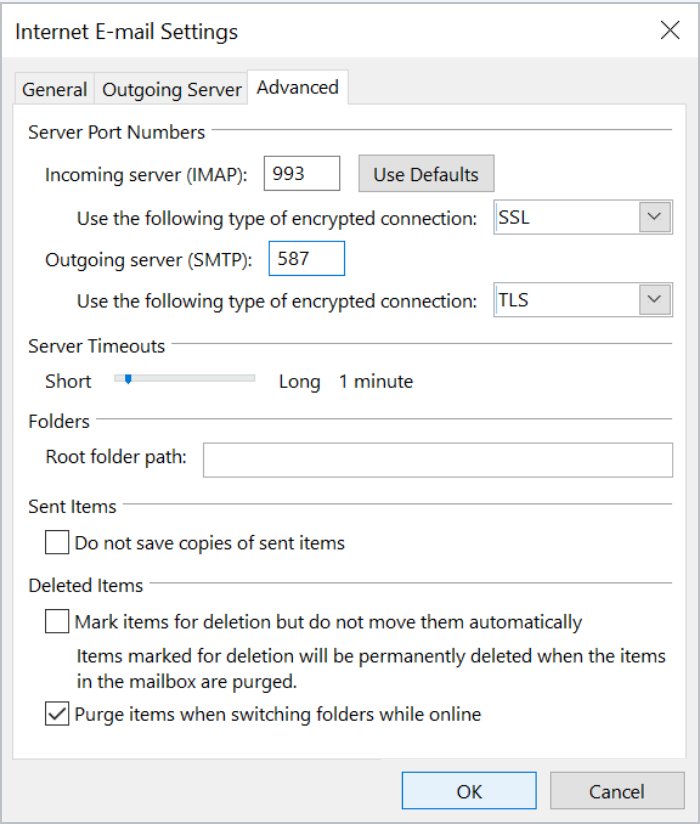
To configure Microsoft Outlook for Gmail manually, choose IMAP and enter imap.gmail.com on port 993 with SSL for incoming mail and smtp.gmail.com on port 587 with TLS for outgoing mail, using your full Gmail address as the user name.
This guide covers the automatic Google sign-in route, manual IMAP and POP setup in classic Outlook, new Outlook, app passwords, Google Workspace accounts and the sign-in errors Outlook shows for Gmail.
Set up Gmail to connect with Microsoft Outlook
Current classic Outlook fills in the Gmail server settings for you and signs in through Google. Google no longer supports email apps that ask for your Google username and password directly, so this sign-in route is the one to try first.
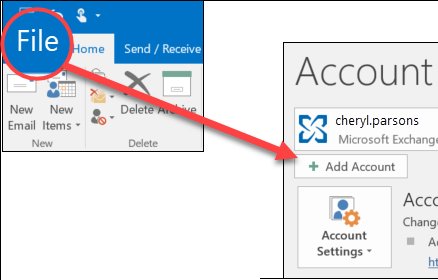
- Open classic Outlook and select File > Add Account.
- Enter your Gmail address and select Connect.
- In the Gmail sign-in window, confirm the address and select Next.
- Enter your Google password and complete any 2-Step Verification prompt.
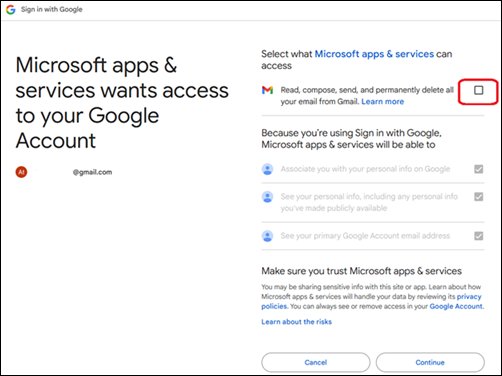
- On the Google permissions window, check the box that lets Microsoft apps and services read, compose, send and delete your Gmail mail, then select Allow.
- Select Done, or add another account.
If you see Something went wrong, select Retry and sign in again. Google may email you a new sign-in alert after the account connects, which is expected.
How to configure Outlook for Gmail account: IMAP, POP or Google sign-in
Gmail works with Outlook over IMAP or POP. IMAP syncs mail across devices in real time; POP downloads mail to one computer on a schedule you set.
| Your setup | Use this | Why |
|---|---|---|
| Outlook for Microsoft 365, Outlook 2019 or Outlook 2016 | Add Account with Google sign-in | These versions support OAuth, so Outlook signs in through Google |
| Outlook fills the wrong servers or you need control over ports | Manual IMAP with Advanced options | You type each server, port and encryption type |
| Gmail on a phone and a PC at the same time | IMAP | Read, sent and deleted mail stay in step everywhere |
| One PC only, and you want local copies | POP | Mail downloads to that computer instead of syncing |
| An older Outlook that rejects your correct password | IMAP with an app password | Older versions cannot use Google sign-in |
| A Google Workspace work or school account | Ask the admin to turn on IMAP, then Google sign-in | Workspace accounts need OAuth and admin-enabled IMAP |
Manual settings for Gmail in Outlook
Google publishes these server values for Outlook and other email clients. For personal Gmail accounts, IMAP is always on since January 2025, so there is nothing to switch on in Gmail first.
| Setting | IMAP | POP |
|---|---|---|
| Incoming mail server | imap.gmail.com |
pop.gmail.com |
| Incoming port and encryption | 993, SSL | 995, SSL |
| Outgoing mail server (SMTP) | smtp.gmail.com |
smtp.gmail.com |
| Outgoing port and encryption | 587 with TLS, or 465 with SSL | 587 with TLS/STARTTLS |
| Outgoing server requires authentication | Yes, same settings as incoming | Yes |
| User name | Your full Gmail address | Your full Gmail address |
| Password | Google sign-in, or an app password in older Outlook | Google sign-in, or an app password in older Outlook |
| Server timeout | Default | More than 1 minute (5 minutes recommended) |
For a work or school Gmail account, Google advises checking the SMTP values with your administrator.
How to setup Gmail in Outlook manually
In Outlook for Microsoft 365, manual setup sits behind Advanced options on the first Add Account screen. Most fields arrive pre-filled, so compare them with the table above.
- Open classic Outlook and select File > Add Account.
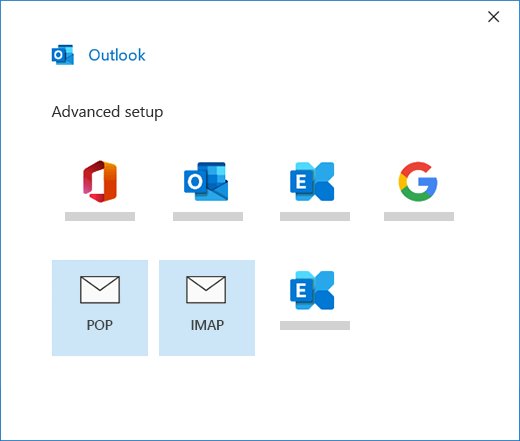
- Type your Gmail address, select Advanced options, check Let me set up my account manually and select Connect.
- Select IMAP as the account type.
- On Account settings, enter
imap.gmail.com, port 993 and SSL for incoming mail. - Enter
smtp.gmail.com, port 587 and TLS for outgoing mail, then select Next. - Enter your password, or complete the Google sign-in window if it opens, and select Connect.
- Select Done when Outlook confirms the account was added.
The same dialog lets you add a POP3 or IMAP account from Yahoo, iCloud or any other provider.
Gmail IMAP settings in older Outlook versions
Outlook versions before 2016, and Outlook 2016 volume-licensed MSI editions, do not support OAuth. Google lists these exact dialog values for them, and they also work in other mail clients.
- Select Add Account, choose Manual setup or additional server types and select Next.
- Select POP or IMAP and select Next.
- Enter Your Name and Email Address, set Account type to IMAP, Incoming mail server to
imap.gmail.comand Outgoing mail server (SMTP) tosmtp.gmail.com. - Enter your Gmail address as User Name and an app password as Password, then select More Settings….
- On the Outgoing Server tab, check My outgoing server (SMTP) requires authentication and select Use same settings as my incoming server.
- On the Advanced tab, set the incoming server (IMAP) to port 993 with SSL, and the outgoing server (SMTP) to port 587 with TLS. If you pick SSL for outgoing, use port 465.
- Select OK, then Next. Outlook tests the settings and reports when the account is set up.
How to configure Gmail email in new Outlook for Windows
New Outlook for Windows adds Gmail through Google sign-in from its account settings. If these menus are missing, you are still on classic Outlook; use the steps above.
- Open new Outlook and select the View tab, then View settings. You can also go to File > Account info.
- Select Accounts > Your accounts.
- Select Add Account.
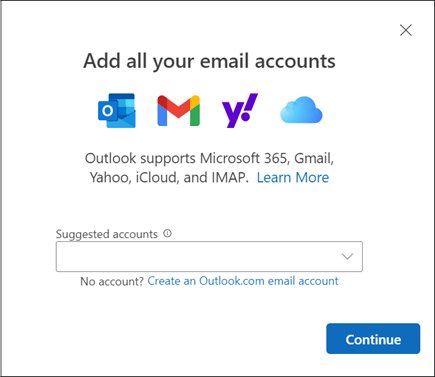
- Choose your Gmail address in the Suggested account list, or type it, and select Continue.
- Follow the Google sign-in prompts and select Allow on the permissions window.
- Select Done.
To remove the Gmail account later, or make it the main one, open Accounts > Your accounts, select Manage next to it, and choose Remove or Set as primary account. Once the account is in, you can set up signatures, views and calendars with the usual Outlook settings and fixes.
Set up Gmail POP in Outlook
POP has to be turned on in Gmail before Outlook can download anything. After you enable it, Gmail can take some time to deliver older messages to Outlook.
- Open Gmail on your computer and select Settings > See all settings.
- Open the Forwarding and POP/IMAP tab.
- Under POP download, select Enable POP for all mail or Enable POP for mail that arrives from now on.
- Under When messages are accessed with POP, choose whether Gmail keeps, marks as read, archives or deletes its copy.
- Select Save Changes.
- In Outlook, add the account manually, choose POP, and enter
pop.gmail.comon port 995 with SSL andsmtp.gmail.comon port 587 with TLS.
Pick Keep Gmail's copy in the Inbox if you still want the mail on your phone or in a browser. The delete option removes it from Gmail once Outlook downloads it.
Gmail app password for Outlook
An app password is a 16-digit passcode for apps that cannot use Sign in with Google. Google only offers it on accounts with 2-Step Verification turned on, and it is not needed with current Outlook.
- Turn on 2-Step Verification in your Google Account if it is off.
- Open the App passwords page in your Google Account and sign in again if asked.
- Create an app password for Outlook and copy the 16-digit code.
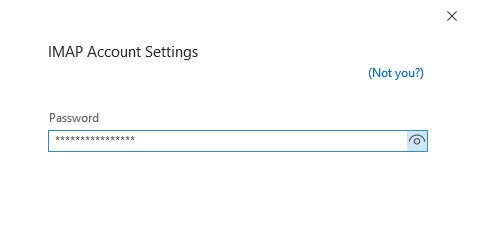
- Paste the code into the Password field in Outlook instead of your Google password.
- Finish the account setup. You normally enter an app password only once per app.
Changing your Google password revokes your app passwords, so create a new one afterwards. The option is missing on work or school accounts, on accounts with Advanced Protection, and on accounts that use only security keys for 2-Step Verification. Other providers have their own way to get an IMAP password for Outlook.
How to connect Google Workspace to Outlook
Since May 1, 2025, Google Workspace accounts no longer accept apps that sign in with a username and password, so Outlook must use OAuth. An admin has to allow IMAP for the organization first in the Google Workspace Admin console.
- As an admin, open the Google Admin console and go to Menu > Apps > Google Workspace > Gmail > End User Access.
- Optionally select an organizational unit at the side to limit the change to one team.
- Under POP and IMAP access, check Enable IMAP access for all users and choose Allow any mail client, or restrict access to listed OAuth clients.
- Select Save. The change can take up to 24 hours.
- On the user's PC, add the Workspace address in Outlook with File > Add Account and complete the Google sign-in.
- Select Allow on the Google permissions window and select Done.
Workspace organizations that want calendar, contacts and mail synced through Google's own tool can use Google Workspace Sync for Microsoft Outlook (GWSMO) instead of plain IMAP.
How to test Gmail account settings in Outlook
- Wait for the first sync to finish. Your Gmail labels appear as folders under the account in Outlook.
- Send a message from the Gmail account in Outlook to another address you can read.
- Open Gmail in a browser and check that the message is in Sent, which proves SMTP works.
- Reply from the other address and select Send/Receive in Outlook to confirm incoming mail arrives.
- Read or delete a message in Outlook and confirm the same change appears in Gmail, which shows IMAP sync is working.
Gmail not working in Outlook: sign-in and IMAP errors
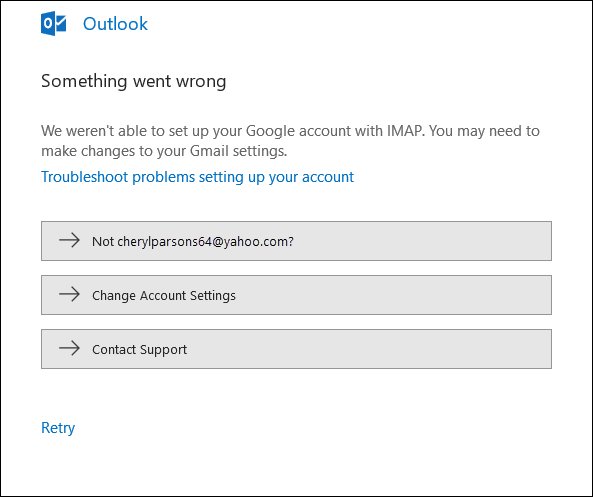
"We couldn't log on to the incoming (POP/IMAP) server" or "We weren't able to set up your Google account with IMAP"
The Google sign-in finished without the box that gives Microsoft apps and services access to your Gmail mail.
- Select Retry in the error window to repeat the Google sign-in.
- On the permissions screen, check the box to read, compose, send and permanently delete your Gmail email, then select Allow.
- If Retry is not offered, update Outlook. Microsoft fixed this in Current Channel Version 2412 Build 18324.20168.
Send/Receive error 0x800CCC0E while synchronizing subscribed folders
Outlook holds a Google token without full mail access.
- Close Outlook.
- In your Google Account, open Security, find Microsoft apps & services under third-party connections, select See details and remove all access.
- Open Windows Credential Manager > Windows Credentials and delete the
MicrosoftOffice16_Data:OAUTH2entries for the Gmail account. - Open Outlook, select the sign-in bar for the account and complete the Google sign-in with the access box checked.
Outlook will not accept your correct Gmail password
Your Outlook version cannot use Google sign-in.
- Turn on 2-Step Verification for your Google Account.
- Create an app password as described above.
- Enter the app password in Outlook instead of your Google password.
- Plan an upgrade to an Outlook version that supports OAuth.
Configure Outlook for Gmail FAQ
How do I configure Outlook for Gmail?
In classic Outlook, select File > Add Account, enter your Gmail address and select Connect. Sign in through the Google window and select Allow. Outlook fills in the IMAP and SMTP settings itself on Outlook for Microsoft 365, 2019 and 2016.
How do I set up Gmail in Outlook manually?
Select File > Add Account, choose Advanced options, check Let me set up my account manually and select Connect. Pick IMAP, then enter imap.gmail.com on port 993 with SSL and smtp.gmail.com on port 587 with TLS.
What are the IMAP and SMTP settings for Gmail in Outlook?
Incoming mail uses imap.gmail.com on port 993 with SSL. Outgoing mail uses smtp.gmail.com on port 587 with TLS, or port 465 with SSL. The user name is your full Gmail address, and the outgoing server requires authentication.
How do I configure a Gmail email account in new Outlook?
Open View > View settings, select Accounts > Your accounts and select Add Account. Choose or type the Gmail address, select Continue, sign in with Google and select Allow. New Outlook handles the server settings for you.
Do I need to enable IMAP in Gmail for Outlook?
No, not for a personal Gmail account. Since January 2025, IMAP access is always turned on and the Enable IMAP option is gone. Google Workspace accounts are different: an admin must allow IMAP in the Google Admin console.
Do I need an app password to add Gmail to Outlook?
Not with Outlook for Microsoft 365, Outlook 2019 or Outlook 2016, which sign in through Google. Older versions that reject your correct password need an app password, which requires 2-Step Verification on your Google Account.
Should I use IMAP or POP for Gmail in Outlook?
Use IMAP if you read Gmail on more than one device, because it syncs messages in real time. Use POP only for a single computer that should download its own copies of your mail on a schedule.
Can I add a Google Workspace account to Outlook?
Yes. An admin turns on IMAP under Apps > Google Workspace > Gmail > End User Access in the Admin console. The user then adds the address in Outlook and signs in with Google, because Workspace accounts require OAuth since May 2025.