Windows 10 cannot open RAR files on its own, so install the free 7-Zip archiver, right-click the RAR file and extract it with 7-Zip.
This guide covers the 7-Zip steps, the built-in RAR support in Windows 11, older Windows versions, setting a default app and fixing archives that refuse to open.
Can Windows open RAR files?
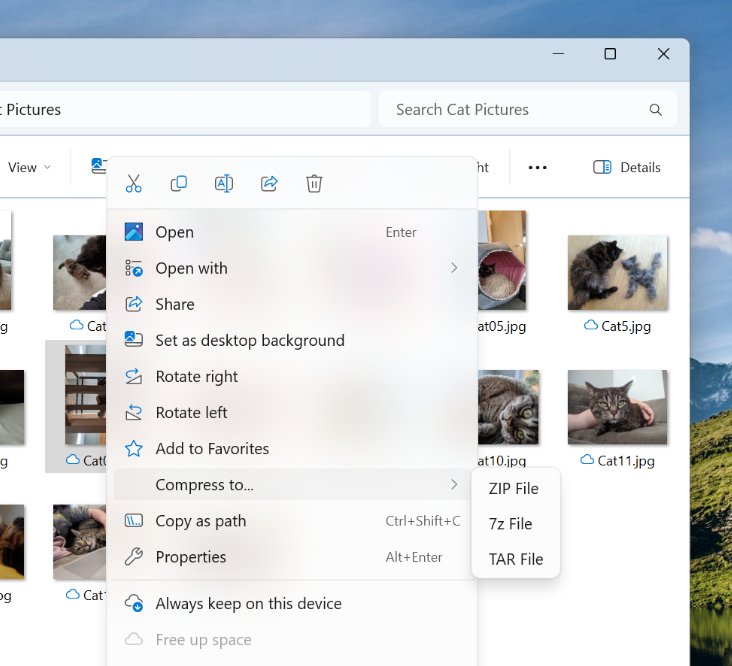
Microsoft added RAR, 7z and TAR support to File Explorer in Windows 11, version 24H2. Windows 10 never received it, so it needs an archiver.
| Your system | Opens RAR without extra software? | What to use |
|---|---|---|
| Windows 10 | No | 7-Zip (free) or WinRAR |
| Windows 11, version 24H2 or later | Yes | File Explorer, or 7-Zip for encrypted archives |
| Windows 11 before 24H2 | No | Update Windows 11, or use 7-Zip |
| Windows 8, 7, Vista or XP | No | 7-Zip, which still supports these versions |
| Password-protected RAR on any Windows | No | 7-Zip or WinRAR; File Explorer does not handle encrypted archives |
How to open RAR files on Windows 10
7-Zip is free and open source, and lists RAR among the formats it can unpack. You do not need to register or pay, even on a work computer.
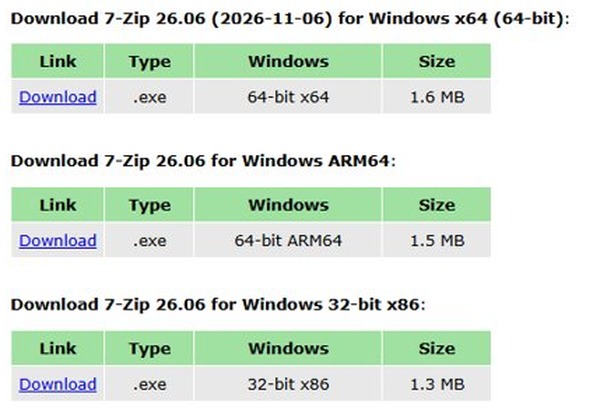
- Go to 7-zip.org and download the installer that matches your PC: 64-bit Windows x64 for most computers, 32-bit Windows x86 for older 32-bit systems, or 64-bit Windows arm64 for ARM devices.
- Run the installer and finish the setup.
- Before extracting, right-click the RAR file and select Scan with Microsoft Defender to check it.
- Right-click the RAR file, point to 7-Zip, and choose one of its extract commands to unpack the archive here or into a new folder.
- Open the folder that appears next to the RAR file to use the extracted files.
You can also install 7-Zip with a single winget command if you prefer the terminal.
Open RAR files on Windows with 7-Zip File Manager
The File Manager lets you look inside an archive and pull out only the files you need.
- Open 7-Zip File Manager from the Start menu.
- Browse to the folder that holds the RAR file and double-click the archive to see its contents.
- Select the files or folders you want.
- Select Extract, choose a destination folder, and confirm.
- Use Test on the archive first if you suspect the download is damaged.
Dragging files from 7-Zip into File Explorer works, but 7-Zip first unpacks them to a temp folder. The Extract command writes straight to the destination instead. The same window also handles 7-Zip's compress and extract features for 7z and ZIP archives.
How to open RAR files on Windows 11
Windows 11, version 24H2 and later treat RAR archives like zipped folders in File Explorer. No extra app is needed unless the archive is encrypted.
- Open File Explorer and find the RAR file.
- Double-click the archive to browse its contents.
- To take out one file or folder, drag it from the archive to another location.
- To unpack everything, right-click the RAR file, select Extract All…, and follow the prompts.
ZIP files work the same way on both Windows 10 and 11; the steps to open a ZIP file on Windows need no extra software.
Open RAR file on Windows 7 and older versions
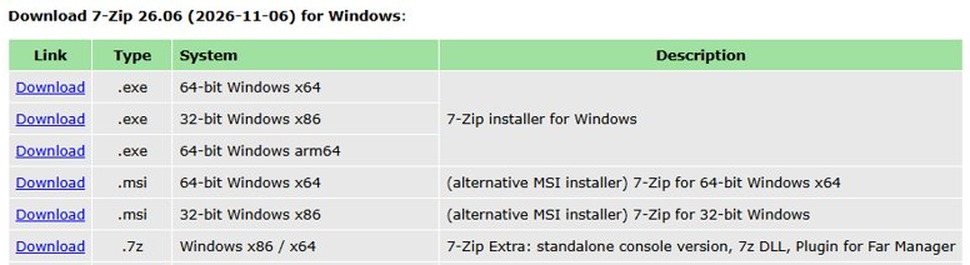
7-Zip still supports Windows 11, 10, 8, 7, Vista and XP, so the same steps work on older PCs. Pick the right installer for the processor.
| Your PC | 7-Zip download to choose | Notes |
|---|---|---|
| Windows 7, 8 or 10, 64-bit | .exe for 64-bit Windows x64 | The default choice for most PCs |
| Windows 7 32-bit, Vista or XP | .exe for 32-bit Windows x86 | Runs on 32-bit systems |
| Windows on ARM | .exe for 64-bit Windows arm64 | Native ARM build |
| Managed or scripted installs | .msi installer | 7-Zip recommends the .exe for normal use |
On Windows 7 and Vista, run 7-Zip File Manager as administrator (right-click it and select Run as administrator) before you change file associations.
Make 7-Zip the default app for RAR files
Setting a default app lets you double-click a RAR file and have it open straight in 7-Zip.
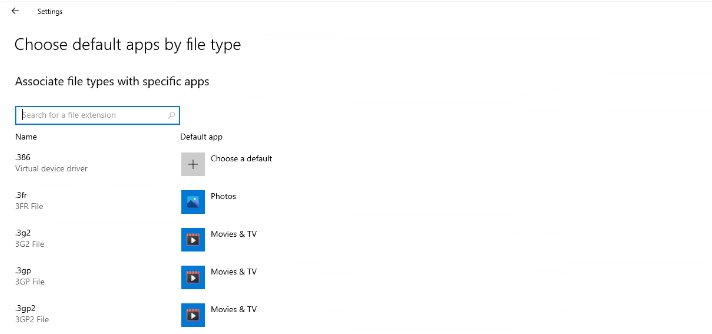
- Open Settings and select Apps > Default apps.
- On Windows 11, type .rar in the search bar and select the result.
- Choose 7-Zip File Manager from the list of apps.
- Double-click any RAR file to check that it opens in 7-Zip.
You can also set associations from inside 7-Zip File Manager; on Windows 7 and Vista it must run as administrator for that to work.
Tips for opening RAR files on Windows 10
| Tip | Why it helps |
|---|---|
| Download 7-Zip only from 7-zip.org | The official site lists every current installer for x64, x86 and ARM64 |
| Scan archives from the internet with Microsoft Defender | A RAR file can carry malware inside an innocent-looking file |
| Keep 7-Zip updated | 7-Zip 9.20 cannot read RAR5 archives; current versions can |
| Use Test before extracting a suspicious download | Data Error or CRC Error shows the archive is damaged |
| Extract to a new folder | Archives with many loose files will not scatter across your Downloads folder |
| Use WinRAR if you need to make RAR files | 7-Zip can unpack RAR but cannot create it; it can create 7z and ZIP instead |
RAR file won't open on Windows 10
7-Zip says it cannot open the file as an archive
An old 7-Zip such as 9.20 cannot read RAR5 archives, or the download is incomplete.
- Download and install the current 7-Zip from 7-zip.org over the old version.
- Try opening the archive again.
- If it still fails, download the RAR file again from its source.
Data Error or CRC Error during extraction
The archive is corrupted, usually by an interrupted download.
- Open the archive in 7-Zip File Manager and run Test to confirm the damage.
- Download the file again and test the new copy.
- Ask the sender for a fresh copy if every download fails.
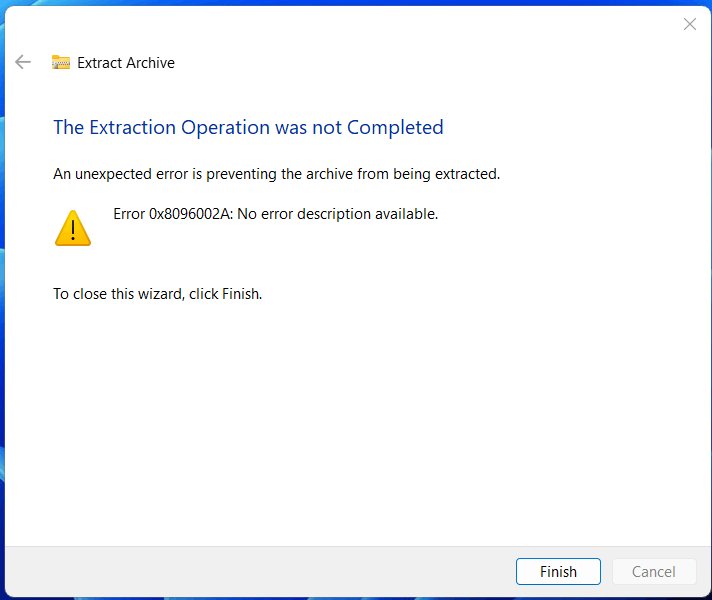
Windows 11 asks for a password or will not extract
The archive is encrypted, and File Explorer does not support encrypted archives.
- Install 7-Zip from 7-zip.org.
- Right-click the RAR file and extract it with 7-Zip.
- Type the password when 7-Zip asks for it.
Windows asks which app to use for a .rar file
No archiver is installed or set as the default app.
- Install 7-Zip.
- Open Settings > Apps > Default apps and set 7-Zip File Manager for .rar files.
Extract All does not work on a RAR file in Windows 11
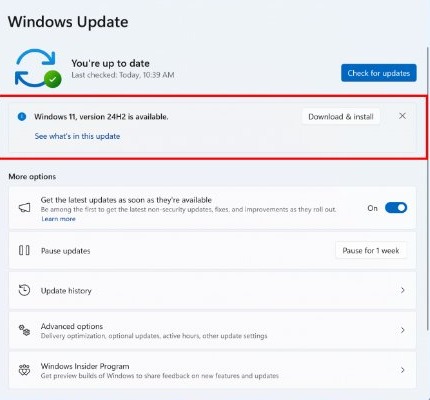
Built-in RAR support arrived in Windows 11, version 24H2; earlier builds do not have it.
- Install the latest Windows 11 feature update from Settings > Windows Update.
- Or extract the archive with 7-Zip in the meantime.
Open RAR files on Windows 10 FAQ
Can Windows open RAR files?
Windows 11, version 24H2 and later can open RAR files in File Explorer. Windows 10 and older versions cannot, so they need an archiver such as the free 7-Zip.
Can I open RAR files without any software?
Only on Windows 11, version 24H2 or later, where File Explorer opens RAR archives directly. On Windows 10 you need to install an archiver, and encrypted archives need one on every version.
How do I open RAR files on Windows 10 for free?
Install 7-Zip from 7-zip.org, right-click the RAR file, point to 7-Zip and choose an extract command. 7-Zip is free for home and business use with no registration.
Is there a free tool to open RAR files?
Yes. 7-Zip is free, open-source software that unpacks RAR, including RAR5 in current versions. It runs on Windows 11, 10, 8, 7, Vista and XP.
What if the RAR file is corrupted?
Run Test in 7-Zip File Manager to confirm it. A Data Error or CRC Error means the archive is damaged, so download it again or ask the sender for a new copy.
Are there any risks with opening RAR files?
Yes. An archive from the internet can hide malware. Right-click the file and select Scan with Microsoft Defender before extracting, and only open archives from sources you trust.
Can I create RAR files using these tools?
Not with 7-Zip, which can unpack RAR but not create it. 7-Zip creates 7z and ZIP archives; making RAR files needs WinRAR. Windows 11 File Explorer creates ZIP files.
How do I open RAR files on Windows 11?
On version 24H2 or later, double-click the RAR file in File Explorer to browse it, or right-click it and select Extract All. Earlier Windows 11 builds need 7-Zip.
How do I open JAR files on Windows 11?
A JAR file is a Java archive, not a RAR file. You can run JAR files with Java; the steps differ from extracting a RAR archive.