When Capability Access Manager is taking up storage in Windows 11, the culprit is the CapabilityAccessManager.db-wal file, and Microsoft's fix is the June 23, 2026 update KB5095093 or any later cumulative update.
This guide explains what the component and its file do, which builds carry the fix, how to free enough space to install it, and why deleting the folder by hand is the wrong move.
Fix Capability Access Manager taking up storage in Windows 11
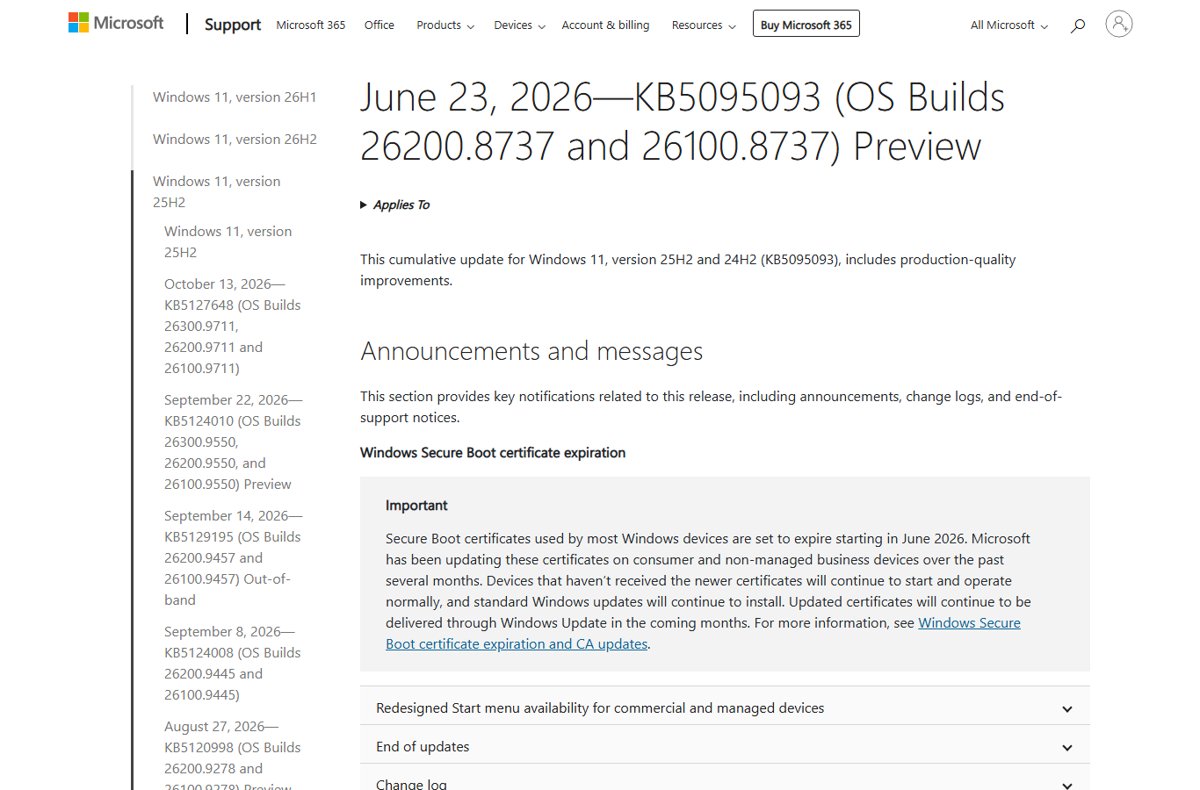
Microsoft's release notes for KB5095093 state that the update improves disk space usage for the CapabilityAccessManager.db-wal file. Every cumulative update released after it carries the same change, so the latest update is all you need.
- Select Start > Settings > System > About and note the OS build under Windows specifications.
- Compare it with 26100.8737 (version 24H2) or 26200.8737 (version 25H2). A higher number after the dot means the fix is already installed.
- If your build is lower, select Start > Settings > Windows Update.
- Select Check for updates and install the latest cumulative update that appears.
- Select Restart now when Windows asks, and let the update finish.
- Open Settings > System > Storage and check that free space on drive C: has stopped falling.
If Windows Update refuses to install because the drive is nearly full, free space first with the steps in the section on making room for the update.
What is Capability Access Manager in Windows 11?
Capability Access Manager is the Windows component that decides which apps may use privacy-controlled features such as the camera, microphone and location. It runs as a background service and keeps a record of the permissions you grant.
| Item | What it is |
|---|---|
| Service display name | Capability Access Manager Service |
| Service name | camsvc |
| Default startup type | Manual – it starts when an app needs a capability check |
| Job | Manages app access to capabilities and checks whether an app may use a specific capability |
| Where your choices appear | Settings > Privacy & security > Camera, Microphone, Location and the other app permission pages |
| Where consent is stored | Under HKEY_LOCAL_MACHINE\SOFTWARE\Microsoft\Windows\CurrentVersion\CapabilityAccessManager\ConsentStore, one key per capability, for example location with a value of Allow or Deny |
| Is it malware? | No. It is part of Windows 11 and Windows 10, not a third-party program |
Because the camera and microphone pages list desktop apps that have used those devices, Windows has to record that access somewhere. That record is where the storage problem starts.
What is Capability Access Manager CapabilityAccessManager.db-wal?
CapabilityAccessManager.db-wal belongs to the database Capability Access Manager keeps on drive C:. The -wal suffix marks a write-ahead log, the file a database writes changes to before folding them into the main .db file.
| Question | Answer |
|---|---|
| Which file grows? | CapabilityAccessManager.db-wal, the write-ahead log next to the CapabilityAccessManager database |
| Why it grows | On builds before the fix the log could grow far beyond its normal size, and Microsoft's notes say the update improves its disk space usage |
| Which Windows versions are named in the fix | Windows 11, version 24H2 and version 25H2 |
| Official fix | KB5095093 (June 23, 2026) and every later cumulative update |
| How it shows in Storage settings | As part of System & reserved, visible after you select Show more categories |
| Is the file needed? | Yes, while the service is running. It is part of a live database, not a leftover cache |
That is why this happens only on unpatched builds: what is actually happening is that the log keeps growing until an update changes how Windows manages it.
How to check if you're affected by the CapabilityAccessManager.db-wal bug
Before you change anything, confirm that this bug is really what is eating the drive. Three checks in Settings tell you whether your PC is affected and where the space went.
| Check | Where to look | Likely affected if | Not this bug if |
|---|---|---|---|
| Windows version | Settings > System > About > Version | Version 24H2 or 25H2 | Another version, which the KB5095093 fix does not name |
| OS build | Settings > System > About > OS build | Lower than 26100.8737 or 26200.8737 | 26100.8737, 26200.8737 or higher – the fix is already installed |
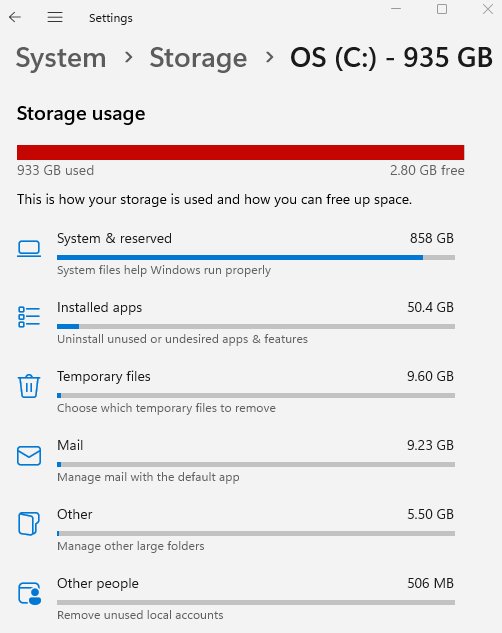
| Where the space went | Settings > System > Storage > Show more categories > System & reserved | System & reserved is large and keeps growing from day to day | Another category, such as Apps or Temporary files, holds the space |
If the first two checks say you are on an unpatched 24H2 or 25H2 build and System & reserved keeps climbing, install the update in the next sections.
Which Windows 11 builds fix the CapabilityAccessManager.db-wal file
The fix shipped first as an optional preview update and then reached everyone through the monthly security updates. Match your OS build against this table.
| Update | Release date | OS builds | Includes the db-wal fix? |
|---|---|---|---|
| KB5094126 | June 9, 2026 | 26200.8655 and 26100.8655 | No |
| KB5095093 (optional preview) | June 23, 2026 | 26200.8737 and 26100.8737 | Yes – first update with the fix |
| KB5101650 (security update) | July 14, 2026 | 26200.8875 and 26100.8875 | Yes |
| KB5127648 (latest security update) | October 13, 2026 | 26300.9711, 26200.9711 and 26100.9711 | Yes |
Devices managed through Windows Update for Business did not get the preview. On those PCs the change arrived with the next security update instead.
Install the KB5095093 fix or a later update from Windows Update
You do not need KB5095093 itself if a newer cumulative update is offered. Windows cumulative updates include the fixes from earlier releases.
- Select Start > Settings > Windows Update.
- Select Check for updates.
- Install the newest cumulative update for Windows 11 in the list.
- If nothing new appears, select Advanced options > Optional updates and install any cumulative preview listed under Optional updates available.
- Select Restart now and wait for the update to reach 100 percent.
- Return to Settings > Windows Update and confirm it reports that you are up to date.
On a work or school PC, updates may be held back by your organisation. Ask your IT department whether the July 2026 or later security update has been approved.
Check how much storage System & reserved uses in Windows 11
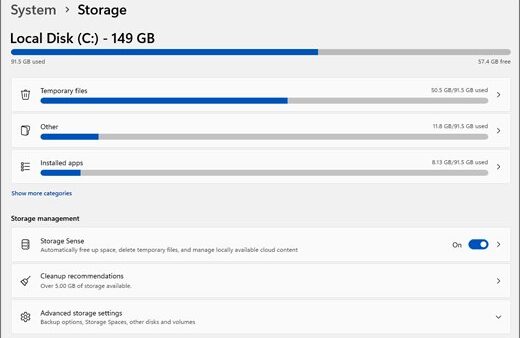
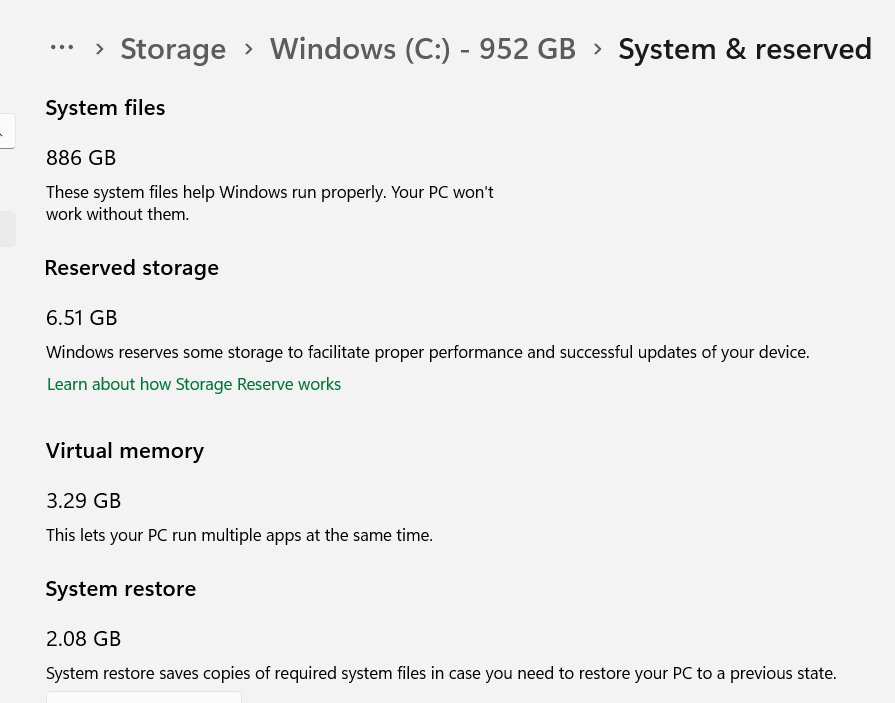
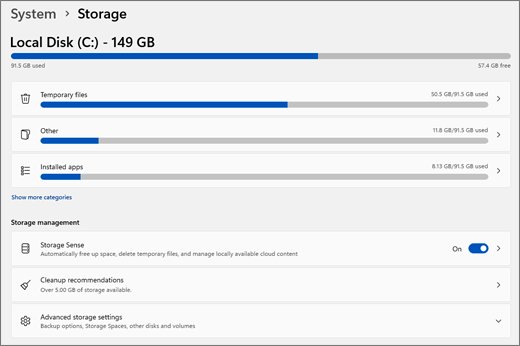
Storage settings does not list Capability Access Manager by name. Its database counts toward the system categories, so watch that figure before and after the update.
- Select Start > Settings > System > Storage.
- Under drive C:, select Show more categories.
- Select System & reserved and note the total it reports.
- Repeat the check a day after installing the update to see whether the total has stopped growing.
- For a quick free-space reading instead, open File Explorer, select This PC and read the bar under Devices and drives.
Free up disk space so Windows Update can install the fix
A drive that the db-wal file has already filled may not have room for the cumulative update. Free up disk space safely first, then install the update.
- Select Start > Settings > System > Storage > Cleanup recommendations.
- Review Temporary files, Large or unused files, Files synced to the cloud and Unused apps, and tick the items you no longer need.
- Select Clean up under each section you changed.
- Back on the Storage page, set Storage Sense to On so Windows clears temporary files and the Recycle Bin automatically when space runs low.
- Empty the Recycle Bin if you deleted personal files by hand.
- If the update still says it needs more space, connect a USB drive or SD card and let Windows Update use it as external storage for the install.
Storage Sense only works on the system drive, which is exactly where the CapabilityAccessManager database lives.
How to check the Capability Access Manager fix is installed
- Type
winverin the taskbar search box and press Enter. - Read the OS Build line in the About Windows window.
- Confirm the number is 26100.8737, 26200.8737 or higher in the part after the dot.
- Open Settings > Windows Update and confirm no cumulative update is waiting to install or restart.
- Recheck Settings > System > Storage over the next few days and confirm free space on drive C: holds steady.
Can I delete the CapabilityAccessManager folder?
Microsoft does not document deleting the CapabilityAccessManager folder or its .db-wal file as a fix. The file belongs to a database the Capability Access Manager Service keeps open, and the folder also holds the records behind your app permission settings.
Booting into Safe Mode so the service is not running, and then deleting the bloated log file, is also not a step Microsoft documents. Don't delete the file manually; let the update deal with it.
Do not delete the CapabilityAccessManager folder or the .db-wal file by hand; install KB5095093 or a later cumulative update instead. Microsoft's supported fix for the growth is the update. Removing a live database log can leave app permissions for the camera, microphone and location in an unknown state, and the old build would simply start filling the drive again.
Should you disable the Capability Access Manager service?
Microsoft's service guidance marks camsvc as safe to disable only on fixed-function Windows IoT Enterprise devices that do not use app capabilities. A normal Windows 11 PC uses it every time an app asks for the camera, microphone or location.
Leave the Capability Access Manager service at its default Manual startup type on a home or office PC. Disabling it removes the permission checks that apps rely on, and it does nothing that the storage fix in the cumulative update does not already do safely.
Capability Access Manager disk space problems in Windows 11
Capability Access Manager is still too large after updating
Microsoft says the update improves disk space usage for the file, but it does not say how quickly an oversized file shrinks.
- Confirm with
winverthat your build really is 26100.8737, 26200.8737 or later. - Restart the PC once more so the service starts fresh on the new build.
- Install any newer cumulative update from Settings > Windows Update.
- If System & reserved keeps growing over several days, open the Feedback Hub app and report it under storage so Microsoft gets the details.
Windows Update fails because there is not enough disk space
The db-wal file has used the space the cumulative update needs to download and install.
- Run Cleanup recommendations from Settings > System > Storage.
- Move large personal files such as videos to another drive or a USB drive.
- Connect external storage when Windows Update asks for more space, then retry the update.
The update with the fix is not offered
The PC is on an older Windows 11 version, or an organisation controls its updates.
- Check Settings > System > About and confirm the Version is 24H2 or 25H2.
- Select Settings > Windows Update > Advanced options > Optional updates to look for a preview cumulative update.
- On a managed PC, ask your IT department to approve the July 14, 2026 security update or a later one.
Capability Access Manager storage FAQ
What is Capability Access Manager?
Capability Access Manager is a built-in Windows component that controls which apps can use the camera, microphone, location and other privacy-protected capabilities. It stores your permission choices and records app access, which is why it keeps a database on drive C:.
What is the Capability Access Manager service?
The Capability Access Manager Service, named camsvc, manages app access to capabilities and checks whether an app may use a specific one. Its default startup type is Manual, so it starts when an app needs a permission check.
What is Windows Capability Access Manager?
Windows Capability Access Manager is the same component: the part of Windows 11 and Windows 10 behind the app permission toggles in Settings > Privacy & security. It is a genuine Microsoft system component, not third-party software or malware.
What is Microsoft Capability Access Manager?
Microsoft Capability Access Manager is the Windows privacy component that enforces app permissions for devices such as the camera and microphone. On Windows 11 versions 24H2 and 25H2, its CapabilityAccessManager.db-wal file could grow until Microsoft fixed it in KB5095093.
Can I delete Capability Access Manager?
No. Capability Access Manager is part of Windows and cannot be uninstalled, and Microsoft does not document deleting its folder or database files. Install KB5095093 or any later cumulative update to stop the CapabilityAccessManager.db-wal file from eating disk space.
How do I delete Capability Access Manager files that take up space?
Do not delete them by hand. Open Settings > Windows Update, install the latest cumulative update and restart. KB5095093 and later updates improve disk space usage for the CapabilityAccessManager.db-wal file, which is the supported way to reclaim the space.
Why is CapabilityAccessManager.db-wal so large?
On Windows 11 builds before 26100.8737 and 26200.8737, the CapabilityAccessManager.db-wal write-ahead log could grow far beyond its normal size. Microsoft changed this in the June 23, 2026 update KB5095093, and every later cumulative update includes the change.
Bottom line: fixing Capability Access Manager storage use
Update Windows 11 to build 26100.8737 or 26200.8737 or later, and leave the CapabilityAccessManager folder and service alone. The growing CapabilityAccessManager.db-wal file is a known Windows issue with an official fix in KB5095093, while deleting files or disabling camsvc risks breaking app permissions without fixing the cause.