You can't sign into the App Store in a macOS VM unless the VM was created on an Apple silicon Mac running macOS 15 or later, from a macOS 15 or later restore image, so an older VM upgraded to macOS 15 still fails.
This article explains why the sign-in fails in UTM, how to build a VM that can sign in, how to move your files across, and what to do when the App Store still refuses.
How to sign into the App Store in a macOS 15 VM
Apple added iCloud and Apple Account support for macOS virtual machines in macOS 15. The support depends on how the VM was created, not on the macOS version it runs today.
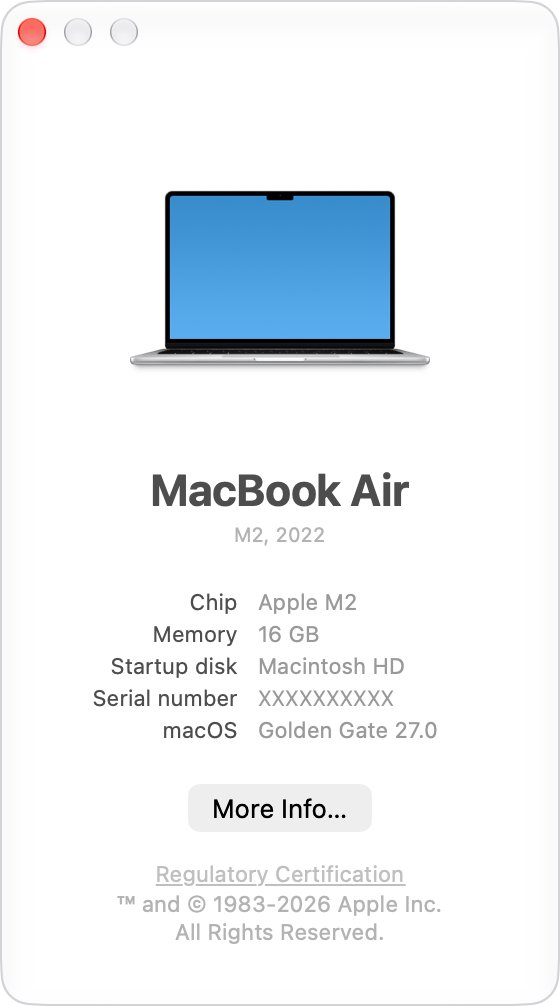
- On the host Mac, choose Apple menu > About This Mac and confirm it is an Apple silicon Mac running macOS 15 or later.
- In UTM, create a new macOS VM from a macOS 15 or later restore image (an .ipsw file), rather than upgrading an existing VM.
- Finish macOS setup inside the new VM.
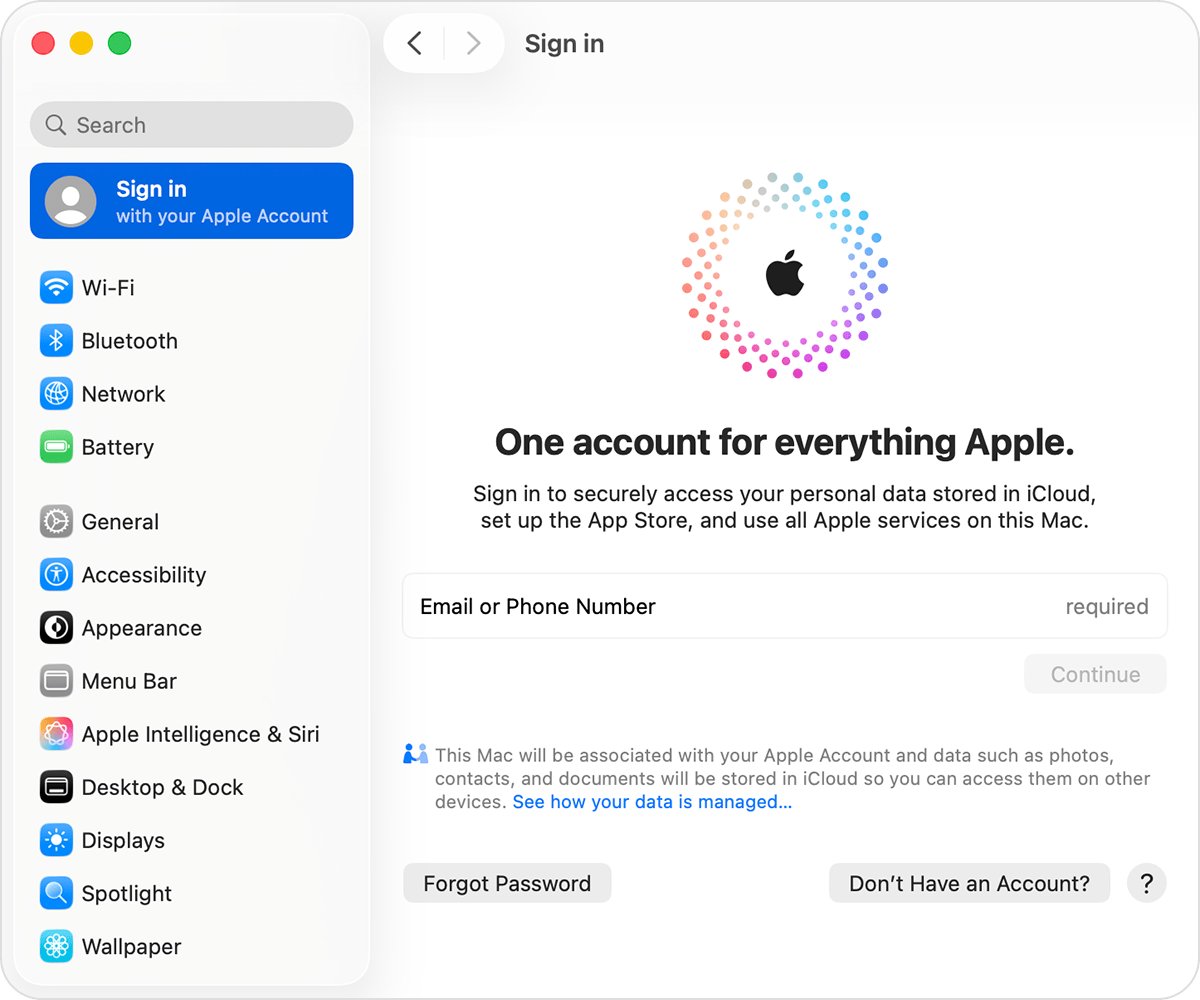
- In the VM, choose Apple menu > System Settings, click Sign in in the sidebar, and enter your Apple Account email or phone number and password.
- Enter the six-digit verification code if your trusted device asks for it.
- Open the App Store in the VM and click Sign In at the bottom-left corner of the window.
If the VM was created on macOS 14 or earlier, or from an older restore image, no setting inside it turns the sign-in on. Build a new VM and move your data into it.
Why can't I sign into App Store in a macOS VM?
Apple gives each supported VM its own identity, derived from security information in the host Mac's Secure Enclave, the same way each physical Mac has a distinct identity. A VM without that identity cannot use Apple Account services.
| Your VM | Can it sign in? | Why |
|---|---|---|
| Created on macOS 15 or later from a macOS 15 or later .ipsw | Yes | The Virtualization framework gives it an identity from the host's Secure Enclave |
| Created on macOS 14 or earlier, then upgraded to macOS 15 | No | Apple states that upgrading an older VM with a macOS 15 installer does not add iCloud support |
| Created from an older restore image on a macOS 15 host | No | The VM must be built from a macOS 15 or later software image |
| Copied or moved to another Mac | Yes, after you sign in again | The VM gets a new identity on the new host |
| A duplicate started while the original is running | Yes, after you sign in again | The second copy is treated as a clone and gets a new identity |
| Running on an Intel Mac | No | Apple documents this support for macOS VMs on Apple silicon |
macOS 15 VM Apple Account sign-in requirements
| Requirement | How to check it |
|---|---|
| Apple silicon host Mac | Apple menu > About This Mac shows an Apple chip |
| Host running macOS 15 or later when the VM is created | About This Mac shows the macOS name and version |
| Guest installed from a macOS 15 or later restore image | The .ipsw you chose in UTM is macOS 15 or later |
| A VM built fresh, not upgraded | The VM was created after the host moved to macOS 15 |
| Working internet in the VM | Any website loads in Safari inside the VM |
| Correct date and time in the VM | System Settings > General > Date & Time is right for your time zone |
How to create a new macOS VM in UTM that can sign into iCloud
Keep the old VM until the new one is signed in and your files are copied across.
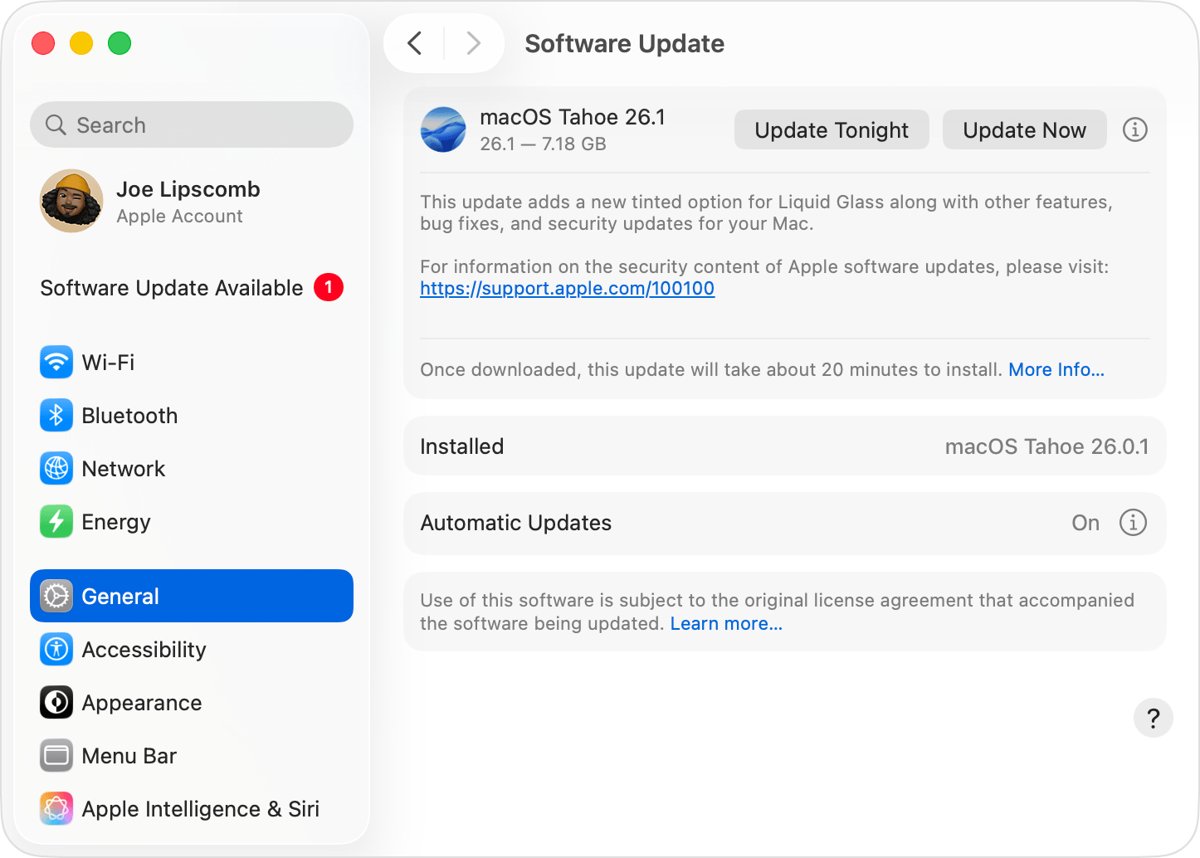
- Update the host Mac to macOS 15 or later and restart it.
- Get a macOS 15 or later restore image (.ipsw) for the new VM.
- In UTM, start a new virtual machine, choose to virtualize macOS, and select that restore image.
- Let UTM install macOS, then complete the setup assistant in the VM.
- Sign in with your Apple Account in System Settings inside the VM.
- Open the App Store and click Sign In at the bottom-left corner of the window.
Do not duplicate this VM to make spares while it runs. A second running copy gets a new identity and asks you to sign in again.
How to move files from an old macOS VM to a new macOS 15 VM
Apple tells VM users to migrate their data from older VMs to a macOS 15 or later VM. File Sharing over the network is one built-in way to copy it.
- Start the old VM, choose Apple menu > System Settings, click General, then click Sharing.
- Click the info button next to File Sharing and turn on File Sharing.
- Click the add button under Shared Folders, select the folder you want to copy, then click Open and Done.
- Start the new VM, open Finder, and choose Go > Connect to Server.
- Type the old VM's network address in the Server Address field and click Connect.
- Drag the shared folder's files into the new VM, then turn off File Sharing in the old VM.
Reinstall App Store apps in the new VM after you sign in to the App Store, rather than copying app bundles across.
Does upgrading a UTM VM to macOS 15 fix App Store sign-in?
No. Create a new VM from a macOS 15 or later restore image instead of upgrading the old one. Apple's Virtualization documentation states that using a macOS 15 installer to upgrade an older VM does not provide iCloud support. The VM identity that Apple Account sign-in needs is only set up when the VM is created on macOS 15 from a macOS 15 image.
How to sign in to a different Apple Account in the App Store on Mac
Use this inside a supported VM when the App Store shows the wrong Apple ID or a stale session.
- Open the App Store in the VM.
- Choose Store > Sign Out.
- Click Sign In at the bottom-left corner of the App Store window.
- Enter the email address or phone number for the Apple Account, then follow the onscreen instructions.
The App Store accepts only one Apple Account at a time, and content you bought updates only with the account that bought it.

App Store cannot connect in macOS VM
Sign-in fails or nothing happens in an older VM
The VM was created before macOS 15 or from an older restore image, so it has no supported identity.
- Check when and from which .ipsw the VM was built.
- Create a new VM on a macOS 15 or later host from a macOS 15 or later image.
- Copy your files across and sign in again in the new VM.
"Cannot connect" message in the App Store
The VM has no working internet, a VPN or security tool blocks Apple, or Apple has an outage.
- Open any website in Safari inside the VM to test the connection.
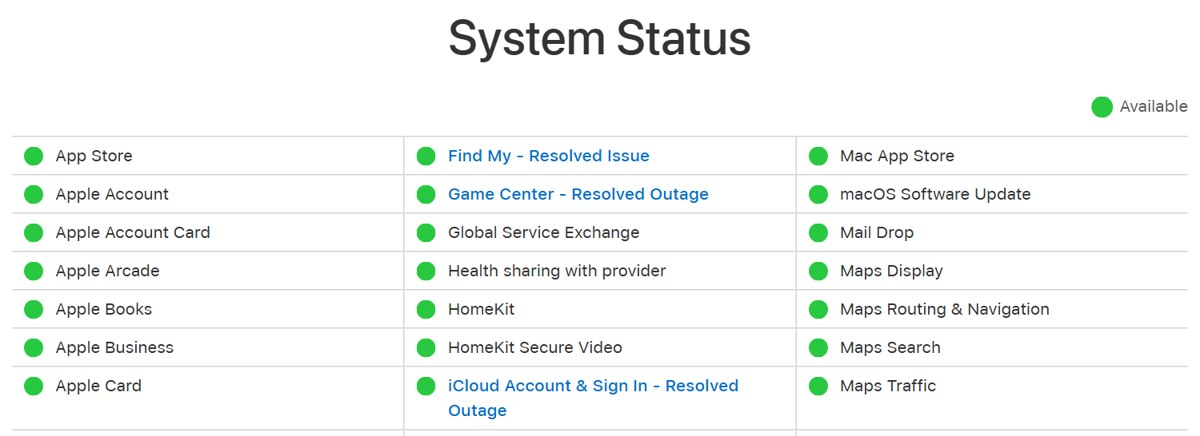
- Check Apple's System Status page for an App Store outage.
- Turn off the VPN on the host and in the VM, then try again.
- Try a different network if one is available.
Sign-in keeps spinning or cannot reach a server
The date and time in the VM are wrong, or an Apple service is down.
- In the VM, choose Apple menu > System Settings, click General, then Date & Time.
- Turn on the option to set the date and time automatically, or correct them for your time zone.
- Update macOS in the VM, then sign in again.
Asked to sign in again after moving or copying the VM
A VM moved to another Mac, or a duplicate started while the original runs, gets a new identity.
- Sign in again in System Settings inside the VM.
- Run only one copy of the same VM at a time on a host.
The account is locked or needs a verification code
Apple Account security, not the VM, is blocking sign-in.
- Reset your Apple Account password if you forgot it.
- Enter the six-digit code sent to your trusted device or phone number.
- Follow Apple's steps if the account shows as locked, not active or disabled.
macOS VM App Store sign-in FAQ
Can you sign into iCloud in a macOS VM?
Yes, on macOS 15 and later. The VM must run on an Apple silicon Mac and be created on macOS 15 or later from a macOS 15 or later restore image, so it gets its own identity from the host's Secure Enclave.
Why can't I sign into the App Store in my UTM VM?
Your VM was probably created before macOS 15 or from an older restore image. Apple Account support in macOS VMs is set up only when the VM is built on macOS 15, and upgrading an old VM does not add it.
How do I sign into the App Store on a Mac?
Open the App Store and click Sign In at the bottom-left corner of the window. Enter your Apple Account email address or phone number and password, then follow the onscreen instructions.
How do I sign out of the App Store?
Open the App Store and choose Store > Sign Out. To use another account, click Sign In at the bottom-left corner and enter that Apple Account's email address or phone number.
Why can't I connect to the App Store?
The App Store cannot connect when the internet connection fails, a VPN or security software blocks Apple, the date and time are wrong, or Apple has an outage. Check Apple's System Status page and your network first.
Does a macOS VM on an Intel Mac support Apple Account sign-in?
No. Apple documents iCloud and Apple Account support for macOS virtual machines running on Apple silicon Macs with macOS 15 or later, using Apple's Virtualization framework.
Why does my macOS VM ask me to sign in again?
The VM got a new identity. That happens when you move it to a different Mac or start a duplicate while the original is running, and you must sign in again before iCloud syncs.