To set up a new computer with Windows 11, plug it in, turn it on, and follow the setup screens for language, region, keyboard, network, license terms and your Microsoft account.
After the desktop appears, run Windows Update, add your apps, turn on Windows Backup and check the Windows Security app before you move your files in.
How to set up a new Windows 11 PC step by step
Windows 11 calls these first screens the out-of-box experience (OOBE). The order below is the usual one, but a PC maker can hide some pages or show them in a different order.
- Connect the power adapter and keep the PC plugged in until setup ends.
- Turn the PC on and choose your language, region and keyboard layout.
- Join a Wi-Fi network or plug in an Ethernet cable, then let setup download critical updates.
- Accept the license terms.
- Sign in with your Microsoft account, or create one on the same screen.
- Restore a backup if the Welcome back screen offers one, or set the PC up as new.
- Set up Windows Hello, then choose your privacy settings and OneDrive options.
- On the desktop, open Settings > Windows Update and select Check for updates.
1. Unboxing and physical setup
Find the product key card or Certificate of Authenticity (COA) before you throw the box away. A new PC usually has its key preinstalled, but the card or label is your proof of license.
- Unpack the PC and keep the packaging, receipt and any product key card together.
- Place a desktop where its vents are clear, close to a power outlet and your router if you plan to use Ethernet.
- Connect the monitor, keyboard and mouse to a desktop before you power it on.
- Plug the laptop or desktop into a wall outlet, not a battery bank.
- Leave printers, external drives and docks unplugged until Windows reaches the desktop and has updated.
Some PCs ship with an unpaired wireless keyboard and mouse. In that case, the maker can add pairing screens to setup, so follow the instructions printed on those screens.
2. Powering on and initial boot
- Press the power button once and wait for the maker's logo, then the first setup screen.
- Keep the PC connected to power for the whole of setup so it cannot sleep or shut down halfway.
- Let the PC restart on its own if setup asks it to; this is normal.
- Wait while repeated pages appear after a restart if the network dropped; answer them again.
Setup restarts the PC when you pick a language other than the default, when it installs a zero-day patch, or when it installs a newer version of Windows. After a restart, some pages repeat if the PC was not online before or lost its connection.
3. Selecting your region and language
- On the language screen, select the display language you want.
- Select your country or region from the list.
- Pick the keyboard layout that matches the keys printed on your keyboard.
- Add a second keyboard layout only if you type in another language; you can add one later in Settings.
Choose the region carefully. It sets the default format for dates and currency and decides which Microsoft Store catalog the PC sees.
4. Connecting to Wi-Fi or network
Windows 11 Home needs an internet connection and a Microsoft account to finish setup on first use. Without a connection, the Home edition stops at this screen.
- On Let's connect you to a network, select your Wi-Fi network from the list.
- Select Connect, type the Wi-Fi password and select Next.
- On a desktop with no Wi-Fi adapter, plug an Ethernet cable from the PC into your router instead.
- Wait while setup checks for updates; it can download critical patches and driver updates here.
- Let the PC restart if an update requires it.
5. Activating Windows 11
A PC that came with Windows 11 activates with the product key the maker preinstalled, so most new computers activate on their own once they are online. A refurbished PC activates with the key on its COA, and the refurbisher, not Microsoft, must supply it.
- After setup, select Start > Settings > System > Activation.
- Read the message next to Activation status.
- If it says Windows is not activated and you have a key, select Change product key and type the 25-character key.
- If the status says your Microsoft account is not linked, select Add an account and sign in.
- Wait for Windows is activated with a digital license linked to your Microsoft account.
Linking the license to your Microsoft account matters later. It lets the Activation troubleshooter reactivate Windows after a big hardware change, such as a new motherboard.
6. Accepting license terms
- Read the Microsoft license terms on the license terms screen.
- Scroll through any extra terms the PC maker added to the same screen.
- Accept the terms to continue; setup cannot finish without it.
If you do not accept, the PC stays on this screen. Contact the seller about a return instead of trying to skip it.
7. Sign-in with a Microsoft account
Your Microsoft account links the Windows license, your OneDrive storage, your Store purchases and any earlier PC backup. Windows Backup works with personal accounts such as @outlook.com and @live.com, not work or school accounts.
- Type the email address, phone number or Skype name for your Microsoft account and select Next.
- Enter your password, or approve the sign-in on your phone if you use passwordless sign-in.
- Choose the option to create an account if you have no Microsoft account; an email address is all you need.
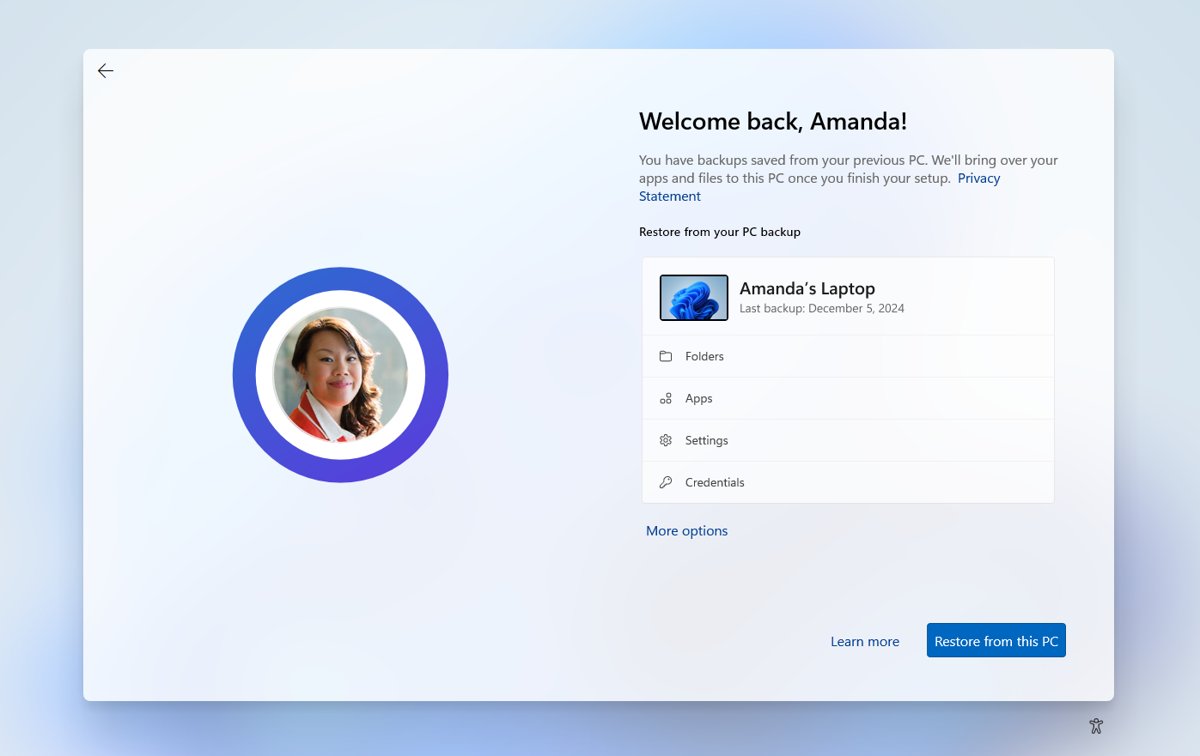
- On Welcome back, select the old PC's backup to restore it, or select More options to pick another backup or set up as new.
- Turn on two-step verification for the account later, from its security settings on the Microsoft account website.
Whether this screen also offers a local account depends on your Windows edition and how the PC maker set up the device. Windows 11 Home always needs a Microsoft account to finish setup.
8. Setting a PIN and security options
Setup asks you to create a Windows Hello PIN after you sign in. The PIN works only on this one device and is backed up for recovery with your Microsoft account, which is why Microsoft treats it as safer than a password.
- On the Windows Hello screen, select Next to create a PIN.
- Type the PIN twice to confirm it.
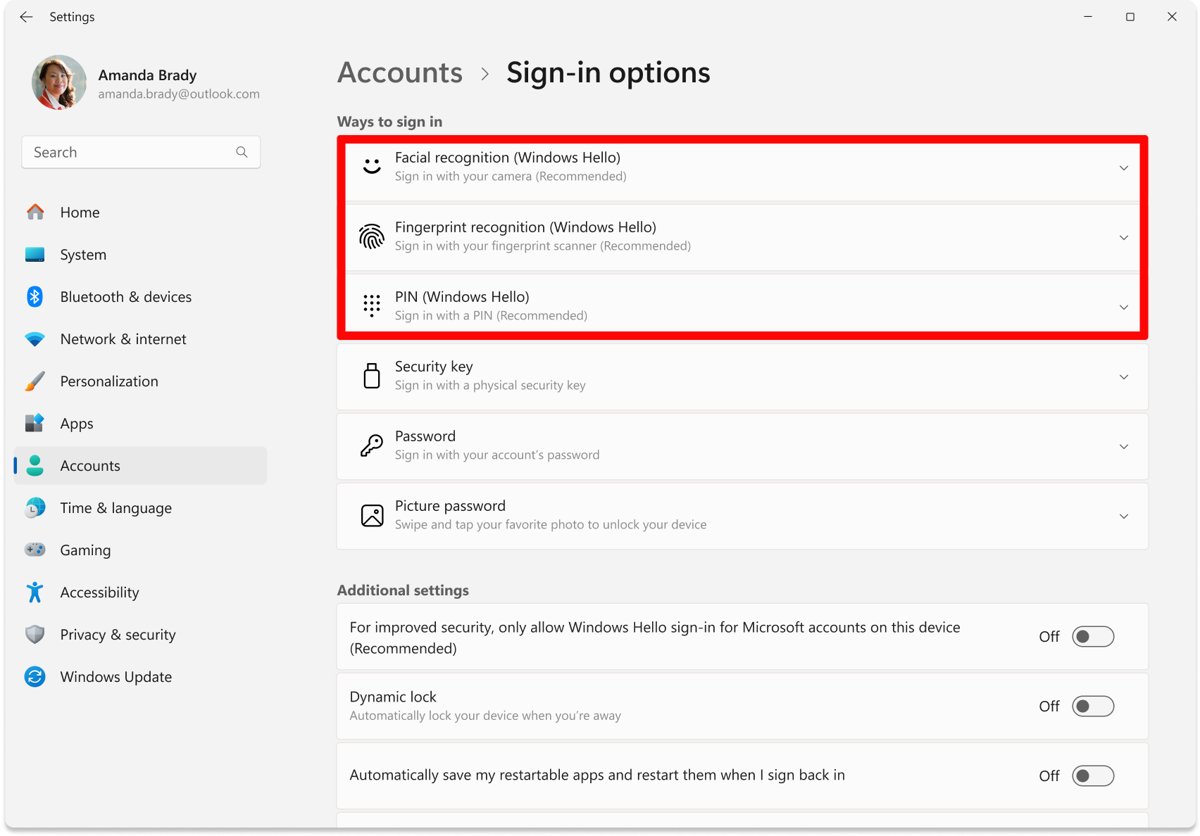
- To add face or fingerprint sign-in later, open Settings > Accounts > Sign-in options.
- Select Facial recognition (Windows Hello) or Fingerprint recognition (Windows Hello), then select Set up.
- On a laptop, turn on Find my device from Settings > Privacy & security > Find my device.
Face sign-in needs a Hello-compatible infrared camera, and fingerprint sign-in needs a fingerprint reader. You can set up Windows Hello sign-in any time after setup if you skip it now.
9. Configuring privacy settings
Setup shows up to seven privacy switches on one screen, and not every PC sees the same set. Every choice here can be changed later in Settings > Privacy & security.
| Setting | What it controls | Where to change it later |
|---|---|---|
| Location | Whether Windows and apps can use your location | Privacy & security > Location |
| Find my device | Lets you locate a lost laptop from your Microsoft account | Privacy & security > Find my device |
| Optional diagnostic data | Whether extra device and usage data is sent to Microsoft on top of required data | Privacy & security > Diagnostics & feedback |
| Tailored experiences | Personalized tips, ads and recommendations based on diagnostic data (called Personalized offers on newer builds) | Privacy & security > Diagnostics & feedback |
| Improve inking & typing | Whether samples of what you type or write are sent to improve handwriting and text prediction | Privacy & security > Diagnostics & feedback |
| Advertising ID | Whether apps can show personalized ads with your advertising ID | Privacy & security > General (or Recommendations & offers on newer builds) |
Turning off the advertising ID does not reduce the number of ads you see. It only makes them less tied to your activity.
10. Customizing Cortana and virtual assistants
Cortana is no longer part of Windows 11 setup. Microsoft deprecated Cortana in Windows as a standalone app in June 2023, and Cortana voiceover during setup was a Windows 10 feature only.
| Assistant | Status on a new Windows 11 PC | How to open it |
|---|---|---|
| Cortana | Deprecated as a standalone Windows app since June 2023 | Not available in Windows 11 setup |
| Microsoft Copilot app | Installed by default on new Windows 11 PCs; get it from Microsoft Store if missing | Press the Copilot key or Windows key + C |
| "Hey, Copilot" wake word | Opt-in, hands-free voice activation | Say "Hey, Copilot" once you opt in |
| Voice typing | Built into Windows | Press Windows key + H in any text box |
Sign in to the Copilot app with your personal Microsoft account the first time you open it.
11. Choosing your settings and experience
Near the end of setup, Windows asks how you plan to use the PC and offers OneDrive and Microsoft 365. These screens only shape tips and suggestions; none of them locks the PC into one use.
- On the customize-your-device screen, pick the uses that fit how you will use the PC, or skip it.
- On the OneDrive screen, choose whether to back up your files to OneDrive or save them only on this PC.
- Accept or decline the Microsoft 365 trial offer.
- Complete or skip any registration pages from the PC maker.
- Wait for the desktop; Windows opens the Start menu for you instead of launching apps.
12. Installing updates and drivers
Windows Update installs recommended drivers on its own. Optional driver updates wait until you install them yourself.
- Select Start > Settings > Windows Update and select Check for updates.
- Select Download & install if updates are listed, then restart when asked.
- Go to Windows Update > Advanced options and turn on Receive updates for other Microsoft products.
- Under Additional options, select Optional updates.
- Select the driver updates listed there, then select Download and install.
- Restart the PC even if no update asked for it, then check for updates again until none are left.
If Windows Update has no driver for a device, get the latest compatible driver from the hardware maker's own website.
13. Personalizing your desktop and settings
- Right-click the desktop and select Personalize, or open Settings > Personalization.
- Select Background and choose Picture, Solid color, Slideshow or Windows spotlight.
- For a picture, choose a fit such as Fill, Fit or Span for more than one monitor.
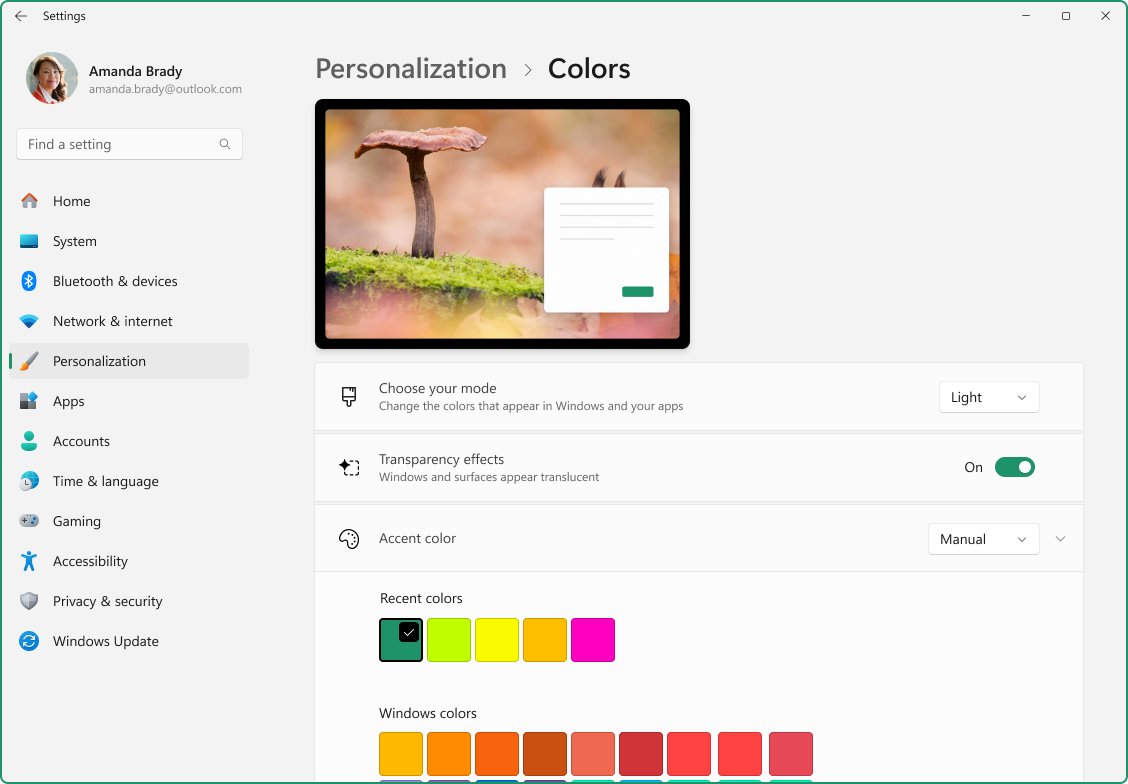
- Go to Personalization > Colors and pick Light, Dark or Custom under Choose your mode.
- Set the accent color to Automatic or Manual, and turn on Show accent color on Start and taskbar if you want it there.
- Press Windows key + Tab and select New desktop to create a second workspace.
Each extra desktop can have its own picture: open Task view, right-click the desktop and select Choose background. Slideshows and solid colors cannot differ between desktops.
14. Installing essential applications
Get apps from Microsoft Store where you can. Store apps follow your account to other PCs and update on their own.
- Select Start, then select Microsoft Store.
- Choose Apps or Gaming and search for the app by name.
- Select the install button on the app's page.
- To reinstall apps you own, open the Store and select My Library, then the Download icon next to each app.
- For apps not in the Store, download the installer only from the developer's own website.
Check what the PC maker preinstalled before adding more, and uninstall trial software you will not use. If you use a headset for calls, set up the headset in Windows 11 once your meeting apps are installed.
15. Setting up backup and cloud storage
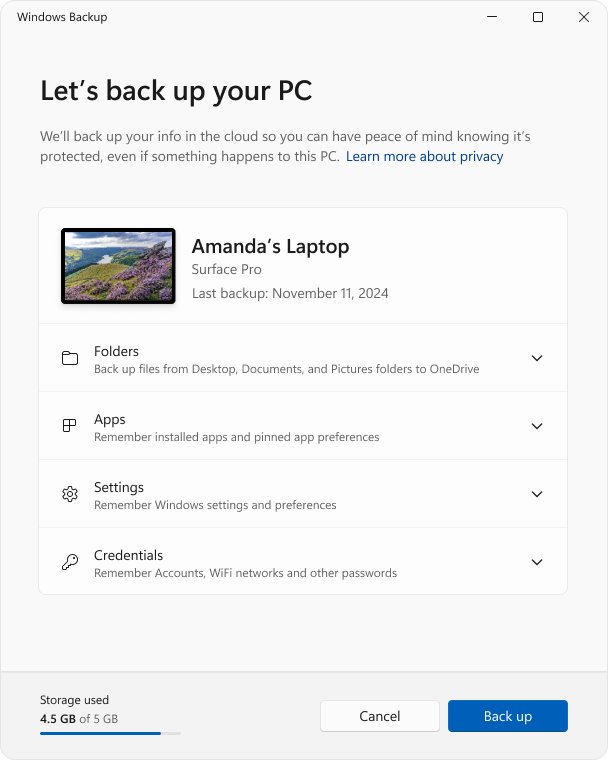
Windows Backup syncs your main folders to OneDrive and saves your apps list and settings to your Microsoft account. A free Microsoft account comes with 5 GB of OneDrive storage.
- Select Start, type backup and select Windows Backup.
- Expand Folders and turn on Desktop, Documents, Pictures, Videos and Music as needed.
- Turn on the settings you want kept: installed apps, accessibility, accounts and Wi-Fi passwords, personalization, language and other Windows settings.
- Select Back up.
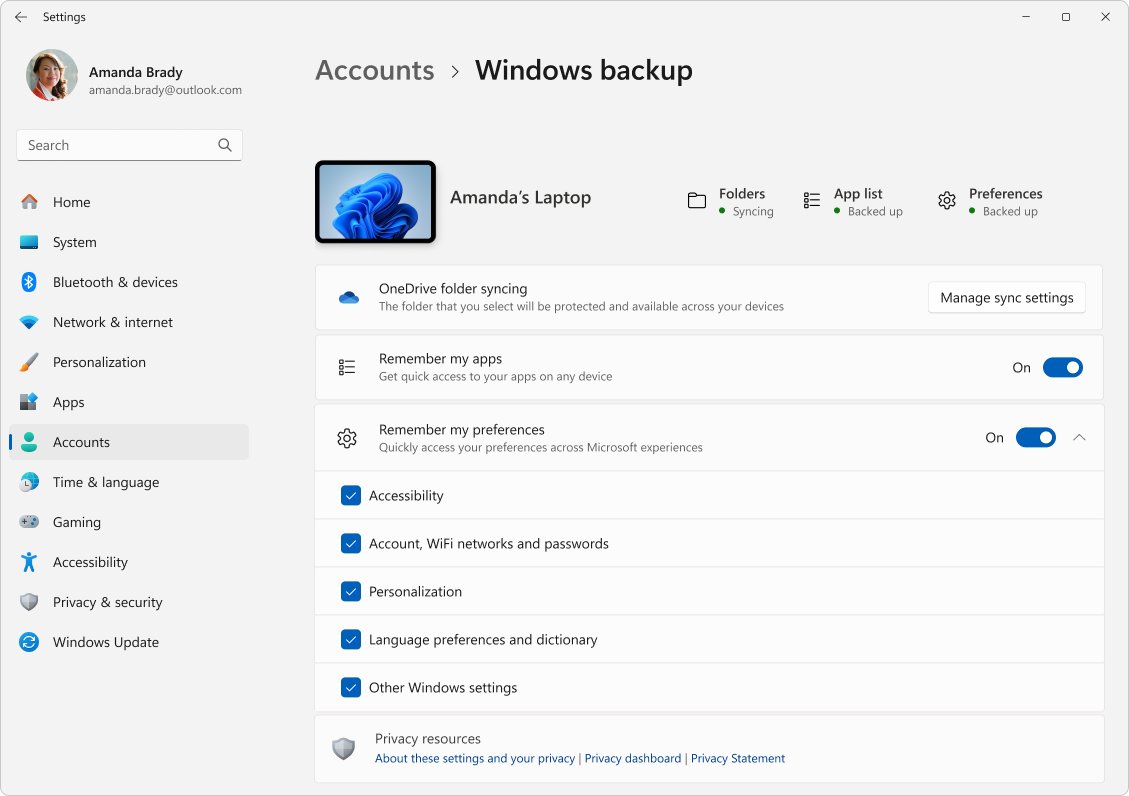
- Check the status any time in Settings > Accounts > Windows backup.
To move files from an old PC, back it up with Windows Backup and sign in to the new PC with the same Microsoft account. The PC-to-PC transfer option in the Windows Backup app is no longer available. Sign in to Microsoft Edge and turn on sync to carry your favorites across.
16. Configuring Windows Defender and security settings
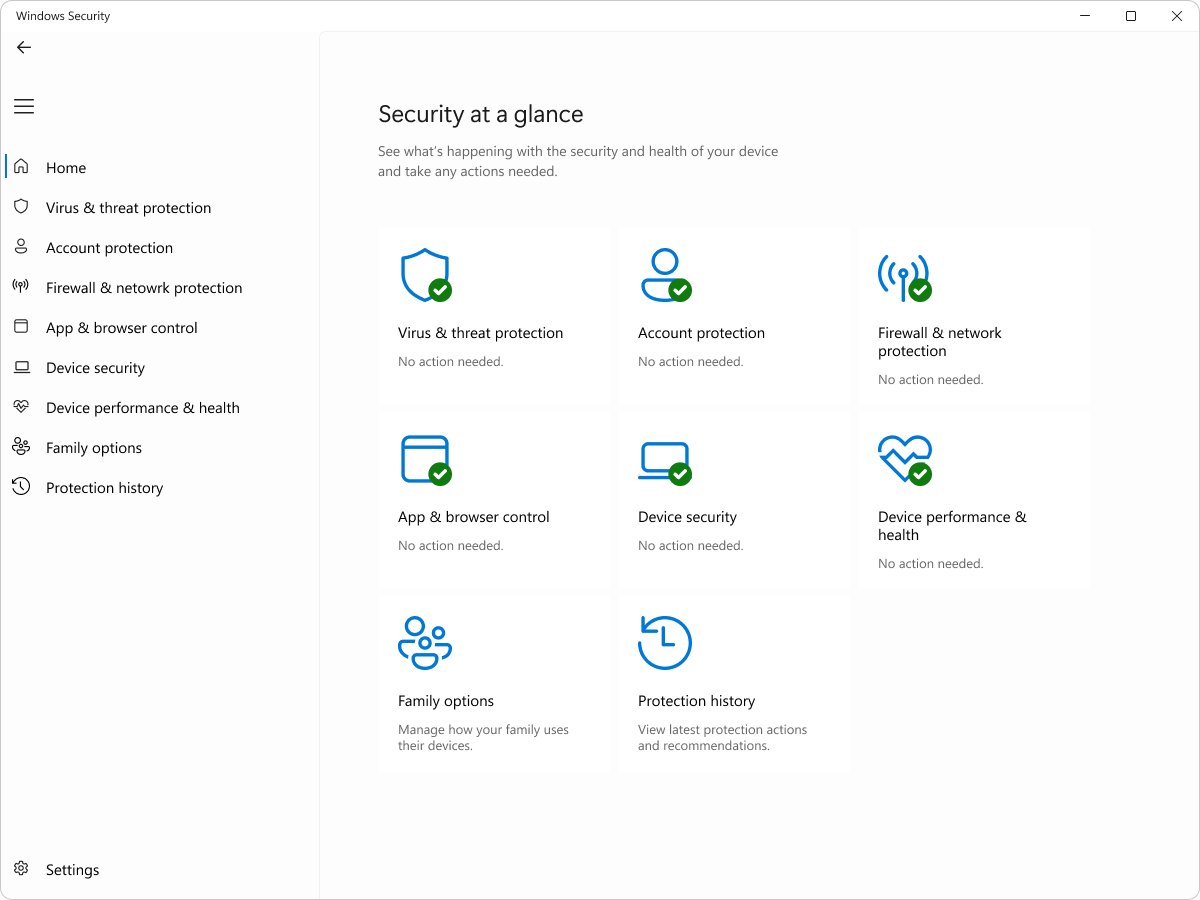
The Windows Security app protects the PC from the moment setup ends. It includes Microsoft Defender Antivirus, the firewall and Smart App Control, so a new PC does not need a third-party antivirus to be protected.
- Select Start, type Windows Security and open the app.
- Look for green checkmarks on each area; select any item that shows a warning and follow its action.
- Select Virus & threat protection > Quick scan to run a first scan.
- Select Virus & threat protection > Manage settings and make sure Real-time protection is On.
- Open Settings > Privacy & security > Windows Security > App & browser control to review SmartScreen.
If children will use the PC, give them their own accounts and set up Windows 11 parental controls rather than sharing your administrator account.
17. Personalization and accessibility features
Press Windows key + U to open Accessibility settings. These features are built in and work from the first sign-in.
| Feature | What it does | Shortcut |
|---|---|---|
| Magnifier | Enlarges part or all of the screen | See Magnifier keyboard shortcuts |
| Narrator | Reads screen content aloud | Windows key + Ctrl + N opens Narrator settings |
| Color filters | Changes colors for color blindness or light sensitivity | Windows key + Ctrl + C |
| High Contrast | Raises contrast of text and windows | Left Alt + left Shift + Print Screen |
| Sticky Keys | Lets you press shortcut keys one at a time | Press Shift five times |
| On-Screen Keyboard | Types with a mouse or touch | Windows key + Ctrl + O |
| Voice typing | Dictates text instead of typing | Windows key + H |
| Live captions | Captions audio playing on the PC | Turn on from Accessibility settings |
18. Setting up email and cloud accounts
Outlook for Windows takes Outlook.com, Microsoft 365, Gmail, Yahoo, iCloud and Exchange accounts. Gmail, Yahoo and iCloud may ask you to change a setting on their own website first.
- Open Outlook, then on the View tab select View settings.
- Select Accounts > Your accounts.
- Under Email accounts, select Add Account.
- Pick a suggested account or type another email address, then select Continue.
- Enter the password if asked and select Done.
- Sign in to OneDrive with the same Microsoft account so your cloud files appear in File Explorer.
To make one account the default, select Manage next to it and select Set as primary account.
19. Managing power settings
- Open Settings > System > Power & battery.
- Under Power Mode, choose Best Power Efficiency for longer battery life, or a performance mode for speed.
- Expand Screen, sleep & hibernate timeouts and set Turn my screen off after and Make my device sleep after.
- On a laptop, open Energy saver and turn on Lower screen brightness when using energy saver.
- To choose what the lid or power button does, open Control Panel > System and Security > Choose what the power buttons do.
- Select Save changes.
Recent Windows 11 defaults turn the screen off after 3 minutes on battery and 5 minutes plugged in on modern standby PCs. Raise these if the screen dims too soon while you read.
20. Regular maintenance and updates
| Task | How often | Where |
|---|---|---|
| Install Windows updates | Automatic; check monthly | Settings > Windows Update |
| Install optional driver updates | When a device misbehaves | Windows Update > Advanced options > Optional updates |
| Update Store apps | Automatic | Microsoft Store > My Library |
| Check backup status | Monthly | Settings > Accounts > Windows backup |
| Review Windows Security alerts | When a warning appears | Windows Security app |
| Set active hours | Once | Settings > Windows Update settings |
Active hours stop Windows from restarting for updates while you are normally using the PC.
Windows 11 setup problems on a new computer
Setup will not continue past the network screen
Windows 11 Home needs an internet connection to finish setup.
- Select your Wi-Fi network again and retype the password carefully.
- Restart your router, then return to the network list.
- Connect an Ethernet cable from the PC to the router if Wi-Fi still fails.
- Use a phone hotspot as a temporary network to finish setup.
Settings says Windows is not activated
The PC was not online when activation ran, or the key does not match the installed edition.
- Connect to the internet and restart the PC.
- Open Settings > System > Activation and read the error shown.
- Run the Activation troubleshooter from the Activation page.
- Enter the key from the COA with Change product key if the PC came with one.
- Contact the seller if the PC was sold refurbished without a valid key.
Windows Update fails or says there is not enough space
An update did not finish, or the drive is short of free space.
- Restart the PC and select Check for updates again.
- Free up space by uninstalling preinstalled apps you do not need.
- Run the Windows Update troubleshooter from the Get Help app.
- Leave the PC plugged in and online until the update completes.
A device has no driver after setup
The driver is offered only as an optional update, or Windows Update does not carry it.
- Open Windows Update > Advanced options > Optional updates.
- Install any driver listed for the device and restart.
- Download the driver from the hardware maker's own support site if none is listed.
New Windows 11 computer setup FAQ
Can I set up Windows 11 Home without an internet connection?
No. Windows 11 Home requires an internet connection and a Microsoft account to complete setup on first use. Connect to Wi-Fi, an Ethernet cable or a phone hotspot to get past the network screen, then disconnect later if you want.
How long does it take to set up a new Windows 11 computer?
The setup screens themselves take a short time, but updates during and after setup add more. Setup can download patches and restart, and the first Windows Update run on the desktop may need several restarts before the PC is current.
Do I need a product key for a new Windows 11 PC?
Usually not. A PC sold with Windows 11 has its product key preinstalled, so it activates once it goes online. Check Settings > System > Activation to confirm the status, and keep the COA label or card as proof.
How do I move files from my old PC to a new Windows 11 PC?
Back up the old PC with the Windows Backup app, then sign in to the new PC with the same Microsoft account. Setup shows a Welcome back screen that restores your settings and app pins, and your files return through OneDrive.
Does a new Windows 11 PC need antivirus?
It already has one. Microsoft Defender Antivirus in the Windows Security app gives real-time protection from the moment setup finishes and updates itself automatically. Open Windows Security and run a quick scan to check that it is working.
Where is Cortana in Windows 11?
Cortana is gone as a standalone Windows app; Microsoft deprecated it in June 2023. New Windows 11 PCs include the Microsoft Copilot app instead, which you open with the Copilot key or Windows key + C.
Should I install driver updates on a new computer?
Yes. Windows Update installs recommended drivers automatically, but optional drivers wait for you under Advanced options > Optional updates. Install them if a device is missing a feature, and use the maker's site for anything Windows Update lacks.
Can I change my privacy choices after setup?
Yes. Every privacy choice from setup is in Settings > Privacy & security, including location, diagnostic data, Find my device and the advertising ID. Changing them later does not require resetting the PC.