An ASUS touchpad that stops responding is usually switched off by the touchpad hotkey (F6 or F9 on most models), turned off in Windows Settings, locked in MyASUS, or missing its ASUS Precision Touchpad or Intel I2C driver.
This guide covers each of those fixes on Windows 11 and Windows 10, plus the BIOS and EC reset ASUS recommends when the driver is not the problem.
Fix ASUS touchpad not working
Start with the touchpad hotkey. It is the most common reason an ASUS touchpad goes dead, and one key press brings it back.
- Find the key with the touchpad icon on the top row of the keyboard. On most ASUS laptops it is F6 or F9; your model's user manual names the exact key.
- Press that key once. If nothing happens, press Fn together with it, because the hotkey behaviour depends on your function-key setting.
- Watch for a Touchpad is enabled notification on screen.
- Move a finger across the touchpad to test the pointer.
- If the key does nothing at all, reinstall the ASUS System Control Interface driver from the ASUS support site, since that driver runs the hotkeys.
If the pointer still does not move, work through the sections below in order. They run from quickest to most involved.
Why is my ASUS touchpad not working?
Match what you see to a row, then jump to the fix it names.
| Cause | What you notice | Fix |
|---|---|---|
| Touchpad hotkey pressed by accident | Touchpad stopped right after you pressed a top-row key | Press F6/F9 or Fn + that key |
| Touchpad turned off in Windows | The Touchpad switch in Settings is off | Turn it on in Bluetooth & devices > Touchpad |
| A mouse is connected | Touchpad dies only while a USB or Bluetooth mouse is plugged in | Select Leave touchpad on when a mouse is connected |
| Touchpad locked in MyASUS | MyASUS shows Touchpad set to lock | Set Touchpad to Unlock in Device Settings |
| Driver disabled, missing or damaged | ASUS Precision Touchpad or Intel(R) Serial IO I2C Host Controller offers Enable device, or is not listed | Enable or reinstall the driver in Device Manager |
| Firmware or controller state stuck | Touchpad dead after a BIOS change, sleep or a crash | Load BIOS defaults and run an EC reset |
| Hardware fault | Touchpad does not work even in the BIOS screen | Contact an authorized ASUS service center |
How to turn on ASUS touchpad in Windows 11 settings
Windows has its own touchpad on/off switch that works independently of the ASUS hotkey. Plug in a USB mouse, or use Tab and the arrow keys, if you need to move around without the touchpad.
- Press Windows + I to open Settings.
- On Windows 11, go to Bluetooth & devices > Touchpad. On Windows 10, go to Devices > Touchpad.
- Turn the Touchpad switch On.
- If you use an external mouse, select Leave touchpad on when a mouse is connected.
- Review the tap and gesture options on the same page, and turn on any you rely on, such as tapping to click.
- Close Settings and test the touchpad.
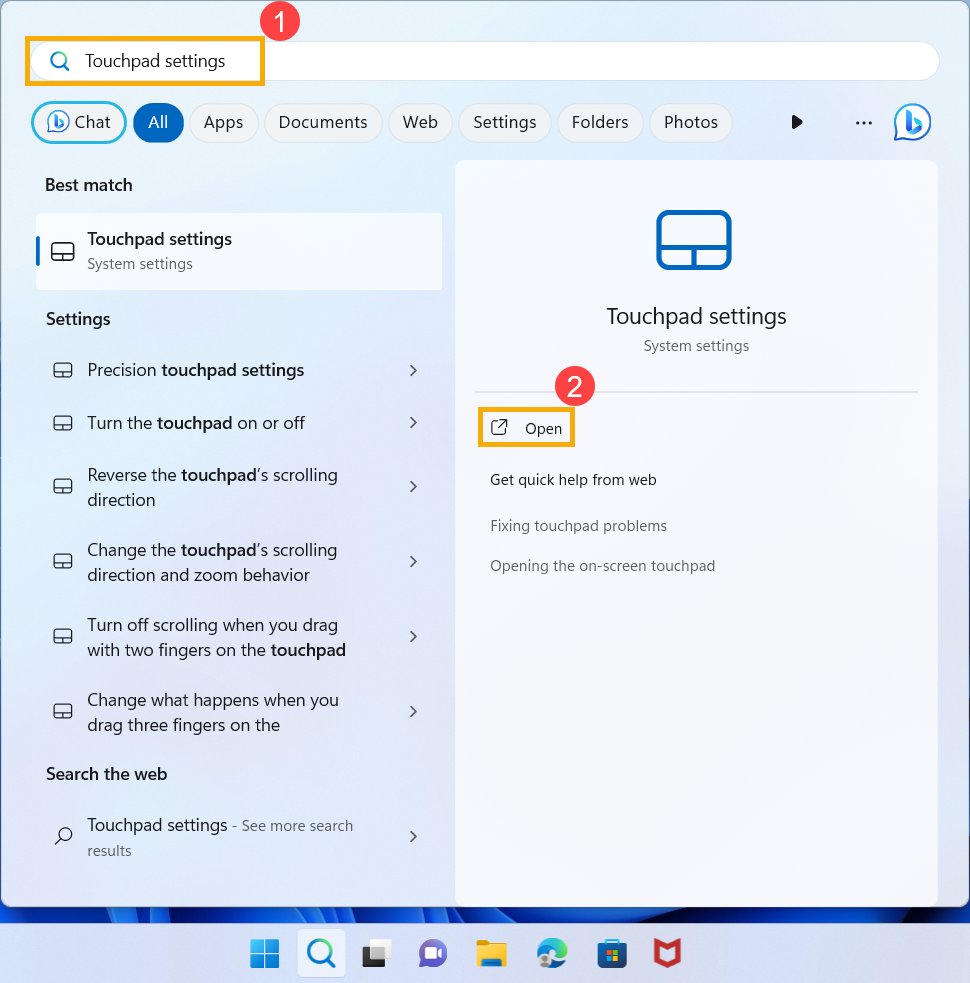
Typing Touchpad settings into the Windows search box opens the same page on both versions. If the switch is already on, the general ways to fix a Windows 11 touchpad, such as a driver rollback or safe mode, also work on ASUS laptops.

Unlock ASUS touchpad in MyASUS
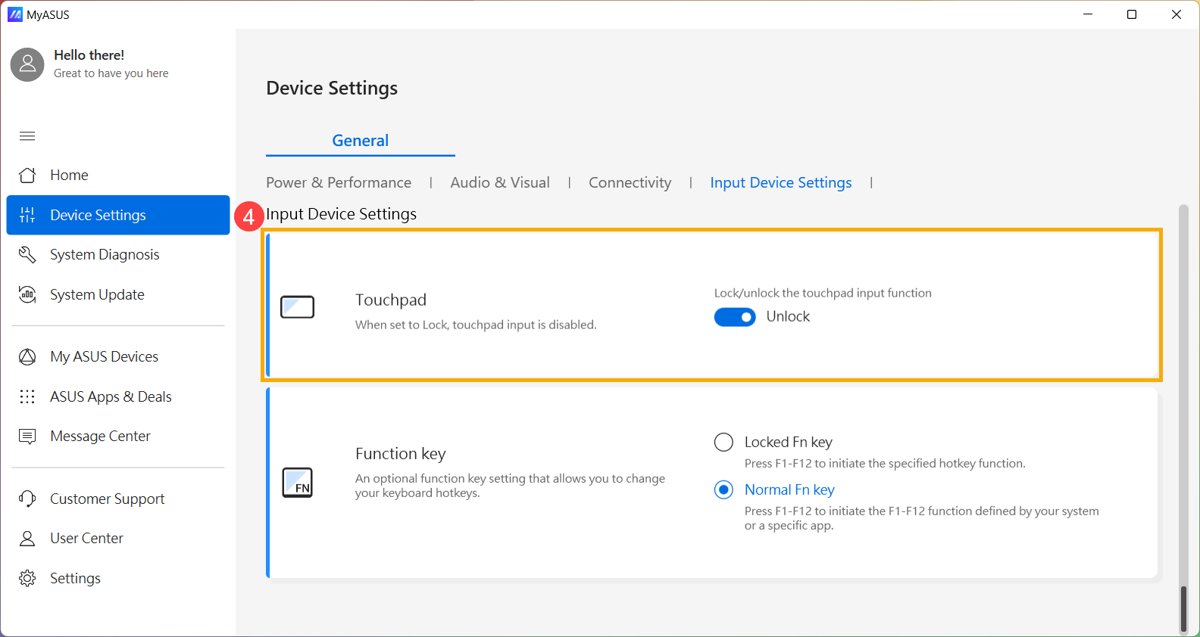
MyASUS can lock the touchpad separately from Windows. When it is locked, the Windows switch can be on and the pad still ignores your fingers.
- Open MyASUS from the Start menu.
- Select Device Settings. If this page is missing, your model does not support the setting, so skip this section.
- Under Input Device Settings, set Touchpad to Unlock.
- If you use the number keypad built into the touchpad, set NumberPad Lock to Unlock as well. Gaming laptops do not have this option.
- Test the touchpad.
ASUS notes that the Touchpad control needs MyASUS 3.1.18.0 with ASUS System Control Interface 3.1.14.0 or later. Models with ScreenPad do not have it, and MyASUS hides it when Internal Pointing Device is disabled in the BIOS. While Touchpad Lock is on, NumberPad Lock is greyed out.
Reinstall ASUS Precision Touchpad driver in Device Manager
Three devices have to work for an ASUS touchpad to respond: the ASUS Precision Touchpad itself, the Intel I2C controller it talks through on Intel laptops, and the Microsoft Input Configuration Device. Check each in turn.
- Type Device Manager in the Windows search box and open it.
- Expand System devices, right-click Intel(R) Serial IO I2C Host Controller and select Enable device if that option appears. AMD laptops do not have this entry.
- If it was already enabled, right-click it, select Uninstall device, tick Delete the driver software for this device, then select Uninstall. Repeat for any other Intel(R) Serial IO I2C Host Controller entries.
- Expand Human Interface Devices, right-click ASUS Precision Touchpad, and either select Enable device or uninstall it the same way, deleting its driver software.
- Under Human Interface Devices, right-click Microsoft Input Configuration Device and select Enable device, or select Uninstall device and then Uninstall.
- Restart the laptop so Windows reinstalls the drivers.
- If a device does not come back after the restart, install its driver from the ASUS support site (next section).
Microsoft's own fix for touchpad problems is the same: update the driver through Windows Update or Device Manager, and reinstall it from Human Interface Devices or Mice and other pointing devices, which forces the latest driver to download.
ASUS touchpad driver download for Windows 11
Install the drivers ASUS publishes for your exact model rather than a generic package. You need the model name printed on the label under the laptop or shown in MyASUS.
- Go to the ASUS support site at asus.com/support, type your model name in the search bar and press Enter.
- Open the product's support page and select the Driver & Utility tab, then Driver & Tools.
- Choose your operating system version from the menu.
- Under Chipset, download and install the Intel I2C driver. Skip it on AMD laptops, or if it is not listed, because Windows may already include it.
- Under Pointing Device, download and install the ASUS Precision Touchpad driver.
- If the touchpad hotkey also failed, install ASUS System Control Interface from the same page.
- Restart the laptop.
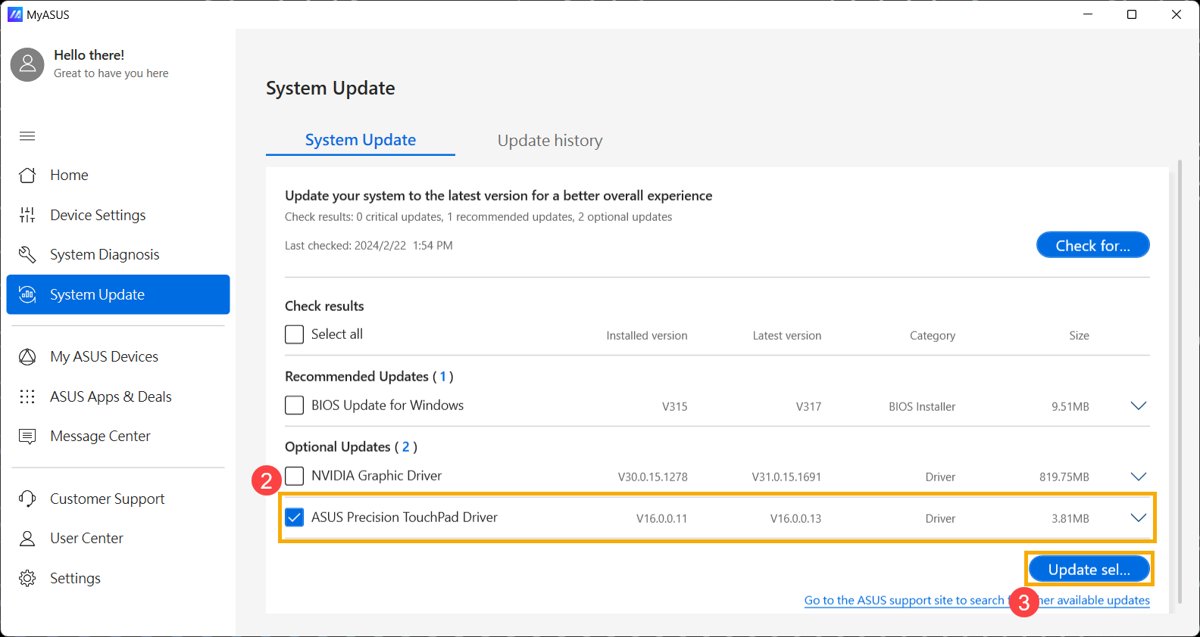
Before reinstalling by hand, it also helps to run Windows Update and System Update in MyASUS, which pull the same drivers along with the latest ASUS BIOS update.
Reset BIOS and EC to fix ASUS touchpad
If the drivers look fine, reset the firmware. Loading BIOS defaults turns an internal pointing device back on if it was disabled, and an EC (embedded controller) reset clears a stuck controller state.
- Disconnect external devices: drives, printers, memory cards, discs and dongles.
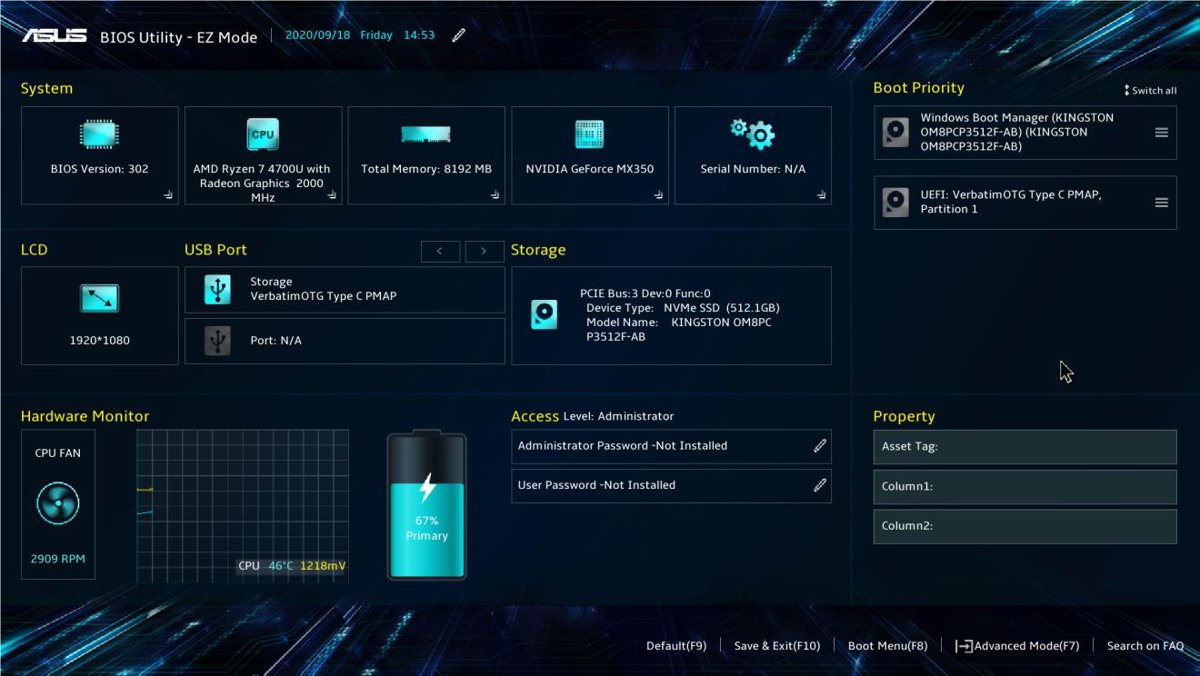
- Shut the laptop down, then hold F2 and press the power button. Release F2 when the BIOS screen appears.
- Check whether the touchpad moves the pointer in the BIOS screen, and note the result.
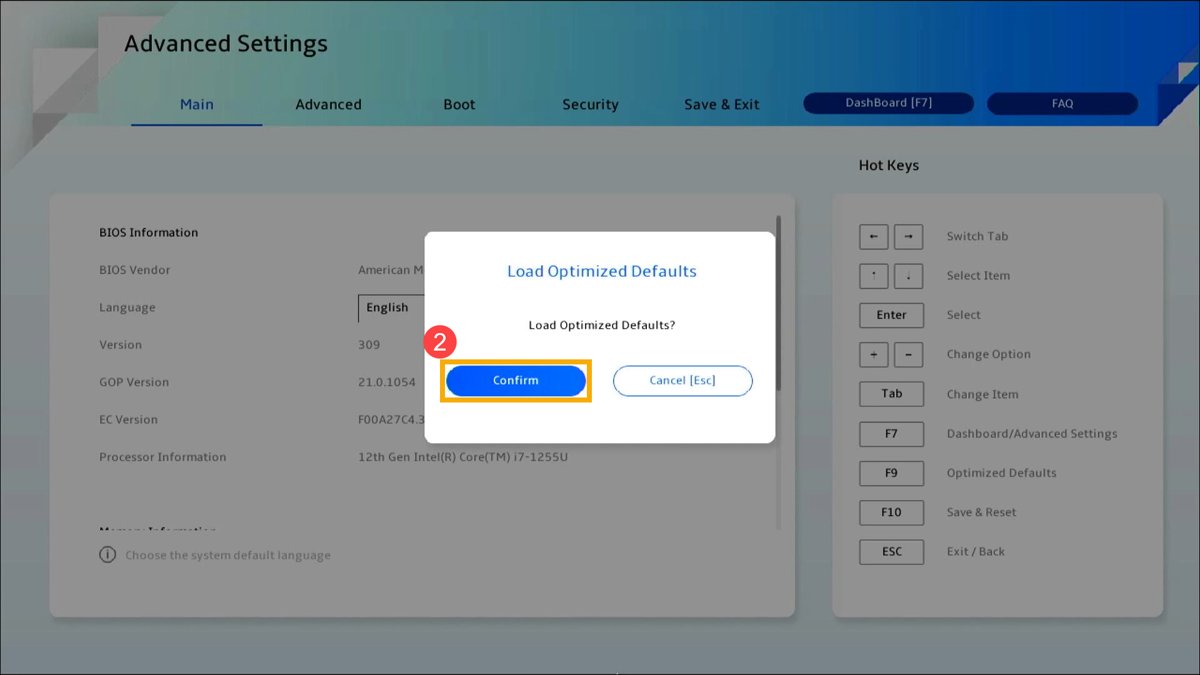
- Press F9, or click Default, then confirm Ok to load optimized defaults.
- Press F10, or click Save & Exit, and confirm Ok. The laptop restarts into Windows.
- For the EC reset, save your work and shut down again, then connect the power adapter.
- Press and hold the power button for 40 seconds. On models that use a 20-second press, release it once the power light stops flashing quickly.
- Turn the laptop on and test the touchpad.
You can also reach the BIOS from Windows: search Change advanced startup options, select Restart now under Advanced startup, then choose Troubleshoot > Advanced options > UEFI Firmware Settings > Restart. Restoring defaults does not remove a BIOS password.
Does ASUS touchpad work in BIOS?
The BIOS test from the previous section tells you whether the problem is Windows or the hardware. Then confirm the drivers in Windows.
- If the pointer moved in the BIOS screen, the touchpad hardware works and the fault is in Windows, so finish the driver and settings fixes.
- If the pointer did not move in the BIOS screen either, ASUS treats it as a likely hardware fault. Stop troubleshooting software and contact an authorized ASUS service center.
- In Windows, open Device Manager and expand Human Interface Devices.
- Confirm ASUS Precision Touchpad is listed. If right-clicking it offers Enable device, the device is still disabled.
- Open Settings > Bluetooth & devices > Touchpad and confirm the Touchpad switch is On.
- Test a two-finger scroll on a web page to confirm gestures as well as pointer movement.
Fixing an unresponsive ASUS touchpad
These are the cases where the touchpad still will not respond after the basic fixes.
The touchpad hotkey does nothing
The ASUS System Control Interface driver that handles the hotkeys is missing or damaged.
- Try the key both alone and with Fn held down.
- Install ASUS System Control Interface from your model's Driver & Utility page.
- Restart and press the touchpad key again.
The touchpad stops working when a mouse is plugged in
Windows turns the touchpad off while a mouse is connected unless told otherwise.
- Open Settings > Bluetooth & devices > Touchpad.
- Select Leave touchpad on when a mouse is connected.
- Unplug and reconnect the mouse to test.
The touchpad works in BIOS but not in Windows
A Windows driver, setting or update is at fault, not the hardware.
- Disconnect external devices and run Windows Update and MyASUS System Update.
- Reinstall Intel(R) Serial IO I2C Host Controller and ASUS Precision Touchpad in Device Manager.
- Install both drivers from the ASUS support site if Windows does not reinstall them.
The touchpad stopped after a recent change or update
A driver or system change made shortly before the fault broke the touchpad.
- Search for Create a restore point and open it.
- Select System Restore, then Next.
- Pick a restore point dated before the problem and select Scan for affected programs to see what will change.
- Select Next, then Finish, then Yes. Keep the power adapter connected while it runs.
The number keypad on the touchpad will not turn on
NumberPad Lock is on in MyASUS, or Touchpad Lock is on and greys it out.
- Open MyASUS > Device Settings.
- Set Touchpad to Unlock first.
- Set NumberPad Lock to Unlock.
Nothing above worked
Windows itself is damaged, or the touchpad hardware has failed.
- Back up your personal files.
- Reset Windows from Settings > System > Recovery > Reset PC. If the reset fails partway, fix the Reset this PC errors and run it again.
- If the touchpad still does not work after a reset, contact ASUS customer service.
ASUS touchpad not working FAQ
How do I turn my ASUS touchpad back on?
Press the touchpad key, usually F6 or F9, or Fn plus that key. If that does not work, turn on Touchpad in Settings > Bluetooth & devices > Touchpad, and set Touchpad to Unlock in MyASUS Device Settings.
What key disables the touchpad on an ASUS laptop?
On most ASUS laptops the touchpad key is F6 or F9, marked with a touchpad icon. Depending on your hotkey setting you press it alone or with Fn. The user manual for your model names the exact key.
Why did my ASUS touchpad stop working after a Windows update?
An update can replace or break the ASUS Precision Touchpad or Intel I2C driver. Reinstall both from Device Manager or from your model's ASUS support page, or use System Restore to return to a restore point made before the update.
How do I reinstall the ASUS touchpad driver?
Open Device Manager, expand Human Interface Devices, right-click ASUS Precision Touchpad, select Uninstall device, tick Delete the driver software for this device, and restart. If Windows does not reinstall it, download it from the Pointing Device category on the ASUS support site.
Why does my ASUS touchpad turn off when I plug in a mouse?
Windows switches the touchpad off while a mouse is connected when Leave touchpad on when a mouse is connected is cleared. Select that box in Settings > Bluetooth & devices > Touchpad to keep both working.
Is my ASUS touchpad broken if it does not work in BIOS?
ASUS treats a touchpad that does not work in the BIOS screen as a likely hardware fault. Windows drivers do not load in the BIOS, so software fixes cannot help. Contact an authorized ASUS service center for a repair.
Why is the touchpad setting missing from MyASUS?
The Touchpad control appears only on supported models with MyASUS 3.1.18.0 and ASUS System Control Interface 3.1.14.0 or later. ScreenPad models do not have it, and MyASUS hides it when Internal Pointing Device is disabled in the BIOS.
Do I need the Intel I2C driver for an ASUS touchpad?
On Intel-based ASUS laptops the touchpad connects through the Intel Serial IO I2C Host Controller, so it needs that driver. AMD laptops do not use it. If your model's support page does not list it, Windows may already include it.
Can an ASUS touchscreen and touchpad fail at the same time?
They use separate drivers, so one usually fails without the other. If the screen also ignores touch, troubleshoot the touchscreen as a separate problem.