When Find My iPhone won't let you sign in, go to icloud.com/find, sign in with the Apple Account you used to set up Find My, and select the Find Devices button if a verification code is requested.
That button gets you in even when the lost iPhone is your only trusted device. The sections below cover forgotten passwords, locked accounts, signing in on a friend's device, and what to do when your iPhone is not listed after you sign in.
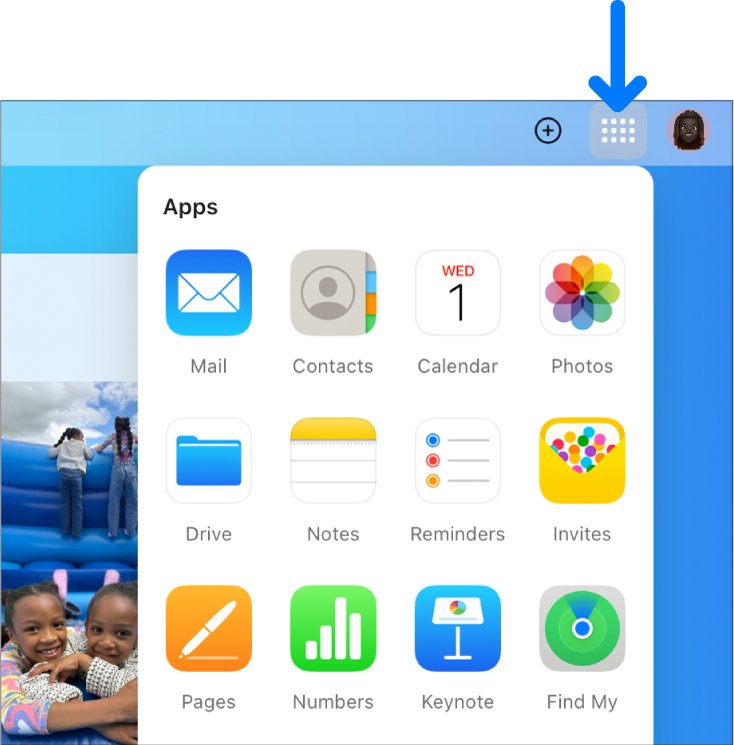
How to sign in to Find My iPhone on iCloud.com
Find Devices on iCloud.com works in a browser on a computer, tablet or phone, including a device that belongs to someone else.
- Open a supported browser and go to icloud.com/find.
- Enter the email address or phone number of the Apple Account you used to set up Find My on the iPhone.
- Enter your Apple Account password.
- If you're asked for a code sent to a trusted device, select the Find Devices button at the bottom of the window instead.
- Select your iPhone in the All Devices list to see it on the map.
Apple says signing in to icloud.com/find needs no verification code, so you can mark a device as lost even if it is your trusted device that's missing.
Why won't Find My iPhone let me sign in?
Match the message or behaviour you see to a row, then jump to the fix for that case.
| What happens when you sign in | Likely cause | What to do |
|---|---|---|
| Asked for a six-digit code you can't get | Two-factor authentication wants a trusted device, often the lost iPhone | Select Find Devices at the bottom of the window |
| Password is rejected | Wrong password, or the wrong Apple Account | Try every email or phone number tied to your account, then reset the password |
| "This Apple Account has been locked for security reasons" | Too many wrong password attempts | Reset the Apple Account password |
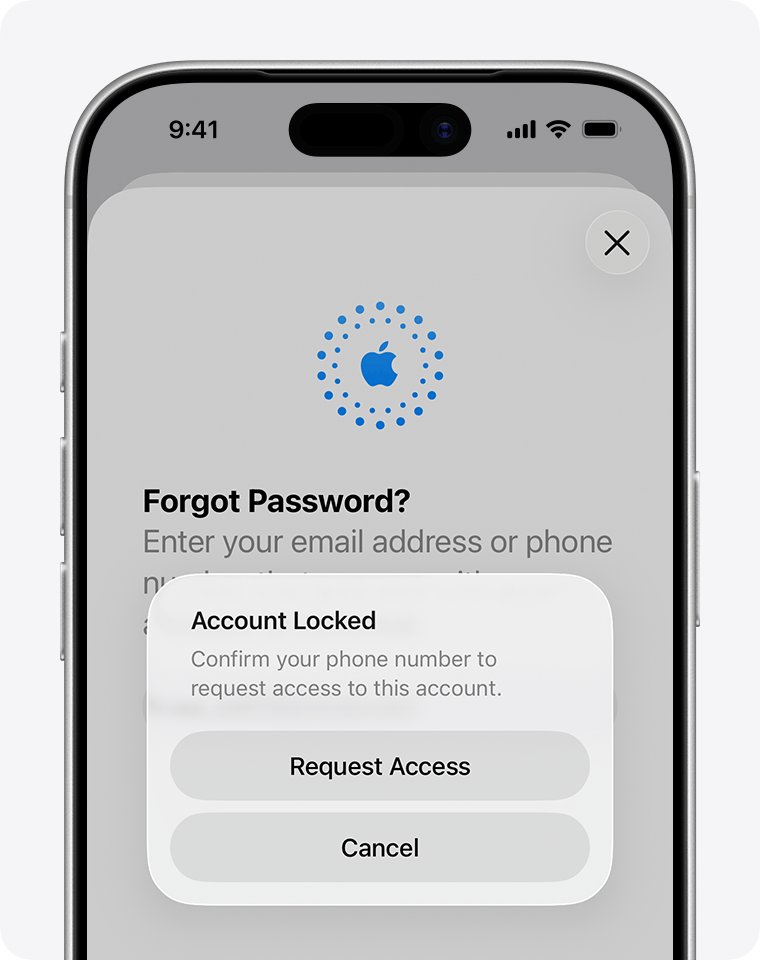
| Alert says the account is locked or not active | Apple locked the account | Tap Request Access in the alert |
| Sign-in keeps spinning or can't connect to the server | An Apple outage or a network problem | Check Apple's System Status page, then try another network |
| You sign in but the iPhone is missing from All Devices | Find My was off, or the iPhone uses a different Apple Account | Sign in with the account that is on the iPhone |
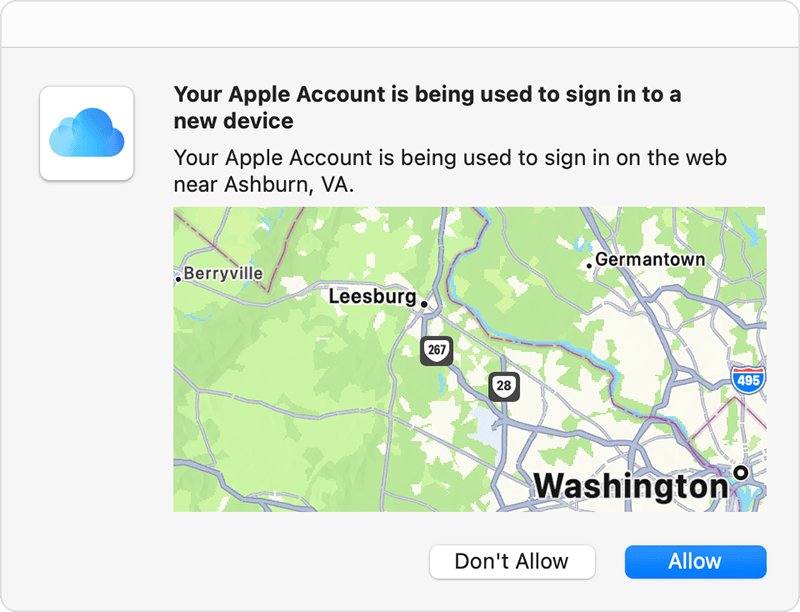
Find My iPhone sign in without a verification code
Two-factor authentication normally sends a code to your trusted devices. If the trusted device is the iPhone you're looking for, that code never reaches you.
- Go to icloud.com/find in a browser.
- Sign in with your Apple Account email address or phone number and password.
- When the code screen appears, select the Find Devices button at the bottom of the window.
- Select your iPhone from All Devices.
- Play a sound on it, select Mark As Lost, or select Erase This Device.
If you go to iCloud.com instead of icloud.com/find, the same Find Devices button appears on the code screen. The other iCloud apps still need the code, so only Find Devices opens this way.
Forgot Apple Account password for Find My iPhone
Find My uses your Apple Account password, so a forgotten password blocks it everywhere. Any email address or phone number linked to your account works as the sign-in name.
- On the sign-in screen, select Forgot password? and follow the onscreen instructions.
- If you still have a trusted iPad or Mac that is signed in, change the password on it instead.
- When asked, provide recovery factors such as a code sent to your trusted phone number or a recovery contact's six-digit code.
- If you can't reset the password, start account recovery at iforgot.apple.com in Safari, or use the Apple Support app on a borrowed device.
- In the Support app, scroll to Support Tools, select Reset Password, then select Help Someone Else.
- Sign in at icloud.com/find with the new password.
Account recovery can take several days or more. If you turned on Stolen Device Protection and changed the password, your devices' locations may not be visible on iCloud.com for a period of time.
Apple Account locked when signing in to Find My iPhone
A locked or disabled Apple Account can't sign in to any Apple service, so a locked iCloud account blocks Find My until the lock is cleared.
- Read the exact wording of the alert on your screen.
- If it says the account was disabled or locked for security reasons, reset your Apple Account password.
- If it says the account is locked or not active, tap Request Access in the alert.
- If you see "This Apple Account is locked and can't be used", create a new Apple Account or start an Activation Lock support request with proof of purchase.
- After the account is unlocked, sign in at icloud.com/find.
How to use Find My iPhone on a friend's phone or computer
You can't add a friend's device to Find Devices, but a friend's browser can sign in to yours at icloud.com/find.
- Open a browser on the friend's phone, tablet or computer.
- Go to icloud.com/find and sign in with your own Apple Account.
- Select Find Devices if you're asked for a verification code.
- Locate, play a sound on, or mark your iPhone as lost.
- When you finish, select your Apple Account photo in the top-right corner and choose Sign Out.
On a PC, Apple supports Firefox 128 or later, Google Chrome 130 or later (desktop mode only) and Microsoft Edge 130 or later. On a Mac, Safari 13.1 or later also works.
Find my iPhone using a family member's iPhone
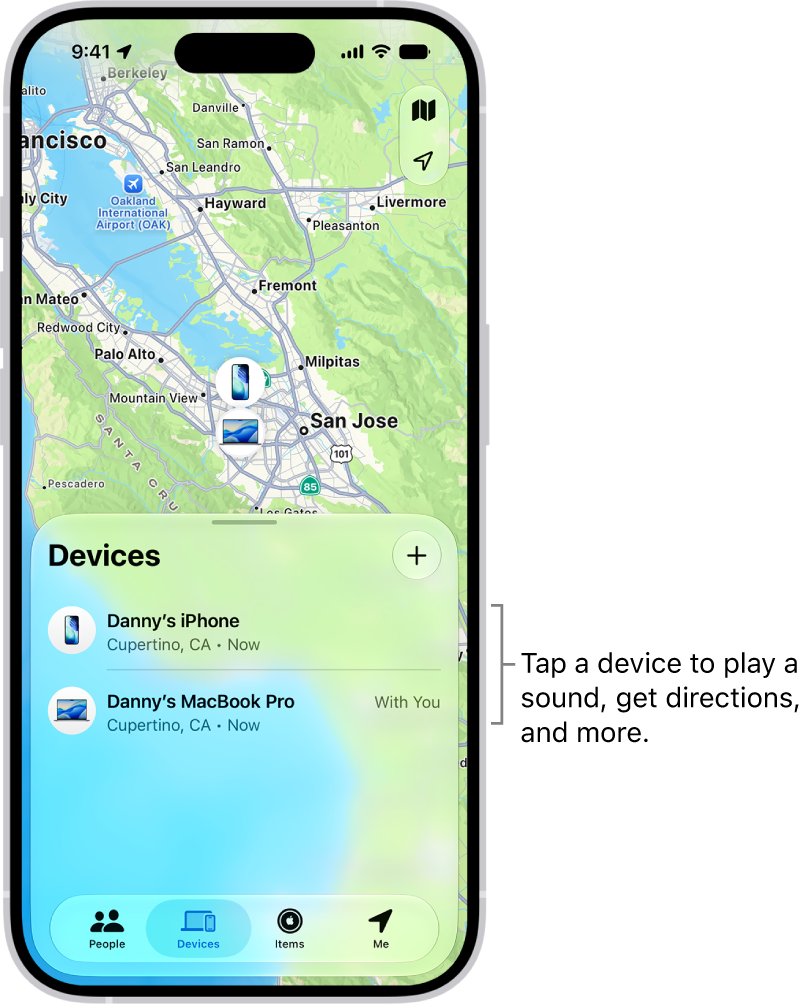
In a Family Sharing group, your devices can appear in Find My on a family member's device without you signing in at all.
- Open the Find My app on the family member's iPhone.
- Tap the Devices tab.
- Scroll down to your missing iPhone, which appears below their own devices.
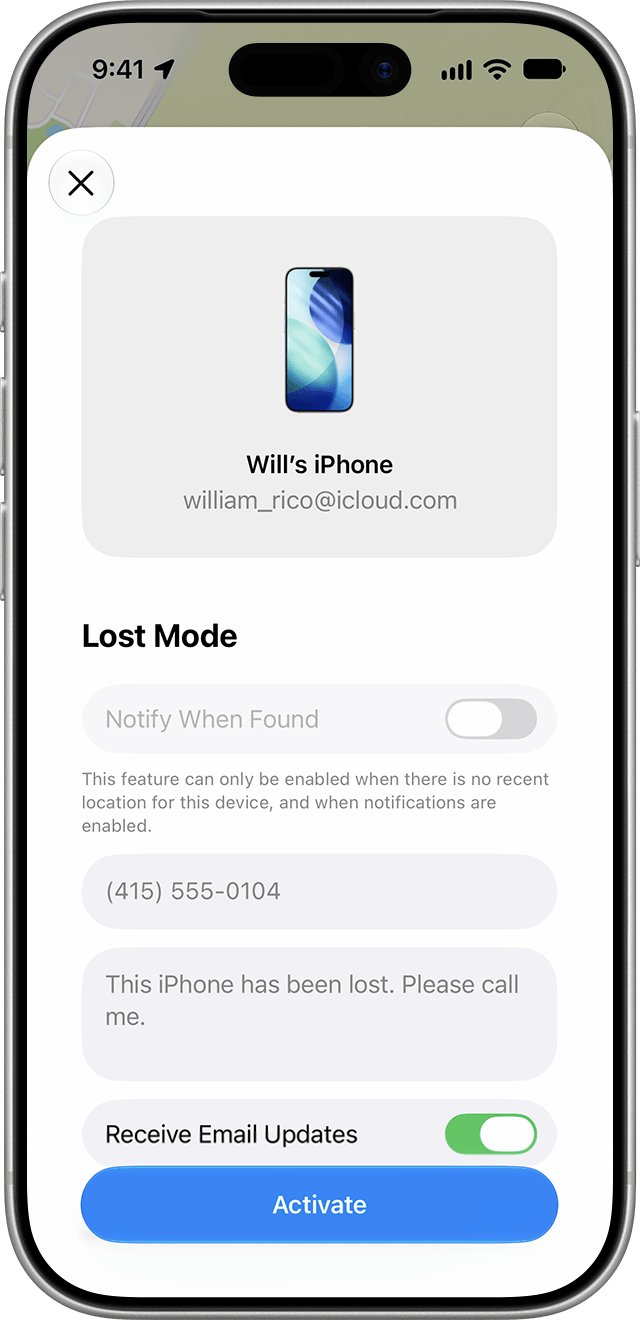
- Tap the More button.
- Scroll down to Lost [Device], turn on Lost Mode, then tap Activate.
Each family member must set up location sharing with the family first. Without it, your iPhone does not show on their list.
Phone not listed on Find My iPhone after sign in
Signing in only shows devices tied to that Apple Account with Find My already turned on. These are the reasons an iPhone stays off the list, or iCloud shows no devices in Find My at all.
| Reason | What it means | What you can do |
|---|---|---|
| Find My was off before the iPhone was lost | It won't appear at icloud.com/find or in the Find My app | You can't mark it as lost or erase it remotely; report it to the police and your carrier |
| You signed in to a different Apple Account | Find Devices lists only the account you signed in with | Sign in with the account that is on the iPhone |
| The device was removed from Find My | Removing it also removes Activation Lock | Add it again by turning on Find My on the device |
| The account holds 100 devices | One Apple Account supports up to 100 personally owned devices | Remove an unused device to add another |
If the iPhone is still in your hand, find the Apple ID on your iPhone in Settings to confirm which account it uses.
Find My iPhone not set up: how to turn it on
Turn Find My on while you still have the iPhone, so the next sign-in at icloud.com/find has something to show.
- Open the Settings app.
- Tap your name, then tap Find My.
- Tap Find My iPhone, then turn on Find My iPhone.
- Turn on Find My network so the iPhone can be found while it is offline.
- Turn on Send Last Location to send its location to Apple when the battery is low.
If you're not signed in on the iPhone, open Settings, tap Apple Account at the top, and choose Use Another Apple Device or Sign in Manually.
Find My iPhone location not available after signing in
Signing in can succeed while the map still shows no location. The label under the device name tells you why.
| What you see | What it means | How long a location is kept |
|---|---|---|
| Offline | The iPhone is off or has no network connection | Last known location shows on iCloud.com for up to 24 hours |
| No location found | More than seven days have passed since the iPhone last sent its location | None; turn on Notify When Found |
| Not sharing location • Online | The iPhone is online but can't send its location, for example a Location Services issue | None until it can send a location |
| Locations hidden after a password change | Stolen Device Protection was on and the password changed in an unfamiliar location | Visible again after a period of time |
With the Find My network on, the Find My app on another signed-in device keeps the last known location of your iPhone for up to seven days.
How to tell if you are signed in to Find My iPhone
- On the iPhone, open Settings and check that your name appears at the top instead of Apple Account.
- Tap your name, then tap Find My and check that Find My iPhone shows On.
- In a browser, sign in at icloud.com/find and look for the iPhone in All Devices.
- Select the iPhone and check that a map location or an Offline label appears.
Why isn't my Find My iPhone working after I sign in?
Find My iPhone sign-in keeps spinning or can't connect
An Apple outage, or a network that can't reach Apple's servers.
- Open Apple's System Status page and check iCloud and Find My for outages.
- If there is no outage, connect to a different Wi-Fi or cellular network.
- Try signing in again later.
Can't sign in to Find My on iPhone without Wi-Fi
Cellular data is turned off, so the Apple Account can't be reached away from Wi-Fi.
- Open the Settings app.
- Tap Cellular or Mobile Data.
- Turn the setting on, then sign in again.
Verification code is rejected or never arrives
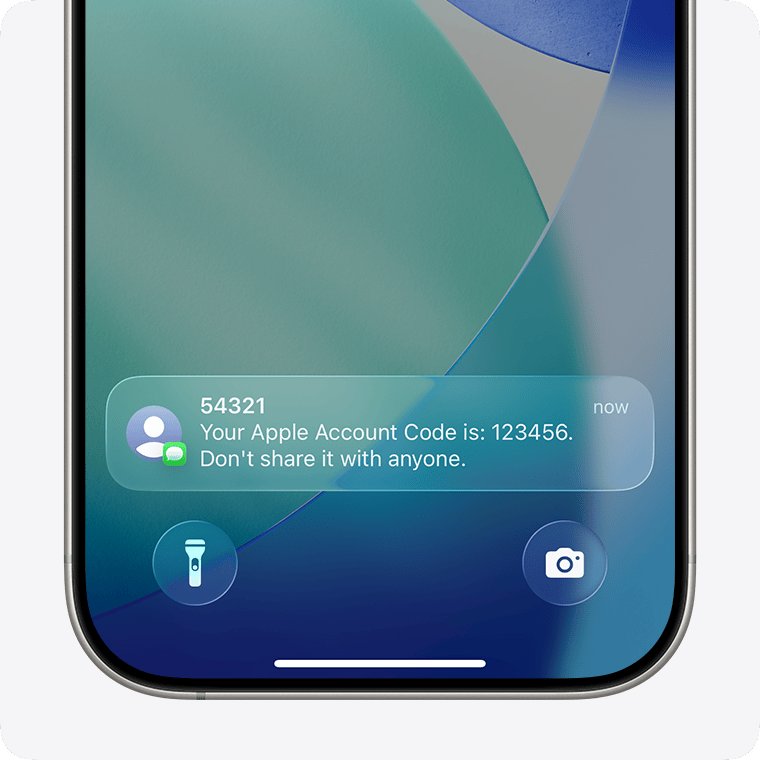
The code went to a device you don't have, or text messages are filtered.
- Select Didn't Get a Code? or Can't get to your devices? on the code screen.
- Choose to receive the code by text or phone call to your trusted phone number.
- If you filter Unknown Senders in Messages, look for the code in that list.
- For Find My alone, skip the code with the Find Devices button.
Why is Find My iPhone not updating
The iPhone is offline, or its last location is older than the time Find My keeps it.
- Select the iPhone and turn on Notify me when found on iCloud.com.
- Open the Find My app on another signed-in device to see a location up to seven days old.
- Update the iPhone to the latest iOS once you have it back.
iCloud.com shows only Find My iPhone and iCloud Settings
Advanced Data Protection turns off web access to your iCloud data.
- Use Find Devices as normal; it stays available.
- To see the other apps, turn on Access iCloud Data on the Web in iCloud settings on your device.
Find My iPhone sign-in FAQ
Why is Find My iPhone not working?
Find My iPhone usually fails because Find My was off on the device, you signed in to a different Apple Account, or the iPhone is offline. Sign in at icloud.com/find with the account on the iPhone and check the label under its name.
Why can't I locate my iPhone?
Find My can only show an iPhone that had Find My turned on before it was lost and that can send its location. If more than seven days pass without a location report, Find My shows No location found instead of a map pin.
Why has Find My iPhone stopped working?
A password change, a locked Apple Account or a signed-out iPhone can all stop Find My from working. With Stolen Device Protection on, a password change in an unfamiliar location can also hide device locations on iCloud.com for a period of time.
Why is Find My iPhone not updating?
Find My iPhone stops updating when the iPhone is off or has no network connection. iCloud.com shows the last known location for up to 24 hours, and the Find My app on another device shows it for up to seven days with the Find My network on.
Why does my iPhone say not available in Find My?
A missing location usually means the iPhone is offline, has not reported in over seven days, or can't send its location because of a Location Services issue. Turn on Notify When Found to get an alert when it reports again.
Can I sign in to Find My iPhone without my phone?
Yes. Go to icloud.com/find on any browser, sign in with your Apple Account password, and select the Find Devices button when a verification code is requested. You don't need the lost iPhone or another trusted device.
Why can't my computer find my iPhone?
On a computer, Find My iPhone runs at icloud.com/find in a supported browser. On a PC that means Firefox 128, Chrome 130 in desktop mode or Edge 130 or later; an older browser can block the sign-in page.
What should I do if I can't find my iPhone in my house?
Open the Find My app on another device signed in to your Apple Account, tap Devices, select the iPhone and tap Play. If it is online, a sound starts after a short delay, gets louder, and plays for about two minutes.
Does Apple contact you when a lost iPhone is found?
No. Apple says it will never contact you to say your iPhone was found. Never share your passcode, password or verification codes with anyone who asks, because such messages are a common scam.