Type a filter such as kind:document datemodified:this week into the File Explorer search box, and Windows 11 or Windows 10 returns only the files that match every condition.
These filters use Advanced Query Syntax (AQS), the query language behind Windows Search. Below are the operators, the file type, date, size and property filters, wildcards, ready-made queries, a PowerShell fallback and fixes for searches that come back empty.
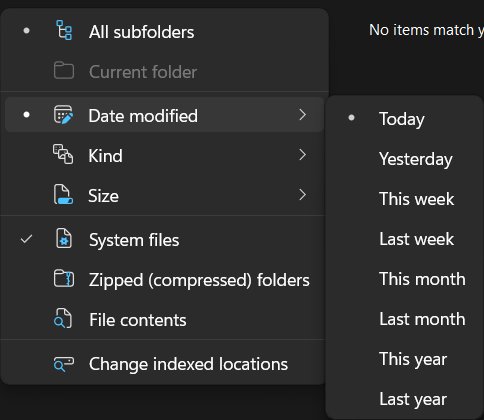
Master advanced file search in Windows 10/11 with filtered queries
A filtered query is a property name, a colon and a value, typed next to an ordinary search word. The same syntax works in Windows 11 and Windows 10.
Type these filters in the search box at the top of File Explorer. Windows Search on the taskbar is the quicker route to apps and settings.
- Press Windows logo key + E to open File Explorer.
- Open the folder most likely to hold the file, such as Downloads or Documents. Search from Home to include recent cloud files, or from This PC for a slower, in-depth search of every drive.
- Press Ctrl + E to move the cursor into the search box.
- Type a word and one or more filters, for example
invoice kind:document datemodified:last week. - Press Enter and let the results finish loading.
- Switch to Details view from View and select a column such as Date modified to sort the matches.
Results start appearing as you type. If the folder is not in the search index, Windows reads the files directly, which takes longer on large drives.
File Explorer search operators: AND, OR, NOT and quotes
Operators join words and filters into one query. AQS ignores letter case everywhere except the operators AND, OR and NOT, which must be typed in capitals.
| Operator | Example | What it finds |
|---|---|---|
| Space (implied AND) | budget 2026 |
Items that contain both words |
| AND | budget AND forecast |
The same as a space, written out |
| OR | invoice OR receipt |
Items that contain either word |
| NOT or a minus sign | budget NOT draft, System.Kind:-picture |
Items with the first word but without the second, or everything except pictures |
| Quotation marks | "last quarter" |
The exact phrase, word for word |
| Parentheses | author:(theresa OR lee) |
Groups values so the operator applies inside one property |
> and < |
size:>500kb, datemodified:<1/1/2026 |
Values greater or smaller than the one given |
.. (range) |
size:5kb..10kb |
Values between two limits, inclusive |
[] (no value) |
System.Keywords:=[] |
Items whose property is empty, such as files with no tags |
Windows reads several AND and OR operators strictly from left to right. apple OR pear AND plum means (apple OR pear) AND plum, so add parentheses whenever a query mixes the two.
How to search by file type in File Explorer
Use kind: for a broad category of file, and ext: when you need one exact file extension.
| You want | Type this | Notes |
|---|---|---|
| Documents only | kind:document |
kind:docs also works |
| Photos and images | kind:picture |
pics, image and photo are accepted too |
| Videos | kind:video |
Films can also carry the separate kind:movie |
| Music | kind:music |
kind:song works as well |
| Folders only | kind:folder |
Hides files from the results |
| Programs | kind:program |
Executable programs |
| One file extension | ext:.pdf |
fileext:.pdf is the same filter |
| Exact extension match | System.FileExtension:=".txt" |
Canonical form; works in any Windows display language |
| Everything except pictures | System.Kind:NOT picture |
System.Kind:<>picture gives the same result |
How to search by date modified in Windows 11
Date filters accept fixed dates, ranges and relative words. Dates follow your regional format, so US systems use month/day/year.
| You want | Type this | What it matches |
|---|---|---|
| Files changed today | datemodified:today |
Modified since midnight |
| Files changed yesterday | datemodified:yesterday |
Modified on the previous day |
| This week or last week | datemodified:this week or modified:last week |
The current or the previous calendar week |
| A single day | datemodified:3/14/2026 |
Modified on that date |
| A date range | datemodified:1/1/2026..1/31/2026 |
Both end dates included |
| After or before a date | datemodified:>6/30/2026 or datemodified:<1/1/2025 |
Everything newer or older than the date |
| A day or a month by name | datemodified:Monday..Wednesday or datemodified:February |
Relative day and month values |
| Any date property | date:last week |
Uses the item's main date rather than only the modified date |
| Photos by date taken | kind:picture datetaken:yesterday |
Reads the camera date stored in the photo |
The canonical name for the modified date is System.DateModified, and it also accepts ISO 8601 dates such as System.DateModified:2026-03-14T09:00:00.
How to search by file size in File Explorer
The size: filter compares against the file size. A bare number is read as bytes, so add kb to keep the numbers readable.
| You want | Type this | What it matches |
|---|---|---|
| Files larger than about 100 MB | size:>102400kb |
Large videos, disk images and archives |
| Files smaller than 1 KB | size:<1kb |
Near-empty or placeholder files |
| A size range | size:5kb..10kb |
Files between the two sizes, inclusive |
| At least a given size | System.Size:>=1kb |
Canonical form for scripts and non-English systems |
| Large files of one type | kind:video size:>512000kb |
Videos over roughly 500 MB |
Write whole numbers without thousands separators. size:>102400kb works, while size:>102,400kb does not.
Search by file name, author and other properties in File Explorer
Any indexed property can act as a filter. Without a property name, Windows searches every property at once, so a property filter cuts out false matches.
| Property | Example | Finds |
|---|---|---|
| File name | filename:resume |
Names that contain a word starting with resume |
| Folder | folder:downloads |
Items inside a folder with that name |
| Author | author:"Stephen King" |
Documents whose author property matches |
| Title or subject | title:"Quarterly Financial" |
Documents with that title |
| Tags | keywords:"sales projections" |
Files tagged with those keywords |
| Last saved by | lastsavedby:john |
Office documents last saved by that person |
| Slide count | kind:presentation slidecount:>20 |
Presentations with more than 20 slides |
| Photo size | kind:picture width:1600 |
Images 1600 pixels wide; height: works the same way |
| Camera | cameramodel:EOS |
Photos taken with a named camera model |
| Music | artist:"John Singer" genre:rock |
Songs by an artist in one genre |
Keyword names such as author work only in the Windows display language. On a non-English system, use the canonical name, such as System.Author:Jacobs, which works in every language.
Windows search wildcards and exact match operators
Wildcards and match operators sit straight after the colon. They give you precise control over where in a value the text must appear.
| Operator | Example | Finds |
|---|---|---|
~ with * and ? |
System.FileName:~"report*" |
Names that start with report; ? stands for exactly one character |
~< starts with |
System.FileName:~<"C++ Primer" |
Names that begin with those characters |
~> ends with |
System.Photo.CameraModel:~>non |
Values that end with those characters |
~= contains |
System.Subject:~=round |
Values containing the characters anywhere, such as ground rules |
~! does not contain |
System.Author:~!"sanjay" |
Authors without that character sequence |
= equals |
System.FileExtension:=".txt" |
An exact value, nothing more |
$= exact phrase |
System.Author:$="Sanjay Jacobs" |
Those words in that order |
$< word starts with |
System.Author:$<"San" |
Any word in the value that starts with San |
Without an operator, text filters default to word-starts-with matching. That is why filename:rep finds report.docx but not prep.docx.
Advanced Query Syntax examples for Windows 11 file search
Copy one of these into the File Explorer search box and change the words and dates to suit your files.
| Task | Query |
|---|---|
| Word documents from last week mentioning a client | contoso kind:document ext:.docx datemodified:last week |
| Large videos to clear disk space | kind:video size:>1048576kb |
| Photos taken in a date range | kind:picture datetaken:6/1/2026..6/30/2026 |
| PDFs in Downloads, excluding receipts | ext:.pdf folder:downloads NOT receipt |
| Files by either of two authors | "last quarter" author:(theresa OR lee) |
| Spreadsheets changed after a date | kind:document ext:.xlsx datemodified:>9/1/2026 |
| Files with no tags | kind:picture System.Keywords:=[] |
| Presentations over 20 slides | kind:presentation slidecount:>20 |
Save time on repeat searches by pinning the folder you search most to Quick access: right-click it and select Pin to Quick access. If that section is missing from the navigation pane, turn Quick Access back on first.
How to search file contents in Windows 11
Windows can only match words inside files that it indexes with their contents. For each file type, the index stores either properties only or properties and contents.
- Open Settings and select Privacy & security, then Searching Windows.
- Under Find my files, choose Enhanced to index the whole PC, or keep Classic for Documents, Pictures, Music and the desktop.
- With Classic, select Customize search locations, then Modify, and tick any extra folders you want indexed.
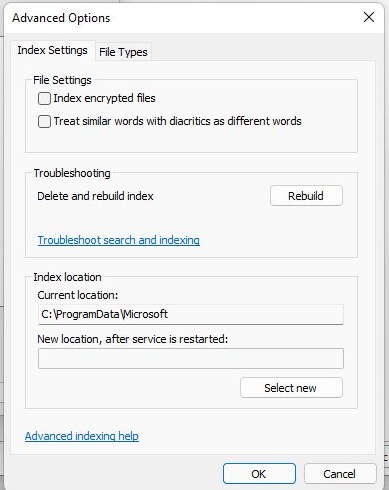
- In the Indexing Options dialog, select Advanced and open the File Types tab.
- Select the file extension you need, such as txt or log.
- Under How should this file be indexed?, choose the option that indexes properties and file contents.
- Select OK, then Close, and let indexing rebuild.
The first full index can take a couple of hours. Copilot+ PCs add semantic indexing, so a search for pasta can also return lasagna documents and images.
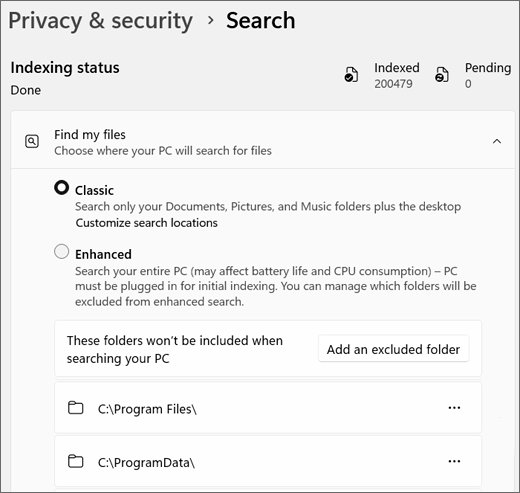
Find files with PowerShell Get-ChildItem filters
PowerShell does not use the search index, so it finds files in folders Windows never indexed. It is slower on big drives but exact.
Get-ChildItem -Path C:\Users -Recurse -File -Filter *.pdf -ErrorAction SilentlyContinue | Where-Object { $_.Length -gt 100MB -and $_.LastWriteTime -gt (Get-Date).AddDays(-30) }-Recurse searches every subfolder, -File skips folders, and -Filter *.pdf limits the names. Where-Object then keeps files over 100 MB that changed in the last 30 days. -ErrorAction SilentlyContinue hides access-denied messages for protected folders.
You should see: a list of matching files with their LastWriteTime, Length and Name, grouped under each folder path. No output means nothing matched.
Swap -Filter *.pdf for -Include *.docx, *.xlsx to match several extensions at once.
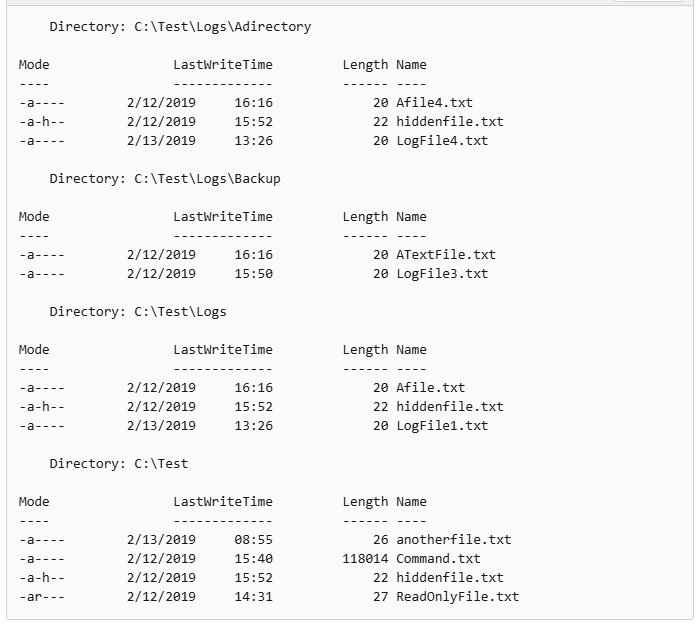
How to tell if Windows Search indexing is complete
Filters on indexed folders return results almost instantly. If indexing is still running, results look incomplete for a while.
- Open Settings > Privacy & security > Searching Windows.
- Check the indexing status shown on that page to see whether indexing is still in progress.
- Select Advanced indexing options to open Indexing Options, which lists every indexed location.
- Run your filtered query again once the status reports that indexing is complete.
On a Copilot+ PC, keep the laptop plugged in until the first index finishes.
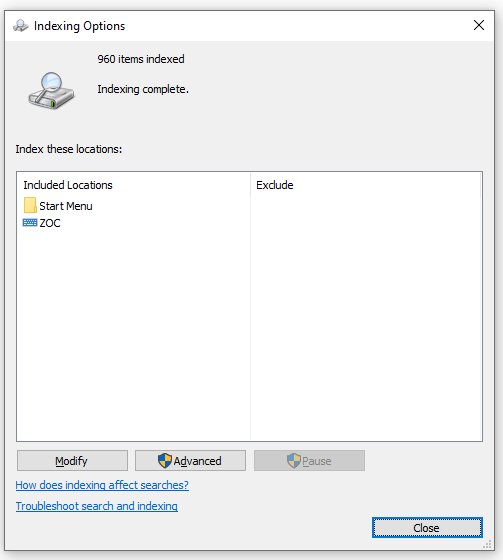
File Explorer search not finding files with filters
Most empty results come from the query itself or from the index. When the search box fails outright instead of returning nothing, fix File Explorer search in Windows 11 before you adjust the query.
A query with OR or NOT returns the wrong files
Operators typed in lowercase are read as ordinary words, and mixed AND/OR bind from left to right.
- Type
AND,ORandNOTin capitals. - Wrap each group in parentheses, such as
(invoice OR receipt) AND 2026. - Run the search again.
Filters like author: or kind: are ignored
Keyword names work only in the Windows display language.
- Replace the keyword with its canonical name, such as
System.Author:orSystem.Kind:. - Keep the value the same, for example
System.Kind:picture. - Press Enter to search again.
Words inside a file are not found
That file type is indexed with properties only.
- Open Indexing Options from Settings > Privacy & security > Searching Windows > Advanced indexing options.
- Select Advanced > File Types and pick the extension.
- Under How should this file be indexed?, choose properties and file contents, then select OK.
Search is slow or misses files outside your user folders
The folder is not an indexed location, so Windows scans it file by file.
- Open Settings > Privacy & security > Searching Windows.
- Select Enhanced, or add the folder through Customize search locations > Modify.
- Wait for indexing to finish before you search again.
Windows Search stops responding
The search process has hung, which usually breaks Start menu and taskbar search too.
- Press Ctrl + Alt + Delete and select Task Manager.
- Open Details, right-click SearchHost.exe (Windows 11) or SearchUI.exe (Windows 10) and select End task.
- Search again; Windows restarts the process automatically.
- If it still fails, run
msdt.exe -ep WindowsHelp id SearchDiagnosticfrom Command Prompt to start the Search and Indexing troubleshooter.
Windows advanced file search FAQ
What is Advanced Query Syntax in Windows?
Advanced Query Syntax (AQS) is the default query language Windows Search uses to filter the index. It combines words, operators such as AND, OR and NOT, and property filters written as name:value, such as kind:picture or size:>500kb.
How do I search for a file type in Windows 11?
Open File Explorer, press Ctrl + E and type ext: followed by the extension, such as ext:.pdf. For a whole category, use kind: instead, such as kind:document, kind:picture or kind:video, and add a word to narrow the results.
How do I find files modified on a specific date?
Type datemodified: followed by the date in your regional format, such as datemodified:3/14/2026 on a US system. Use two dots for a range, as in datemodified:1/1/2026..1/31/2026, or words like today, yesterday and last week.
How do I find large files in Windows 10 or 11?
Search for size:> followed by a number in kilobytes from This PC, such as size:>1048576kb for files larger than about 1 GB. Switch to Details view and sort by Size to see the biggest files first.
Can I use wildcards in File Explorer search?
Yes. Use the ~ operator with a property, such as System.FileName:~"report*". An asterisk matches any number of characters, and a question mark matches exactly one character, the same way DOS-style wildcards work.
Do search filters work on files that are not indexed?
Yes, but slowly. File Explorer reads non-indexed folders file by file, and it cannot match words inside files it has not indexed with their contents. Add the folder to the index or choose Enhanced mode for fast filtered searches.
Why do search filters not work in another language version of Windows?
Mnemonic keywords such as author and kind work only in the current Windows display language. Canonical property names such as System.Author and System.Kind work in every language, so use them on non-English systems.
Is AQS case sensitive?
No. Words and property names can be typed in any case. The only exception is the operators AND, OR and NOT, which must be written in capitals or Windows treats them as ordinary search words.