Windows has no setting that saves a program's priority or CPU affinity, so make it permanent by launching the program through a shortcut that runs cmd.exe /c start "" /high /affinity F "C:\path\app.exe".
This guide covers the shortcut method, the affinity hex values for any core count, running it at sign-in with the Startup folder or Task Scheduler, checking the result in PowerShell and undoing it.
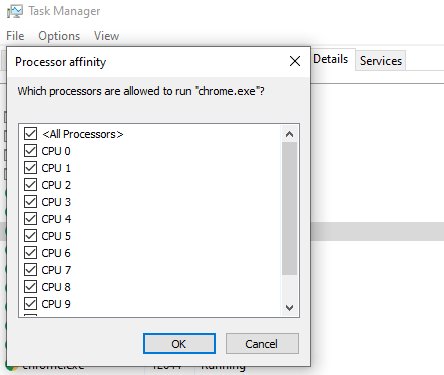
Set CPU affinity and priority permanently by creating a shortcut for the process
A priority or affinity change applies to one running process and is lost when it closes. The start command applies both when the program launches, so a shortcut that calls it repeats the setting every time.
- Find the full path of the program's .exe file, for example
C:\Program Files\App\app.exe. - Work out the affinity mask in hex for the cores you want, using the table below.
Fmeans logical processors 1 to 4. - Right-click an empty part of the desktop and select New > Shortcut. On Windows 11 you may need Show more options first.
- In Type the location of the item, enter
cmd.exe /c start "" /high /affinity F "C:\Program Files\App\app.exe"with your own priority, mask and path. - Select Next, type a name for the shortcut, then select Finish.
- Close the program if it is already running, then open it from the new shortcut every time.
The empty "" is the window title that start expects first. Without it, start treats the quoted program path as a title and opens a blank Command Prompt instead.
Swap /high for /abovenormal, /belownormal or /low to change only the priority. Leave out /affinity F to keep all cores and change priority alone.
What is CPU affinity and process priority in Windows?
Both settings control how the Windows scheduler treats a process. Priority decides which threads run first; affinity decides which logical processors they may run on.
| Setting | What it controls | Default | start switch |
|---|---|---|---|
| Priority class | The base priority of every thread in the process, so higher classes get CPU time first | Normal | /low, /belownormal, /normal, /abovenormal, /high, /realtime |
| CPU affinity | The logical processors the process's threads are allowed to run on | All processors (mask 2^n – 1) | /affinity followed by a hex mask |
| NUMA node | Which NUMA node the process prefers for memory locality | Chosen by Windows | /node followed by a node number |
Priority affects CPU scheduling only. Microsoft notes that even a low-priority process can still slow the PC through heavy disk and memory use.
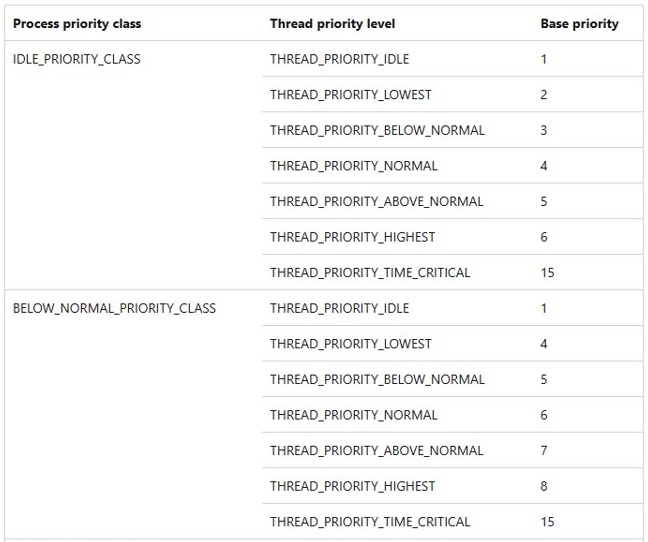
How to find the number of logical processors for CPU affinity in Windows
The affinity mask counts logical processors, not physical cores. A core can hold more than one logical processor, so check the right number first.
- Press Ctrl + Shift + Esc to open Task Manager.
- Select Performance in the left pane, then select CPU.
- Read the number next to Logical processors. Use this count, not Cores, when you build the mask.
A mask can only include processors that exist. Setting a bit for a processor the PC does not have makes the affinity change fail.
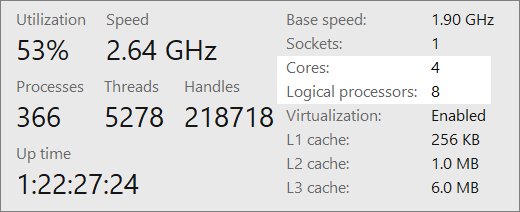
CPU affinity hex values for the start /affinity command
Each logical processor is one bit: bit 0 is processor one, bit 1 is processor two, and so on. Set the bits you want, then write the result in hexadecimal.
| Processors allowed | Binary | Hex value for /affinity |
|---|---|---|
| 1 only | 0001 | 1 |
| 2 only | 0010 | 2 |
| 1 and 2 | 0011 | 3 |
| 1, 2 and 3 | 0111 | 7 |
| 1 and 4 | 1001 | 9 |
| 3 and 4 | 1100 | C |
| 1 to 4 | 1111 | F |
| 1 to 7 | 0111 1111 | 7F |
| 1 to 8 | 1111 1111 | FF |
| 1 to 12 | 1111 1111 1111 | FFF |
| 1 to 16 | 1111 1111 1111 1111 | FFFF |
| All except processor 1 on an 8-processor PC | 1111 1110 | FE |
Every four processors add one hex digit. To build any other mask, write the bits from processor 1 on the right, then convert each group of four bits to one hex digit.
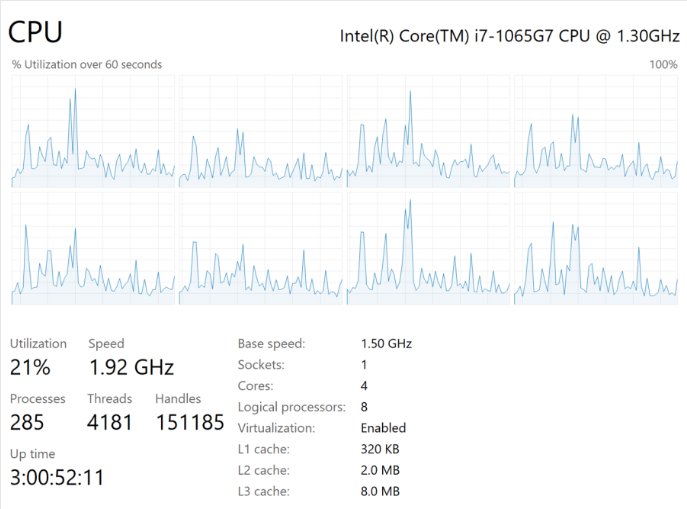
Start a program with high priority from Command Prompt
Use the same start line in Command Prompt to test a priority and mask before you put it in a shortcut. The program opens with those settings, and the command window stays free.
start "" /abovenormal /affinity 3 "C:\Windows\System32\notepad.exe"Starts Notepad in the Above normal priority class, allowed to run only on logical processors 1 and 2 (mask 3). Replace the switch, mask and path with your own program.
You should see: Notepad opens. In PowerShell, Get-Process notepad | Format-List Name, PriorityClass, ProcessorAffinity shows AboveNormal and 3.
Inside a shortcut or Task Scheduler task, put cmd.exe /c in front, because start is a Command Prompt command rather than a program.
Run a program with CPU affinity and priority at startup in Windows 11
Put the shortcut in your Startup folder if the program should open with its priority and affinity every time you sign in.
- Create the
cmd.exe /c startshortcut as shown in the first section. - Press Windows + R, type
shell:startupand press Enter. - Copy the shortcut into the folder that opens.
- To apply it for every user on the PC, open
shell:common startupinstead. - If the program also starts itself through Settings > Apps > Startup, turn its toggle Off there so only the shortcut launches it.
shell:startup maps to %userprofile%\AppData\Roaming\Microsoft\Windows\Start Menu\Programs\Startup. shell:common startup maps to %ProgramData%\Microsoft\Windows\Start Menu\Programs\Startup.
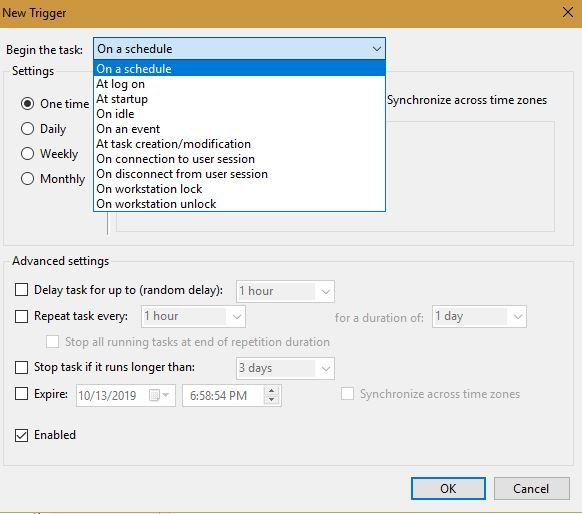
Set process priority at logon with a Task Scheduler task
A scheduled task runs the same start line at every sign-in, and it can run with your highest privileges. Save the line in a batch file first, which avoids nested quotes in the task.
Create C:\Scripts\start-app.cmd in Notepad containing one line: start "" /high /affinity F "C:\Program Files\App\app.exe". Then run the command below in an elevated Command Prompt.
schtasks /create /sc onlogon /tn "Start App with high priority" /tr C:\Scripts\start-app.cmd /rl highestCreates a task that runs the batch file whenever a user signs in (/sc onlogon), with the name given by /tn and the highest run level (/rl highest).
You should see: Command Prompt reports that the scheduled task was created. Sign out and back in, and the program opens with the priority and affinity from the batch file.
Add /delay 0001:00 to wait one minute after sign-in before the program starts. The delay format is mmmm:ss.
How to see process priority and CPU affinity in PowerShell
PowerShell shows the priority class and affinity mask Windows actually applied, which proves the shortcut or task worked.
- Open the program from your shortcut, Startup entry or task.
- Right-click Start and open Terminal or Windows PowerShell.
- Run
Get-Process app | Format-List Name, PriorityClass, ProcessorAffinity, replacingappwith the program's process name without .exe. - Check that PriorityClass shows the class you chose, such as High or AboveNormal.
- Check that ProcessorAffinity shows your mask as a decimal number: hex
Fappears as 15,3as 3 andFFas 255.
To list every process grouped by priority class, run Get-Process | Sort-Object { $_.PriorityClass } | Format-Table -View Priority. You can also check CPU usage per process to see whether the change helped.
Change CPU affinity and priority of a running process with PowerShell
PowerShell can change a process that is already open. The change lasts until that process closes, so use it to test values before you make them permanent.
$p = Get-Process notepad; $p.PriorityClass = 'AboveNormal'; $p.ProcessorAffinity = 3Gets the running Notepad process, sets its priority class to Above normal and limits it to logical processors 1 and 2 (decimal 3 = hex 3). Run PowerShell as administrator to change processes started by another user or with elevated rights.
You should see: No output appears. Get-Process notepad | Format-List PriorityClass, ProcessorAffinity then shows AboveNormal and 3.
Is it safe to set a process to realtime priority in Windows?
Not for normal apps. Microsoft says to almost never use Realtime, because it interrupts the system threads that handle mouse input, keyboard input and background disk flushing.
| Priority class | start switch | Use it for | Risk |
|---|---|---|---|
| Realtime | /realtime | Brief tasks that talk directly to hardware | Can make the mouse unresponsive and stop disk caches flushing |
| High | /high | Time-critical work that must respond at once | A high-priority app can use nearly all available CPU time |
| Above normal | /abovenormal | A game or encoder you want ahead of background apps | Low; the safest way to give a program a boost |
| Normal | /normal | Everything else; the Windows default | None |
| Below normal | /belownormal | Background jobs you want out of the way | The job takes longer when the PC is busy |
| Low (Idle) | /low | Work that should run only when the PC is idle | May barely run on a busy PC |
Restricting affinity to fewer processors also limits how fast a multi-threaded program can run. Leave affinity alone unless you have a specific reason, such as keeping one app off the cores another app needs. If cores seem unavailable to Windows itself, enable all CPU cores before you set any mask.
Process priority resets or CPU affinity not working in Windows
These are the common reasons a priority or affinity setting does not stick.
Priority goes back to Normal every time the program restarts
Every new process starts in the Normal class, so changes made to a running process are lost when it closes.
- Launch the program only from the
cmd.exe /c startshortcut, Startup entry or task. - Unpin the original taskbar or Start shortcut so you do not open it the old way by habit.
A game started from its launcher still runs at Normal priority
Only Idle and Below normal priority classes pass to child processes, so a launcher at High does not give its game High.
- Point the shortcut at the game's own .exe file instead of the launcher, if the game supports starting that way.
- Otherwise, start the launcher normally and set the game's priority with the PowerShell command once it is running.
The shortcut opens an empty Command Prompt window instead of the program
The window title argument is missing, so start reads the quoted program path as the title.
- Open the shortcut's Properties and check the Target box.
- Make sure
""appears straight afterstart, before the priority switch.
Affinity change fails or the program ignores the mask
The mask names a logical processor the PC does not have, or it is written in decimal instead of hex.
- Check Logical processors in Task Manager under Performance > CPU.
- Rebuild the mask in hex from the table above.
/affinity 15means processors 1, 3 and 5 (hex 15), not processors 1 to 4.
PowerShell says access is denied when changing a process
Changing priority or affinity needs set-information access to the process, which an elevated or system process does not give a standard PowerShell window.
- Close the PowerShell window and open PowerShell again as administrator.
- Run the command again.
How to reset process priority and CPU affinity to default in Windows
Nothing is stored in Windows itself, so removing the launcher is enough. The next normal launch uses Normal priority and all processors.
- Delete the
cmd.exe /c startshortcut from the desktop, and fromshell:startuporshell:common startupif you copied it there. - If you created a logon task, run
schtasks /delete /tn "Start App with high priority" /fin an elevated Command Prompt. - Delete the
C:\Scripts\start-app.cmdbatch file. - Close the program and open it from its normal Start menu shortcut.
CPU affinity and process priority FAQ
Can you set process priority permanently in Windows 11?
Not through a Windows setting. Priority applies to a running process and resets when it closes. Launch the program with cmd.exe /c start "" /high plus its path from a shortcut, the Startup folder or a logon task so the priority is applied on every launch.
Does setting high priority improve game performance?
Only when other busy processes compete for the CPU. High priority makes the game's threads run ahead of Normal ones; it does not make the CPU faster. Above normal gives most of the benefit with less risk than High, and Realtime should be avoided.
What is the hex value for CPU affinity of four cores?
F, when you want logical processors 1 to 4. Each processor is one bit, so four bits set gives binary 1111, which is F in hex. Eight processors is FF, and sixteen processors is FFFF.
Is CPU affinity the same as cores?
No. The affinity mask counts logical processors, and one core can hold more than one logical processor. Check the Logical processors figure under Task Manager > Performance > CPU before you build the mask.
Does process priority survive a restart?
No. Each process starts in the Normal priority class unless its launcher asks for another one. A shortcut in shell:startup or a Task Scheduler task with an onlogon trigger reapplies the setting after every restart and sign-in.
Is realtime priority dangerous?
It can be. Microsoft warns that a Realtime process running for more than a brief interval can stop disk caches from flushing and make the mouse unresponsive, because it preempts operating system threads. Use High or Above normal instead.
How do I check a program's priority without Task Manager?
Open PowerShell and run Get-Process followed by the process name, piped to Format-List Name, PriorityClass, ProcessorAffinity. PriorityClass shows the class, and ProcessorAffinity shows the mask as a decimal number.