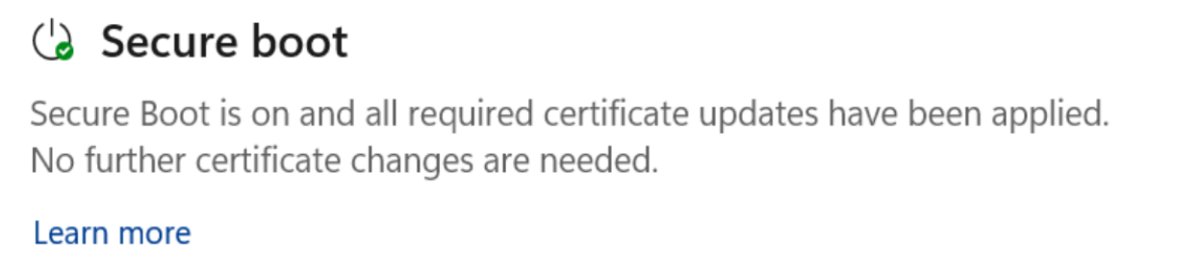
Open Windows Security, select Device security, and read the Secure Boot section: if it says all required certificate updates have been applied, your PC has the 2023 certificates.
This guide covers that check plus PowerShell, the registry, Event Viewer, what each status message means, and what to do when the update is stuck.
Check if your PC has the Secure Boot 2023 certificates using Windows Security
Since April 2026, Windows Security shows certificate update status on Windows 11 (23H2 and later) and on Windows 10 22H2, 21H2 and 1809. On Windows 10 the view arrived with the April 14, 2026 cumulative update.
- Open Start, type Windows Security and open the app.
- Select Device security in the left pane.
- Find the Secure Boot section and look at the badge on its icon.
- Read the text under it. The fully updated message is Secure Boot is on and all required certificate updates have been applied. No further certificate changes are needed.
- If any other message appears, match it to the status table below and act on it.
A green check by itself does not prove the update happened. Before April 2026 the badge only meant Secure Boot was switched on, so trust the text, not the color.
How to check if Secure Boot is enabled in Windows 11 and 10
The 2023 certificates only reach firmware with Secure Boot switched on. A PC with Secure Boot off never gets them and stays exposed to bootkits.
- Press Windows + R, type
msinfo32and press Enter. - Select System Summary and find Secure Boot State in the right pane.
- Confirm it reads On. Off means Secure Boot is disabled in firmware; Unsupported means the PC boots in legacy BIOS mode.
- As an alternative, open PowerShell as administrator, type
Confirm-SecureBootUEFIand press Enter. True means Secure Boot is on.
If the state is Off, you can turn on Secure Boot in UEFI before checking certificates. Ask your PC maker first whether your firmware already carries the 2023 configuration.
Check if your PC has the Secure Boot 2023 certificates using PowerShell
PowerShell reads the certificates straight from the firmware databases. The -Decoded parameter arrived with the April 14, 2026 cumulative update, so install that update or a later one first.
- Right-click Start and select Terminal (Admin) or Windows PowerShell (Admin), then accept the prompt.
- Run
Get-SecureBootUEFI -Name db -Decodedto list the certificates in the allowed signature database. - Look for a Subject of CN=Windows UEFI CA 2023. That entry signs the new Windows boot manager.
- Look also for Microsoft UEFI CA 2023 and Microsoft Option ROM UEFI CA 2023. They appear when your DB had the Microsoft UEFI CA 2011.
- Run
Get-SecureBootUEFI -Name KEK -Decodedand look for Microsoft Corporation KEK 2K CA 2023. - For a short list, run
Get-SecureBootUEFI -Name db -Decoded | Select-Object Subject, ValidToand check the ValidTo dates; the 2023 certificates run to 2035.
Unable to set proper privileges. Access was denied. means the window is not elevated. Cmdlet not supported on this platform means the PC uses legacy BIOS, not UEFI.
How to check UEFICA2023Status in the Windows registry
Windows records how far the update has got under the Secure Boot servicing key. This is the value Microsoft tells administrators to track.
Get-ItemProperty -Path "HKLM:\SYSTEM\CurrentControlSet\Control\SecureBoot\Servicing"Lists every value under the servicing key. UEFICA2023Status reads NotStarted, InProgress or Updated. UEFICA2023Error stays 0 on success and holds an error code if a step failed. WindowsUEFICA2023Capable reads 2 when the certificate is in the DB and the PC boots from the 2023-signed boot manager.
You should see: UEFICA2023Status : Updated, with UEFICA2023Error at 0 or absent.
If the command reports that the path does not exist, the update has not started on this PC yet. From Command Prompt, reg query HKLM\SYSTEM\CurrentControlSet\Control\SecureBoot\Servicing /v UEFICA2023Status returns the same value.
How to find Secure Boot event ID 1808 in Event Viewer
Windows logs Secure Boot servicing results to the System log in Windows Event Viewer, under the TPM-WMI source. Event 1808 is the success event for the whole certificate update.
- Right-click Start and select Event Viewer.
- Expand Windows Logs and select System.
- Select Filter Current Log in the Actions pane.
- In the <All Event IDs> box, type
1801,1808,1795,1802,1803and select OK. - Sort by Date and Time and open the newest entry.
- Read the message. This device has updated Secure Boot CA/keys (1808) means the update is complete.
In PowerShell, Get-WinEvent -FilterHashtable @{LogName='System'; Id=1801,1808} -MaxEvents 10 shows the same events without the console.
How to trigger the Secure Boot certificate update manually
Home and Pro PCs get the update through Windows Update, so wait for it there first. Microsoft documents this registry trigger for testing single devices and for IT-managed PCs.
reg add HKEY_LOCAL_MACHINE\SYSTEM\CurrentControlSet\Control\Secureboot /v AvailableUpdates /t REG_DWORD /d 0x5944 /fSets AvailableUpdates to 0x5944, which asks Windows to add the 2023 certificates, update the KEK and install the new boot manager. Next, run Start-ScheduledTask -TaskName "\Microsoft\Windows\PI\Secure-Boot-Update" in an elevated PowerShell window so the task runs now instead of within 12 hours. Restart when AvailableUpdates shows 0x4100, then run the task once more.
You should see: AvailableUpdates ends at 0x4000 and UEFICA2023Status reads Updated after the restart.
Suspend BitLocker before you restart if you are unsure your recovery key is saved. Setting the value does not restart the PC by itself.
Is my PC ready for the Secure Boot certificate expiration?
A PC is fully updated when every check below agrees. One positive signal with a failing one means the update is still partway through.
- Windows Security shows the fully updated message under Device security > Secure Boot.
Get-SecureBootUEFI -Name db -Decodedlists Windows UEFI CA 2023.Get-SecureBootUEFI -Name KEK -Decodedlists Microsoft Corporation KEK 2K CA 2023.- UEFICA2023Status reads Updated and UEFICA2023Error is 0 or absent.
- The newest Secure Boot event in the System log is 1808, not 1801.
Windows Security Secure Boot certificate status messages
Each badge and message maps to one state. The yellow and red states also appear on the Device security icon on the Windows Security home page.
| What Windows Security says | Badge | What to do |
|---|---|---|
| All required certificate updates have been applied | Green | Nothing; the PC is fully updated |
| The PC has an older boot trust configuration that should be updated | Green or yellow | Install the latest Windows updates and restart if prompted |
| Updates are temporarily paused because of a known issue | Yellow | Nothing; updates resume on their own once the issue is fixed |
| Not enough data to classify the PC for automatic update | Yellow | The PC may need extra validation; read the guidance at aka.ms/getsecureboot |
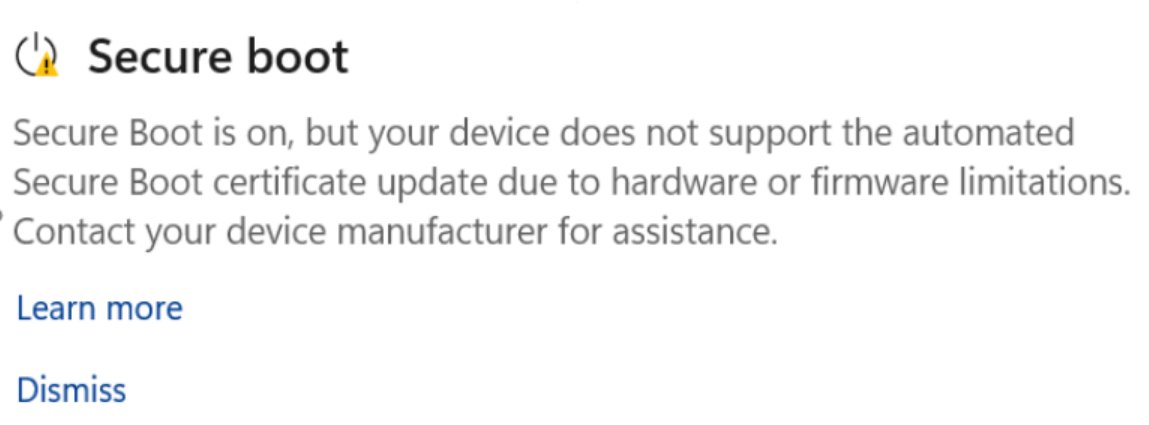
| Hardware or firmware does not support the automated update | Yellow | Contact the PC maker for a firmware update |
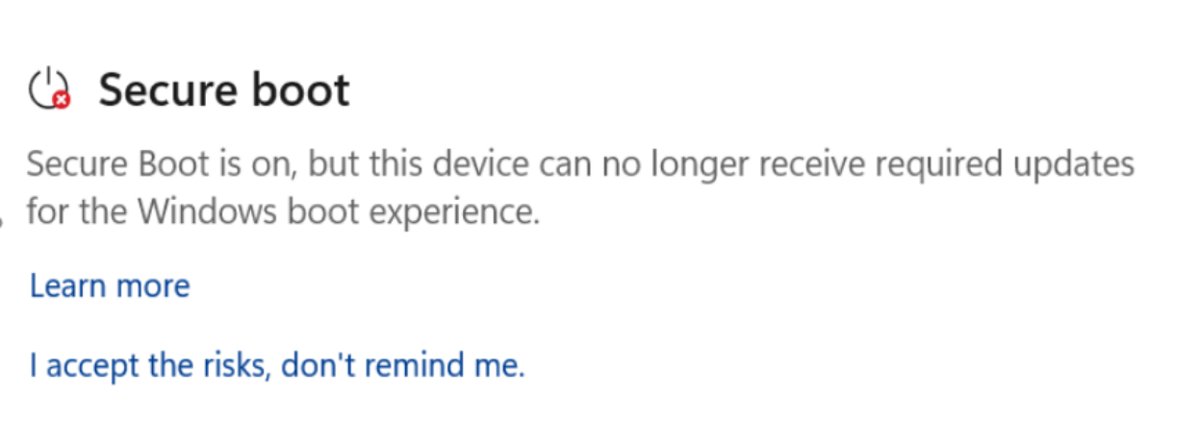
| The PC can no longer receive required boot updates | Red | It still uses an expired certificate; follow aka.ms/getsecureboot and contact the PC maker |
Dismiss hides a yellow warning, and I accept the risks, don't remind me hides a red one with admin rights. Neither installs the certificates, so leave them visible until the PC is updated.
Why Event ID 1801 appears in Event Viewer
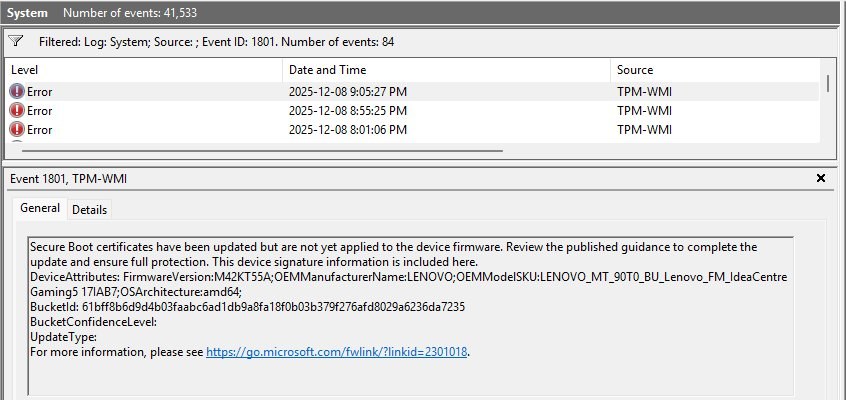
Event 1801 is logged at Error level. It means Windows has the new certificates but has not yet written them, and the new boot manager, to the firmware. It clears once event 1808 is logged.
| Event ID | Level | Meaning | Action |
|---|---|---|---|
| 1808 | Information | All needed certificates are in firmware and the boot manager is signed by Windows UEFI CA 2023 | None |
| 1799 | Information | Boot manager signed with Windows UEFI CA 2023 installed | None |
| 1801 | Error | Certificates updated in Windows but not yet applied to firmware | Keep installing updates and restarting; check the confidence level in the event |
| 1800 | Warning | A restart is needed before the next Secure Boot update can install | Restart the PC |
| 1795 | Error | The firmware returned an error while updating DB, DBX or KEK | Ask the PC maker for a firmware update |
| 1802 | Error | The update was blocked because of a known firmware issue | Ask the PC maker for a firmware update |
| 1803 | Error | No KEK signed by the PC maker's Platform Key was found | Ask the PC maker about KEK provisioning |
The BucketConfidenceLevel line in 1801 tells you why the update is waiting. Under Observation – More Data Needed means Microsoft is still collecting data, while Not Supported – Known Limitation means firmware blocks the automated path.
Secure Boot 2011 certificates expire in 2026 – what each certificate does
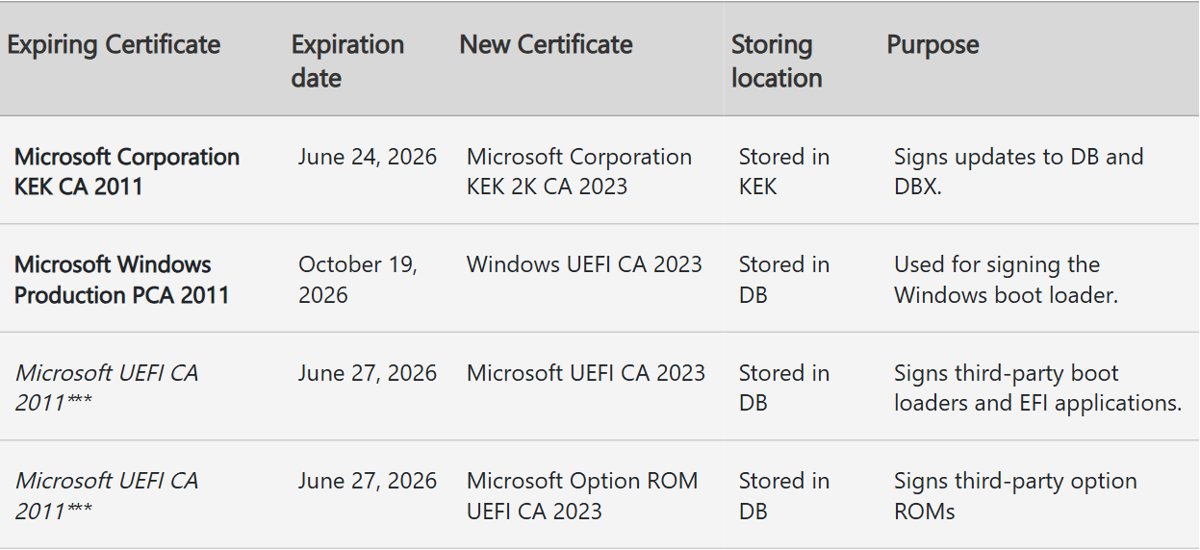
Four Microsoft certificates from 2011 have now expired. Each one is replaced by a 2023 certificate stored in the same firmware database.
| Expired certificate | Expiry date | Replacement | Stored in | What it signs |
|---|---|---|---|---|
| Microsoft Corporation KEK CA 2011 | June 24, 2026 | Microsoft Corporation KEK 2K CA 2023 | KEK | Updates to the DB and DBX |
| Microsoft UEFI CA 2011 | June 27, 2026 | Microsoft UEFI CA 2023 | DB | Third-party boot loaders and EFI apps |
| Microsoft UEFI CA 2011 | June 27, 2026 | Microsoft Option ROM UEFI CA 2023 | DB | Third-party option ROMs |
| Microsoft Windows Production PCA 2011 | October 19, 2026 | Windows UEFI CA 2023 | DB | The Windows boot loader |
An expired PC still starts and still installs normal Windows updates. It loses new boot-level protections: Boot Manager fixes, DBX revocations and BitLocker bypass mitigations are now signed only with the 2023 chain.
Secure Boot certificates not updating on Windows 11 and 10
UEFICA2023Status stays at NotStarted
Windows Update is paused, the PC is missing recent updates, or it runs an unsupported Windows version.
- Open Settings > Windows Update and select Resume updates if updates are paused.
- Select Check for updates and install everything offered, then restart.
- On Windows 10, enroll in Extended Security Updates; support ended on October 14, 2025, and unsupported versions do not get the certificates.
- Check the value again after a day, since the update task runs every 12 hours.
Secure Boot State shows Off in System Information
Secure Boot is disabled in firmware, so Windows cannot write the certificates.
- Ask your PC maker whether a firmware update is needed before you change Secure Boot settings.
- Restart into UEFI firmware settings and turn Secure Boot on.
- Boot Windows and recheck
msinfo32, then wait for Windows Update to apply the certificates.
Windows Security says the hardware or firmware does not support the update
The PC's firmware rejects the automated update, often logged as event 1795, 1802 or 1803.
- Note the event ID and error code from Event Viewer.
- Open your PC maker's support page for your model and install the newest BIOS or UEFI release; a UEFI firmware update often adds the 2023 certificates.
- Restart, then let Windows Update retry the certificate update.
- If no firmware update exists, contact the PC maker; older models out of support may never receive one.
UEFICA2023Status stuck at InProgress
A step failed or is waiting for a restart; the task does not advance until each step succeeds.
- Read UEFICA2023Error and UEFICA2023ErrorEvent in the servicing key.
- Look up the matching event in the System log.
- Restart the PC if event 1800 says a reboot is required.
- Open Task Scheduler > Task Scheduler Library > Microsoft > Windows > PI and confirm Secure-Boot-Update is enabled.
BitLocker asks for the recovery key after the certificate update
BitLocker detected the change to Secure Boot variables during startup.
- Enter the 48-digit recovery key from your Microsoft account or wherever you saved it.
- Let Windows finish starting, then restart once to confirm the prompt does not return.
PC will not boot after resetting firmware to default settings
Windows uses the 2023-signed boot manager, but the firmware defaults do not include Windows UEFI CA 2023.
- On another PC, create Windows installation media as a recovery USB.
- Boot the affected PC from that USB to restore the certificate to the DB.
- Ask your PC maker for a firmware update so its default database includes the 2023 certificates.
Should you disable Secure Boot when the certificates expire?
No. Keep Secure Boot on and get the 2023 certificates through Windows Update and any firmware update from your PC maker. Turning Secure Boot off does not fix expiration. It removes protection against boot-level malware, and a PC with Secure Boot off never receives the new certificates at all.
Secure Boot certificate update FAQ
Do I need to do anything to get the new Secure Boot certificates?
Usually not. Windows 11 and supported Windows 10 PCs on Home, Pro or Education receive the 2023 certificates through Windows Update. Keep updates running, keep Secure Boot on, and install any BIOS update your PC maker offers for the change.
Will my PC stop booting when the Secure Boot certificates expire?
No. A PC without the 2023 certificates still starts and still installs regular Windows updates. It stops receiving new boot-level protections, such as Boot Manager fixes and Secure Boot revocations, so it grows less protected over time.
Can my PC still get the new certificates after the old ones expired?
Yes. Cumulative updates that carry the 2023 certificates still apply to a PC whose 2011 certificates have expired, as long as Windows boots and installs updates. Some models need a firmware update from the PC maker first.
Why does Windows Security show a green check but not the updated message?
The green badge alone does not confirm the certificate update. Only the text saying all required certificate updates have been applied does. If that text is missing, check UEFICA2023Status in the registry or look for event 1808.
Why is the Secure Boot certificate status missing on my work PC?
The certificate status view is hidden by default on enterprise-managed Windows 10, Windows 11 and Windows Server devices. Administrators can show it by setting HideSecureBootStates to 0 under the Windows Defender Security Center Device security policy key.
Does a PC with Secure Boot turned off get the 2023 certificates?
No. Windows only writes the new certificates to firmware when Secure Boot is enabled. A PC with Secure Boot off stays on its old configuration and remains open to bootkits until Secure Boot is turned on.
When did Microsoft start shipping the 2023 Secure Boot certificates?
The 2023 certificates were included in the May 13, 2025 cumulative updates and later updates. Windows applies them to firmware in stages, so a PC can have the files for months before UEFICA2023Status changes to Updated.
Do Windows 10 PCs get the Secure Boot certificate update?
Only supported ones. Windows 10 support ended on October 14, 2025, so a Windows 10 PC needs the Extended Security Updates program or a supported LTSC edition to keep receiving updates, including the Secure Boot certificates.