Your Microsoft Teams calendar already exists: select Calendar on the left side of Teams, then select New or click a time slot to create your first meeting or event.
This guide covers scheduling, views, shared and channel calendars, sharing permissions, printing, the mobile app, and what to do when the Calendar app is missing.
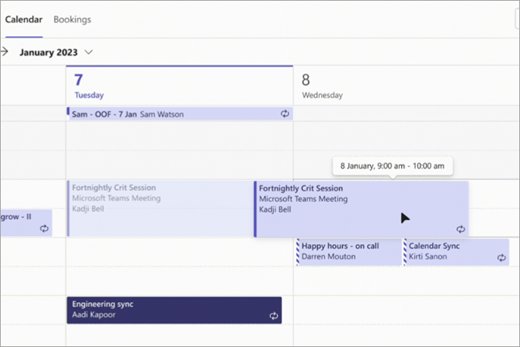
How to create a meeting in Microsoft Teams calendar
These steps work in Teams for desktop and give you a meeting with a join link that also lands in Outlook.
- Select Calendar on the left side of Teams.
- Select New, or click an empty time slot in the calendar grid.
- Add a title, then type names in the Required attendees field.
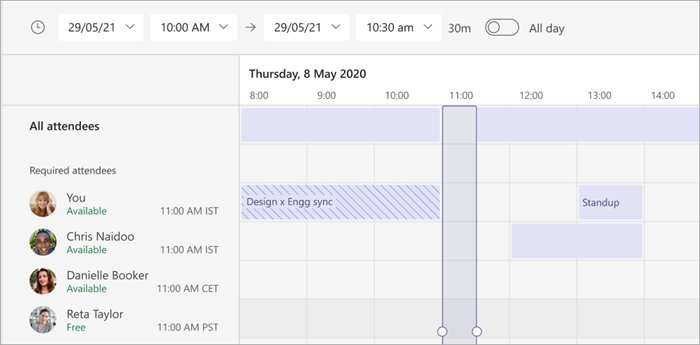
- Select Scheduler to see attendees' availability. Shaded areas are busy or tentative, and unshaded areas are free.
- Turn on the Teams meeting toggle so the event gets an online meeting link.
- Select Send to save the meeting and invite everyone.
To invite someone outside your organization, type their full email address. When the time comes, open the meeting in Calendar and select Join, or use any of the other ways to join a Teams meeting.
Microsoft Teams calendar
The Teams calendar is not a separate calendar you build. It is a view of your Exchange mailbox calendar, so it shows everything scheduled in Teams, Exchange and Outlook.
| Question | Answer |
|---|---|
| Where the events come from | Your Exchange mailbox calendar, shared with Outlook |
| Mailbox it needs | Exchange Online, or Exchange Server 2016 Cumulative Update 3 or later in a hybrid deployment |
| Where to open it | Calendar on the left side of Teams for desktop, or Calendar in the Teams mobile app |
| Default view | Your work week, Monday through Friday |
| What you can do in it | Schedule meetings and events, change views, view other calendars, share, print, RSVP and open past meeting recaps |
| Who controls the Calendar app | Your Teams admin, through the app setup policy assigned to your account |
Because the events live in Exchange, a meeting you create in Outlook appears in Teams too. Time you block in your Teams calendar shows as busy to colleagues who check your availability.
How to enable Microsoft Teams calendar
There is no user setting that switches the calendar on. A Teams admin makes the Calendar app available through an app setup policy in the Teams admin center.
- Sign in to the Teams admin center and go to Users > Manage users.
- Select the affected user, then select View policies.
- Open the App setup policy assigned to that user and check whether the Calendar app is listed.
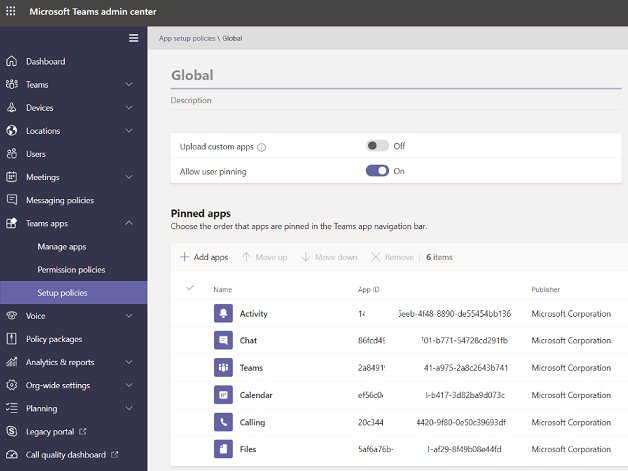
- If it is missing, go to Teams apps > Setup policies, choose that policy and select Edit.
- Under Pinned apps, select Add apps, search for Calendar in the Add pinned apps pane, then select Add.
- Select Save.
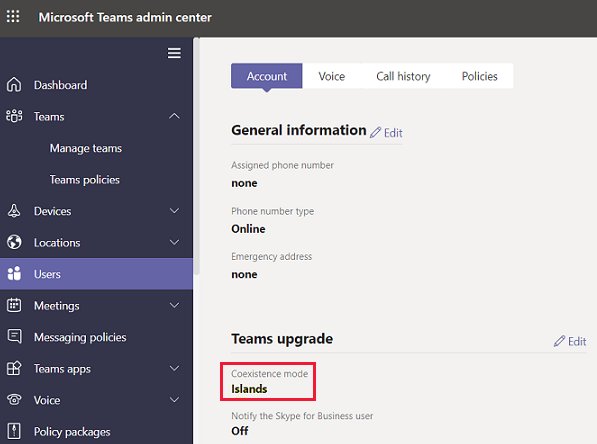
- On the user's account page, check that Coexistence mode is not Skype for Business only or Skype for Business with Teams collaboration.
Policy changes can take a few hours to reach the Teams client, so a missing icon right after the edit is expected.
How to change the Teams calendar view
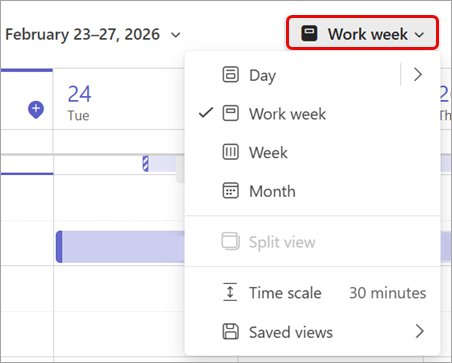
The calendar opens on your work week. The view menu at the top of the calendar controls the date range, the time scale and saved views.
- Select Calendar, then select Work week at the top of the calendar to open the view menu.
- Choose Day, Work week, Week or Month. With Day, select the arrow next to it to set how many days show at once.
- Select Time scale in the same menu and pick a scale. A larger scale shows more of your schedule with less detail.
- Select Filter at the top of the calendar, or under More options, and deselect any event types you want to hide.
- Select the month in the top-left corner to jump to another date, or select Today to come back.
- To keep the setup, open the view menu, select Saved views > Save current view, name it and select Save.
Apply a saved view later from Saved views. To remove one, select Delete next to its name in the same list.
How to schedule a channel meeting in Teams
A channel meeting posts in the channel, so everyone in the team can see it and join from there. Scheduling channel meetings is not supported in private channels.
- Select Teams on the left side of Teams, then select the channel.
- Select the dropdown arrow next to Meet now. In the Posts layout, it sits next to the Meet now camera button.
- Select Schedule a meeting.
- Add the meeting details and any attendees from outside the team.
- Turn on Send personal invites if you want every member to get the meeting in their own calendar.
- Select Send.
To attach a channel to a regular meeting instead, type the channel name in Add channel on the meeting form. The channel cannot be changed after the invite goes out, so send a new invite to move it. Invitees outside your organization cannot open the channel calendar, and channel meetings cannot be categorized.
How to view shared and multiple calendars in Microsoft Teams
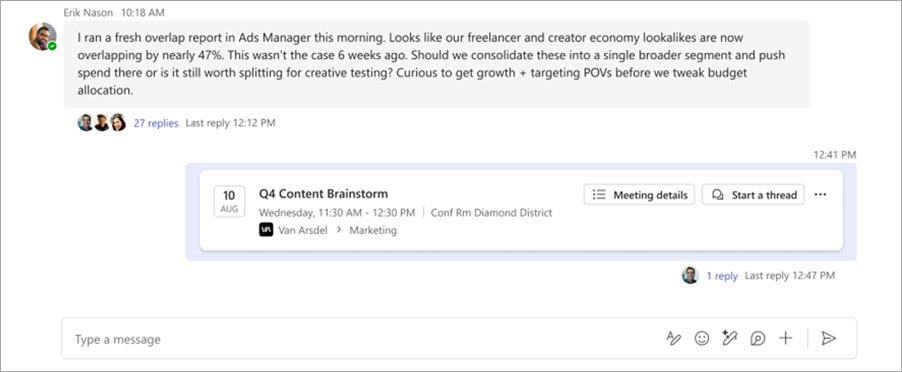
Other calendars, including birthday and holiday calendars, appear in the navigation pane. Calendar groups keep a team's or a project's calendars together.
- Select Calendar, then select Show navigation pane in the top left.
- Below the mini-month view, select each calendar you want to see. Deselect one to hide it.
- Open the view menu at the top of the calendar and select or deselect Split view. Split view shows calendars side by side, while combined view merges them in different colors.
- To create a group, hover over a calendar, select More options > New calendar group, type a name and press Enter.
- Drag calendar names into the group, or select More options > Move to and choose the group.
- To delete a group, hover over it and select More options > Delete.
A calendar can belong to only one calendar group at a time. Calendars open in split view by default.
How to share your calendar in Microsoft Teams
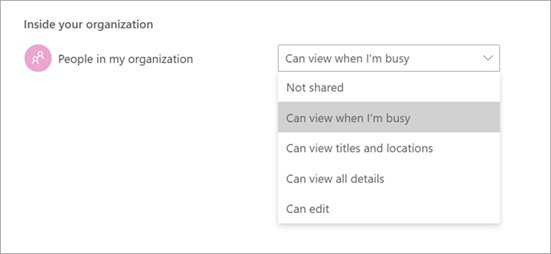
You can share your calendar with people in your organization and change their access at any time. Your organization's policies may limit some permission levels.
- Select Calendar in Teams.
- Select More options, then select Share.
- Enter the name or email address of the person you want to share with.
- Choose an access level from the dropdown.
- Select Share.
- To set one level for everyone, go to Inside your organization and use the People in my organization dropdown.
Microsoft Teams calendar sharing permissions
| Access level | What the other person can do |
|---|---|
| Can view when I'm busy | See only the times you are blocked out as busy |
| Can view titles and locations | See event titles and locations, without descriptions or attendees |
| Can view all details | See everything, including event descriptions and attendees |
| Can edit | View, edit and delete events on your calendar |
| Can delegate | View, create, modify and delete items, create meeting requests and respond to invitations on your behalf |
Pick Can view when I'm busy for most colleagues. Keep Can delegate for an assistant who manages invitations for you.
How to RSVP to a Teams meeting from the calendar
- Select Calendar in Teams and select the meeting.
- Select RSVP, then choose Accept, Decline, Follow or Tentative.
- For a series, hover over your response and choose This event or All events in the series.
- To add a note, select View event > RSVP with note, type the note and select Confirm.
The organizer gets your response by email. If plans change for a meeting you organized, you can cancel the Teams meeting so attendees get an update.
How to print a Microsoft Teams calendar
- Select Calendar, then select the calendars you want to print in the left pane.
- Select More options, then select Print.
- In the Calendar dropdown, choose one calendar or Selected calendars.
- Choose a View. For Week or Work week, use Layout to set the orientation.
- Set the Time range, and turn on Mini month or Print detailed agenda if you want them.
- Select Print.
Print detailed agenda adds meeting descriptions and attendee lists to the printout.
How to use the Teams calendar on iPhone and Android
The Teams mobile app has its own Calendar tab with the same events as the desktop app.
- Open the Teams mobile app and tap Calendar.
- Tap New event and add a meeting title.
- Tap Add participants and add the people you want to invite.
- To post it in a channel, tap Share to a channel.
- Enter the remaining details, then tap Done to send the invites.
- To change a meeting you organized, tap it, tap Edit, make the change and tap Done.
Microsoft Teams calendar not showing
Each symptom below matches a case in Microsoft's Teams and Exchange troubleshooting article. Most need a Teams or Exchange admin.
The Calendar icon is missing in Teams
The app setup policy assigned to the account does not include the Calendar app, or the account runs in a Skype for Business coexistence mode.
- Ask your Teams admin to check your App setup policy in the Teams admin center.
- Have the admin add the Calendar app under Pinned apps and select Save.
- Have the admin set Coexistence mode to a value other than Skype for Business only or Skype for Business with Teams collaboration.
- Allow a few hours for the policy change to reach your Teams client, then reopen Teams.
"Sorry, we couldn't get your meeting details"
The Calendar app reads your mailbox through Exchange Web Services (EWS), and something blocks that access.
- Open the Teams Calendar App test in the Microsoft Remote Connectivity Analyzer at
testconnectivity.microsoft.com. - Sign in with the affected account, enter the verification code and select Verify.
- Accept the terms and select Perform Test.
- Send any failed check to your Exchange admin, who can confirm that EWS is not blocked for Teams on your mailbox.
Teams calendar missing with an on-premises Exchange mailbox
The Calendar app needs a mailbox in Exchange Online or on Exchange Server 2016 Cumulative Update 3 or later with hybrid and OAuth set up.
- Ask your admin which Exchange server hosts your mailbox.
- If it is older than Exchange Server 2016 Cumulative Update 3, the Calendar app is not supported until the mailbox moves or the server is upgraded.
- If the version is supported, have the admin confirm Autodiscover, EWS and OAuth for the hybrid deployment.
Microsoft Teams calendar FAQ
Does the Teams calendar sync with Outlook?
Yes. The Teams calendar reads the same Exchange mailbox calendar as Outlook, so it shows everything scheduled in Teams, Exchange and Outlook. A meeting you create in one app appears in the other without any extra setup.
Can I create a separate calendar in Microsoft Teams?
The Teams calendar is your mailbox calendar, not a calendar you create separately. You can add other calendars to the view from the navigation pane and organize them into calendar groups, such as one group per team or project.
Why is there no Calendar in my Teams app?
The Calendar icon disappears when your app setup policy does not include the Calendar app, when your account runs in a Skype for Business coexistence mode, or when your mailbox does not meet the Exchange requirements. A Teams admin has to fix all three.
How do I see someone else's calendar in Teams?
Select Calendar, then Show navigation pane, and select their calendar below the mini-month view. Split view shows it side by side with yours, and combined view merges both in different colors. They must have shared the calendar with you first.
Can people outside my organization see a channel calendar?
No. Invitees from outside your organization can join a channel meeting from their invitation, but they cannot open the channel calendar. Calendar sharing in Teams is also limited to people inside your organization.
Can I schedule a meeting in a private channel?
No. Scheduling channel meetings is not supported in private channels. Schedule a regular meeting from Calendar instead and add the private channel's members as required attendees.
How do I change the Teams calendar from work week to month?
Select Work week at the top of the calendar to open the view menu, then select Month. The same menu offers Day and Week. Save the layout with Saved views > Save current view to reuse it later.
Does the organizer see my RSVP note?
Yes. When you select RSVP with note and then Confirm, the organizer is notified of your response and note by email. Responses without a note also reach the organizer by email.