Outlook shows no holidays until you add a holiday calendar for your country, and some holiday calendars now stop partway through 2026 because of a known problem in Microsoft's holiday data.
This guide covers adding holidays in new Outlook, classic Outlook, Outlook.com and Outlook on the web, the fix for missing 2026 and 2027 dates, duplicate holidays and the Outlook.hol holiday file.
Fix Outlook calendar not showing holidays
Match what you see to a row and use the fix in that row. Most cases are one of the first two: no holiday calendar was ever added, or it was added and is not selected.
| What you see | Cause | Fix |
|---|---|---|
| No holidays at all on your calendar | Outlook starts with an empty calendar and adds holidays only for countries you pick | Add a holiday calendar for your country (steps for each Outlook version below) |
| You added holidays in new Outlook or on the web, but none appear | The holiday calendar sits in your calendar list but is not selected | Select the holiday calendar in the calendar list so it shows with your own calendar |
| Holidays stop after a date in 2026, or 2027 is empty | Microsoft's holiday data is missing late-2026 and 2027 entries for many countries, including the United States and United Kingdom | Subscribe to an official government or employer holiday calendar from the web |
| Classic Outlook has holidays only up to 2026 | Its built-in holiday list for Outlook for Microsoft 365, 2019 and 2016 covers 2016-2026 | Delete the old holidays, install Outlook updates, then add holidays again |
| Every holiday appears twice | Holidays were added in both Outlook for Windows and Outlook on the web, or added twice in classic Outlook | Delete the copies that classic Outlook imported |
| Outlook for Mac has no holidays option | Outlook for Mac does not support adding holidays | Add the holiday calendar in Outlook.com or Outlook on the web |
| Your country is not in the Holidays list | The calendars on offer vary by location | Subscribe to your country's published holiday calendar with Subscribe from web |
How to show holidays on Outlook calendar in new Outlook
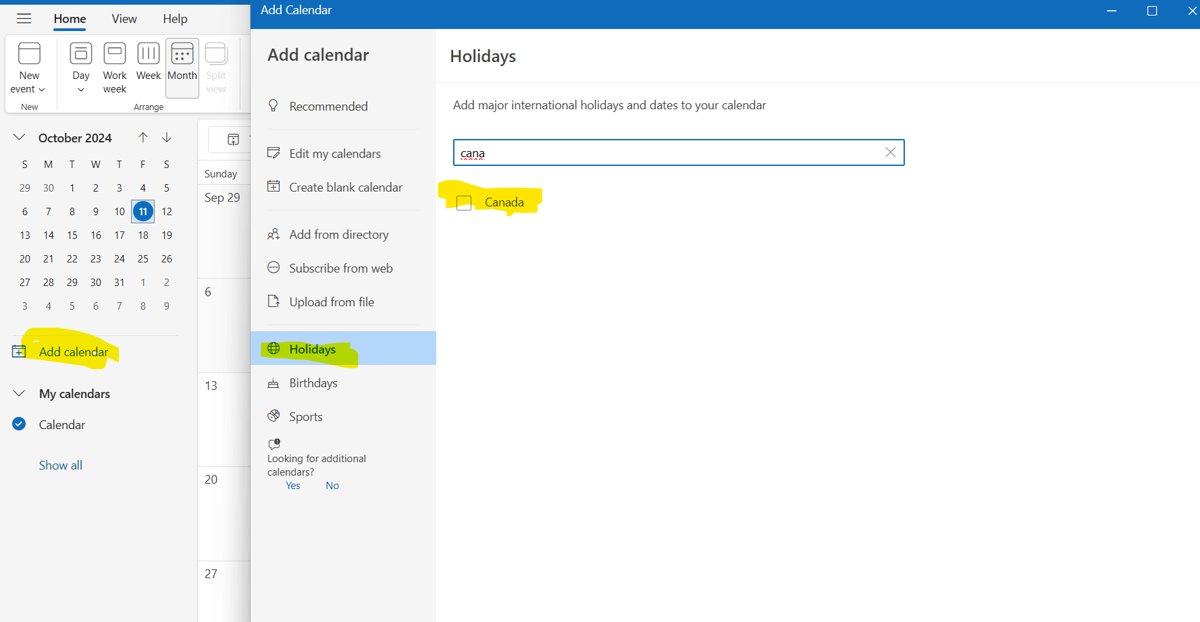
New Outlook for Windows adds holidays as a separate holiday calendar for each country you choose. You can pick several countries in one pass.
- Open new Outlook and select Calendar on the navigation bar.
- In the pane below the calendar grid, select Add calendar.
- Select Holidays.
- Choose one or more countries from the list.
- Return to your calendar. Outlook copies the holidays for each country you chose.
- In the calendar list, select the new holiday calendar if its days do not show next to your events.
If there is no Add calendar option where these steps say, you are on classic Outlook rather than new Outlook. Use the classic Outlook steps in the next section.
How to add holidays to Outlook calendar in classic Outlook
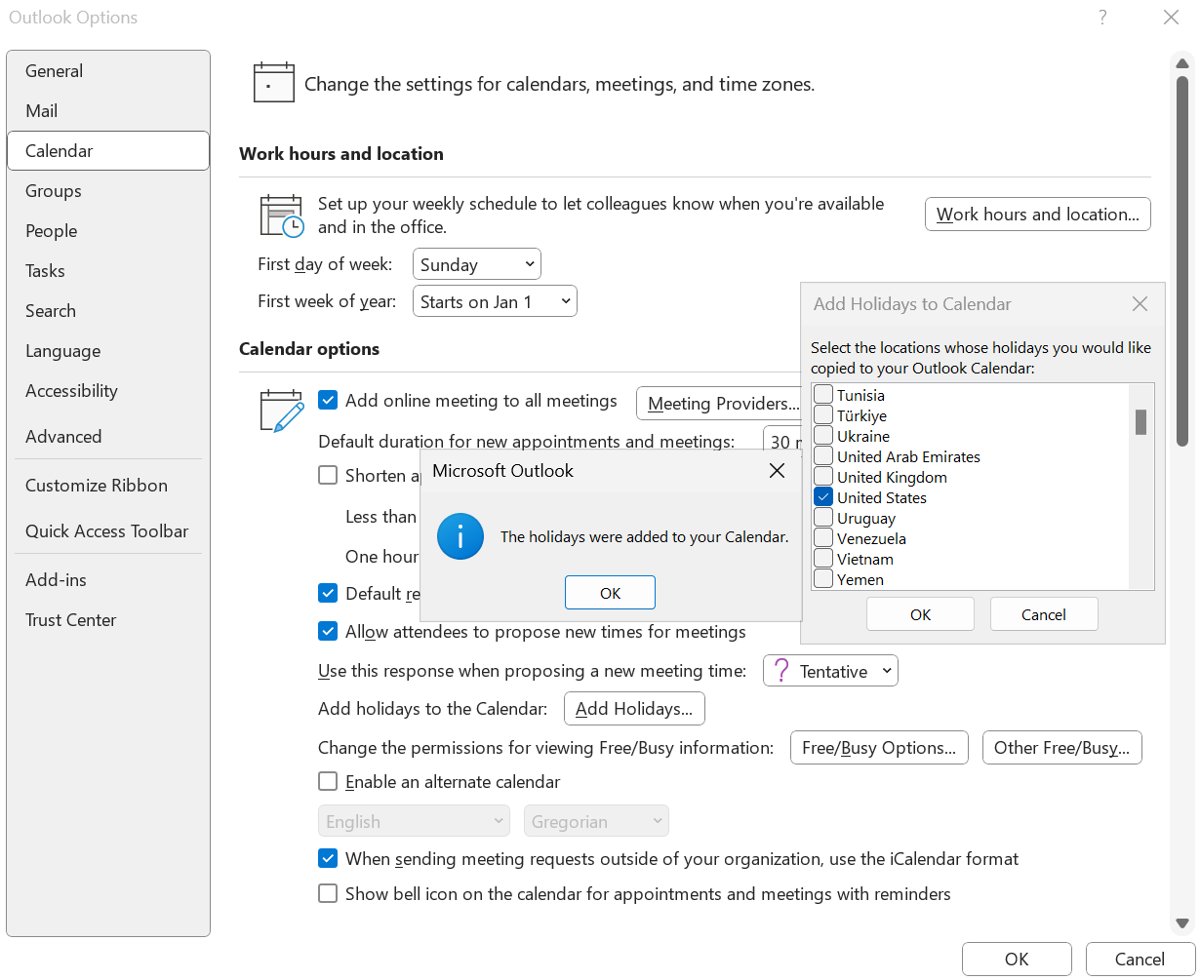
Classic Outlook keeps this option with its other Outlook calendar settings in the Options window. It copies the holidays into your calendar as events in the Holidays category rather than adding a separate calendar.
- In classic Outlook, select File > Options.
- Select Calendar in the left pane.
- Under Calendar options, select Add Holidays.
- Check the box for each country whose holidays you want on your calendar.
- Select OK to import the holidays.
- Select OK again to close Outlook Options.
Countries you added before already show a check mark. Selecting OK with those boxes still checked imports a second copy of every holiday, so check only new countries.
How to add holidays to Outlook.com and Outlook on the web
A personal Microsoft account signs in to Outlook.com, and a work or school account signs in to Outlook on the web. The holiday steps are the same in both.
- Sign in to Outlook.com or Outlook on the web in your browser.
- Select Calendar in the navigation pane.
- Select Add calendar.
- Select Holidays.
- Select the holiday calendar you want, or type a country into Filter and select it from the results.
The holiday calendar lands in your My calendars list. With a work or school Microsoft 365 account, a holiday calendar added on the web updates automatically when holidays are added or changed.
Outlook holiday calendar missing dates after June 2026
This is a Microsoft-side problem, not a setting on your PC. Microsoft lists it as a known issue for Outlook for Microsoft 365, last updated September 4, 2026, and is still investigating.
| Detail | What Microsoft reports |
|---|---|
| Symptoms | Holidays stop after a specific date in 2026, 2027 holidays are absent, or single holidays are missing or on the wrong date |
| Outlook apps affected | Outlook on the web, new Outlook for Windows, classic Outlook for Windows and other Outlook clients that use Microsoft's holiday data |
| Countries reported | Austria, China, Denmark, Germany, Hong Kong SAR, India, Israel, Japan, Malaysia, Poland, Singapore, Slovakia, Sweden, United Kingdom and United States, with other regions possibly affected |
| Examples | Israeli holidays end in May 2026, Japanese holidays are missing for the rest of 2026 and all of 2027, German Easter holidays are missing in 2027, and the Singapore Hari Raya Puasa date for 2026 is wrong |
| Status | Workaround only, no fix yet |
| Workaround | Use another holiday source: a calendar your organization maintains, an ICS subscription, or an official government or regional calendar |
Deleting the holidays and importing them again has worked for some individual users. Those replacement calendars are not managed by Microsoft, so check the dates against the publisher's own site.
How to add a holiday ICS calendar to Outlook
Many governments, schools and employers publish their holidays as an iCal (.ics) web link. Subscribing to that link keeps the holidays current, which also gets around the missing 2026 and 2027 dates.
- Copy the iCal (.ics) web address from the holiday calendar's publisher.
- In new Outlook, Outlook.com or Outlook on the web, open Calendar and select Add calendar.
- Select Subscribe from web.
- Paste the calendar's web address.
- Select Import. In Outlook on the web with a work or school account, select Save as well.
- Select the subscribed calendar in your calendar list to show its holidays.
A subscribed calendar refreshes about every 3 hours on Outlook.com and about every 6 hours on Outlook on the web, and a change can take more than 24 hours to appear.
Classic Outlook can import a downloaded .ics file with File > Open & Export > Import/Export > Import an iCalendar (.ics) or vCalendar file (.vcs) > Next, then Open as New. That copy is a snapshot and never updates. You can also add an iCloud calendar to Outlook next to your holidays.
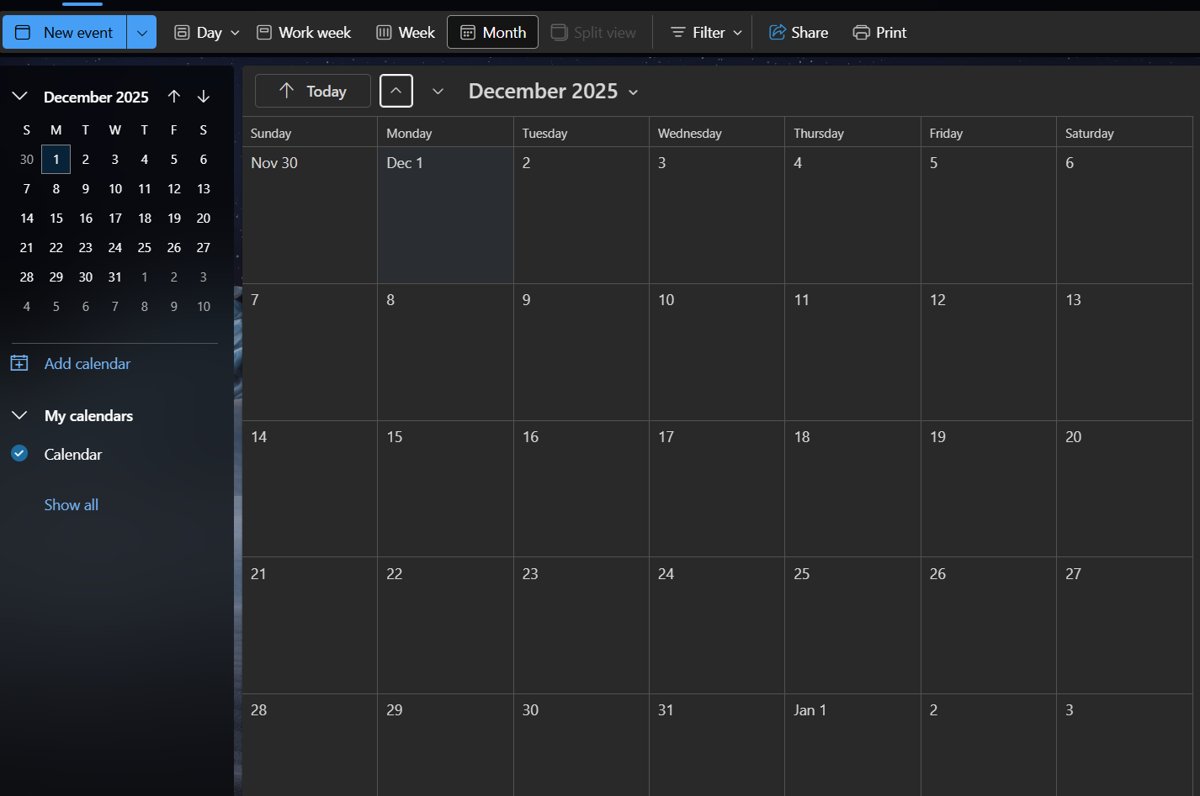
How to view holidays in Outlook calendar
Check the date range of the holidays you have, not just whether any exist. A calendar that ends in mid-2026 looks fine until you scroll ahead.
- In new Outlook or on the web, select Calendar and select the holiday calendar in the calendar list.
- On the Home tab, select Month and move forward to the months you need.
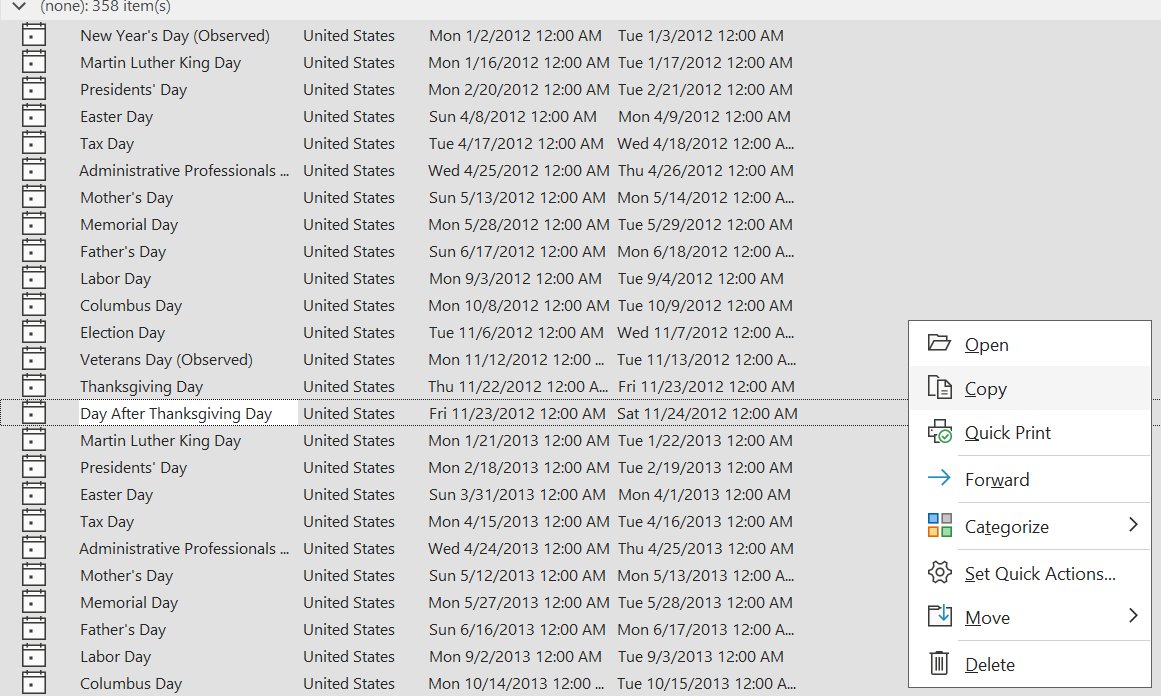
- In classic Outlook, open the calendar and select View > Change View > List.
- Select the Categories column heading so the Holidays entries sit together.
- Read the dates of the last holidays in that group. If they stop in 2026, you have the known data problem described above.
- Select View > Change View > Calendar to return to the normal calendar.
New Outlook has no List view yet, so scrolling the month view is the check there.

How to turn off holidays in Outlook calendar
In new Outlook, Outlook.com and Outlook on the web, right-click the holiday calendar in the left pane, select Remove, then select Remove again to confirm. Classic Outlook stores holidays as events, so you delete them from a list.
- Open your calendar in classic Outlook.
- Select View > Change View > List.
- Select the Categories column heading to group the entries by category.
- Select the entries in the Holidays category. Hold Ctrl to add more rows to the selection.
- Select Home > Delete.
- Select View > Change View > Calendar to go back to the calendar.
To remove one country only, use View > Change View > Events instead and select the Location column heading. That groups each country's holidays together.
Holidays not showing up in Outlook calendar
Holidays were added in new Outlook but the calendar still shows none
The holiday calendar is in the calendar list but not selected, or Split view is showing it in a separate pane.
- Select Calendar on the navigation bar.
- In the calendar list, select the holiday calendar for your country.
- To see holidays on top of your own events, deselect Split view in the Arrange group.
Outlook holidays not showing after 2026
Classic Outlook's built-in holiday list ends in 2026, and Microsoft's online holiday data is missing many late-2026 and 2027 dates.
- Delete the existing holidays (steps in the section above).
- In classic Outlook, select File > Office Account > Update Options > Update Now. Select Enable Updates first if Update Now is missing.
- Restart Outlook and add the holidays again from File > Options > Calendar > Add Holidays.
- If the year you need is still empty, subscribe to an official holiday calendar with Subscribe from web.
Each holiday shows twice in Outlook calendar
Holidays were added through both Outlook for Windows and Outlook on the web, or OK was selected again on countries already added.
- Keep the holiday calendar you added on the web.
- In classic Outlook, select View > Change View > List and group by Categories.
- Select the Holidays entries and select Home > Delete.
- Next time you open Add Holidays, check only countries you have not added.
Update Options is missing in classic Outlook
Only an About button appears when Office is a volume-licensed copy or your organization manages updates through Group Policy.
- Install Office updates through Microsoft Update in Windows Update instead.
- On a work PC, ask your help desk to push the latest Outlook update.
Outlook for Mac calendar not showing holidays
Outlook for Microsoft 365 for Mac, Outlook 2024 for Mac and Outlook 2021 for Mac do not support adding holidays.
- Sign in to Outlook.com or Outlook on the web with the same account.
- Add the holiday calendar from Calendar > Add calendar > Holidays.
- Request the feature for Outlook for Mac through the Microsoft Feedback Portal.
Country missing from the Outlook holidays list
The holiday calendars on offer vary by location.
- In Add calendar > Holidays, type the country name into Filter.
- If it is not listed, find your government's official holiday calendar link.
- Add that link with Add calendar > Subscribe from web.
Where is the Outlook holiday file?
Classic Outlook's Add Holidays list comes from a text file named Outlook.hol in the Office program folder. Microsoft documents its location and format for Office 2007 and Office 2010.
| Item | Detail |
|---|---|
| File name | outlook.hol |
| Path for Office 2007 and 2010 | *drive*:\Program Files\Microsoft Office\Office*xx*\*LCID*\outlook.hol, where *xx* is 12 for Office 2007 and 14 for Office 2010 |
| LCID folder | A number that identifies your Office language (locale identification number) |
| Section header format | [Country/Region or description] followed by a space and the number of entries, for example [2015 Whit Sunday and Whit Monday] 2 |
| Holiday line format | Holiday name, a comma, a space, then the date as yyyy/mm/dd, for example Whit Sunday, 2015/5/24 |
| Safe editing | Exit Outlook, make a backup copy of the file, then edit it in Notepad |
After you save the edited file, the next Add Holidays import uses your changes. Delete the old holidays first so the corrected dates do not sit next to the wrong ones.
Outlook calendar holidays FAQ
Can Outlook calendar show holidays?
Yes. Outlook can show public holidays for one or more countries, but none appear until you add them. Use Add calendar > Holidays in new Outlook and on the web, or File > Options > Calendar > Add Holidays in classic Outlook.
Why does Outlook calendar not show holidays?
Usually no holiday calendar was ever added, or the holiday calendar is not selected in the calendar list. In late 2026 there is a third cause: Microsoft's holiday data is missing many late-2026 and 2027 dates for countries including the US and UK.
Why does my calendar not show holidays for 2027?
Microsoft's holiday calendars are missing 2027 entries for several countries, a known issue with only a workaround so far. Subscribe to an official government or employer holiday calendar with Subscribe from web to fill the gap.
Can you add holidays to Outlook calendar for more than one country?
Yes. In classic Outlook, check every country you want in the Add Holidays list. In new Outlook and on the web, choose one or more countries under Holidays, and each one appears as its own calendar.
How do I get holidays on Outlook calendar on a Mac?
Outlook for Mac cannot add holidays. Add a holiday calendar in Outlook.com or Outlook on the web with the same account instead, and send a feature request through the Microsoft Feedback Portal.
Do Outlook holiday calendars update automatically?
A holiday calendar added in Outlook on the web with a work or school Microsoft 365 account receives automatic updates. Classic Outlook copies a fixed set of holidays, so you delete and re-add them after an Outlook update to get new years.
Why can't I see calendar in Outlook?
Select Calendar on the navigation bar. In classic Outlook, Mail and Calendar always stay at the top of the navigation bar. If one calendar is missing, select it in the calendar list, or check its box in the classic Outlook Navigation Pane.
Why isn't my Outlook calendar working with a subscribed calendar?
Subscribed calendars refresh on a schedule, about every 3 hours on Outlook.com and every 6 hours on Outlook on the web. A change can take more than 24 hours to show, so wait before removing and re-adding the link.
How do I turn off holidays in Outlook calendar?
In new Outlook and on the web, right-click the holiday calendar, select Remove, and confirm. In classic Outlook, switch to View > Change View > List, group by Categories, select the Holidays entries and select Home > Delete.