To disable automatic driver install on Windows 11, enable the Do not include drivers with Windows Updates policy, or set the ExcludeWUDriversInQualityUpdate registry value to 1.
This guide covers the Group Policy and registry routes, blocking one device's driver, checking the block, undoing it, and fixing a driver Windows already replaced.
Block automatic driver install from Group Policy
If you can open the Group Policy Editor, this is the cleanest route on Windows 11 Pro, Enterprise and Education. Windows Update keeps delivering security and quality updates; only updates with the Driver classification are left out.
- Select Start, type
gpedit.mscand press Enter to open the Local Group Policy Editor. - Go to Computer Configuration > Administrative Templates > Windows Components > Windows Update > Manage updates offered from Windows Update.
- Double-click Do not include drivers with Windows Updates.
- Select Enabled.
- Click Apply, then OK.
- Restart the PC, or run
gpupdate /forcein an administrator terminal, so the policy applies straight away.
Windows Update stops offering driver updates from the next scan. Drivers already installed stay as they are.
How Windows 11 installs drivers automatically
Knowing what Windows Update does by default shows exactly what the policy switches off.
| Driver source | Installed automatically? | Affected by the block? |
|---|---|---|
| Recommended drivers on Windows Update | Yes, Windows checks regularly and installs newer certified drivers | Yes, the policy excludes them |
| Optional driver updates | No, you install them from Optional updates | Yes, they stop being offered through Windows Update |
| Drivers you install from the manufacturer's site | No, you run them yourself | No |
| A specific device blocked by hardware ID | No driver is installed or updated for it | Blocked by the device installation policy, not the Windows Update policy |
Hardware makers in the Windows Hardware program publish certified drivers to Windows Update, which is why a new GPU or audio driver can appear without warning.
Group Policy vs Registry to stop driver updates in Windows 11
| Your situation | Use this | Why |
|---|---|---|
| Windows 11 Pro, Enterprise or Education | Group Policy | Fewest steps, and easy to switch back to Not Configured |
| No Group Policy Editor on the PC | Registry or the reg add command |
Sets the same policy value directly |
| Only one device keeps getting a bad driver | Block the device's hardware ID | Every other driver keeps updating normally |
| Many PCs to configure | reg add command in a script |
One line per PC, no clicking |
Microsoft documents the driver exclusion policy for Pro, Enterprise, Education and IoT Enterprise editions. Home is not on that list, so treat the registry route on Home as unsupported.
Block automatic driver install from Registry
Editing the registry incorrectly can cause serious problems. Change only the key below, and export it first if you want a backup.
- Select Start, type
regeditand open Registry Editor. Select Yes at the User Account Control prompt. - Go to
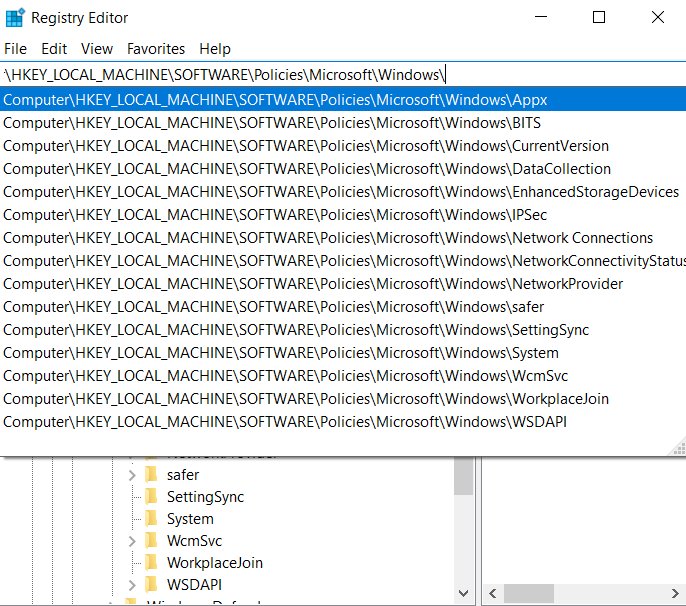
HKEY_LOCAL_MACHINE\SOFTWARE\Policies\Microsoft\Windows. - If there is no WindowsUpdate key, right-click Windows, select New > Key and name it
WindowsUpdate. - Right-click WindowsUpdate and select New > DWORD (32-bit) Value.
- Name the value
ExcludeWUDriversInQualityUpdateand press Enter. - Double-click the value, set Value data to
1and click OK. - Restart the PC.
A value of 0, the default, allows Windows Update drivers again. Policy values written here override the local preferences until you remove them.
Disable driver updates in Windows 11 with Command Prompt
The same registry value can be set in one line from an administrator Command Prompt or Windows Terminal.
reg add "HKLM\SOFTWARE\Policies\Microsoft\Windows\WindowsUpdate" /v ExcludeWUDriversInQualityUpdate /t REG_DWORD /d 1 /fCreates the WindowsUpdate policy key if it is missing and writes ExcludeWUDriversInQualityUpdate as a DWORD of 1. The /f switch skips the overwrite prompt.
You should see: The operation completed successfully.
Restart afterwards so the Windows Update service reads the new policy.
Block automatic driver install for a specific device hardware
Use this when one device, such as a graphics card or printer, keeps receiving a driver that breaks it. Windows will not install or update a driver for a matching device, while every other driver keeps updating.
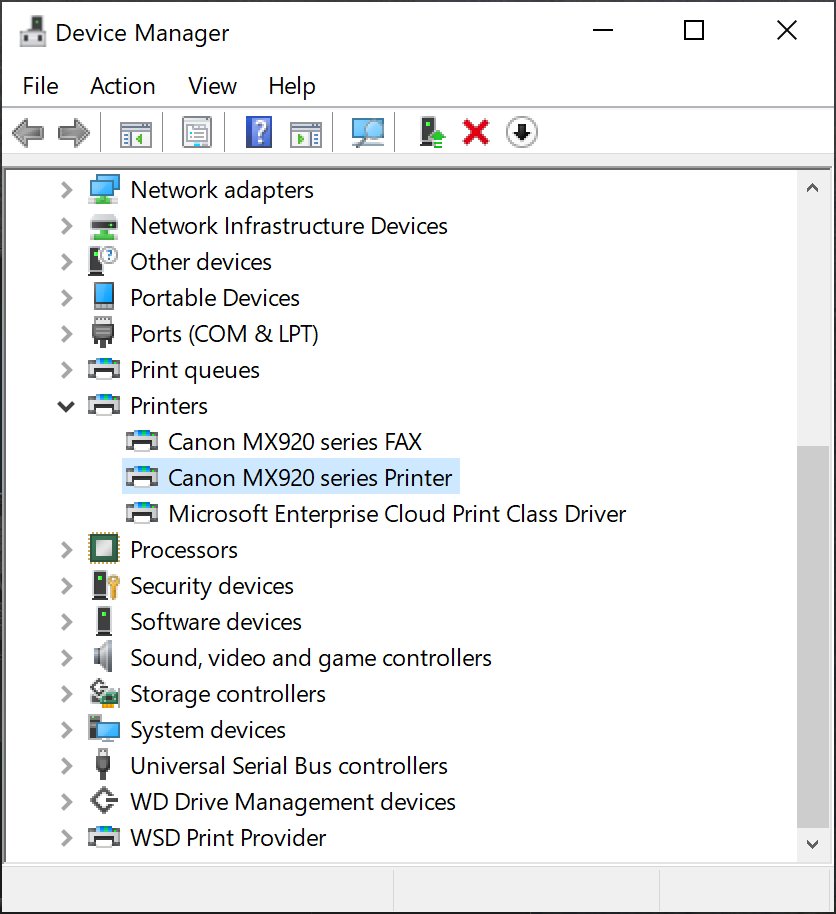
- Right-click Start and open Device Manager.
- Expand the category, double-click the device and open the Details tab.
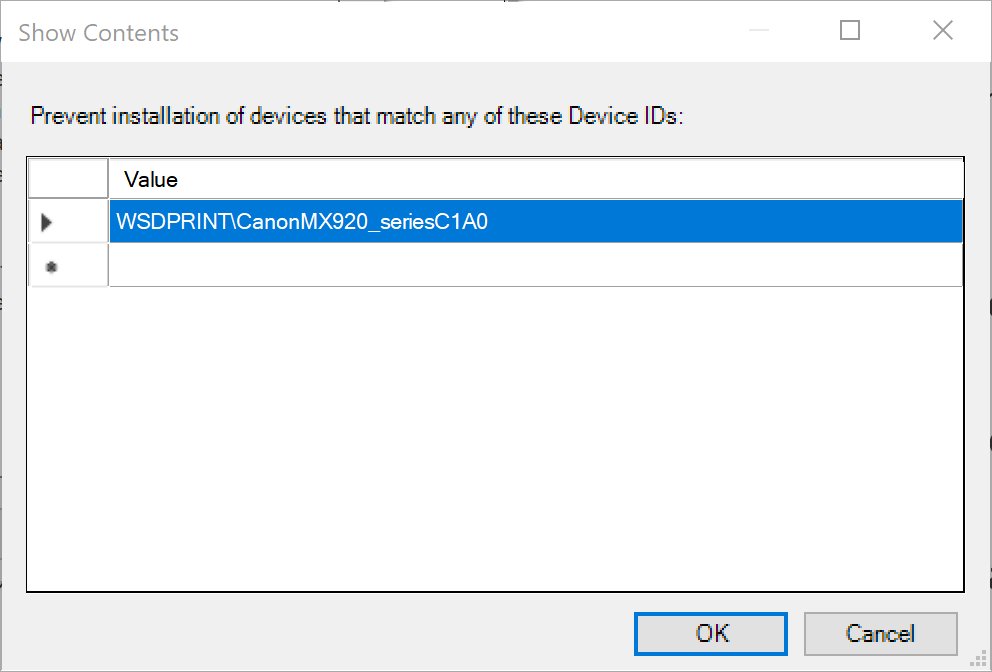
- Copy the most detailed hardware ID, the first entry shown in the Value box.
- Open
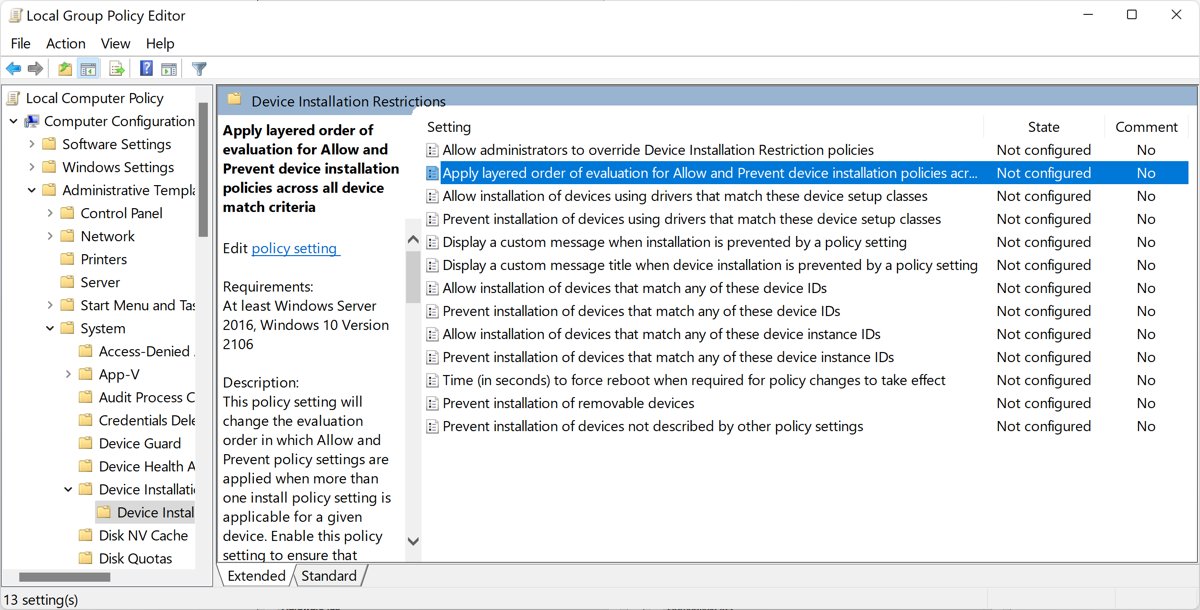
gpedit.mscand go to Computer Configuration > Administrative Templates > System > Device Installation > Device Installation Restrictions. - Double-click Prevent installation of devices that match any of these device IDs and select Enabled.
- Under Options, click Show…, paste the hardware ID into the list and click OK.
- Click Apply, then OK.
The block covers future installs only. To include a device that is already installed, tick Also apply to matching devices that are already installed, but never on disk drives or network adapters, because a retroactive block there can leave the PC unable to boot or connect.
To list hardware IDs from a terminal instead, run pnputil /enum-devices /ids.
How to tell if driver updates are blocked in Windows 11
Query the policy value from an administrator Command Prompt.
reg query "HKLM\SOFTWARE\Policies\Microsoft\Windows\WindowsUpdate" /v ExcludeWUDriversInQualityUpdateReads the policy value that both the Group Policy and registry methods write.
You should see: A line showing ExcludeWUDriversInQualityUpdate as REG_DWORD with the value 0x1
A value of 0x1 means driver updates are excluded. If the command returns an error instead, the policy is not set.
Then open Settings > Windows Update > Advanced options > Optional updates. Driver updates should no longer be listed after the next scan. To compare versions over time, view installed drivers with details before and after.
How to turn automatic driver updates back on in Windows 11
- In
gpedit.msc, open Do not include drivers with Windows Updates again. - Select Not Configured or Disabled, then click OK.
- If you used the registry, set
ExcludeWUDriversInQualityUpdateto0, or delete the value. - For a device block, set Prevent installation of devices that match any of these device IDs to Not Configured.
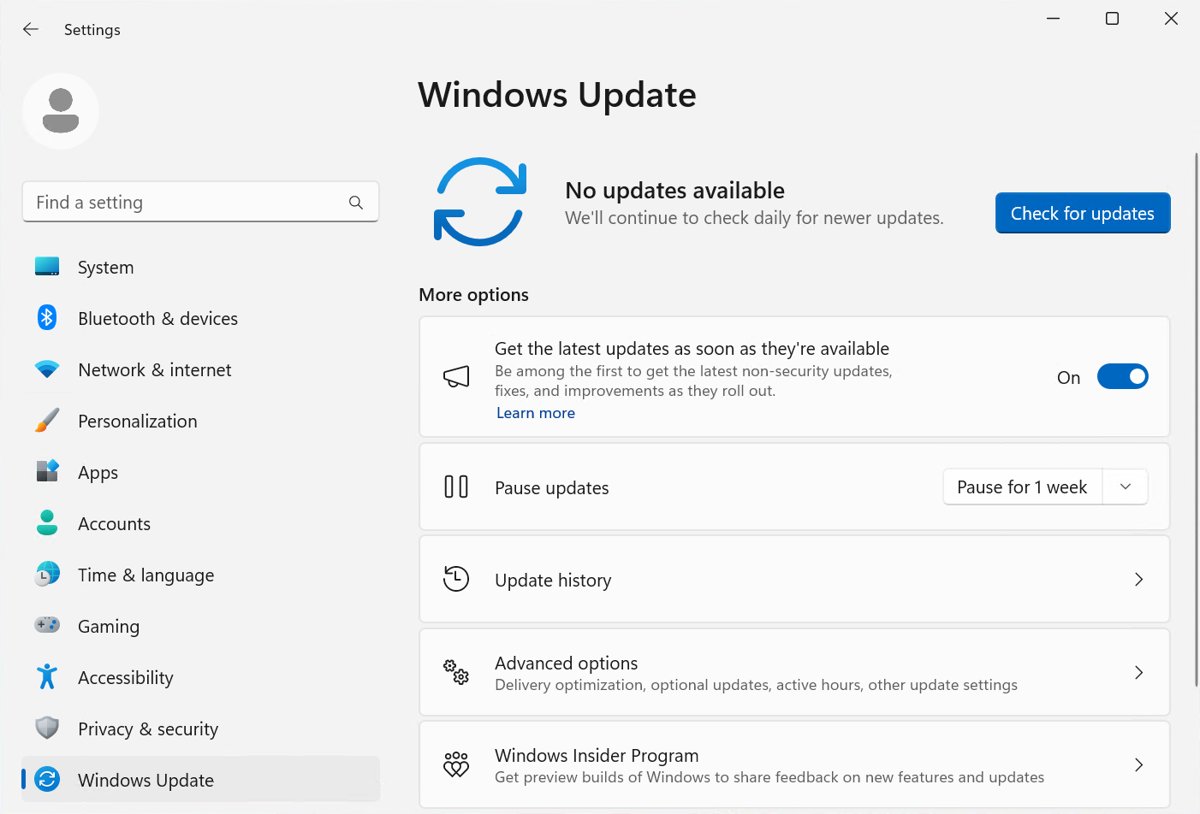
- Restart the PC, then select Check for updates in Settings > Windows Update.
With the policy disabled or not configured, Windows Update includes updates with the Driver classification again.
Windows 11 keeps installing the wrong driver
Windows keeps replacing my latest graphics driver with an older one
Windows Update picks drivers by the maker's targeting data, not by date, so its choice can differ from the one you installed.
- Apply one of the blocks above first, so the replacement does not happen again.
- Right-click Start and open Device Manager.
- Expand the category, right-click the device and select Properties.
- Open the Driver tab and click Roll Back Driver.
- Choose a reason, click Yes and restart if prompted.
- If there is no earlier driver to roll back to, install the driver manually from the manufacturer's official site.
Windows Update still installs drivers after enabling the policy
The policy has not been applied yet, or the value sits under the wrong key.
- Run
gpupdate /forcein an administrator terminal to reapply all policy settings. - Run the
reg querycommand above and confirm it returns0x1. - Check the value is under
HKEY_LOCAL_MACHINE, notHKEY_CURRENT_USER, and spelled exactlyExcludeWUDriversInQualityUpdate. - Restart the PC and select Check for updates once.
Device stopped working after blocking its driver
The retroactive option also prevents access to matching devices that are already installed.
- Open the Prevent installation of devices that match any of these device IDs policy.
- Clear Also apply to matching devices that are already installed.
- Click Apply and restart the PC.
- If the device is still missing, set the policy to Not Configured, reinstall the driver you want, then enable the policy again without the retroactive option.
gpedit.msc does not open on Windows 11
The Local Group Policy Editor is not available on every edition, and Microsoft lists the policy for Pro, Enterprise and Education.
- Use the registry method or the
reg addcommand instead. - Run the
reg querycommand afterwards to confirm the value is in place.
Should you turn off automatic driver updates in Windows 11?
Block a single device by hardware ID when one driver causes trouble, and use the PC-wide policy only when you manage drivers yourself. Windows Update drivers carry fixes and security updates. Turning them all off means every driver now depends on you checking the manufacturer's site, while a device block removes only the driver that breaks.
Windows 11 automatic driver install FAQ
Does Windows 11 install drivers automatically?
Yes. Windows 11 regularly checks Windows Update and automatically downloads and installs recommended drivers when a newer one is available. Optional driver updates are the exception; they appear under Settings > Windows Update > Advanced options > Optional updates and install only when you select them.
Does blocking driver updates stop Windows security updates?
No. The Do not include drivers with Windows Updates policy removes only updates with the Driver classification from what Windows Update offers. Monthly security and quality updates keep installing as normal, so the PC stays patched while you manage drivers yourself.
Why did Windows install an old driver?
The driver date is descriptive information the maker sets, and it can be any date. Windows Update chooses drivers using targeting data inside the driver files, so a driver that looks older may be the one the hardware maker currently recommends for your device.
Why do I see multiple driver updates that look the same?
Many devices split their functions across several drivers, so Windows can install several related drivers at once. Their version numbers may look duplicated or even older, but Windows treats each one as a separate package for a separate part of the device.
How do I roll back a driver that Windows Update installed?
Open Device Manager from the Start button's right-click menu, right-click the device, select Properties and open the Driver tab. Click Roll Back Driver, pick a reason and confirm with Yes. Block the driver afterwards, or hide that driver update, or Windows Update may install it again.
Can I stop driver updates on Windows 11 Home?
Microsoft documents the ExcludeWUDriversInQualityUpdate policy for Pro, Enterprise, Education and IoT Enterprise editions only. On Home, setting the registry value is the only route, and its behaviour there is not officially supported, so a device-level fix such as rolling back the driver is the safer choice.