Windows 11 has no tablet mode switch: it moves into tablet mode by itself when you detach or fold back the keyboard of a 2-in-1 device, and back to desktop mode when you reattach it.
This guide shows how to use that mode, which settings change how it behaves, the touch gestures that drive it, how Windows 10 differs, and how to stop Task View from popping up.
How to put Windows 11 in tablet mode
Tablet mode in Windows 11 follows the hardware. A wired keyboard, a wireless keyboard or a Bluetooth keyboard counts as attached, so remove it to get the tablet layout.
- Save your work so nothing is lost if an app resizes.
- Detach the keyboard from a detachable PC, or fold the screen all the way back on a convertible laptop.
- Disconnect any other wired or Bluetooth keyboard that is still connected to the PC.
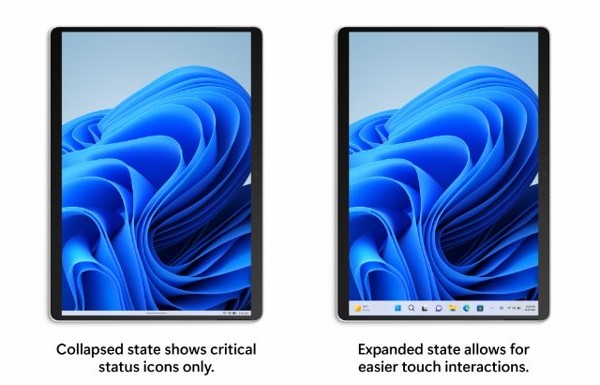
- Wait for the taskbar to shrink to its collapsed state, which still shows the time and battery level.
- Swipe up from the bottom edge of the screen to expand the taskbar with larger, touch-friendly icons.
- Tap an app to open it, and the taskbar collapses again on its own.
- Tap the Touch keyboard icon in the system tray whenever you need to type, and switch the keyboard language there if you write in more than one.
To return to desktop mode, attach the keyboard again or fold the screen back into laptop position. Windows switches back without a prompt.
Tablet mode in Windows 11
Windows 11 calls this behaviour the tablet posture. When the device reports that it is a tablet, convertible or detachable and the keyboard is gone, Windows changes the parts of the desktop that are hard to use with a finger.
| What changes | In tablet posture | With the keyboard attached |
|---|---|---|
| Taskbar | Tablet-optimized taskbar with a collapsed and an expanded state | Standard taskbar |
| Taskbar spacing | Larger space between icons for touch | Normal icon spacing |
| Touch keyboard icon | Shown when the tray setting is When no keyboard attached | Hidden under that same setting |
| Switching | Automatic when the keyboard is detached or folded back | Automatic when the keyboard is attached |
| Manual switch | None in Settings or Quick Settings | None in Settings or Quick Settings |
What happened to Tablet mode in Windows 11?
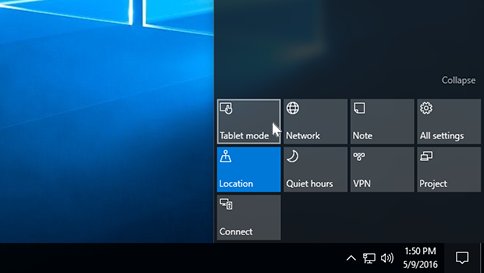
Microsoft removed the manual tablet mode toggle in Windows 11. The Tablet mode tile in Action Center and the Settings > System > Tablet page belong to Windows 10 only.
| Your device | What tablet mode does | What to do |
|---|---|---|
| Windows 11 2-in-1 (detachable or convertible) | Switches on and off with the keyboard | Detach or fold back the keyboard |
| Windows 11 laptop or desktop with a touchscreen | Does not switch, because the device is not reported as convertible | Use the touch keyboard, gestures and display scale instead |
| Windows 11 PC without a touchscreen | Not available | Keep using the keyboard and mouse layout |
| Windows 10 PC | Manual switch through the Tablet mode tile | Turn it on from Action Center |
Windows 11 Tablet mode settings
There is no single tablet mode page in Windows 11. The settings that shape the touch experience sit in three places, the taskbar page, the display page and the Bluetooth and devices settings, and each one works on its own.
| Setting | Where to find it | What it does |
|---|---|---|
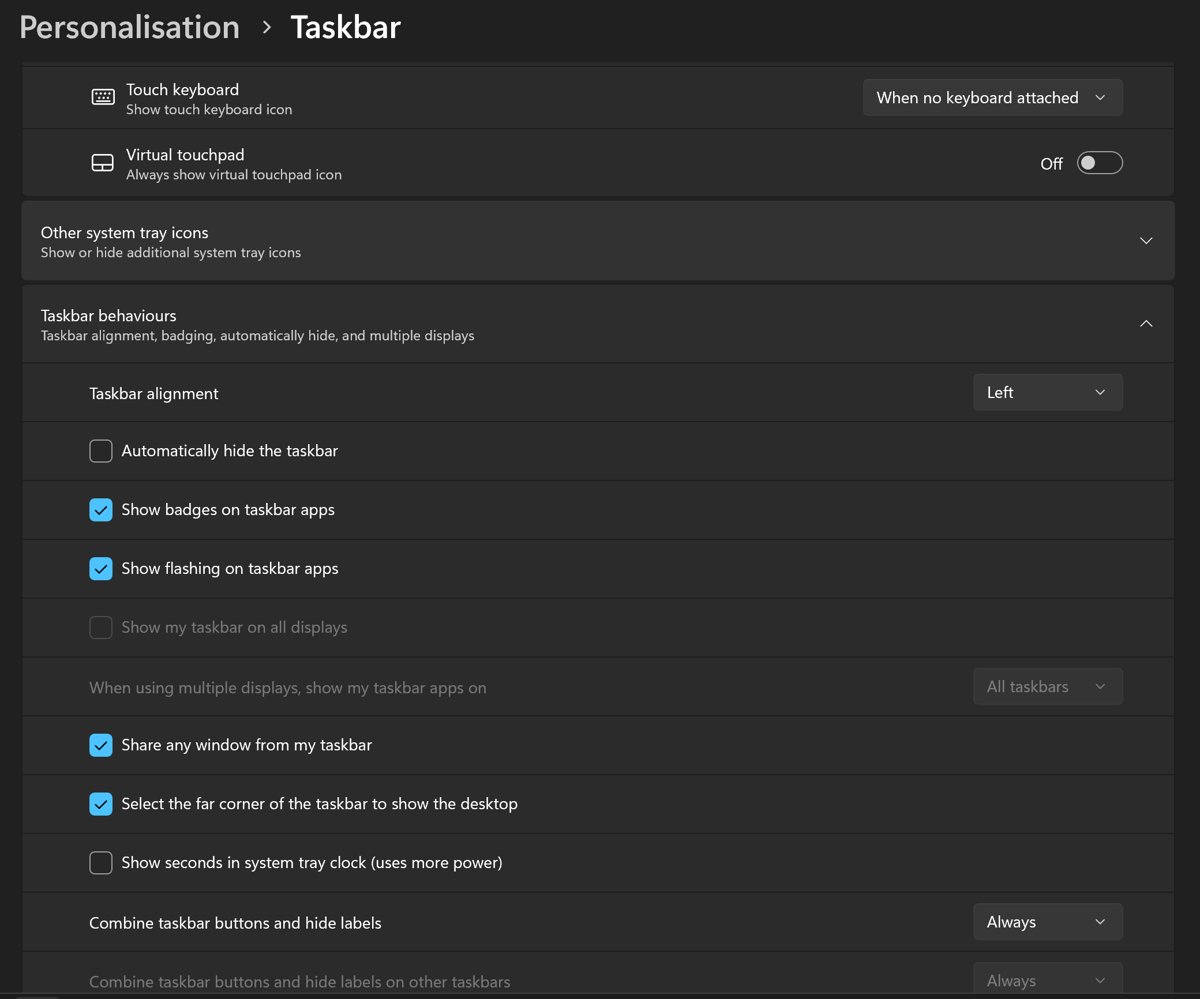
| Optimize taskbar for touch interactions when this device is used as a tablet | Settings > Personalization > Taskbar > Taskbar behaviors | Turns the collapsed and expanded tablet taskbar on or off. Only shown on 2-in-1 devices with tablet functionality |
| Touch keyboard | Settings > Personalization > Taskbar > System tray icons | Choose Never, Always or When no keyboard attached for the touch keyboard icon |
| Automatically hide the taskbar | Settings > Personalization > Taskbar > Taskbar behaviors | Hides the taskbar in desktop mode and tablet mode until you touch the bottom edge |
| Three and four-finger touch gestures | Settings > Bluetooth & devices > Touch | Turns the multi-finger touchscreen gestures on or off |
| Touch screen edge gestures | Settings > Bluetooth & devices > Touch | Controls the swipes from the left and right edges of the screen |
| Scale | Settings > System > Display > Scale & layout | Makes text, apps and icons larger for fingers |
To open the taskbar page fast, press and hold an empty area of the taskbar and select Taskbar settings.
How to use tablet mode on a laptop with Windows 11
A regular laptop with a touchscreen does not enter tablet posture, because Windows only does that on devices the manufacturer reports as a tablet, convertible or detachable. You can still set it up for comfortable touch use.
- Press and hold an empty area of the taskbar, then select Taskbar settings.
- Under System tray icons, set Touch keyboard to Always so the keyboard icon stays on the taskbar.
- Expand Taskbar behaviors and check Automatically hide the taskbar if you want more room on screen.
- Open Start > Settings > System > Display.
- Under Scale & layout, select Scale and pick a larger value so buttons are easier to tap.
- Open Settings > Bluetooth & devices > Touch and switch Three and four-finger touch gestures to On.
These changes stay in place when you plug a keyboard or mouse back in. Set Scale back to the value marked (Recommended) when you return to desk work. If only the words feel small, change the text size instead of scaling everything.
How to use tablet mode in Windows 10
Windows 10 still has a manual switch. Support for Windows 10 ended on October 14, 2025, so the steps below only apply to PCs that have not moved to Windows 11.
- Select the Action Center icon on the taskbar, next to the time and date.
- Select Expand above the tiles if you only see one row.
- Select the Tablet mode tile. It is highlighted when tablet mode is on.
- If the tile is missing, open Settings > System > Notifications & actions.
- Select Edit your quick actions, then Add, and choose Tablet mode.
If Tablet mode is not in the list, Windows 10 does not detect the device as touch-capable.
How to change Taskbar size on Windows 11
Windows 11 has no setting that drags the taskbar taller or moves it to the top or the side of the screen. It always sits at the bottom. On a 2-in-1, the touch-optimized taskbar is the size control: collapsed while you work, expanded with larger icons when you swipe up.
- Press and hold an empty area of the taskbar and select Taskbar settings.
- Expand Taskbar behaviors.
- Check Optimize taskbar for touch interactions when this device is used as a tablet to use the collapsed and expanded tablet taskbar, or uncheck it to keep the standard taskbar in tablet posture.
- To make the taskbar icons and everything else larger, open Settings > System > Display.
- Under Scale & layout, select Scale and choose a higher percentage.
- To get the taskbar out of the way completely, go back to Taskbar behaviors and check Automatically hide the taskbar.
Taskbar alignment in the same section only moves the icons between the center and the left. It does not change the size.
Windows 11 tablet mode touch gestures
Gestures replace most of the mouse work in tablet posture. They need Three and four-finger touch gestures and the edge gestures switched on under Settings > Bluetooth & devices > Touch.
| Action | Touch gesture |
|---|---|
| Select an item | Tap the screen |
| Scroll | Slide two fingers horizontally or vertically |
| Zoom in or out | Pinch in or stretch out with two fingers |
| Show more commands, like a right-click | Press and hold the item |
| Show all open windows (Task View) | Swipe up with three fingers |
| Show the desktop | Swipe down with three fingers |
| Switch to the last open app | Swipe left or right with three fingers |
| Open the notification center | Swipe in from the right edge with one finger |
| See widgets | Swipe in from the left edge with one finger |
| Switch desktops | Swipe left or right with four fingers |
Some apps use three-finger and four-finger input themselves. If one of them stops responding to those touches, turn off Three and four-finger touch gestures while you use it.
How to tell if a Windows 11 PC supports tablet mode
Windows only gives tablet experiences by default when the firmware reports the device as a tablet, convertible or detachable. Two quick checks show whether your PC does that.
- Press and hold an empty area of the taskbar and select Taskbar settings.
- Expand Taskbar behaviors and look for Optimize taskbar for touch interactions when this device is used as a tablet. This option only appears on 2-in-1 devices with tablet functionality.
- Right-click Start and select Device Manager.
- Open the View menu and turn on hidden devices.
- Look for GPIO Laptop or Slate Indicator Driver. Its presence means the device can report laptop and slate states to Windows.
- Detach or fold back the keyboard and check that the taskbar changes to the collapsed tablet state.
If the screen does not react to touch at all, restart the PC, then install all items under Settings > Windows Update > Advanced options > Optional updates and check for updates again. Also confirm that HID-compliant touch screen under Human Interface Devices in Device Manager is enabled.
How to turn off tablet mode in Windows 11
Because the switch is automatic, turning tablet mode off means reattaching the keyboard or removing the parts of it you do not want.
- Attach the keyboard, or fold the screen back into laptop position, to return to desktop mode.
- To keep the standard taskbar even without a keyboard, open Taskbar settings, expand Taskbar behaviors and uncheck Optimize taskbar for touch interactions when this device is used as a tablet.
- To stop the touch keyboard icon from appearing, set Touch keyboard under System tray icons to Never.
- To stop finger touches from doing anything, right-click Start, select Device Manager, expand Human Interface Devices, right-click HID-compliant touch screen and select Disable device.
Repeat the last step for every HID-compliant touch screen entry if there is more than one. Pen and handwriting input has its own switch, so you can also turn off Tablet PC touch input separately.
Task View keeps popping up randomly in Windows 11
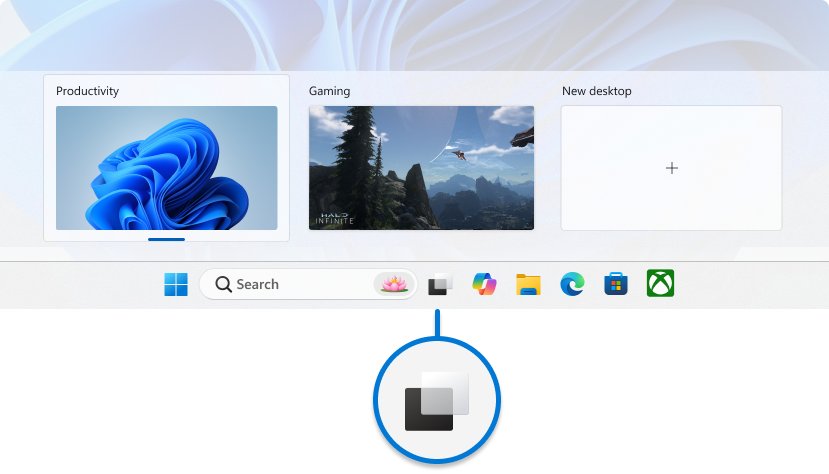
Task View is the screen that shows all open windows and desktops. On a touch device it usually opens because a gesture fires by accident, often while you hold the tablet.
Task View opens when you hold or swipe the touchscreen
A three-finger swipe up on the screen opens all open windows.
- Right-click Start and select Settings > Bluetooth & devices > Touch.
- Switch Three and four-finger touch gestures to Off.
- Hold the tablet by its bezel and check whether Task View still appears.
Task View opens while you use the touchpad
A three-finger swipe up on a precision touchpad also opens all open windows.
- Right-click Start and select Settings > Bluetooth & devices > Touchpad.
- Expand Three-finger gestures.
- Change the swipe action in the drop-down menu to one you will not trigger by accident.
- Expand Four-finger gestures and do the same if desktops switch on their own.
Task View opens when you tap near the Start button
The Task view button sits next to Start and Search on the taskbar, where a palm or finger can hit it.
- Press and hold an empty area of the taskbar and select Taskbar settings.
- Under Taskbar items, switch Task view to Off.
- Use Windows key + Tab or the three-finger swipe when you do want Task View.
Windows 11 tablet mode FAQ
What is Windows tablet mode?
Windows tablet mode is a touch-first layout for 2-in-1 devices. In Windows 11 it brings a collapsible taskbar with larger icons, more space between icons and easier access to the touch keyboard. In Windows 10 it also stretched Start across the entire screen.
How does tablet mode work in Windows 11?
Tablet mode in Windows 11 works automatically. When you detach a keyboard or fold a convertible's screen back, Windows switches to the tablet layout. When the keyboard is attached again, Windows returns to desktop mode. There is no manual toggle.
How do I put my PC in tablet mode?
On a Windows 11 2-in-1, detach or fold back the keyboard and disconnect any wired or Bluetooth keyboard. On Windows 10, select the Tablet mode tile in Action Center. A desktop PC or a standard laptop cannot enter the Windows 11 tablet layout.
How do I turn on tablet mode on a laptop?
A convertible laptop enters tablet mode in Windows 11 when you fold the screen all the way back. A standard laptop does not switch, but you can set the touch keyboard icon to Always, raise the display scale and turn on touch gestures for a similar result.
How do I use tablet mode in Windows 10 on an HP laptop?
On a Windows 10 HP laptop with a touchscreen, open Action Center from the taskbar and select the Tablet mode tile. If the tile is missing, add it under Settings > System > Notifications & actions > Edit your quick actions. Without touch support the tile does not appear.
What is tablet mode in Windows 10?
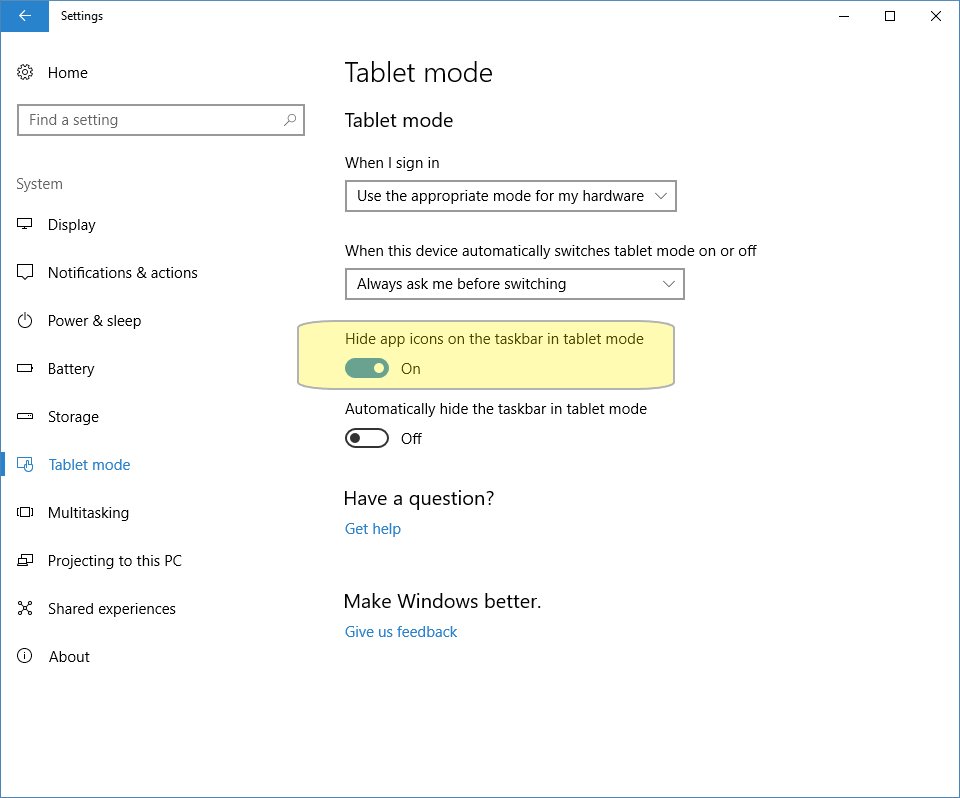
Tablet mode in Windows 10 is a manual mode that stretches Start across the entire screen, hides app icons on the taskbar by default and lets you close apps by swiping down from the top edge. You switch it from the Tablet mode tile in Action Center.
What is tablet mode in a laptop?
Tablet mode in a laptop is the touch layout Windows uses when a 2-in-1 is folded or detached into a tablet. The taskbar becomes easier to tap and the touch keyboard is ready for typing. Regular clamshell laptops do not use it.
How do I get to tablet mode in Windows 11?
Detach the keyboard or fold the screen back on a Windows 11 2-in-1, and the tablet layout appears. Swipe up from the bottom to expand the taskbar. If nothing changes, the device is not reported to Windows as a tablet, convertible or detachable.