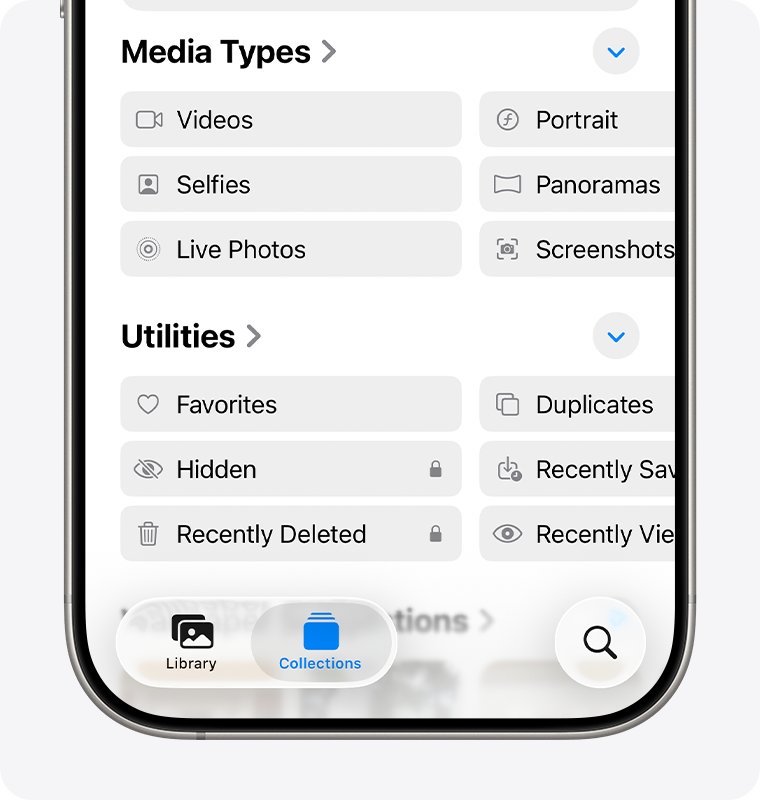
To hide photos on iPhone in iOS 17, open the photo in the Photos app, tap the More button, then tap Hide; the photo moves to the Hidden album, which iOS 17 locks with Face ID, Touch ID or your passcode.
This guide covers hiding one or many photos, locking and hiding the Hidden album, unhiding, locked notes, iCloud and Shared Library behaviour, and the steps on iOS 18 and later.
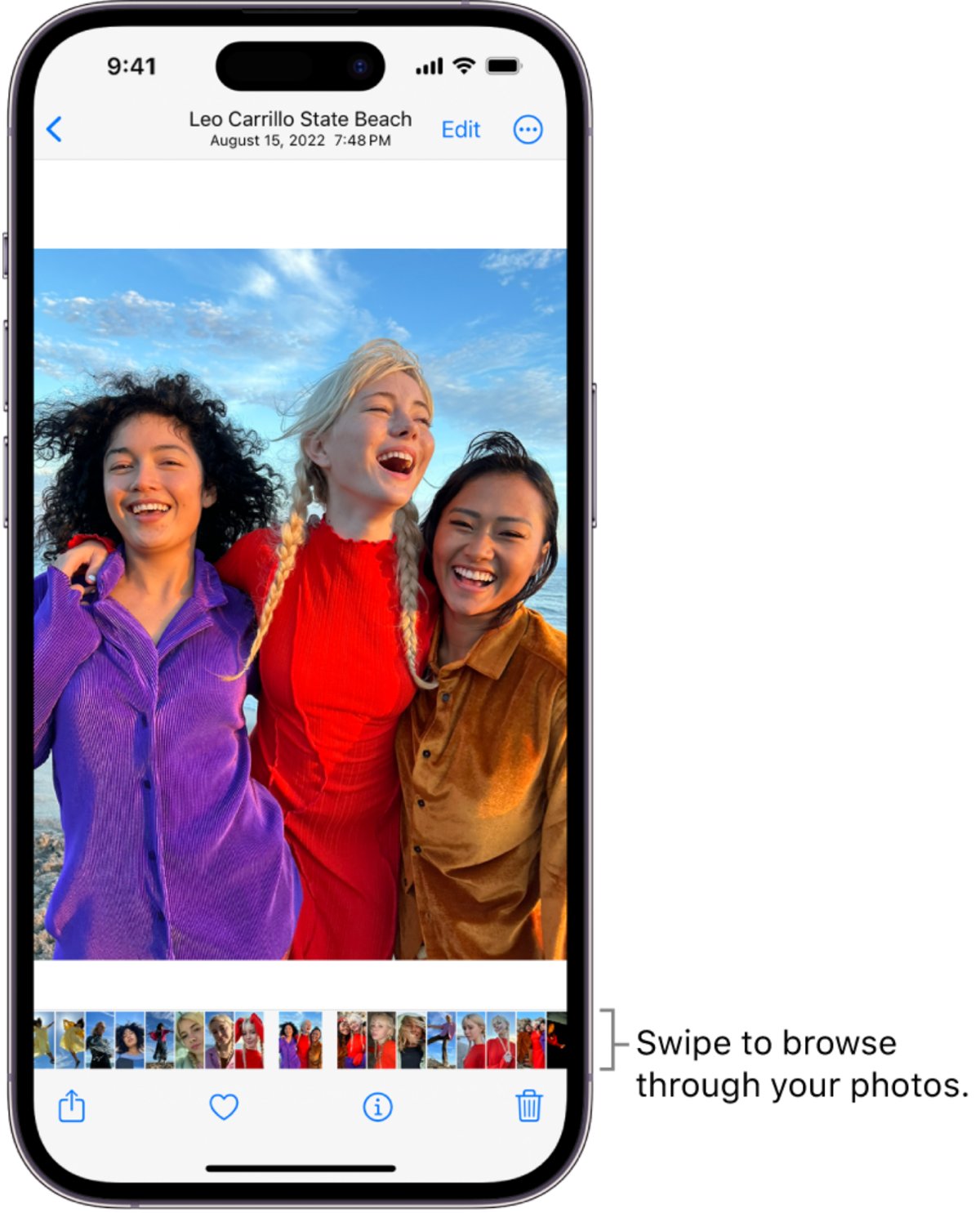
How to hide a photo on iPhone in iOS 17
- Open the Photos app.
- Tap the photo or video you want to hide.
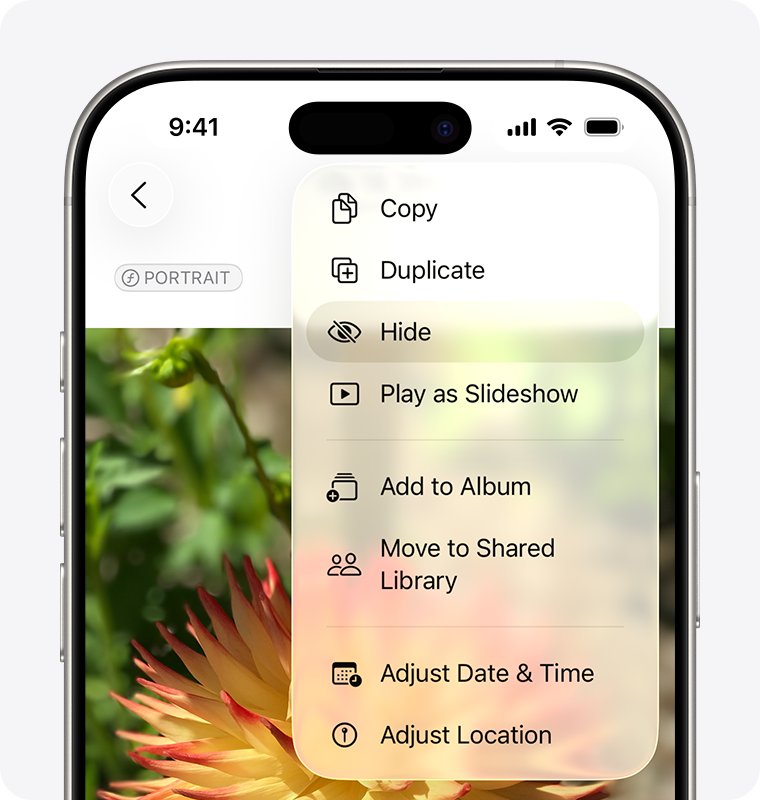
- Tap the More button (three dots).
- Tap Hide, then confirm.
- Check that the photo has gone from Library; it now sits in the Hidden album.
You can also touch and hold a thumbnail in the grid and tap Hide from the menu. If you hid the wrong photo, shake the iPhone within 8 minutes and tap Undo Hide.
Understanding the basics: Why do you want to hide photos?
Hiding keeps a photo on the iPhone and in iCloud while taking it out of the places people glance at. It is a privacy screen, not encryption or deletion.
| Reason | Does hiding help? | Better option if not |
|---|---|---|
| Handing the phone to someone to show other photos | Yes; hidden photos leave Library and albums | — |
| Keeping screenshots of IDs or documents out of the main grid | Yes, behind Face ID | A locked note for extra separation |
| Stopping a photo appearing in the Photos widget | Yes; hidden photos are excluded | — |
| Keeping a photo from a partner who shares your iCloud Shared Photo Library | No; it moves to the Hidden album for every participant | Keep it out of the Shared Library |
| Freeing up storage | No; hidden photos still take the same space | Delete or export the photo |
How does the ‘Hide photo’ feature work in iOS 17?
| Behaviour | What happens in iOS 17 |
|---|---|
| Where hidden photos go | The Hidden album under Utilities in the Albums tab |
| Where they no longer appear | Library, other albums and the Photos widget on the Home Screen |
| Lock | Hidden and Recently Deleted are locked by default and open with Face ID, Touch ID or the passcode |
| Album visibility | The Hidden album shows by default; Settings > Photos > Show Hidden Album removes it from view |
| iCloud Photos | A photo hidden on the iPhone is hidden on every device signed in to the same Apple Account |
| Undo | Shake the iPhone within 8 minutes and tap Undo Hide |
The lock arrived in iOS 16, so iOS 17 keeps the Hidden album locked out of the box. Hiding the album entirely has been possible since iOS 14.
Prerequisites before hiding photos
| Requirement | Why | Where to set it |
|---|---|---|
| iOS 16 or later (iOS 17 for these steps) | Older versions do not lock the Hidden album | Settings > General > Software Update |
| A passcode, plus Face ID or Touch ID | The Hidden album unlocks with them | Settings > Face ID & Passcode or Touch ID & Passcode |
| Use Face ID (or Use Touch ID / Use Passcode) turned on | Turning it off leaves the Hidden album unlocked | Settings > Photos |
| Know whether iCloud Photos and Shared Library are on | They control which devices and people see the change | Settings > Photos |
Not sure your model runs iOS 17? You can check iOS 17 support on older iPhones before you look for the settings.
Step-by-step guide to hiding photos in iOS 17
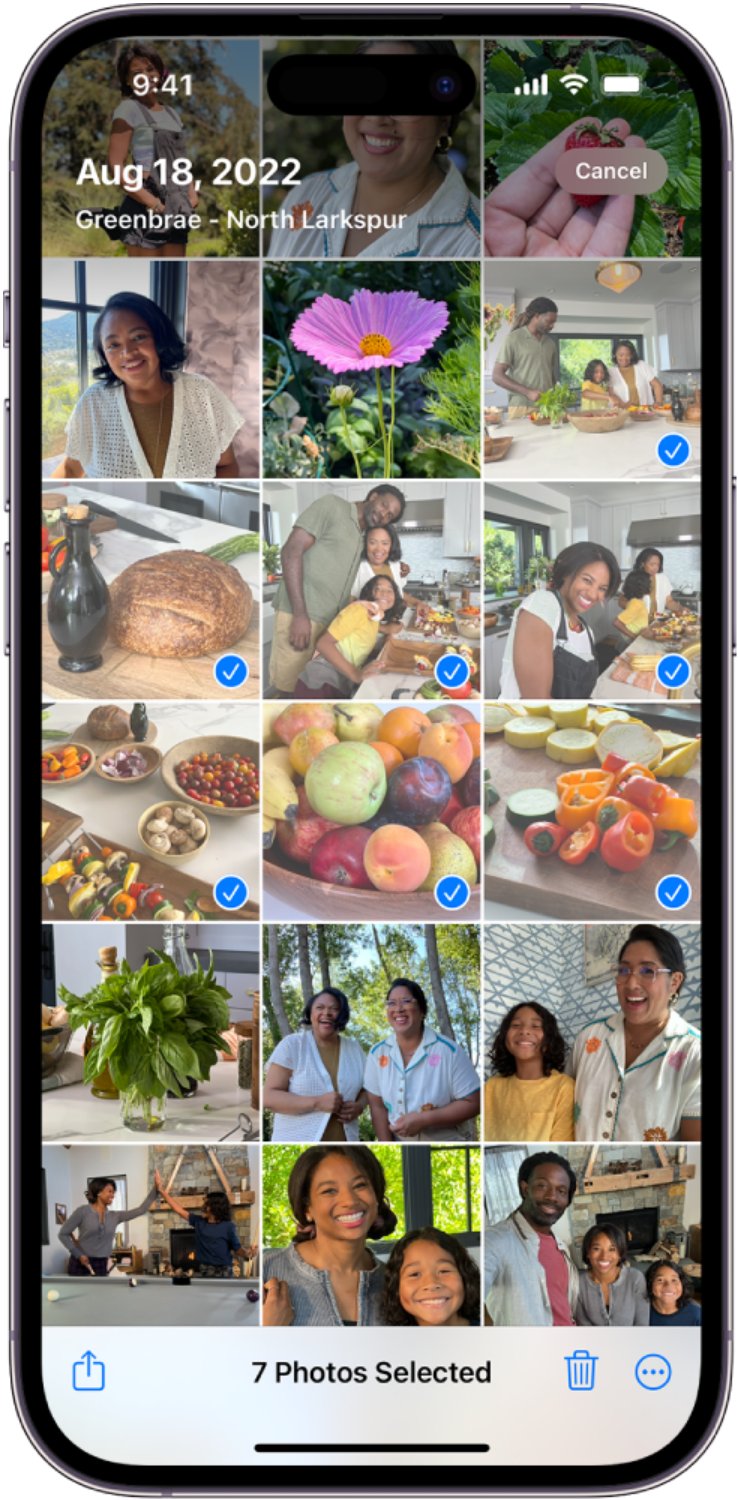
To hide several photos at once, select them in a grid instead of opening each one.
- Open Photos and go to an album, or the Days or All Photos view in Library.
- Tap Select in the top-right corner.
- Tap each photo or video, or drag your finger across a row to select several at once.
- Tap the More button at the bottom of the screen.
- Tap Hide, then confirm how many items to hide.
- Open Albums and scroll to Utilities to see the Hidden count go up.
How to find the Hidden album on iPhone in iOS 17
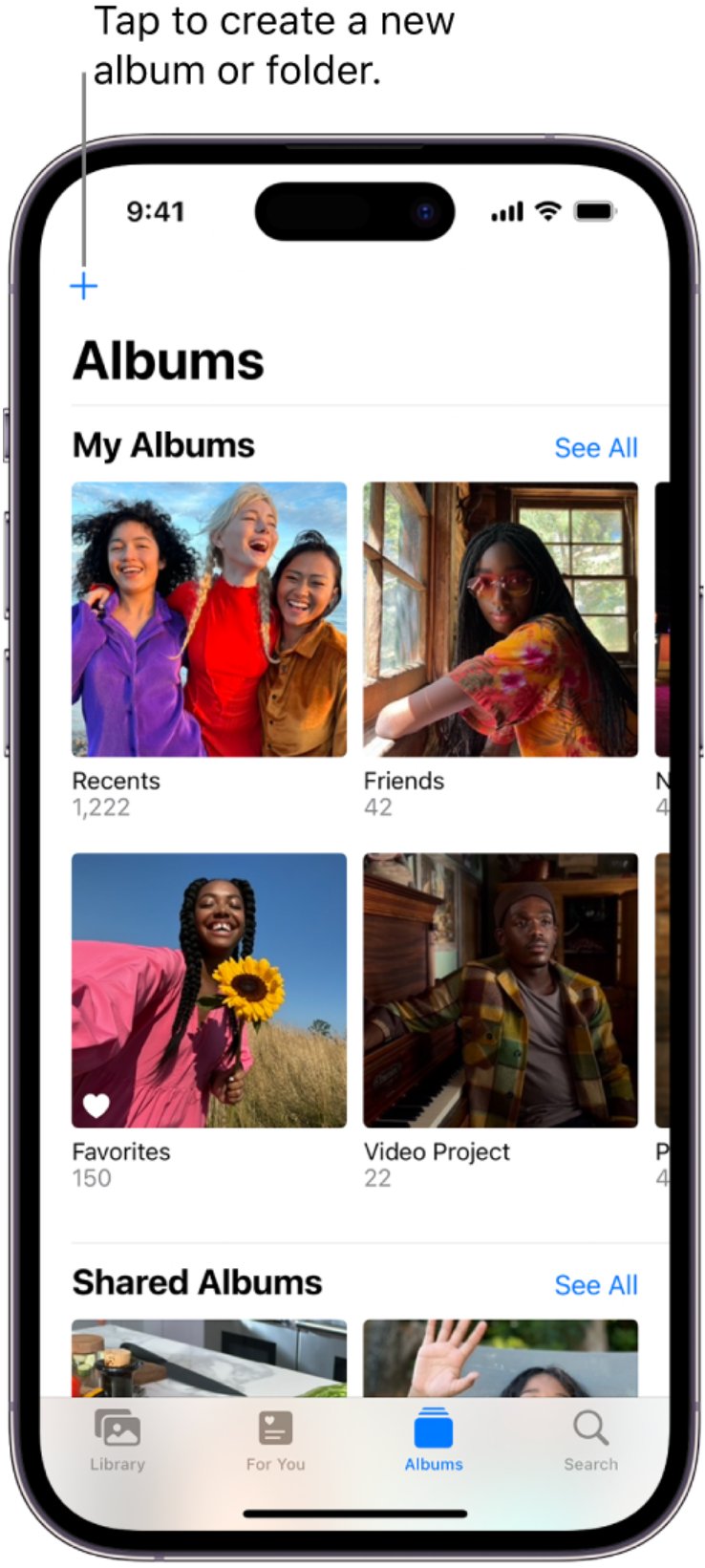
- Open Photos and tap Albums.
- Scroll down to Utilities.
- Tap Hidden.
- Unlock with Face ID, Touch ID or your passcode when asked.
If Hidden is missing from Utilities, the album is switched off. Go to Settings > Photos and turn on Show Hidden Album.
How to hide the Hidden album on iPhone
Removing the album from view adds a second layer: nobody browsing Photos sees that a Hidden album exists.
- Open Settings.
- On iOS 17, tap Photos; on iOS 18 and later, tap Apps, then Photos.
- Turn off Show Hidden Album.
- Make sure Use Face ID, Use Touch ID or Use Passcode stays on so the album is locked when you show it again.
How to unhide photos on iPhone
- On iOS 17, open Photos and tap Albums; on iOS 18 and later, tap Collections.
- Tap Hidden under Utilities, tap View Album if shown, and unlock with Face ID, Touch ID or the passcode.
- Tap the photo or video you want back.
- Tap the More button, then tap Unhide.
- For several items, tap Select, choose them, tap the More button, then Unhide.
Hide photos on iPhone in iOS 18 and later
The hiding steps stay the same after iOS 17, but the Photos layout and Settings paths changed. Use this table if your iPhone has moved past iOS 17.
| Task | iOS 17 | iOS 18 and later |
|---|---|---|
| Hide a photo | Open it, tap More > Hide | Open it, tap More > Hide |
| Open the Hidden album | Albums > Hidden under Utilities | Collections > Hidden under Utilities > View Album |
| Hide the Hidden album | Settings > Photos > Show Hidden Album | Settings > Apps > Photos > Show Hidden Album |
| Lock setting | Settings > Photos > Use Face ID | Settings > Apps > Photos > Use Face ID |
Additional methods for securing hidden photos
The locked Hidden album is the secure album iOS 17 provides. For a photo you want even further out of the way, a locked note is the main built-in alternative.
- Go to Settings > Notes > Password and choose Use Device Passcode or Use Custom Password, then turn on Face ID or Touch ID.
- Open Notes, create a note in your iCloud or On My iPhone account, and tap the camera button to add the photo from your library.
- Tap the More button in the note, then tap Lock.
- Tap the lock icon at the top to close the note; its title stays visible, but the photo is hidden.
- Delete the original from Photos if you want it only in the note; it stays in Recently Deleted for 30 days, which is also locked.
Apple cannot recover a forgotten custom Notes password, so the device passcode is the safer choice for most people. Notes synced with Gmail or Yahoo, notes with video or PDF attachments, and shared notes cannot be locked.
Third-party vault apps are not needed for this. If you use one, check what happens to your photos if the app is deleted or the subscription ends.
Best practices for managing hidden photos
| Practice | Why it matters |
|---|---|
| Keep Use Face ID on | Without it, anyone holding the unlocked iPhone can open the Hidden album |
| Turn off Show Hidden Album too | People cannot ask about an album they never see |
| Check Shared Library before you hide | In an iCloud Shared Photo Library, every participant can open the Hidden album and unhide the photo |
| Remember iCloud Photos syncs the change | A photo you hide is hidden on your iPad and Mac as well |
| Keep a backup | Hidden photos are still part of the library; if you delete them, they go to Recently Deleted for 30 days and then they are gone |
| Review the album now and then | Hidden items are easy to forget when the album is out of view |
If you delete a hidden photo by mistake, you can still recover deleted photos on iPhone within those 30 days.
Troubleshooting common issues
Hidden album is still visible
Show Hidden Album is on, which is the default.
- Open Settings > Photos (on iOS 18 and later, Settings > Apps > Photos).
- Turn off Show Hidden Album.
- Close and reopen Photos, then check Utilities.
Hidden album opens without Face ID
Use Face ID, Use Touch ID or Use Passcode was turned off.
- Open Settings > Photos.
- Turn on Use Face ID (or Use Touch ID or Use Passcode).
- Open Photos > Albums > Hidden to see the lock prompt.
Photos aren't hiding from someone else
The photo is in an iCloud Shared Photo Library, or the other person is signed in to your Apple Account on another device.
- In Photos, use the library filter to switch between your personal library and the Shared Library and see which one holds the photo.
- If the photo is in the Shared Library, every participant can open the Hidden album, so hiding it there does not keep it private.
- Keep private photos out of the Shared Library, and do not share your Apple Account or iPhone passcode with the person.
You hid a photo by mistake
Hide moves the photo straight to the Hidden album.
- Shake the iPhone within 8 minutes and tap Undo Hide.
- After that, open Albums > Hidden, tap the photo, tap More and tap Unhide.
Hidden apps are a separate feature from hidden photos, so if an app is missing too, find hidden apps on iPhone as its own step.
Hidden album tips for a better iOS 17 experience
- After hiding a batch, scroll Library to the date of those photos to see they are gone.
- Open Albums > Hidden and confirm Face ID is requested before the grid appears.
- Check the Photos widget on the Home Screen; hidden photos should never show there.
- On your iPad or Mac with iCloud Photos, open Photos to see the same items hidden.
- Tap Select in the Hidden album to unhide several items at once when you no longer need them hidden.
Hide photos on iPhone FAQ
Where do hidden photos go on iPhone?
Hidden photos move to the Hidden album. In iOS 17 it is under Utilities in the Albums tab of Photos; in iOS 18 and later it is under Utilities in Collections. They no longer appear in Library, other albums or the Photos widget.
Is the Hidden album locked in iOS 17?
Yes. Since iOS 16, the Hidden and Recently Deleted albums are locked by default and open with Face ID, Touch ID or your passcode. You can turn the lock off in Settings > Photos by switching off Use Face ID, but leaving it on is the point of hiding.
Can I hide the Hidden album completely?
Yes. Go to Settings > Photos on iOS 17, or Settings > Apps > Photos on iOS 18 and later, and turn off Show Hidden Album. The album and its contents then disappear from the Photos app until you turn the setting back on.
Do hidden photos sync to iCloud?
Yes. With iCloud Photos on, hidden photos stay in your iCloud library and are hidden on every device signed in to the same Apple Account. On icloud.com, they appear only in the Hidden section after you choose to show hidden photos.
Can people in my Shared Library see my hidden photos?
Yes, if the photo is in the iCloud Shared Photo Library. Hiding a shared photo moves it to the Hidden album for every participant, who can view it or unhide it. Keep private photos in your personal library, not the shared one.
How do I hide multiple photos at once on iPhone?
Open an album or the Days or All Photos view, tap Select, tap or drag across the photos you want, tap the More button, then tap Hide and confirm. Every selected photo and video moves to the Hidden album together.
Does hiding a photo delete it?
No. A hidden photo stays in your library and in iCloud Photos and takes the same storage. It is only removed from view. Deleting is separate: deleted photos sit in Recently Deleted for 30 days before they are removed for good.
How do I see hidden photos on iPhone?
Open Photos, go to Albums (iOS 17) or Collections (iOS 18 and later), tap Hidden under Utilities, and unlock it with Face ID, Touch ID or your passcode. If Hidden is missing, turn on Show Hidden Album in Photos settings first.