Neither the Discord app nor Discord in a browser is reliably lighter on CPU, because both run Discord on a Chromium engine; the real difference comes from the extras each one runs and the tabs you keep open beside it.
This guide explains how the two are built, how to measure Discord's CPU load in Windows Task Manager and Chrome's Task Manager, which features add load, and how to bring it down in each.
Discord app vs. browser CPU usage
| Your situation | Lower-CPU choice | Why |
|---|---|---|
| You chat a little and already have Chrome open | Browser | No extra app processes at startup or in the background |
| You game with voice and want push to talk or the overlay | Desktop app | Its shortcuts work while the game has focus, and the overlay saves alt-tabbing |
| You stream your screen with sound | Desktop app, or Chrome | Discord says audio sharing in a browser works only in Chrome |
| Your PC is slow and Discord sits idle all day | Browser, closed when not needed | Closing the tab ends Discord's load completely |
| You are not sure | Measure both | Task Manager shows the real numbers for your PC in a few minutes |
Discord publishes no app-versus-browser benchmark. Its patch notes do track desktop CPU use, and recent desktop releases have cut it.
Understanding CPU usage
CPU usage is the share of your processor's capacity a program uses at a moment. Windows Task Manager shows it per app on the Processes tab and over time on the Performance tab.
| Discord state | What drives CPU load |
|---|---|
| Idle in the background | Keeping the connection alive, notifications and rendering any animations on screen |
| Busy text channels | Drawing new messages, embeds, animated emoji and GIFs |
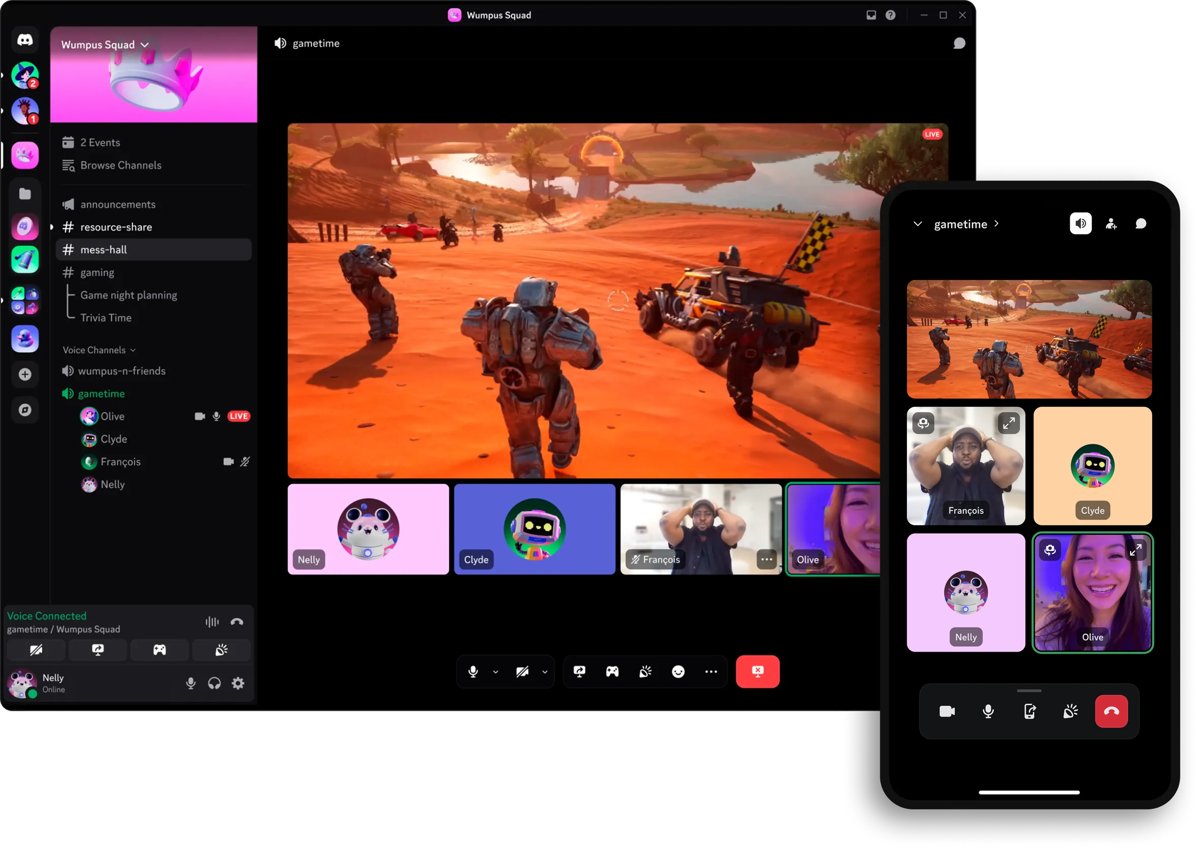
| Voice call | Encoding your microphone and decoding everyone else's audio |
| Video call or watching a stream | Decoding video tiles and streams |
| Streaming your screen | Capturing and encoding frames; Discord notes that copying frames from the GPU to the CPU costs CPU time |
Spikes during a call or stream are normal. Sustained high load while Discord sits idle is the number worth comparing.
Discord’s architecture
Discord's desktop app is built on Electron, a framework that renders desktop apps with a version of the Chromium browser engine. Chrome is built on Chromium as well, so the app and a Chrome tab draw Discord with closely related engines.
| Piece | Desktop app | Browser version |
|---|---|---|
| Rendering engine | Chromium, bundled inside Electron | The browser's own engine |
| Processes | Electron main and renderer processes, shown as several Discord entries in Task Manager | Part of the browser's processes, shown per tab in the browser's task manager |
| Updates | Discord ships its own Electron version; it moved to Electron 42 in 2026 | Follows your browser's updates |
| Runs at startup | Can be registered as a Windows startup app | Only when you open the site |
| Shared with other sites | No, it is a separate program | Yes, it shares the browser with your other tabs |
The desktop application
The Discord desktop app runs on Windows, macOS and Linux and adds features the browser cannot offer.
| Desktop-only advantage | CPU cost to expect |
|---|---|
| Keyboard shortcuts work even when Discord is not in focus, including push to talk | Small: the app listens for key presses in the background |
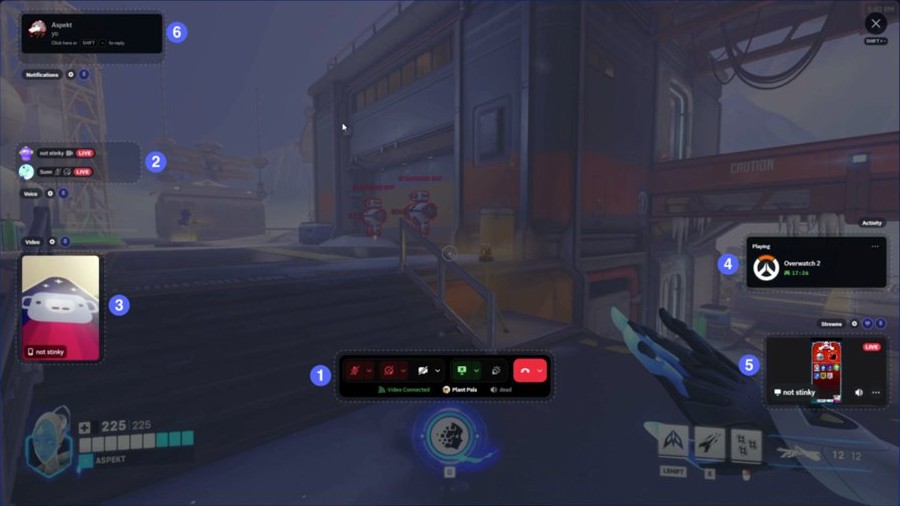
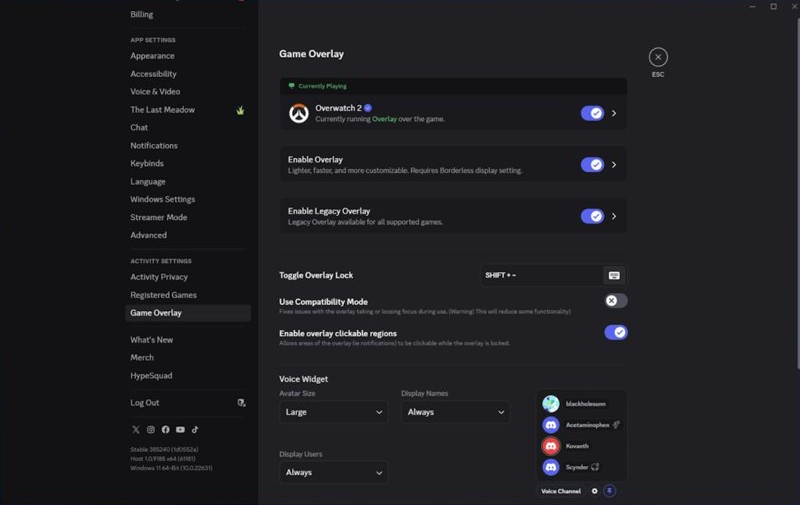
| In-Game Overlay on Windows, opened with Ctrl + ` | Extra work while a supported game runs in windowed or borderless mode |
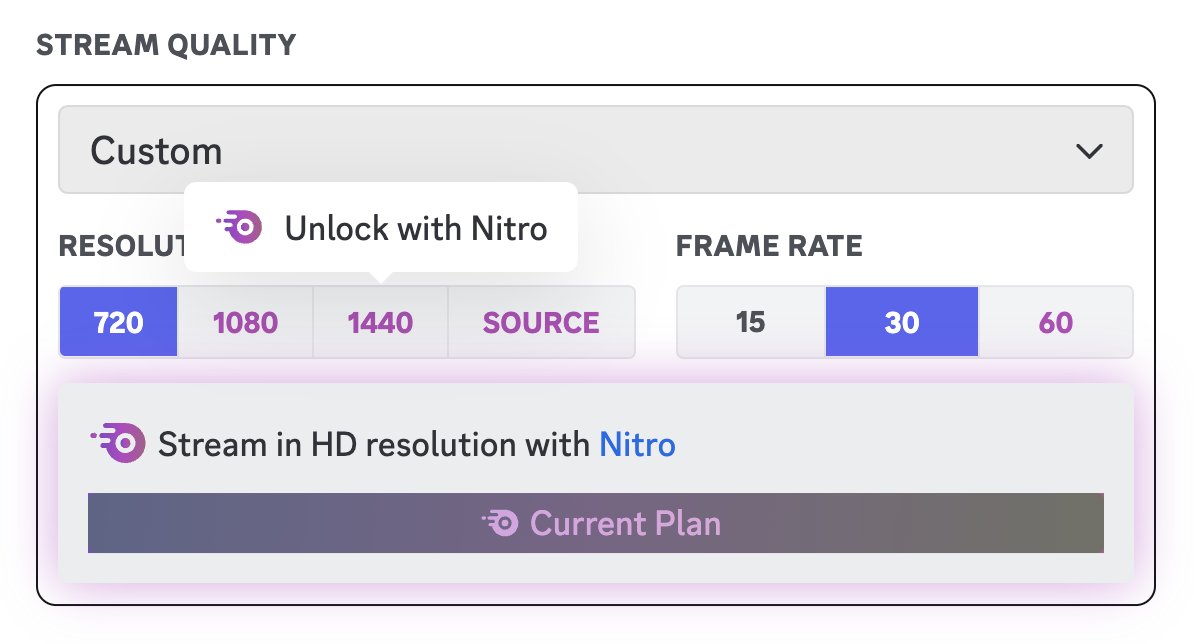
| Built-in stream quality options | Higher quality means more encoding work |
| Shows what you are playing as your status | Light background game detection |
| Can launch with Windows | Load starts at sign-in, even if you never open it |
Discord's patch notes report steady desktop savings: Electron 42 cut median CPU use by about 17%, at the cost of about 4% more median memory. A later rendering fix saved about 3%.
The browser version
Discord runs at discord.com in a desktop browser with no install, and you can use Discord in a web browser with the same account.
| Browser trait | Effect on CPU and features |
|---|---|
| No background program | Closing the tab ends all of Discord's load |
| Shares the browser with other tabs | Heavy tabs beside Discord add to the same browser's total |
| Shortcuts work only while the browser is in focus | No global push to talk while a game has focus |
| Screen share audio only in Chrome | Other browsers stream video without application sound |
| Chrome Memory Saver and Energy Saver | Performance settings that help active tabs run smoothly and extend battery life |
How to check Discord CPU usage in Task Manager
Measure both versions on your own PC under the same conditions: same channel, same call, nothing else heavy running.
- Press Ctrl + Shift + Esc to open Windows Task Manager.
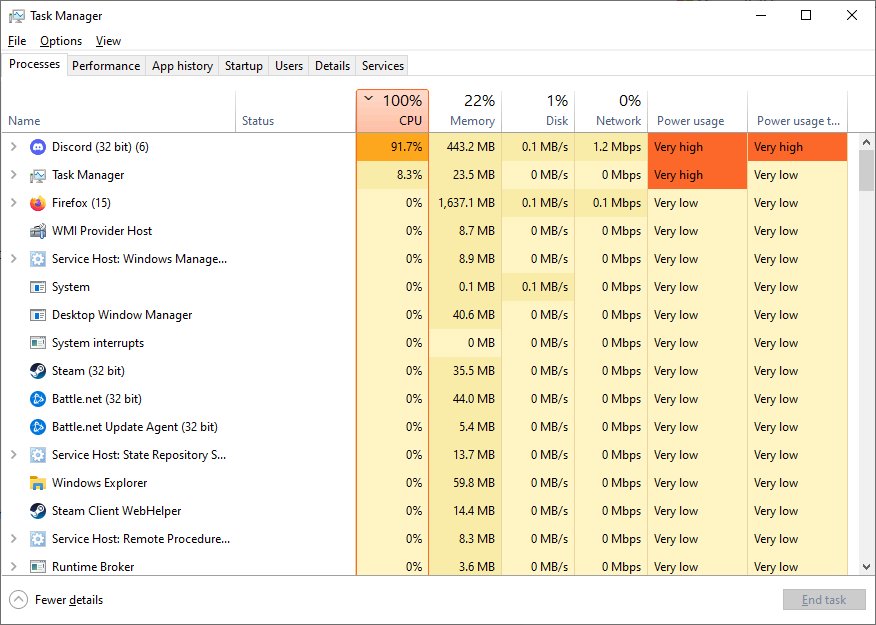
- On the Processes tab, find Discord and expand it to see every Discord process.
- Note the CPU column total after Discord has sat idle for a minute, then again during a call.
- Quit the desktop app fully, then open discord.com in Chrome and join the same channel or call.
- Press Shift + Esc in Chrome to open the Chrome Task Manager.
- Read the CPU value for the Discord tab and compare it with the desktop app's figures.
Use Chrome's built-in Task Manager rather than the whole Chrome entry in Windows Task Manager, which includes every other tab you have open. The same Processes and Performance tabs help you check overall CPU usage in Windows 11 once Discord is closed.
Comparative analysis of CPU usage
Without a published benchmark, the fair comparison is by workload. This table shows which version has a structural edge in each case.
| Workload | Desktop app | Browser | Edge goes to |
|---|---|---|---|
| Idle, Discord not in use | Keeps running if left open or set to start with Windows | Zero once the tab is closed | Browser |
| Text chat | Same kind of Chromium rendering | Same kind of Chromium rendering | Neither: measure |
| Voice while gaming | Global push to talk and overlay | Shortcuts need the browser in focus | App, on features |
| Screen share with sound | Supported, with quality options | Sound only in Chrome | App |
| Many other tabs open | Separate from your browser load | Adds to the browser's total | App |
| Low-spec PC | Can be quit fully when not needed | Can be closed with the tab | Whichever you close |
How to reduce Discord CPU usage
- Stop the desktop app from launching at sign-in: press Ctrl + Shift + Esc, select Startup apps, select Discord and choose Disable.
- Or open Start > Settings > Apps > Startup and turn Discord off.
- Turn off the overlay for games where you do not need it under User Settings > Overlay.
- Lower your stream quality from the drop-down next to the screen share button when you stream.
- Test the Hardware Acceleration toggle under User Settings > Advanced, measuring CPU with it on and off.
- In Chrome, open Settings > Performance and turn on Energy Saver or Memory Saver.
- Close Discord fully when you finish, rather than leaving it in the background.
Keep Discord updated. Recent desktop releases cut CPU use for typing indicators by 1% and for streaming by 4.5%, both relative figures.
Other considerations
| Factor | Desktop app | Browser |
|---|---|---|
| Memory | Electron 42 traded about 4% more median memory for lower CPU | Shares memory with other tabs; Chrome can show tab memory usage |
| Battery on a laptop | Runs in the background unless quit | Chrome Energy Saver helps extend battery life |
| Startup time | Discord cut median desktop launch time by 11.8% with an API change in 2026 | Loads with the page |
| Phones and tablets | Discord offers apps on the App Store and Google Play | Use the mobile app instead of a phone browser |
| Linux | Global shortcuts now work on Wayland | Same browser limits as other systems |
Discord CPU usage FAQ
Does Discord use a lot of CPU?
Usually not while idle, but load rises during voice, video and especially screen sharing. Discord's own patch notes track desktop CPU use and report cuts of about 17% from its Electron 42 upgrade and 4.5% when streaming.
Is Discord in the browser lighter than the app?
Not reliably. Both run Discord on a Chromium engine. The browser avoids background startup load, while the app keeps Discord separate from your other tabs. Measure both in Task Manager on your own PC.
Why does Discord have so many processes in Task Manager?
The desktop app is built on Electron, which uses a main process and renderer processes, much like a Chromium browser. Task Manager groups them under Discord, so add up the CPU of every entry.
Does turning off hardware acceleration lower Discord CPU usage?
It depends on your PC. The toggle sits under User Settings > Advanced in the desktop app. Measure CPU in Task Manager with it on and off during the same activity, and keep the setting that gives the lower figure.
Does the Discord overlay work in the browser?
No. The In-Game Overlay is a desktop app feature, and it works only on Windows PCs, not on macOS or Linux. It also needs the game to run in windowed or borderless windowed mode.
Does push to talk work in Discord's web app?
Only while the browser is in focus. Discord's shortcuts work in the desktop client even when Discord is not in focus, but in the web app they stop as soon as you click into a game.
How do I stop Discord from starting with Windows?
Open Task Manager with Ctrl + Shift + Esc, select Startup apps, select Discord and choose Disable. You can also turn it off under Start > Settings > Apps > Startup.